
This guide discusses the different methods of accessing Technical Support for those who have purchased support from Bromcom (as opposed to a third party support centre, such as a Local Authority)
Support is also available through the Bromcom Online Community, providing access to a network of thousands of Bromcom users.
For information on how to raise a development idea and the development process see How Customer Ideas Get Developed
There may be times where the software doesn’t function as expected or where the service does not meet expectations. Such situations can be extremely frustrating. However, threatening, abusive, or hostile language or behaviour towards staff is not tolerated. Please refer to the Bromcom Zero Tolerance Policy.
For security purposes, technical support is provided to authorised contacts only. These are individuals nominated by a registered contact from the school to raise case with Bromcom (see next section). Contacts must have had training on the product, either from Bromcom or internal training from the school. Training can be accessed Here. Parents are not able to use the Bromcom helpdesk for any reason.
For problems logging in or if the reset password process is not working, please email customercareteam@bromcom.com
For customers using consultancy or other 3rd parties see here
Once in the Transition support phase with Bromcom, the School or Trust (usually the person responsible for implementing Bromcom) will provide contacts for each school.
These contacts are then added to the system by Bromcom; the named contacts will then receive an email invitation within 2 working days, with a link to register to the Bromcom support site (help.bromcom.com), which must be used within 24 hours.
Once individuals have registered to the Bromcom support site, they can then Create, Edit, or Deactivate contacts for their school on the Support Site (help.bromcom.com) as below;
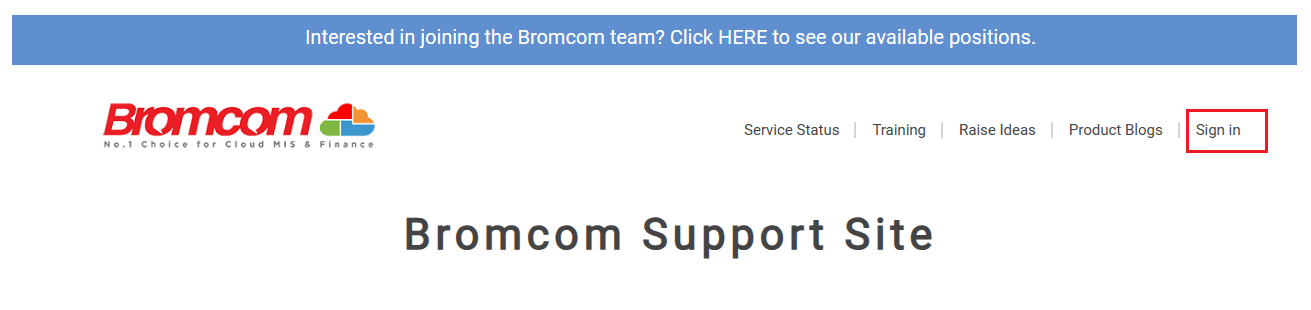
Go to help.bromcom.com
Click Sign In
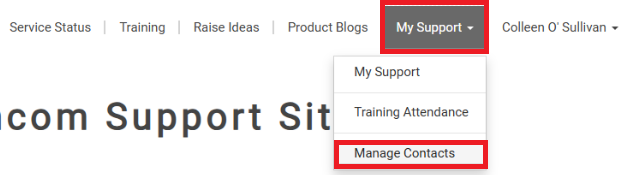
Once you have signed in from the My Support drop down click Manage Contacts.
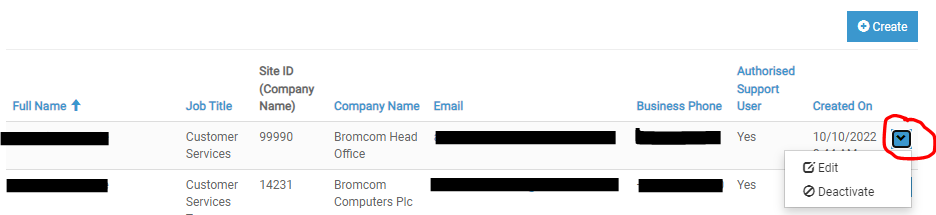
From here it is possible to +Create, Edit or Deactivate contacts.
If further contacts are added to the school, Bromcom will review the request, if validated, these individuals are sent an email invitation within 2 working days with a link to register to the Bromcom support site, which must be used within 24 hours.
Please note that staff members who have not received training from the school or Bromcom, will not be sent login details to the Support Portal.
You can book the relevant training Bromcom Basics – Primary and Secondary via the Training Platform.
Support is available via the Phone (020 8290 7177), Online Chat, or via our online Support Site, which allows you to raise cases and exchange messages with our agents https://help.bromcom.com/.
The opening hours are as follows:
Phonelines: Phones are manned by human agents between 08:00 and 16:00 Monday to Friday and a virtual support agent outside of these time.
Online Chat: open 08:00 – 16:00 Monday to Friday. Primary schools only.
Web cases: can be raised 24/7, 365 days per year.
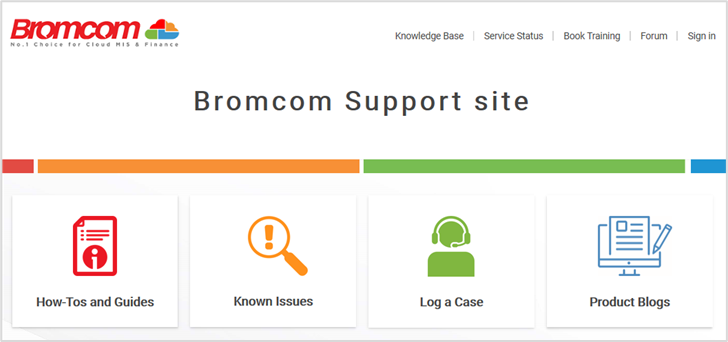
The contact channel used choose should depend on the nature of your query.
Phone – calling us is generally the fastest way to get an answer.
Online Chat – chat is best for simpler queries, as the support team will not be able to see the screen or hear a description of the problem. For more complex or detailed questions, try calling instead. Please note online chat is only available for Primary schools.
Web case – for complex, detailed queries and those that require screen shots and examples, its best to raise a web case. For any case raised online, make sure to add as much detail as possible into the case to enable the Support Team get to work without having to request further information.
The web portal must be used when replying to cases with the support team. Communication via email is NOT Accepted.
Bromcom support can be reached on 020 8290 7177.
To access Phone Support, your school Site ID and User Pin will be required. This is visible within the Support Portal under the Your Name > Profile section.
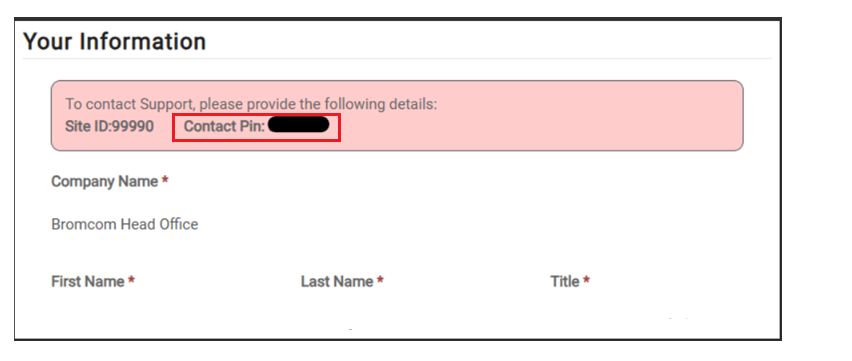
When raising support cases as a trust contact, the main trust Site ID must be used. This enables assistance to be requested for any site linked to the multi‑academy trust.
Trust contacts cannot use a child Site ID to verify identity through this computerised process.
IMPORTANT! The User Pin is specific to each Support User and MUST NOT be shared under any circumstances.
If you fail verification you will be passed to a agent who assist you with accessing your User PIN.
In order to meet the SLA, the right information about the query or incident is required at the point the case is raised. This prevents the need to make contact requesting further information in order to help resolve the case.
Each issue or query requires a separate ticket, even if they relate to the same school, module or process.
When raising cases, the following should be included:
- The module you are working in
- The path to the area (example, Reporting > Reports>List Reports>KS2 tracker)
- The priority of the call
- A description of the issue including;
- What the issue is
- Where the issue exists
- When the issue happens
- Whether the issue is reproducible and if so how – providing full steps to recreate including full screen prints and relevant audit reports as attachments
- Whether anyone else is experiencing the issue
- Whether there has been any change to the system recently, prior to which the issue did not exist
- Screen dumps and/or sample reports of error messages
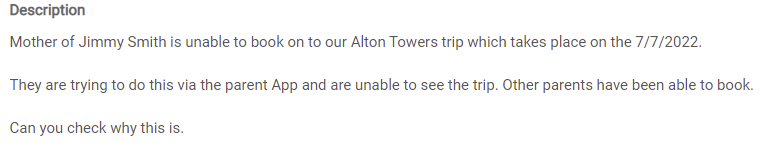
Here is an example of a case where there is not enough information for us to progress it without having to make contact.

Here is an example of case with enough information that can be worked on straight away.
Case Creation Form: August 2026 update
We’re making a small change to the case creation form on help.bromcom.com for customers who receive support directly from Bromcom.
When you raise a case, the form will now check the information in your description and provide some immediate guidance on whether there is enough detail for our Helpdesk to begin investigating.
You’ll see a simple colour-coded panel:
🟢 Green – Ready for investigation
The description contains the key information we would normally need, including a screenshot or other supporting evidence where appropriate.
🟠 Amber – More detail would help
You’ve provided most of the information needed, but the form will highlight anything else that could help us investigate more quickly.
🔴 Red – More information needed
Some important details are missing. The form will tell you what additional information would be useful before submitting.
🔵 Blue – Performance issue detected
The description appears to relate to a Bromcom performance issue. We’ll highlight this so that the right information can be captured to help us investigate.
Any guidance shown is advisory only. If you don’t have all the requested information to hand, you can still submit your case as normal.
Why are we making this change?
We know that not everyone is an expert at raising support cases, nor should you need to be. It isn’t always obvious what information will help our Helpdesk investigate an issue, particularly when something has gone wrong and you just need help getting it fixed. But unfortunately, cases can be delayed because our Helpdesk needs to come back to the person raising the case for information such as:
- Where in Bromcom the issue occurred
- What they were trying to do
- What happened and when
- Whether other users are affected
- Screenshots or other evidence
Providing this information when the case is first raised gives our team a better chance of investigating and providing a useful answer without having to ask additional questions.
But to help even more..
The form will also suggest relevant Help Centre articles as you enter the details of your case.
If there’s already guidance that could resolve the issue, you’ll be able to access it straight away without adding any extra steps to the case creation process.
🔊 We want to hear from you 🔊
This is a work in progress. We’ll monitor how the new guidance is working and continue to adjust based on feedback from both our customers and Helpdesk team.
At times, the Helpdesk Team may need to request that some basic troubleshooting tasks are carried out to help diagnose an issue. This section covers two common troubleshooting tasks that may be required:
- Clearing Browser Cache
- Providing Screenshots of Browser Console Error Logs
If asked to Clear the Browser Cache, this guide provides detailed instructions for doing so across several of the most commonly used internet browsers: How To Clear Your Browser Cache
If asked to provide screenshots of Browser Console Error Logs, these can be obtained by pressing F12 within the browser window. This will open a panel on the right hand side of the browser window. Ensure Console is selected at the top.
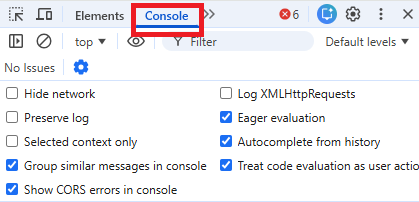
Once the panel is opened and Console is selected, perform the task that is resulting in an error. Now Screenshot the full console panel paying particular attention to any errors appearing in Red. This can be done by pressing WIN + Shift + S on the keyboard, selecting the area and pressing Capture.
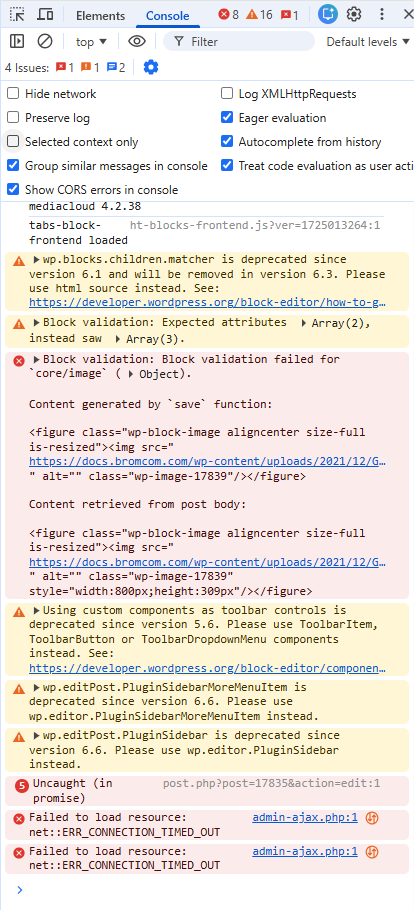
Now Save the screenshot, then attach it to a Portal Comment on the Support Ticket.
The Support Desk operates in accordance with a Service‑Level Agreement (SLA). This means the Priority of the ticket determines the target response time and resolution timeframe
Categories: A Category will be required when raising a ticket. A Service request is a query or request for support. An Incident is a loss of functionality.
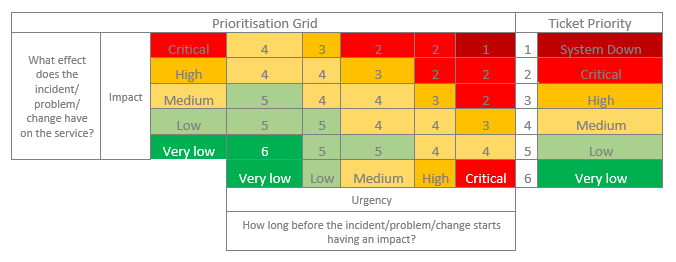
Priorities: A Priority will also need to be selected. Priority is determined by a combination of Impact x Urgency. The prioritisation grid below shows how to determine the appropriate Priority level:
Note that System Down status is level 0 and this is treated as the highest priority regardless of Impact and Urgency.
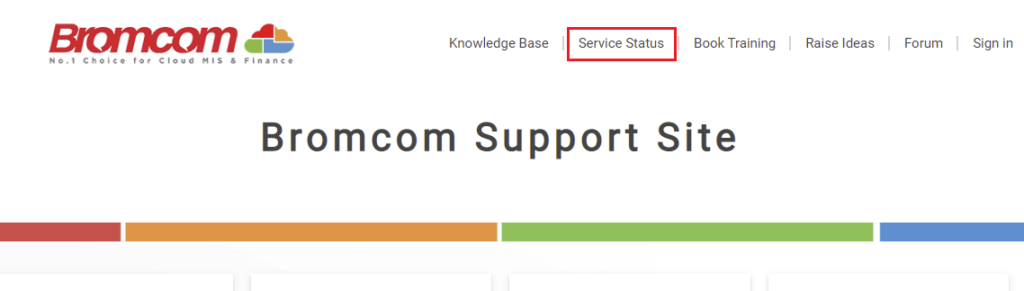
The status of the Cloud can be checked on the Service Status page accessed through the support portal. Make sure to subscribe to get updates.
Once the Category and Priority are applied to the ticket, the SLA in the tables below determine the target response and resolution times we will work to.
Where possible, Bromcom will always try to provide workarounds to any incidents, so that schools can carry on with their day to day tasks.
Note: All targets are based on working hours/days (8am – 5pm Monday to Friday, and 8am – 4pm on Wednesdays), excluding bank holidays.
- SLAs are suspended in circumstances where Bromcom is awaiting a response, a workaround has been provided or where an issue is resolved but a data fix is still needed to fully resolve the case.
- Service Request raised by Support Centres are not subject to SLA.
- Bromcom’s availability SLA (>99%) applies 365 days per year.
Service Request SLA
| Priority Level | Response Target | Resolution Target | Description |
| 3 – High | 1 Day | 4 Days | Requests for support which, if they are not answered, have a high impact (see prioritisation grid above). These are likely to be concerning business critical modules (e.g. Attendance, Census) |
| 4 – Medium | 2 Days | 8 Days | Requests for support which, if they are not answered, have a medium impact (see prioritisation grid above). These are likely to be concerning business critical modules (e.g. Attendance, Census) |
| 5 – Low | 3 Days | 30 Days | Requests for support that have a low impact on the running of the school (see prioritisation grid above) |
| 6 – Very Low | 4 Days | 45 Days | Very minor queries that have minimal or no impact on the running of the system in the school; for example, checking how something might be done in a future hypothetical scenario. |
Incident SLA
| Priority Level | Response Target | Resolution Target* | Description |
| 1 – System Down | 1 Hour | 4 Hours | No access to the MIS or subsidiary services, MCAS, VLE or Vision |
| 2 – Critical | 2 Hours | 1.5 Days | Total loss of functionality in a business critical module (e.g. Attendance, Census) that has a critical impact (see prioritisation grid above) |
| 3 – High | 4 Hours | 3 Days | Loss of functionality, likely to be in a business critical module (e.g. Attendance, Census), that has a high impact (see prioritisation grid above) |
| 4 – Medium | 8 Hours | 6 Days | Loss of functionality in a non-business critical module (e.g. MCAS) that has a medium impact (see prioritisation grid above) |
| 5 – Low | 16 Hours | 30 Days | Loss of functionality in a non-business critical software product (e.g. MCAS) that has a low impact (see prioritisation grid above) |
| 6 – Very Low | 32 Hours | 45 Days | Queries and requests that do not have any impact on the school (see prioritisation grid above) |
*Subject to release schedule.
The Known Issues Page of the Support Site lists Medium, High, and Critical defects in Bromcom and is updated daily.

Click on an item to see the replication steps, along with the details of the expected and actual results.
Estimated and Planned Resolution Dates can also be viewed on this page, where these are available.
- Estimated Resolution Date: this is the latest date that the fix is currently scheduled for. This date is subject to change and can either be brought forward or moved back. Not all items will have an Estimated Resolution Date.
- Planned Resolution Date: If the fix will go out sooner than the Estimated Resolution Date, the date will be listed here. Not all issues have a Planned Resolution Date.
The Recently Resolved tab shows all defects resolved in the last 30 days.
Note that the Known Issues displays a list of known defects, rather than outages or temporary interruptions to service. These performance issues will still be listed on our Service Status Page
Every effort will be made to provide a workaround for every Known Issue and the timeline for fixing the issue.
Passwords can be reset from the Login Page
Click the Forgot Username or Password? button.
Enter the email address associated with the support portal account and click Send.
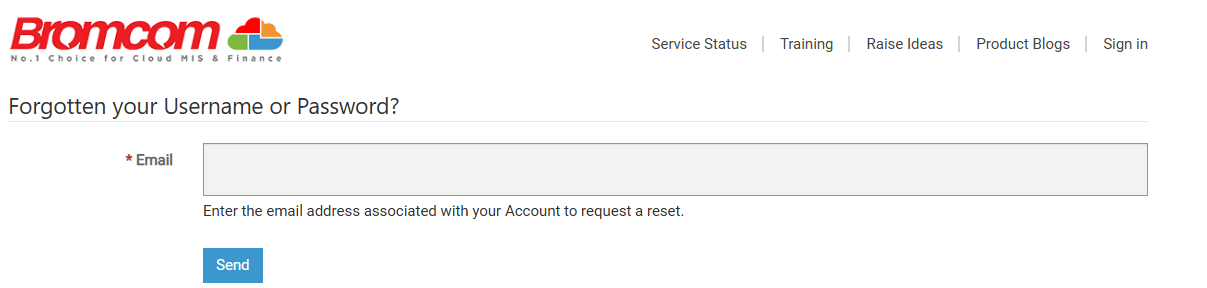
If the email address is found on the system, an email will be sent from SupportDesk@bromcom.com containing the username and an option to reset the password

Once logged in to the support site, the password can be changed by selecting Sign In > Click Your Name > Click Profile > Click Change Password.
While we strive to meet the highest levels of service possible, delays may still occur on high-impact issues affecting customers where initial prioritisation is not appropriate. This may impact our case resolution and response times.
If a school or Trust is experiencing any of the issues listed below, a request for re‑prioritisation may be submitted by emailing CustomerCareTeam@bromcom.com and quoting the relevant case reference number, provided the criteria apply:
- The issue is preventing the school/Trust from executing a critical task
- Non-compliance with statutory requirements e.g. data protection law
- A data breach
- Safeguarding risk
- Inability to take registers
- Inability to produce reports (Ofsted inspections, VAT, statutory deadlines)
Cases will not be prioritised outside of SLA unless the case meets the criteria outlined above.
Bromcom has a zero-tolerance policy, which can be found here.
You can contact Customer Care via CustomerCareTeam@bromcom.com to raise a major concern, or if you are not happy with the response or service on a particular case.
Each case raised with us has a Status. When a case is first raised, the status is Open. Throughout the lifecycle of the case the support team will update the Status, providing information on its progress.
Two of the Statuses will auto close the case after six working days if there is no response, these are:
Awaiting Response – Occasionally cases are logged with insufficient information. In these instances the support agent will set the status of the case to Awaiting Response and ask for additional information such as examples and replication steps. If no response is received in six days the case will close and the status will show as Closed (Automatic).
Resolved & Awaiting Confirmation – This status indicates the case has been resolved but is awaiting confirmation from the you before it is closed. If no response is received in six days the case will close and the status will show as Closed (Automatic).
Cases can be re-opened on the Support Site by writing a comment on the case.
The Support Team are not able to build reports on behalf of users. However, full support and guidance can be provided throughout the report‑building process. Should any questions or challenges arise while working on a report, the team remains available to offer assistance
In the reporting module, users can request AI-generated reports. While we strive for accuracy and quality, please review and verify the generated content independently before use. The support team cannot investigate discrepancies in AI-generated results.
Please note that data restoration and correction is a chargeable service.
- Complex data restoration (e.g. deleted student/staff) – £350 plus VAT
- For exceptional items (e.g. schools changing DfE number) – £650 plus VAT
Before any work can be undertaken, a purchase order needs to be attached to the support case. Once done the team will schedule in the work.