This guide looks at the following tasks in relation to Governor Management within the MIS.
- Permissions
- Creating Lookup Tables
- Check for an Existing Record
- Creating a Governor Record
- Managing Governor Meetings
To note about this guide;
- It is recommended that all users review this guide in its entirety to ensure a complete understanding of the procedures for managing Governor Records and Governor Meetings
- When working through this guide the user may see fields marked with an *asterisk, These fields are mandatory and must be completed to save the form.
- THE SCREENSHOTS USED IN THE GUIDE ARE FOR ILLUSTRATION PURPOSES ONLY AND MAY DIFFER IN A LIVE SCHOOL’S MIS.
Permissions
- Minimum access requirements can be found under:
Config > Setup > Roles and Permissions - To use the features covered in this guide, you will need the appropriate permissions within the Administration and Framework modules (see example screenshots below)
- If you do not currently have access, please contact your system administrator to request the necessary permissions.
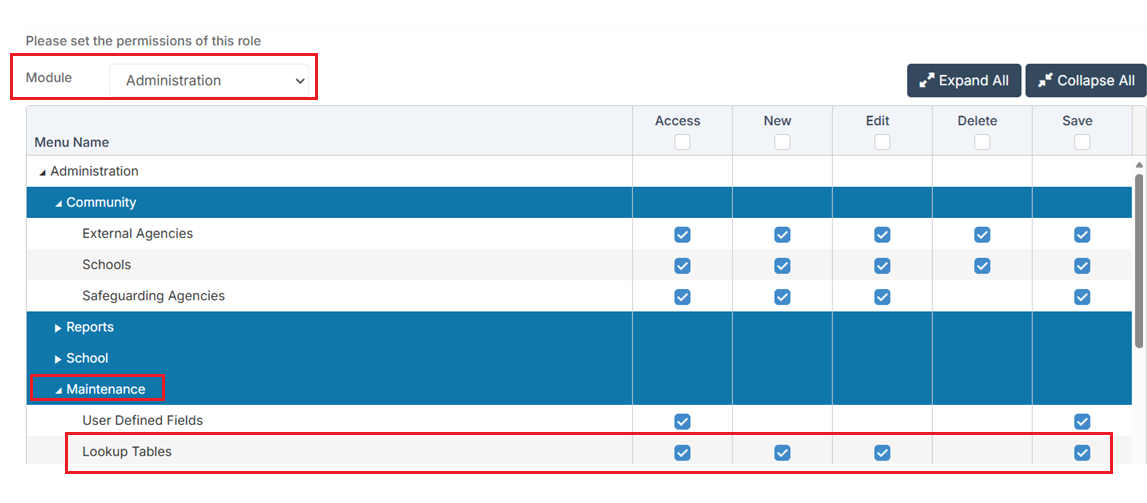
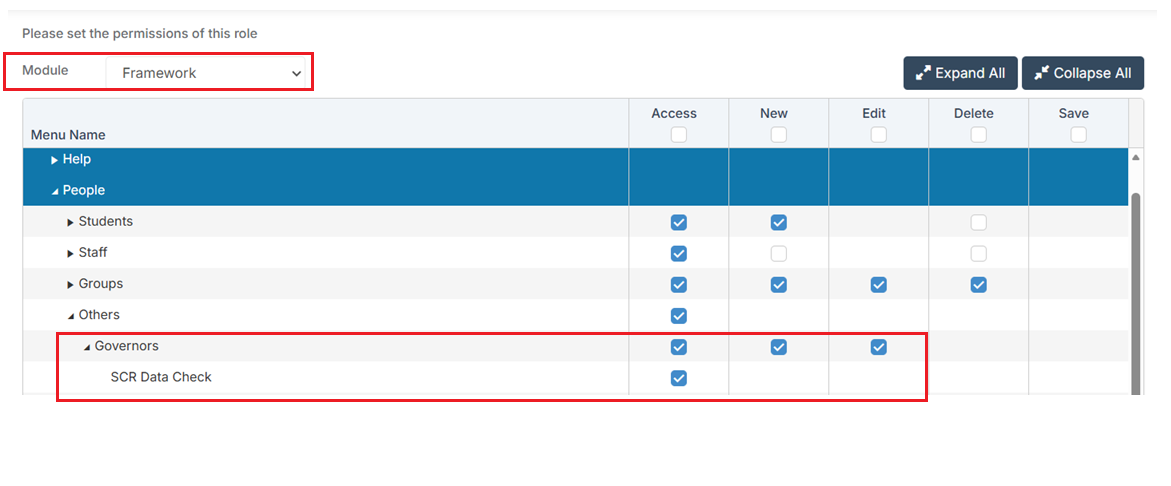
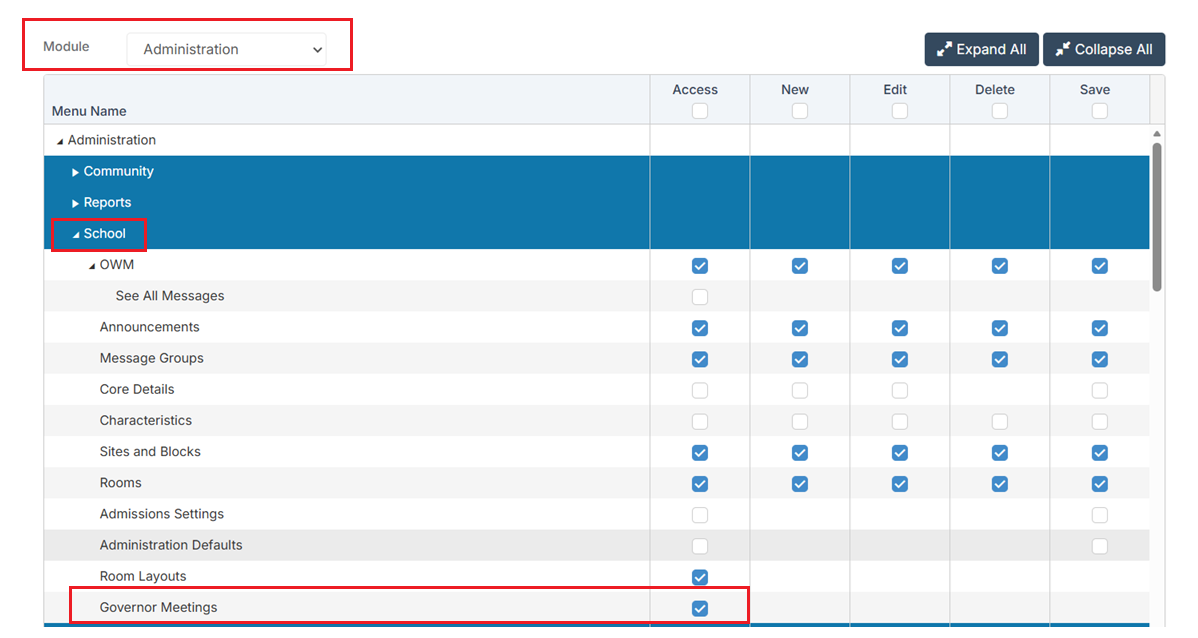
For more information see How to Edit a Role and its Permissions
Creating Lookup Tables
Lookup Tables are simple lists of options that the user can choose from in the system, usually chosen from a drop down list.
There are five Lookup Tables used in the Governor Record and in Governor Meetings
- Committee Memberships
- Governor Leaving Reasons
- Governor Meeting Types
- Governor Roles
- Governor Types
The process and example screenshots below illustrates the process for creating or editing a Committee Memberships Lookup. The steps are identical for all Lookup types covered in this guide.
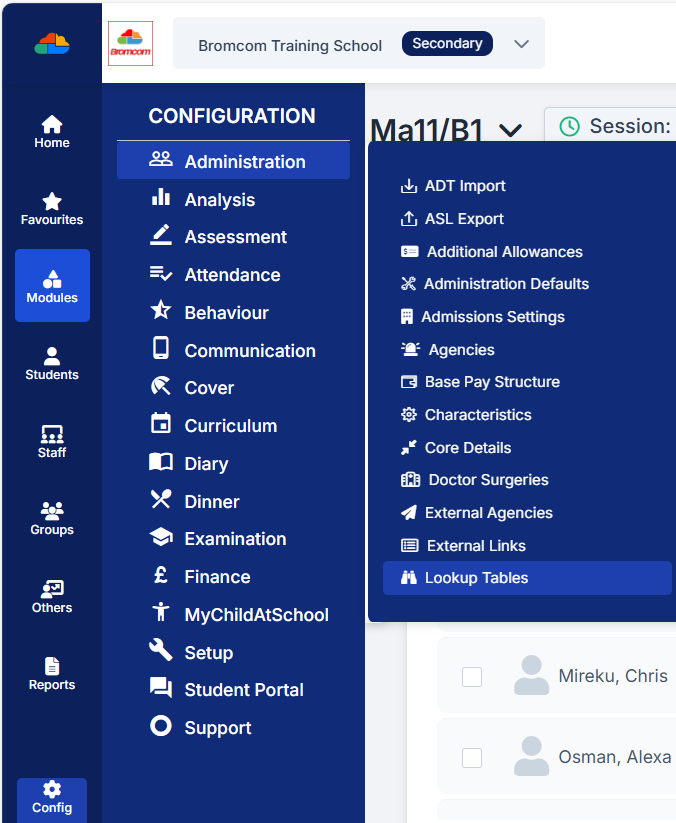
Navigate to Config>Administration>Lookup Tables
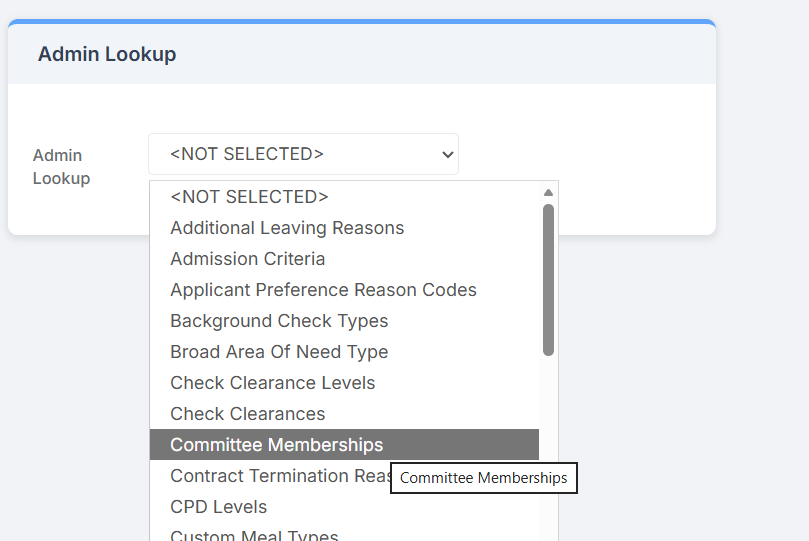
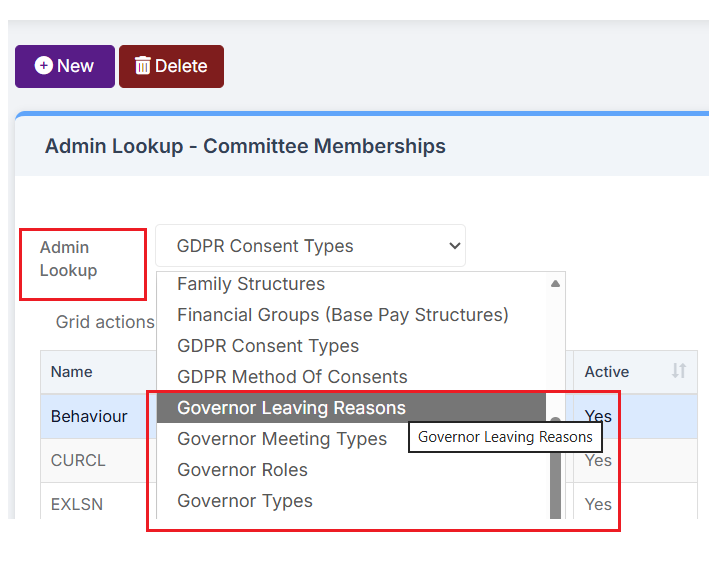
- Click on the Admin Lookup dropdown menu and select the relevant Lookup to create or edit.
- The list is arranged alphabetically to facilitate easy selection.
- In this example we have chosen Committee Memberships.
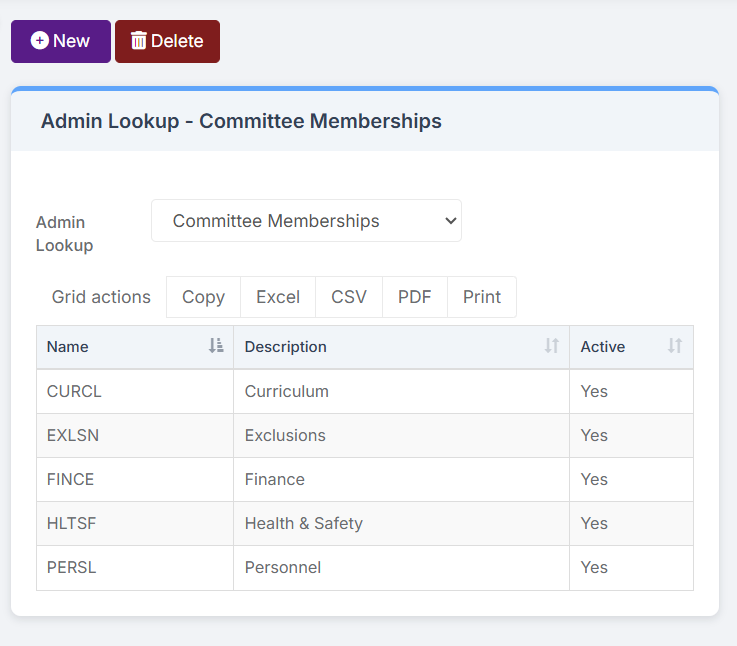
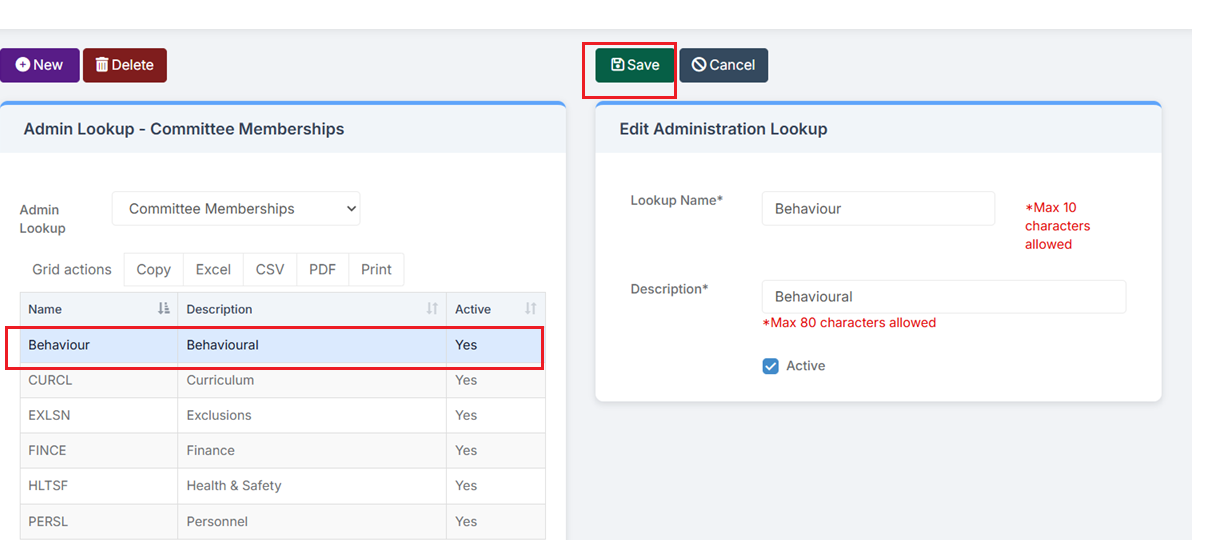
The screenshot below shows examples of previously created Lookups for Committee Memberships
To create a new Committee Memberships Lookup click the top left New button, and the Add Administration Lookup panel will appear on the right side of the screen.
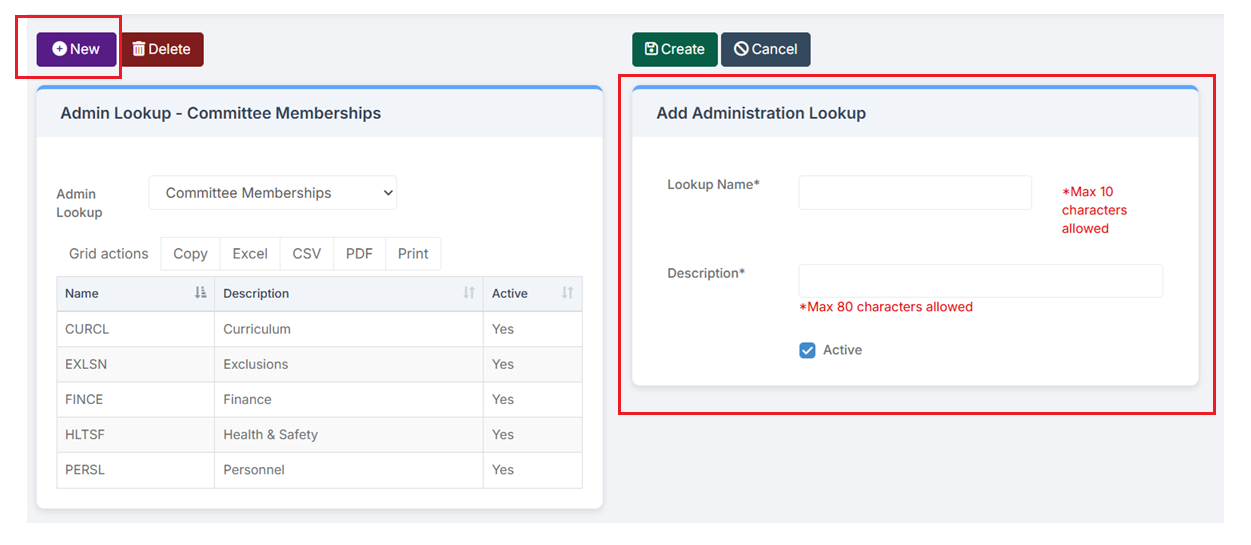
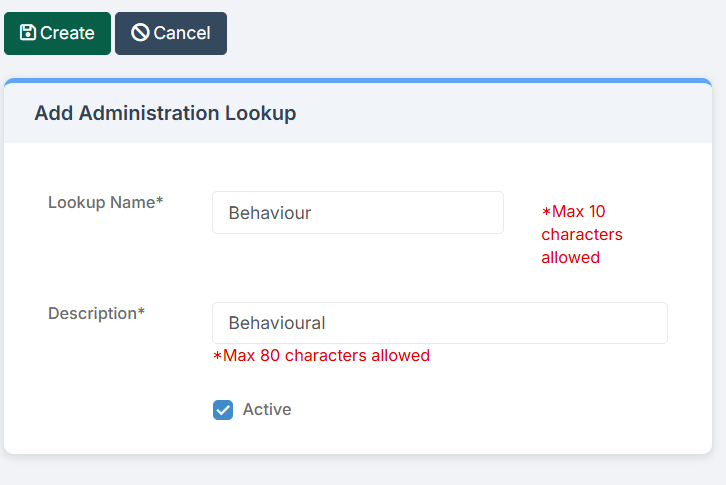
- Complete both the Lookup Name* and Description* fields. Please note the character limits displayed in red for each field.
- The Active checkbox is selected by default. If the Lookup is being created for future use and should not be visible to users, simply deselect the Active checkbox.
- This feature can also be used to deactivate Lookups that are no longer required. Note: it is not possible to delete a Lookup that has already been used in the MIS.
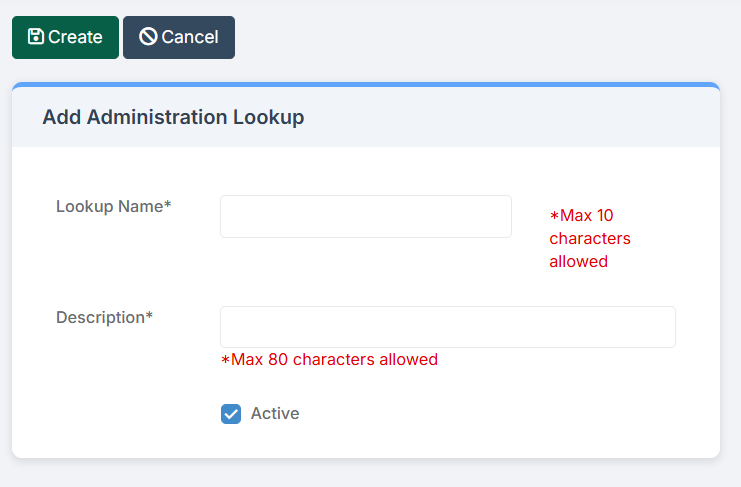
When satisfied with the record, click Create
To edit the Lookup simply select it in the table on the left of the panel, make the necessary amendments, then click Save.
The screenshot below shows the location of the four other Lookups covered in this guide.
For more information see How to Edit Lookup Tables
IMPORTANT: Before creating a new Governor Record and to maintain data integrity and prevent duplicate entries, it is considered best practice to review the database for any existing record before initiating the creation of a new one.
Check for an Existing Record
To ensure that a duplicate record is not created, please follow the steps below to search for an existing Governor Record in the database.
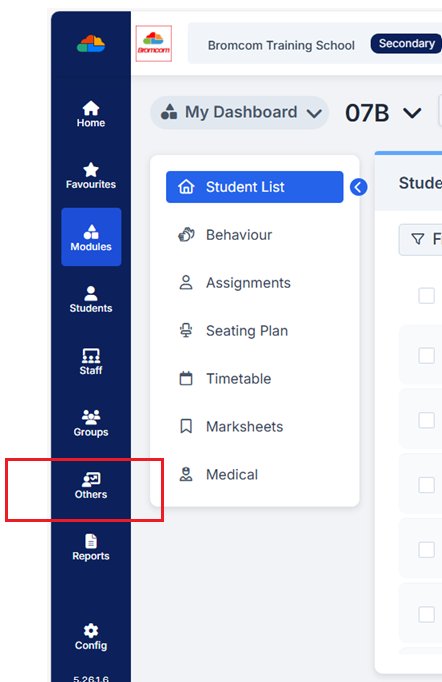
Access the Others List Page
From the vertical toolbar on the left-hand side of the screen, select Others.
This will open the Others List page.
Change the Record Type
By default, the Type dropdown in the top-right corner is set to Contact.
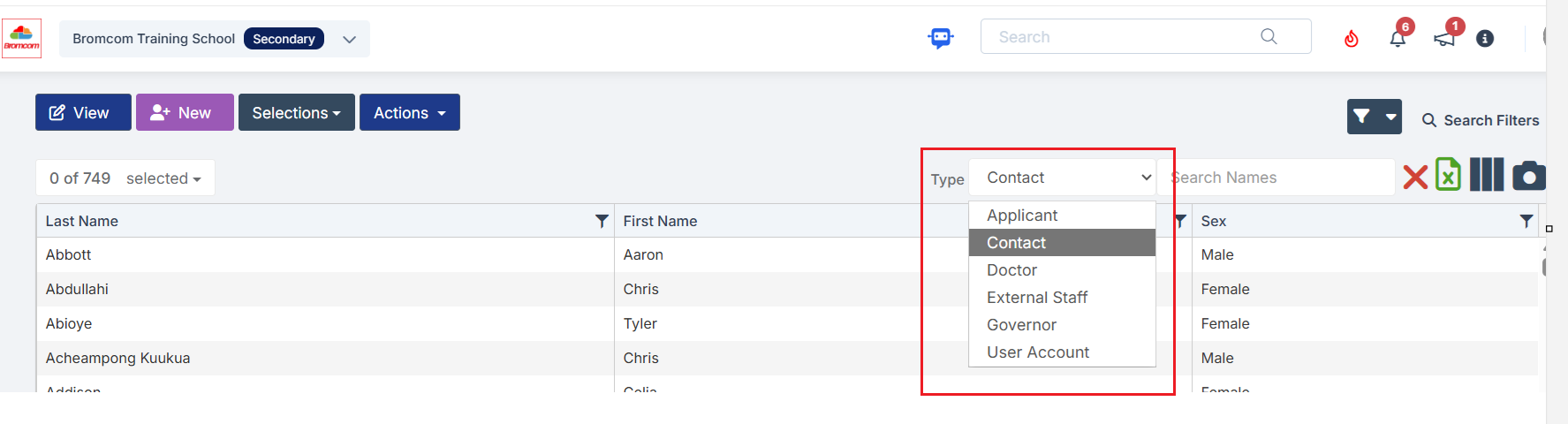
- Select the Type dropdown and choose Governor.
- The page will refresh and display a list of Governors who are active as of today’s date.
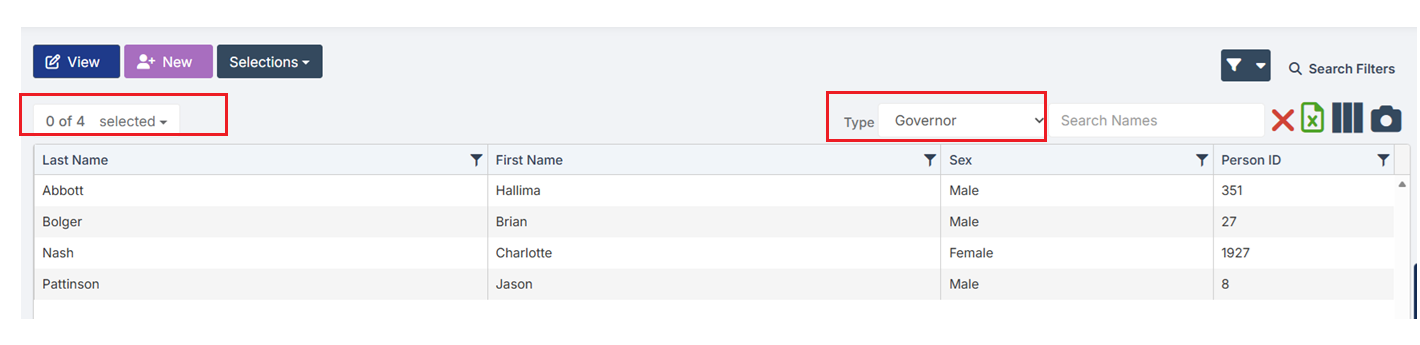
Search for an Active Governor
- Use the Search Names box in the top-right corner to enter the full name, or part of the name, of the Governor you are searching for.
- The page will refresh to display the relevant search results.

Check All Records (Including Inactive Governors)
- To ensure a thorough search, including Governors who may no longer be active:
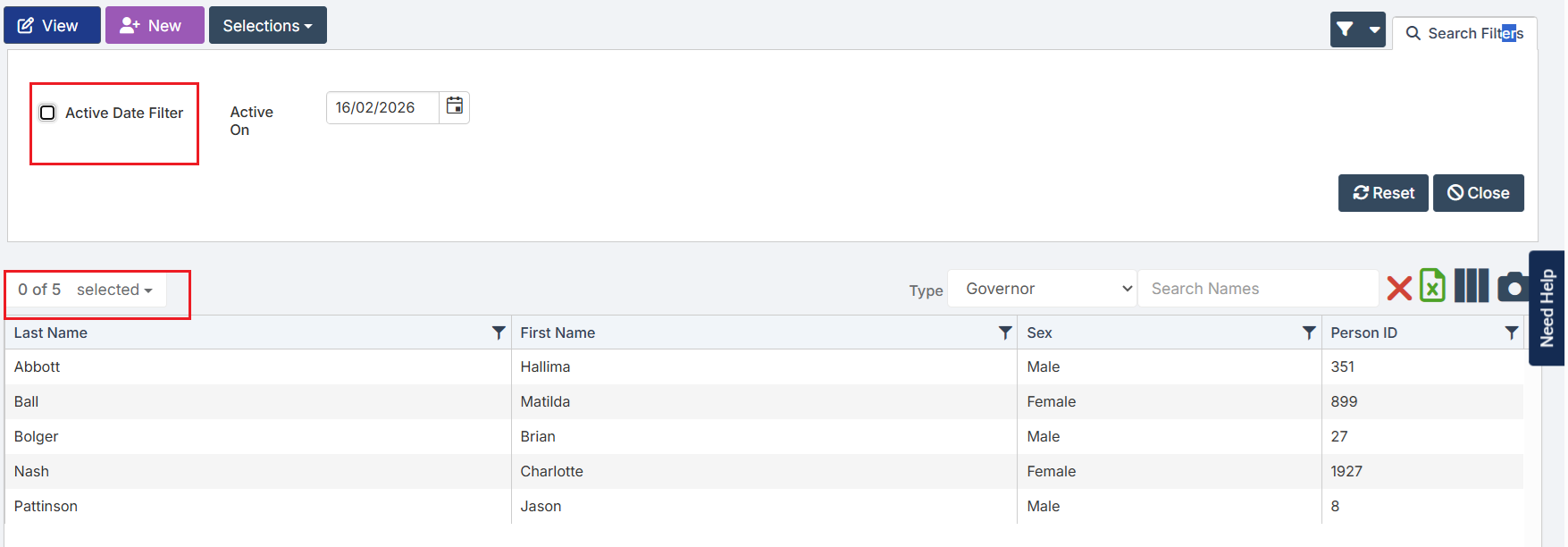
- Select Search Filters in the top-right corner.

The following default settings will be displayed
- The Active Date Filter is selected.
- The Active on Date field is set to today’s date.

- Untick the Active Date Filter.
- The page will refresh and display all Governor records, including those who were active prior to today’s date.
- This step ensures that former Governors are also included in your search results.
Creating a Governor Record
Once confirmation has been obtained that no existing record is present, a new record may be created.
- Click the New button located in the top-left corner of the page.

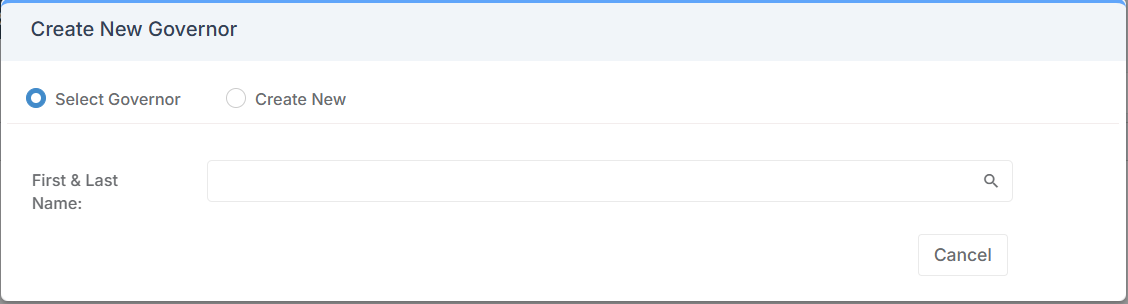
This will open the Create New Governor panel.
Understand the Default Setting
- By default, the panel is set to Select Governor.
- This option is used to reactivate an existing record, such as a Governor who previously left and is returning.
- To reactivate a record, type part of the Governor’s first name in the search box.
- Select the Governor from the results to open the existing record and make necessary updates, such as reinstating the record.
Create a Completely New Record
- For a Governor who has never been added to the database, select Create New.
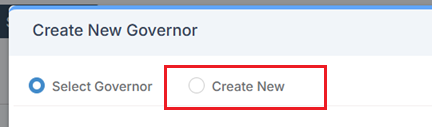
- This will open a blank form to begin to enter all required information for the new Governor Record.
- Fill in all required fields by typing in the information or selecting from the dropdown options..
- The Salutation field will populate automatically based on the information entered.
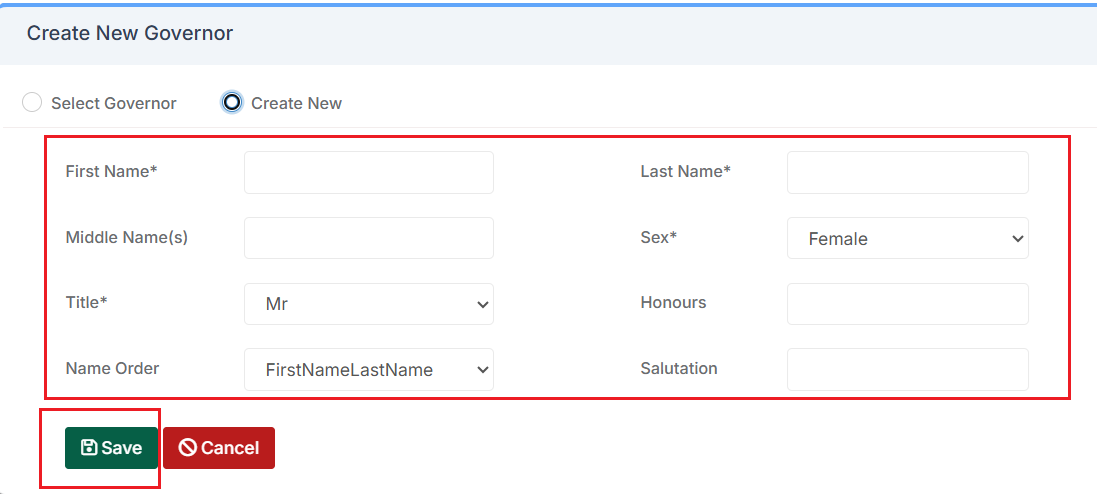
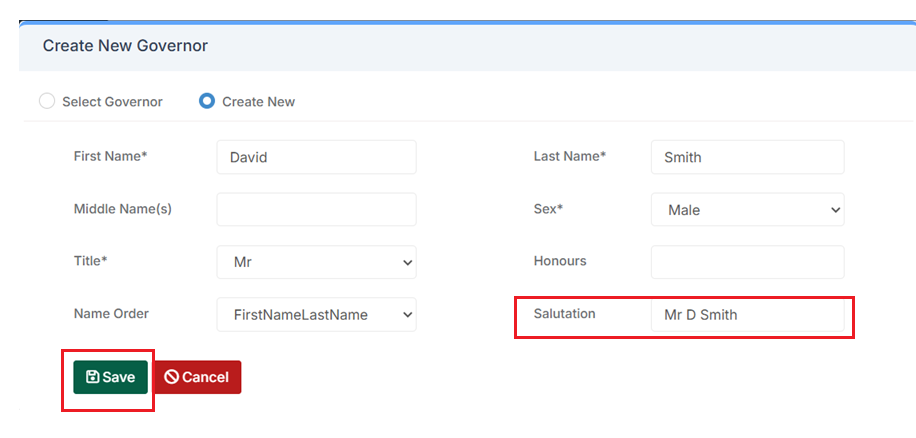
Once all required information has been entered, click Save to create the new Governor Record.
Viewing the Full Governor Record
After saving, the page will refresh to open the full Governor Record. This guide will focus on the following areas in the Governor Record:
For guidance on the remaining panels, please refer to the relevant guides:
- Qualification Checks, DBS Evidence, Right to Work and Background Check – see How to Manage Staff Background Checks
- CPD Activities – see How to Create and Manage CPD Activities
- SCR Data Check – see How to Manage the SCR
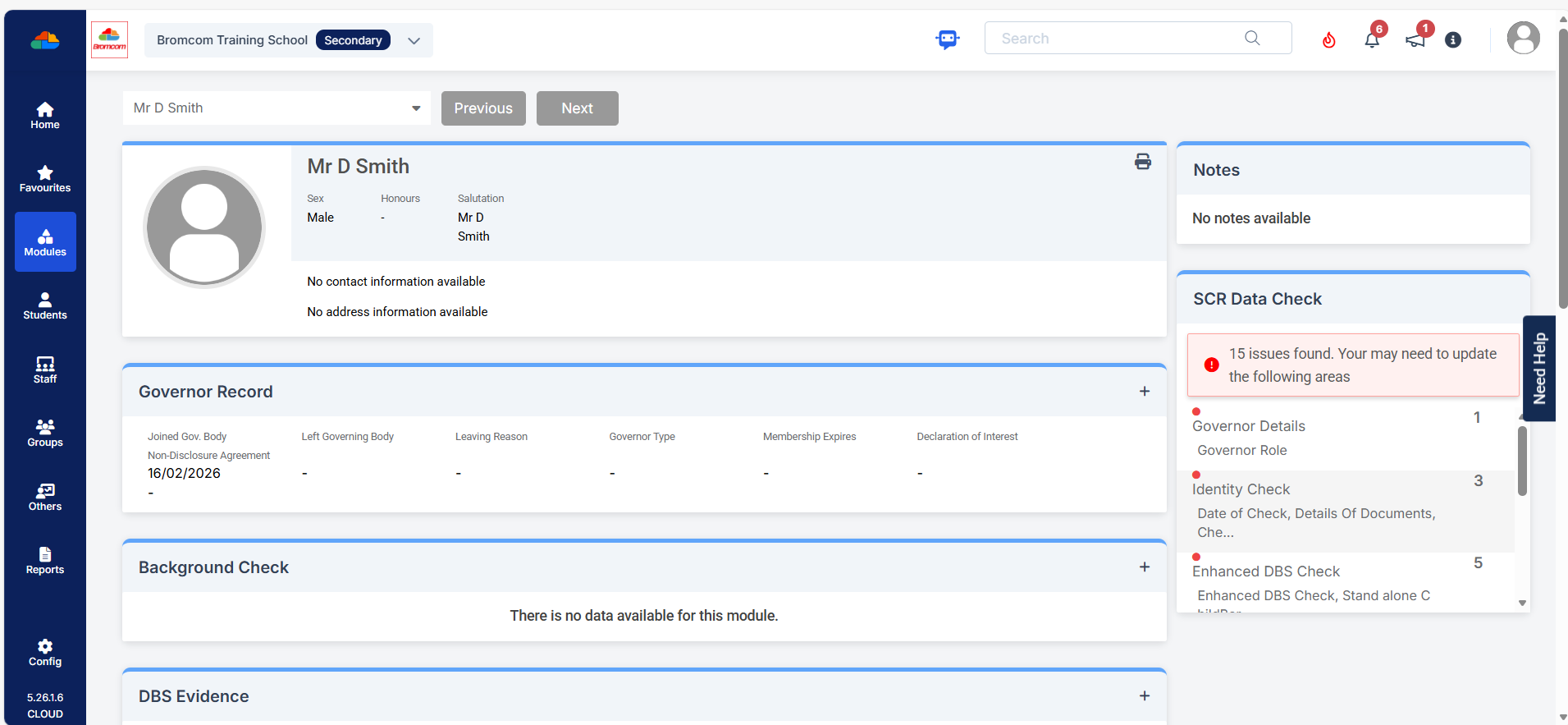
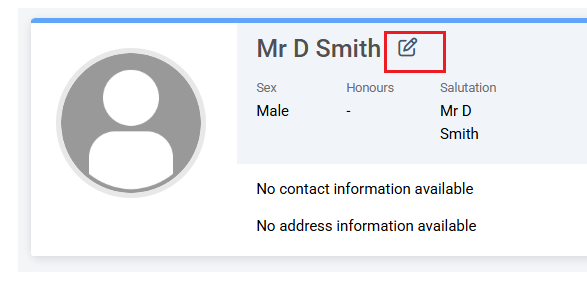
Governor Details
- Click the pencil icon to the right of the Governor’s name.
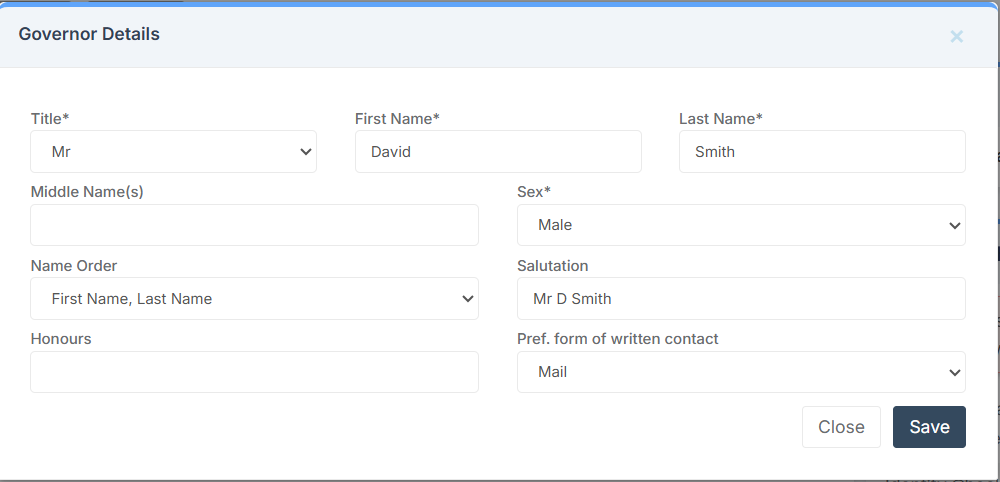
- This opens the Governor Details panel, use this panel to add or amend any details as required.
- Remember to click Save if any changes are made.
Contact Information
- Click the pencil icon under the Governor’s name in the Contact Information section.
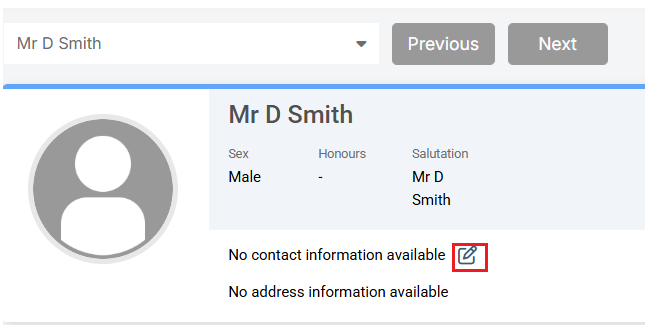
The panel has two tabs: Phone & Email and Address.
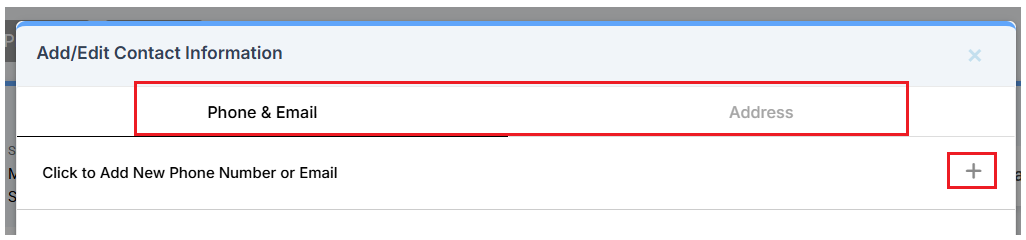
Click the top right + icon
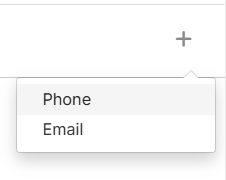
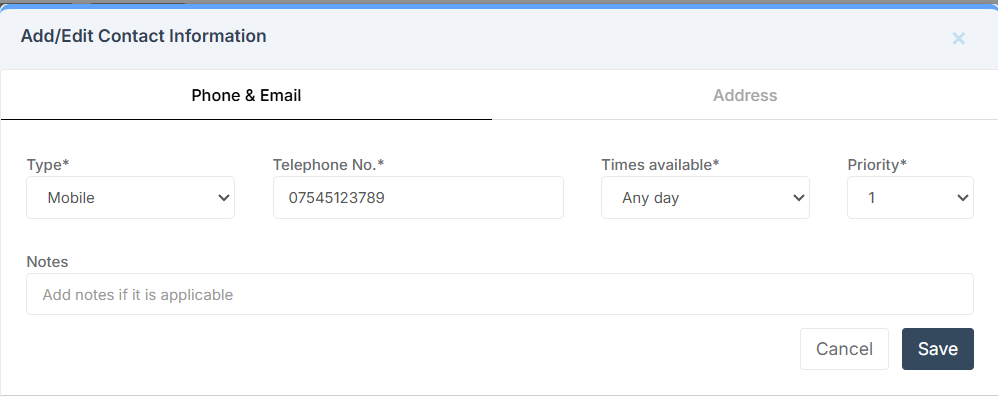
Adding Phone or Email Record
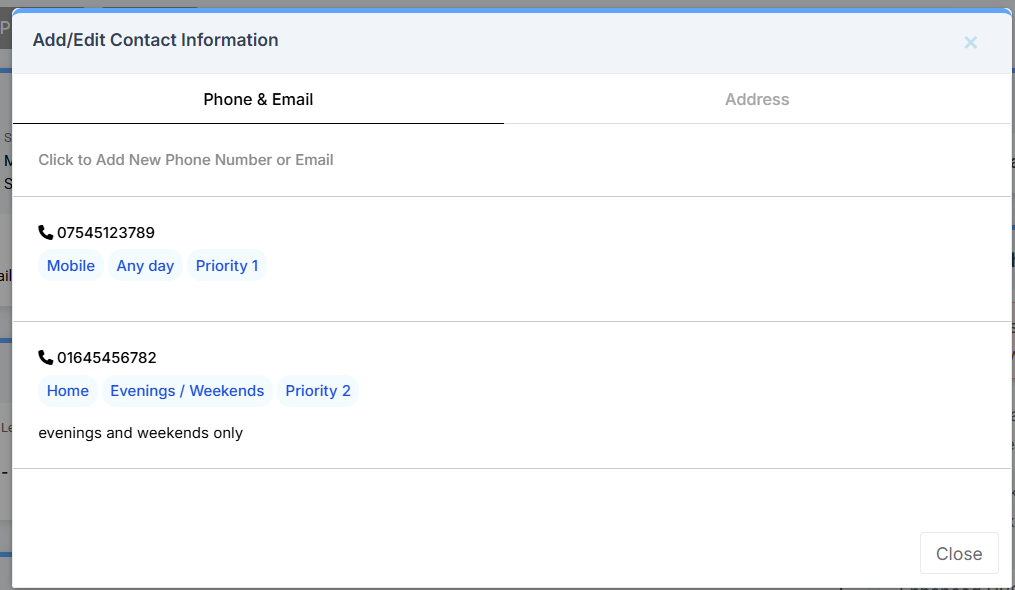
- Multiple phone or Email records can be added, for example:
- Mobile (Priority 1)
- Home (Priority 2)
- Simply click the + icon to add additional records.
Adding or Linking Addresses
- In the Address tab, click the + icon to either:
- Link to a Known Address – Use this if the Governor is already a contact in the database, such as a parent.
- Add a New Address – Enter a new address manually.
To search using a postcode:
- Enter the postcode in the Postcode* field.
- Click the spyglass icon to see a list of possible addresses.
- Select the appropriate address and click Use
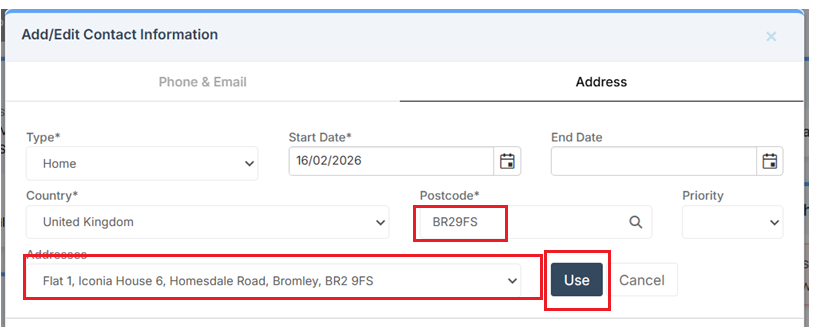
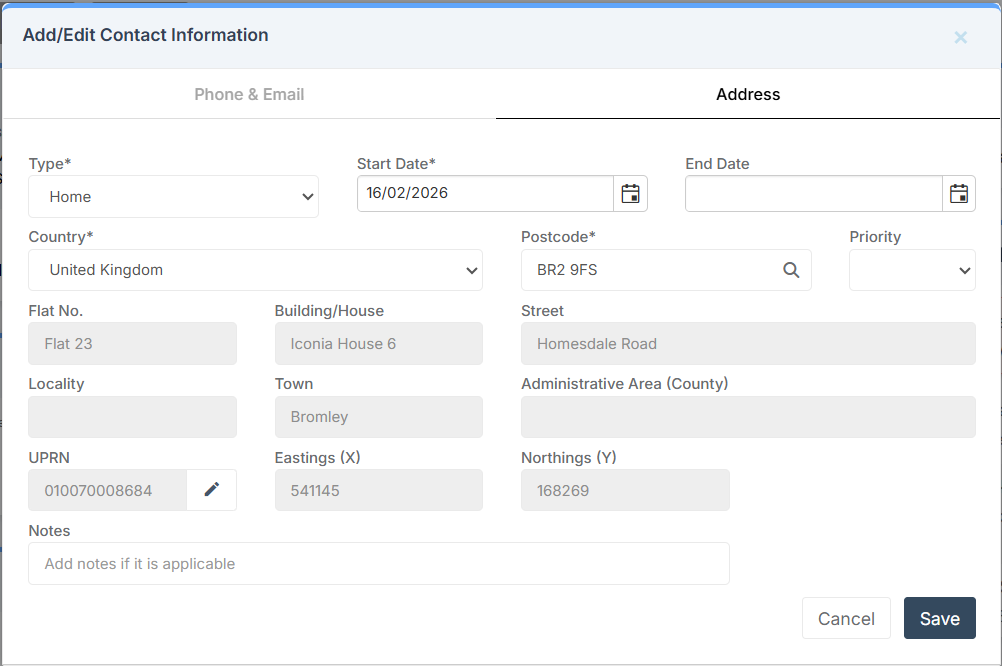
Note: It is also possible to enter address information manually without using the postcode search.
Click Save.
Governor Record
Click the + icon in the top right of the Governor Record panel

The panel shows 3 tabs.
- Governor Record Details
- Roles
- Committee Memberships

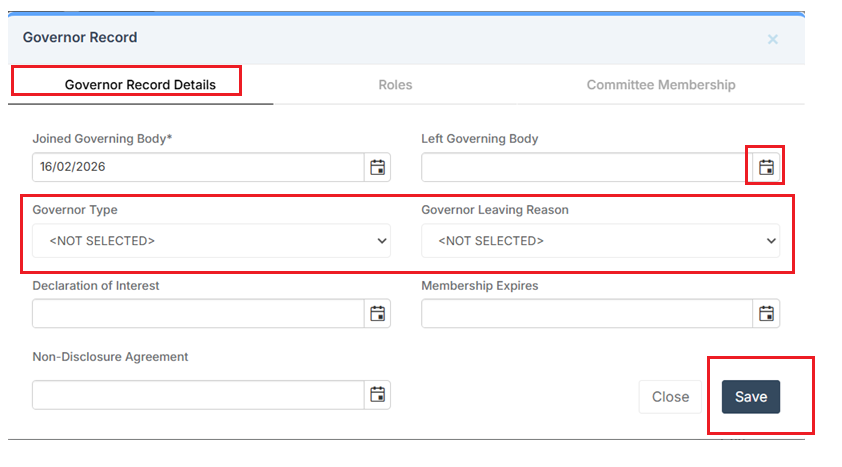
Governor Record Details
Use this tab to review or update the main details of the Governor record as needed.
- For fields that require a date, you can either:
- Click the calendar icon to select a date, or
- Type the date manually into the field.
- The Governor Type and Governor Leaving Reason fields are dropdown menus.
- The options in these dropdowns come from the Lookup Tables described earlier in this guide.
- Select the appropriate choice from the list when updating or completing the record.
- Click Save.
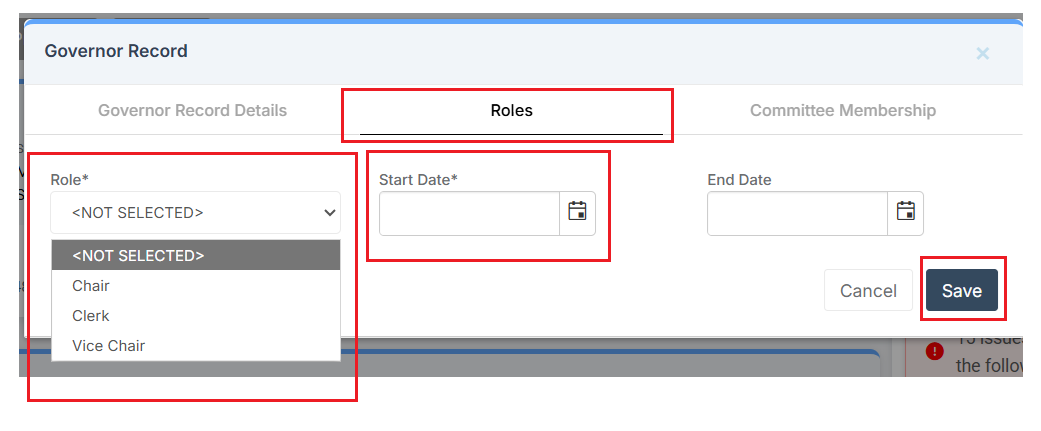
Roles
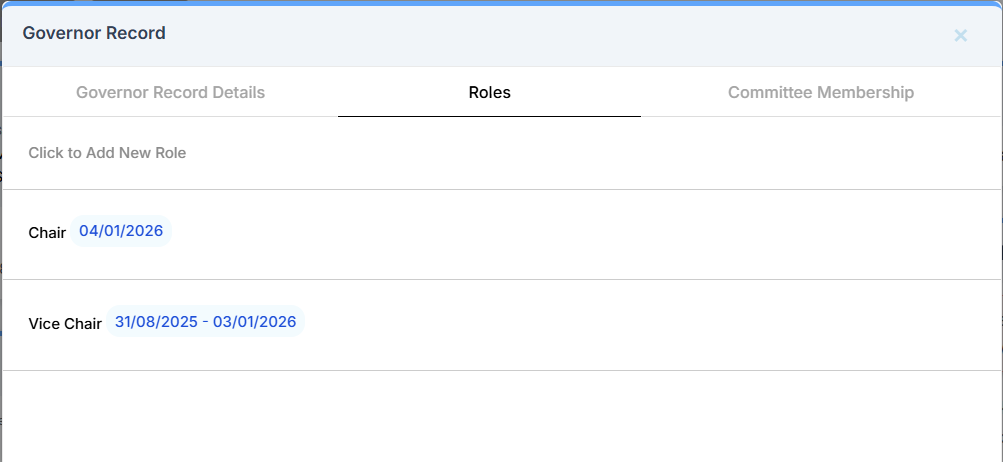
- The Roles tab displays all roles assigned to the Governor, including start and end dates.
- To add a new role, click Click to Add New Role
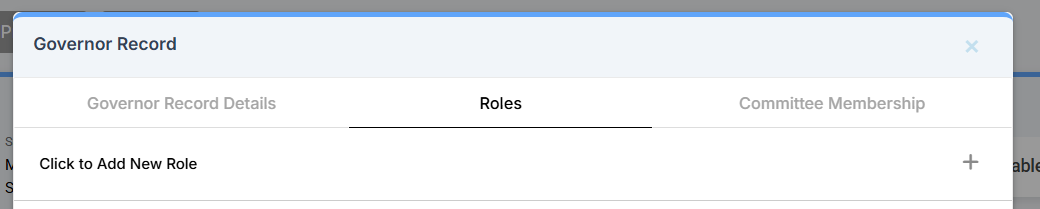
Each Role shows:
- Role Name (e.g., Chair, Vice Chair)
- Start and End Dates
- Some roles may have only a start date if ongoing.
- Roles with a start and end date indicate a fixed term (e.g., Vice Chair from 31/08/2025 to 03/01/2026).
- Use this tab to review, add, or update roles as required.
- Click Save.
Committee Memberships
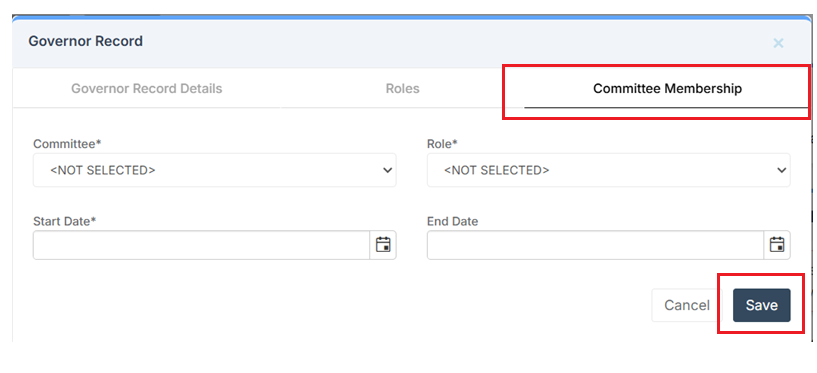
Open this tab for Committee & Role assignment.
- Select the Committee from the first lookup table. For example: Finance Committee, Education Committee, Health Committee, etc.
- Select the Role from the second lookup table. For example: Chair, Vice Chair, Member, Secretary, etc.
Remember: the same person can have different roles in different committees. For example:
- Governor Smith → Chair on Finance Committee
- Governor Smith → Vice Chair on Education Committee
Click Save.
Managing Governor Meetings
- Easily schedule a Governor Meeting by setting a date, adding attendees, and including any relevant notes or documents.
- Once the meeting is created and attendees are assigned, it will automatically appear in the Governor’s record for easy reference.
Pre Requisites: When creating a Governor Meeting the user has the option to choose a Committee Membership, any Governors who are assigned to that Membership will then in turn be assigned to the Governor Meeting.
- Committee Memberships are created using Lookup Tables
- Governors are then assigned to one or more Committee Membership within the Governor Record>Committee Memberships
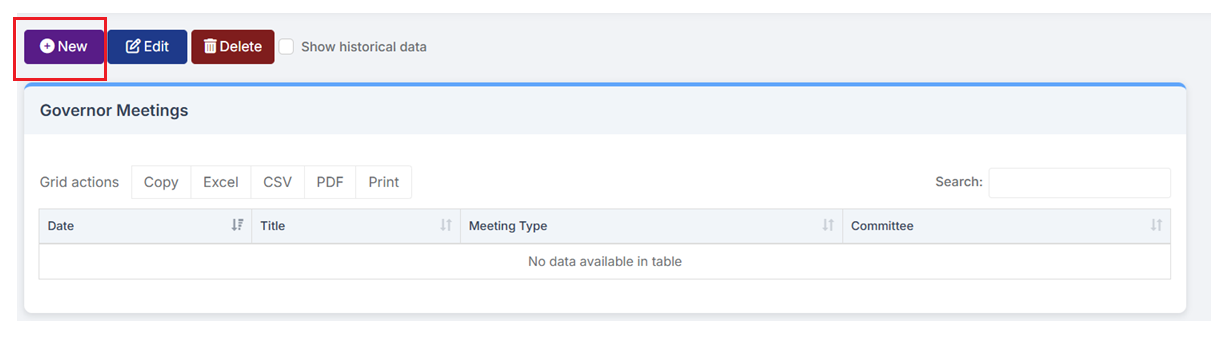
Navigate to Modules>Administration>Governor Meetings
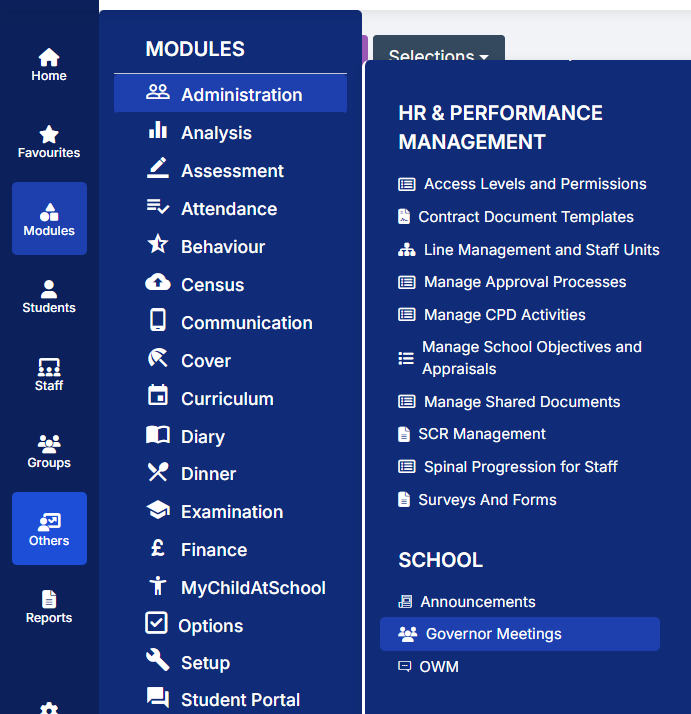
Click New in the top left corner.
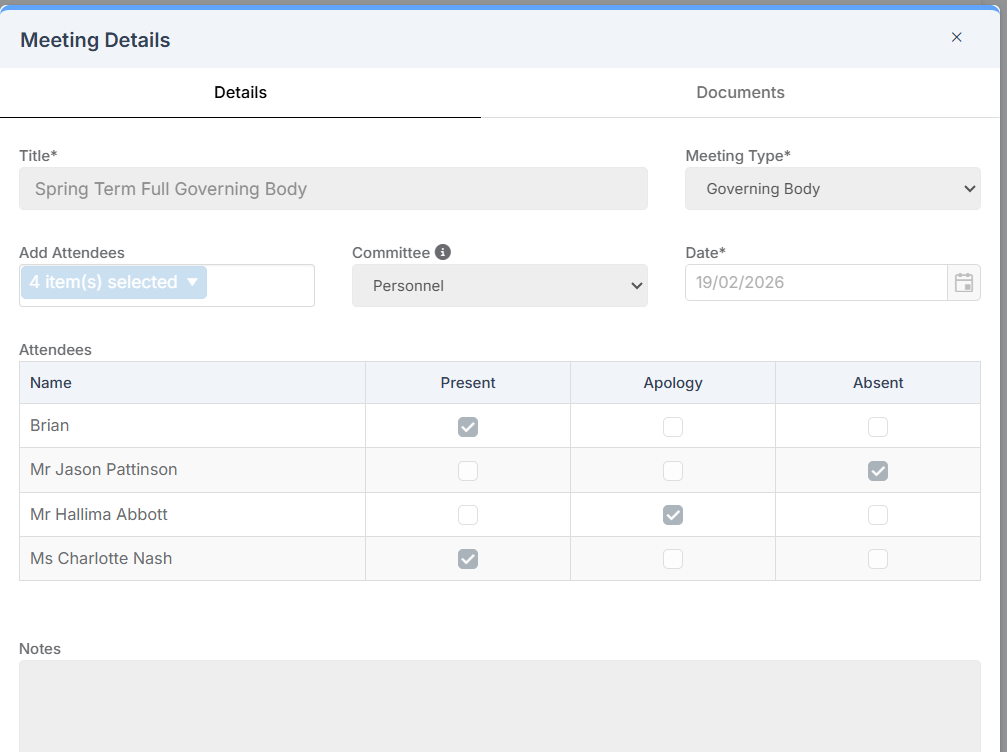
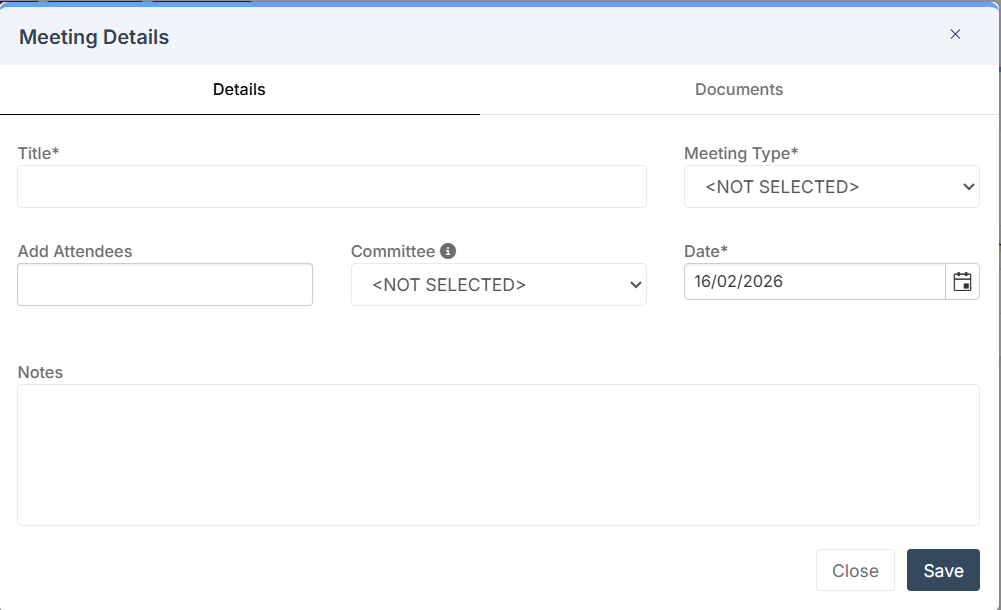
The Meeting Details panel has 2 tabs, Details and Documents.
Within the Details tab, fields must be completed as appropriate:
- Some fields require you to type in text.
- Some fields require you to select a date.
- Some fields require you to choose a value from a dropdown list of Lookup Tables.
The following fields are populated from Lookup Tables:
- Meeting Type* (mandatory field)
- Committee
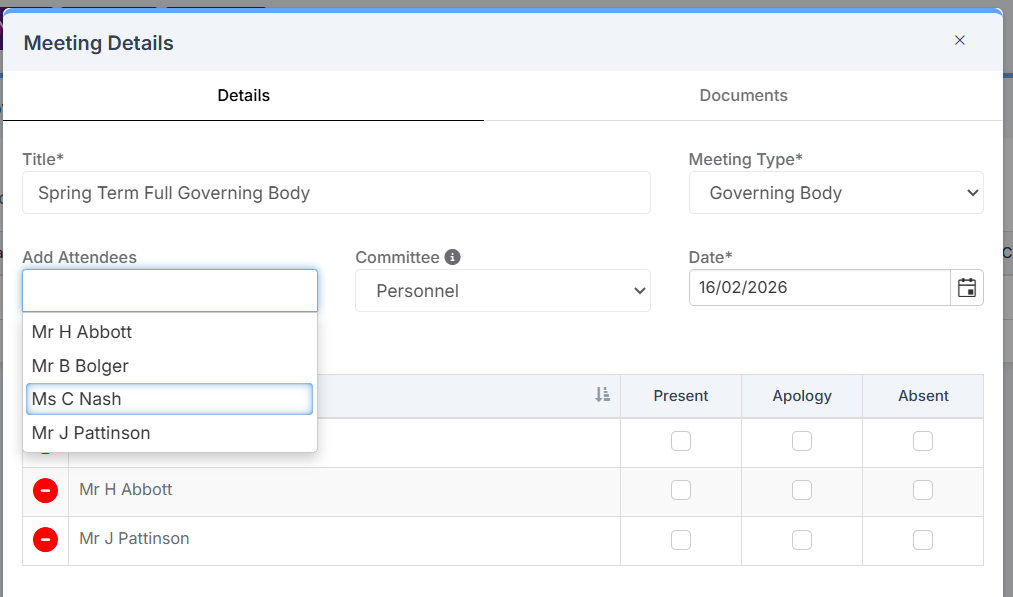
- Selecting a field from the Committee drop down will automatically add all Governors assigned to that Committee to the meeting.
- Changing the Committee selection will:
- Add members of the newly selected Committee to the attendee list.
- Not remove any Governors already added to the meeting.
- This means attendees may accumulate if the Committee field is changed multiple times. Any unwanted attendees must be removed manually.
- Alternatively type in the Governor Name into Add Attendees to assign Governors without using Committee memberships
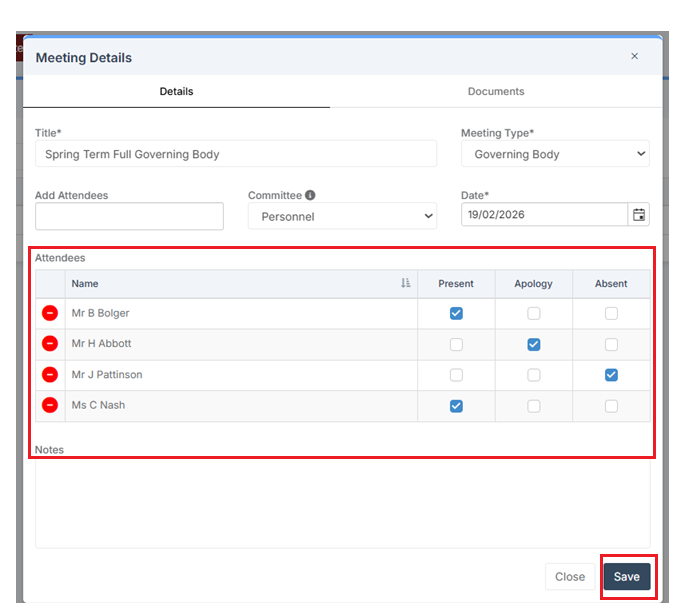
- The Attendees panel can then be used to mark Attendance information by ticking Present, Apology or Absent.
- Click Save.
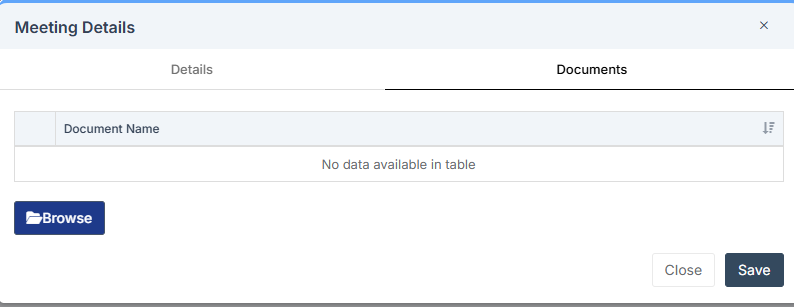
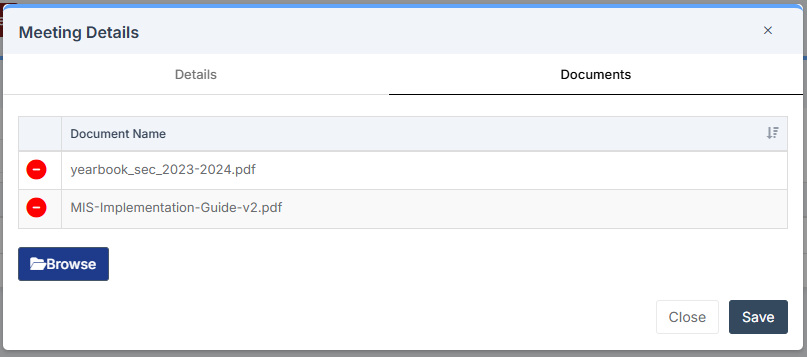
Use the Documents tab to first click Browse and uploads Documents from a PC
Below is an example screenshot with 2 Documents uploaded.
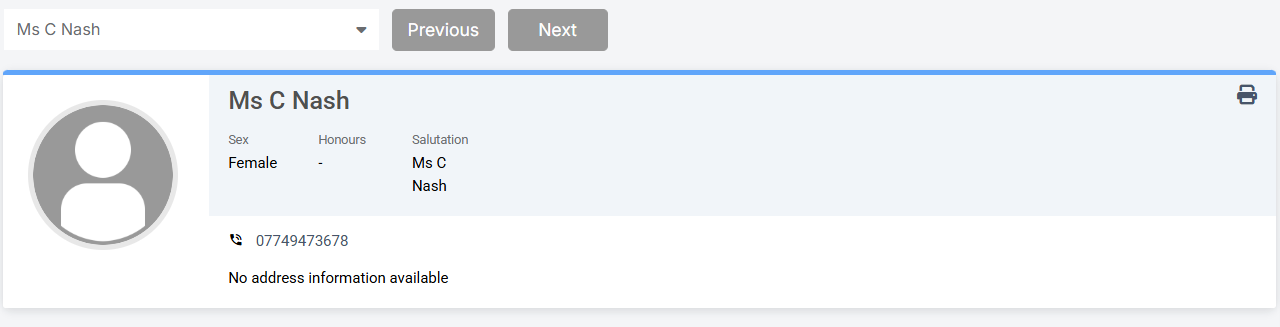
The Governor Meeting information is now visible in the Governor Meetings panel in the Governor record for those added or assigned to the Meeting.
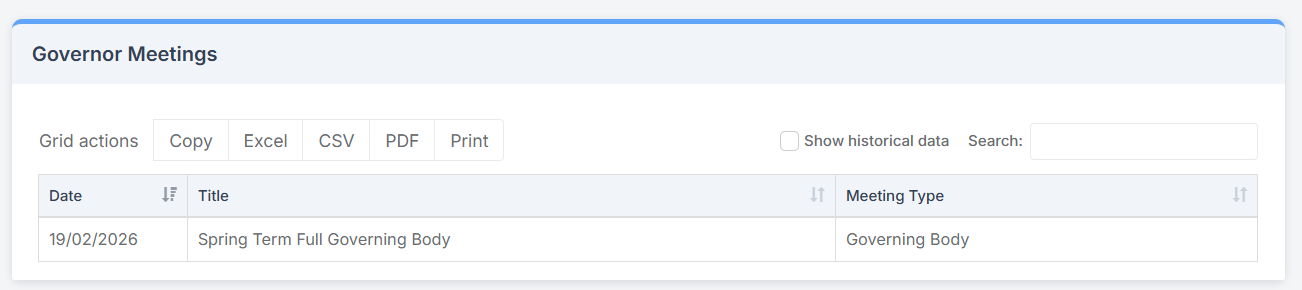
Click on the meeting to see the following Details.