In this guide, we show How to Add a Bank Account in the Finance Module.
For information on adding bank accounts for using in Online Payments see here.
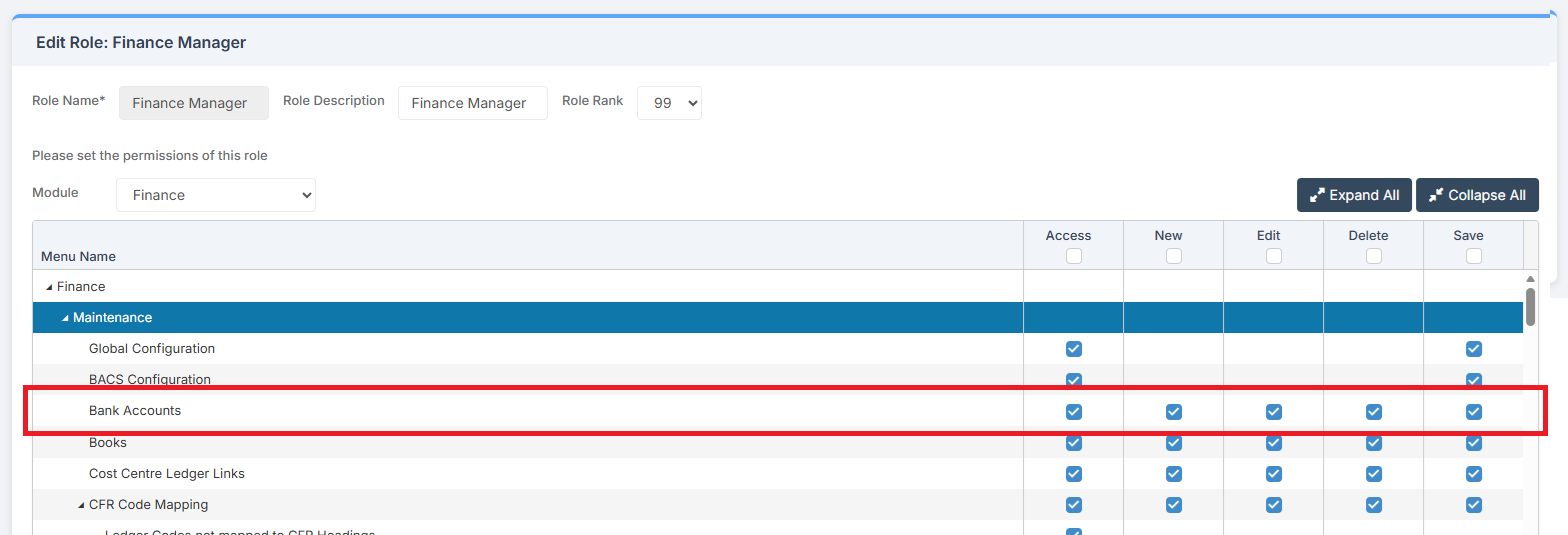
Access: The minimum permissions required to Add a Bank Account are found in the Finance Module section Config > Setup > Roles & Permissions.
Related Guides:
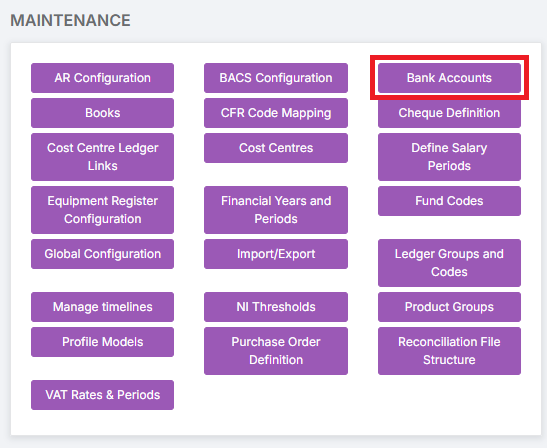
To begin, go to Module > Finance > Finance Home Page > Maintenance > Bank Accounts.
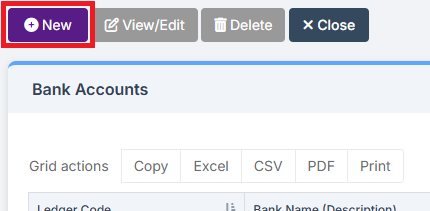
Click New to enter a New Bank Account.
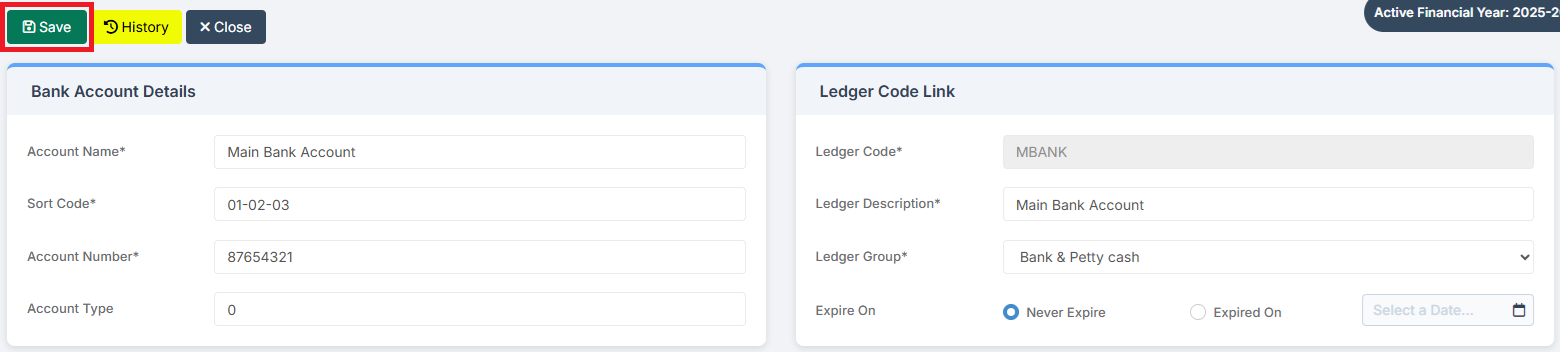
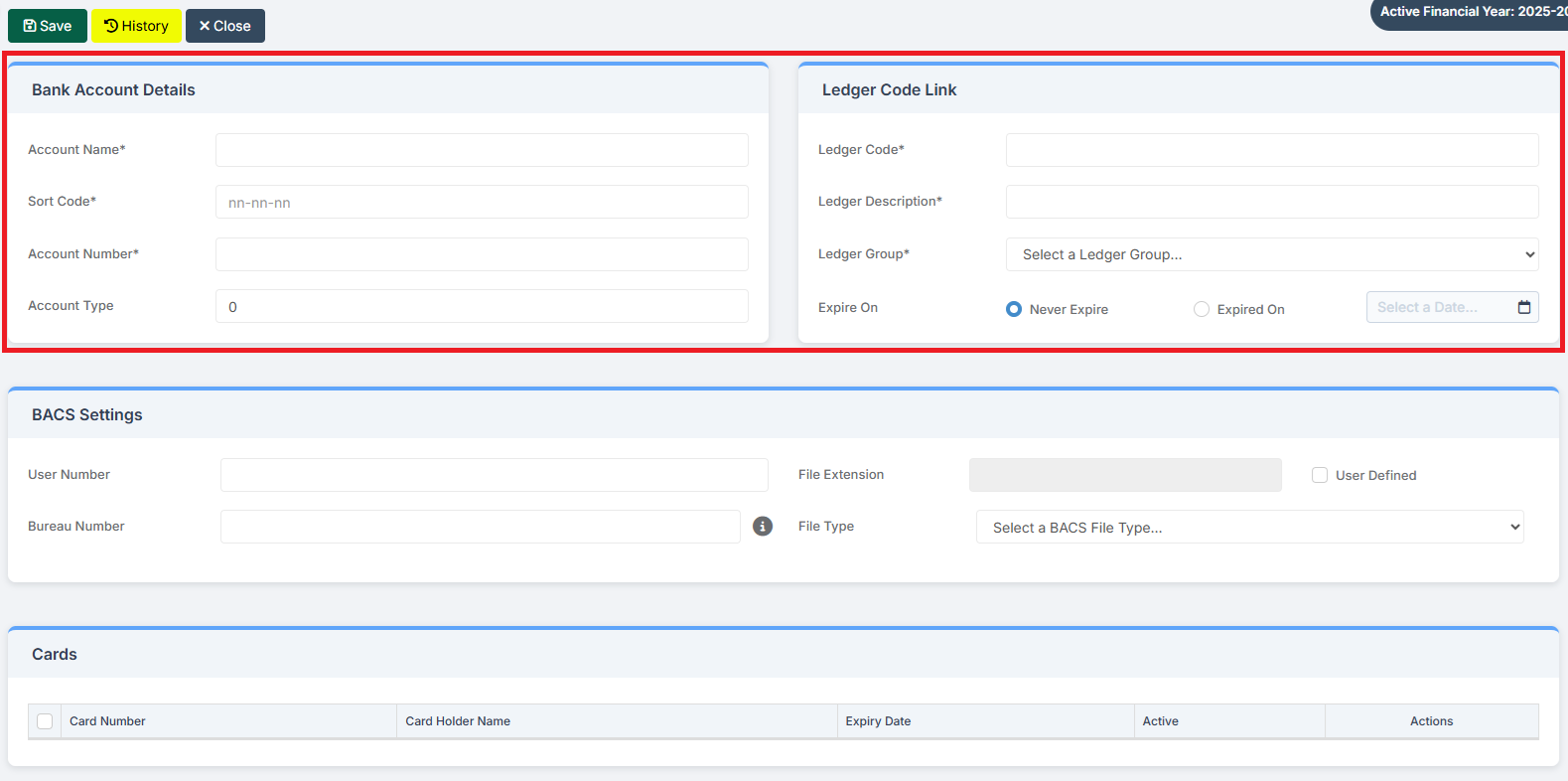
Complete the Bank Account Details and Ledger Code Link sections. All boxes with an asterisk must be completed.
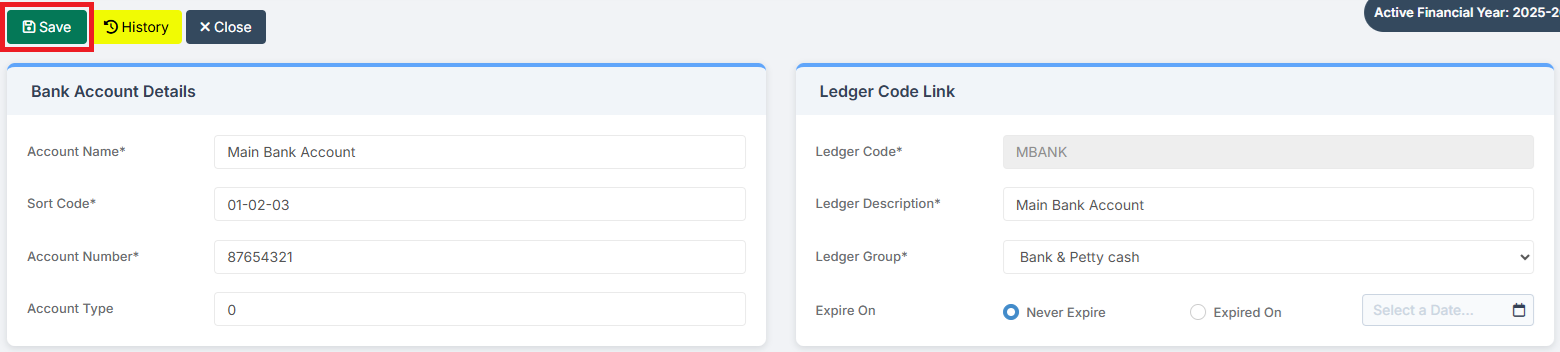
Click Save.
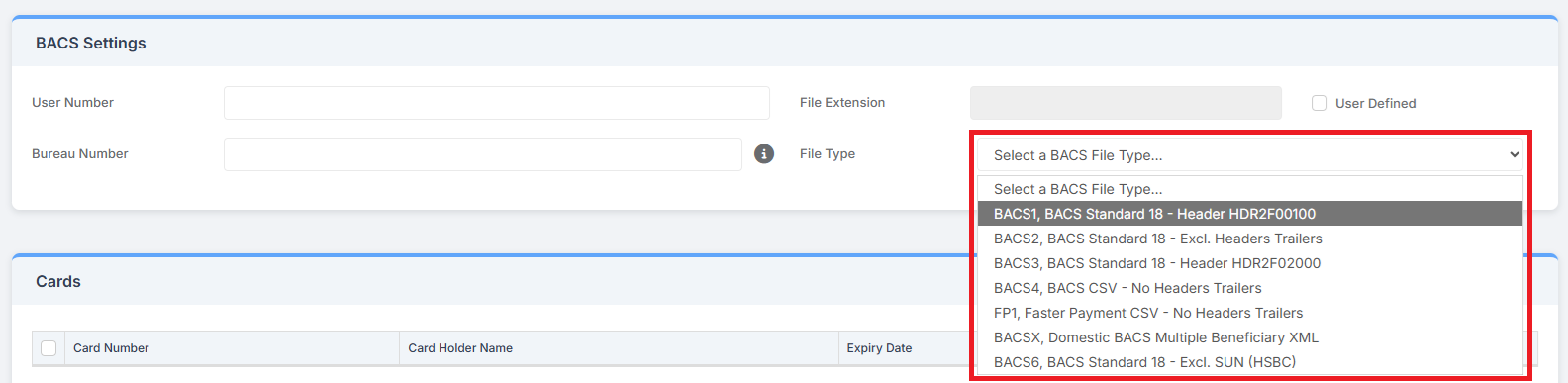
If required, complete the BACS Settings section, paying attention to select the correct File Type. Contact the Bank if the File Type is unknown.
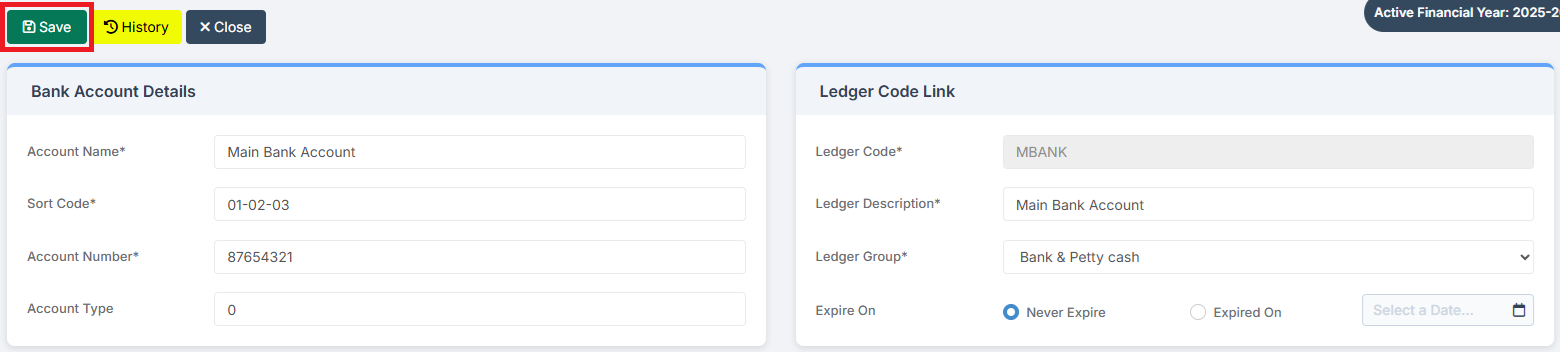
Click Save at the top of the page to save the entered BACS Settings details.
To add a Card, in the Cards section click Add New Record.

Enter the last four digits of the Card and the other required information. Then click on the tick to confirm the details.

The Card can now ready for use. Additional Cards can be added.

Click Save at the top of the page to save the entered Card details.