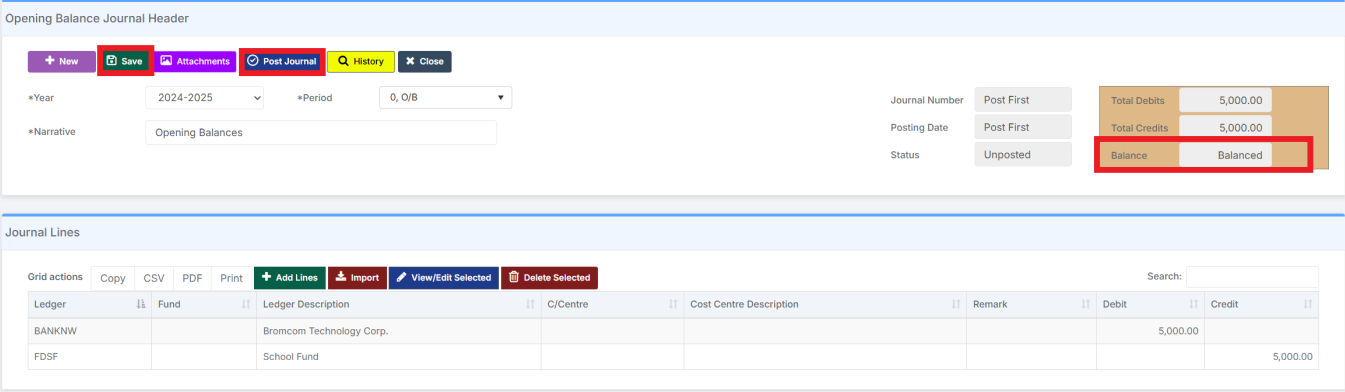
In this guide, we show How to Add an Opening Balance Journal in the Finance Module.
Note: Opening Balance Journals are used when transferring from a Legacy System to Bromcom Finance. They should therefore be used under instruction and with caution.
Access: The minimum permissions required to Add an Opening Balance Journal are found in the Finance Module section Config > Setup > Roles & Permissions.
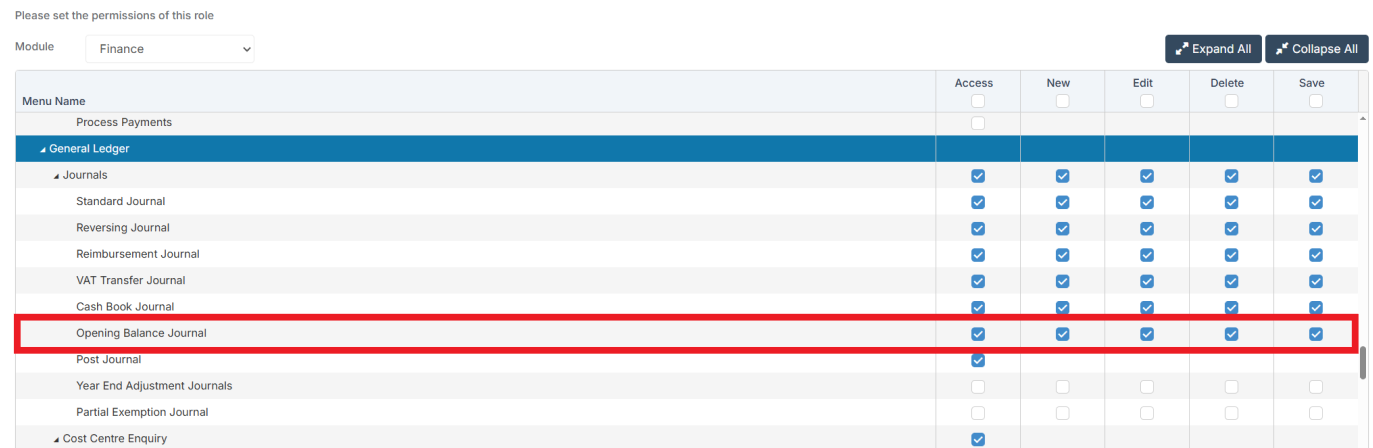
Related Guides:
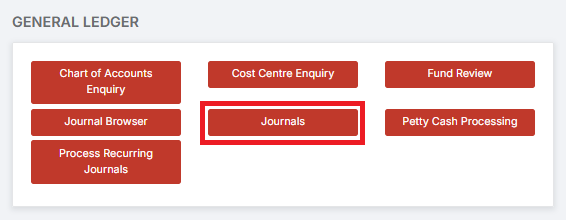
To begin, go to Modules > Finance > General Ledger > Journals.
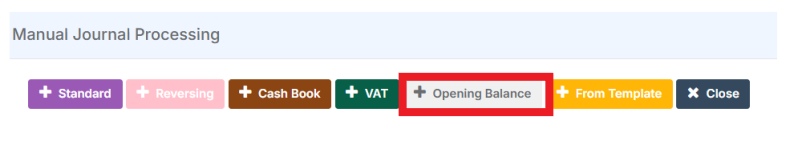
On the Manual Journal Processing page, select Opening Balance.
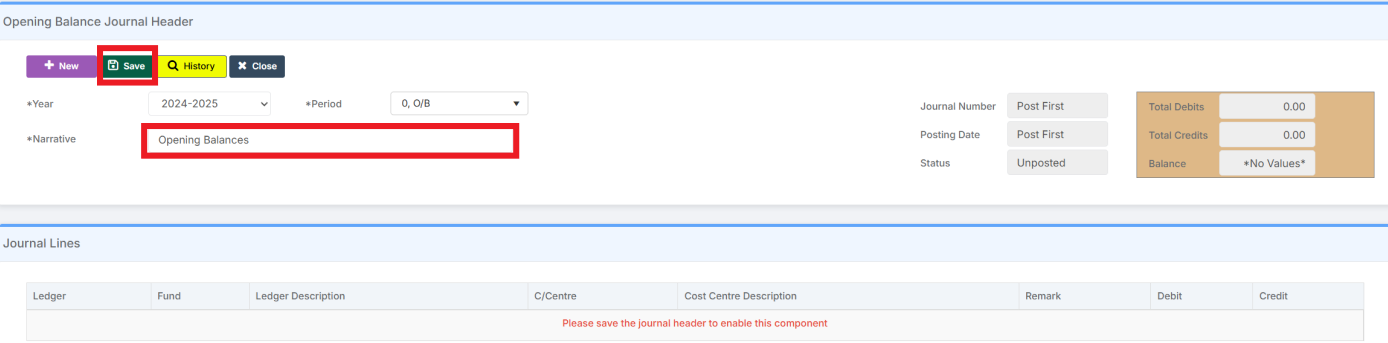
Add a Narrative and then click Save.
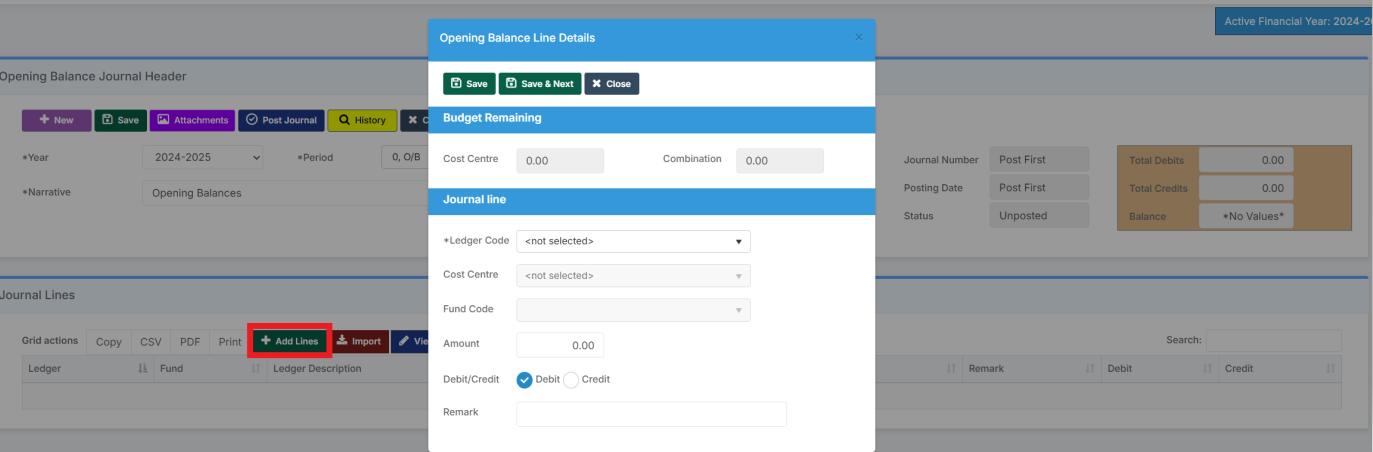
Select Add Lines. Add the Journal Lines.
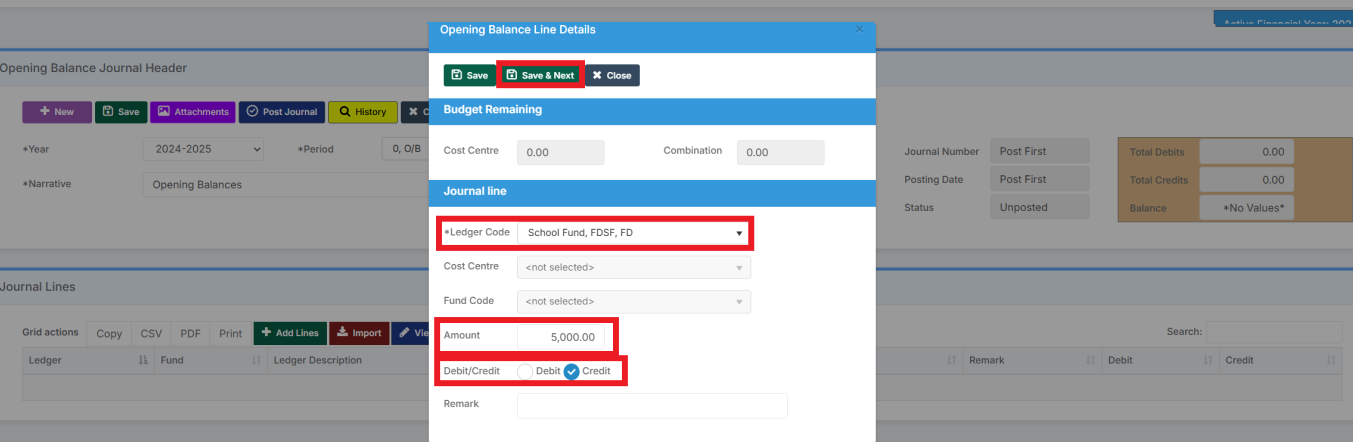
Add the Ledger Code for the control account. Add the Amount, select Credit or Debit and Save & Next to add the next journal line.
Once all the lines have been added and the Journal balances, you can Save and then Post the Opening Balance Journal.