
This guide will show you had to add Students to a Year Group using the Groups module.
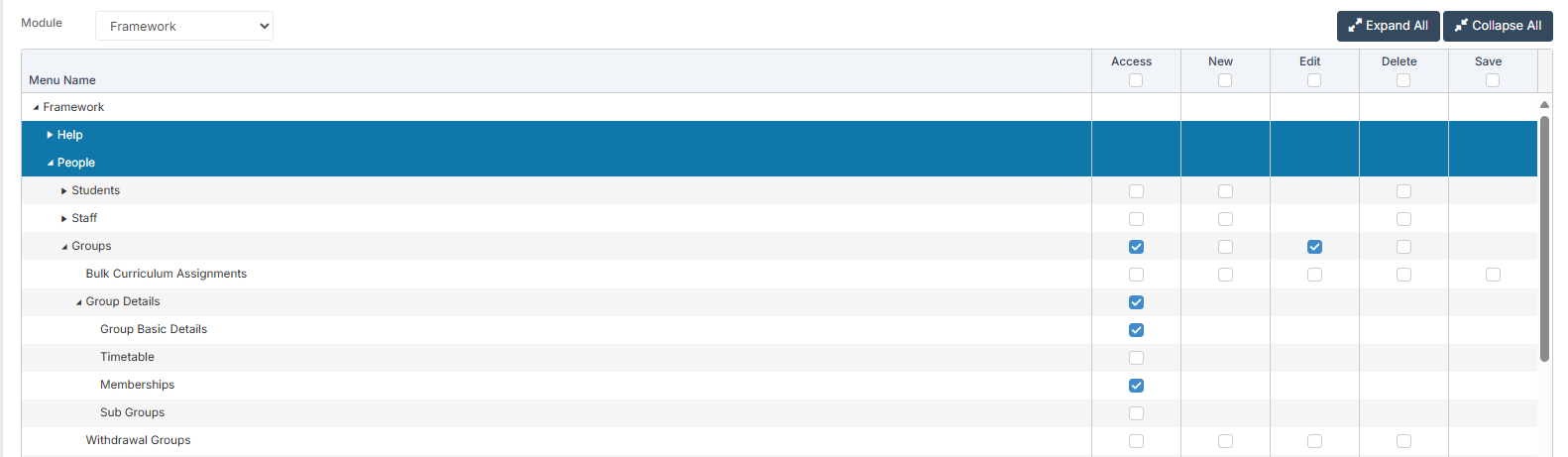
Access: The minimum permissions required to access Add Students Into Year Groups can be found in the Framework module from within Config > Setup > Roles and Permissions.
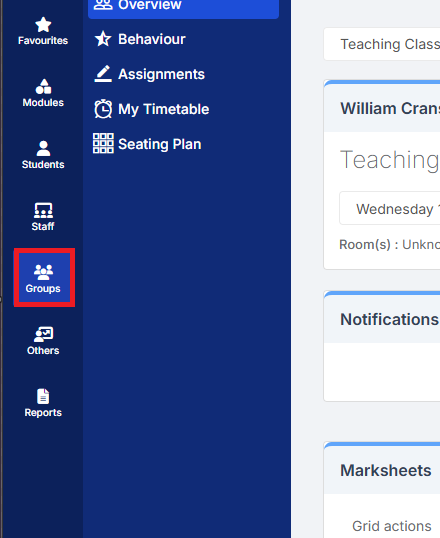
To add the Student/s to a Year Group, firstly navigate to Groups
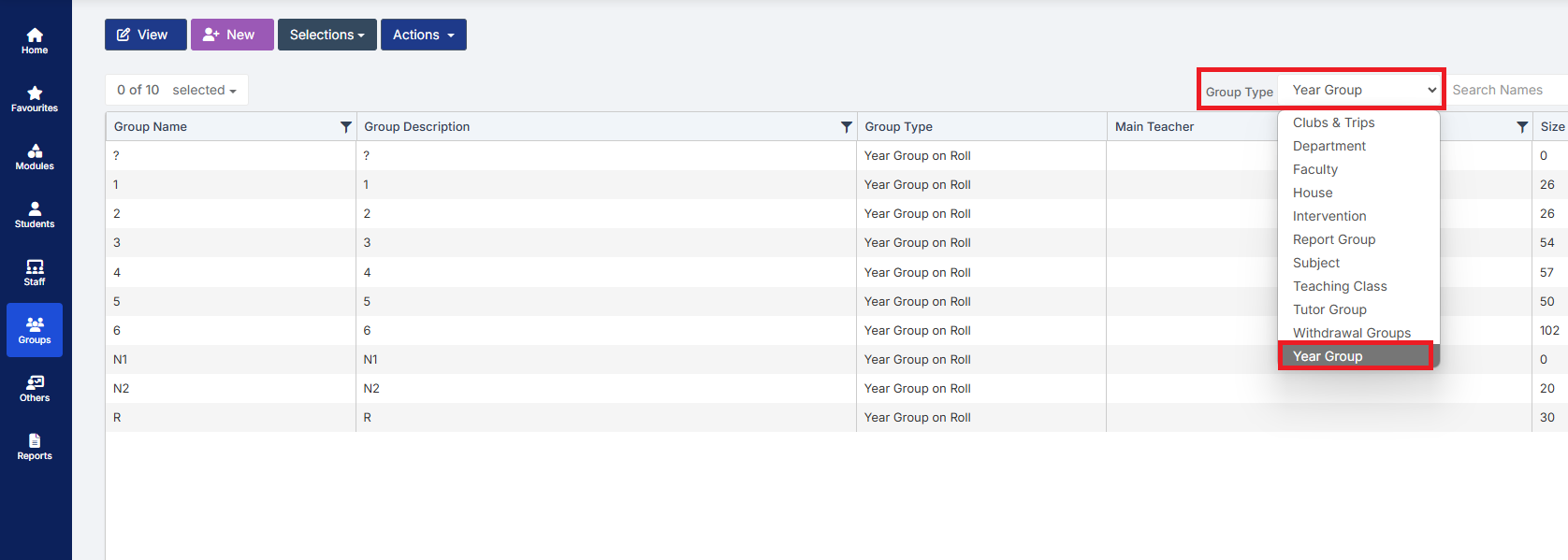
Then change the Group Type to Year Group using the Group Type dropdown
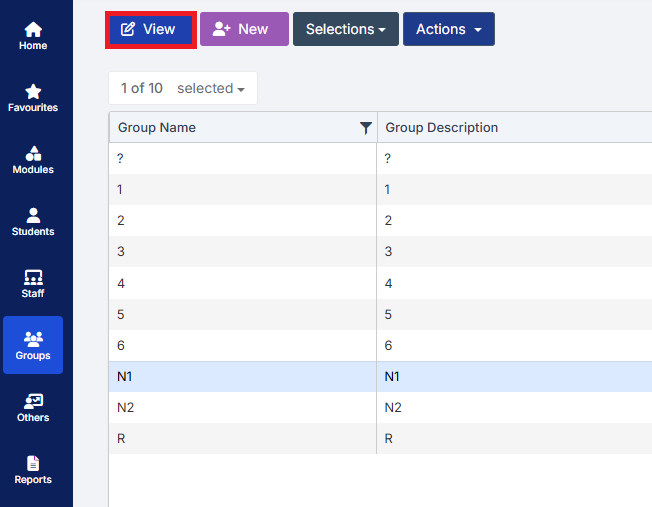
Select the Year Group you need to add Student memberships to and click on View
This will open the groups details
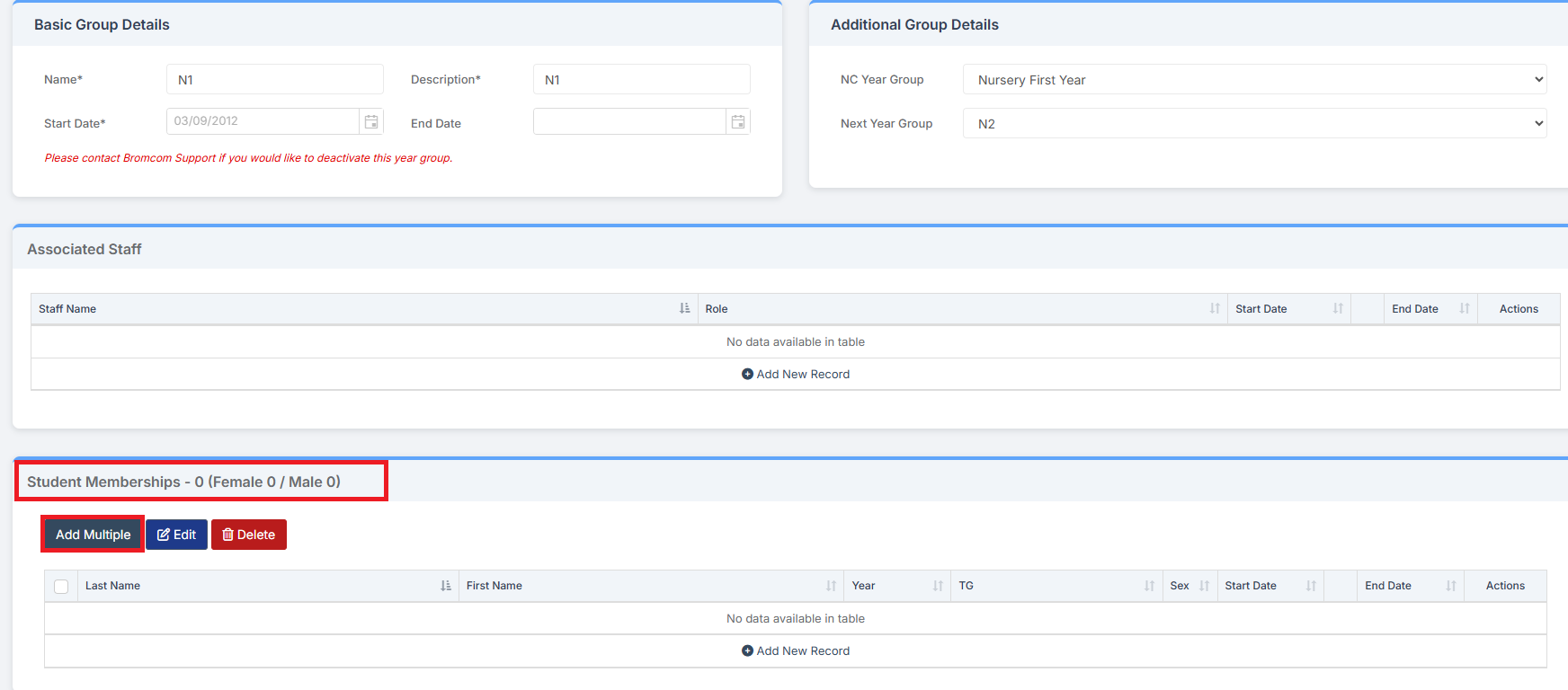
Using the Add Multiple button under the Student Memberships area will provide a pop up for you to click the Magnifying Glass icon to select your Students
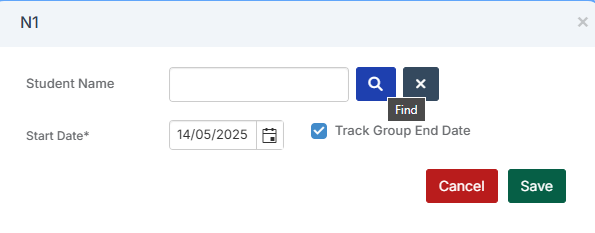
Tip: You can also untick the Track Group End Date box if you wanted to specify an end date to the memberships.
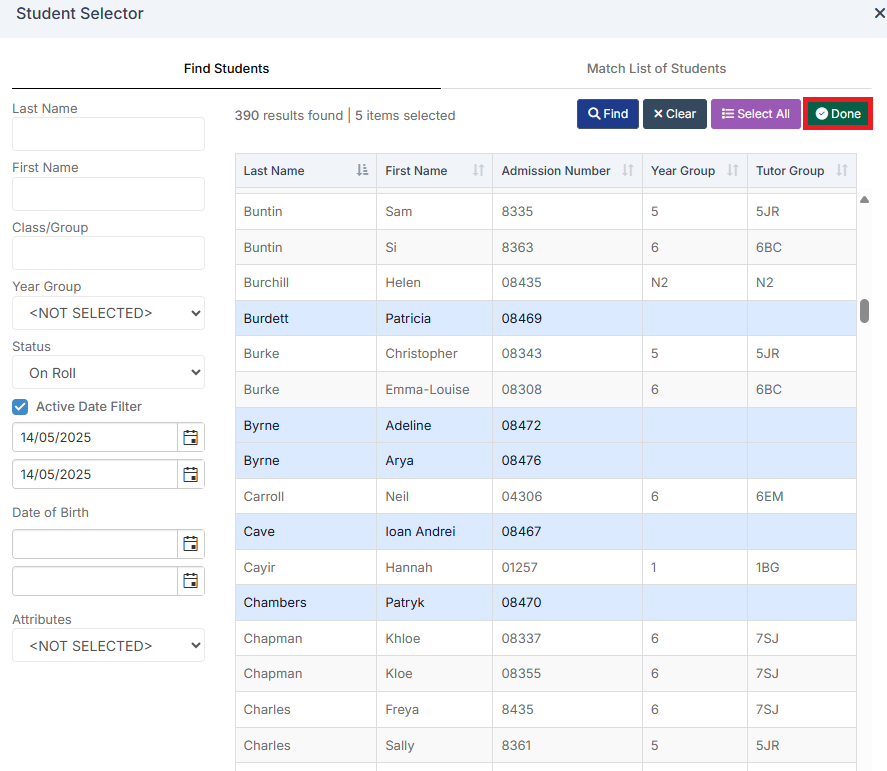
Once you have clicked the Magnifying Glass you will be presented with the Student Selector Panel. After selecting your Students click Done to proceed
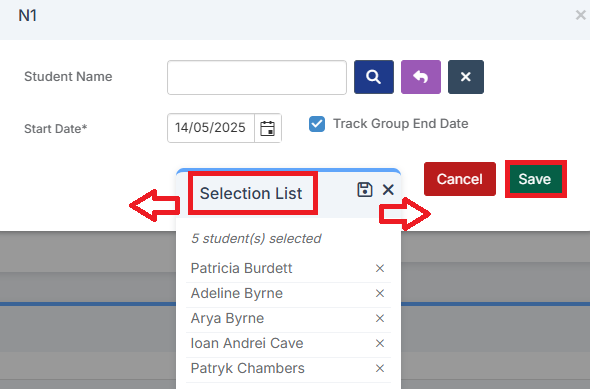
This will take you back to the previous popup where you can click Save to complete the addition of the selected Students
Tip: The Selection List often blocks the Cancel & Save button. To move this you can click where it says Selection list and drag the box around so the buttons become visible.
Once completed your Group should display Students under the Student Memberships panel (if the memberships are active)
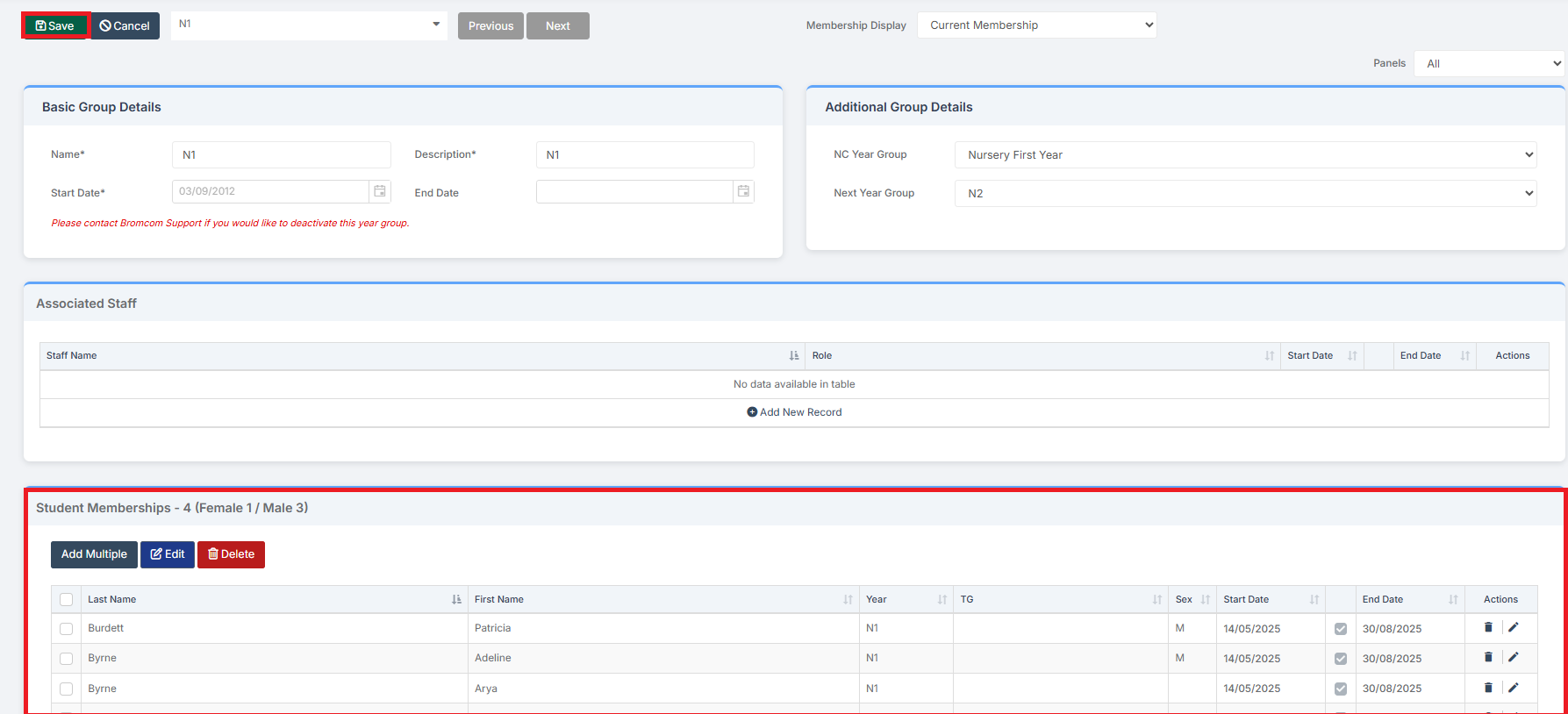
Click Save at the top of the Group.