In this guide, we show How to Clear Commitments Associated with a Purchase Order within the Finance Module.
This Guide forms part of the ACCOUNTS PAYABLE USER GUIDE. Click to see Related Guides.
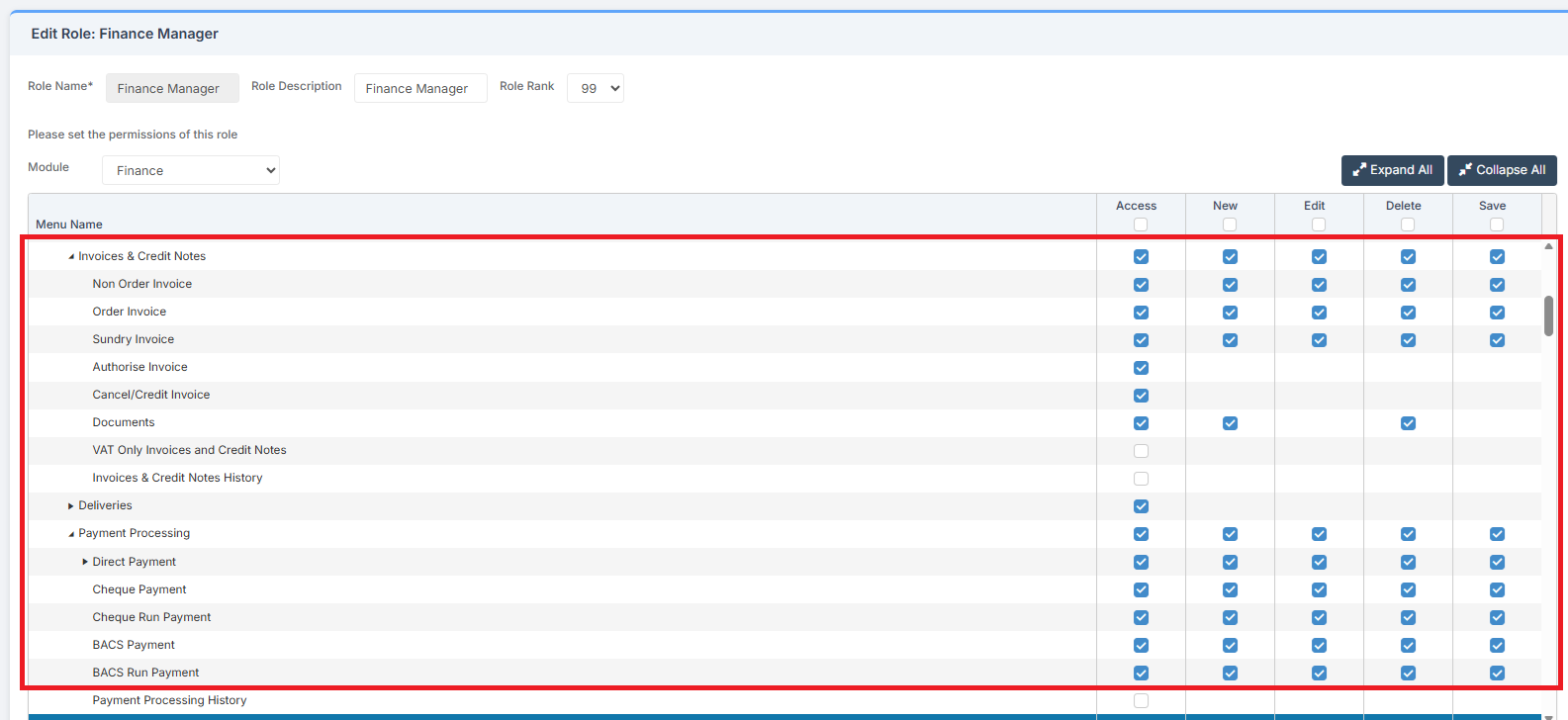
Access: The minimum permissions required to Clear Commitments are found in the Finance Module section Config > Setup > Roles & Permissions.
Related Guides
- Accounts Payable User Guide
- How to Manage Purchase Order Settings
- How to Create a New Purchase Order
- How to Authorise a Purchase Order
- How to Send a Purchase Order
- How to Cancel Remaining Items on a Purchase Order
- How to Cancel a Purchase Order
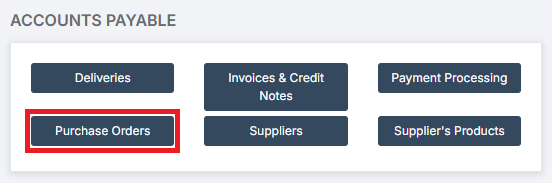
To begin, go to Modules > Finance > Finance Home Page > Accounts Payable > Purchase Orders.
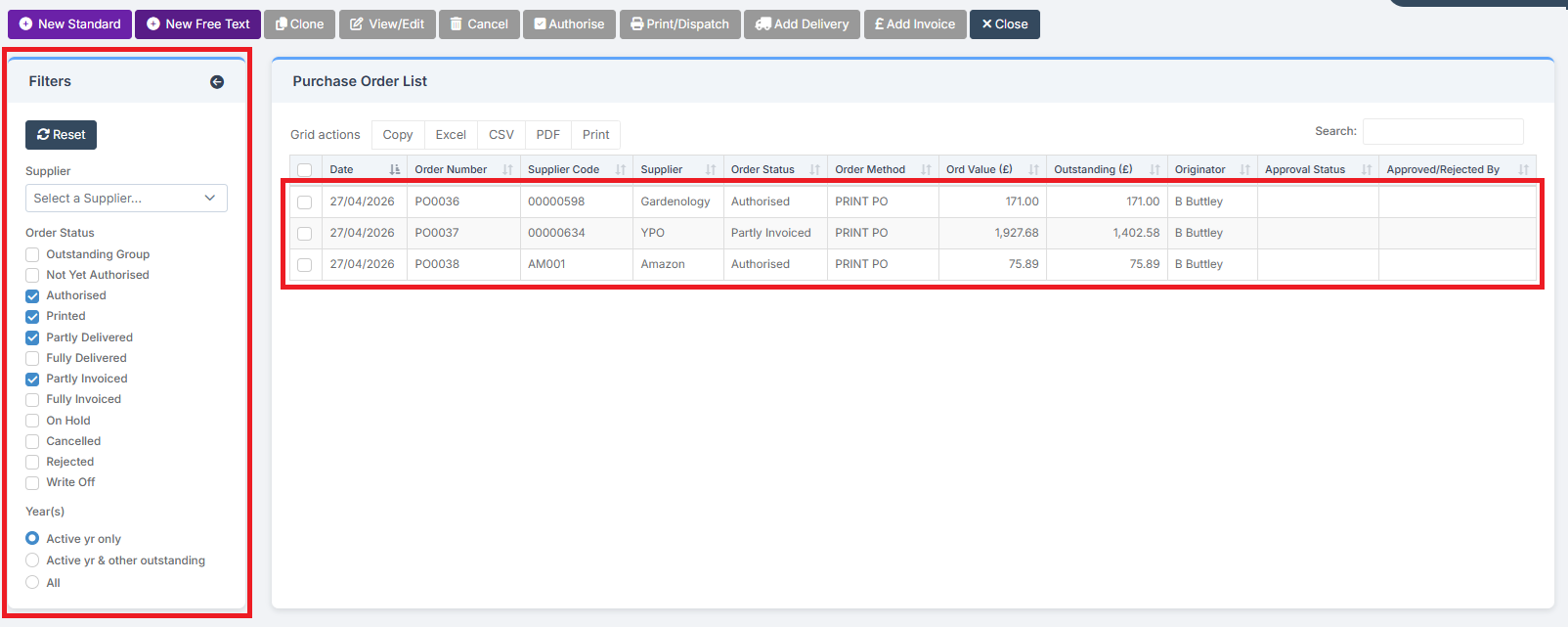
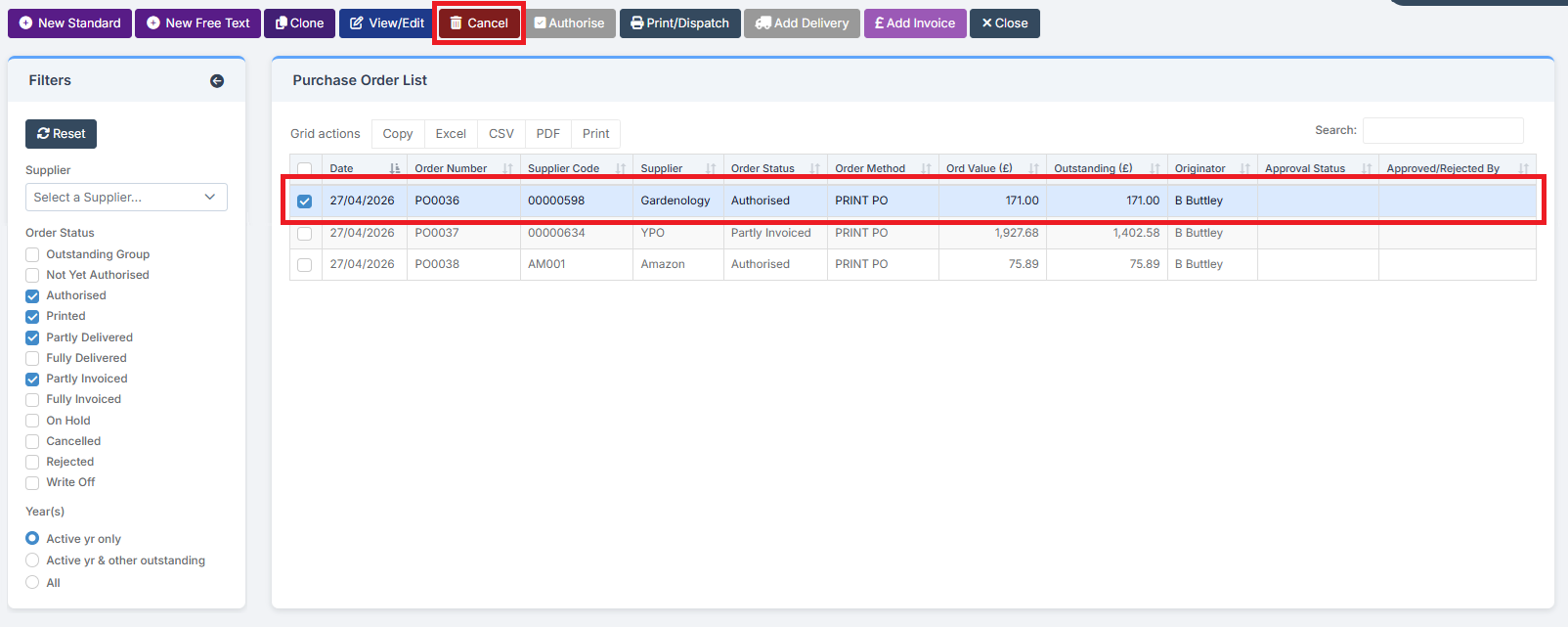
If it is not known which Purchase Orders have outstanding Commitments, they will need to be searched for. Set the Filters for the Purchase Order List to display Authorised, Printed, Partly Delivered, and Partly Invoiced to bring up any Purchase Orders that may have outstanding Commitments. Investigate each Purchase Order individually.
When found, or if the Purchase Order(s) containing outstanding Commitments is known, select it and click Cancel.
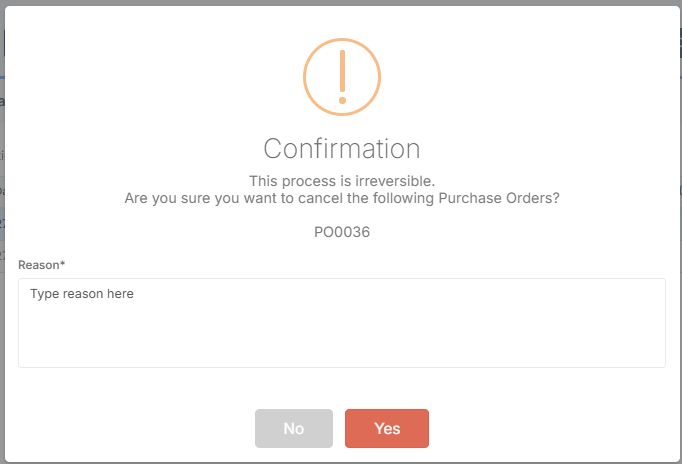
Agree to the Confirmation.
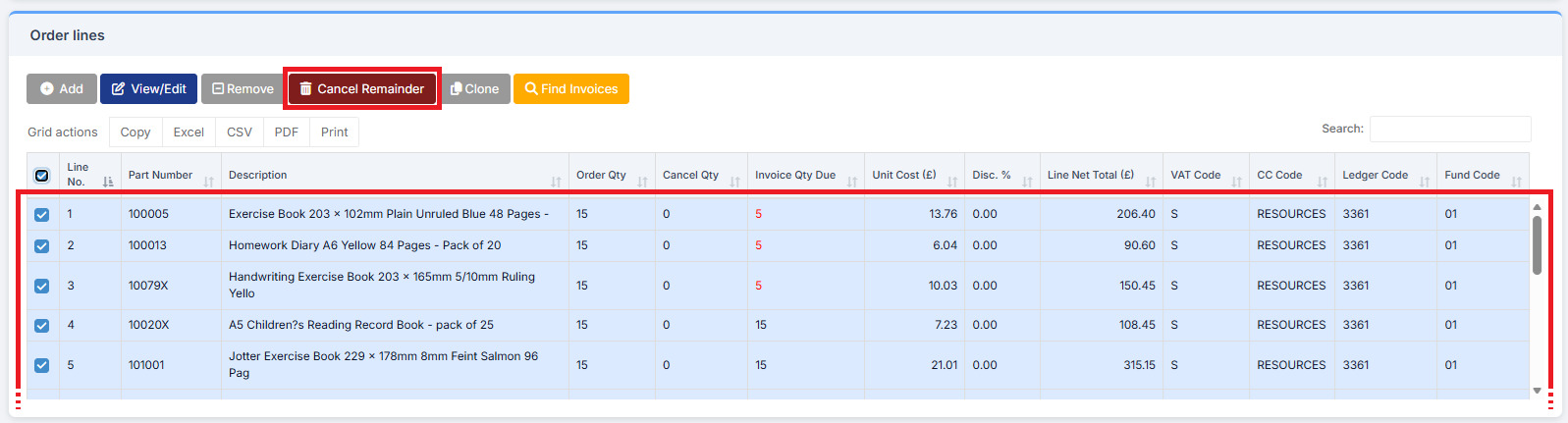
For any Partly Delivered or Partly Invoiced Purchase Orders that have outstanding Commitments, select the Purchase Order and in Order Lines select the Commitments to be Cleared. Then click Cancel Remainder.
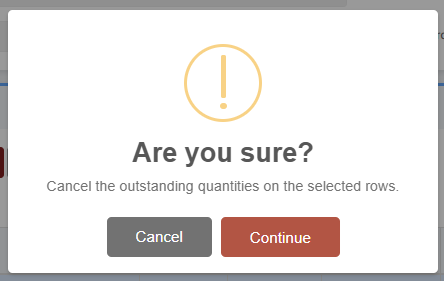
Click Continue.
Reports
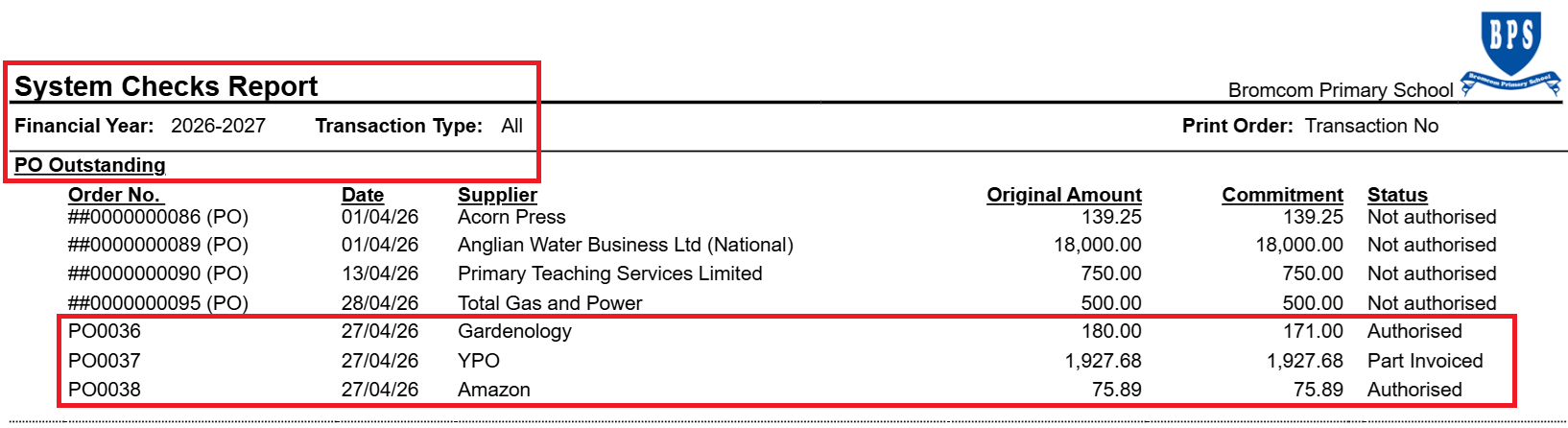
The Outstanding Purchase Orders Report and System Checks Report and also show Outstanding Purchase Orders that may be hiding Commitments.
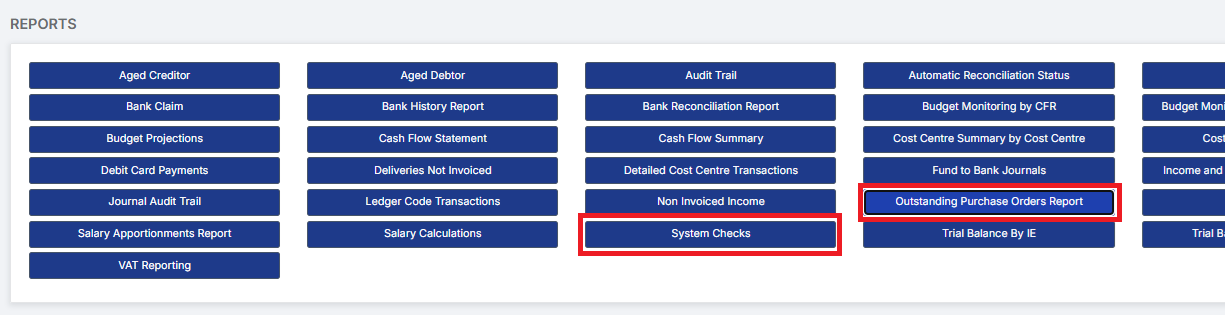
The Outstanding Purchase Orders Report:
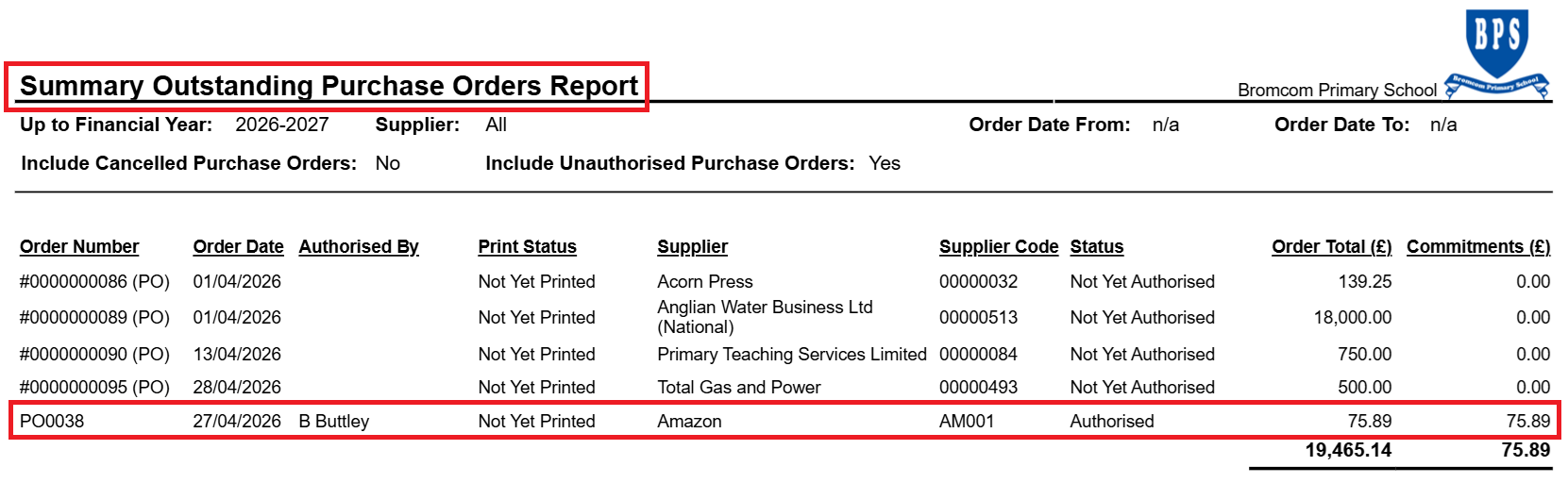
The System Checks Report: