IMPORTANT: please ensure the relevant staff read the JCQ guidance regarding the sharing of exam results. For Bromcom guidance on Exam Results please see here.
Use this guide to Configure how various Exam Results and Exam Timetables look for parents on the MCAS parent portal. For how this looks for parents see How to View Exams in the MCAS App
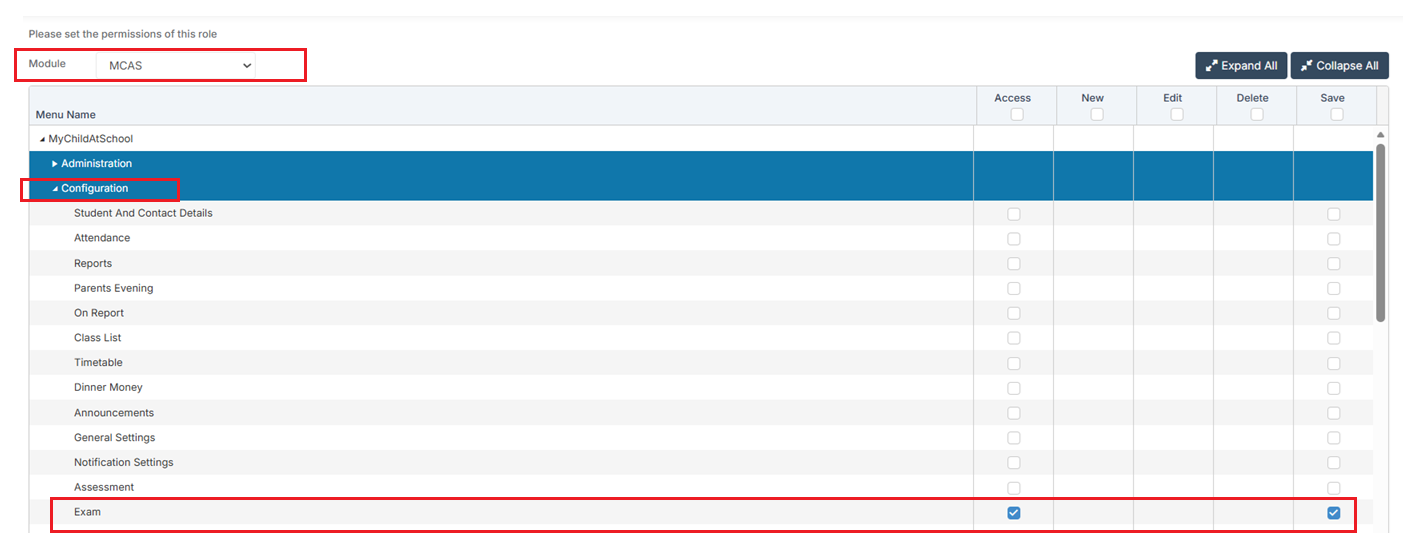
Access: The minimum permissions required to access the Exam page is found in the MCAS Module of Config>Setup>Roles & Permissions.
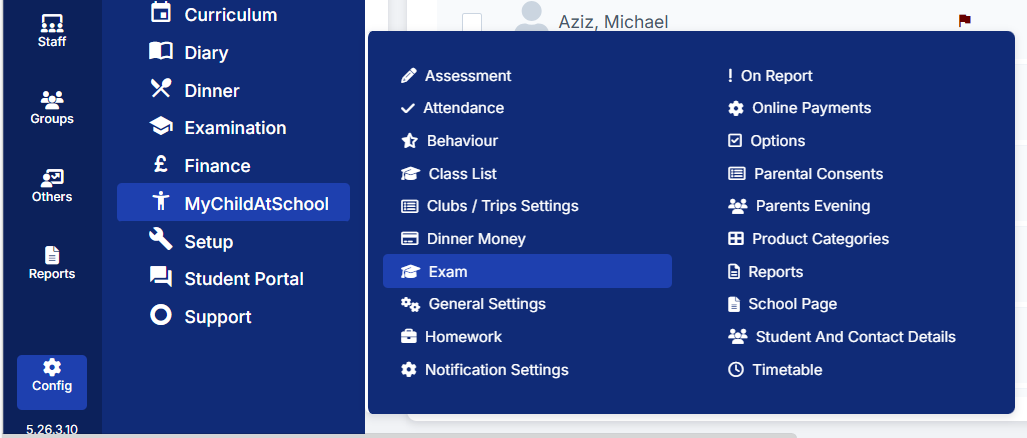
Navigate to Config > MyChildAtSchool > Exam
The Config area is where all the Widgets and Menu options are setup for the Parent Portal view of MCAS.
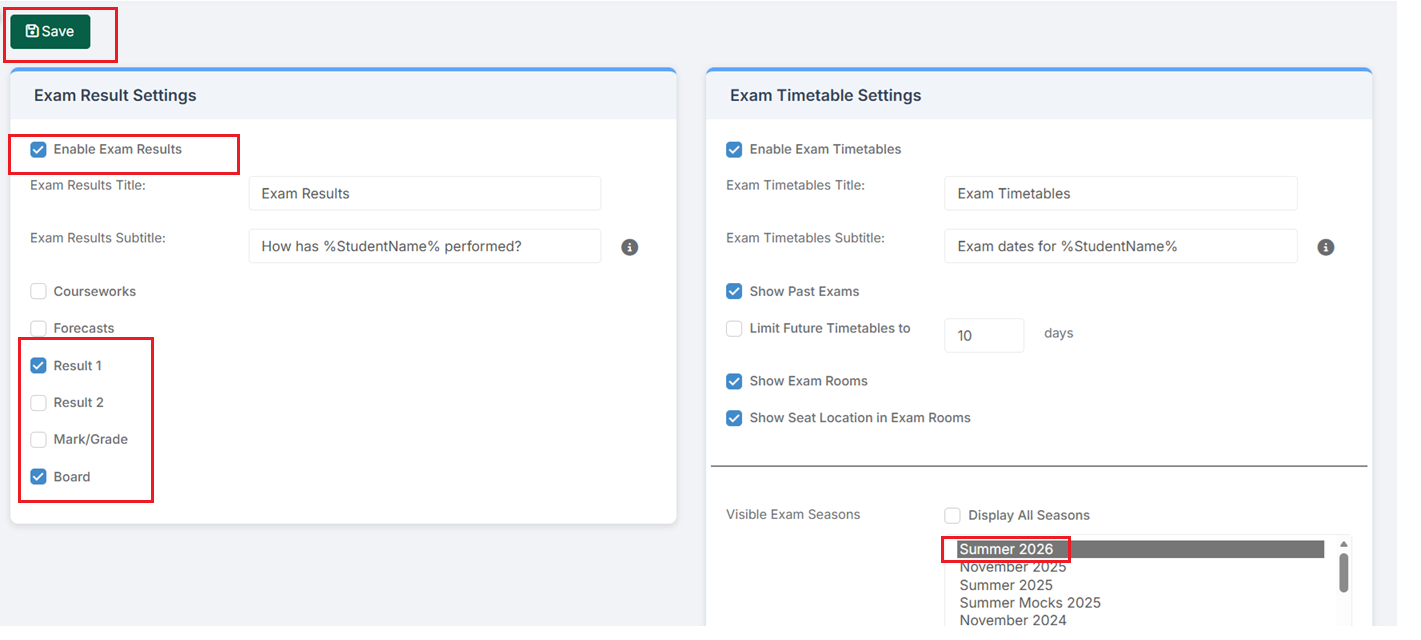
There are two panels available for Configuration
Exam Result Settings
Bromcom has the facility to share candidate’s Exam Results with parents see example screenshot below of MCAS App Exam Results

- Please check your school’s data consent policies in relation to sharing student exam results information with parents before performing this process.
- If an Examination Season is Embargoed in the Exams Module, then the parents will not be able to see the exam results until you remove the embargo. This does not affect any Results Reports, only the Results page.
In the example below, we have ticked Enable Exam Results, as well as Result 1 and Board in the Exam Result Settings panel.
In the bottom-right corner in the Visible Exam Seasons panel, we have unticked Display All Seasons and selected the Summer 2026 Exam Season.
Click Save.
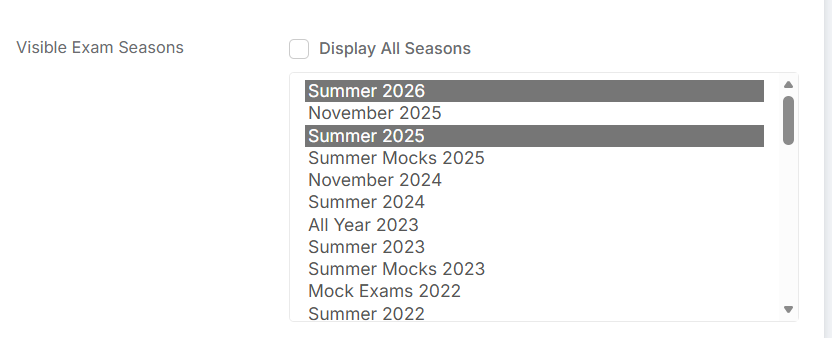
In the example a school wanted more than one Season to be visible to parents simply control and click the required Exam Seasons then Save.
In the example below Summer 2026 and Summer 2025 have both been selected
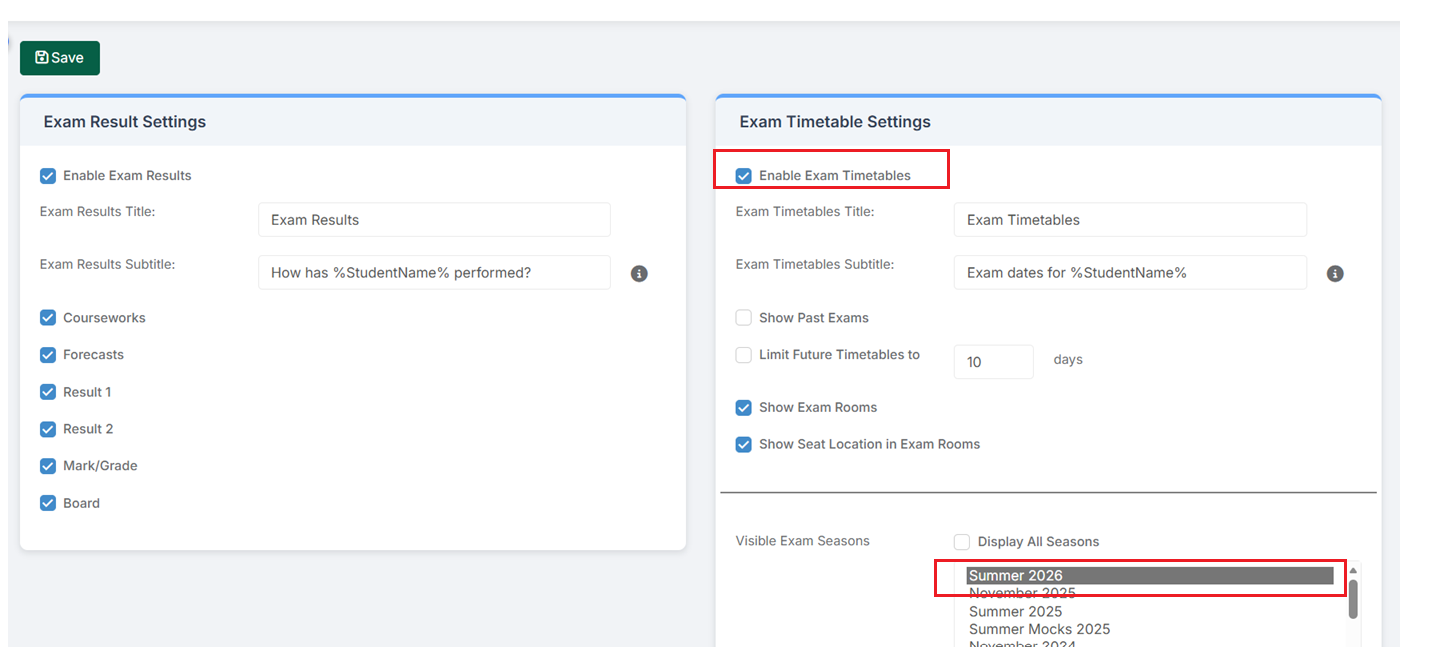
Exam Timetable Settings
Use this section to configure Exam Timetables to be visible to parents in MCAS
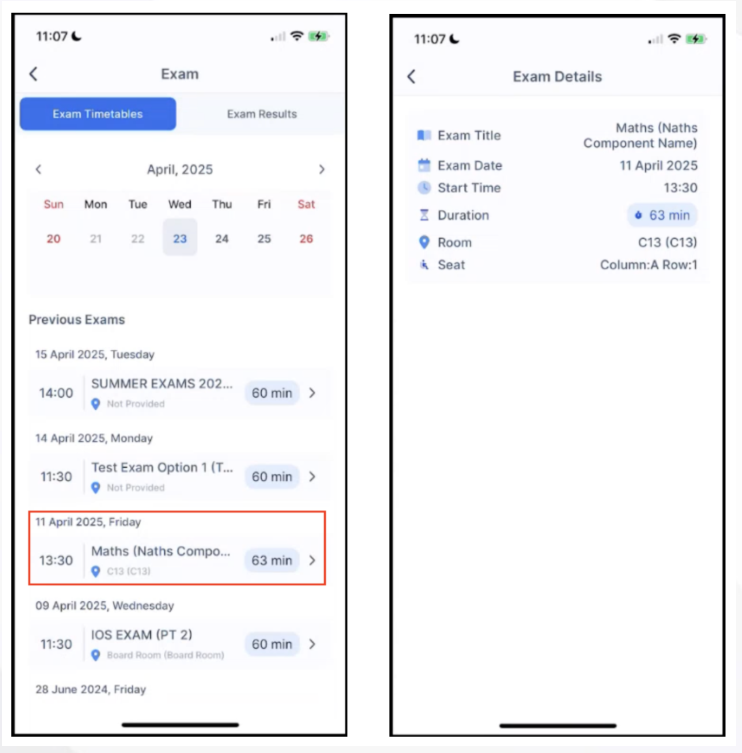
Note: if students have been seated for their exams using Modules>Examination>Seating Organisation then that information will also be visible to parents see How to View Exams in the MCAS App. See the example below showing Room and Seat in the right-hand screenshot.
- To share Exam Timetables with parents simply click to Enable Exam Timetables.
- Define the Exams Timetables Title and Subtitle
- If required tick to Show Past Exams and Limit Future Timetables to and then define the number of days, this can be used in the example a school has entries made for Year 11 students in the Summer 2026 season but only wants to show the first two weeks of exams timetables.
- Define the Visible Exams Seasons, either tick to Display All Seasons, click a single exams Season or control and click if more than one Exam Season needs to be visible
Click Save.