
This guide looks at how to configure the Important Documents view for Students in Student Portal.
Access: The minimum permissions required to access Important Documents can be found in the Student Portal Module from within Config > Setup > Roles and Permissions.
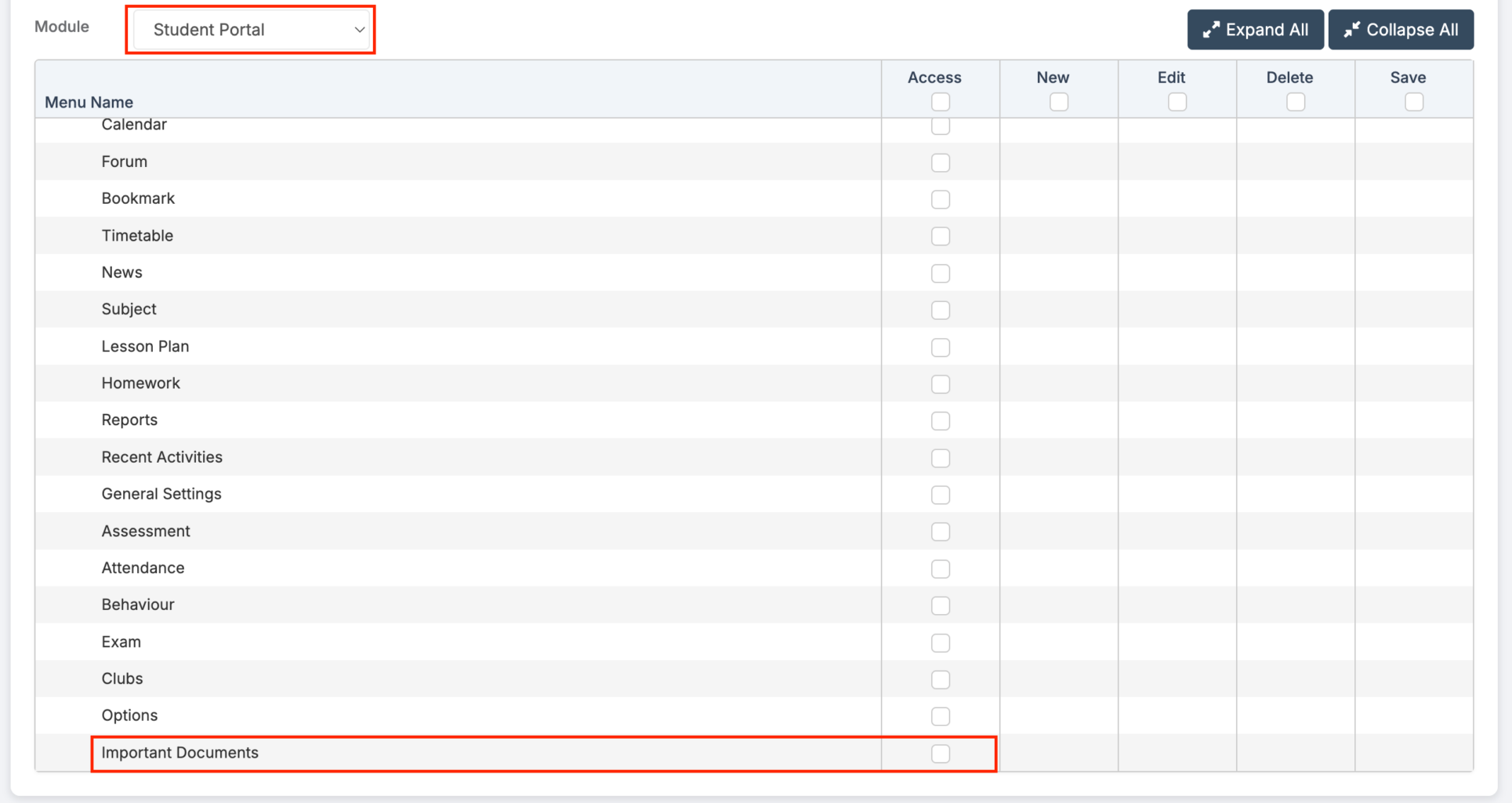
For more guidance on the Configuration of Student Portal see here.
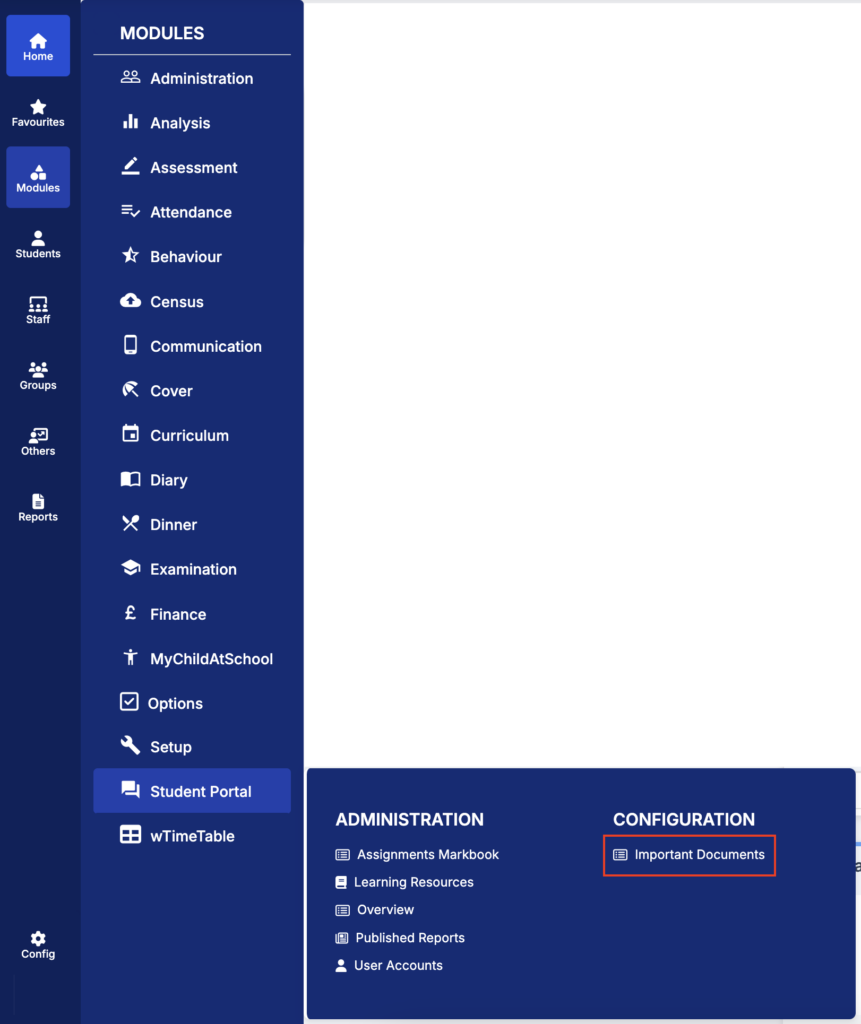
From the left Menu go to Modules > Student Portal > Configuration > Important Documents.
Staff with the appropriate permissions can upload documents via the Important Documents configuration page. These documents will appear in the Important Documents menu item in the Student Portal and in the Important Documents module in the Student App.
To enable this feature in both the Student Portal and the Student App, select the Enable Important Documents checkbox.
To add a document, select Add New Important Document to open the Important Document Maintenance popup. Documents can be uploaded for specific Groups Types (Department, Faculty, Report Group, Subject, Teaching Class, Tutor Group, and Year Group on Roll).
Student Portal > Important Documents
The Important Documents page displays a table of important documents. Use the Search bar to quickly locate documents. Click View to open PDF documents in a new tab. Other files will download automatically.