
Daily Custom Meals are used in the example you want a meal prepared for visitors or for a staff meeting, for example Sandwich Platter or Tea and Coffee could be Daily Custom Meals
Use this guide to perform the following tasks in relation to Custom Meal Types
Access: The minimum permissions required to access Daily Custom Meals are found in the Dinner module from within Config > Setup > Roles & Permissions.

For more information see Dinners
Create Custom Meal Types
The Custom Meal Types are created via a Lookup Table, go to Config>Administration>Lookup Tables

Then from the Admin Lookup drop down choose Custom Meal Types

Below are some examples of Custom Meal Types showing Name, Description and if they are Active.

To create a New Custom Meal Type click the top left New

Then complete the Name, Description (note the character limits) and note Active is ticked by default. Then click Create.
If you are creating a Custom Meal Type that you need for future use, for example the next academic year then you can untick Active. Remember to come back in and click Active for the Custom Meal Type when you are ready for it to be used.

In the event you no longer wanted to use a Custom Meal Type then simply click the Meal Type in the left hand table and then untick Active>Save.

You can only delete a Custom Meal Type if it’s not been used in the example it was created in error.
For more information see How to Edit Lookup Tables
Add a Cost
Once you have created the Custom Meal Type and you want to add a cost to them go to Config>Dinners>Meal Definitions.
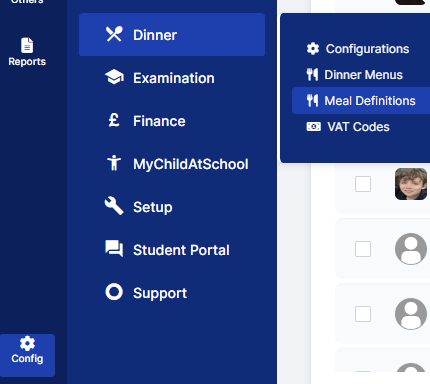
From the Meal Definition drop down choose Custom, click on the Name of the Meal Type (it will highlight blue) and then click Edit.

Then in the Edit Meal Category if required complete the Category 1 and Category 2 drop downs. In this example we have chosen School Provided and In School

Then in the Edit Meal Definition panel if required enter the Charge (in £)and VAT code from the drop down choices, you can choose a Start Date and End Date and in finally click the green tick to Save the Meal Definition.

See also How to Setup Meal Definitions
Add Daily Custom Meals
To Add Daily Custom Meals in the example you have some visitors coming on site or you have an internal meeting that requires some catering, go to Modules>Dinners>Daily Custom Meals

In the Manage Daily Custom Meals panel the Dinner Date will default to todays date however, you can change this if required.
In the example below we have entered 1 in the Quantity columns for the Sandwich Platter and Tea & Coffee (these are the descriptions of the Custom Meal Types)
We have also entered some General Notes.
You can Export, Copy or Print the Custom Meal Notes using the Grid Actions if required.
Click Save.
