
In this guide, learn how to configure Bromcom AI to then create Homework, Quizzes, and Lesson Plans using Bromcom AI.
All pages shown below are subject to having relevant Roles & Permissions.
Before continuing, we recommend reviewing the three guides below as best practice.
- How to use Bromcom AI
- How to Configure Homework for Student Portal
- How to set Homework as a Teacher via the MIS
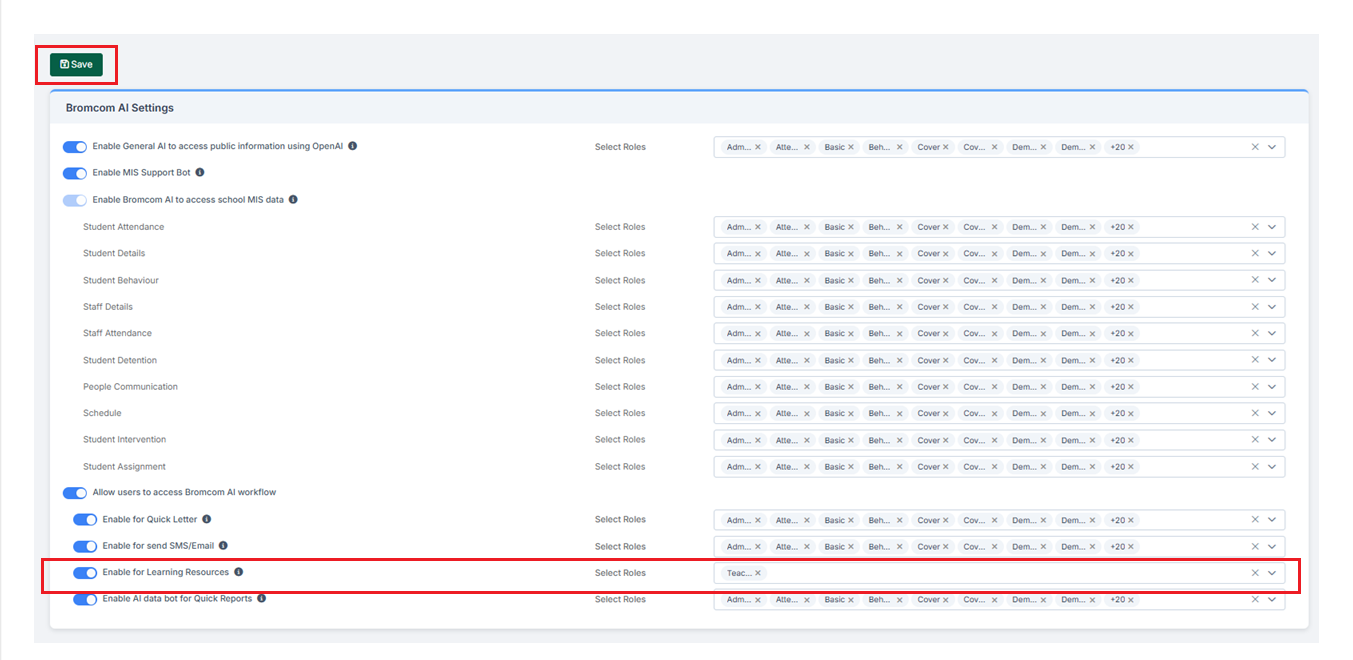
Navigate to Config > Setup > Bromcom AI Settings

Toggle Enable for Learning Resources on and choose the relevant roles.
Click Save
To set the homework navigate to Modules > Student Portal > Learning Resources
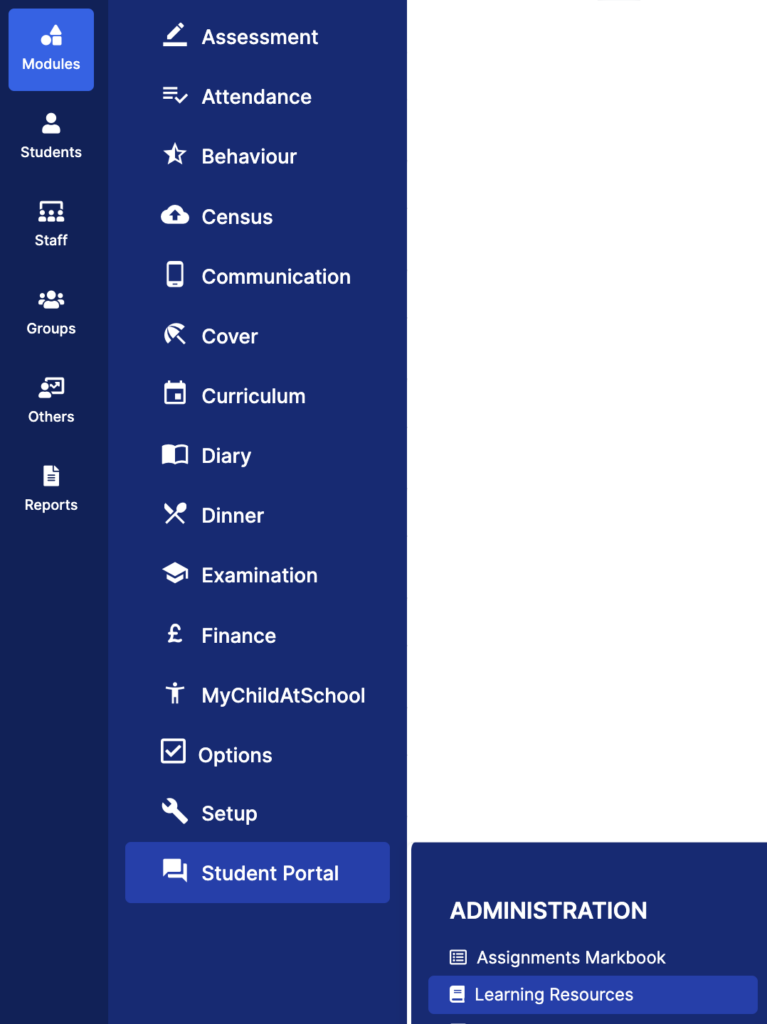
Note: Users can also set Assignments in My Dashboard > Assignments.
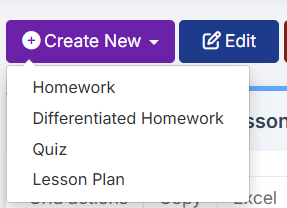
Click the top-left Create New button

Then choose either Homework, Differentiated Homework , Quizzes or Lesson plans from the drop down. In this example we have chosen Homework.
In the Basic Details tab, click on the top right Bromcom AI: Generate Content link to open the Bromcom AI wizard.

In Topics type in the content you would like to generate.
There are options to select:
- Year Group to set the level of content
- Subject to set the subject content
- Language to translate the assignment into another language
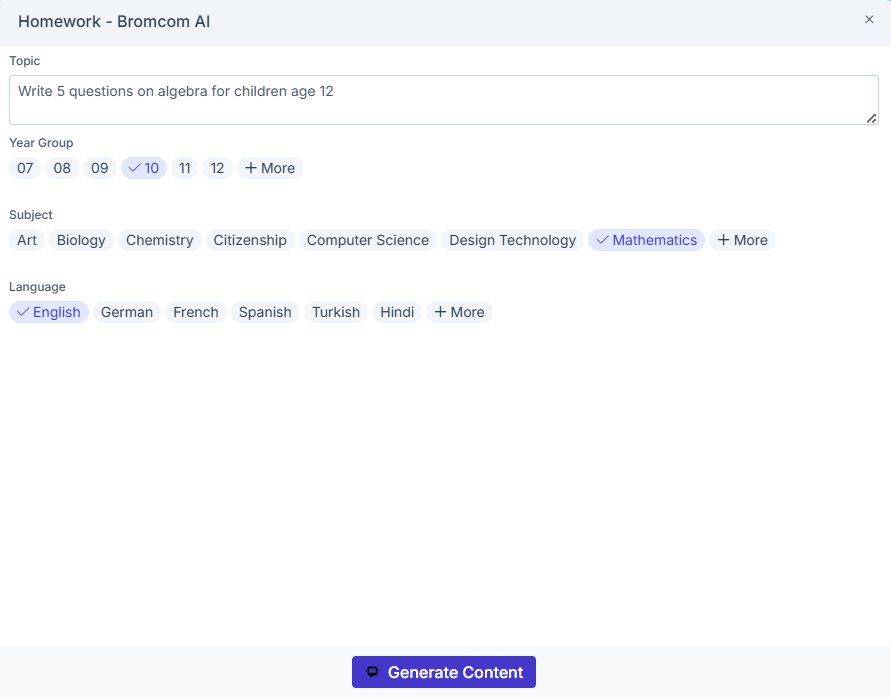
Clicking Generate Content produces the Bromcom AI assignment.
Important : note the CAUTION information box at the top of the panel
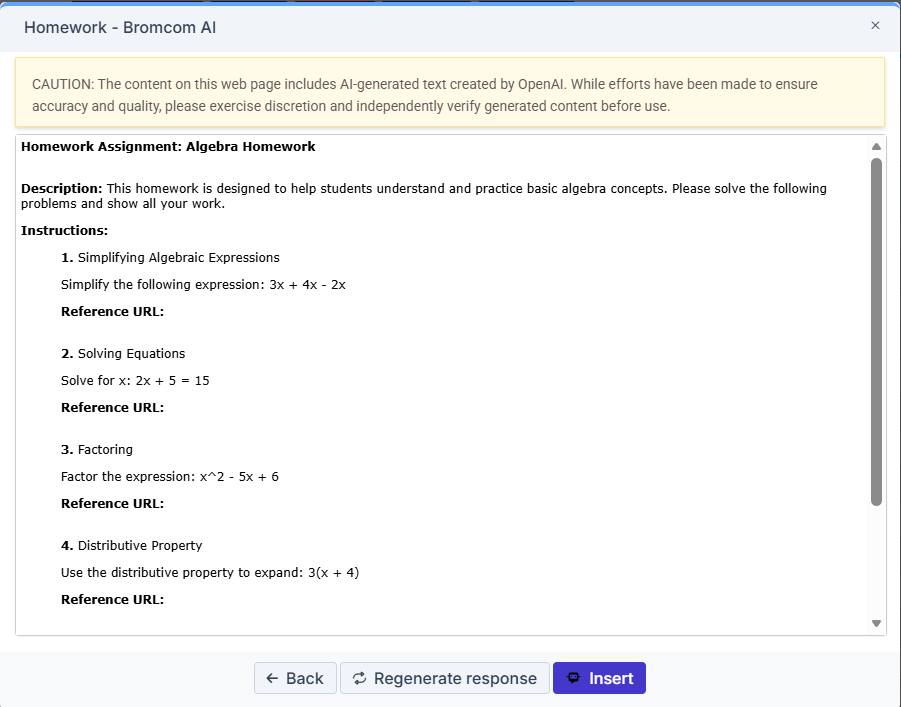
From here you can click choose the following
- Back to go back to the wizard and edit,
- Regenerate response to create a different version of the assignment
- Insert to populate the relevant information in the Homework panel. The information can be edited once after they have been populated.
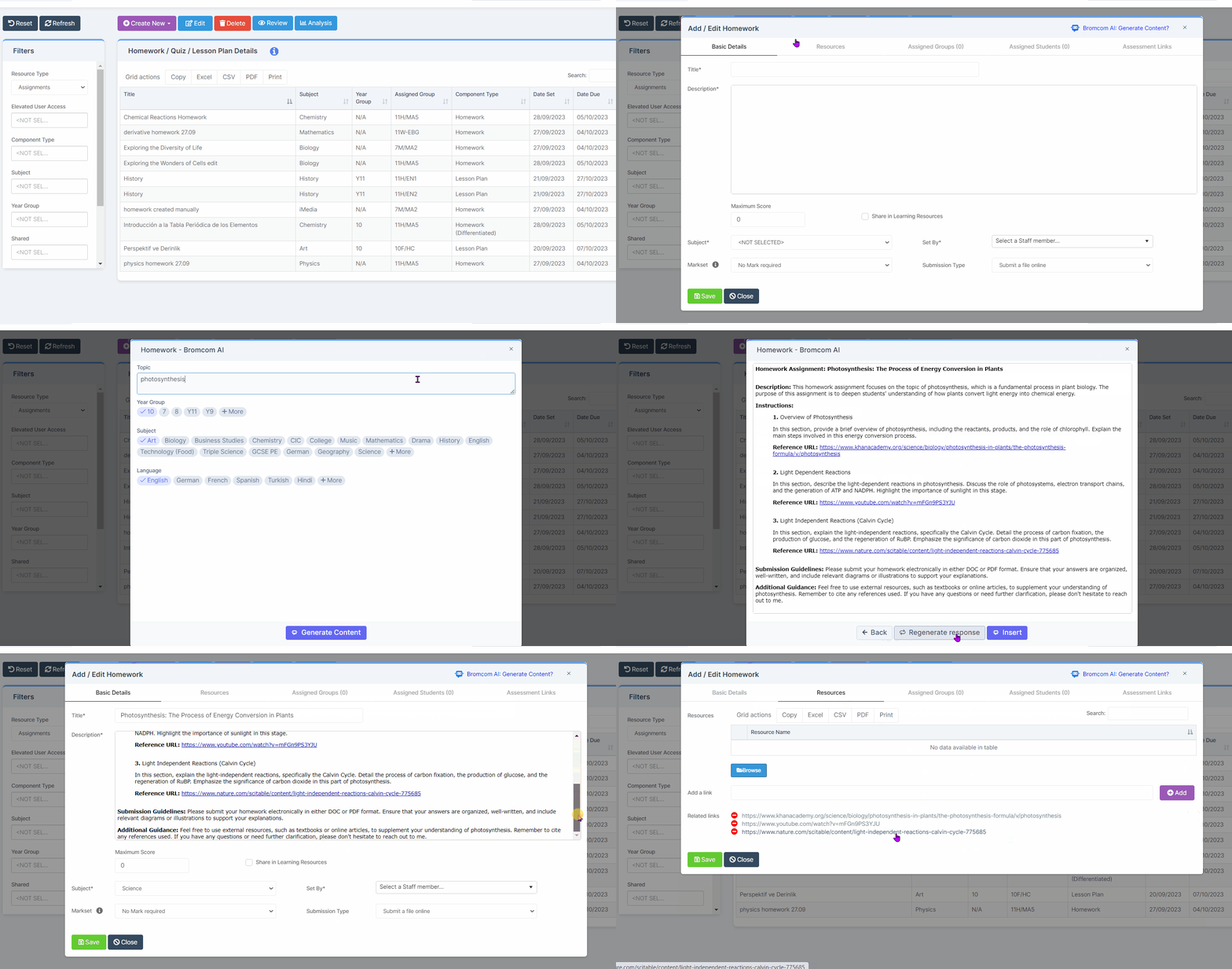
Clicking Insert updates the following tabs for the different Assignment types:
- Homework – Basic Details and Resources
- Quiz – Basic Details and Question,
- Lesson Plan – Details and Content.
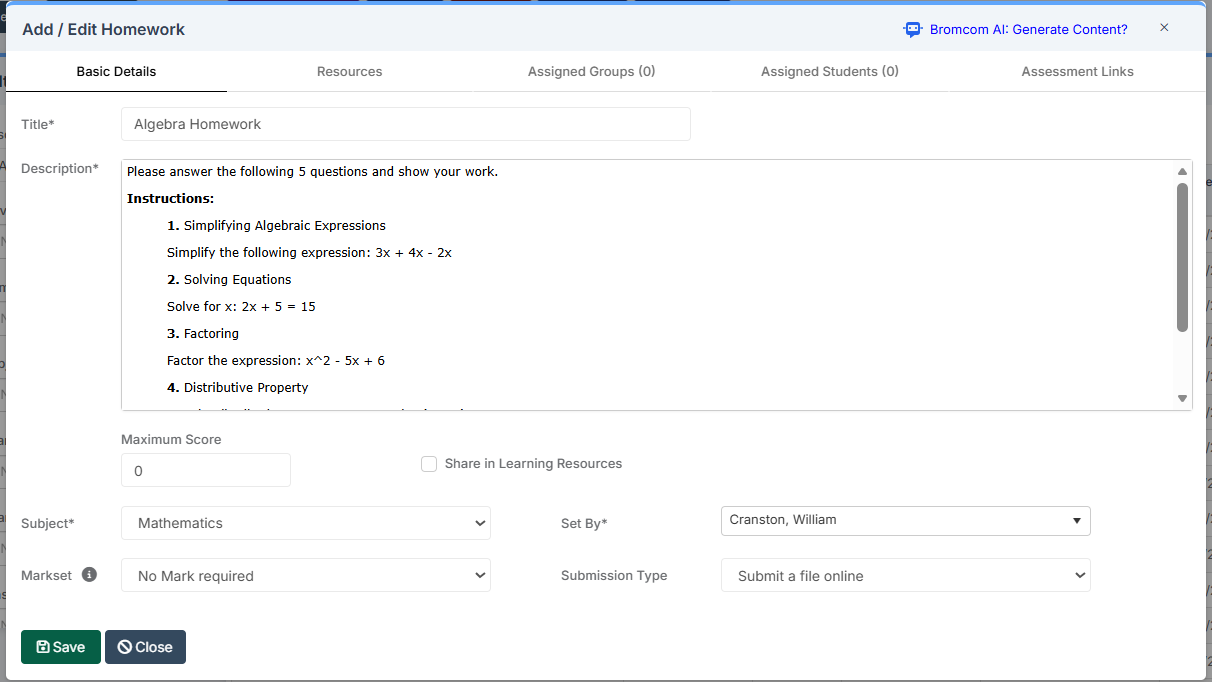
Prior to clicking Save, users will need to complete the following:
- Homework – select staff in Basic Details tab, and assign a group or students in the Assigned Groups or Assigned Students tabs.
- Quiz – select staff in Basic Details tab, and enter a score for each answer in the Questions tab.
- Lesson Plan – select a class in Class Assignments tab.
For more information on setting Homework see here.
Note: If the Bromcom AI: Generate Content button is used after already clicking on Insert, a Confirmation message will appear. Confirm will take the user to the AI wizard to generate new content. Existing content will be overwritten when the user chooses Insert and Proceeds for the second time.