This guide will look at how to create VAT Codes for use when creating Staff or Custom Meal Definitions
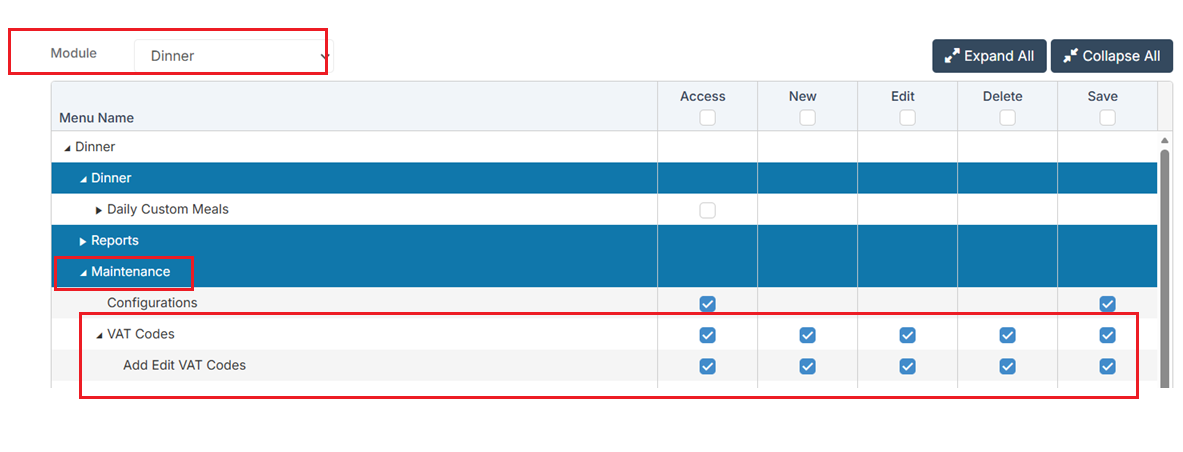
Access: The minimum Permissions required to access VAT Codes can be found in the Dinner module from Config > Setup > Roles and Permissions
See Also: How to Manage Staff Dinners and How to Create and Manage Daily Custom Meals
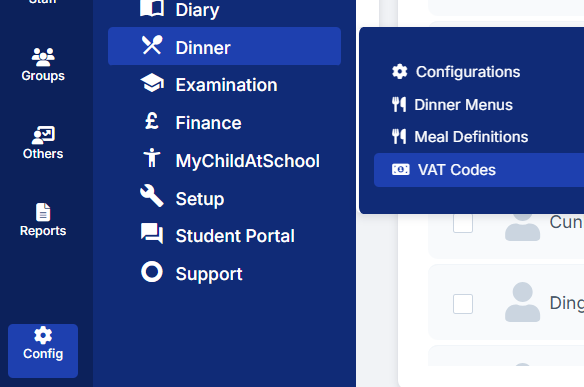
Navigate to Configurations > Dinner > VAT Codes
Any current VAT Codes will be displayed.
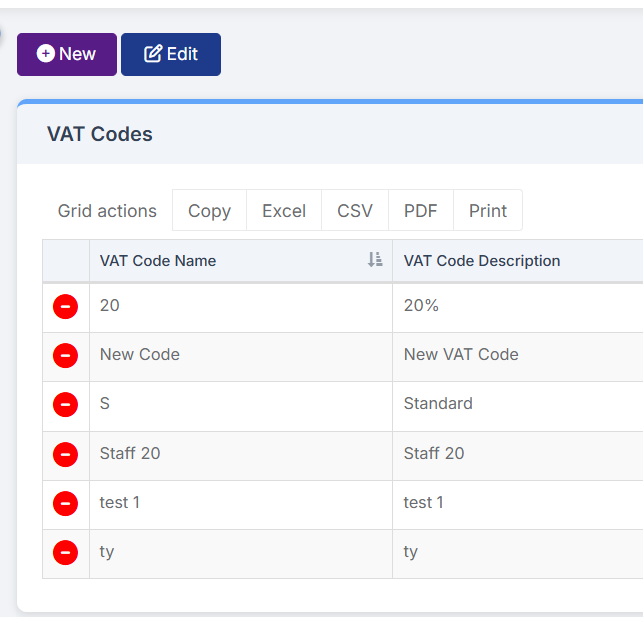
To create a new VAT Code click New
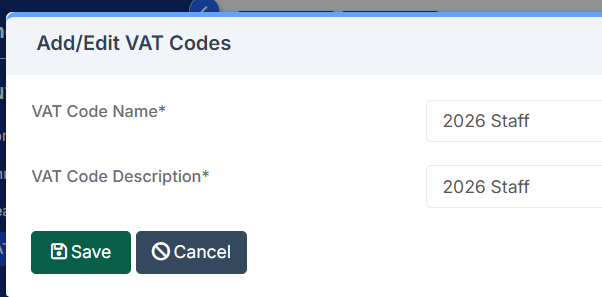
In the Add/Edit VAT Codes pop up type in the VAT Code Name* and VAT Code Description*, both fields need to be completed to save the record.

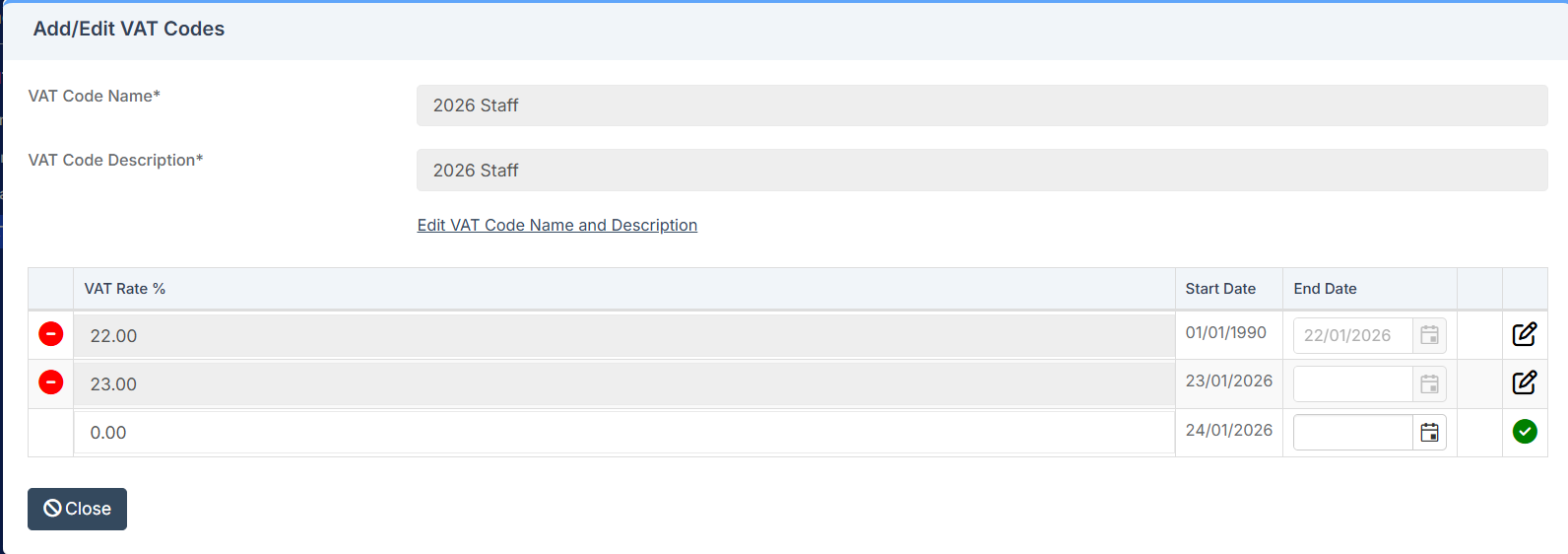
After clicking Create the VAT Rate % field becomes visible with the option to click to Edit VAT Code Name and Description also visible.
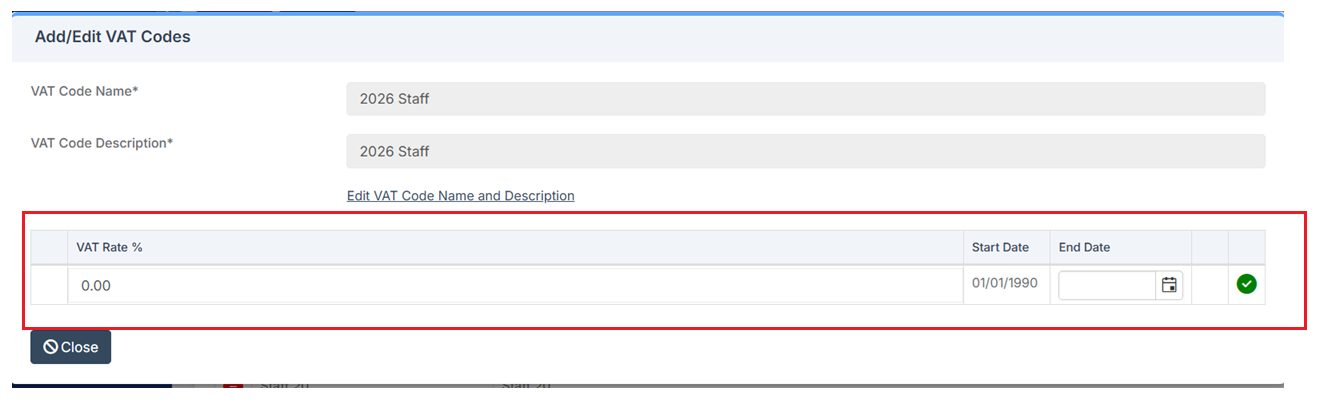
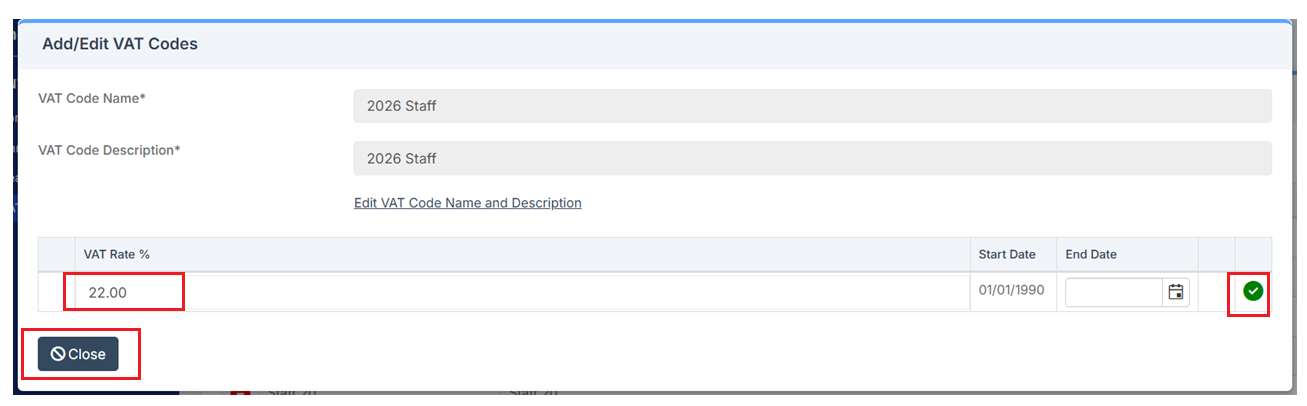
Simply type in the VAT Rate % and click the green tick to Save
The newly created VAT Code is now visible
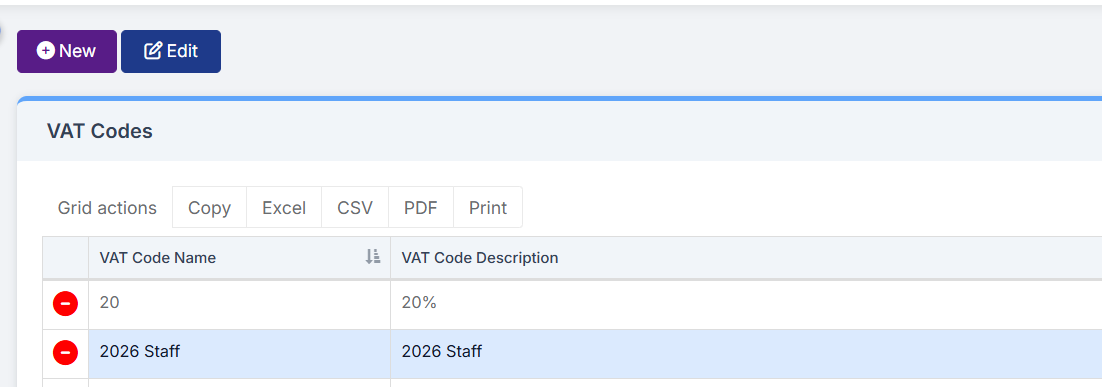
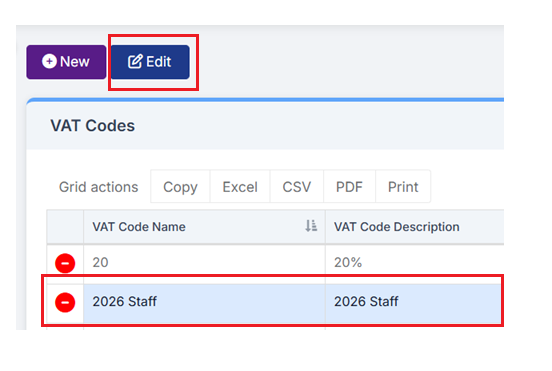
To Edit click to select the VAT Code and click Edit
Either click Edit VAT Code Name and/or VAT Code Description, click Save if any changes are made.
Click the left hand red delete icon to delete the VAT Rate %
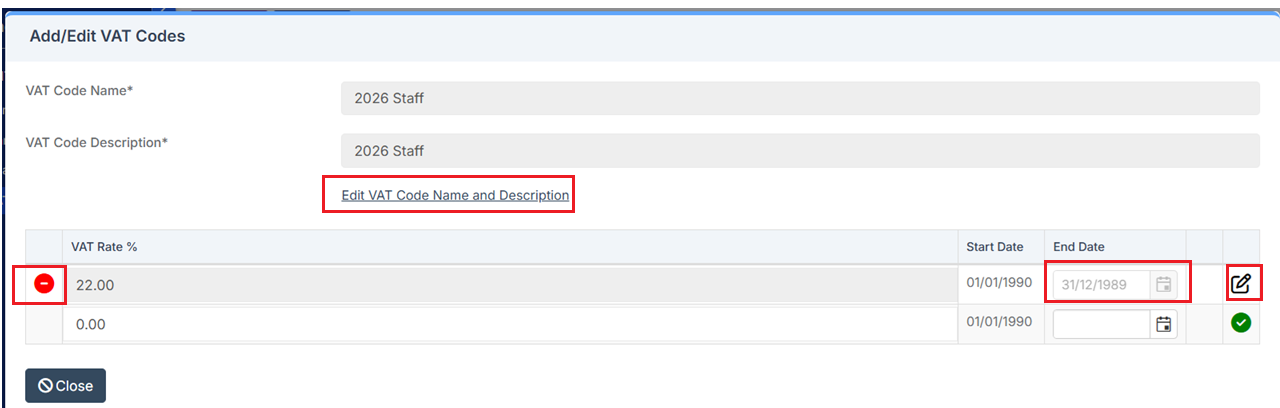
Enter an End Date if required and then add a new VAT Rate %