
In this guide, we show How to Distribute Profile Models and VAT Rates alongside Ledger Groups and Codes within Vision Finance.
Access: The minimum permissions required to Access Central – Ledger Groups and Codes are found within the Vision user account.
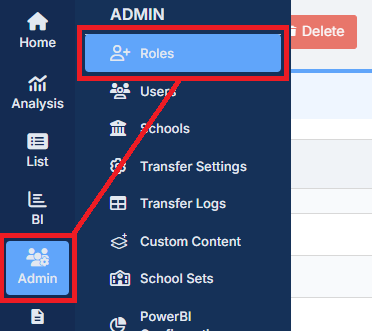
Step 1: From Admin in the left hand ribbon, select Roles.
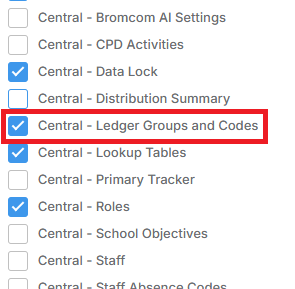
Step 2: Select Finance and click Edit.

Step 3: Within Finance, tick Central- Ledger Groups and Codes.
Related Guides:
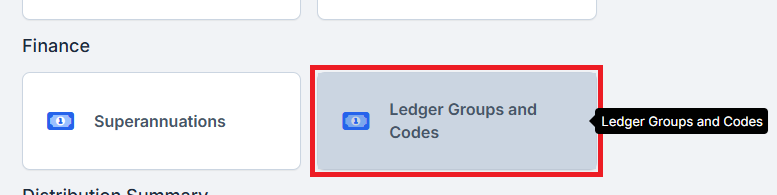
To begin, select Central from the left hand menu.

Then, from Finance, select Ledger Groups and Codes.
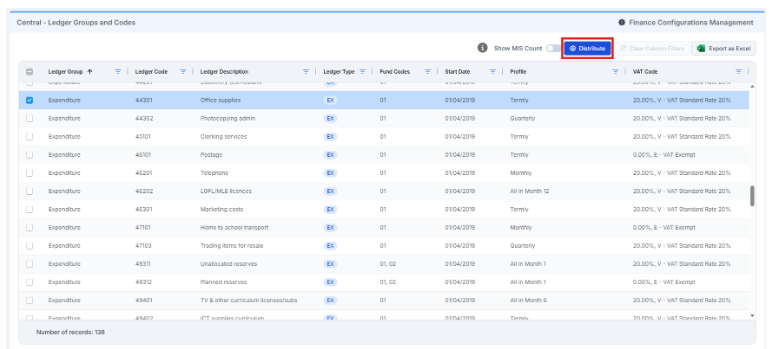
The Profile and VAT Code columns are displayed towards the right of the grid. They can be filtered, if necessary.
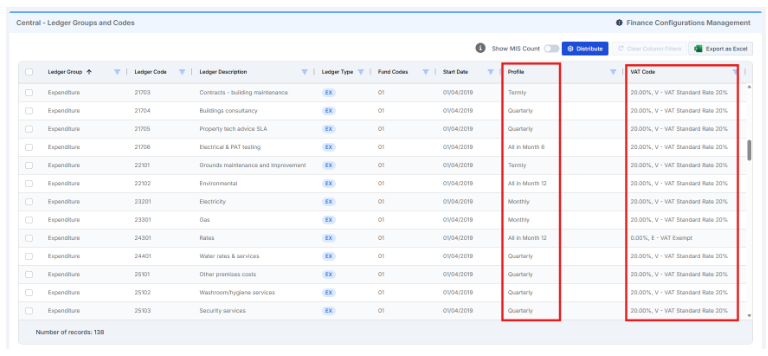
Select which row is to be distributed. Multiple rows can be selected. Once selected, click Distribute.
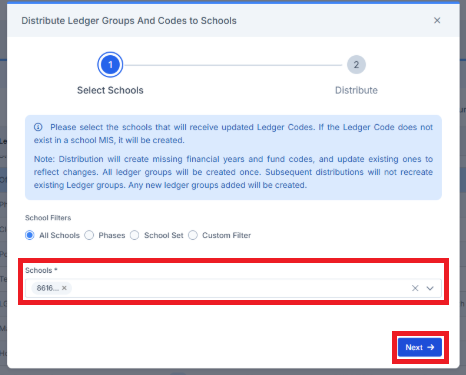
Select which schools are to receive the update, and then click Next.
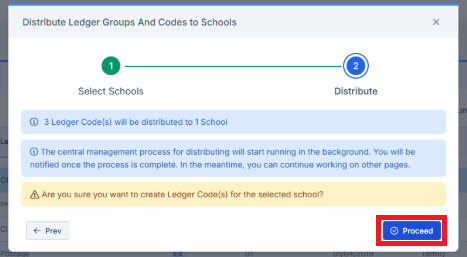
Click Proceed to run the distribution process.
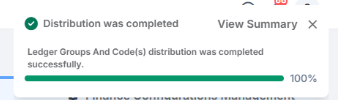
A message is displayed in the top right of the screen upon completion.
Go to Central > Distribution Summary to find all distribution events.
Click the Eye Icons for more details.
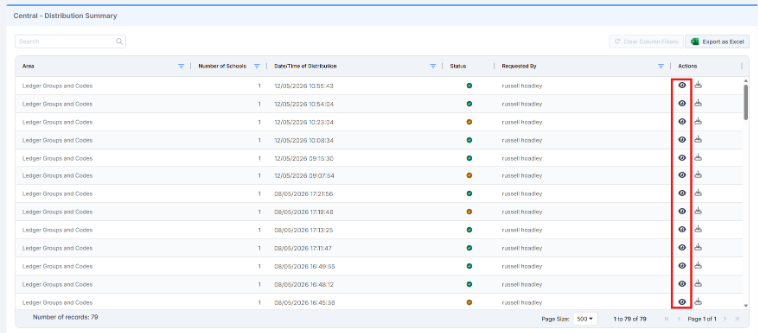
The pop up displays all relevant information.

Note: With the introduction of this development, amendments can now be sent to existing ledger codes centrally.