
Note: The information in this guide is only applicable to Schools in England and Wales.
This guide shows you how to manage Special Requirements at Subject, Exam Option, and individual Exam Component level for each exam season in the Manage Candidate Access Arrangements page.
Any Special Requirements managed here will automatically be reflected in:
- Reports > Examination > Exam Seating Plans
- Modules > Examination > Seating Organisation
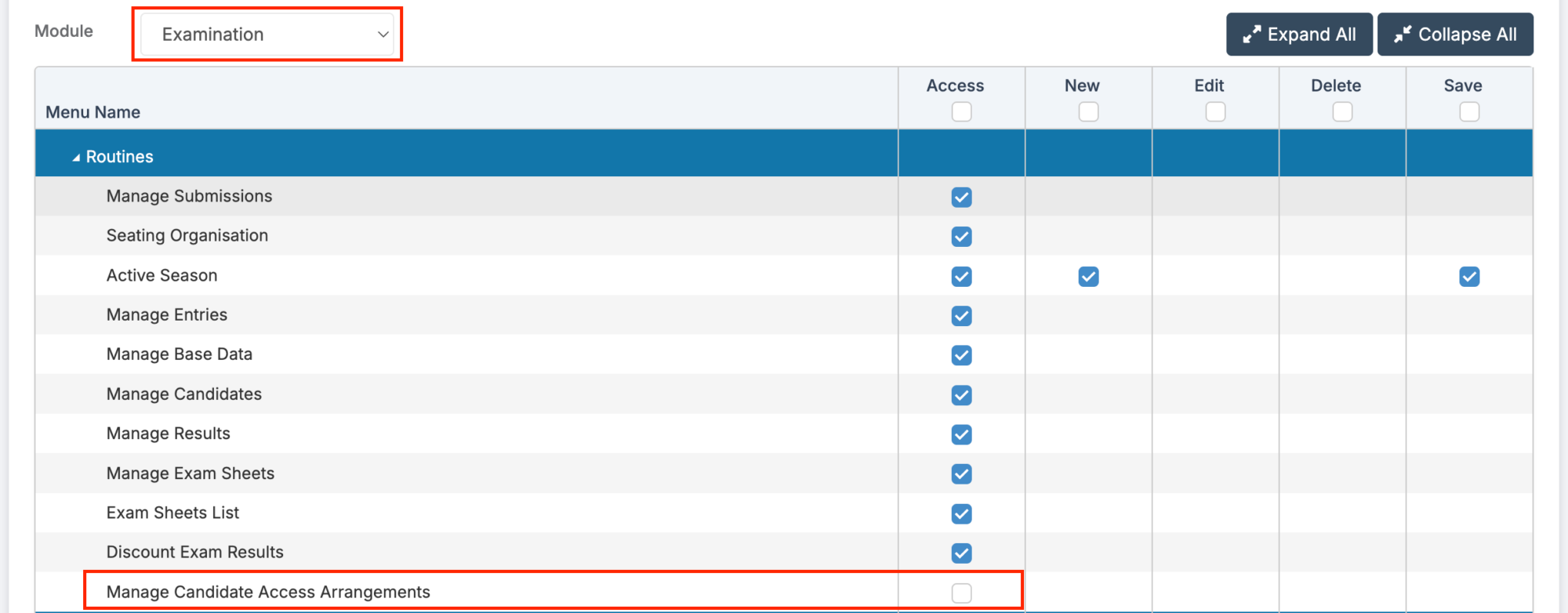
Access: The minimum permissions required to access the Manage Candidate Access Arrangements page are found in the Examination Module from within Config > Setup > Roles and Permissions.
See also:
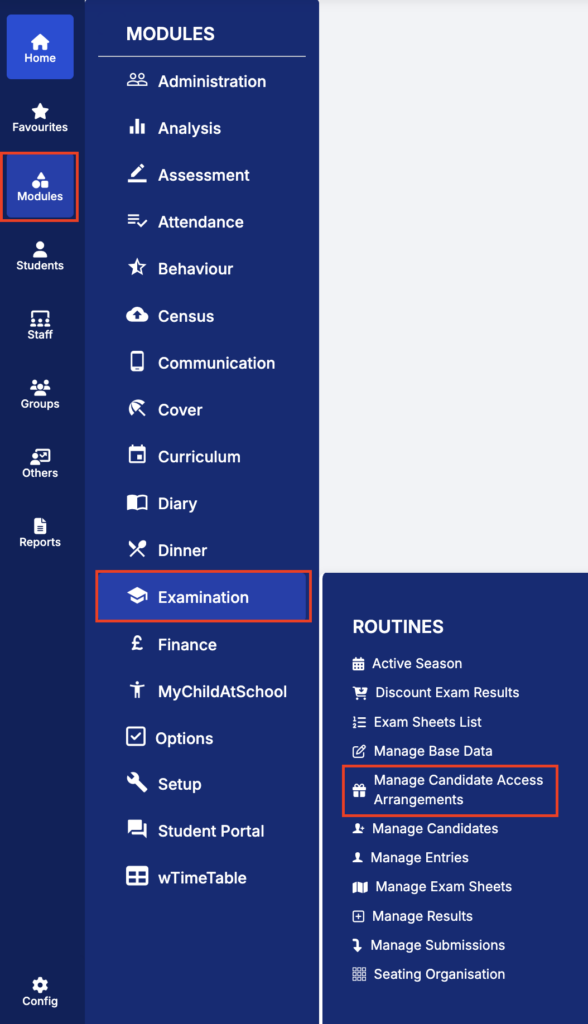
To access the Manage Candidate Access Arrangements go to Modules > Examination.
Page Overview
The page allows you to work in two different focus modes:
- Exam Focus: Candidate
- Exam Focus: Exam Option
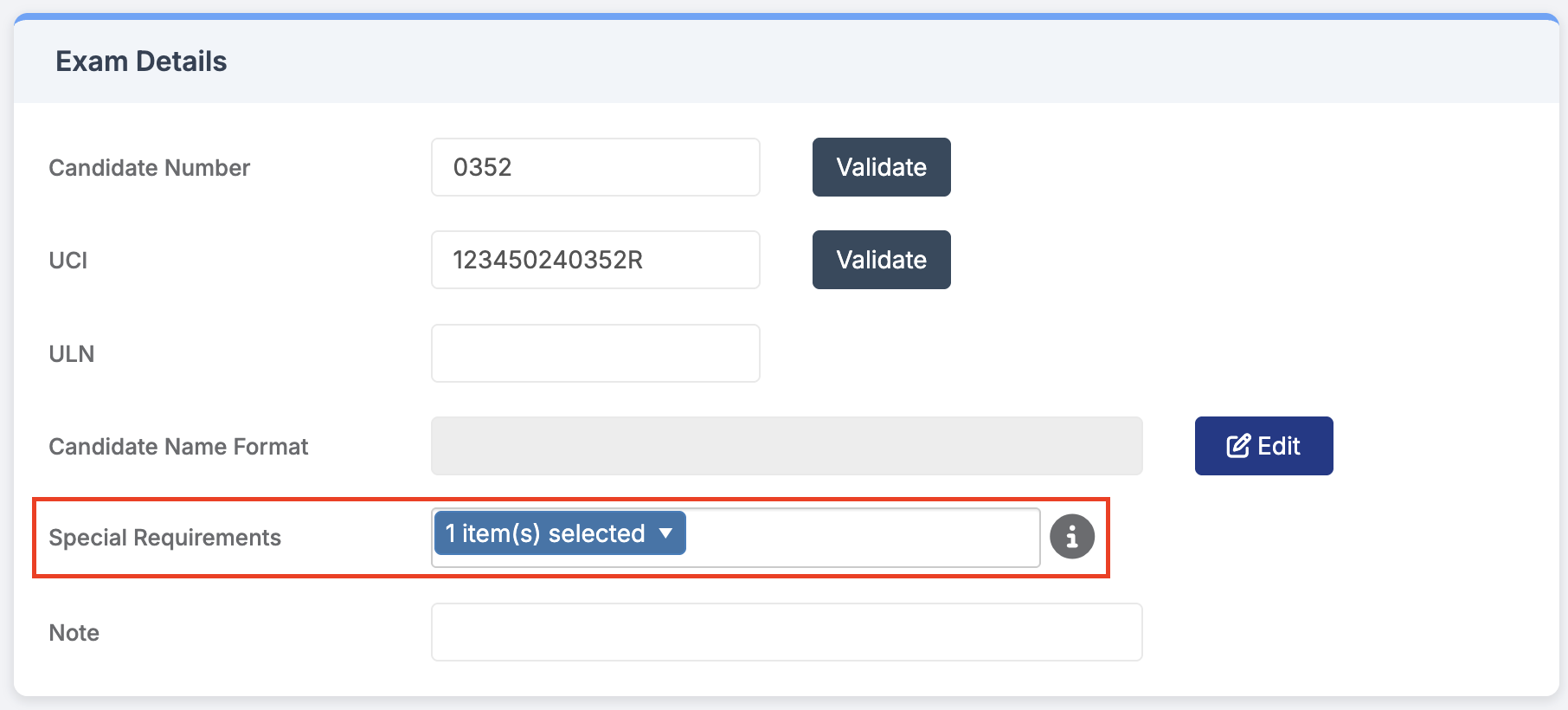
Only candidates who already have at least one Special Requirement recorded in Modules > Examination > Manage Candidates (Exam Detail panel) will appear on this page.
Exam Focus: Candidate
- The Special Requirement codes assigned to the selected candidate appear as column headers.
- Requirements can be checked or unchecked for each Exam Component as needed.
- When changes are made, the Save button becomes active – click Save to apply updates.
- Hover over Special Requirement and Exam Option/Component headers to view the full description.
- Extra Time % – displays the Extra Time allocated to a student in Modules > Examination > Manage Candidates in the Candidate Entries panel.
Exam Focus: Exam Option
- The Exam Component codes for the selected subject appear as column headers.
- Components can be checked or unchecked for each candidate’s Special Requirements.
- When changes are made, the Save button becomes active – click Save to apply updates.
- Hover over Special Requirement and Exam Component headers to view the full description.
Exporting Data
- Click Export to download an Excel version of the table for offline review or record‑keeping.
Where these settings appear
When Special Requirements are managed at Exam Component level, the updates will appear in:
- Modules > Examination > Seating Organisation > Seat: Other Info displays the Special Requirement code assigned to each Exam Component.
- Reports > Examination > Exam Seating Plans: Special Requirements codes are displayed if they are assigned to the Exam Component.
Config > Examination > Configurations
A new setting, Access Arrangements assigned at component level, allows Exam Officers to control whether Special Requirements can be managed at the Exam Component level.
- Enabled (default): Special Requirements can be assigned at Exam Component level in the Manage Candidate Access Arrangements page.
- Disabled: Exam Components are removed from the Manage Candidate Access Arrangements page, and Special Requirements can only be managed at the Exam Option level.
This checkbox is only visible to users with the Manage Candidate Access Arrangements permission.