Split Registers allows the user to take Attendance for each Period in a Double Lesson independently, without the Attendance Mark being copied over to the other Period.
For the purposes of this guide, a double lesson is when a group has consecutive lessons in the same room, not broken by a break or lunch.
Important Information – Read Before Using This Guide
- Best practice for taking a register for a double lesson is from Teacher Dashboard > Timetable. See the section on Take a Register in this guide. Modules > Attendance > User Timetables will also open as a double lesson.
- Where registers need to be taken as singles, either split registers can be enabled, or these can be opened via Teacher Dashboard > Student List > Take Register.
- When a Double Register is opened and an Attendance mark is entered in the first lesson, if the second lesson is blank, it will be automatically populated. This mark will show to the staff member taking the register.
- Where split registers are enabled for the user, and a double register is to be opened, the user will be given the option to open as either a double, or a single.
Use this guide to learn how to Configure Split Registers , how to Take a Register from the Dashboard and the Different Views available.
Access: There are no specific permissions required to take Registers, once you are assigned to a Teaching Class/Tutor Group and you have the Teacher Role, you will have access to the Lesson Dashboard where you can take Registers.
You will see Registers on the Lessons Dashboard where you are assigned to the associated timetable for the Teaching Class/Tutor Group. See How to Add Staff to Teaching Classes/Tutor Groups.
See also How to use the New Teacher Dashboard – Secondary
Configure
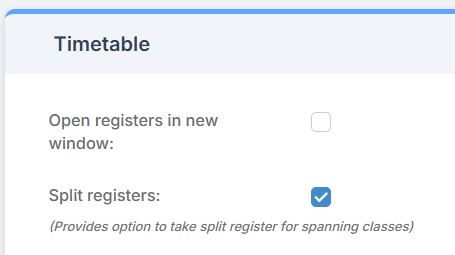
This section shows you how to Configure Split Registers, if this is not done then when the register is opened it will open as a Double Register by default and the Attendance mark entered in the first Period will automatically be copied across to the other Period
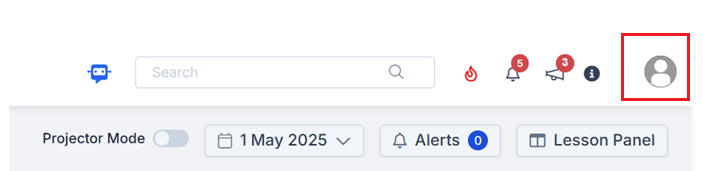
Click on the profile picture in the top right of Bromcom
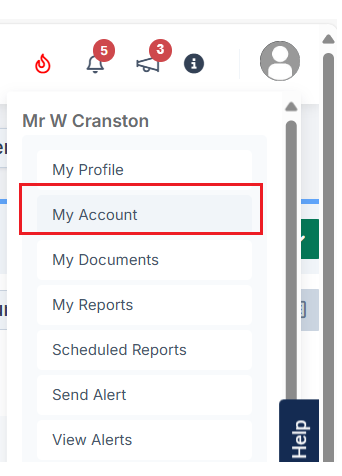
Click My Account
In the View As drop down if the user has Administrator permissions then User Default will be visible, select User Default to set the Register View for new users going forward. It will not affect existing Users.

Scroll down to the Timetable panel and tick Split Registers

Click the top-left Save.

Take a Register
In the example below Split Registers has been ticked in Profile>My Account>Timetable for more information see the previous section on Configure.
IMPORTANT: Opening the register from Teacher Dashboard>Student List>Take Register will only open the single lesson.
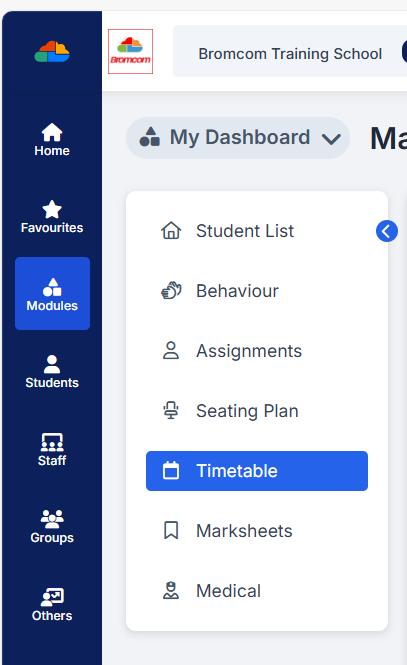
From the Teacher Dashboard click Timetable
Then in the example below we can see the 09AB/EN1 Maths Teaching Class is set for Period 3 & 4a on Friday
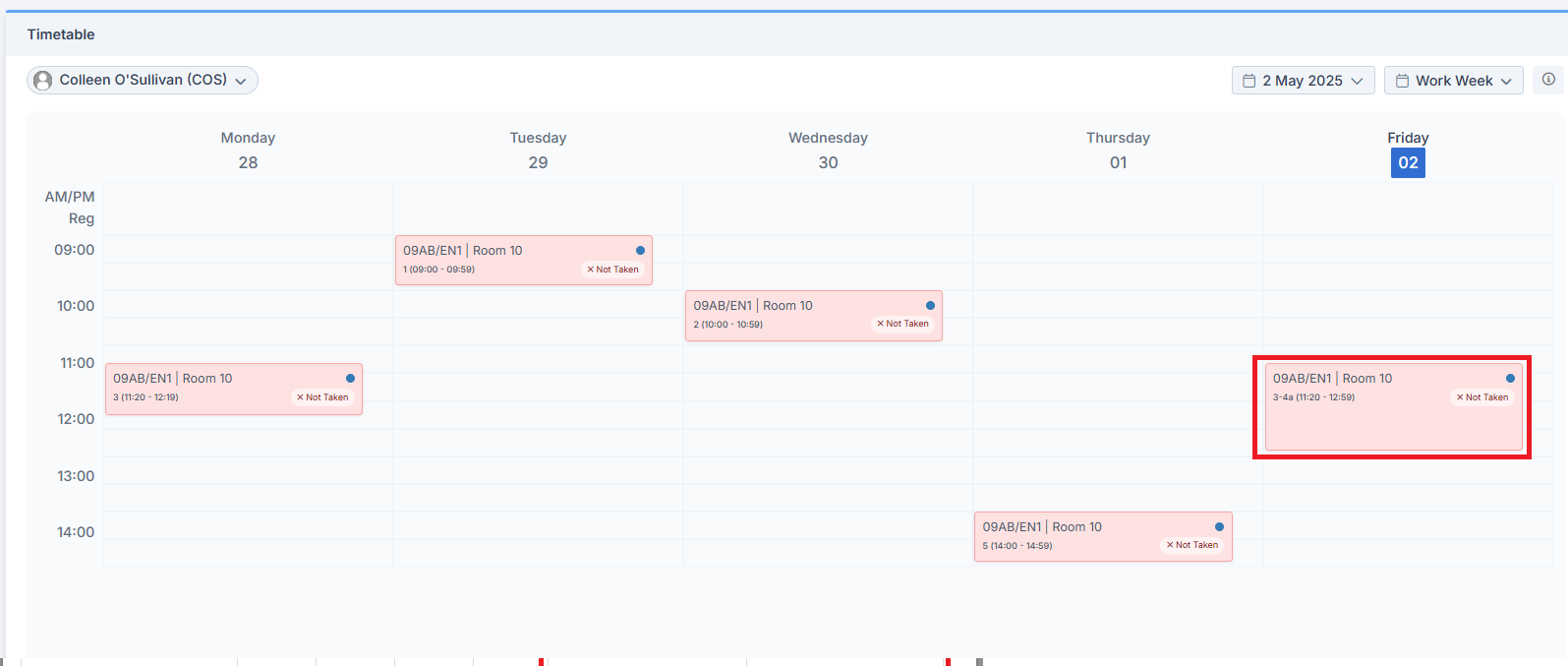
Click on the required Teaching Class in the Timetable panel.
Then a pop up appears to give the user the option to select which Periods the register is being taken for.
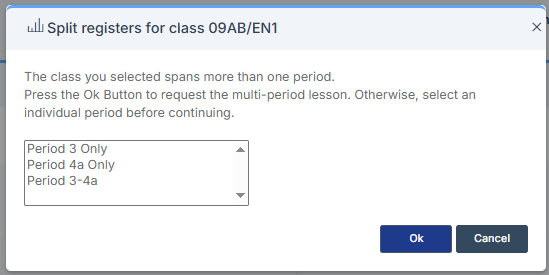
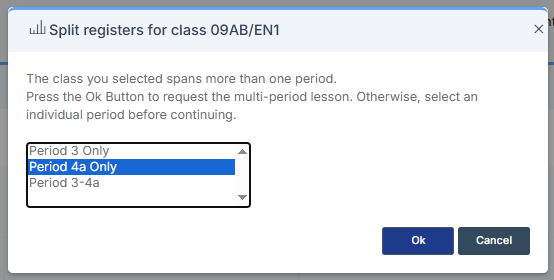
In this example we are selecting Period 4a to take a register for Period 4a only.
Then complete the Register as normal.
The Attendance saves automatically but is not copied over to the other Period.
Once the Attendance for the first Period in the Double Lesson is complete, repeat the process for the second Period.

If split registers isn’t ticked in My Account then in the Timetable tab the Register will open to a Double Register automatically i.e. the Split Registers pop up with the option to choose the Periods will not appear.
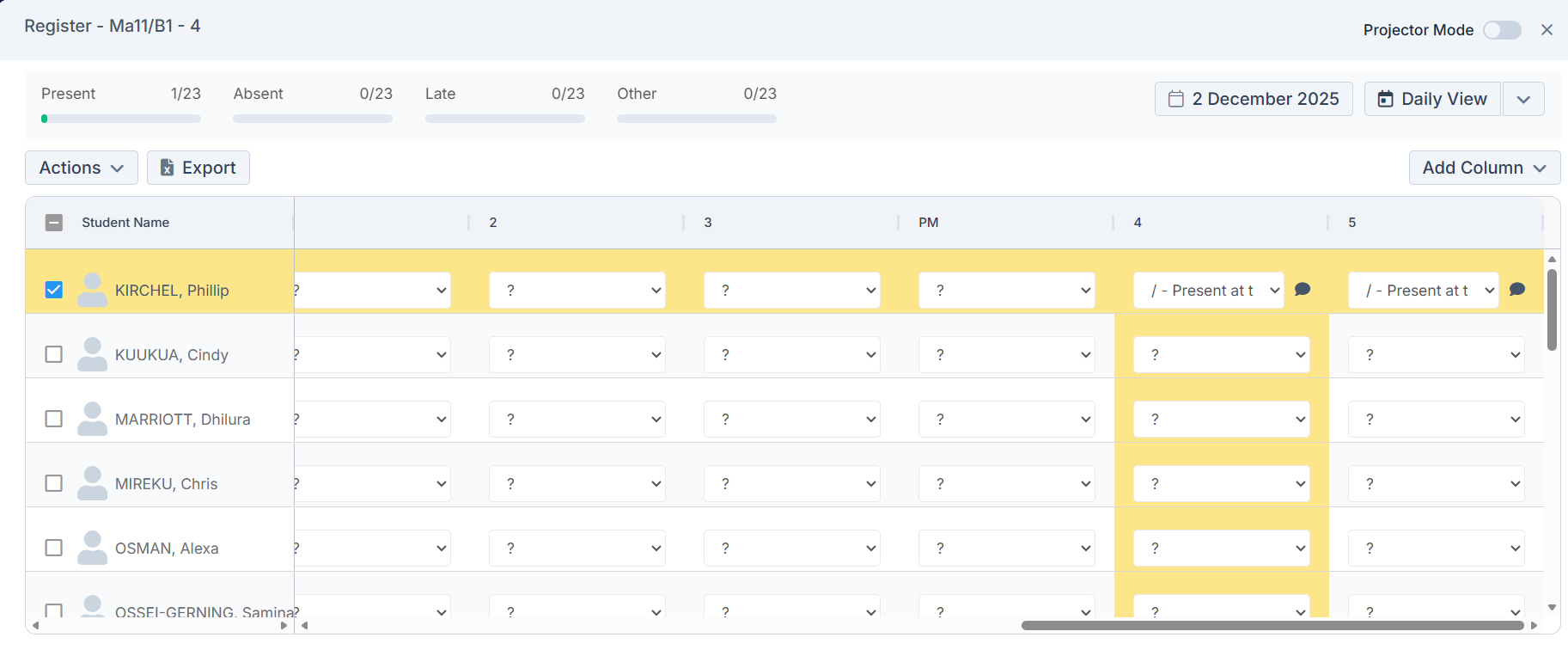
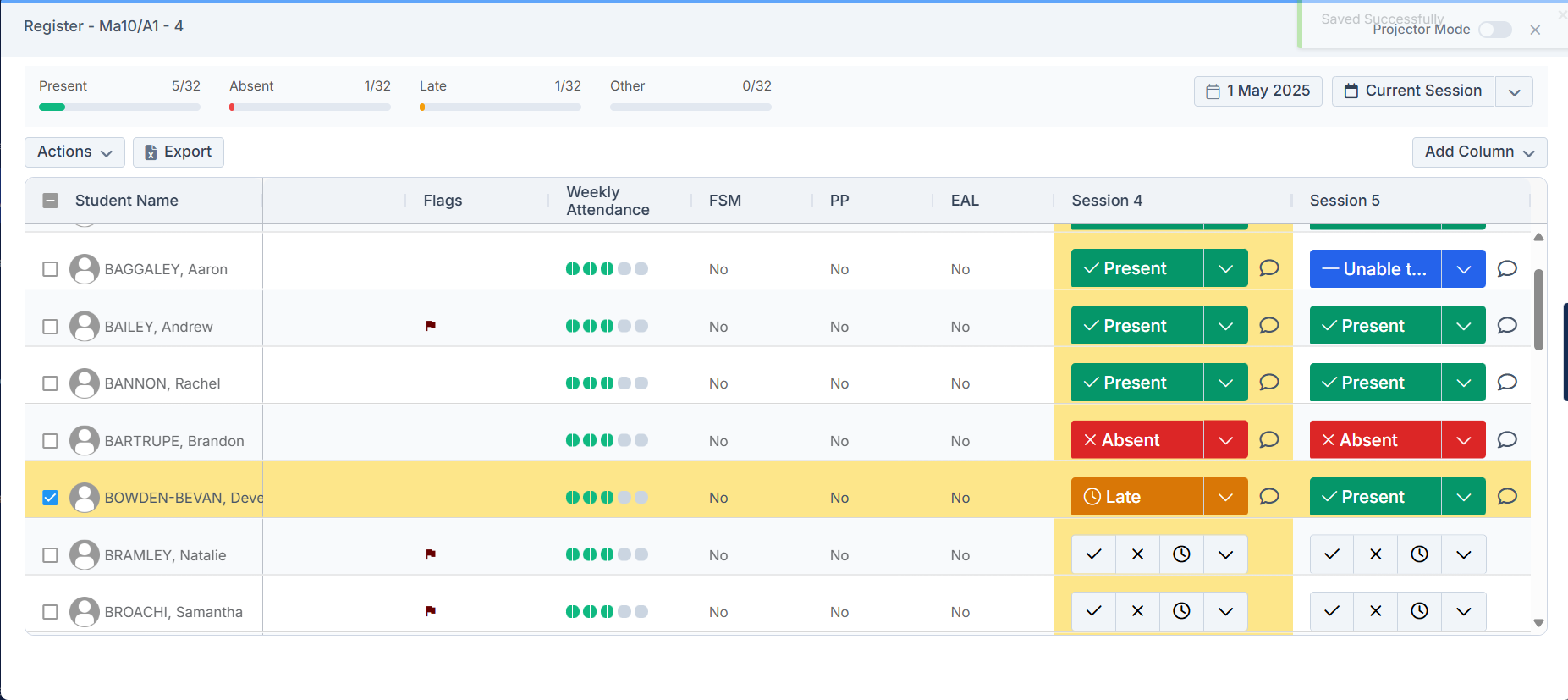
The mark entered in the first Period will automatically copy over to the second. Although you do have the option to enter different Attendance Marks for each Period by manually amending the mark in the second Period as per the example below.
Different Views
This section looks at the two different views for a taking a register for a double period from the My Dashboard when Split registers has been ticked in My Account>Timetable
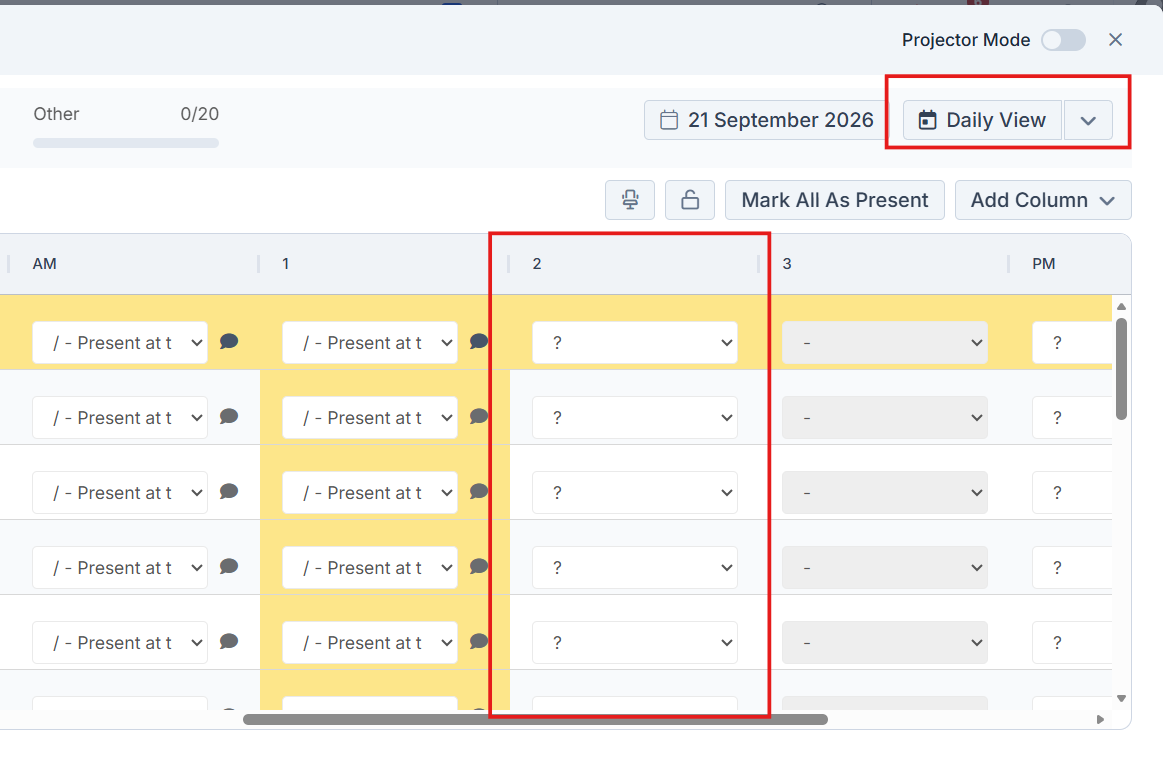
1. My Dashboard>Student List>Take Register
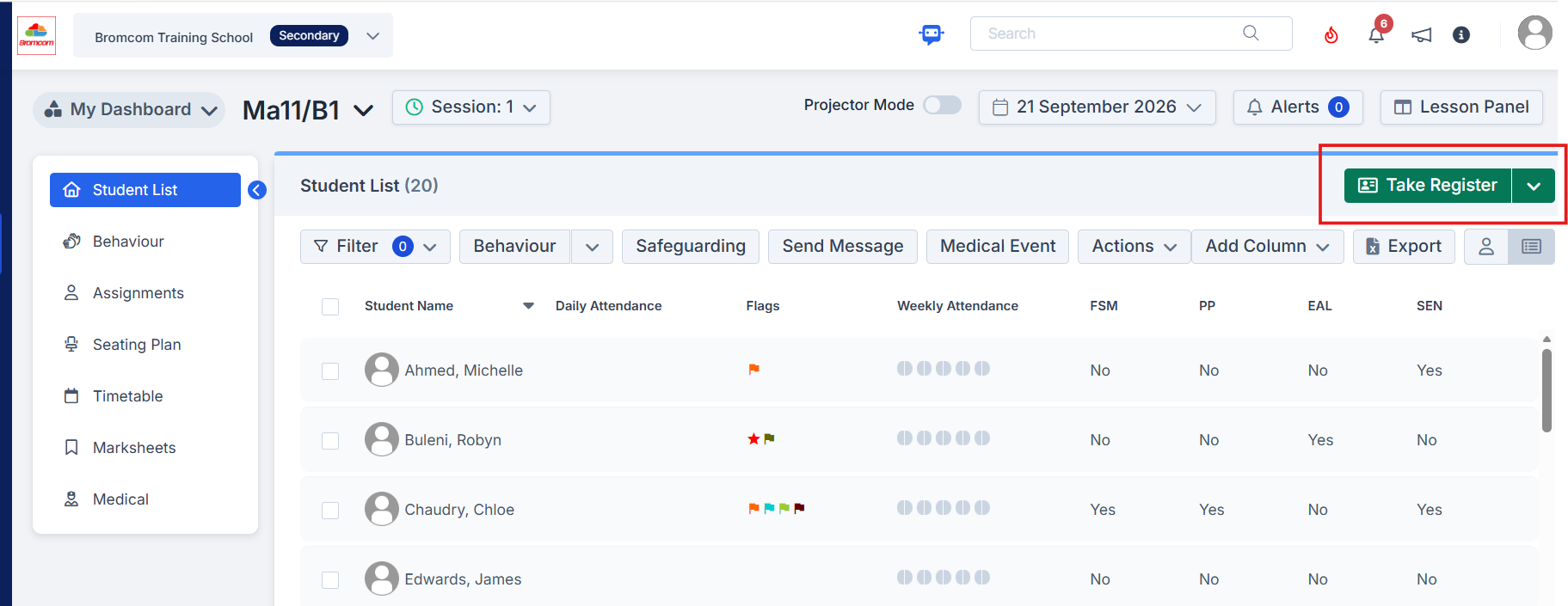
You can see the option to take the Session 1 register.
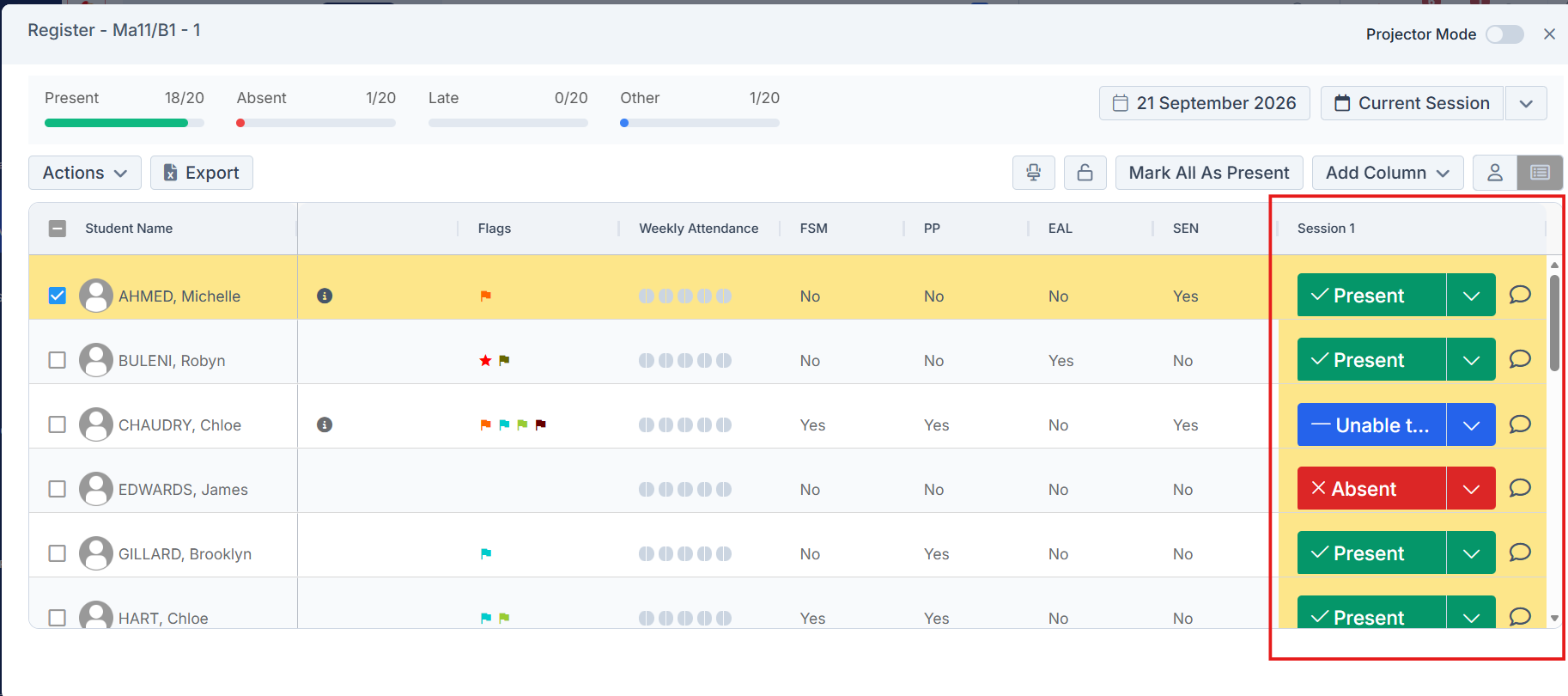
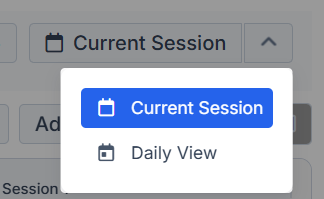
If you click Current Session in the top right and change to Daily View
Then take the period 2 register, however, the marks will not copy over from period 1.
2. My Dashboard>Timetable
In this example go to My Dashboard>Timetable to see the double period for Tuesday
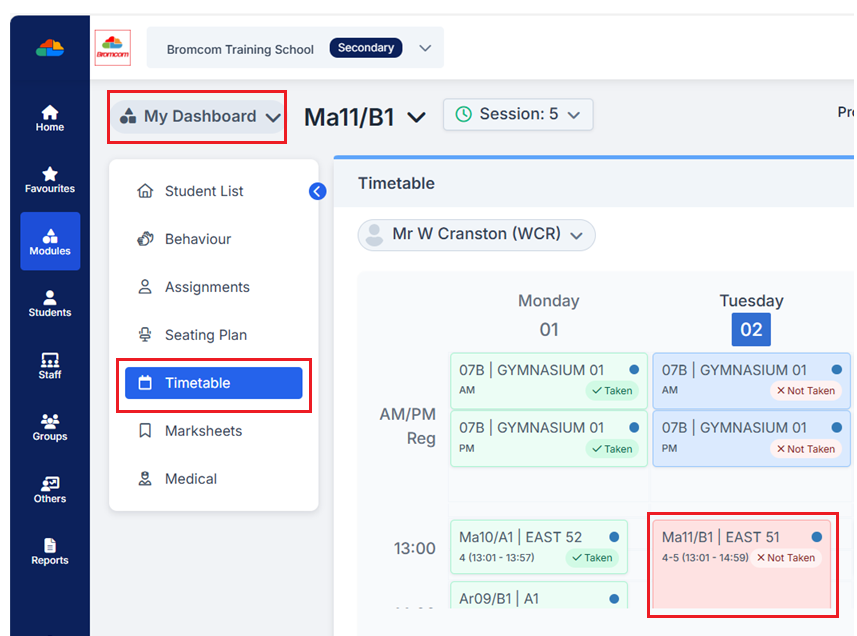
Click on the class in pink to Take the Register then in the following pop up choose how you want to Take the Register.
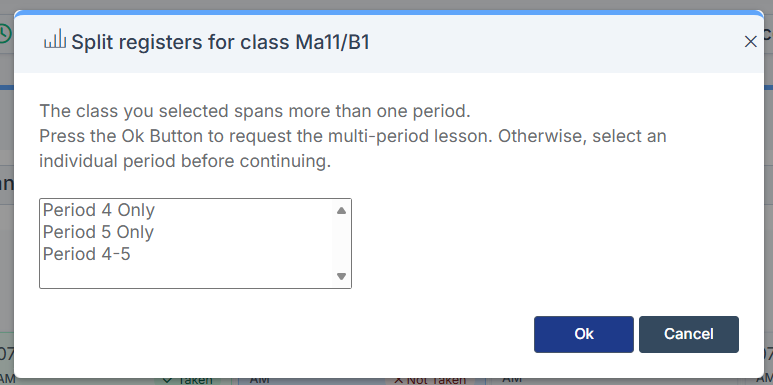
We have chosen Period 4-5 click Ok
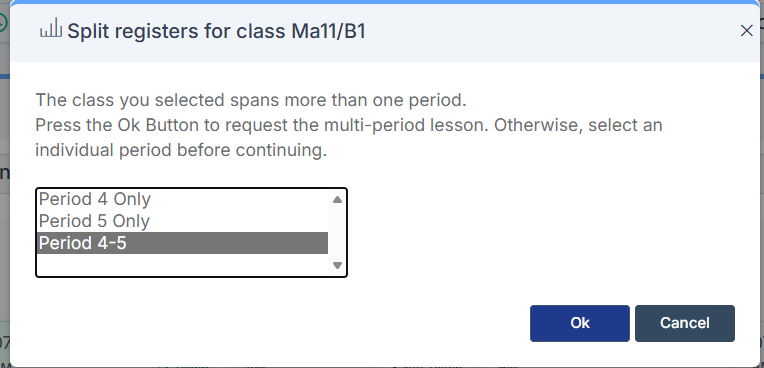
This will then show the Daily View
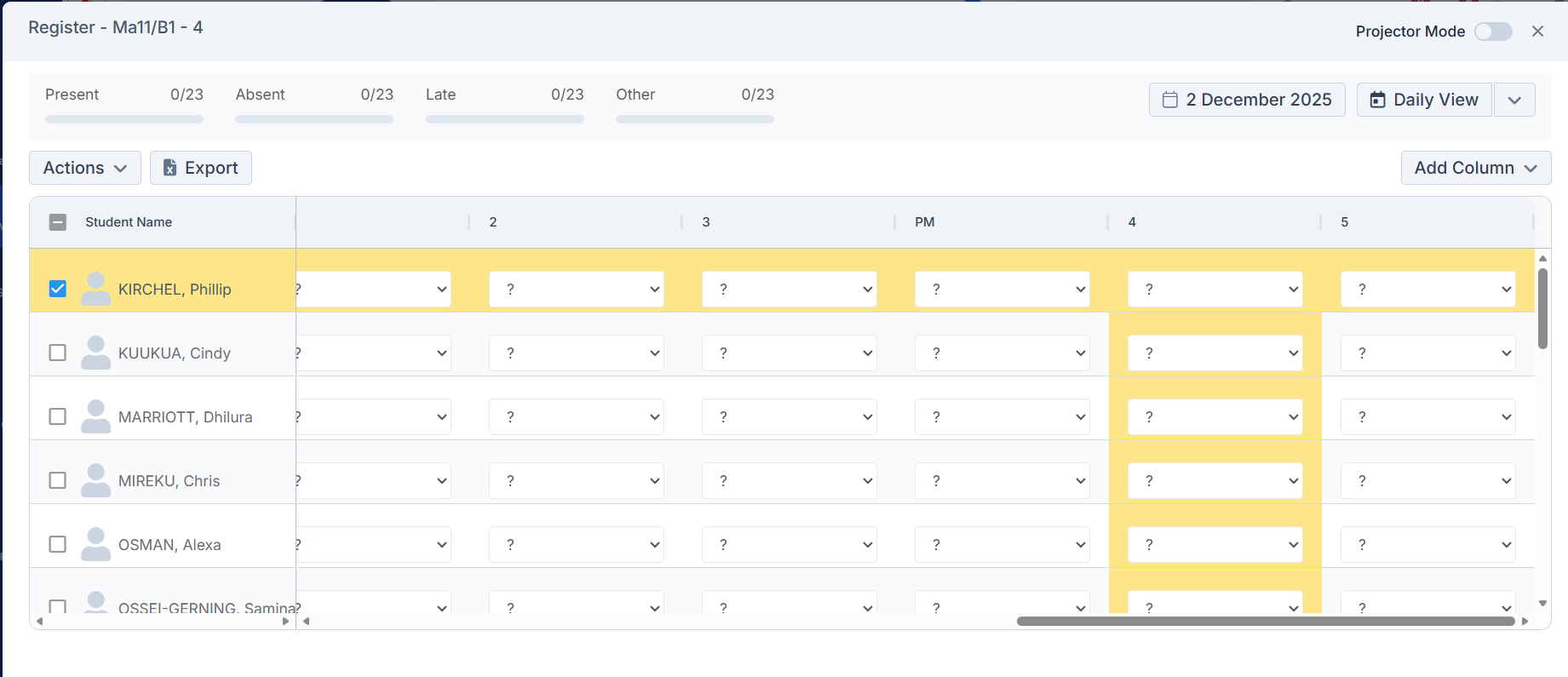
Attendance marks entered into Period 4 will copy over to Period 5