
In this guide, we show how to set the system up to be able to Monitor Spend Against Cost Centres in the Finance Module.
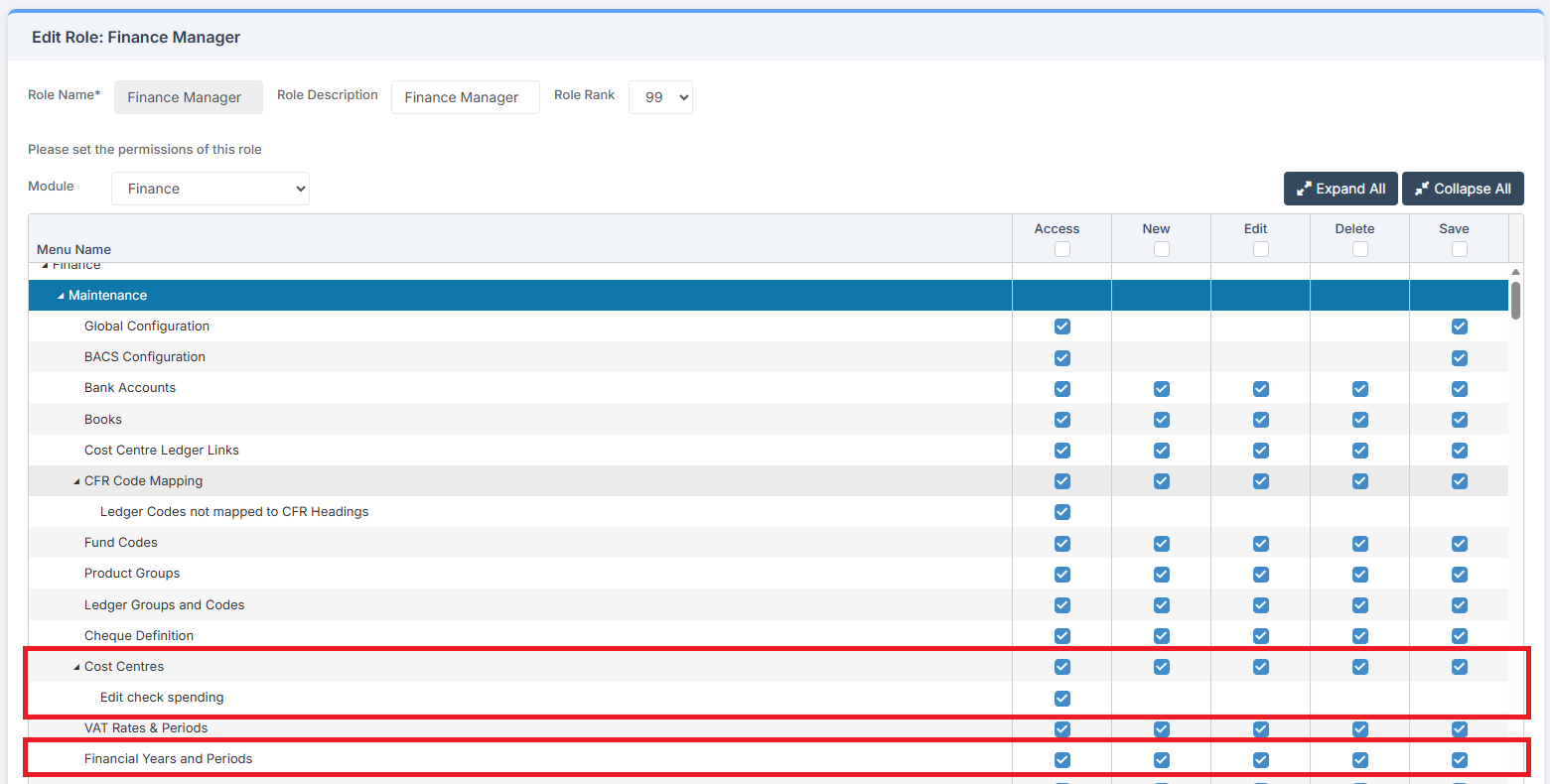
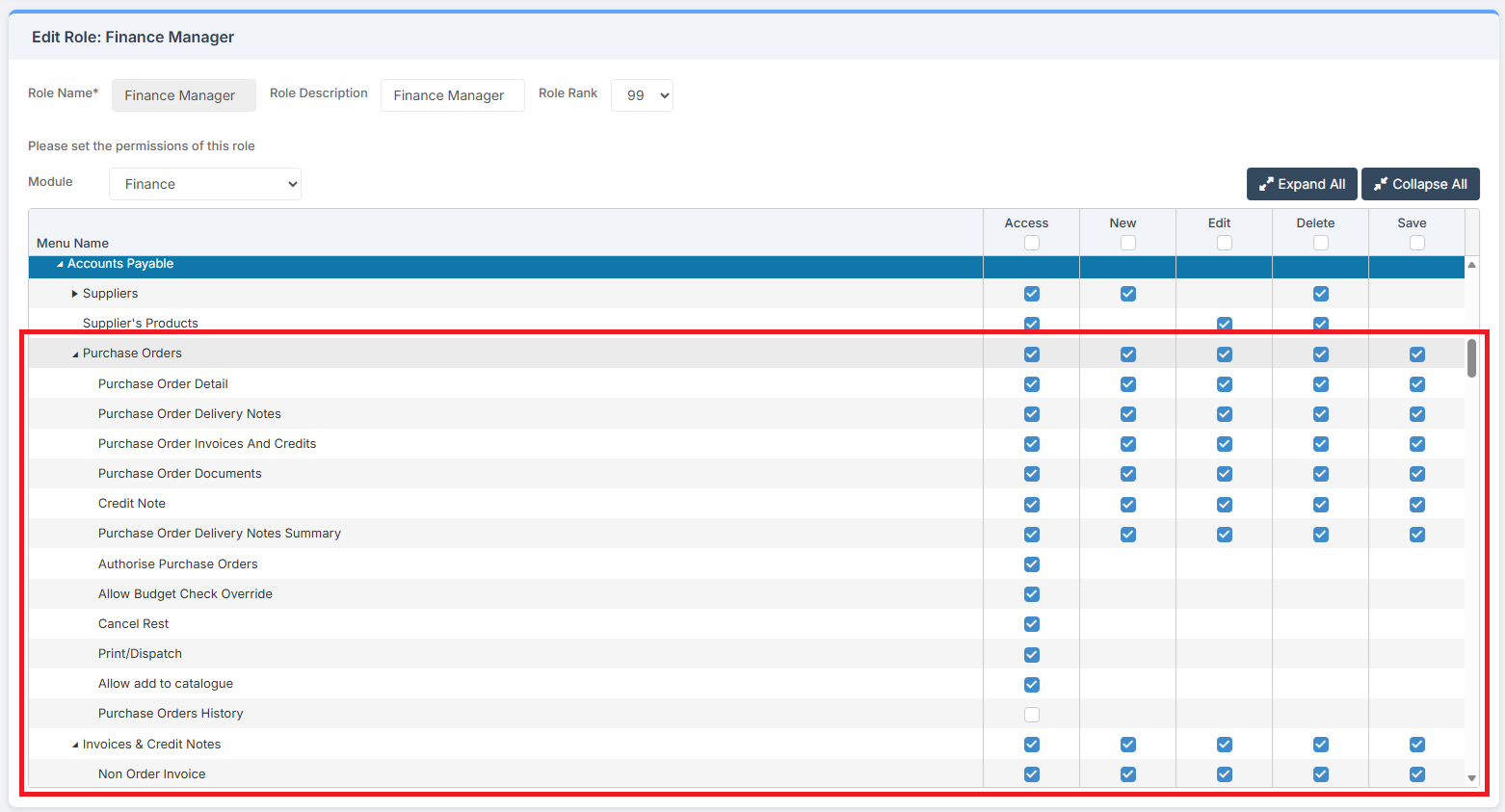
Access: The minimum permissions required to Monitor Spend Against Cost Centres are found in the Finance Module section of Config > Setup > Roles & Permissions.
Maintenance:
Purchase Orders and Non-Order Invoices:
Related Guides:
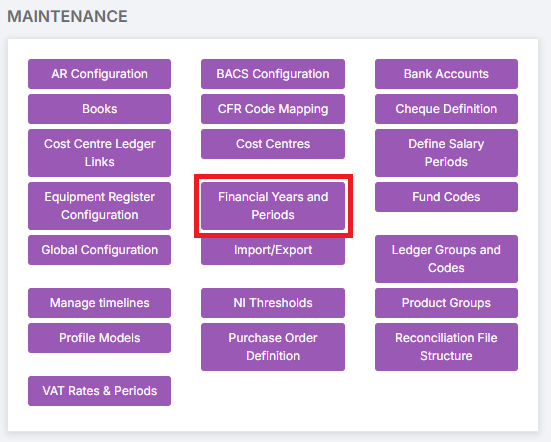
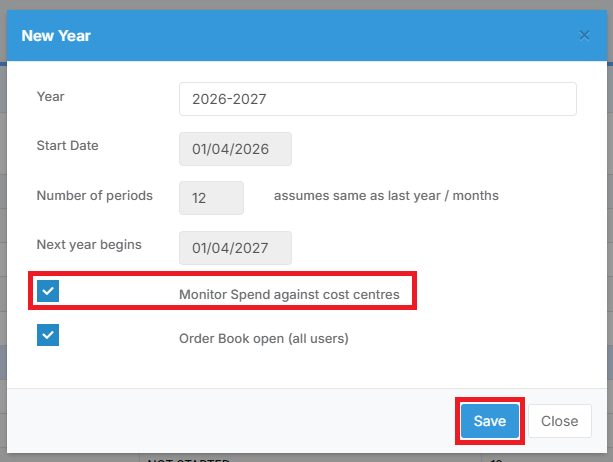
To begin, go to Modules > Finance > Finance Home Page > Maintenance > Financial Years and Periods.
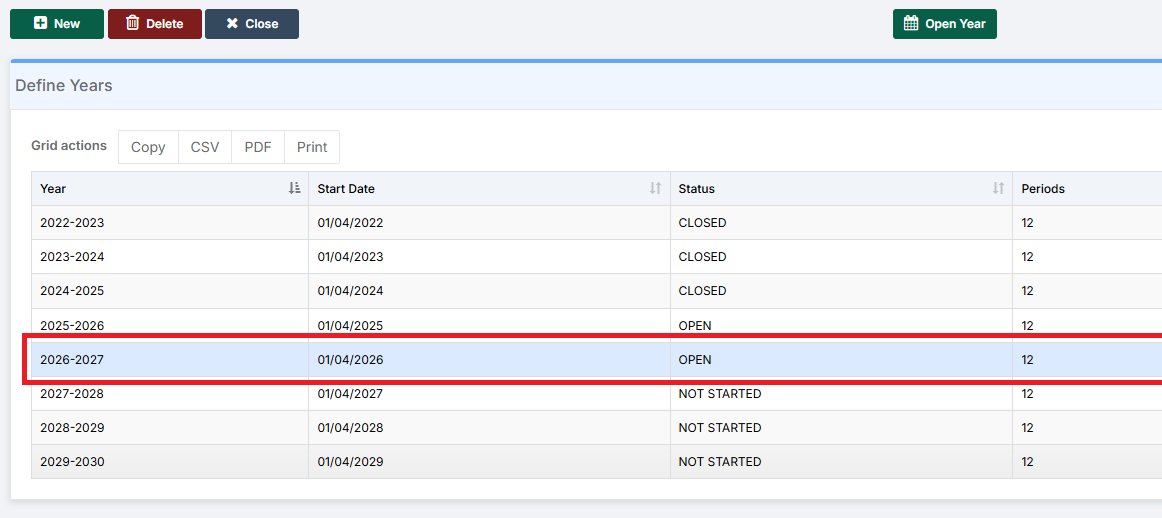
Select the Financial Year within which Spend Against Cost Centres is to be monitored and double click on it to bring up a pop up for that year.
Tick the Monitor Spend against cost centres box and click Save.
Note: If Monitor Spend against cost centres is ticked, and individual Cost Centres have Check Spending ticked, and a Budget has not been set for that Financial Year, then a Warning will be displayed every time a Purchase Order or Non-Order Invoice is raised. It may therefore be best to keep Monitor Spend against cost centres unticked until a Budget has been set for that Financial Year.
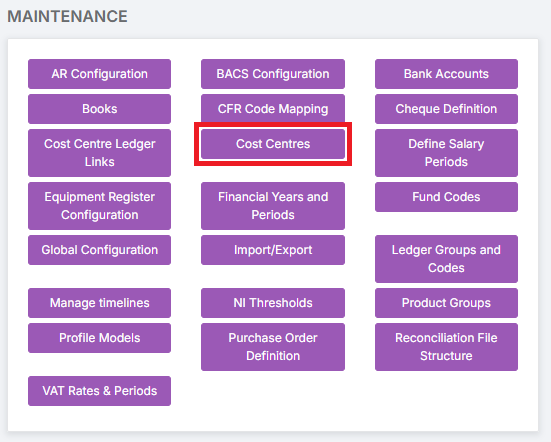
Next, go to Modules > Finance > Finance Home Page > Maintenance > Cost Centres.
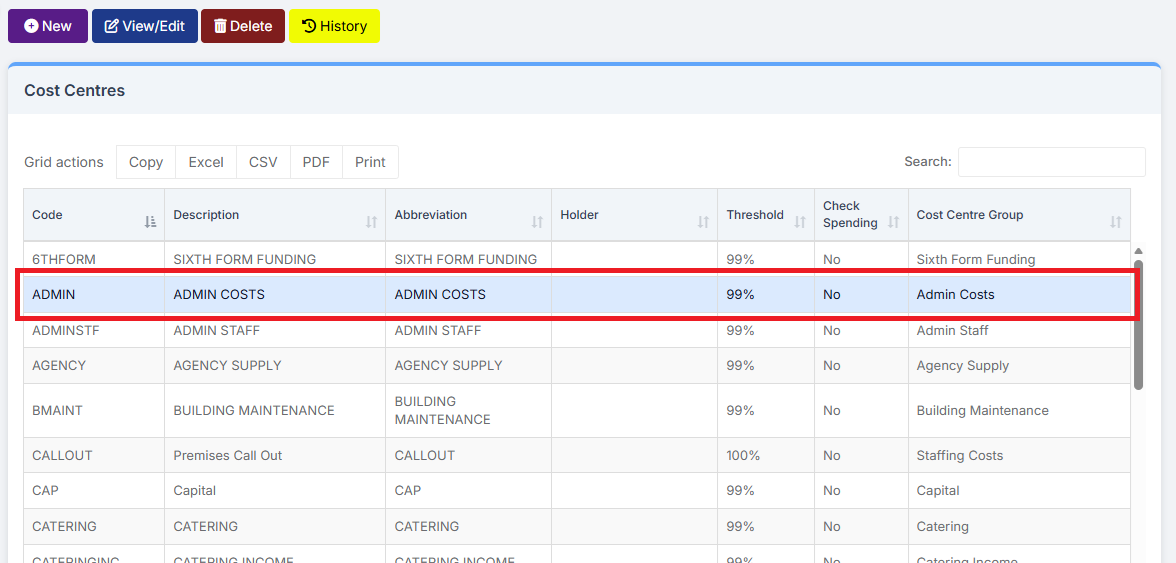
Double click on any Cost Centre(s) that are to have their Spending Monitored.
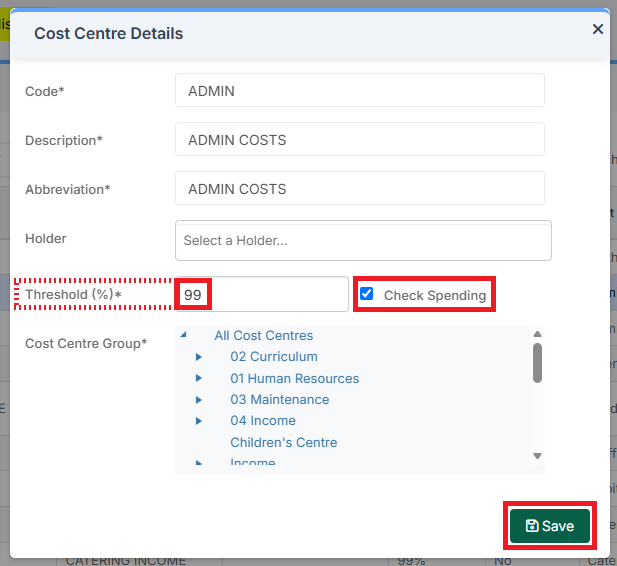
In the pop up, place a tick in the Check Spending box. The Threshold percentage at which the Warning is displayed can also be set.
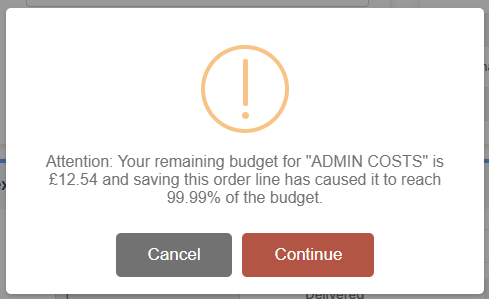
Then, when Order Lines are added and Saved to a Purchase Order or Non-Order Invoice that takes the Cost Centre over the set Threshold, the following Warning is displayed. Click Continue to Continue.
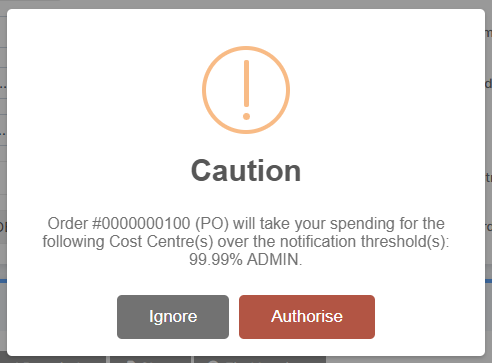
Then, if Continue is selected and it is decided to authorise the Purchase Order, the following further Warning is shown. Click Authorise to Authorise.
When Order Lines are added and Saved to a Purchase Order or Non-Order Invoice that takes the Cost Centre over the set Budget, the following Warning is displayed. Click Continue to Continue.
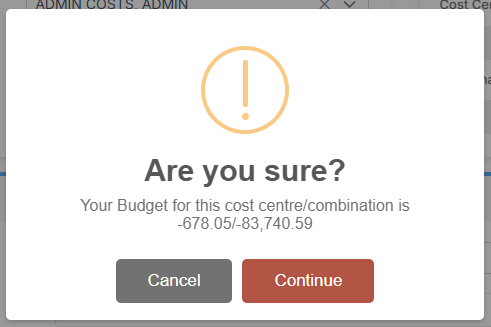
Clicking Continue brings up a second Warning. Click Continue to Continue.
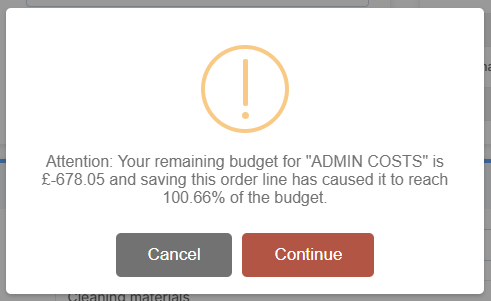
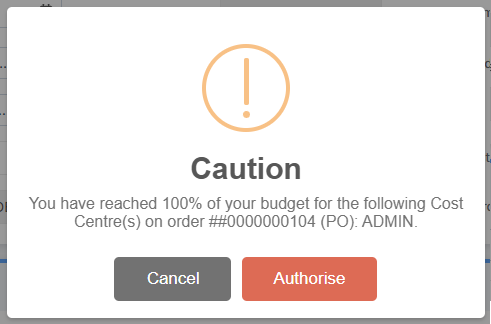
Then, if Continue is selected and it is decided to authorise the Purchase Order, the following further Warning is shown. Click Authorise to Authorise the Purchase Order.
Budget Monitoring by Cost Centre/Holder Report
It is possible to assign a Staff Member responsibility for a Cost Centre and then run a Report to Monitor Spending against assigned Cost Centres.
To begin, go to Modules > Finance > Finance Home Page > Reports > Budget Monitoring by Cost Centre/Holder.
