In this guide, we show How to Process Recurring Direct Debit Transactions in the Finance Module.
The process shown below is a useful way of managing Recurring Direct Debit Transactions. It suggests producing one Purchase Order that includes as individual Order Lines all the periodic, scheduled payments that the Direct Debit will generate in that Financial Year, and then recording the individual Invoices against the Purchase Order’s individual Order Lines throughout the Financial Year. The periodic, scheduled Payments are then made using the Card Payment function configured for Direct Debits. The example given uses a mobile phone contract that is billed and paid monthly, but any regular Direct Debit payments can be managed in this way.
This process has the benefit of creating Commitments for the Direct Debit, and gives flexibility if the Direct Debit amount varies throughout the Financial Year.
To avoid generating Commitments, Non-Order Invoices can be used, which negates the need for a Purchase Order. Payments can be made using the Card Payment function configured for Direct Debits.
Should you wish to process without generating commitments for the full year, invoices can be processed in the same way using non-order invoice and utilising the same payment method the guide refers to.
Note: If you are a Parent looking for guidance on MCAS, please see: MyChildAtSchool (MCAS) Parent Guides.
This Guide forms part of the ACCOUNTS PAYABLE USER GUIDE. Click to see Related Guides.
Access: The minimum permissions required to Process Recurring Direct Debit Transactions are found in the Finance Module section of Config > Setup > Roles & Permissions.

Pre-requisites: The Debit Card that is to be used for Direct Debits must be set up in the Bank Account from which the Direct Debits are to be paid. See: How to Add a Debit Card.
Related Guides:
- Accounts Payable User Guide
- How to Create a New Purchase Order
- How to Process Debit Card Transactions
This guide is split into the following three sections:
- How to Add a Debit Card to a Bank Account
- How to Process a Purchase Order for a Recurring Direct Debit
- How to Process the Invoices Resulting from a Purchase Order for a Recurring Direct Debit
How to Add a Debit Card to a Bank Account
The Debit Card that is to be used for Direct Debits must be set up in the Bank Account from which the Direct Debits are to be paid
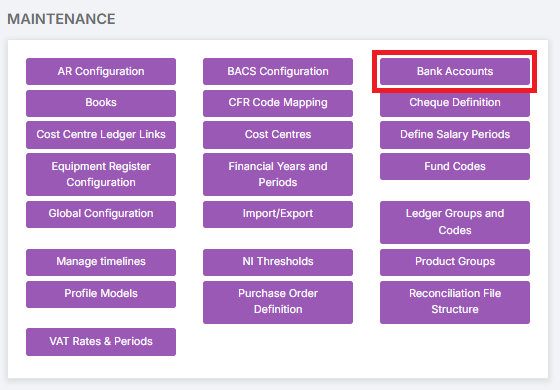
To begin, go to Modules > Finance > Finance Home Page > Maintenance > Bank Accounts.
Add a new Bank Account, if required. See: How to Add a Bank Account.
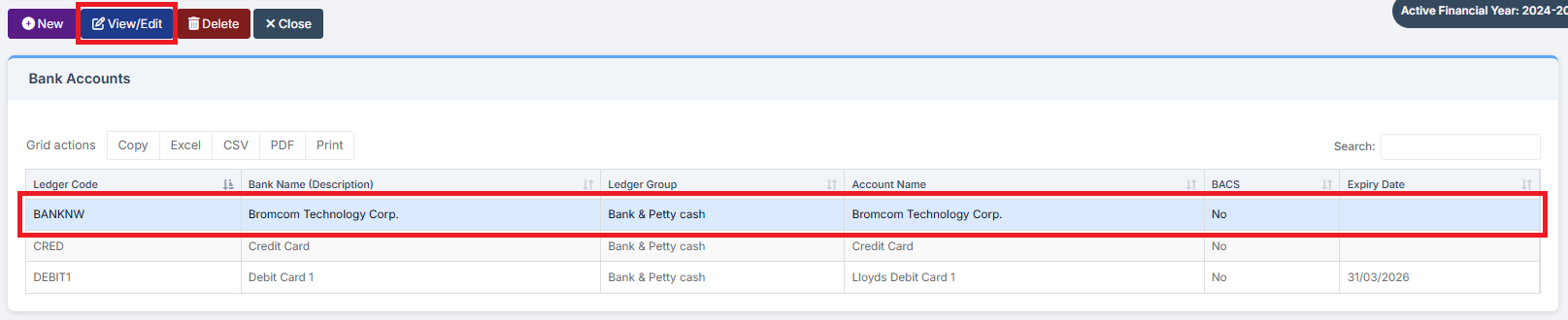
Choose the Bank Account to add the Card to. Click View/Edit.
Go to the Cards section at the bottom of the Bank Account page. Click on Add New Record to add a New Card.

Complete the Debit Card section by adding the last four numbers of the Card Number, Card Holder Name, Expiry Date, and whether it is Active, and then click the Blue Tick to Save.

This Card is now available for use with Recurring Direct Debit Transactions.
How to Process a Purchase Order for a Recurring Direct Debit
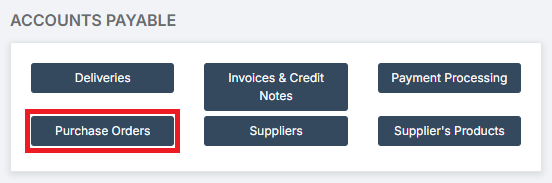
Go to Modules > Finance > Finance Home Page > Accounts Payable > Purchase Orders.
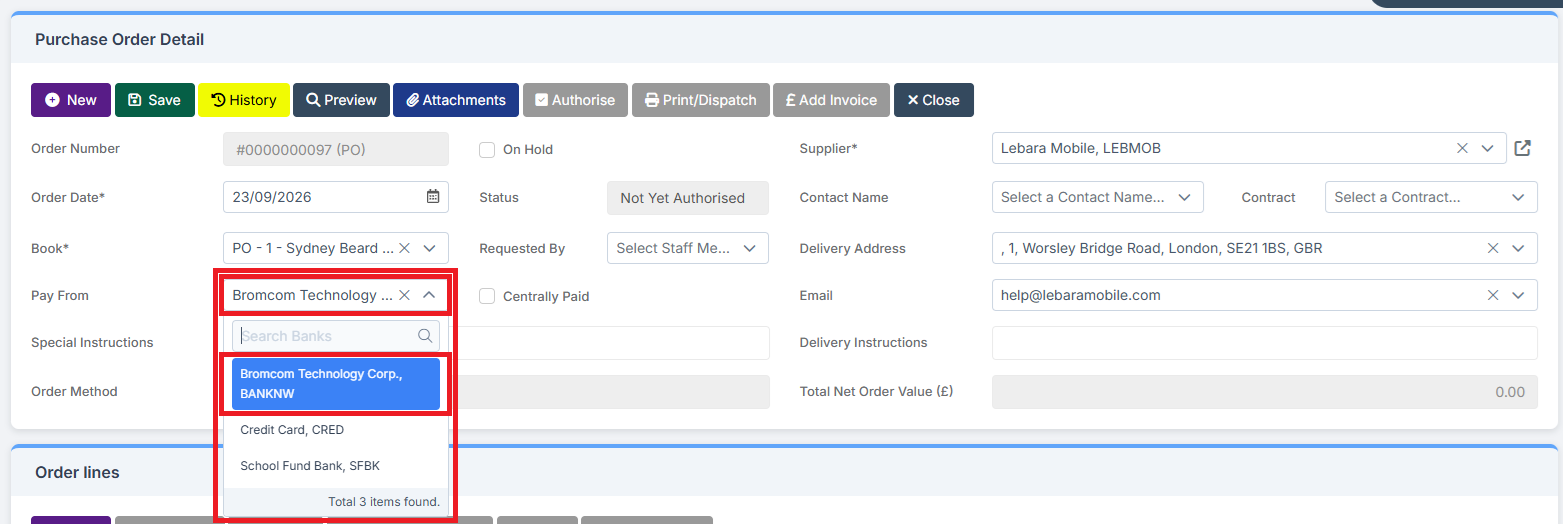
The Debit Card is now available to use as a payment method if a Purchase Order has the Bank Account to which the Debit Card is connected selected in the Pay From field.
Note: To use the Debit Card linked to the Bank Account, do not choose any Credit Cards or Debit Cards that have been created as separate entities.
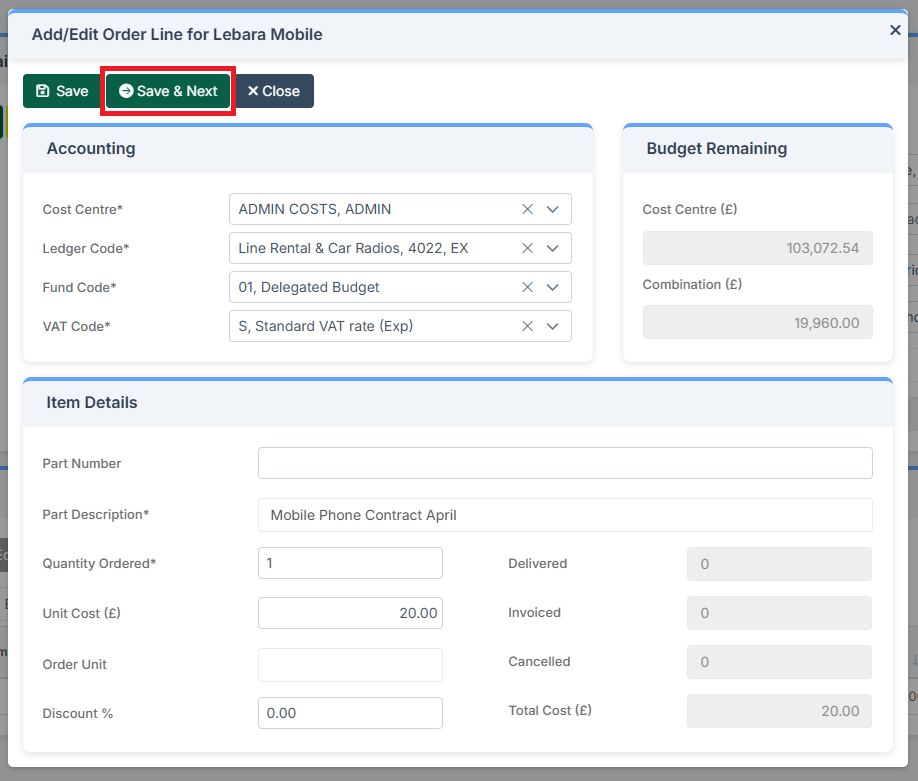
Complete the Order Lines for the Purchase Order, making an Individual Line for each expected Invoice resulting from the Purchase Order. Click Save & Next to easily add Order Lines.
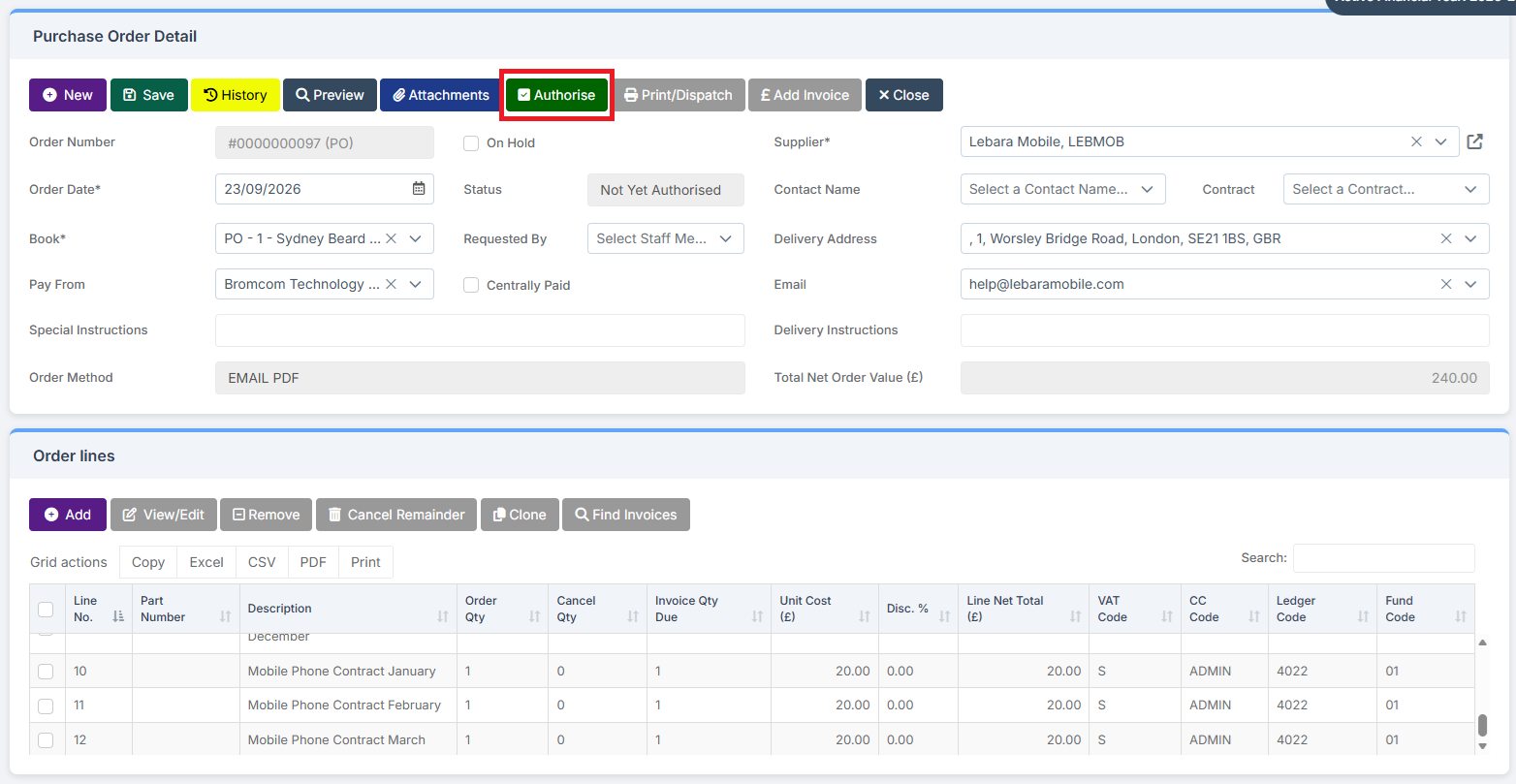
When all the Order Lines for that Financial Year have been added, Authorise the Purchase Order.
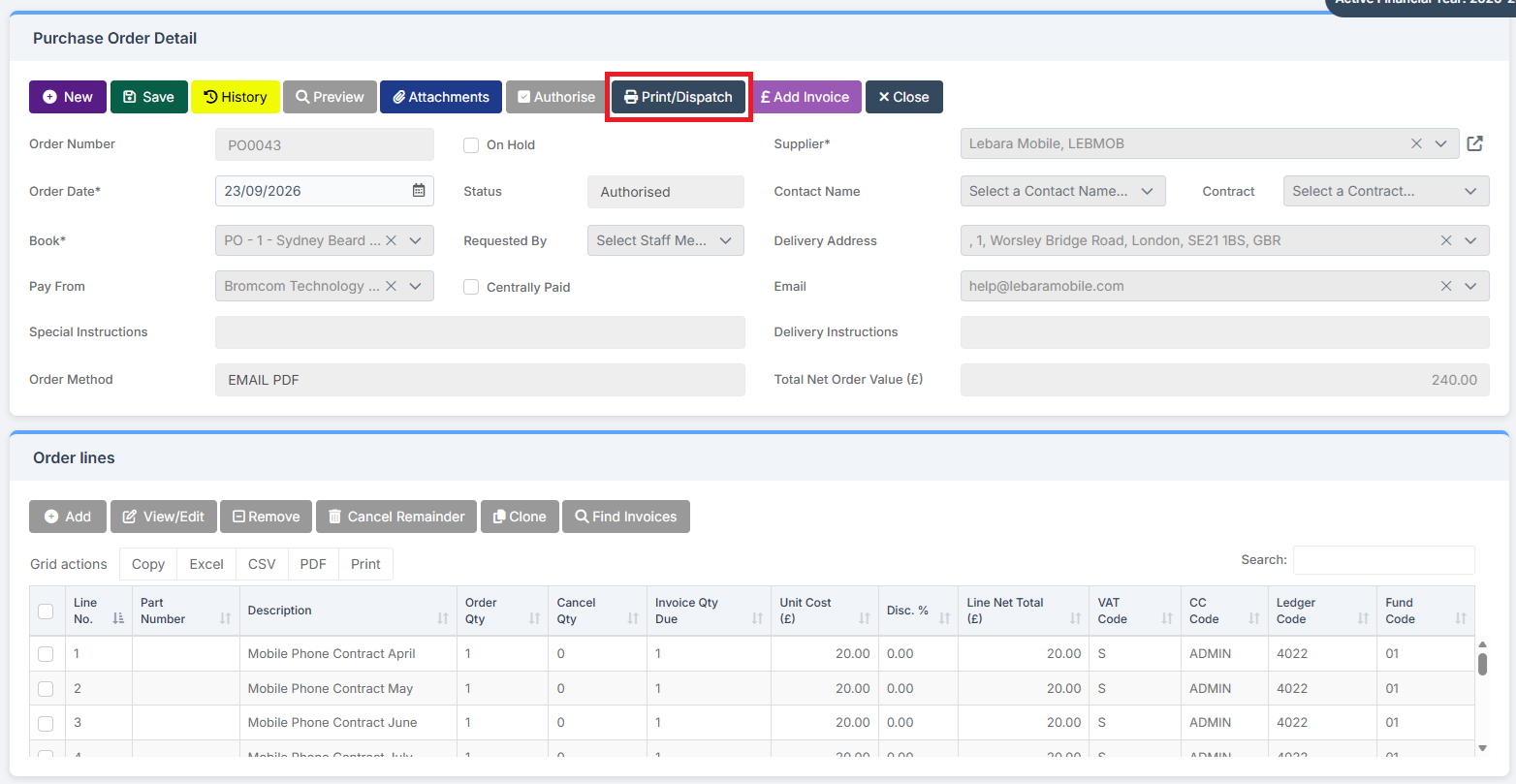
Then Print and/or Dispatch it.
How to Process the Invoices Resulting from a Purchase Order for a Recurring Direct Debit
When the first Invoice arrives, go to Modules > Finance > Finance Home Page > Accounts Payable > Invoices & Credit Notes.
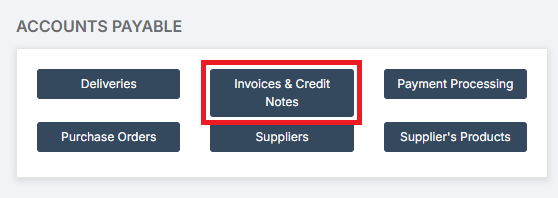
Select New then Order Invoice.

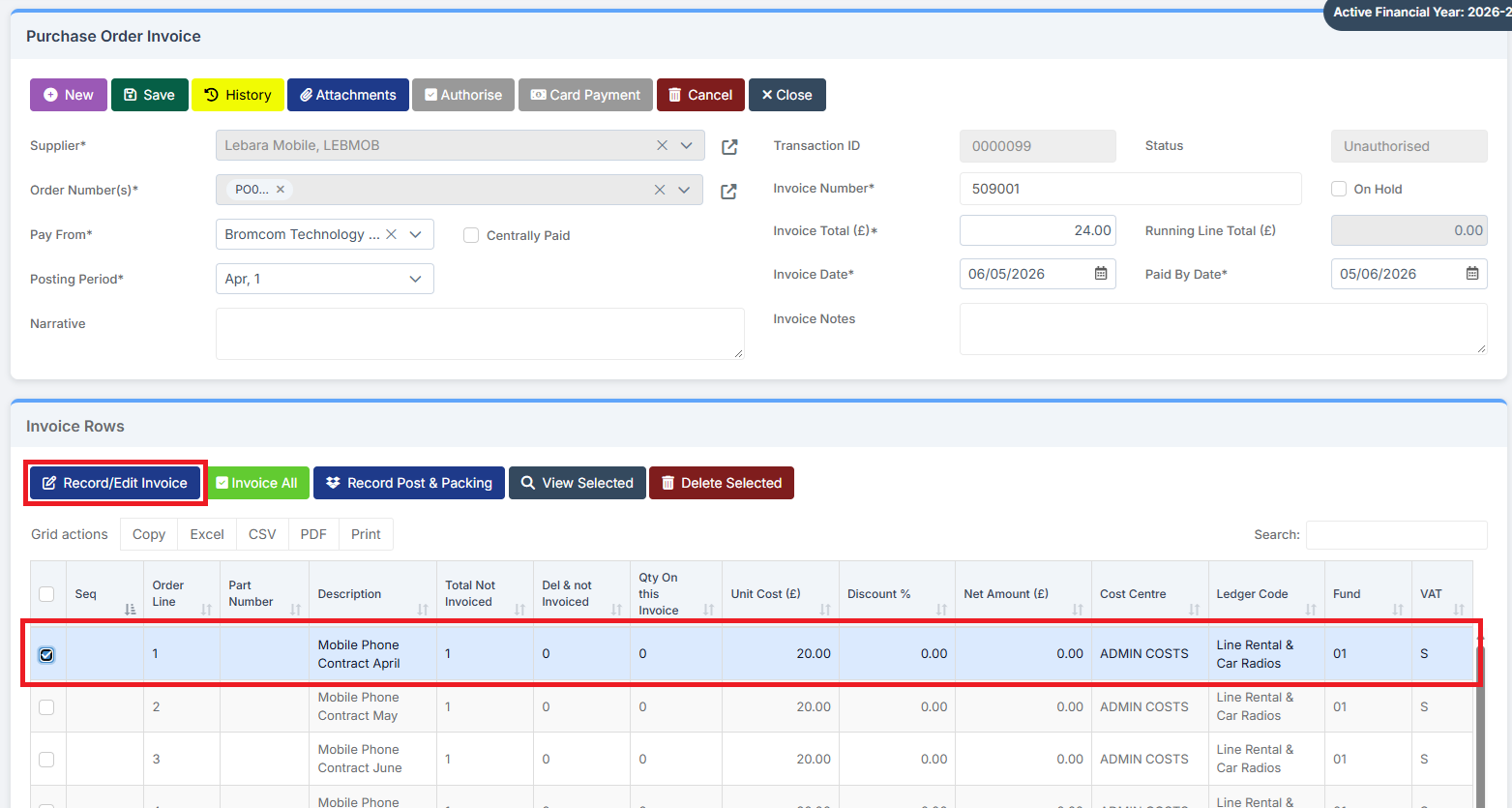
Complete the details for the Purchase Order Invoice at the top of the page, completing all asterisked fields and selecting the correct Order Number, and then select the Invoice Row and click Record/Edit Invoice.
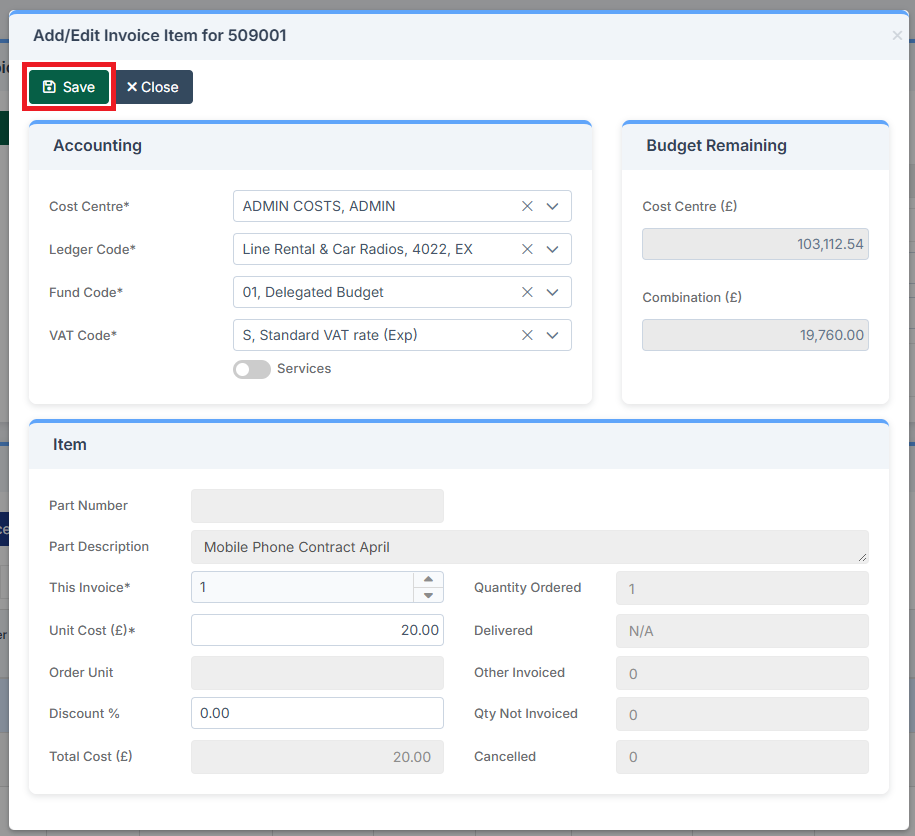
Check the details in the pop up and then click Save.
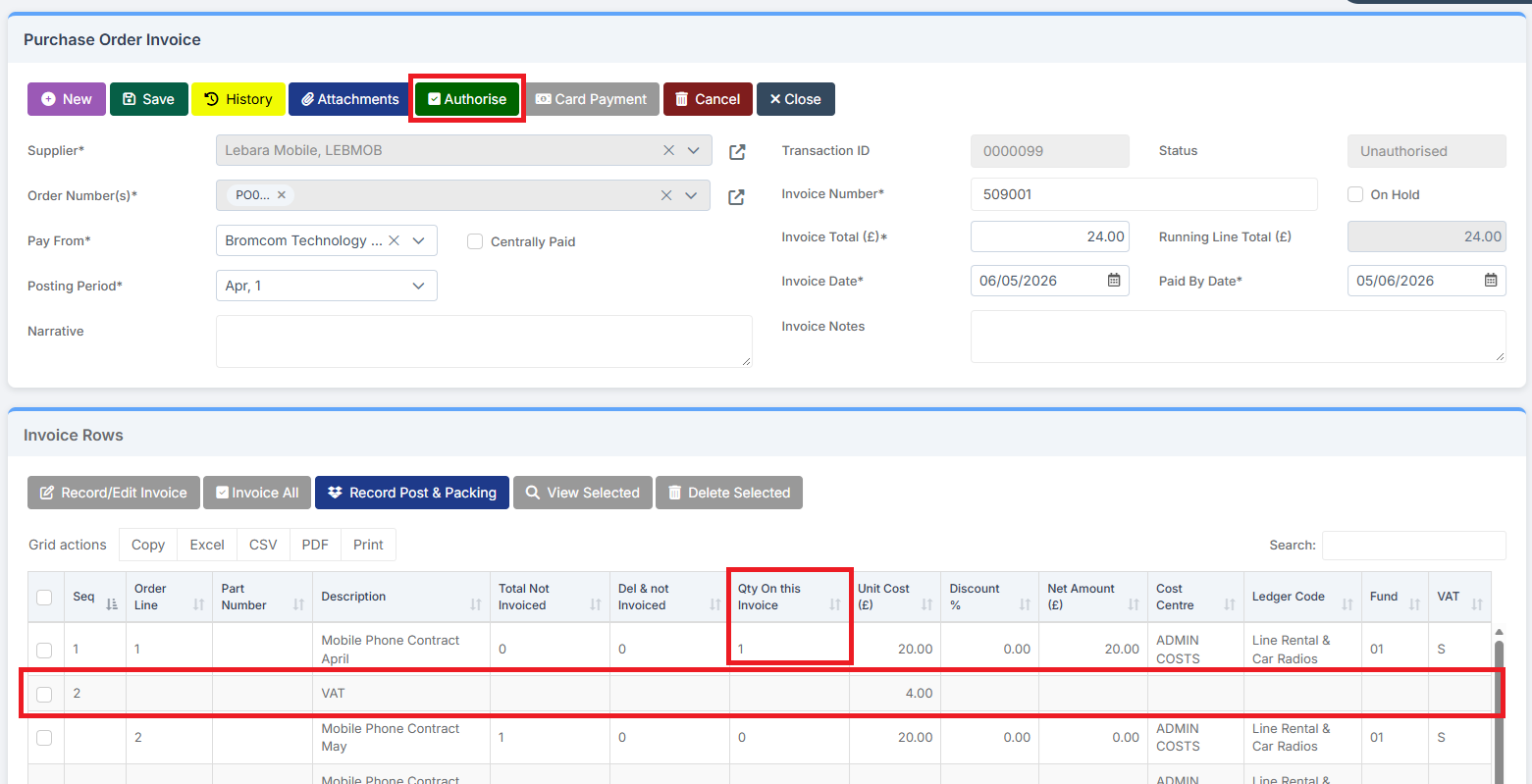
Note the possible added VAT Line and the change in Quantity on this Invoice. Authorise the Invoice if happy.
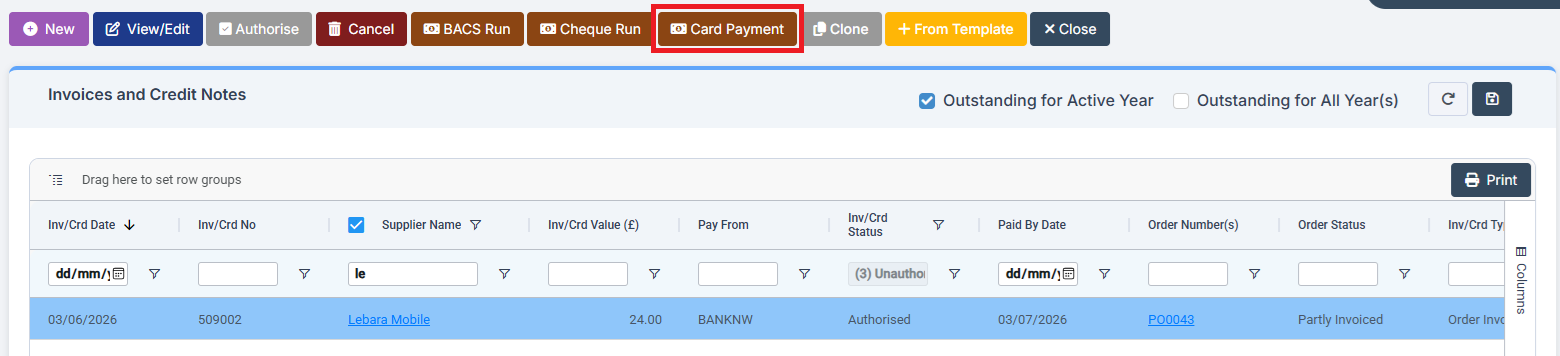
It is now possible to Pay the Invoice by Card by selecting Card Payment.
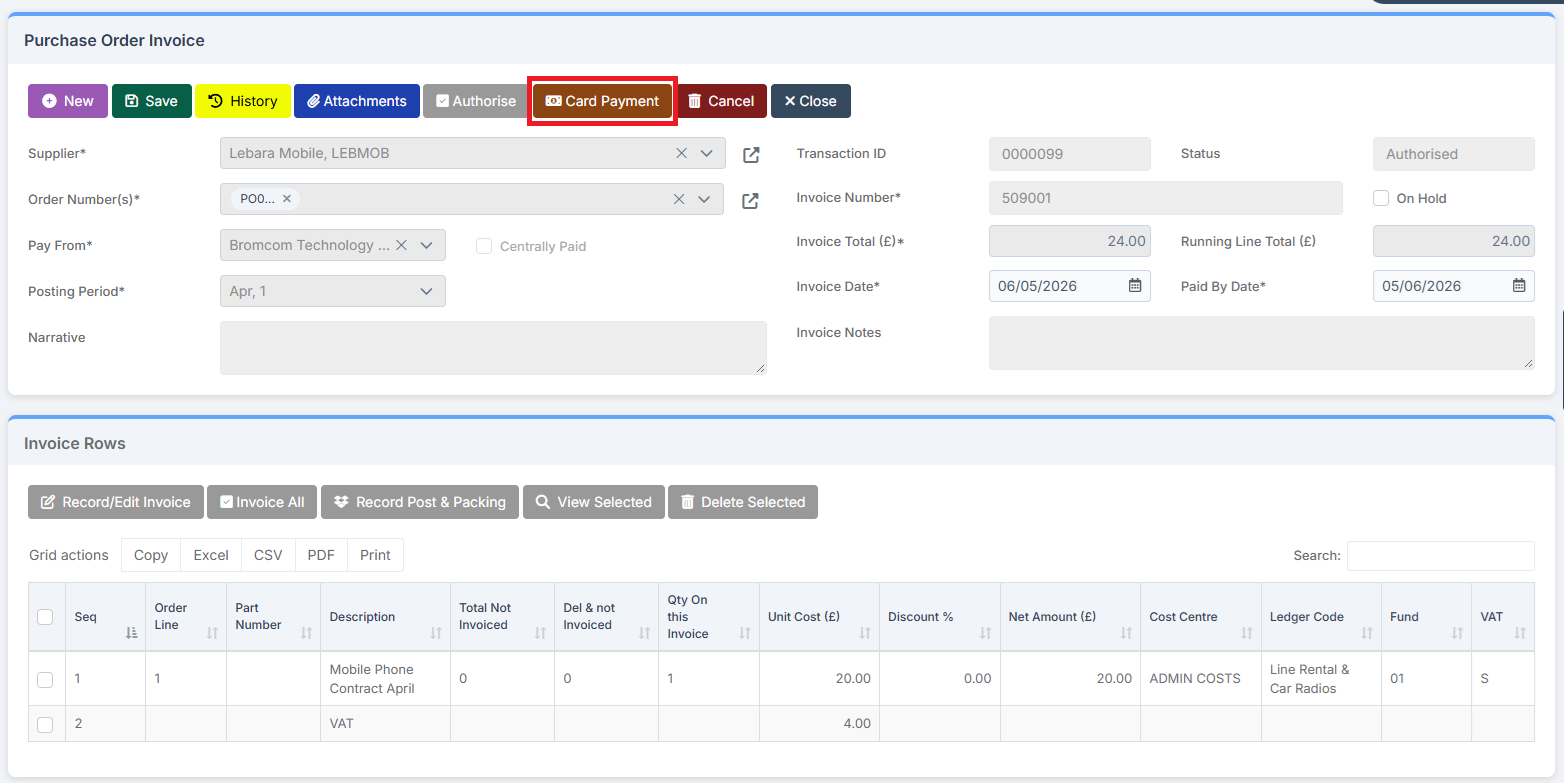
Check the correct Card is being used and then click Save.
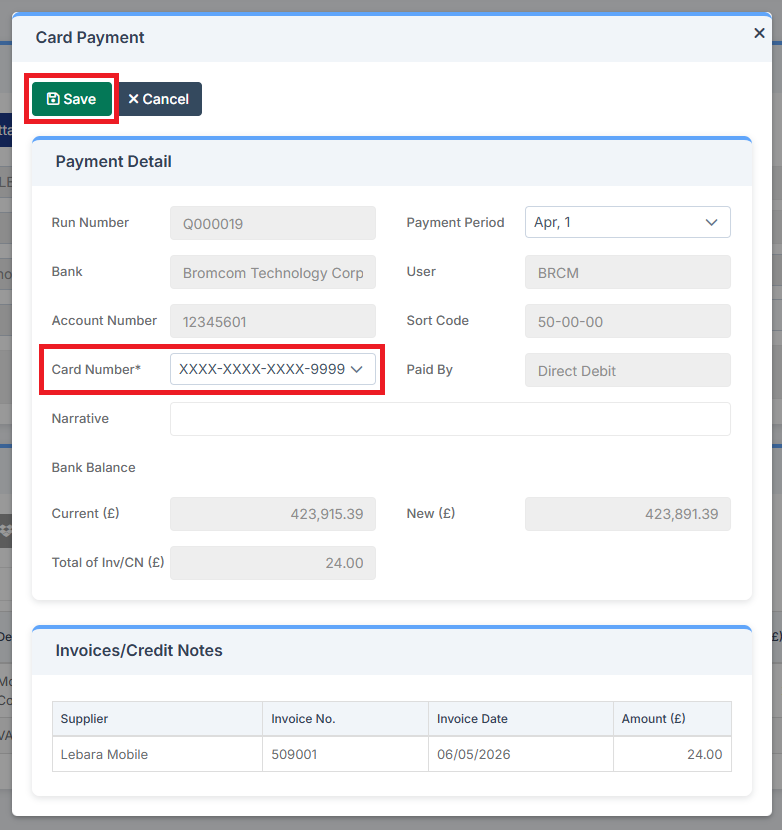
The Invoice is now Paid.
Repeat this process throughout the Financial Year each time an Invoice is received. The example below shows the first stage of when the next Invoice is received.
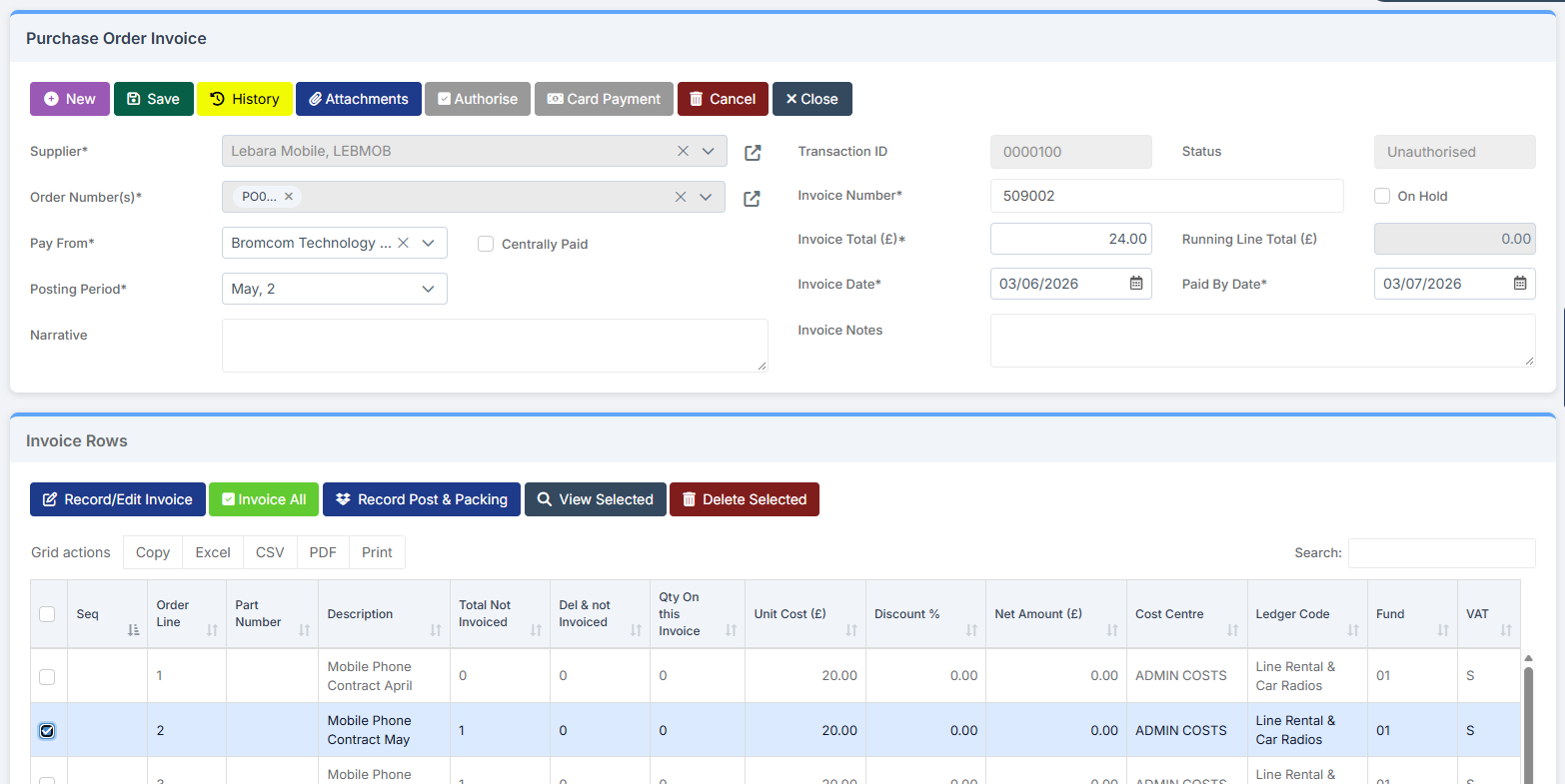
The Invoice can also be paid by Card through the Payment Processing page by selecting the Invoice to be paid and clicking on Card Payment and following the stages as above.