IMPORTANT
A Court Order being recorded against a contact/linked student will prevent new MCAS accounts being created and linked to that student – unless this option is manually unticked (please see guidance below)
Adding a Court Order will not remove existing access to MCAS. This must be done manually (please see guidance below)
Adding a Court Order will not prevent messages being sent to a contact (please see guidance below for a suggestion on managing this)
The Court Order icon will show on the contact record when viewing the student, this is a no entry sign, we advise you highlight this to staff so they know what it means.
In this guide we’ll look at how you can mark a Parent as having a Court Order against them, and how this is managed for Communications and within MCAS.
- In the Contact Record
- Restricting Access within MCAS – New Accounts
- Restricting Access Within MCAS – Existing Accounts
- Communications
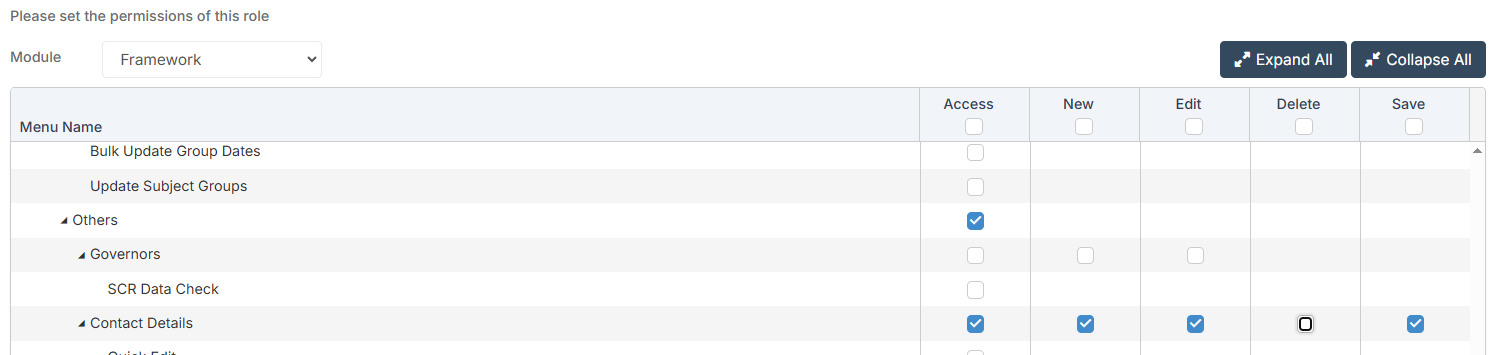
Permissions: The minimum permissions required to update Contact Records can be found in the Framework module from within Config > Setup > Roles & Permissions.
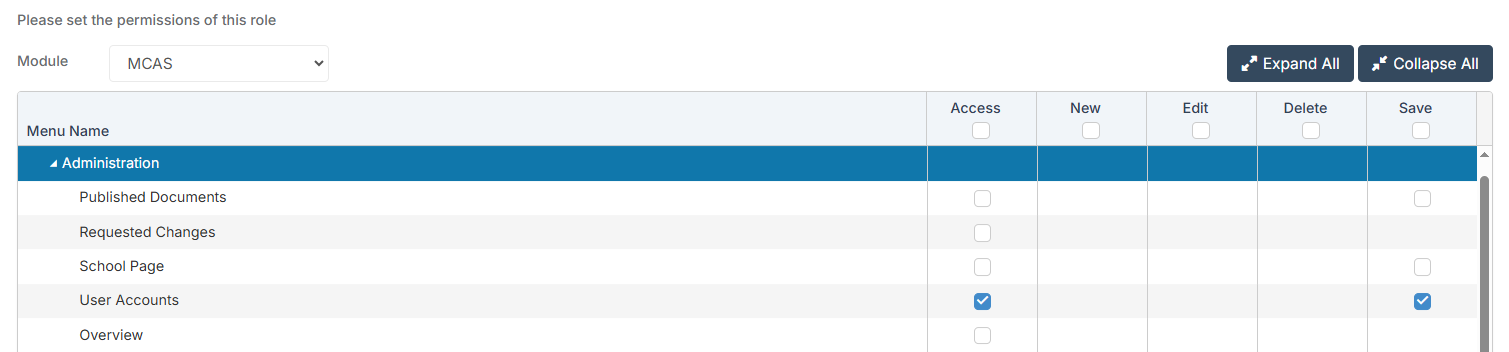
The minimum permissions required to update MCAS Accounts can be found in the MCAS module from within Config > Setup > Roles & Permissions.
See Also: How to Manage and Add Contacts from the Student Record and How to Create MCAS User Accounts
In the Contact Record
Select Others from the left hand menu.

Ensure that the Type dropdown is set to Contacts.
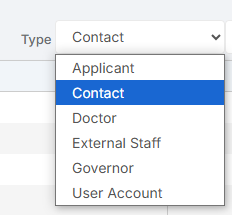
Select the Contact you would like to record a Court Order against from the list and click View.

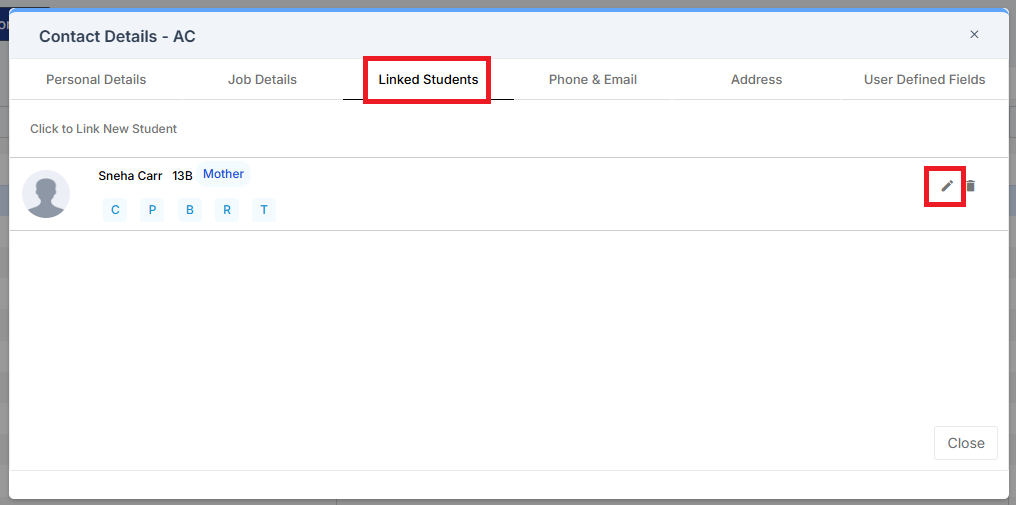
In the pop-up that appears, navigate to the Linked Students tab, hover over the Student and click the Pencil icon.
Tick the Court Order Restricted Access box and click Save.
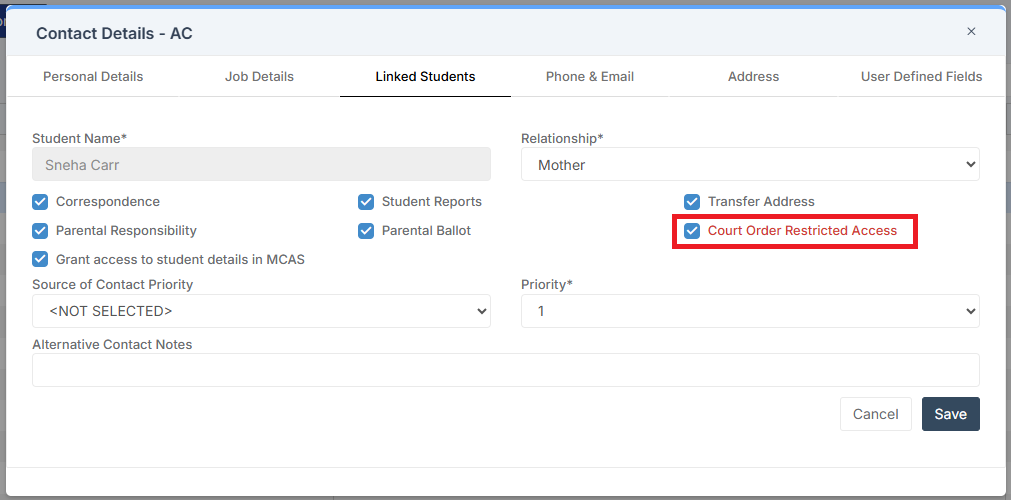
IMPORTANT NOTE: This only applies to the individual Student you selected, if you need to record a Court Order against this Contact for multiple Students, once you click Save you will be taken back to the the Linked Students section and you can then repeat the process for the next Student.
Restricting Access Within MCAS – New Accounts
Parents with a Court Order against them can still have a MCAS account but you will need to make some manual changes in order to ensure they cannot access and make changes to the Students personal and contact details.
When creating new MCAS accounts in bulk those with a Court Order are by default skipped, and only created where the option is manually unticked.
When creating MCAS accounts for Parents with a Court Order against them, firstly, we would recommend that you create the accounts individually, rather than creating the account in bulk with other Contacts.
Manual Process creating new MCAS User Accounts
To create an MCAS account for a Parent with a Court Order, go to Modules > MCAS > User Accounts.
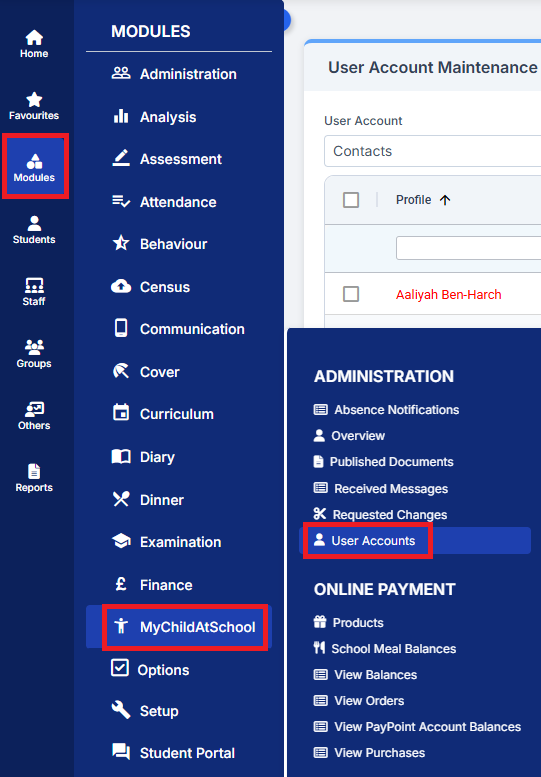
Click New in the top right hand corner.

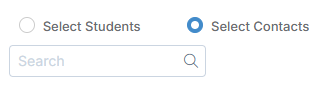
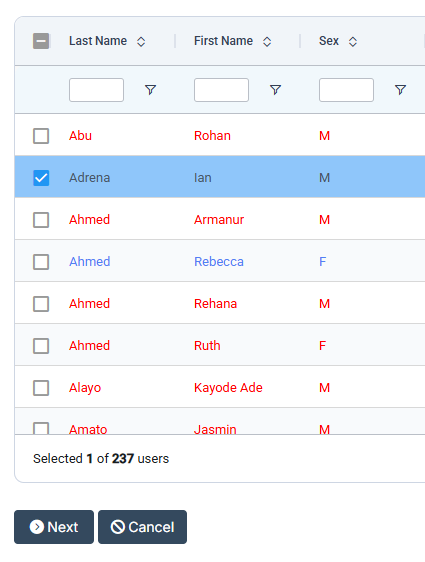
Use the radio buttons to choose Select Contacts.
Select the Contact using the tick boxes on the left and click Next.
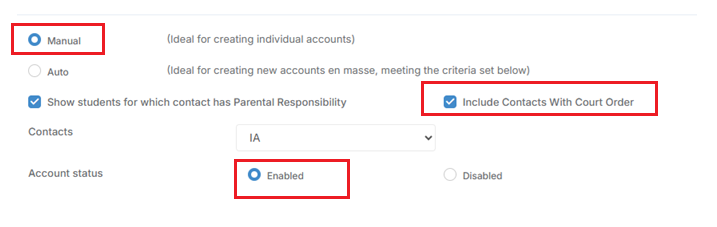
Use the radio buttons to select Manual, then select as follows;
- Include Contacts with Court Order
- Choose the Contact with a Court Order against them from the drop down
- Ensure Account Status is set to Enabled.
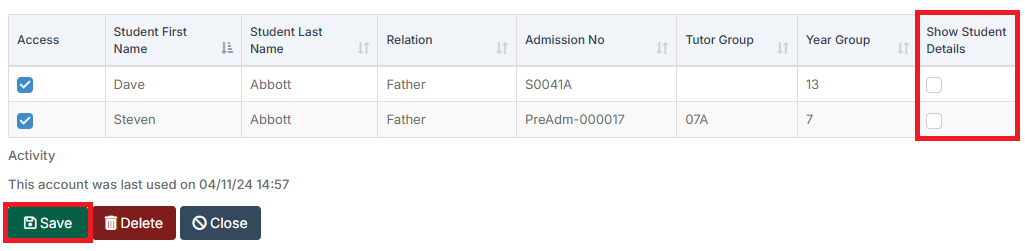
In the table at the bottom, against any Students that the Court Order applies to, ensure Access is ticked, and Show Student Details is unticked.
If Show Student Details is unticked this means that the MCAS user will not be able to see the Student Address and the Student Address will also be blanked out in any linked documents published to MCAS.

Then click Send Generate Password email.
Restricting Access Within MCAS – Existing Accounts
This is for use in the instance that the Parent has an existing MCAS account and you need to update their access in order to comply with the Court Order.
Go to Modules > MCAS > User Accounts.
Ensure Contacts is selected in the User Account dropdown.

Select the Contact from the list using the tick box to the left.

Select Action, then Edit.
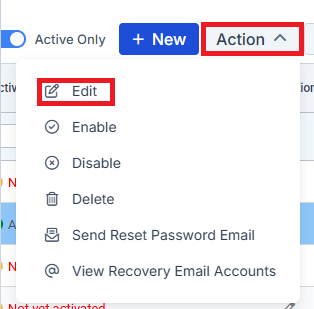
In the pop-up that appears, untick Show Student Details for any Students covered by the Court Order and click Save.
If Show Student Details is unticked this means that the MCAS user will not be able to see the Student Address and the Student Address will also be blanked out in any linked documents published to MCAS.
Communications
IMPORTANT: In relation to contacts with Court Orders please be aware when creating reports or sharing documents with parents what Student information is being shared. For example a report may be created that has the Students address.
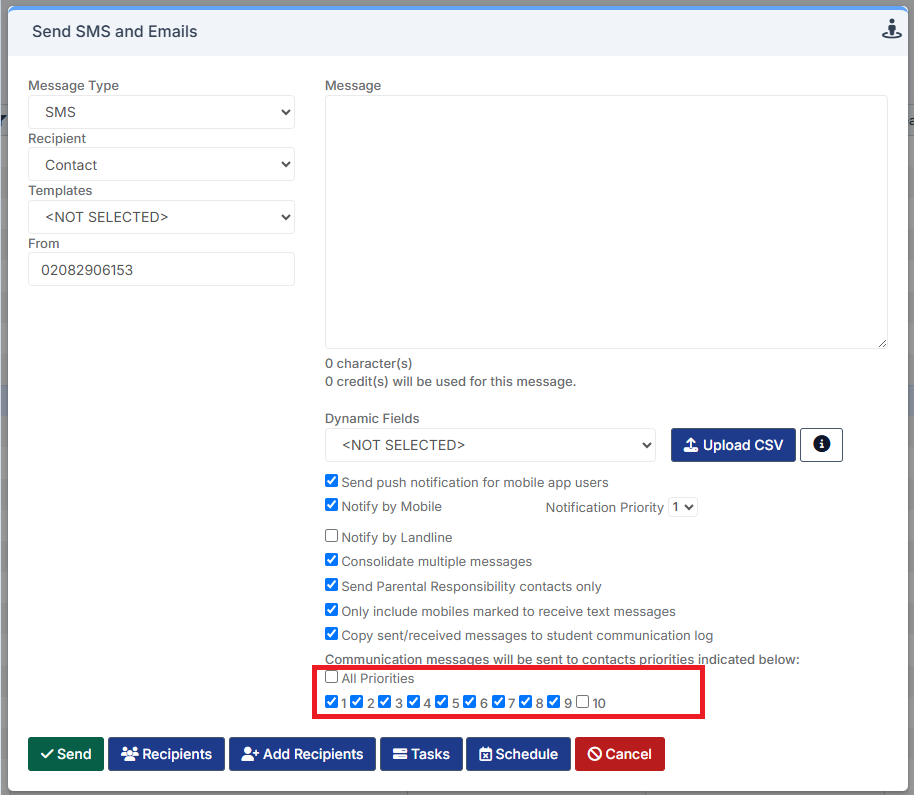
It is not possible to automatically prevent communications from being sent to Parents with a Court Order in all circumstances. However, we recommend that you mitigate this by assigning a specific Contact Priority that is used exclusively for Parents with a Court Order against them. Then when sending Communications that you do not wish to go to Parents with a Court Order you would just ensure that the Contact Priority assigned to those Parents is not selected.
For example, if we assigned Priority 10 to Parents with Court Orders against them, if we wanted to send a communication to all other Contact Priorities, when using Send SMS/Email we would set the Contact Priorities as per the following screenshot.