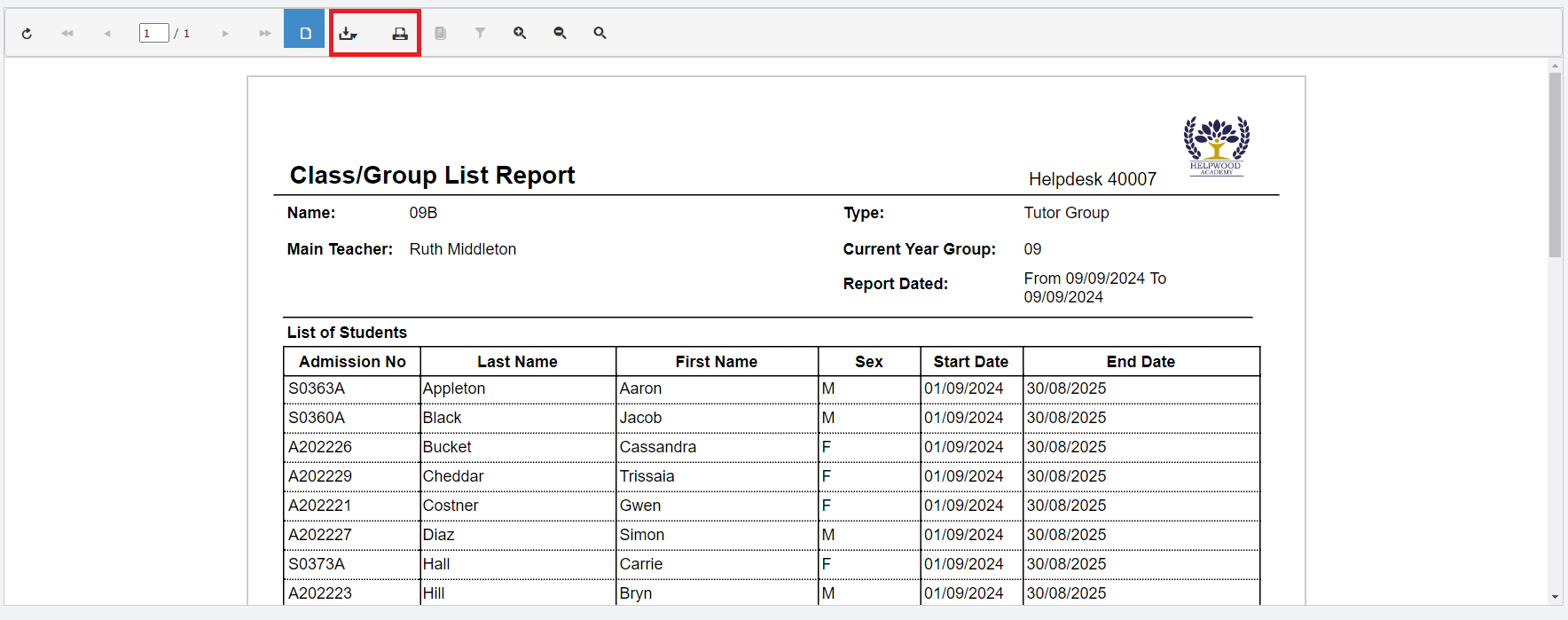
In this guide we’ll look at how to use the Class/Group List Report to report on future student memberships. For example viewing Tutor Group memberships for the next Academic Year.
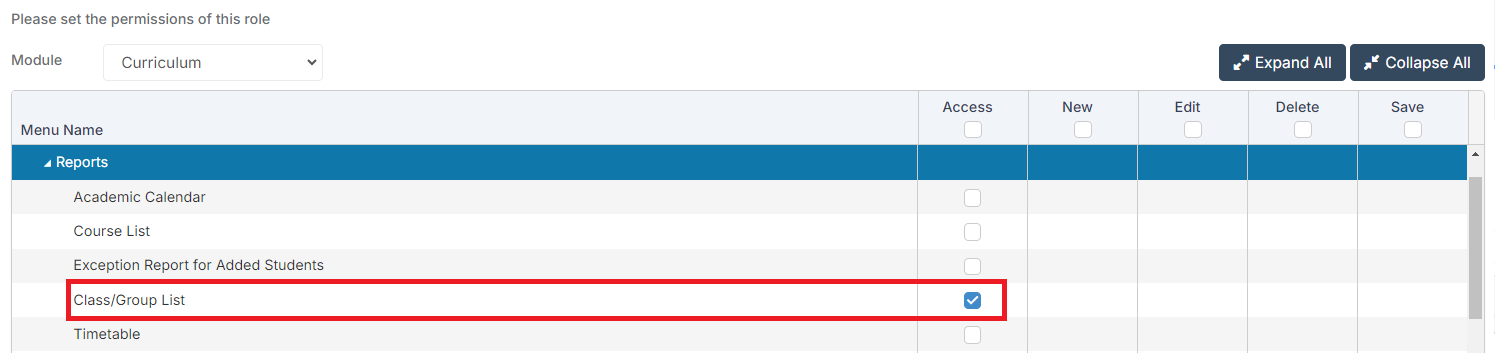
Access: The minimum permissions required to access the Class/Group List Report can be found in the Curriculum module from within Config > Setup > Roles & Permissions.
See Also: How to View Curriculum Reports
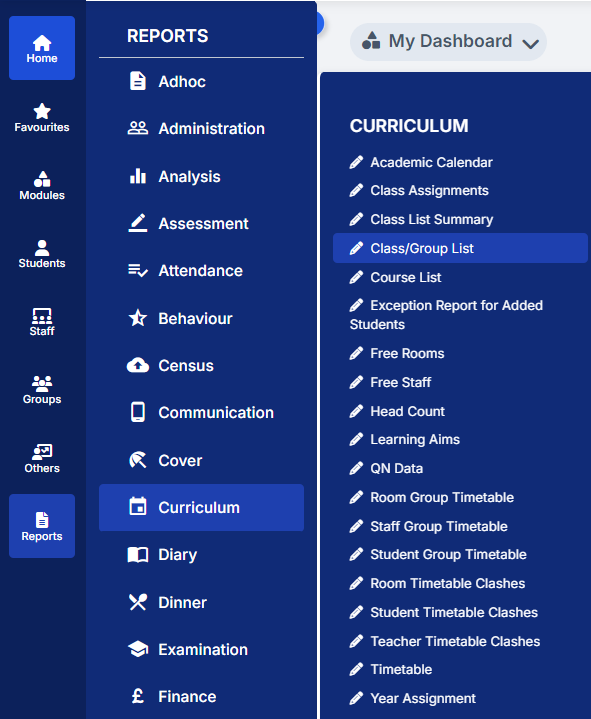
Go to Reports > Curriculum > Class/Group List
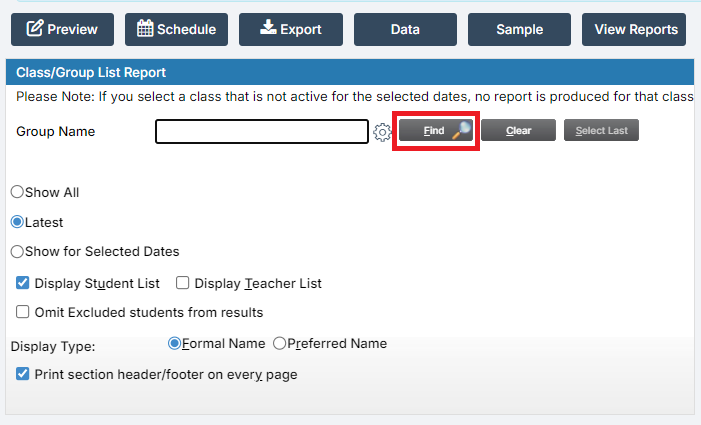
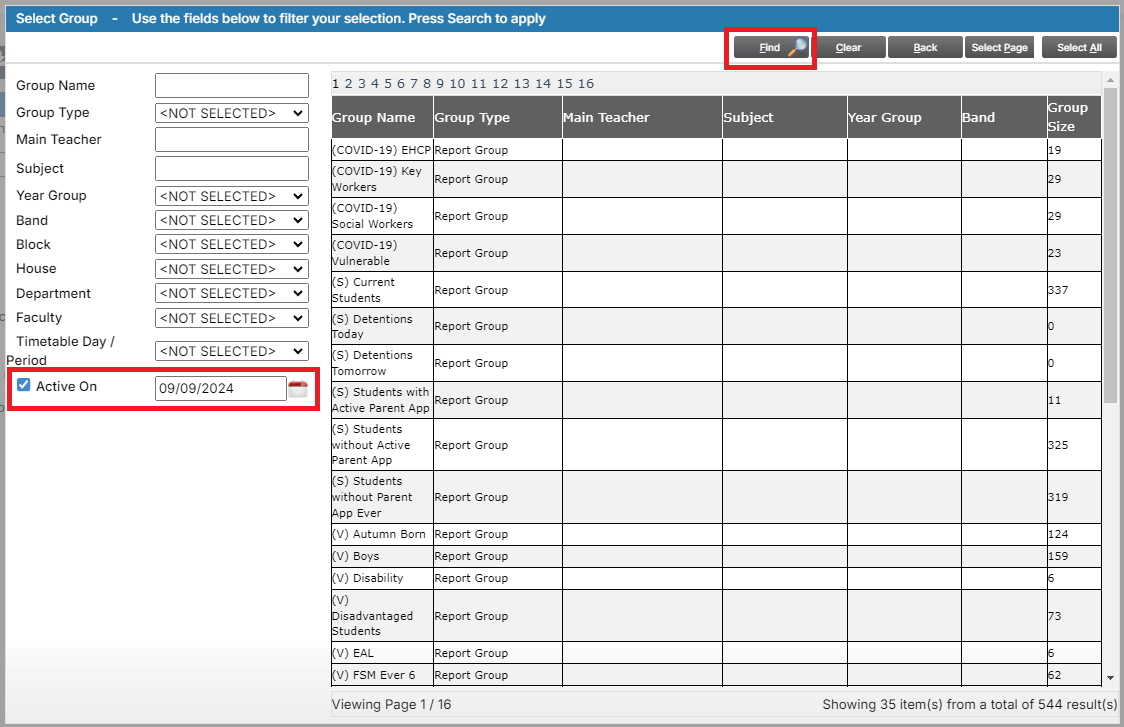
Click Find.
In the box that appears, in the Active On field, select a date for which the new memberships will be in place then click Find to update the list.
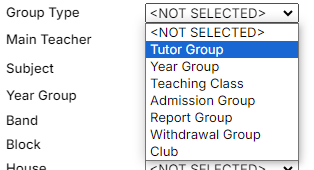
Then select the Group Type that you would like to report on from the drop down. In this example we’ll select Tutor Group. Then click Find again.
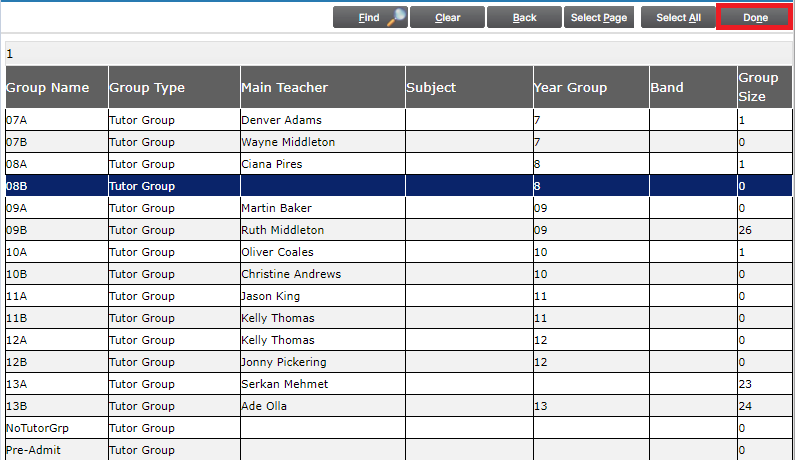
Click on the Group or Groups you would like to report on so that they highlight blue, then click Done.
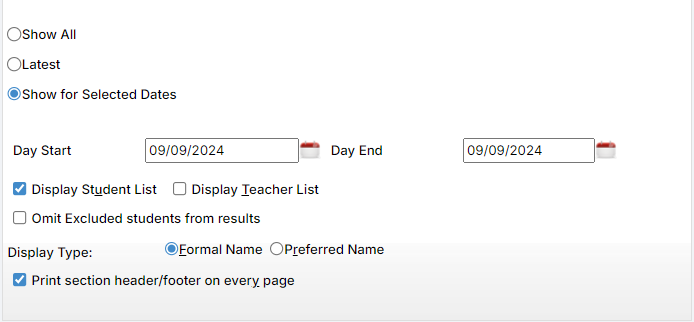
In the Report Parameters select Show for Selected Dates then select a start and end date after the new memberships come in to effect. Select any other options as required. Once you’re happy click Preview.
This will generate a list of students with memberships in the selected group within the date range you selected. Check that the report is as you expected, you can then use the Export and Print options at the top of the screen to save the report.
Note: If you are Exporting the report, please ensure you have allowed pop-ups for Bromcom in your browser.