In this guide, we show How to Run a VAT Reconciliation Report within the Finance Module.
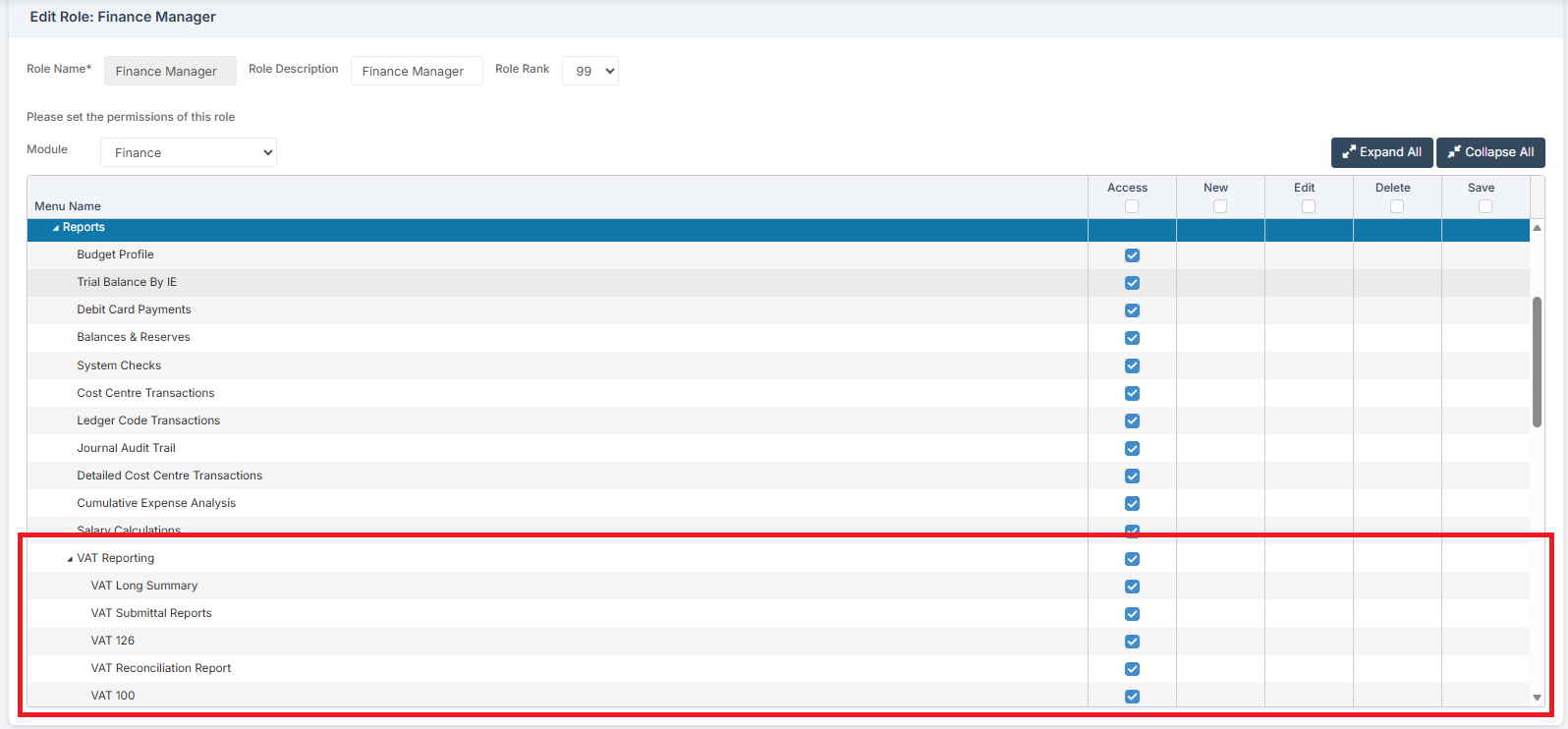
Access: The minimum permissions required to Run a VAT Reconciliation Report are found in the Finance Module section of Config > Setup > Roles & Permissions.
Related Guides:
To begin, go to Modules > Finance > Finance Home Page > Reports > VAT Reporting.

This will show all previously generated VAT Reports, their VAT Period, VAT Start Date, VAT End Date, and any Submit Dates and Confirmed Dates.

To open a previous VAT Reconciliation Report, double-click on a previously generated line. Choose VAT Reconciliation and click Load. This opens the report, it does not resubmit it.
To create a New VAT Report, click Create.

The next available VAT Period is automatically selected for the VAT Period.
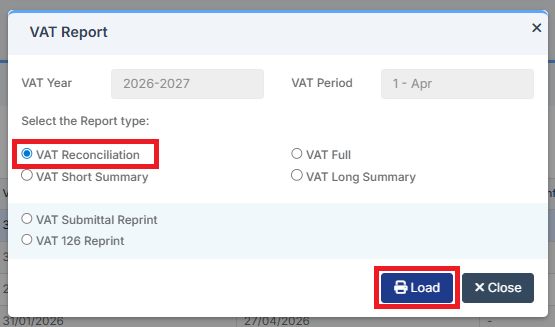
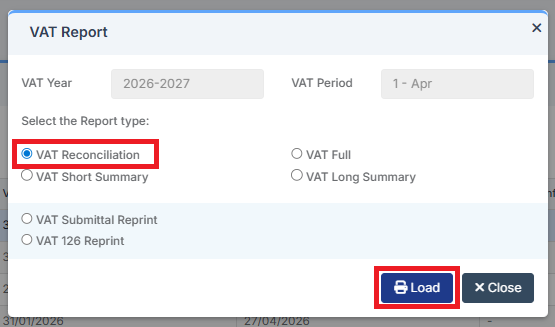
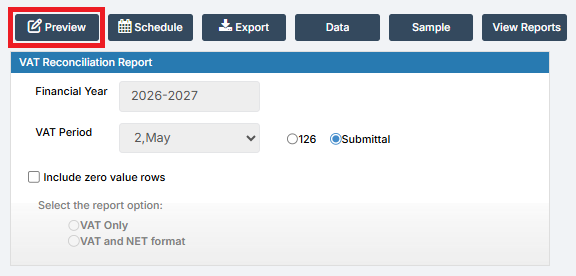
Select the Report Type: VAT Reconciliation and then click Load. This allows for the viewing of the Report before it is submitted.
Click Preview to Preview the Report.
The Report is shown as a Draft, meaning not yet Confirmed for Submittal.
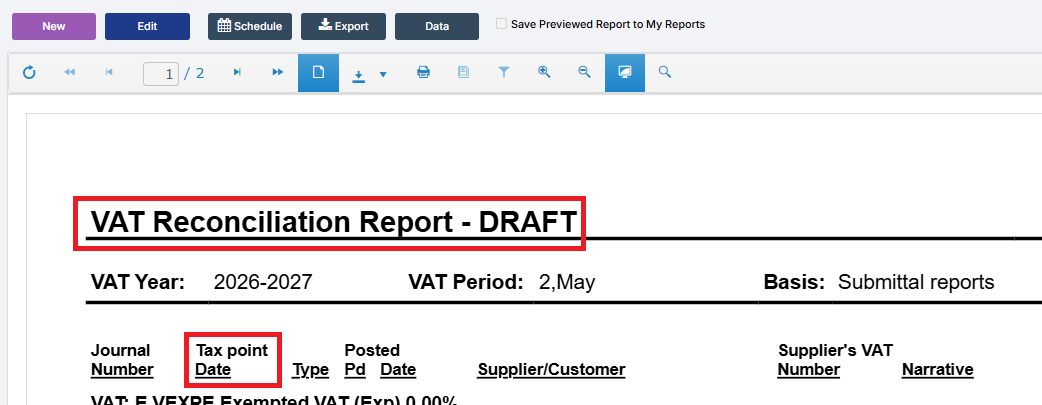
The VAT Reconciliation Report provides a complete list of all VAT rows in the Journals for the VAT Period. The TAX Point Date is also shown.
The totals at the end of the VAT Reconciliation Report are broken down by Reclaim Balance and Owed Balance. These totals should tally with the totals in all other VAT Reports: VAT Full, VAT Short Summary, VAT Long Summary and VAT Submittal. Ignore VAT 126, which is used by Academies.
VAT Reconciliation Report Totals:
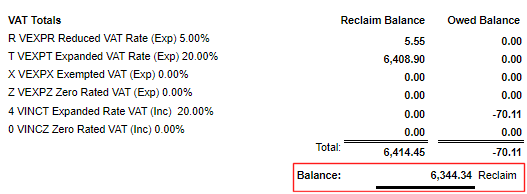
Note: The VAT Reconciliation Report puts the VAT Values as positives and negatives into the same column according to the VAT Type, i.e. Input or Output VAT, whereas the other VAT Reports show the credit and debits as inputs or outputs in separate columns. Therefore, to reconcile these reports with one another, add the VAT Outputs and Inputs in a row together.
To view VAT Return information from within the Chart of Accounts, go to Modules > Finance > Finance Home Page > General Ledger > Chart of Accounts Enquiry.
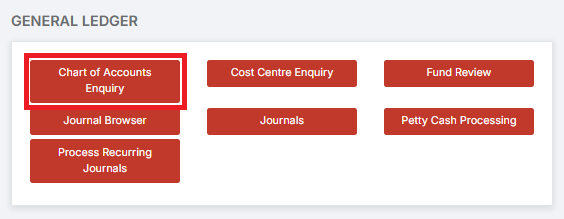
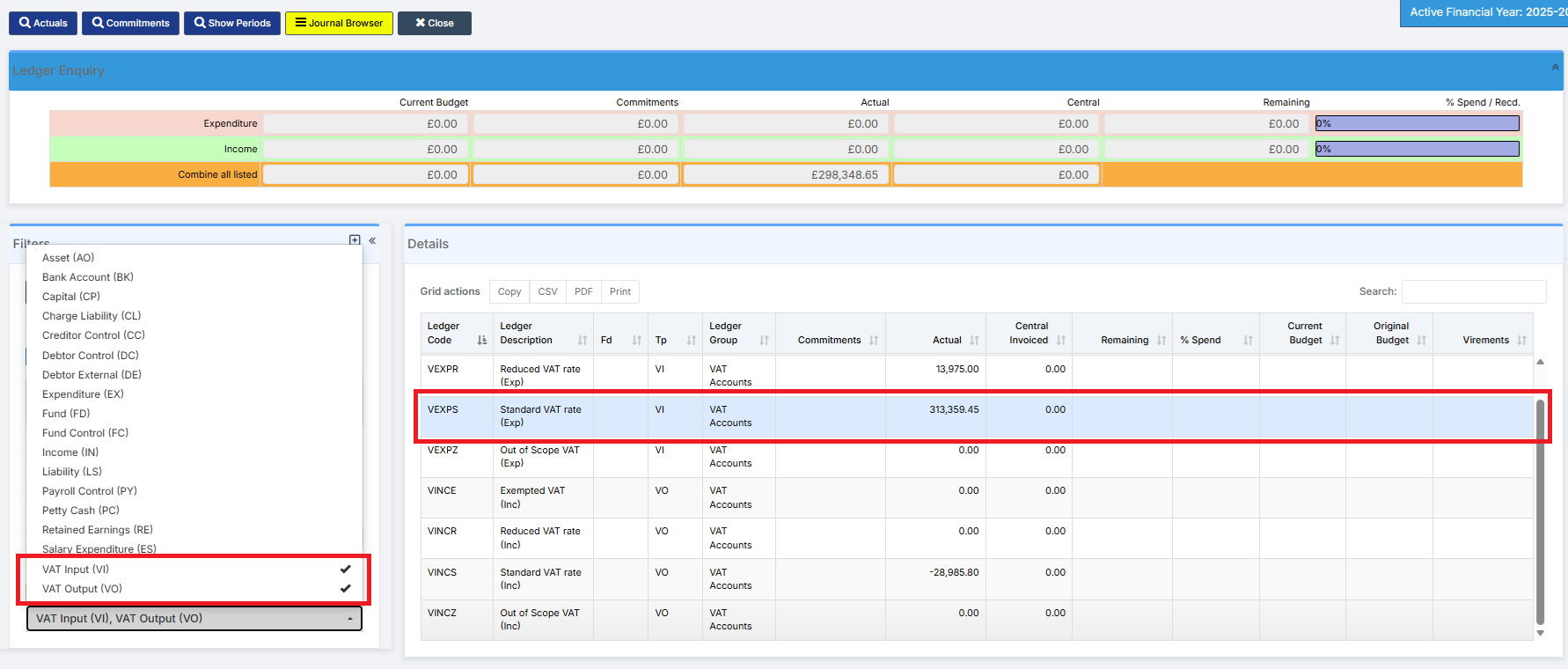
Select the VAT Ledger Codes from the drop down on the left, then select the relevant Ledger by double-clicking on it.
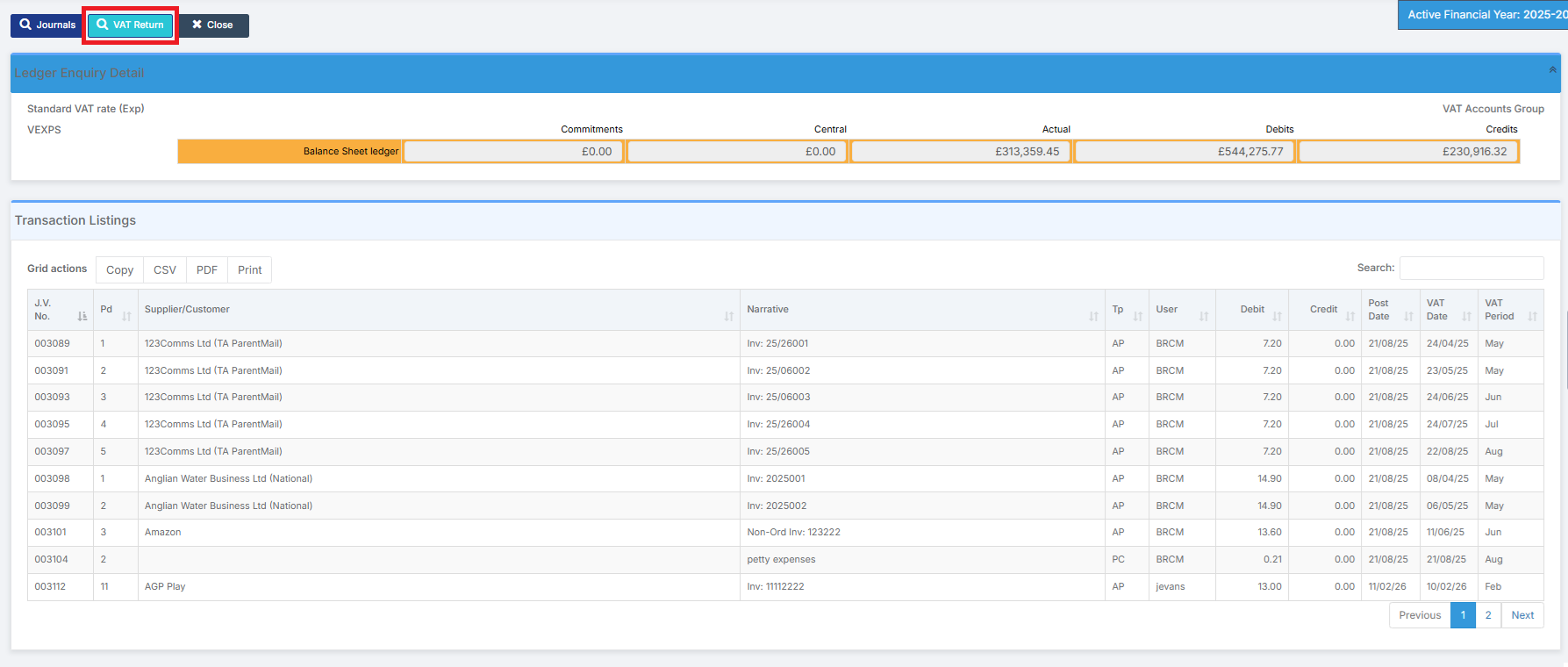
Then select the VAT Return option.
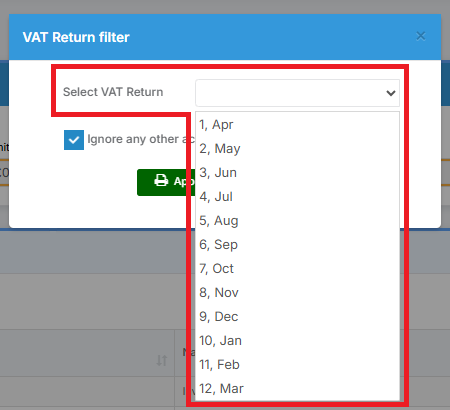
From the VAT Return filter pop up, select the Period for the VAT Return.
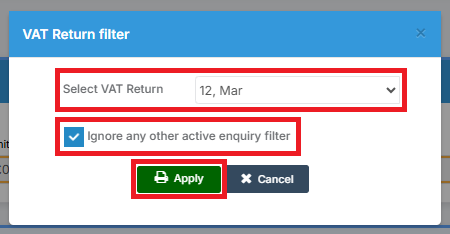
Leave the Ignore any other active enquiry filter option ticked and Apply the Filter.
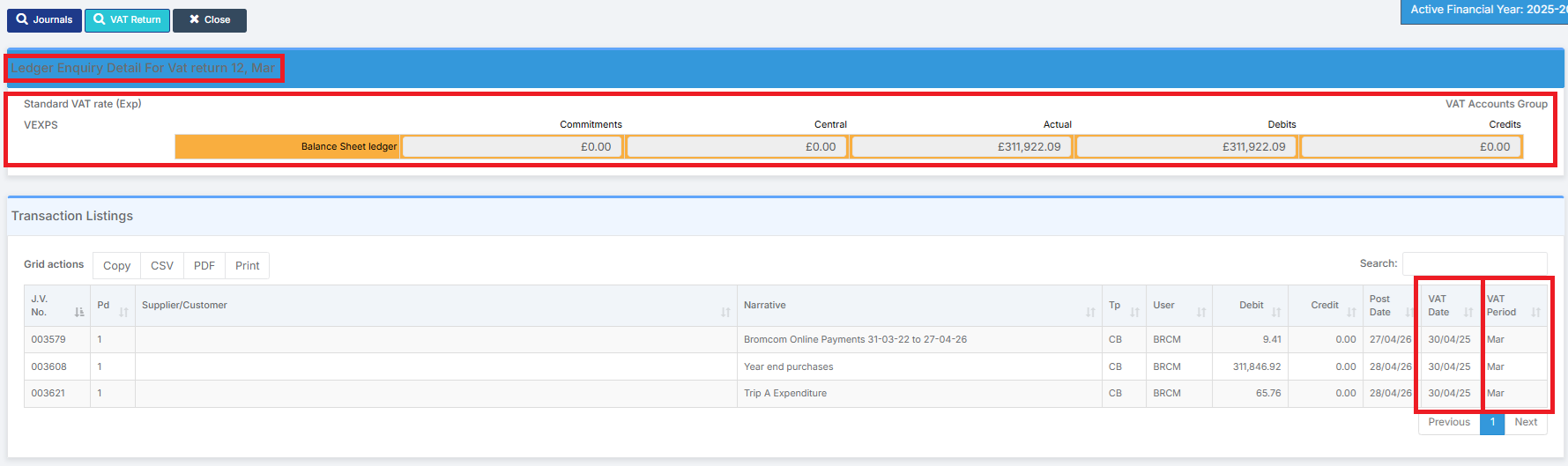
The VAT Period Filtered view of the VAT Ledger displays the following:
- The Filter details
- The Filter Totals – the should agree with the Reports
- The VAT Date column displays the Tax Point Date
- The VAT Period column is blank until the Submittal is Confirmed
Select a line and then click Journals, or double click on it, to check the details of transactions.
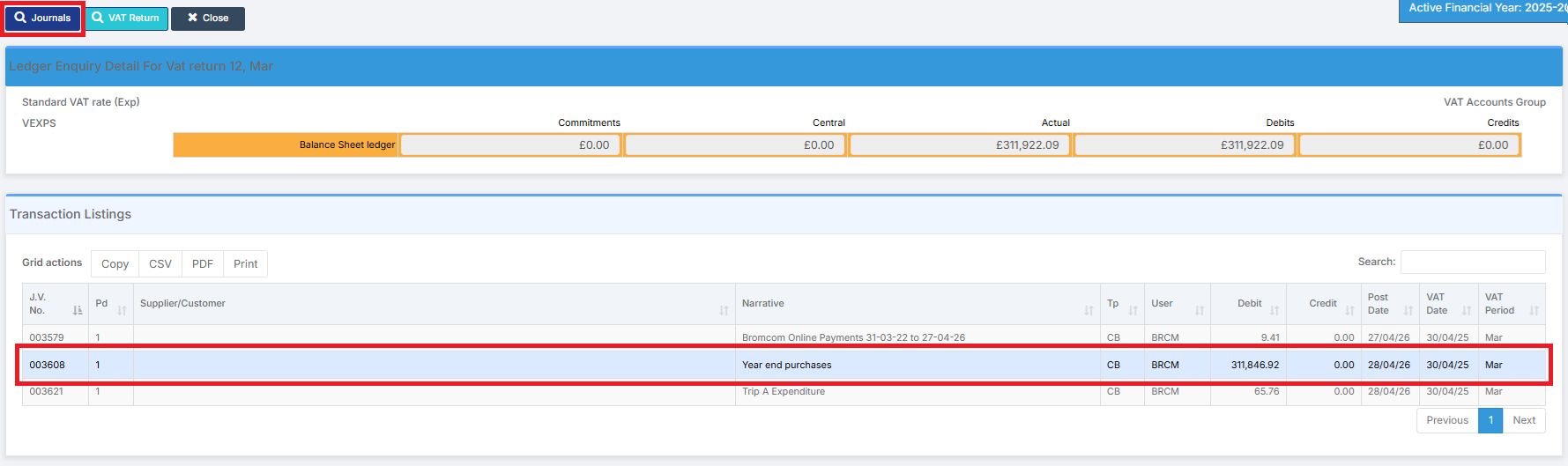
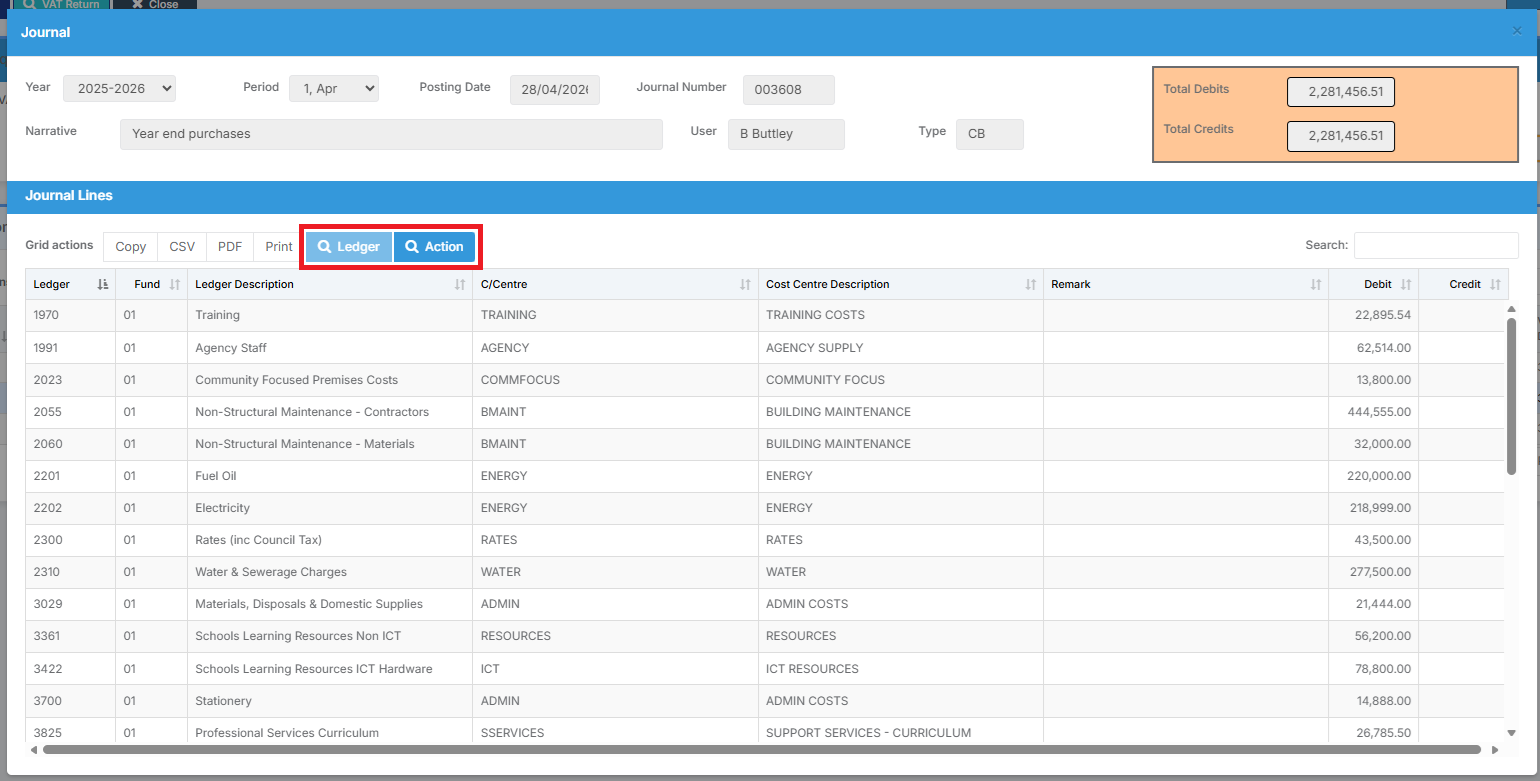
The Journal is then displayed. The Ledger or Action can be investigated.