
In this guide, we show how to Set a Default Budget Scenario within the Finance Module
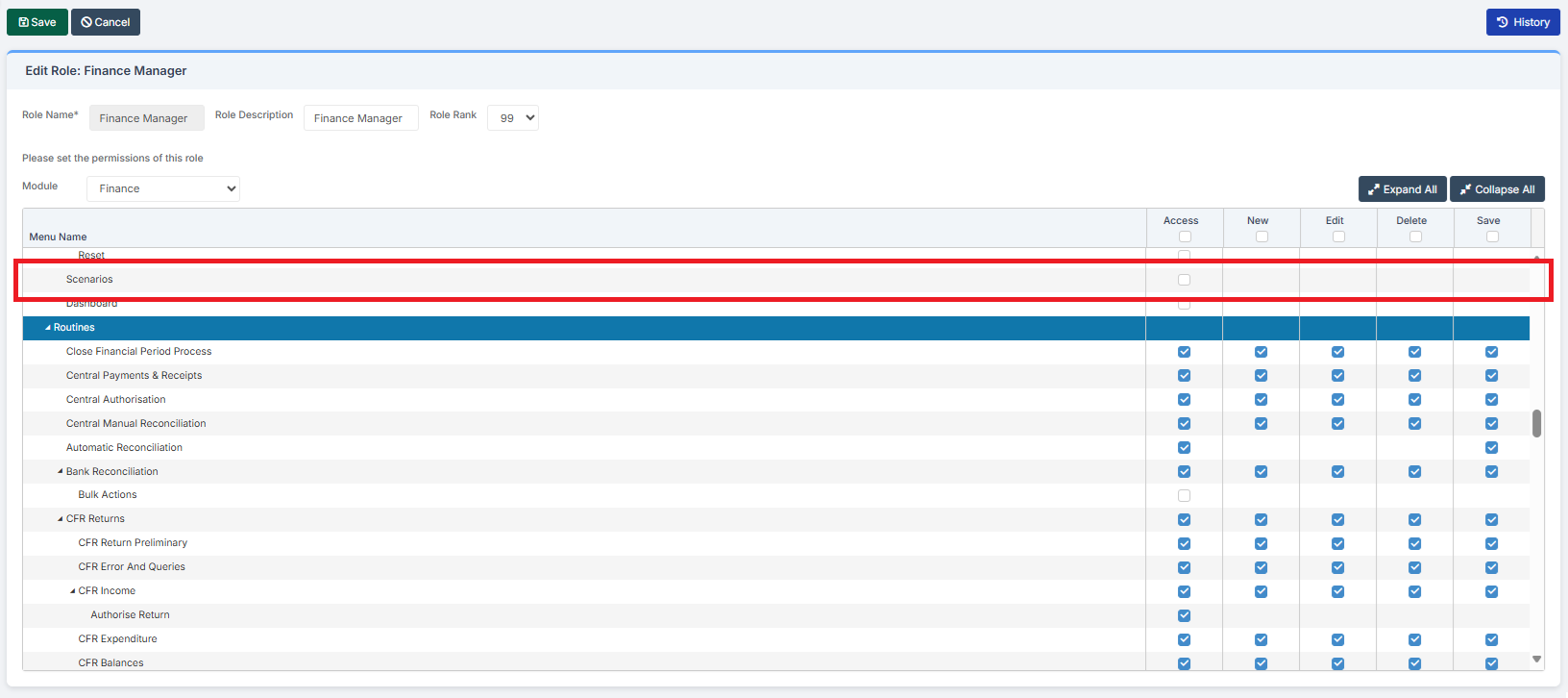
Access: The minimum permissions required to Set a Default Budget Scenario are found in the Finance Module section Config > Setup > Roles & Permissions
Pre-requisites: In order to Set a Default Budget Scenario in a specific Financial Year, at least one Budget Scenario needs to exist within that specific year. See: How to Add and Manage Budget Scenarios
Related Guides:
This Guide is part of the Budgeting Module User Guide
The previous guide in the Budgeting Module User Guide is: How to Add and Manage Budget Scenarios
The next guide in the Budgeting Module User Guide is: How to Allocate Funding in Fund Allocation
Introduction
The system allows for multiple Budget Scenarios to be created
The Default Budget Scenario is the one marked in the system as Original. Within each Financial Year, the Budget Scenario marked as Original is the one that the system uses to monitor Financial Performance against
Having Multiple Budget Scenarios allows for the construction and manipulation of Alternative Budget Scenarios. Alternative Budget Scenarios can be used to explore the impact of changes in income and expenditure, such as changes to funding and staffing. The Original Budget Scenario does not need to be altered and it can be kept in place as the Default Budget Scenario for the system to monitor Financial Performance against
Single Budget Scenario
If there is only one Budget Scenario in a Financial Year, the system automatically marks it as the Original, making it the Default Budget Scenario, and monitors Financial Performance against it
To begin, go to Modules > Finance > Finance Home Page > Budgeting > Scenarios
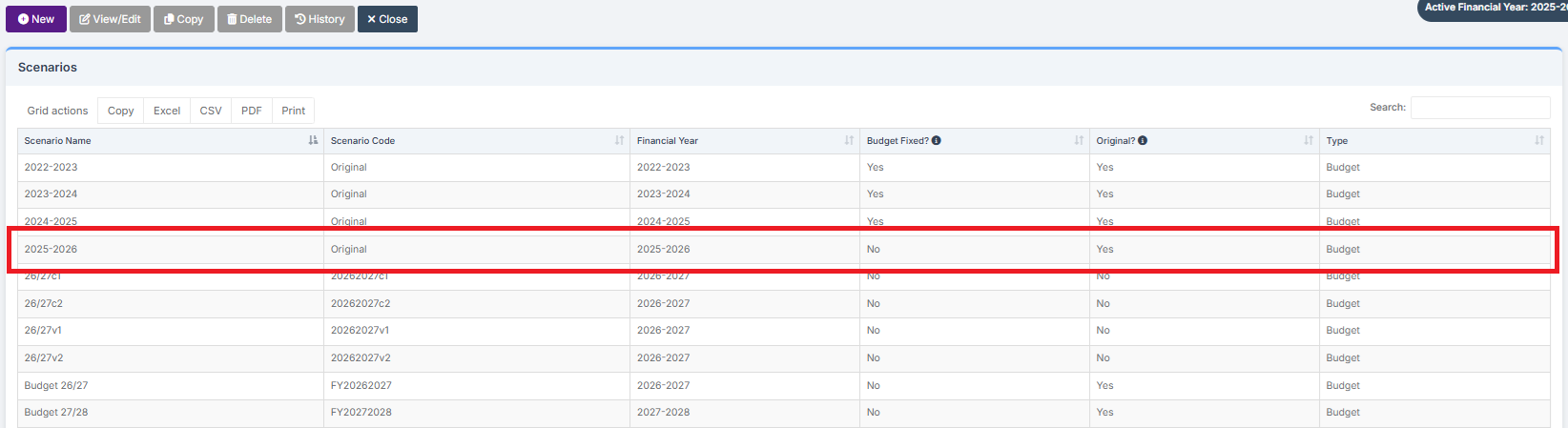
In the other areas of the Budgeting Module, there is only one Budget Scenario option to select
Budget Variances:
Go to Modules > Finance > Finance Home Page > Budgeting > Budget Variances

Cost Centre Allocation:
Go to Modules > Finance > Finance Home Page > Budgeting > Cost Centre Allocation

Dashboard:
Go to Modules > Finance > Finance Home Page > Budgeting > Dashboard

Multiple Budget Scenarios
If there are a number of Alternative Scenarios in a Financial Year, the user can choose which to mark as the Original, making it the Default Budget Scenario. The system then monitors Financial Performance against it
See: How to Add and Manage Budget Scenarios
Go to Modules > Finance > Finance Home Page > Budgeting > Scenarios
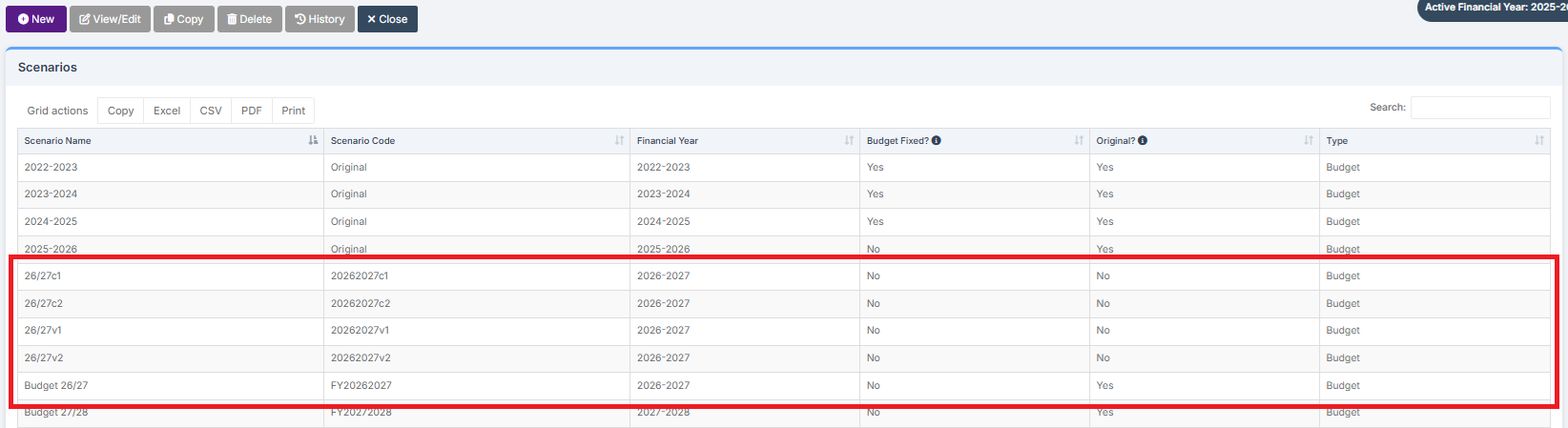
To explore the impact of changes in income and expenditure, such as changes to funding and staffing, an Alternative Budget Scenario can be selected from the drop-down menu in the following areas of the Budgeting Module
Budget Variances:
Go to Modules > Finance > Finance Home Page > Budgeting > Budget Variances

Cost Centre Allocation:
Go to Modules > Finance > Finance Home Page > Budgeting > Cost Centre Allocation

Dashboard:
Go to Modules > Finance > Finance Home Page > Budgeting > Dashboard

Selecting the Default Budget Scenario
Prior to the start of a Financial Year, after considering a number of Alternative Scenarios, a Default Budget Scenario must be selected. Financial Performance will then be measured against this Default Budget Scenario throughout the Financial Year
During a Financial Year, if a Reworked Budget Scenario were approved, a new Default Budget Scenario can be selected. Financial Performance would then be measured against this Budget Scenario for the remainder of the Financial Year
The next guide in the Budgeting Module User Guide is: How to Allocate Funding in Fund Allocation