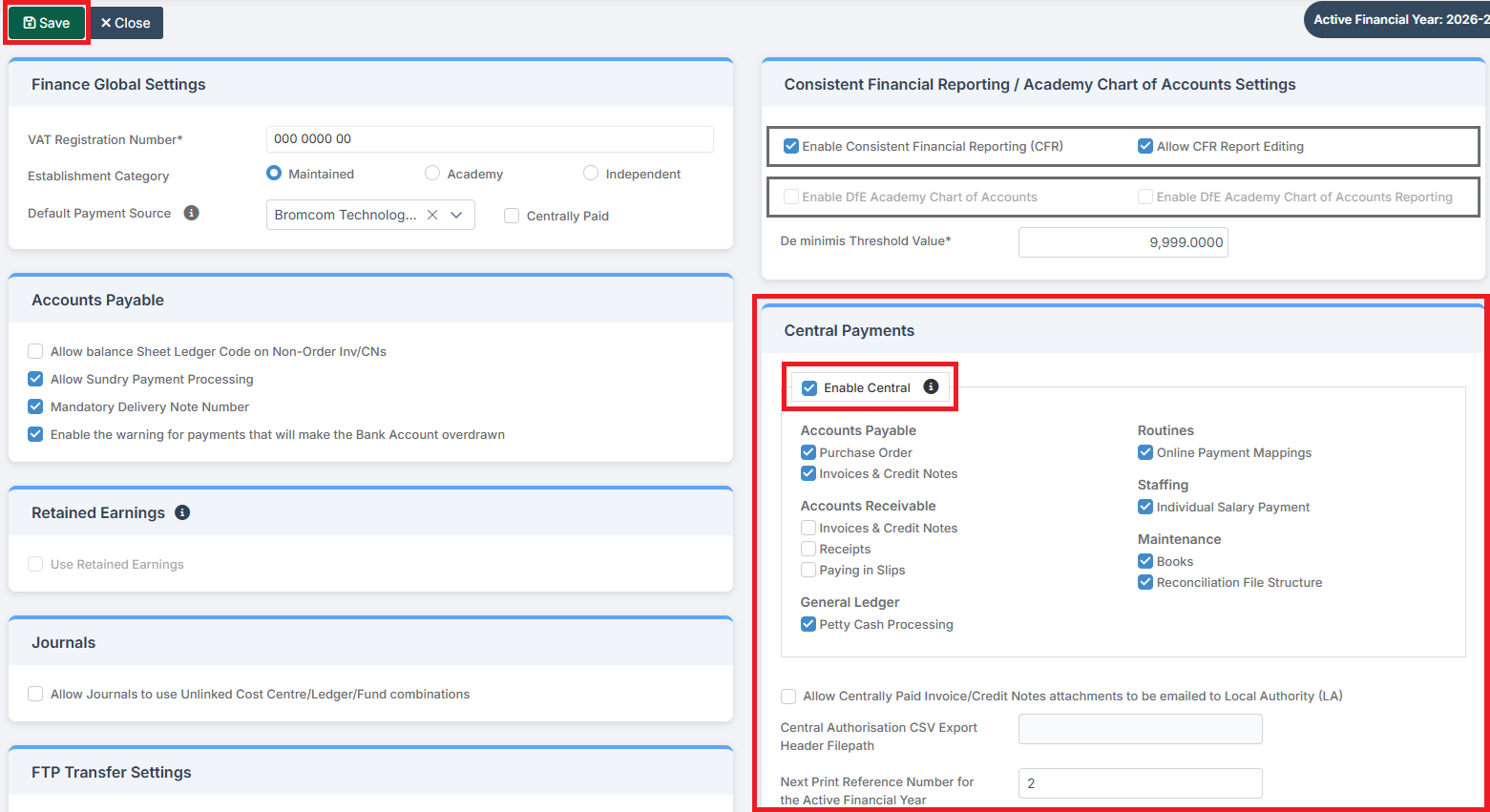
In this guide, we show How to Set Up Bromcom Finance for Central Payments and Receipts.
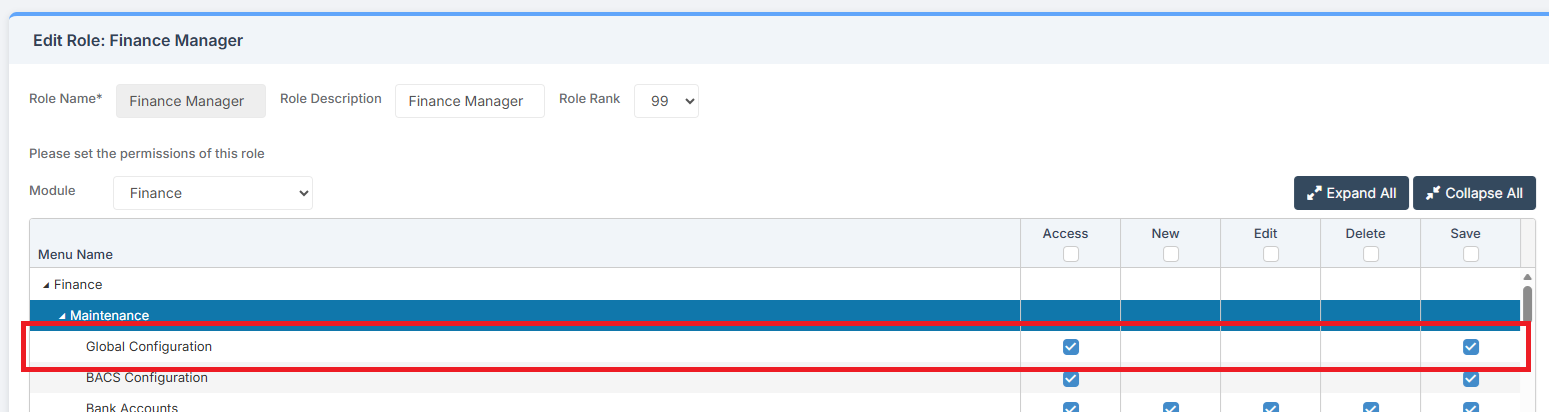
Access: The minimum permissions required to Set Up Bromcom Finance for Central Payments and Receipts are found in the Finance Module section of Config > Setup > Roles & Permissions.
This Guide forms part of the CENTRAL PAYMENTS AND RECEIPTS USER GUIDE. Click to see Related Guides.
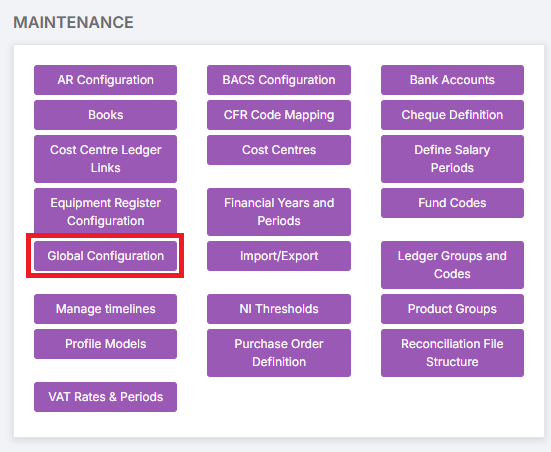
To begin, go to Modules > Finance > Finance Home Page > Maintenance > Global Configuration
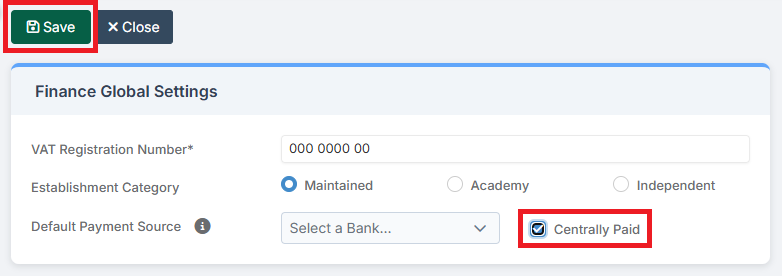
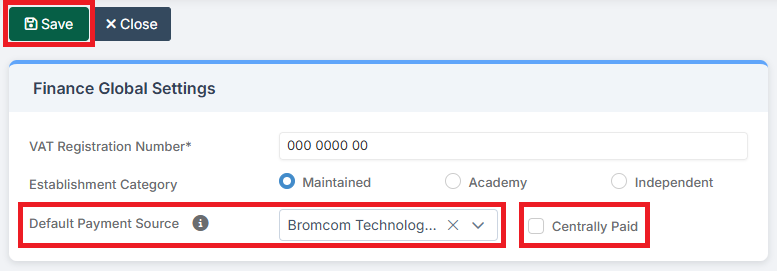
If the School is entirely Central, i.e. it does not have its own Bank Account and all Payments and Receipts are Centrally Paid, in Finance Global Settings ensure Centrally Paid is ticked. Click Save if making any changes.
If the School has its own Bank Account and it also uses Central Payments and Receipts, first, in Finance Global Settings, ensure the correct Bank Account is chosen as the Default Payment Source and that Centrally Paid remains unticked.
Then, in Central Payments, tick Enable Central and also tick the Functions to enable. Click Save.