
The A2C Centre Status page enables administrators to view and monitor the real-time connectivity status of exam board configurations across all schools in the trust.
Note: All pages below are subject to having the relevant Roles and Permissions. The permissions for A2C Centre Status are found in Vision>Admin>Roles>Select Role>Edit>Accessible Areas

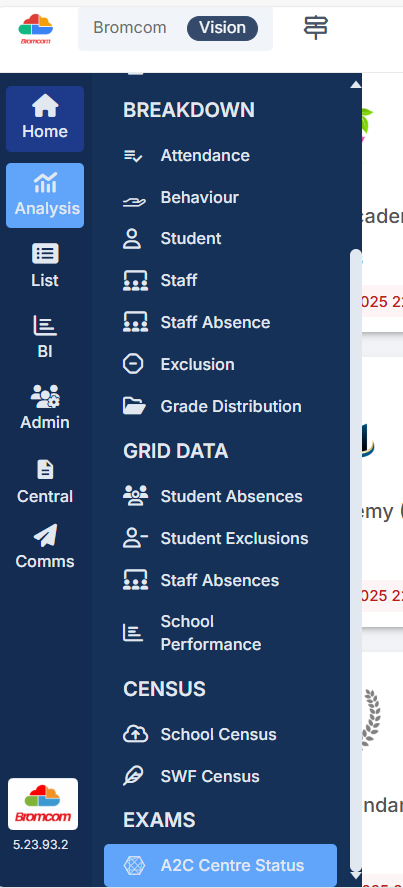
Go to Vision > Analysis > Exams > A2C Centre Status
The page consolidates data from the MIS to provide a centralised, dynamic overview of each school’s A2C setup, helping users identify readiness issues and take timely action.
Statuses are clearly displayed using colour-coded indicators (Ready, Not Connected, Not Available, Failed), with support for on-demand refresh and export capabilities.
Key features include:
- Grid display of School and Exam Board Code details and View by options to toggle between traditional exam board view and an aggregated connection status view.
- Right-side panel displaying detailed school and A2C centre information.
- “Open in School MIS” link for direct access to individual school configuration pages – Accessible Only when Single Sign On is enabled for your MAT Vision account.
- Refresh All functionality with a live progress bar and per-school refresh control.
- Individual Refresh for individual school refresh control.
- Export to Excel reflecting currently filtered data.
- Role-based access control, restricted to users with the Administrator role.
This update improves visibility, enhances operational efficiency, and supports proactive monitoring of A2C connectivity across all schools within a trust.