
Bromcom MIS allows users to view historical data across various sections, including Student, Staff, and Group List pages. By selecting an Active On Date, you can see information as it existed on a specific date, making it easier to track past enrollments, staffing changes, and group assignments.
In this guide, we’ll explore where you can set the Active On Date and provide practical tips to ensure you use it effectively.
Access: No specific permissions are required to use Active On Dates, as long as you have access to the relevant sections of the system where they appear. For instance, to use the Active On Date feature on the Student List Page, you only need permission to view the Student List Page—no additional settings are required.
The Active On Date on the Student, Staff and Group List Pages is located within the Search Filters option in the top right hand corner.
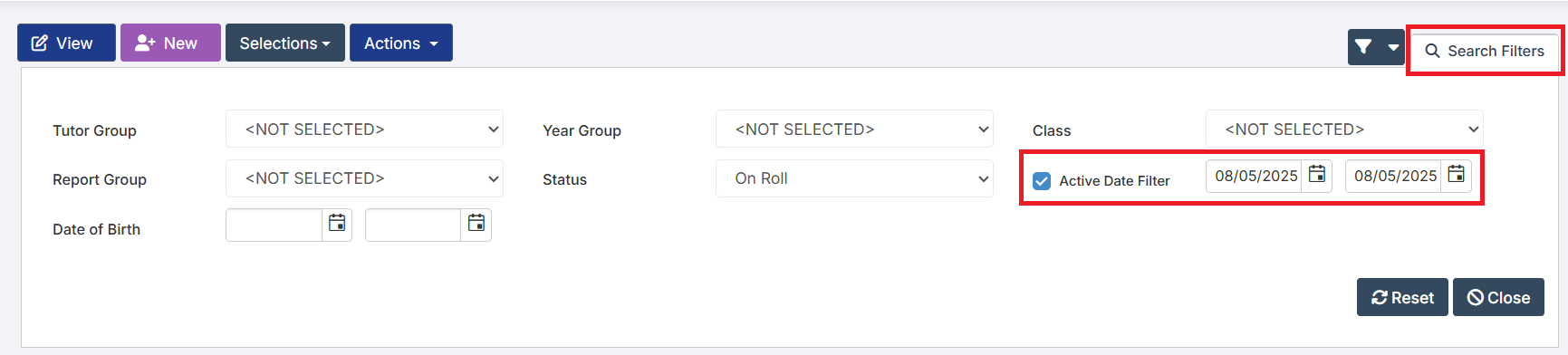
Note: If today is an Academic Day the Active On Date will default to today. If today is not an Academic Day it will generally default to the last Academic Day, the exception to this is during the summer holidays at which point it will look forward to the next Academic Day.
We would generally recommend that you do not untick Active Date Filter as this will display all information, past present and future, in the section you are looking at. If we use the Student List Page as an example, unticking the Active Date Filter would cause the Student List Page to display all Current Students, Leaver Students, and Students with future Admission Dates. Doing this can cause the system to run extremely slowly due to the amount of information being returned.
You can use the Active On Dates to make changes to Leaver Students and Staff as though they were currently enrolled at the school, for example making changes to historical Learner Monitoring records or making changes to Dinner Balances/Running balance club balances, by setting the Active On Date to a date that they were at the school and then make any changes following the same process you would an on roll Student or Member of Staff.