
Note: All pages shown below are subject to having relevant Roles and Permissions.
Bromcom MAT Vision comes with free Power BI Analytics Pack which contains dashboards and reports to enhance your reporting and analysis capabilities. This is a live feed that you can choose to update as frequently as you wish.
You can use these ‘out the box’ Analytics Pack dashboards and reports or you can use OData to create your own custom reports.
In this guide, we will cover Installing and using Power BI with MAT Vision.
Prerequisites;
- A Bromcom MAT Vision system, with login credentials;
- Administration rights for MAT Vision; and
- A Power BI Pro Account.
See also: How to Configure MAT Vision User Accounts for School‑Level Access in Power BI and How to get data from the MIS using OData
For release information on new versions of the MAT Vision Analytics Pack now available from the Power BI app store of see here.
- Expand each item for guidance on Bromcom MAT Vision Analytics Pack in Bromcom.
- To print this as a checklist, click ‘Collapse All’ (button on the right), then right-click the page and select ‘Print’.
Most of the time, the pack will already be installed for you when your MAT Vision system is handed over.
You can check this by following the instructions further down on How to Update the Analytics Pack.
If you’ve already installed the App, please skip to How to Update the Analytics Pack.
Having Vision oData is a pre requisite for the MAT Vision Analytics Pack.
You will need to sign up for MAT Vision to have access to the oData feed and to be able to analyse data for your Schools.
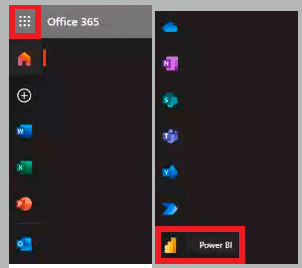
To install oData and Power BI, you will need to go to Office 365 Apps, use the Waffle highlighted below to expand the Apps menu and select Power BI.
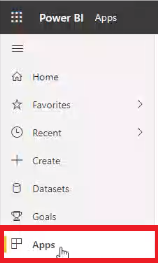
Within Power BI, you now want to scroll down to Apps.
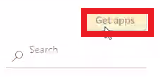
In the top right corner, press Get apps.
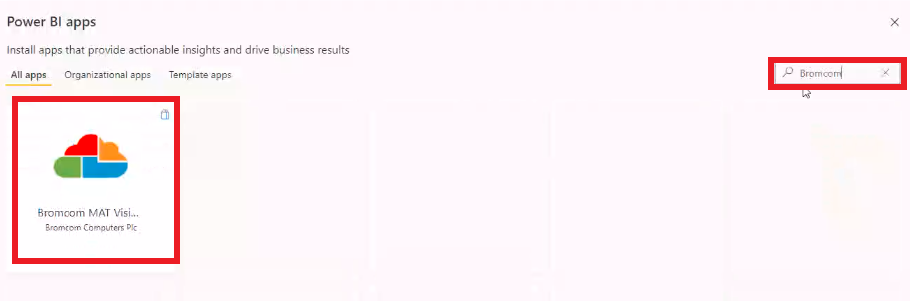
Type in Bromcom and you will see the Vision App shown below.
There are 2 different apps that we publish for customers:
- Bromcom MAT Vision Analytics Pack
- Bromcom MAT Vision Analytics Pack (SQL)
Difference between Bromcom MAT Vision Analytics Pack & Bromcom MAT Vision Analytics Pack (SQL)
- Bromcom MAT Vision Analytics Pack
- This is based on OData feeds and the most commonly used app.
- Bromcom MAT Vision Analytics Pack (SQL)
- This is based on SQL Replication that is setup for the large MATs/LAs who have requested to setup SQL replication.
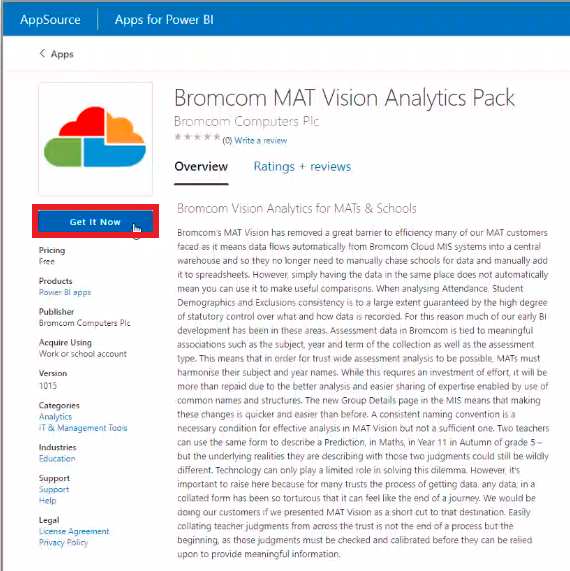
Click on it to view the App details.
Next, click on Get It Now to begin the installation process.
You will need to enter your details into the fields shown below;
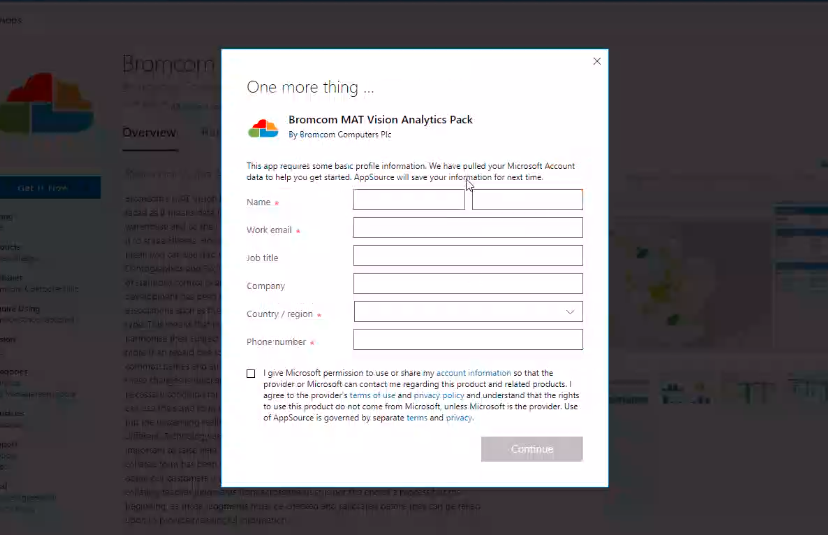
Once your details are entered, you can press Install.
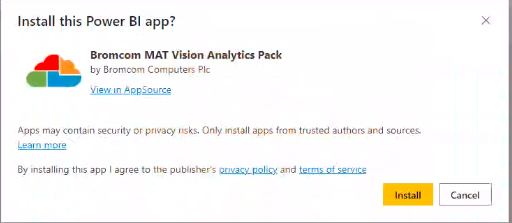
Installation is usually quick but it may take a while so please allow it to fully finish.

The App is now installed and ready to be used.
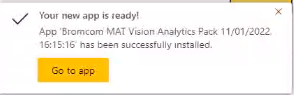
The App will open but displaying sample data.
You will need to press Connect your data in order for your data to be displayed.
Connect your data is located at the top of the screen.

After pressing Connect your data, press Next.
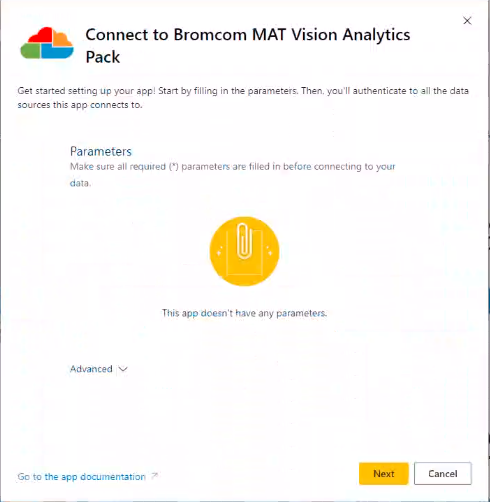
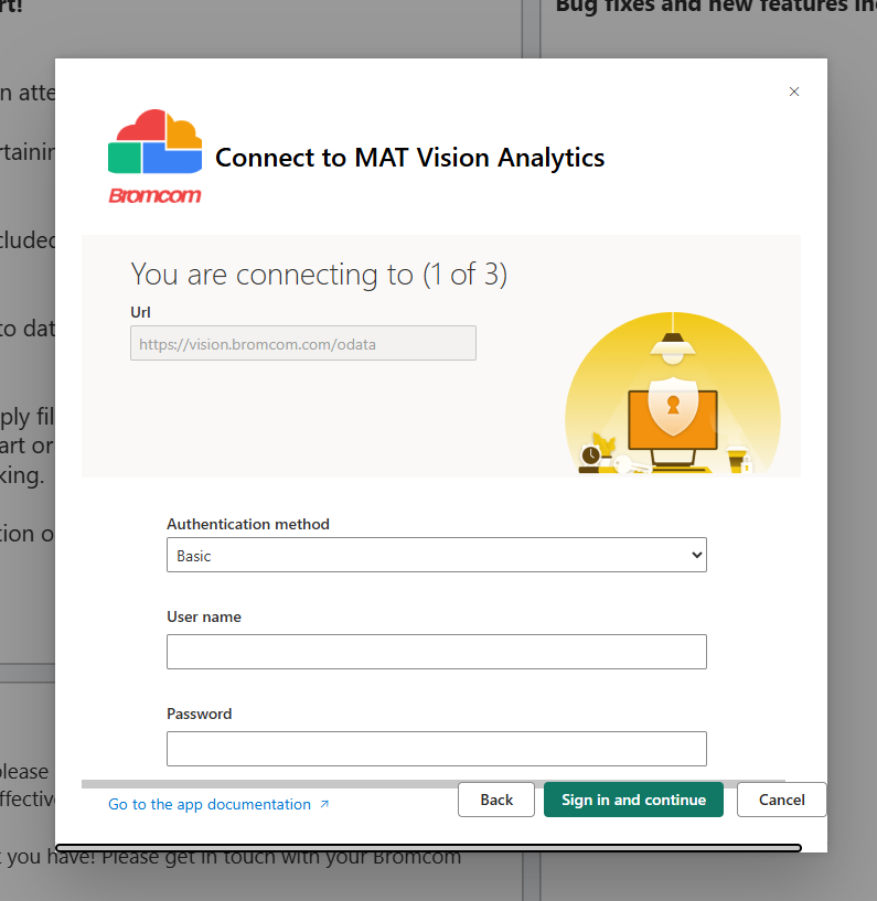
Step 1
The URL is pre populated.
The Username you need is your Vision Customer Code.
The Password you need is your API Key.
Click Sign in and Continue.
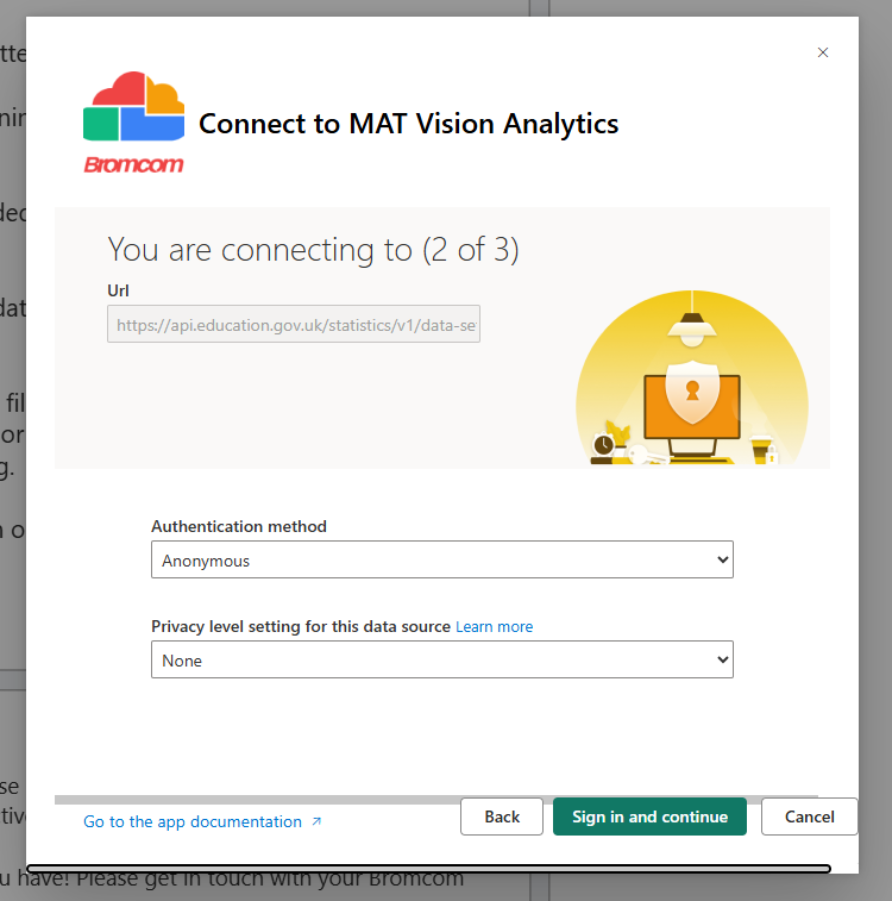
Step 2 – Click Sign in and Continue.
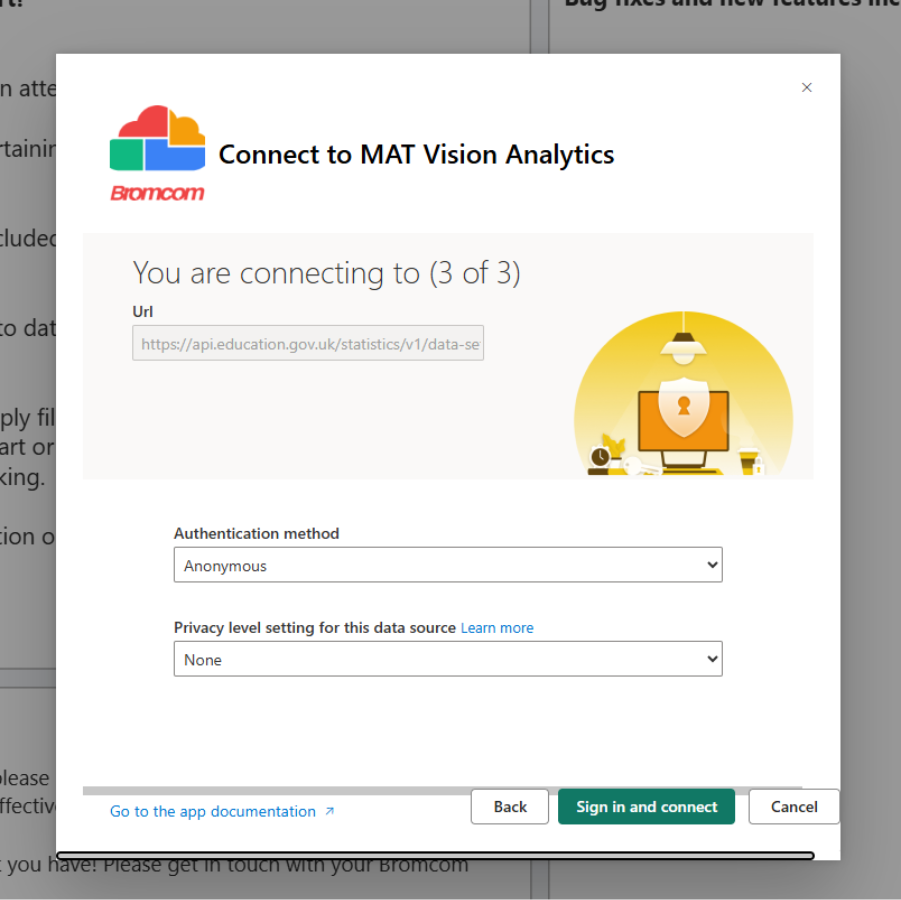
Step 3 – Click Sign in and Connect.
The App will begin refreshing.

Once complete, you will see that it is now displaying your data and allows you to select from all of your available Schools.
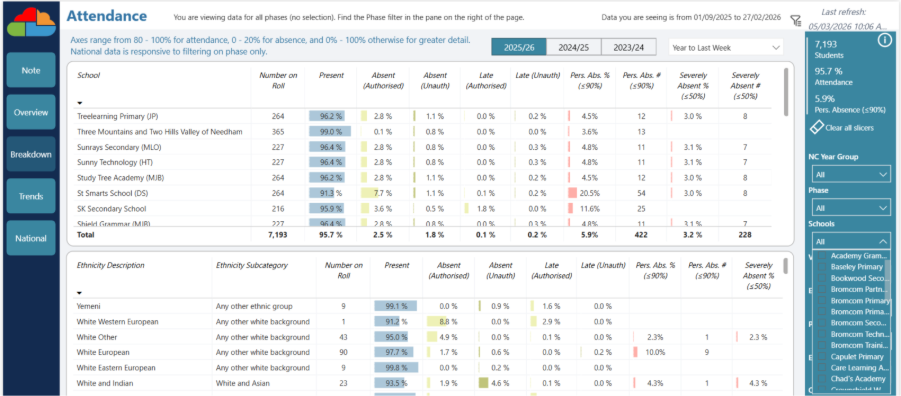
If you have made changes to the data in the MIS and would like this to be reflected in the Power BI viewer on Vision, you can refresh the Analytics Pack Dataset to pull through the new information.
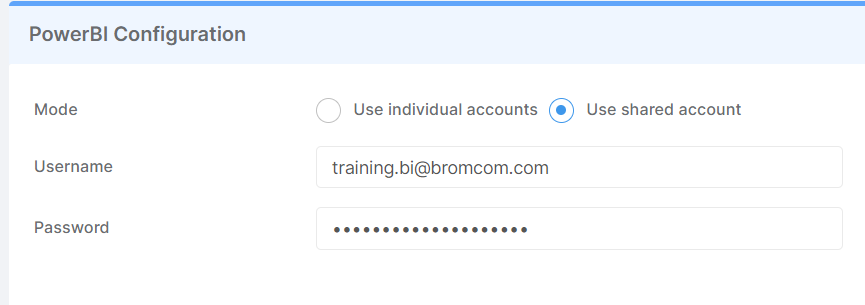
First you’ll need to check that you are logged in to the same account in both Vision and Power BI, as refreshing the dataset will not work otherwise.
To do this, within Vision, go to Admin > Power BI Configuration
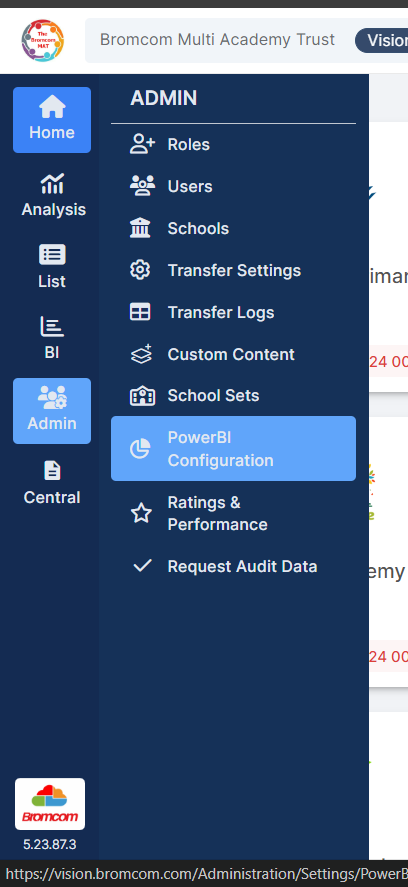
Make a note of the account listed on this page
Then, within Power BI, click the Profile icon in the top right hand corner and ensure the account listed here is the same account as is listed in Power BI Configurations within Vision.
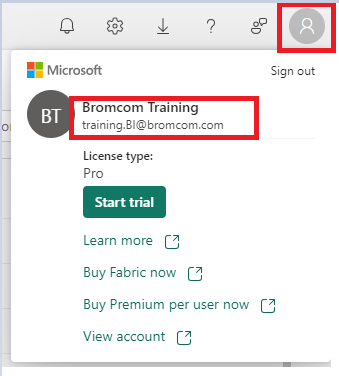
If the account is not the same, you will need to sign out of Power BI and sign back in using the correct account.
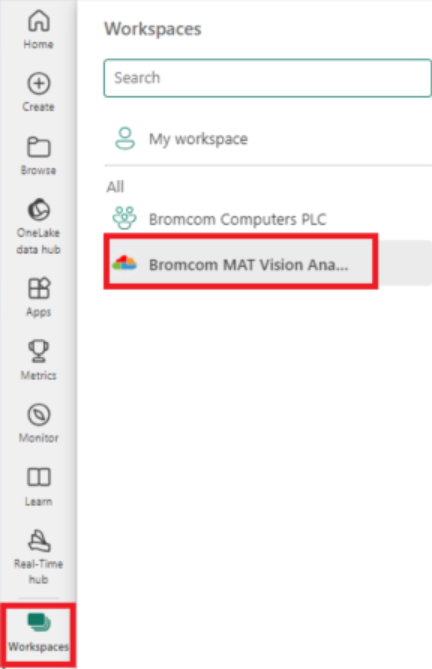
Next, within Power BI, in the menu on the left hand side, select Workspaces

Select the Bromcom MAT Vision Analytics Pack
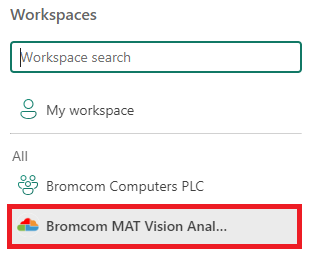
In the list, find the MAT Vision Analytics Semantic Model option.
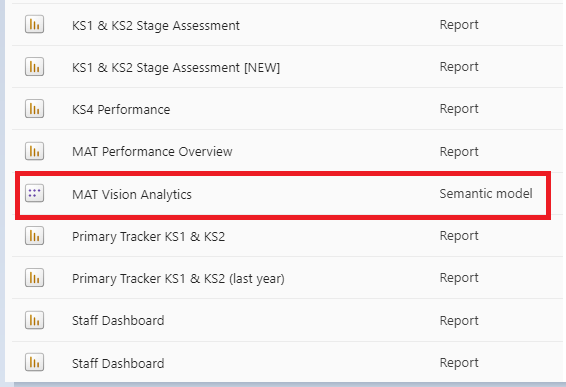
Hover your mouse over the MAT Vision Analytics option, this will cause the Refresh button to appear, click the Refresh button.

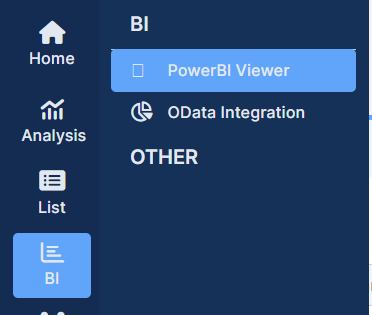
This will refresh the Analytics Pack Dataset. To check if this has been successful, within Vision, select BI > Power BI viewer from the left hand menu.
Select any of the Dashboards, in this example we’ll use Attendance.
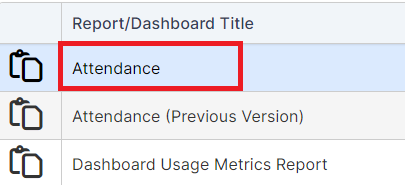
In the top right hand corner of the Dashboard you will see the date and time that the Analytics Pack Dataset was last Refreshed.

You can update to the latest version of the Analytics Pack in two ways: via the notification or from the Apps icon.
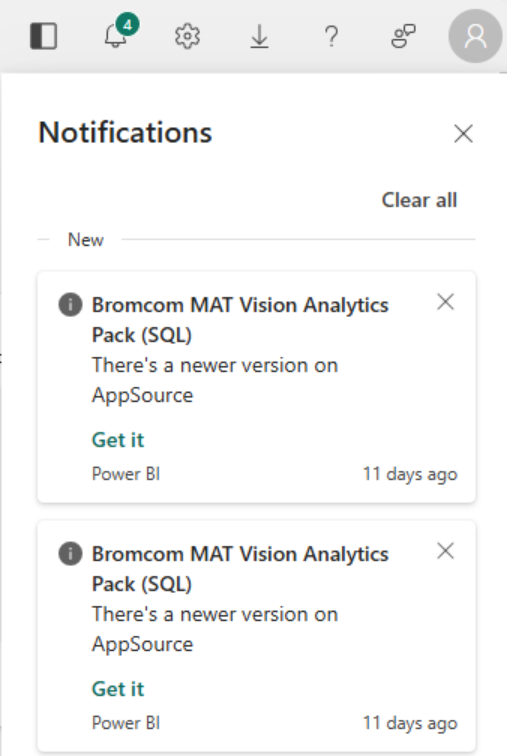
To update the app via the Notification:
Select Get it from the notification popup.
To update the app via the Apps icon:
Click on the Apps icon.
Click Get apps.

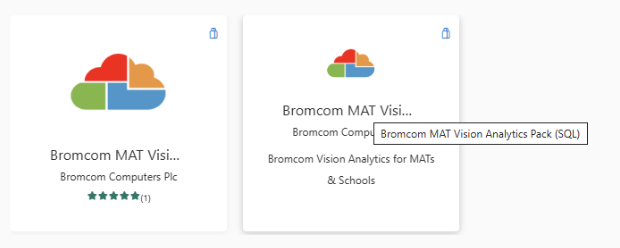
Select Template Apps, and search for Bromcom.

Select either Bromcom MAT Vision Analytics Pack or Bromcom MAT Vision Analytics Pack (SQL).
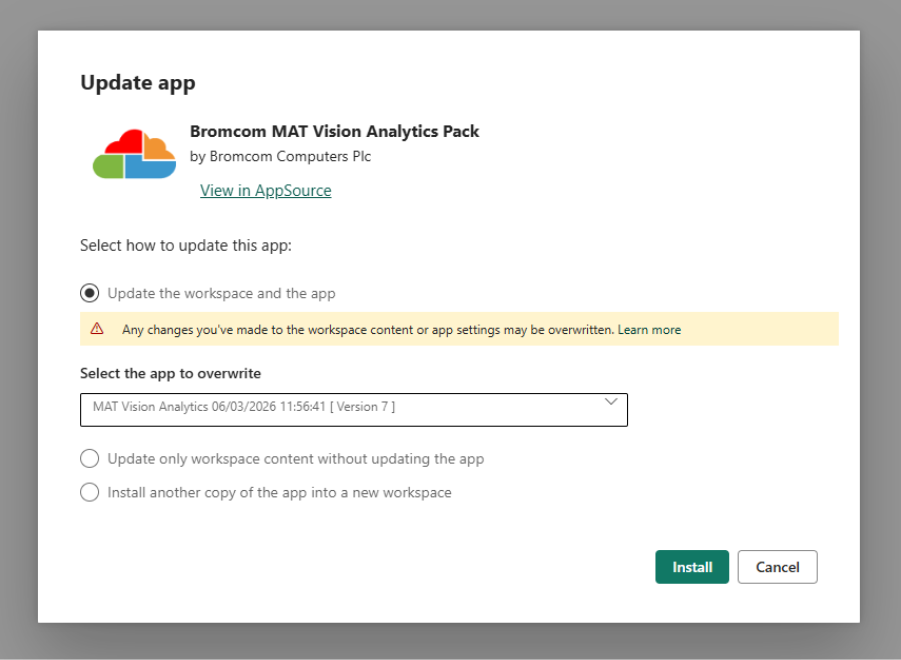
Select ‘Update the workspace and the app’ and click Install.
Once the app is updated, the date and time of the latest update will be displayed in green at the top of the page, and when you hover over the Bromcom MAT Vision Analytics Pack description in Workspaces.
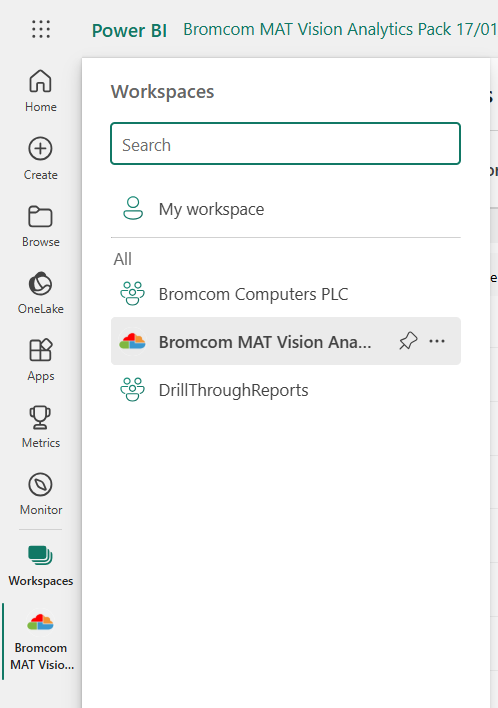
In order to use this functionality, the Power BI Desktop application must be installed and a Power BI Pro account is required.
The first step after downloading and installing Power BI Desktop is to get the data.
Click the Get Data Dropdown on the Home tab and select OData Feed.
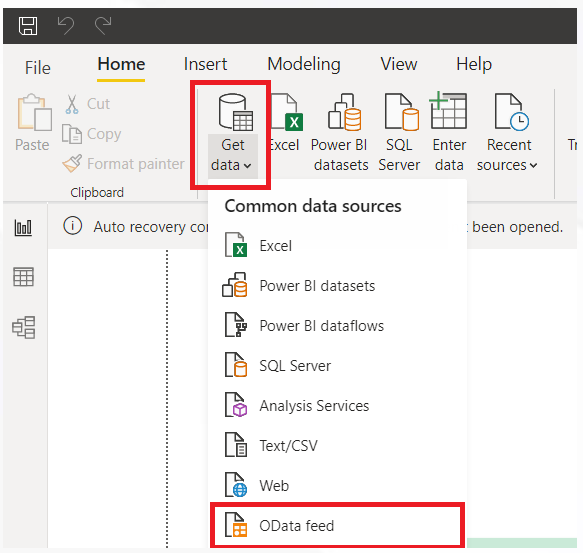
You will be prompted to provide the following 3 items:
- The URL you need is https://vision.bromcom.com/odata
- The Username you need is your Vision Customer Code and;
- The Password you need is your API Key.
Filter and Transform the Data Before Loading
Please note the images below are for illustration only and may differ from your view.
You will see a preview of the Vision data tables in the Navigator pop up. Select the tables you want to import by selecting these from the list on the left hand.
Important: you must select only a handful of tables to load into BI at any one time. If you select too many tables, the volume of data will be too large and it is likely the import will fail.
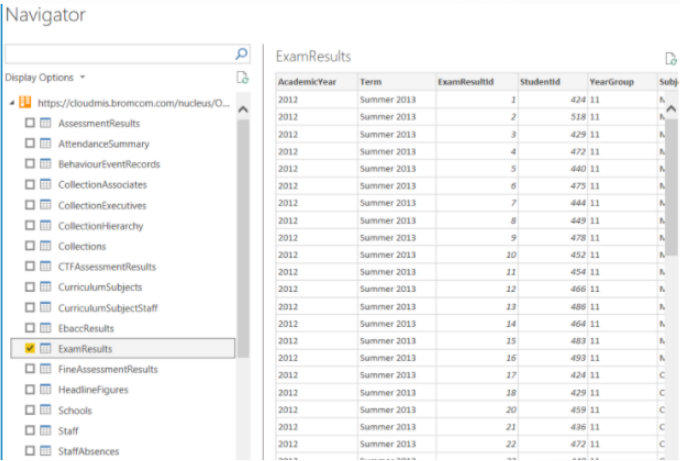
When you are ready to load the tables, select Load.

Tip: With larger datasets, e.g. Attendance, use the Transform Data button to format the data at this point via the Query Editor, to ensure the volume of data is small enough to load.
From the Query Editor you can apply various filters, eg filtering to the current academic year.
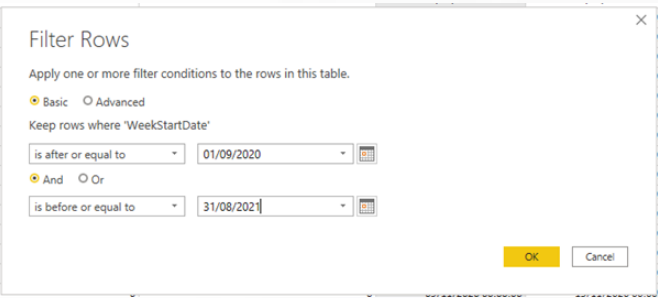
The data might take a few moments to load. Once its finished your query will now be stored in the BI dashboard ready to manipulate and start creating visualisations.
Select Workspaces on the left hand side and then choose the Bromcom MAT Vision Analytics Pack.
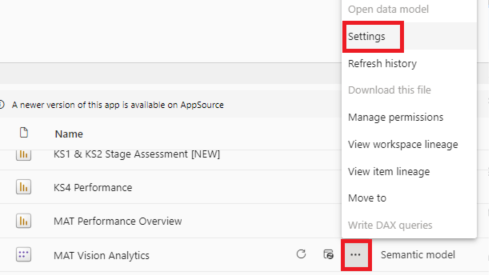
Find the MAT Vision Analytics Semantic Model in the list and click the 3 dots icon. Select Settings from the list.
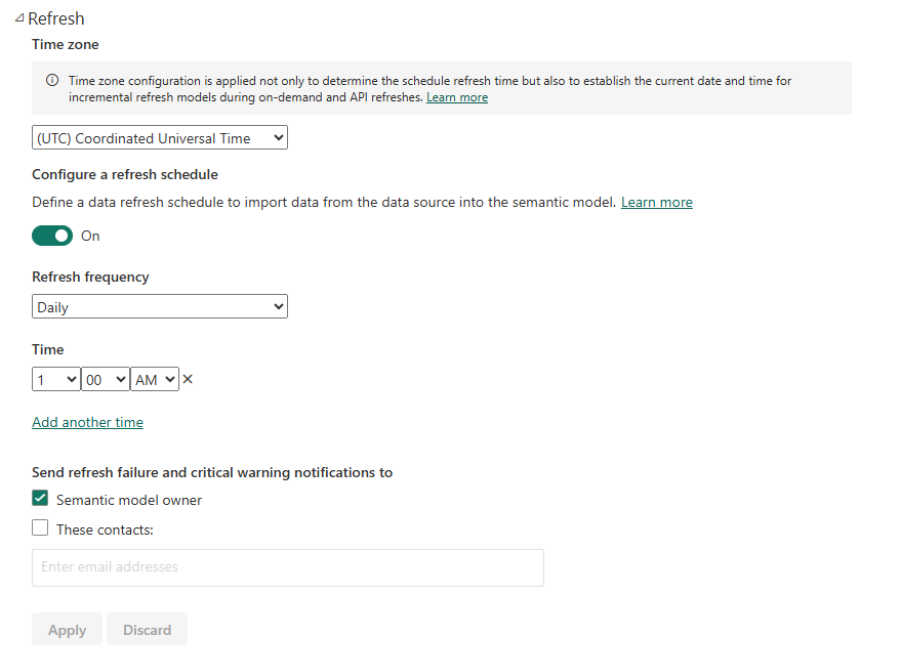
Configure the refresh schedule to On, select a Refresh frequency and Time. Enter an email address to receive refresh failure and critical warning notifications. Click Apply.
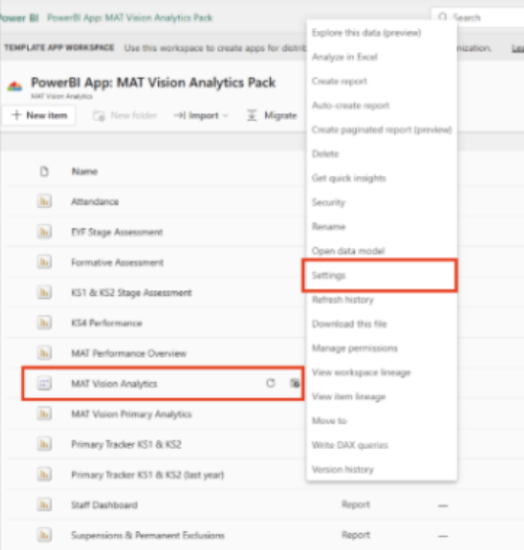
Step 1 – In Power BI Workspace, locate the MAT Vision Analytics Semantic Model file and click the Settings option.
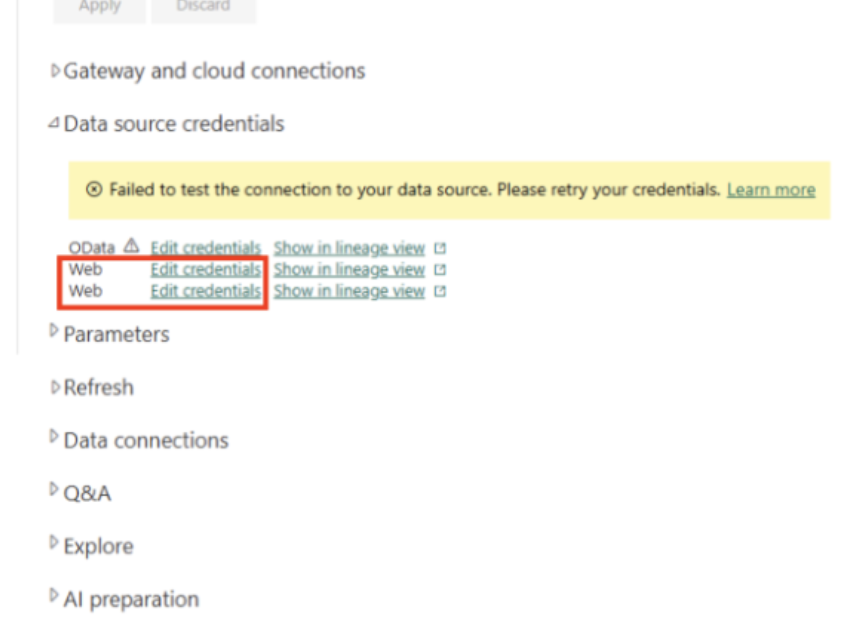
Step 2 – In the Settings panel, find both instances of the web data source and click Edit Credentials for each.
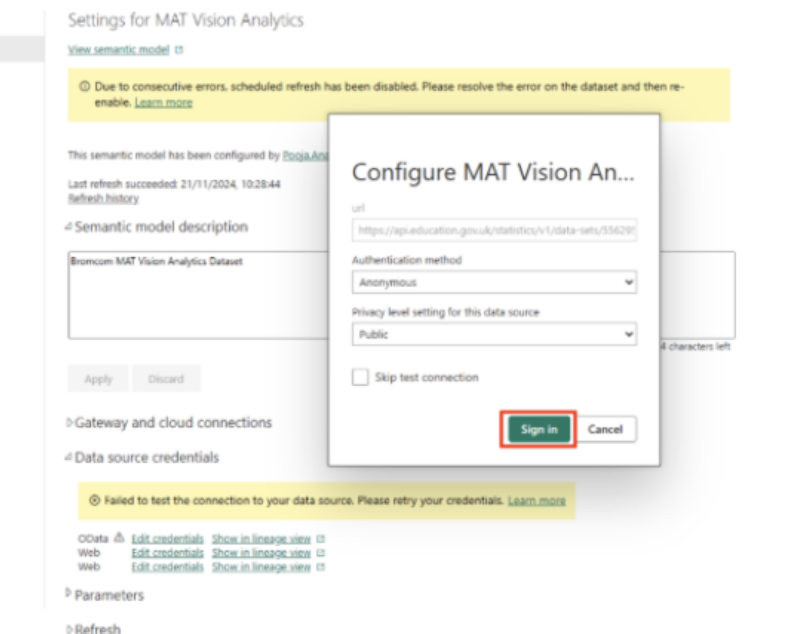
Step 3 – When prompted, simply click Sign In without modifying any parameters. The connection uses a public API.
Step 4 – Repeat the same process for the second web data source liste
When submitting a case, please include the following details:
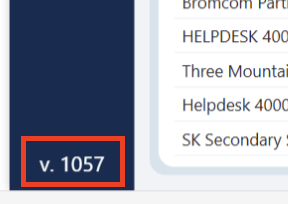
- Power BI version number (bottom left-hand corner)
- Report name and tab
- A screenshot of the report showing the issue
- Information about any filters applied at the time
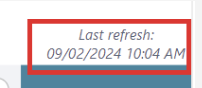
- Last Refresh date and time (top right-hand corner)
- Specific data items you’re experiencing issues with, including:
- What you are comparing them to
- Which parameters you selected before reviewing the data
Note: If OData is not returning the data (if data is missing from the OData feed) please raise a case in Vision rather than Power BI.
Capacity requirements for refresh operations depend on workload characteristics rather than user count alone. Because every environment is different, there is no fixed minimum capacity recommendation.
The required capacity can vary based on:
- Data volume
- Refresh frequency
- Concurrent refreshes and queries
- Number of datasets and reports
- Data source performance
- Overall workload activity
For this reason, capacity sizing is typically determined by monitoring resource use and scaling according to workload demand.
Recommended Approach
- Start with a small or estimated capacity
- Monitor refresh performance and usage
- Review CPU, memory, and throttling behavior
- Scale capacity based on observed workload demand
Common Indicators That More Capacity May Be Needed
- Slow refresh performance
- Refresh failures or timeouts
- High CPU or memory use
- Capacity throttling
- Delays during peak usage periods
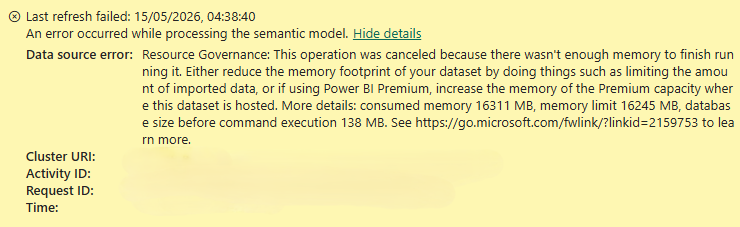
- Error messages such as this one:
Useful Microsoft Resources