The Cross Domain reporting function within Quick Reports can be used to create reports pulling data from more than one area in Bromcom,
For example it could be used to show Student Attendance, Assessment Data and Exam Results or Staff Contact Information, Professional Development and Attendance Data.
The examples in this article show the process for creating a letter to parents to show Student Information and Attendance Data.
It is important that all sections of this guide are read in order including Pre Requisites, Permissions and the Word Template
__________________________________________________________________________
For Cross Domain Reporting through the Reports>Adhoc route for schools who have had Bromcom for some time see here.
Pre Requisites
IMPORTANT: Prior to reading this guide it is highly recommended that users have completed both the Reporting Basic and Reporting Intermediate training either by attending a Live Webinar or completing an Online Course. For more information on Bromcom training see here.
Permissions
The Permissions to access different domains within Quick Reports are separate from the normal Reporting permissions. This is to ensure that Staff Members only have access to build reports for the information that the Administrators are happy for them to have access to.
For further guidance on permissions see here.
Prepare Word Template
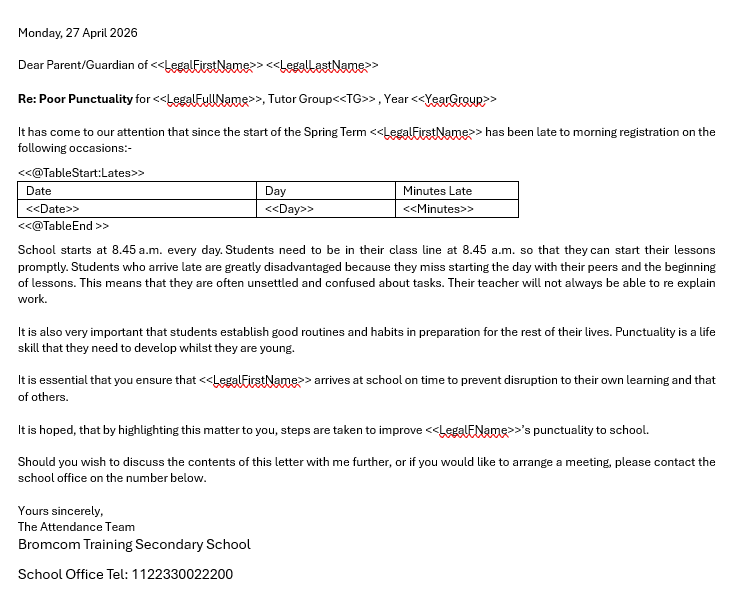
For the examples used in this guide prior to creating the Cross Domain report a Word document has been created and saved locally to the users computer as per the example below, this process is covered in Reporting Intermediate training.
Note items to be pulled into the report are surrounded by <<>>
We will reference the following data items included in this Word document when pulling data into our report
Student data items:
- LegalFirstName
- LegalLastName
- LegalFullName
- TG
- YearGroup
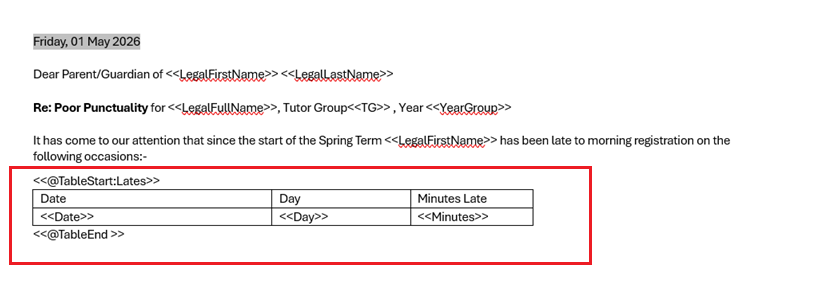
In relation to Lates, note the structure of the table in the example Word document below
- Date of Late example 27th April 2026
- Day of Late example Monday
- Minutes Lates example 5
Create Cross Domain Quick Report
Use this section to pull the data from different parts (domains) of Bromcom into a single report.
Tip: the Data Items can be in any order, they do not need to be in the same order that they appear in the Word document.
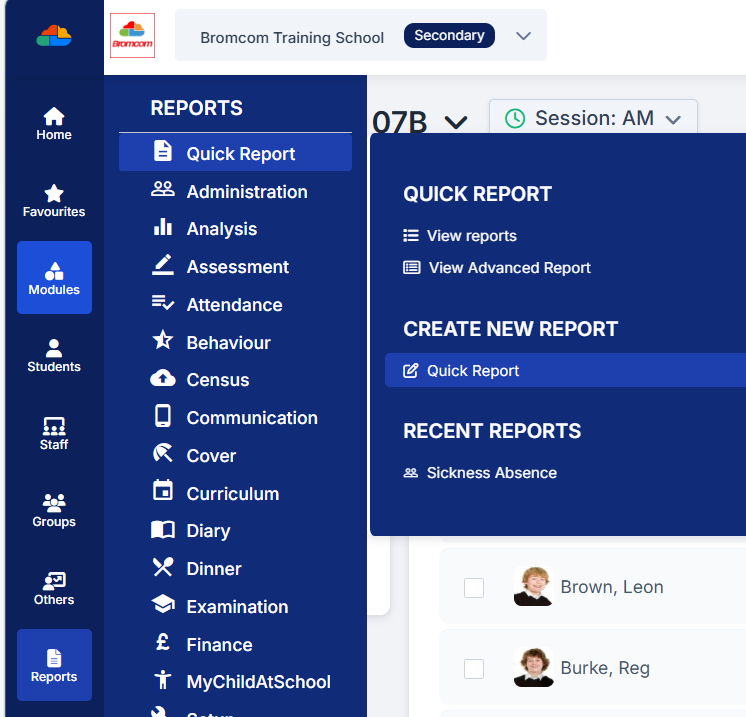
Navigate to Reports>Quick Report>Create New Report>Quick Report
In this first step we will pull the Student and the Late Attendance Count information needed into the Quick Report.
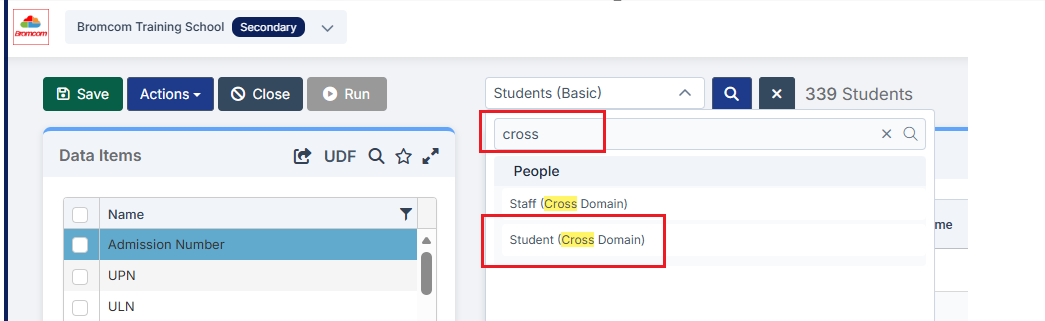
Under Students (Basic) type in Cross into search data items
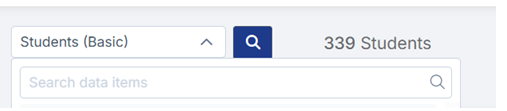
Then click to choose Student (Cross Domain)
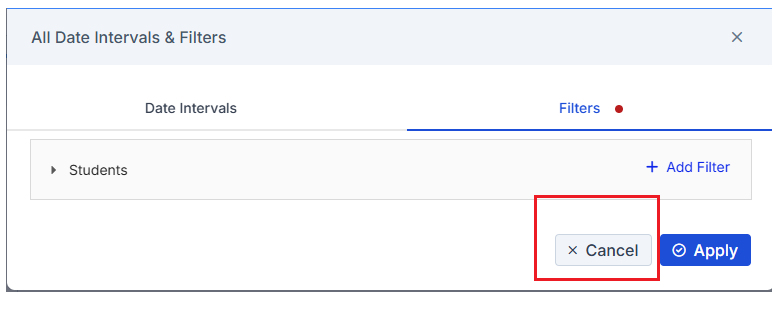
The screen will then update and the All Date Intervals & Filters pop up will appear, for now click the bottom right Cancel.
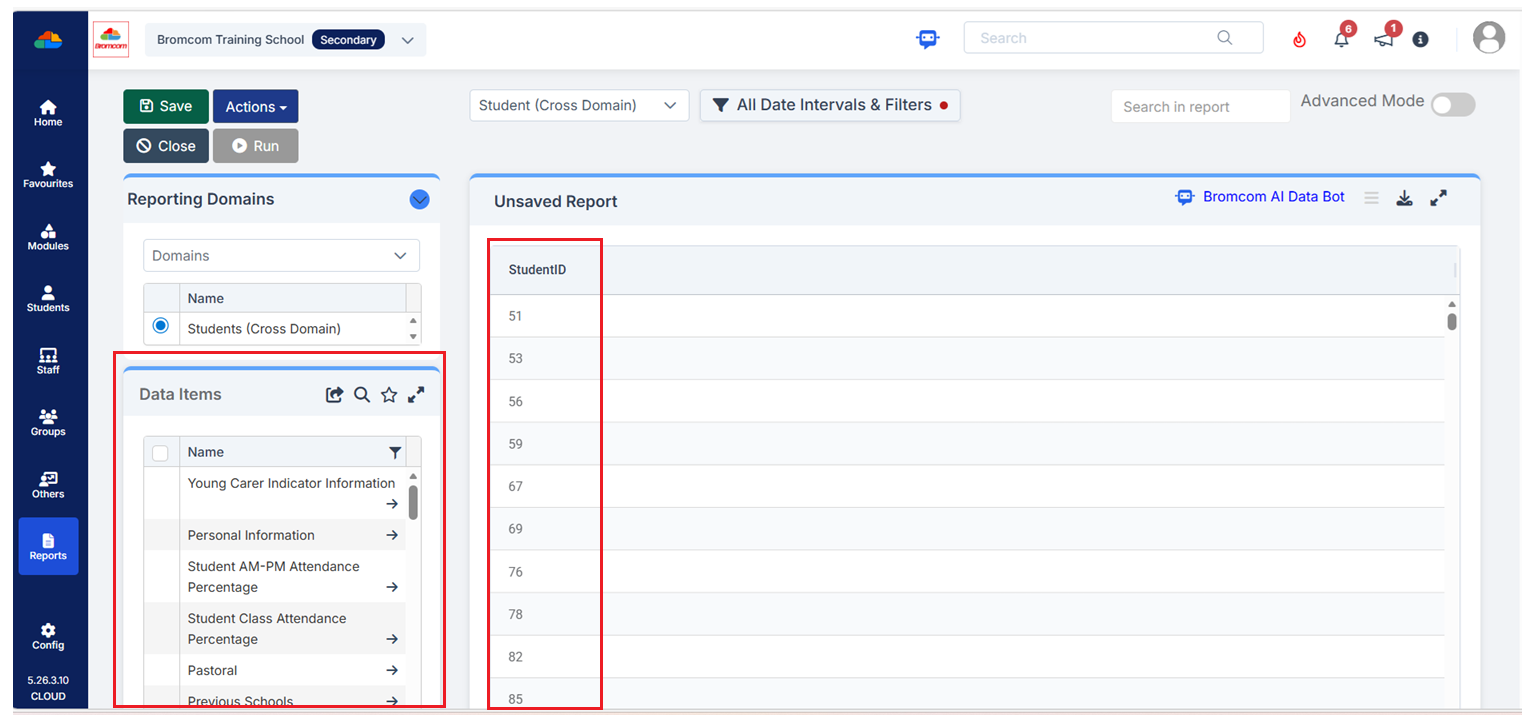
Note the Data Items column on the left and that the Student ID column is automatically added to the report, do not remove this column as it’s needed as a unique identifier when running the web merge.
Next add in the Student data items we need referencing the previously created Word template
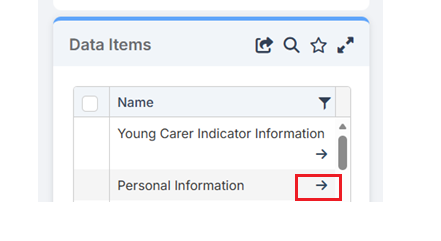
Click on the arrow to the right of Personal Information
In the panel either type in the data item into search data items or click the arrows to open up the required Personal Information
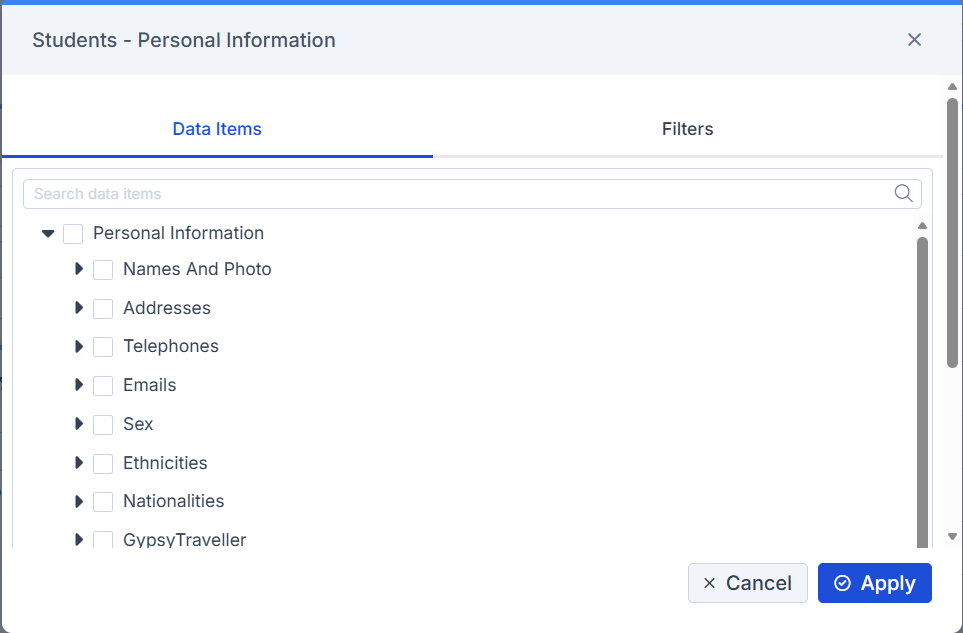
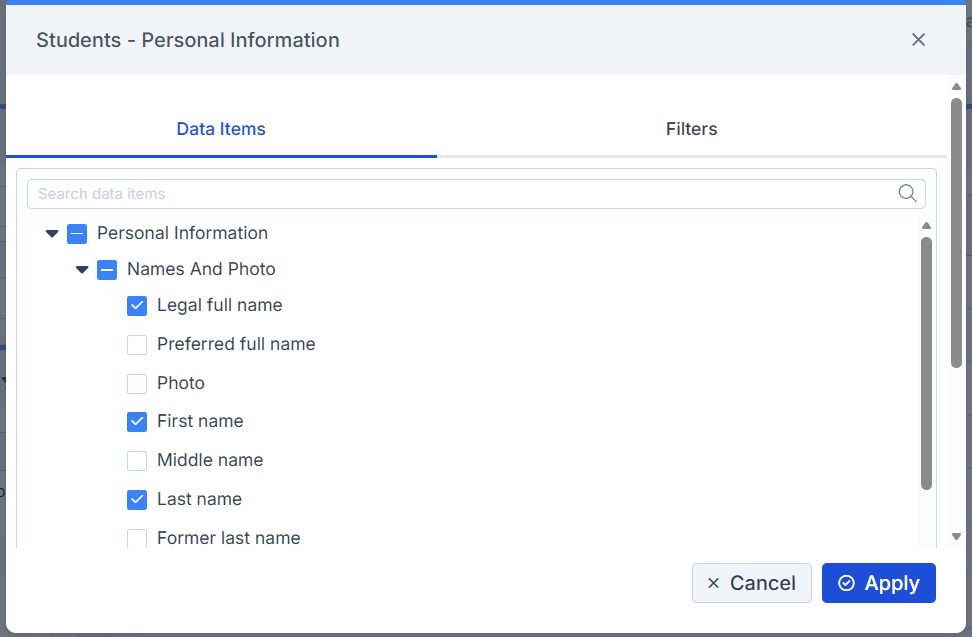
In the example below we have clicked on Names and Photo and then ticked to add the following Data Items
- Legal full name
- First Name
- Last Name
Click Apply
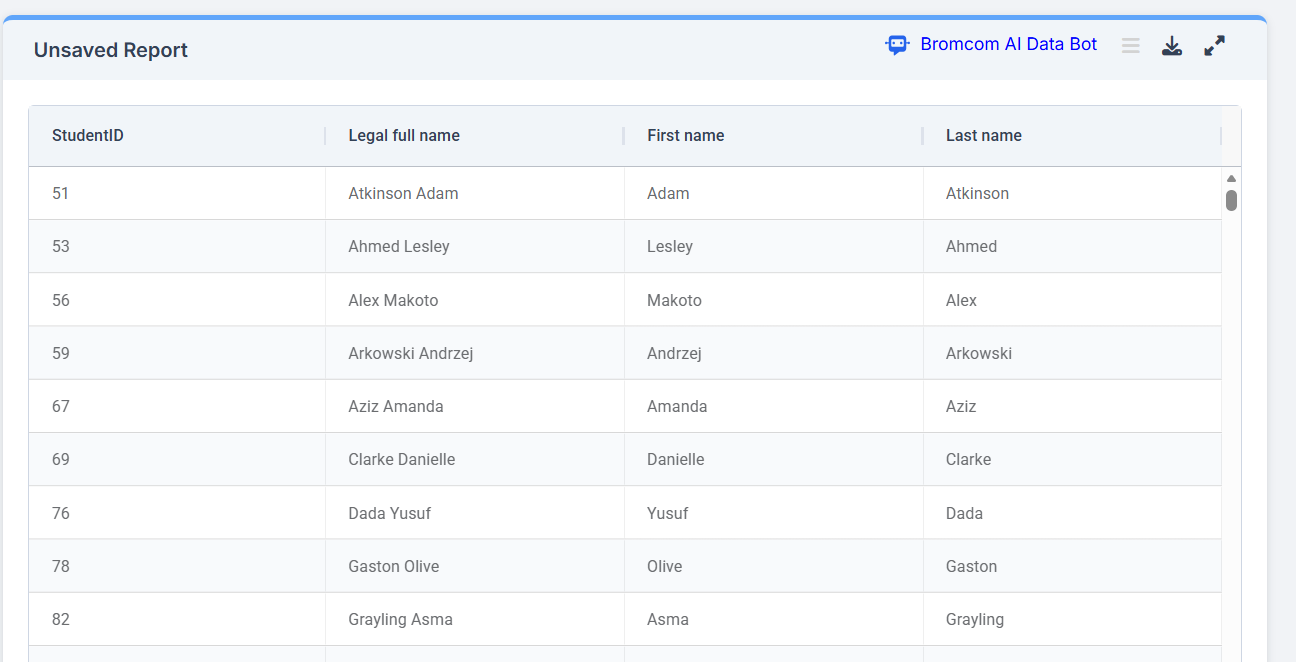
The Data Items now appear in the Unsaved Report
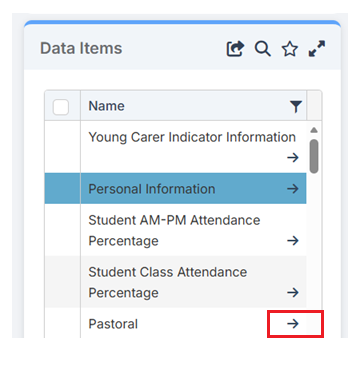
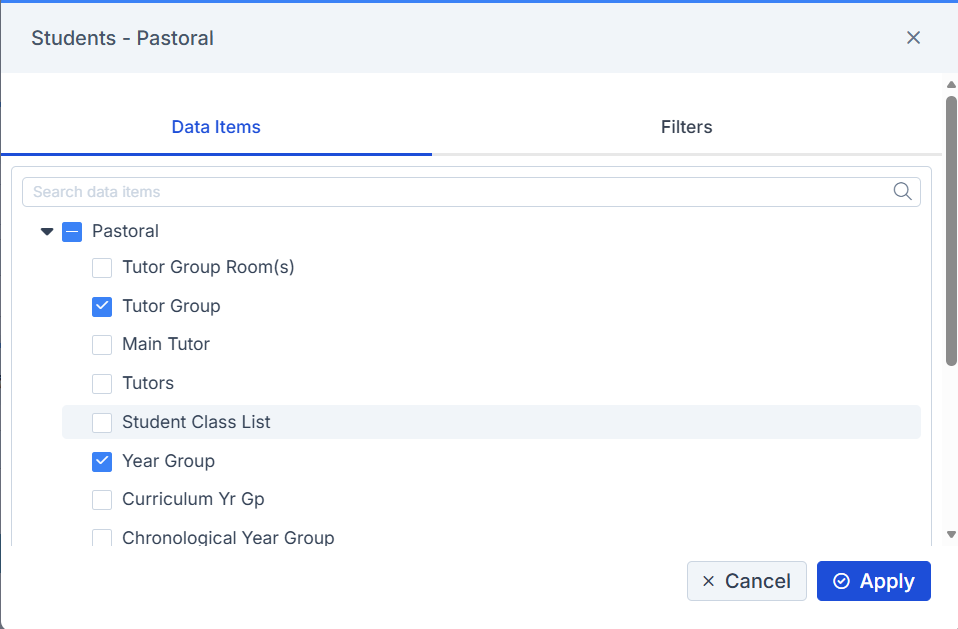
Next we are going to add Tutor Group and Year Group
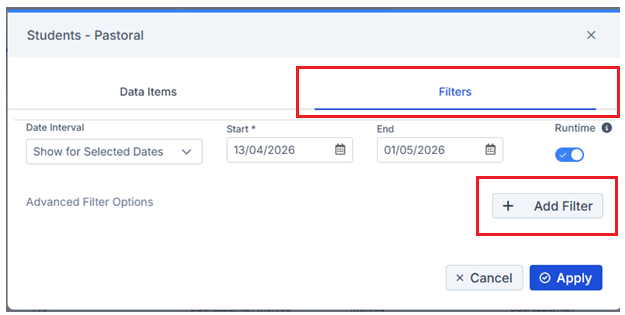
Click the arrow to the right of Pastoral
Tick Tutor Group and Year Group, click Apply.
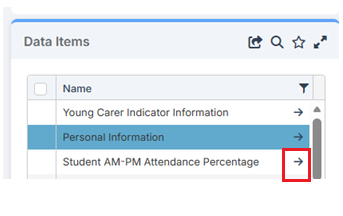
Next we are going to add in the Late Attendance Count, we need this as our example Lates Letter is for Students who were marked as Late to AM Registration.
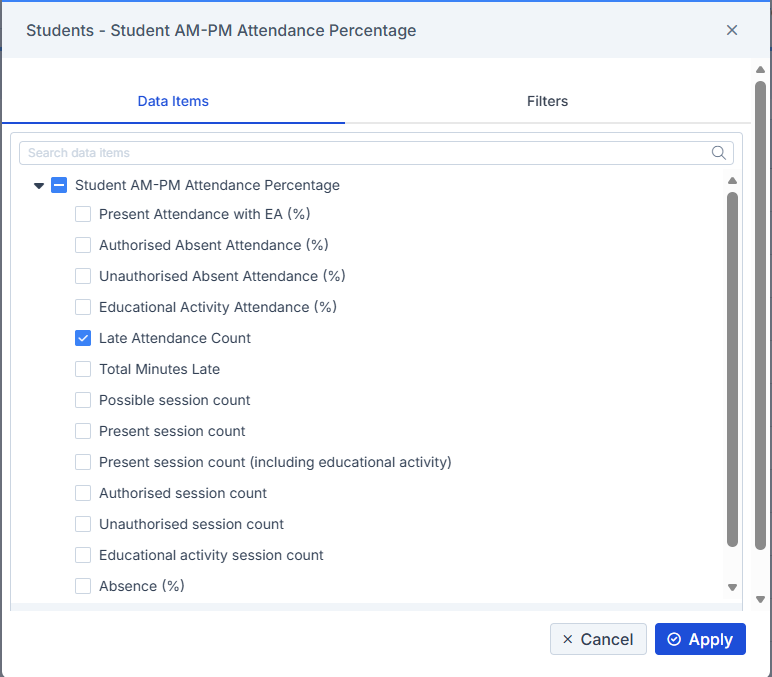
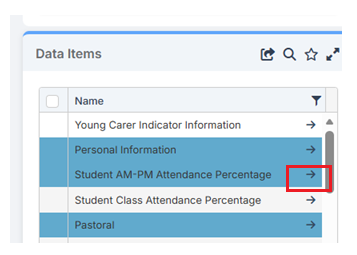
Click the arrow to the right of Student AM-PM Attendance Percentage
Tick Late Attendance Count and Apply
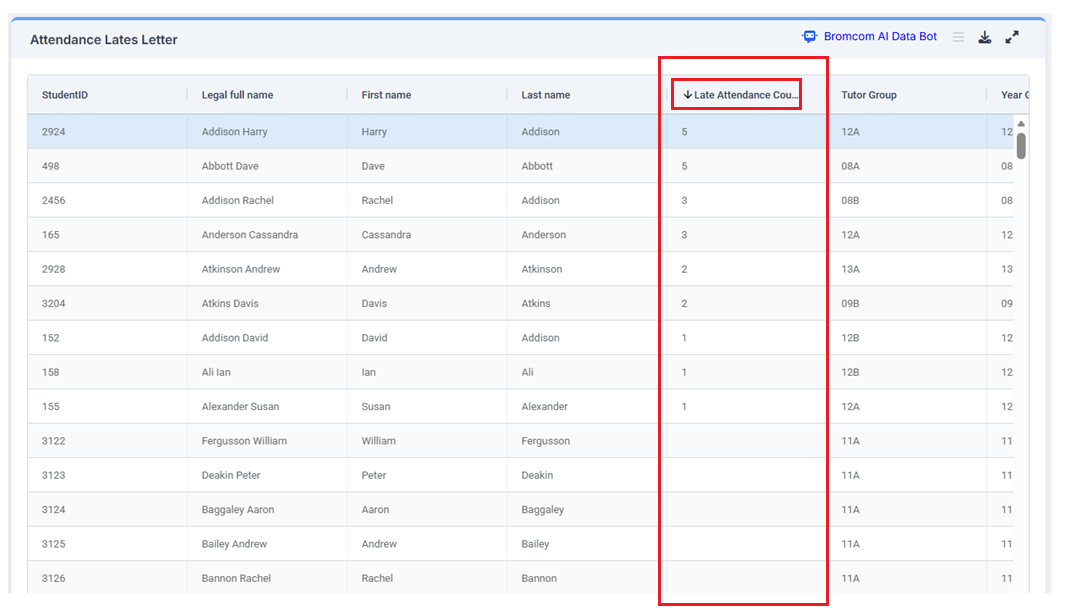
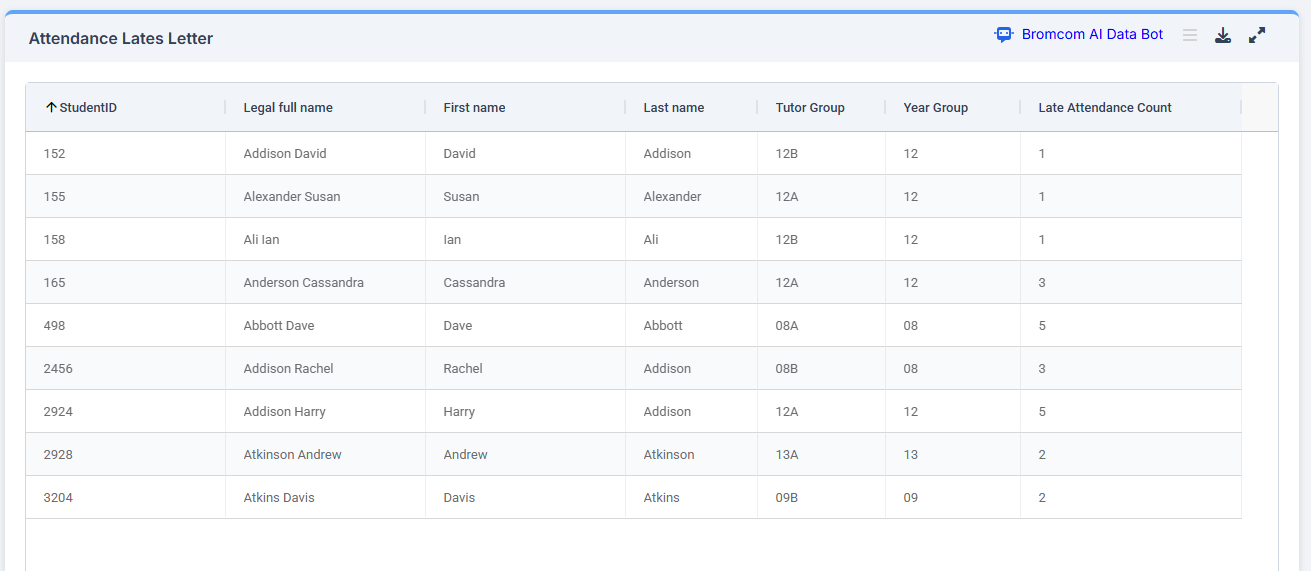
We can now see the Late Attendance Count column in the report table, in the example below we have clicked on the column header to sort the column to show the Students with data in the column at the top.
We now need to define what Attendance dates we need the report to show and where Late Attendance Count is greater then zero, to do this click on the arrow in Student AM-PM Percentage in the left-hand Data Items column
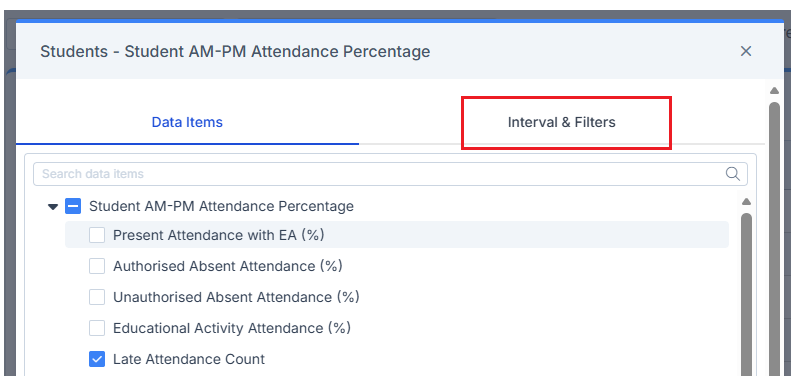
Then click on the Interval & Filters tab
The default date interval is Current which will only show Attendance Data for today.
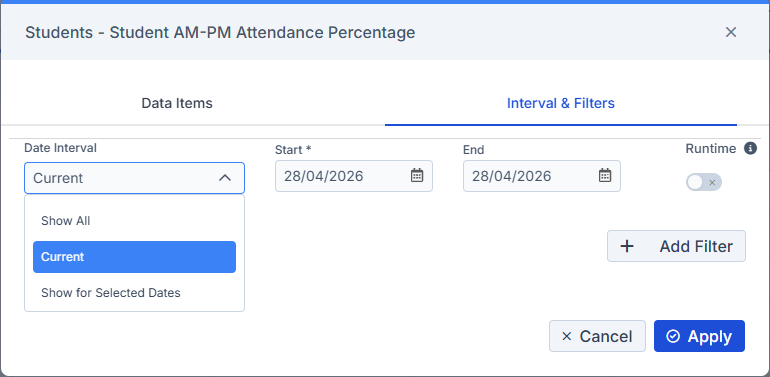
In the example below we have clicked on Date Interval drop down and chosen Show for Selected Dates as we want to show Attendance data back to 13/04/2026 and up to present day.
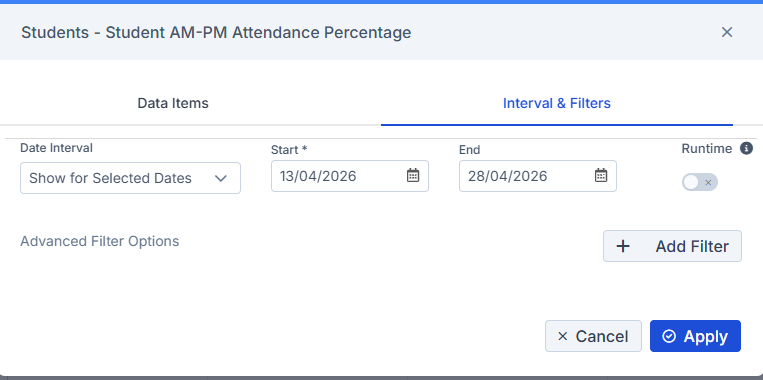
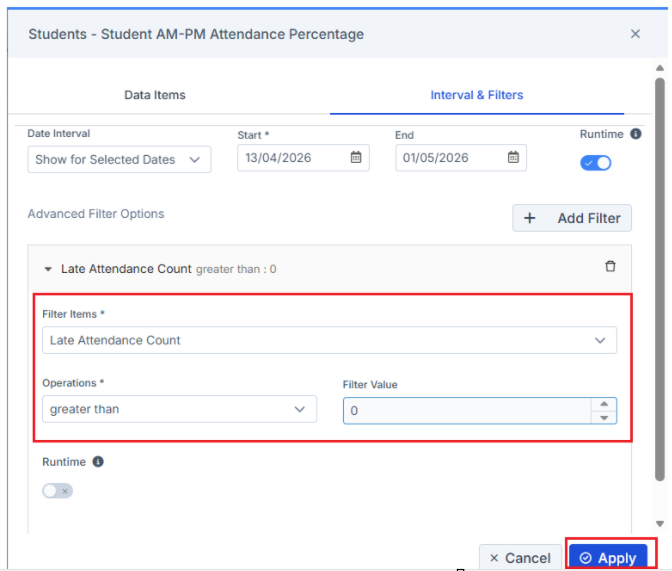
Next click Add Filter
Then from the Filter Items drop down we have chosen
- Late Attendance Count
- Operations = greater than
- Filter Value = 0
Click Apply.
The report grid now shows the Late Attendance Count column filtered.
Now we are going to add in the Register Date, Day and Minutes Late into the Quick Report, for this we need the Attendance Basic Domain
In the left hand Reporting Domains panel click on the drop down arrow next to Domains
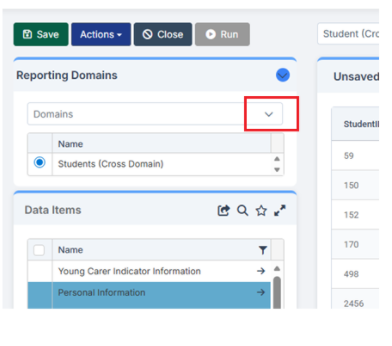
In this example tick to choose Attendance Basic
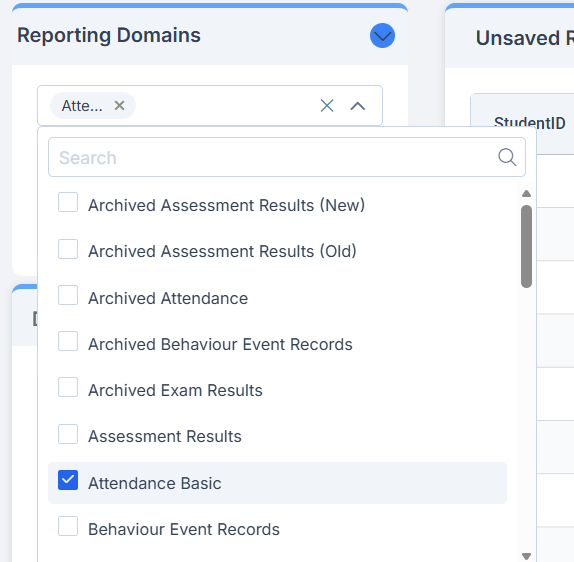
The chosen Domain will now appear in the left hand Reporting Domains panel.
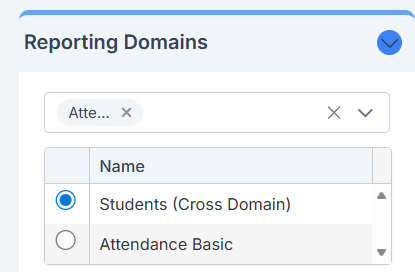
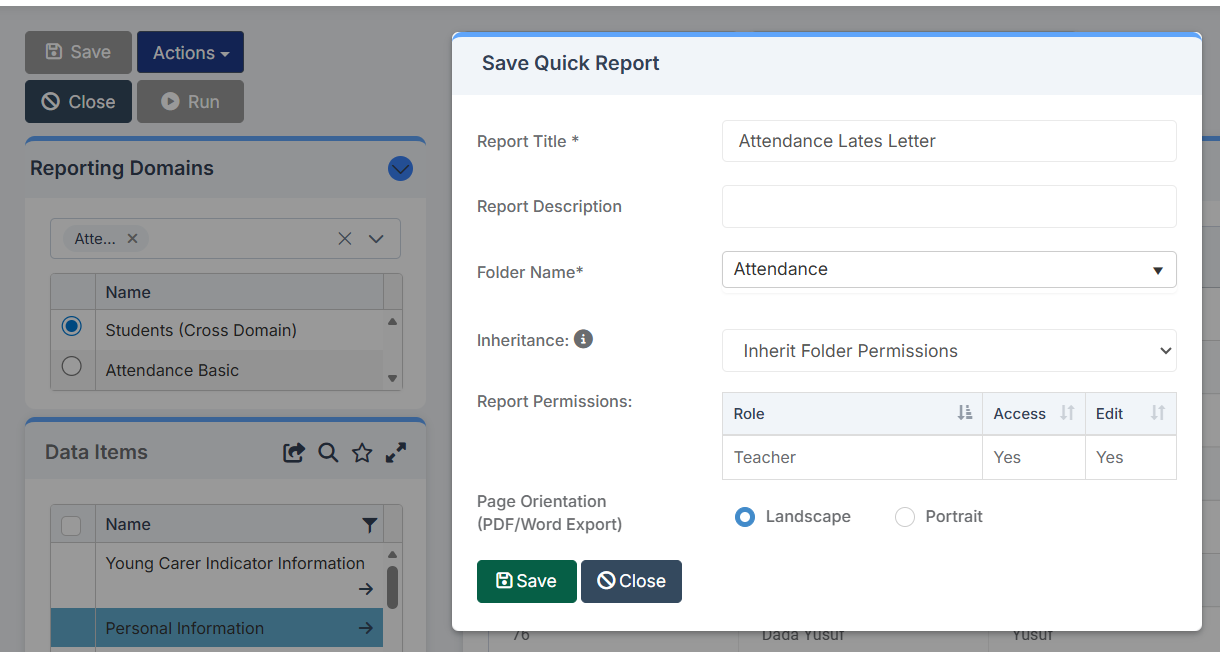
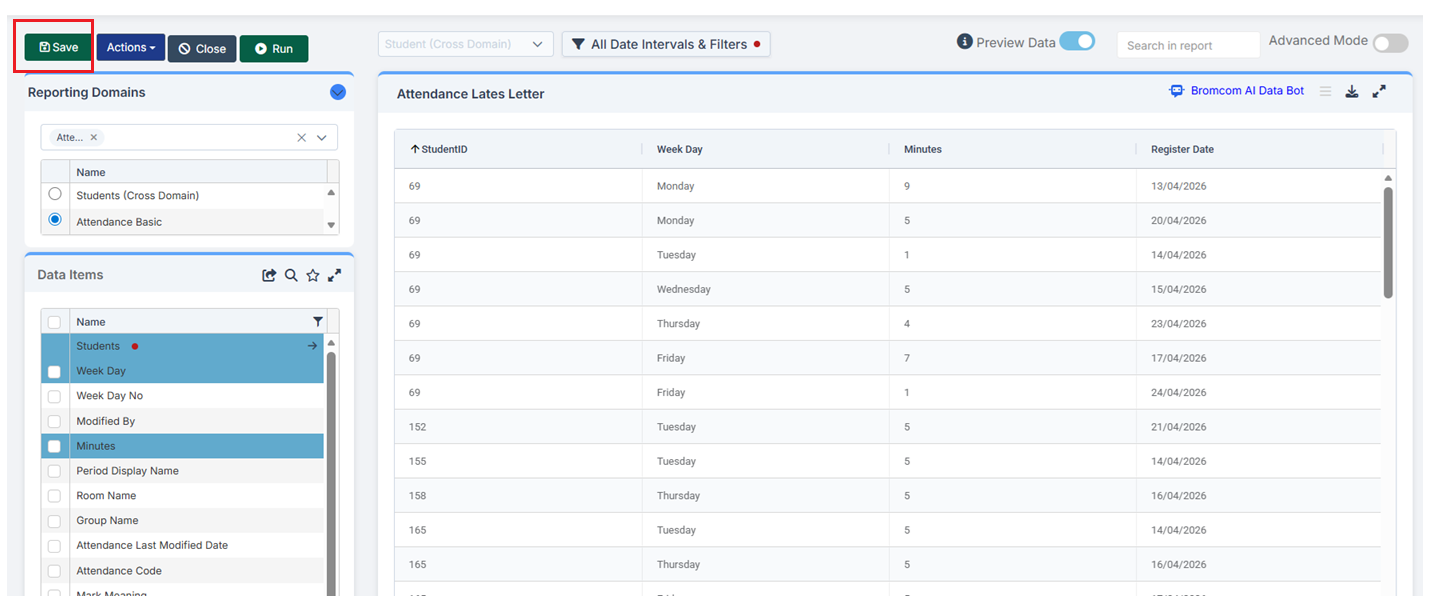
At this point we are going to click the top left Save button to Save the report and complete as per the example below
Next back in the report click Attendance Basic in the Reporting Domains panel, the screen will change and only the Student ID column will be visible
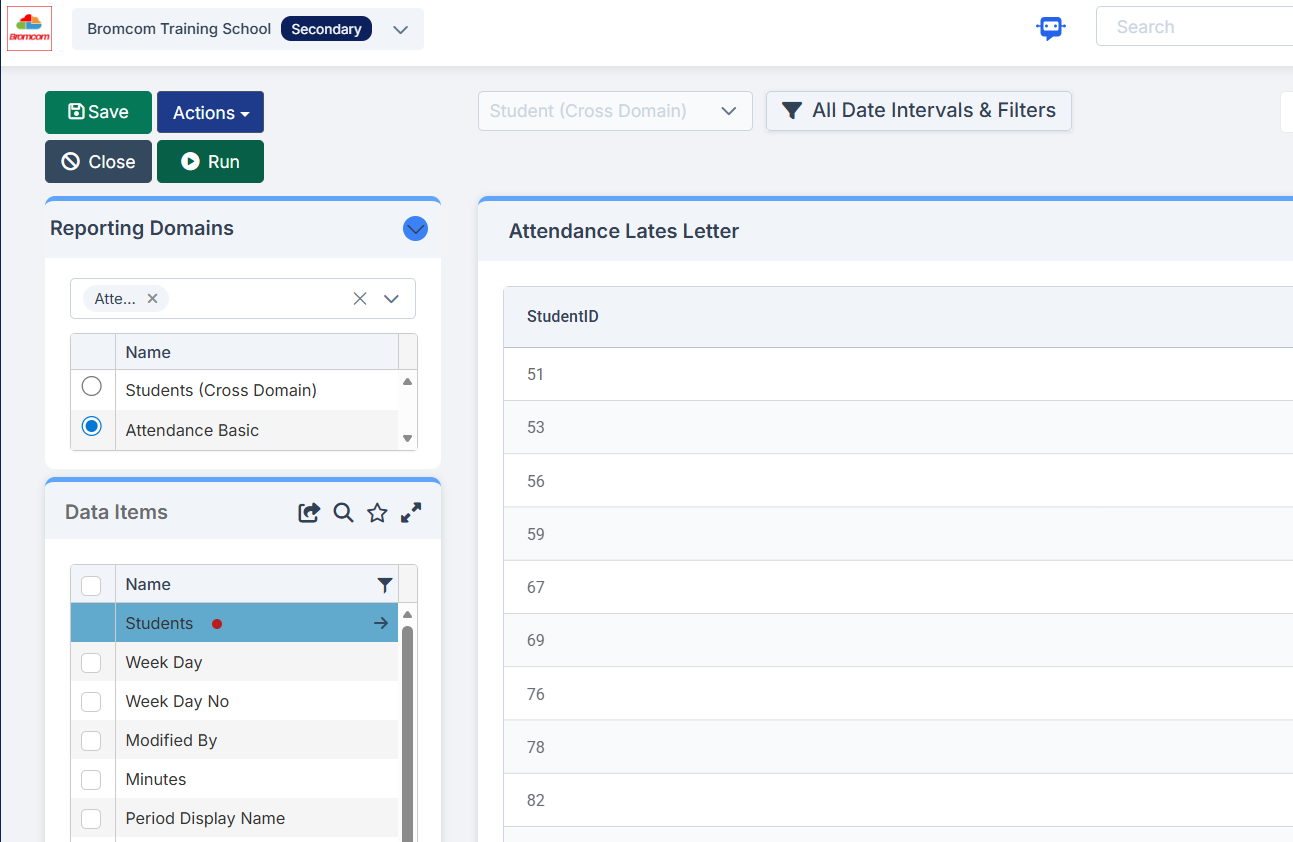
Next referencing the Lates information in our Word template (example screenshot below) we are going to add the following Data Items from Attendance Basic. Scroll down the panel to see all Data Items

- Register Date
- Week Day
- Minutes Late
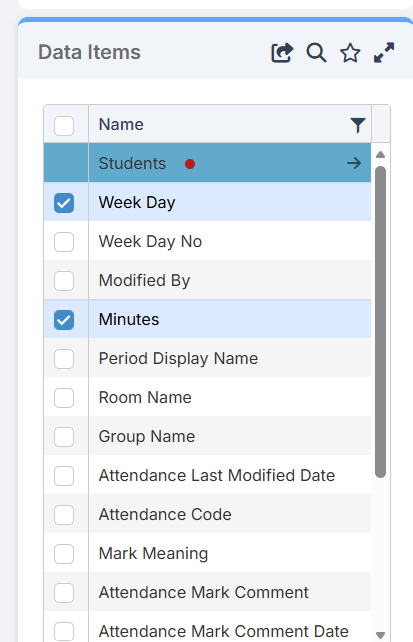
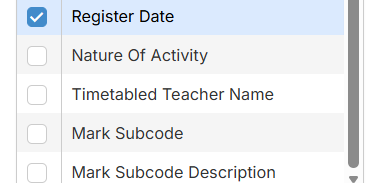
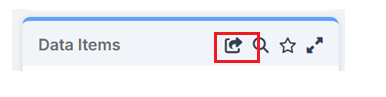
Once the Data Items have been ticked then click the icon to Add Selected Data Items to table
Now the columns appear in the Report Grid, to filter click on All Date Intervals & Filters
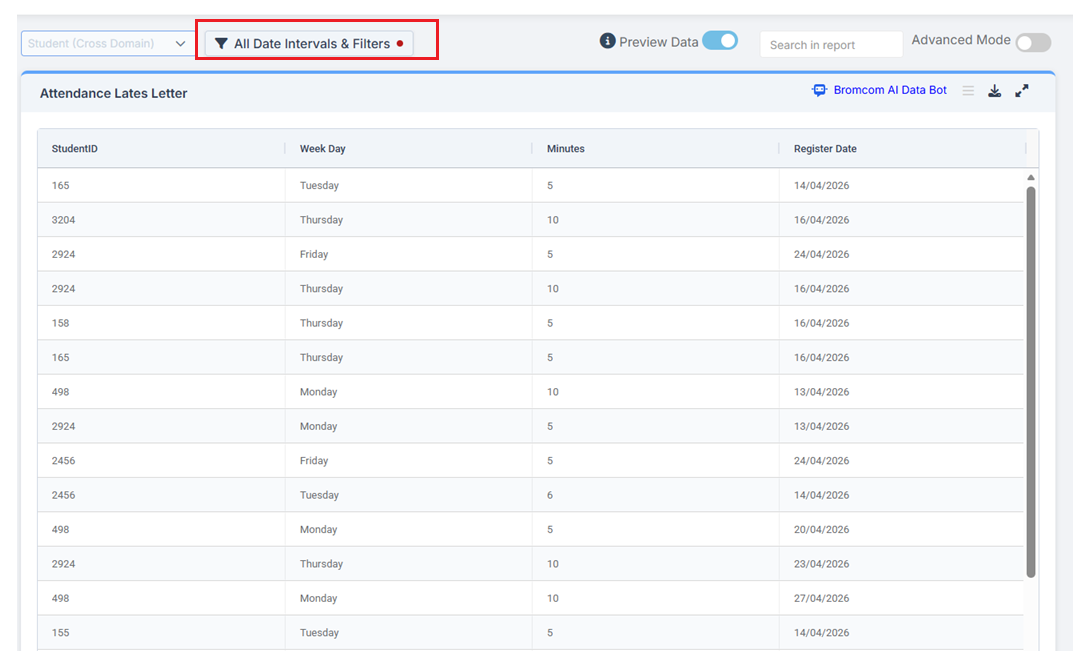
Then click on on the Filters tab
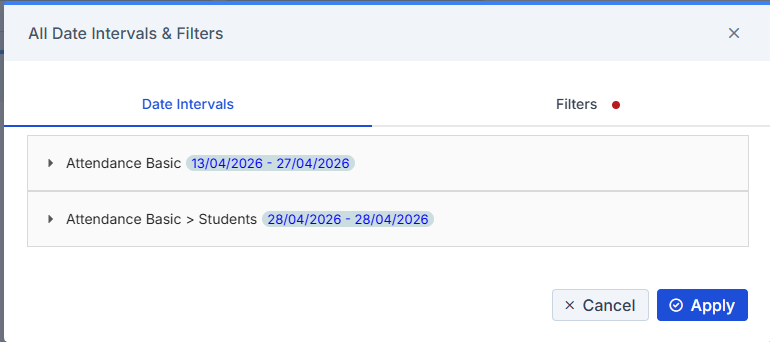
Then to the right of Attendance Basic click Add Filter
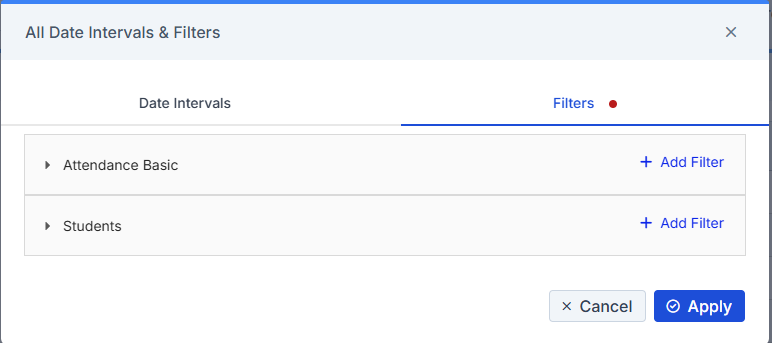
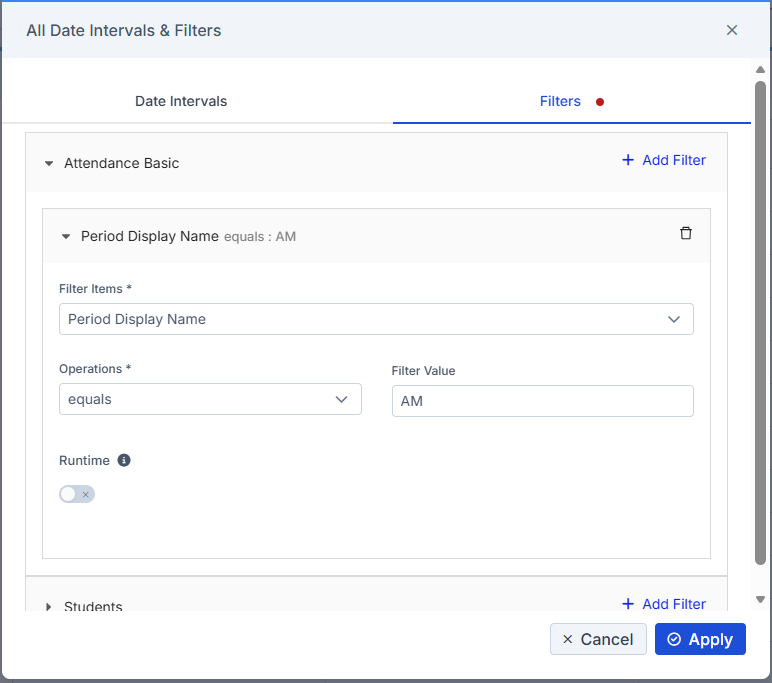
Then in this example we just want to see Late Attendance Counts for the AM registration so we have added the following Filter
Period Display Name = AM
Click Apply
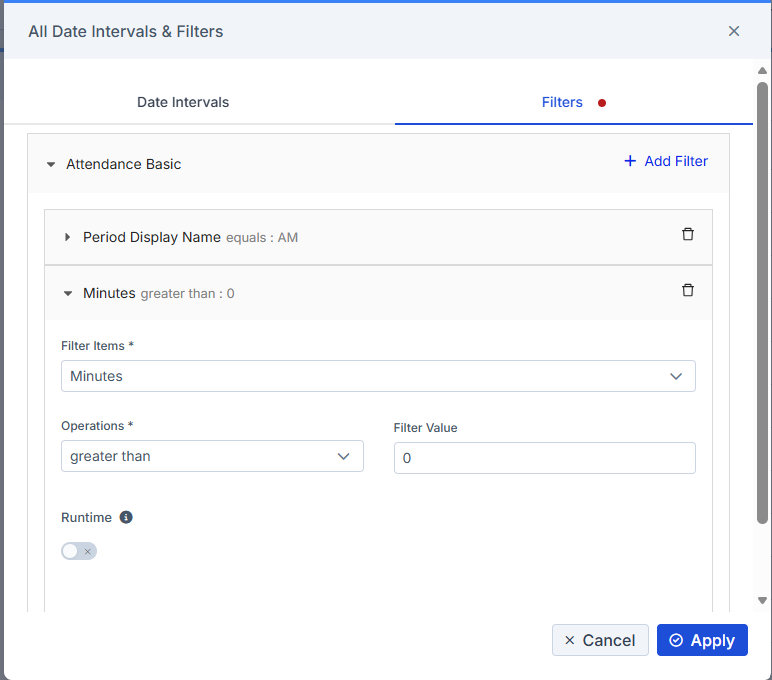
Then repeat the process to Add a Filter where Minutes is Greater than zero
Click Apply.
Click the top-left Save
Run the Web Merge
Now the Quick Report has been created with the required data we can now Run the Web Merge process and match the data in our Quick Report with the fields in our Word Template
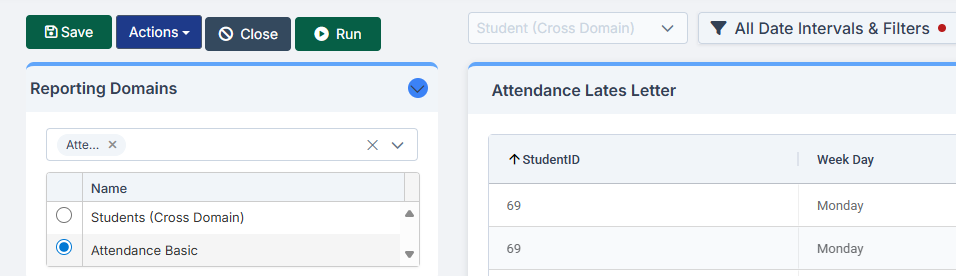
To do this click the top-left Run button.
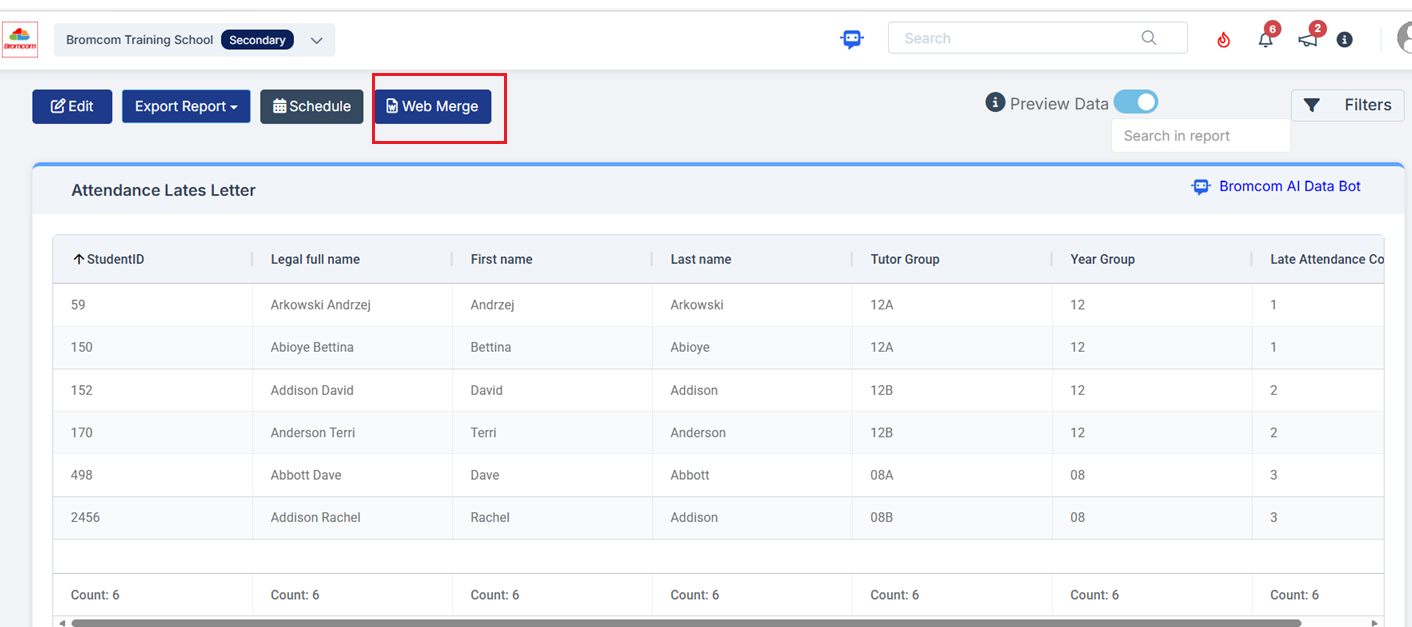
Then click the top-left Web Merge
In the Web Merge wizard 1 Template click Browse to locate the Word document saved locally.
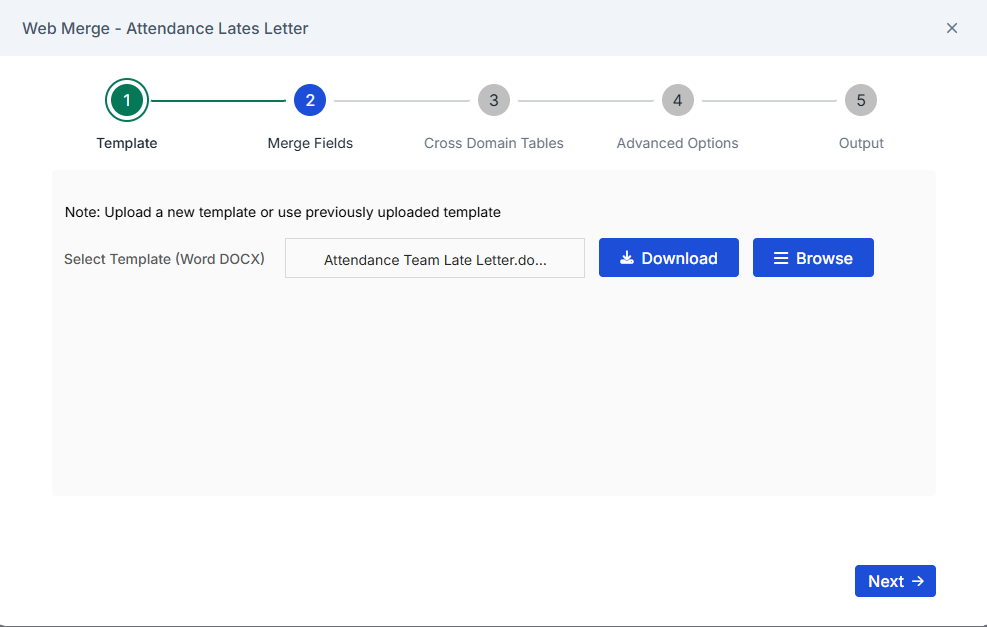
Click Next
In 2 Merge Fields use the drop-down arrows to match the columns in the report with the fields in the Word Template
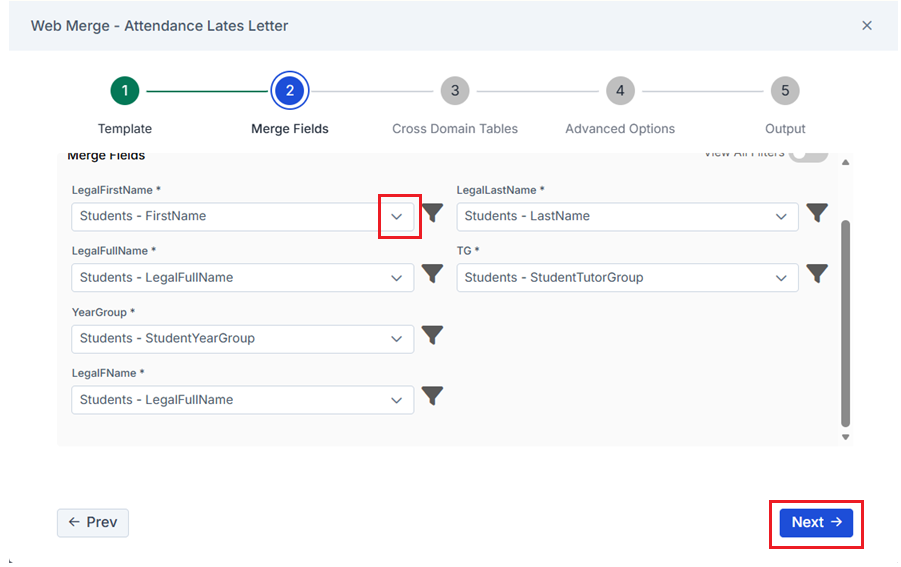
Click Next
In 3 Cross Domain Tables click the arrow next to Lates in this example then match the fields in the report with the fields in the Table in the Word document
Example screenshot of the Table Lates in our Word document
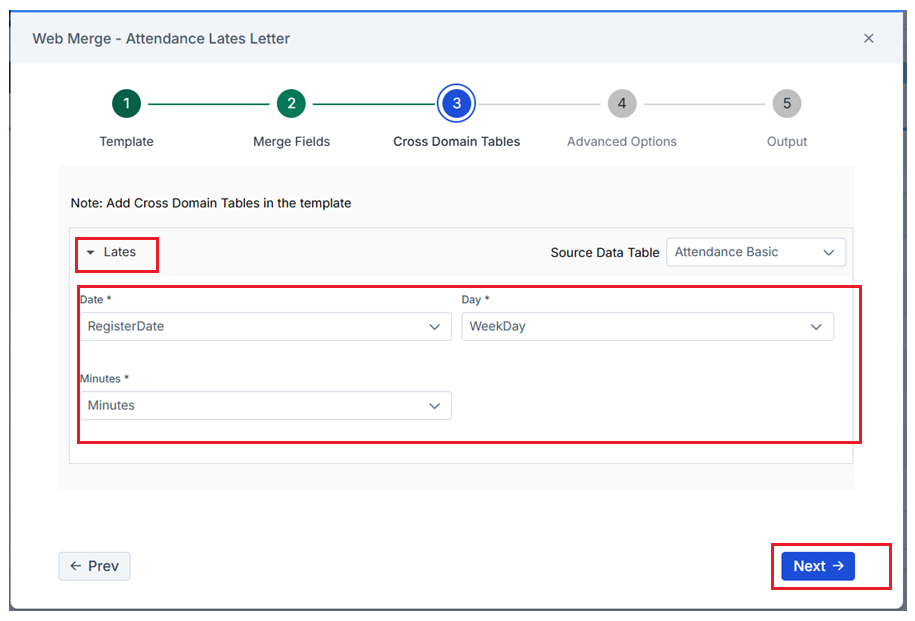
Click Next
In 4 Advanced Options click the arrow in Report Properties
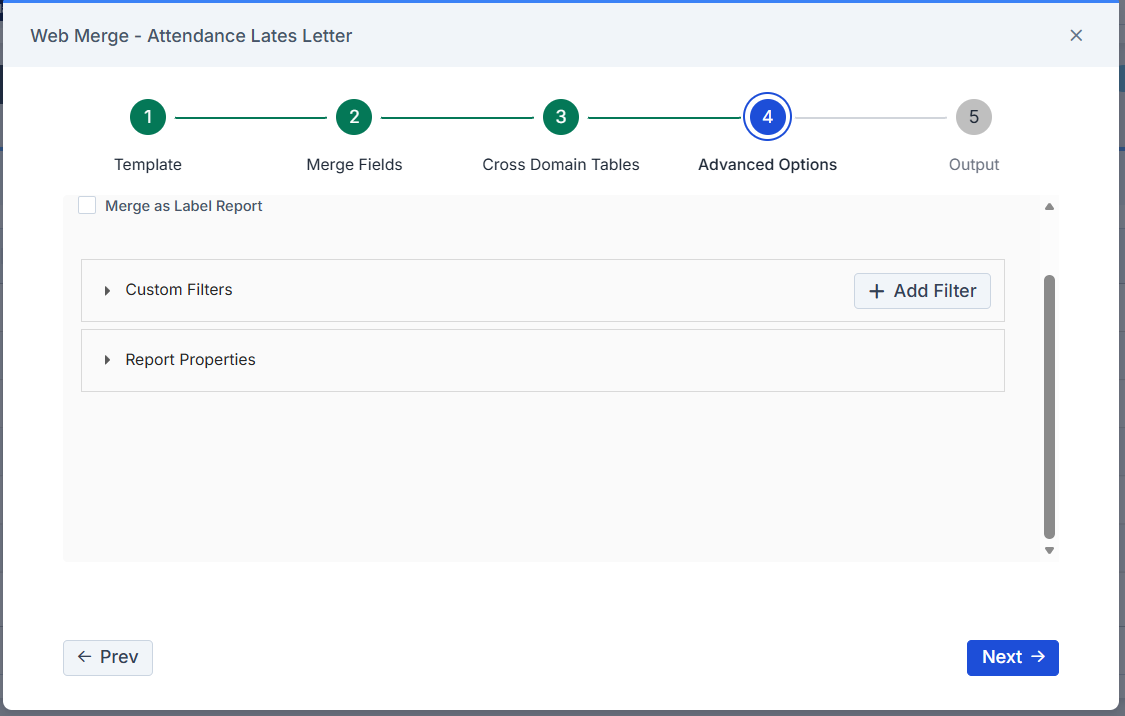
Then ensure Focus is set to Student ID
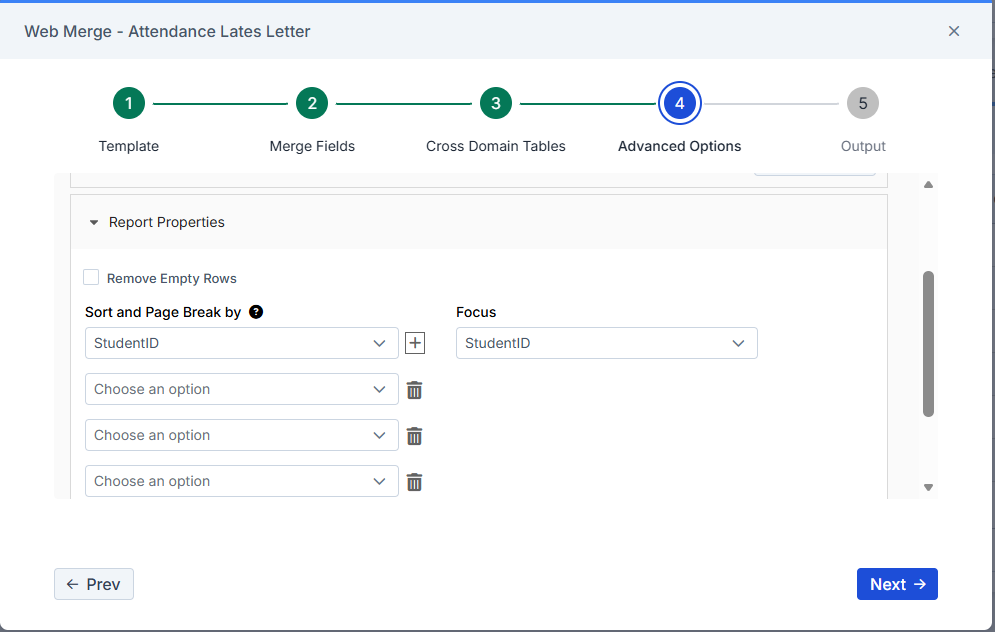
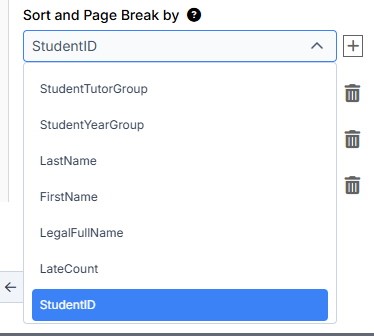
Then if required choose to Sort and Page Break by the drop down choices.
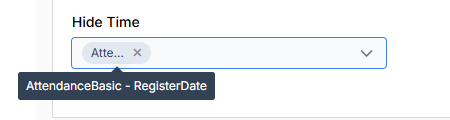
In this example we have chosen to Hide Time on the Attendance Basic Register Date field
Click Next.
In 5 Output choose either Word or PDF for the format of the letter and if required tick Copy to DMS, see How to Send Student Reports from the DMS
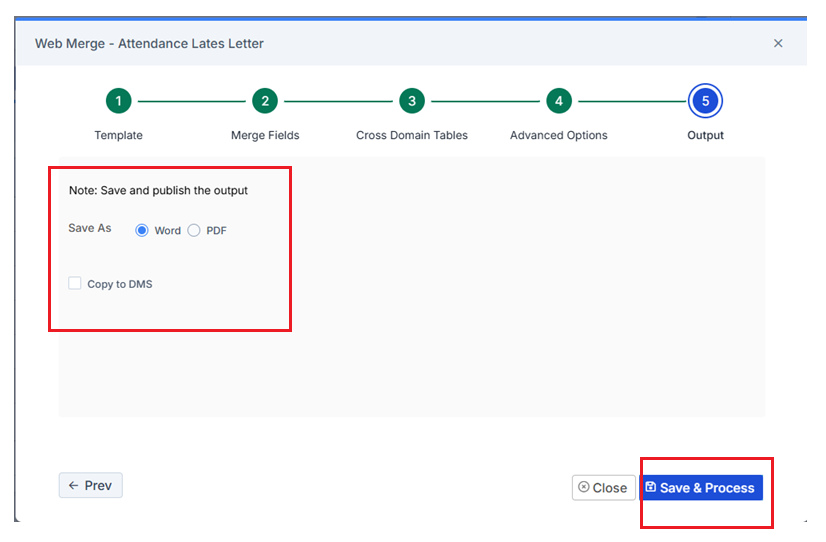
Click Save & Process to complete the Web Merge and produce the letters
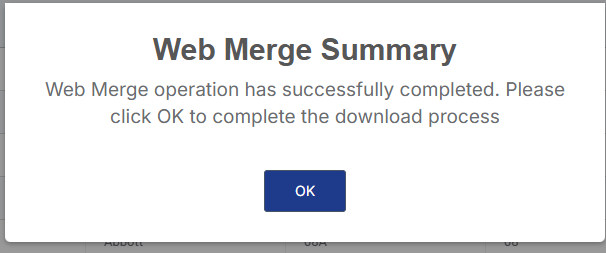
Confirm OK to complete the download of the letters
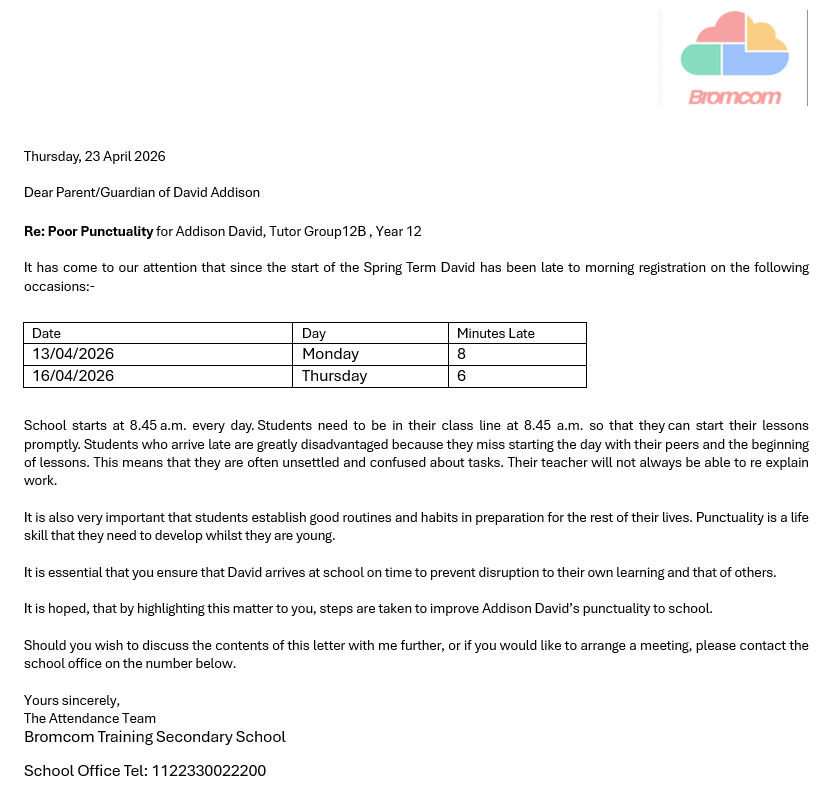
Example late letter below