
This guide will show you how to Create & Manage Absences & Leave Requests in Bromcom.
Access: The minimum permissions required to access the Absences & Leave Requests within a Staff record are found in the Framework Module of Config>Setup>Roles & Permissions.
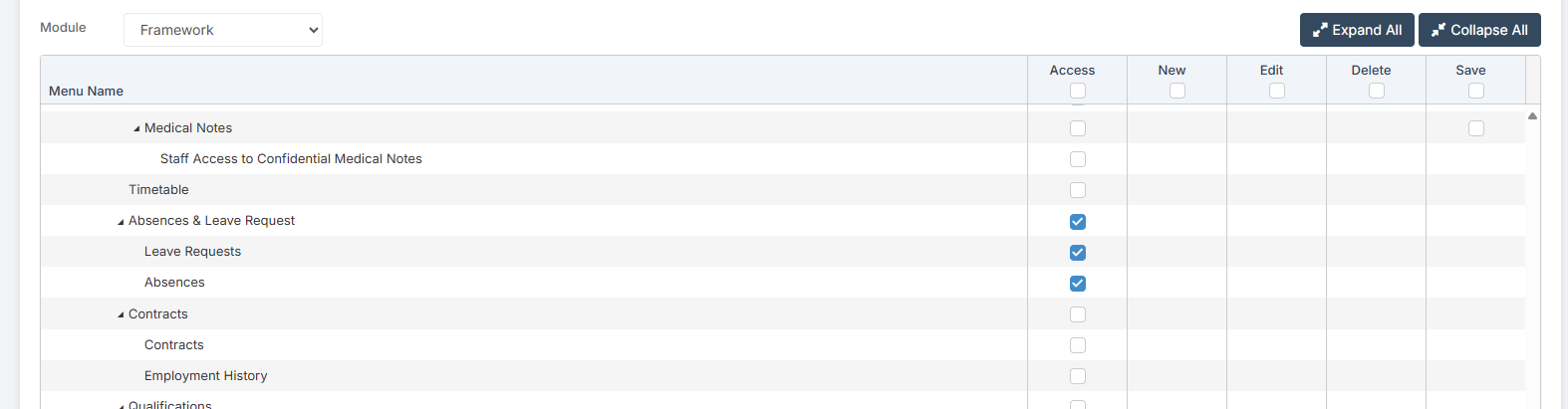
- Absences & Leave Requests
- Request Alerts – Requester
- Requests Non-Approval
- Request Alerts – Approver
- Requests for Approval
Note: Within the My Profile page, the user will need to have permissions to create the Absences & Leave Requests. If a User has Permissions set but there is no data for that section the tab will be displayed with a message that there is no data available. You can manage these using How To Manage Access Levels & Permissions
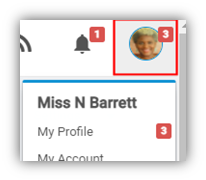
Click on your Image in the top right of the page > My Profile
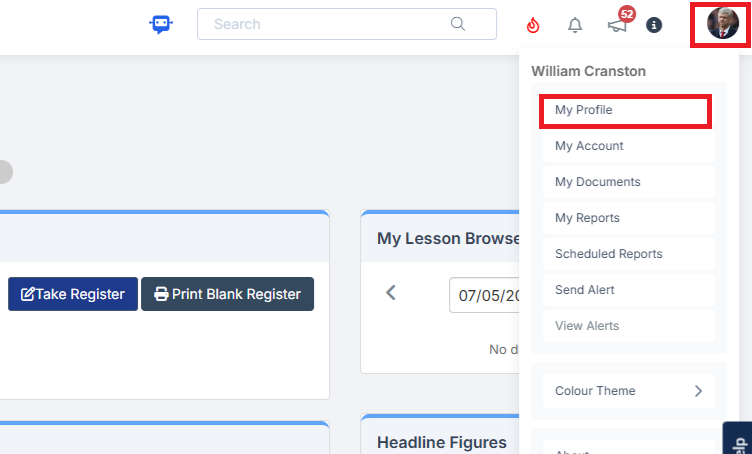
This is where Staff can see information and make changes or requests based on the Access Permissions given under Modules > Administration > HR & Performance Management > Access Levels and Permissions.
If the User has been given Permission to Add new the + icon will be displayed, for Editing the Pencil icon and to Delete the Bin icon. A Field that can
Absences & Leave Requests
The Absences & Leave Request tab has two sections Absences, which gives a View Only list of Absences and if the Include Trainings box is ticked Training Days as well and the Leave Request section.
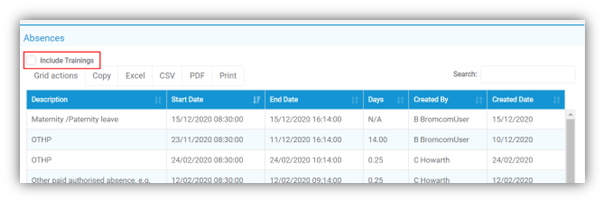
The Leave Request section displays the Requested Leave and the Status of that Request.

To Request Leave click on the + icon top right to open the Add/Edit Leave Request pop-up, enter the details and click the Save button.
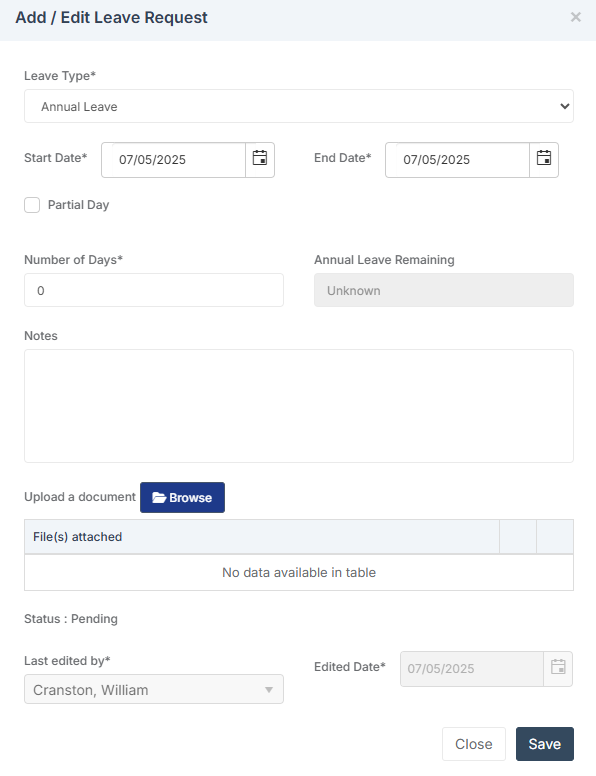
The Request will now show as Pending under the Status column. A Pending Request (that is not a past Date) can be edited by double clicking on the row.

Request Alerts – Requester
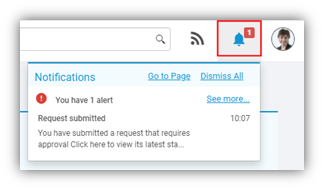
When a Request has been made, if the Approval Alerts options under the Manage Approval Processes section are Active, an Alert and e-mail will be sent to you, confirming the type of Request you have sent.
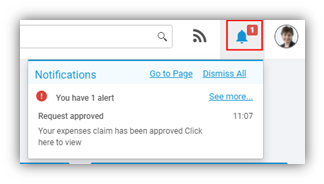
When the Request has been completed an Alert and e-mail will be sent to you, confirming the outcome of the Request.
Requests Non-Approval
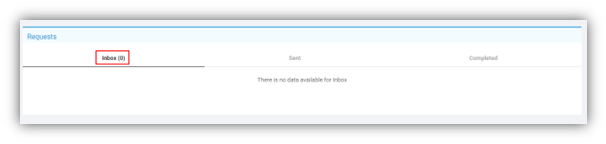
The Requests tab displays the Requests you have made, the results of the Requests. If you have not been listed to Approve Requests the Inbox and the Completed sections will remain empty. By default the Requests page will open on the Inbox.
The Sent section will display a list of Requests you have sent for changes to your Information or Claims.
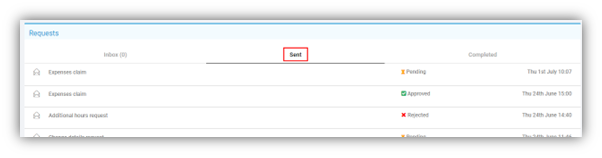
Click on a row to open it and view the Request details.
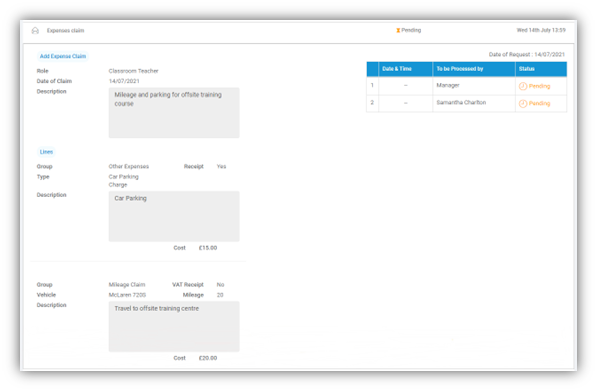
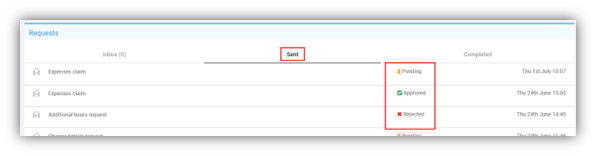
The status of the Requests will be updated here to show those Pending, Approved or Rejected.
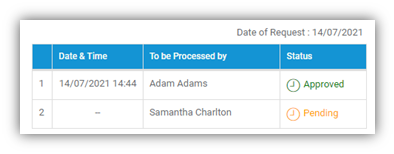
You can also see how far your Claim has progressed, by clicking on the row and looking at the table top right will show the latest activity.
Request Alerts – Approver
When a Request has been made, if the Approval Alerts options under the Manage Approval Processes section are Active, an Alert and e-mail will be sent to you, confirming the type of Request that has been made for Approval. There will also be a reminder on your Profile Image as to how many Requests you have outstanding under the My Profile section.
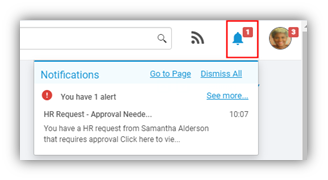
The number of Requests will also be displayed on the My Profile page.
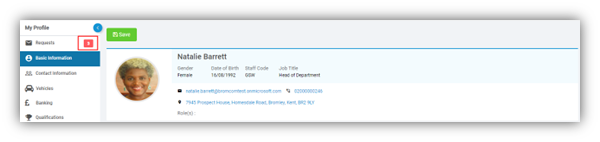
Note: The number of Requests shown will increase and decrease as they are received and completed.
Requests for Approval
If you are a one of the people listed to Approve Requests under the Manage Approval Process section a list of Requests made by other members of Staff for Approval will be displayed under the Inbox section. Displaying the type of Request and the Name of the Staff member.
Note: For MAT Vision and Single Sign On users – you will also see a toggle labelled Show all requests from my linked schools in the top right-hand corner to see entries from all the schools associated with your log in the Inbox, Sent, and Completed tabs.
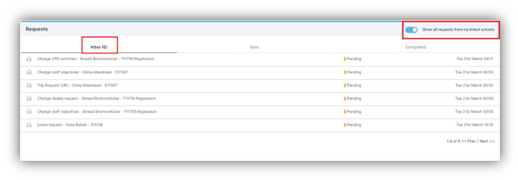
Click on the row to view the details of the Request and select the Approve or the Reject button. A Comment will have to be added if the Request is being Rejected. Any uploaded support Documents can also be viewed.
Additional Messages can be added by typing in the Comment box and clicking the Post button, these will be visible to all those Approving and the Requester and will display under the Approve and Reject buttons.
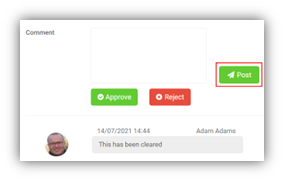
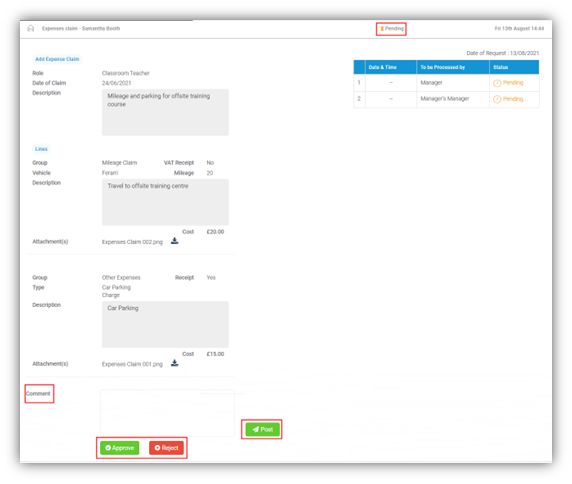
Once done the Request will be moved from the Inbox section to the Completed section. The status will be displayed, if the Request needs to be Approved by more than one person it will still show as Pending.

When clicking on the row the table top right will also be updated.
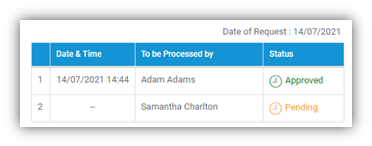
Once the Request has been approved by all, it will show as Approved.
