PayPoint Accounts allow Parents to top up money that can then be used in place of a credit or debit card to make purchases in MCAS. This may be useful if you have Parents who are not able to access MCAS as it enables you to make purchases on their behalf, or if you have a Parent who would rather not enter their card details on the MCAS App.
In this guide we’ll look at how you can generate a PayPoint barcode, how you can access it on the MCAS App and how you can use the PayPoint balance to make payments in MCAS.
- Generating a PayPoint Barcode
- Accessing the Barcode on the App
- Making Purchases in MCAS Desktop Version
- Making Purchase in the MCAS App
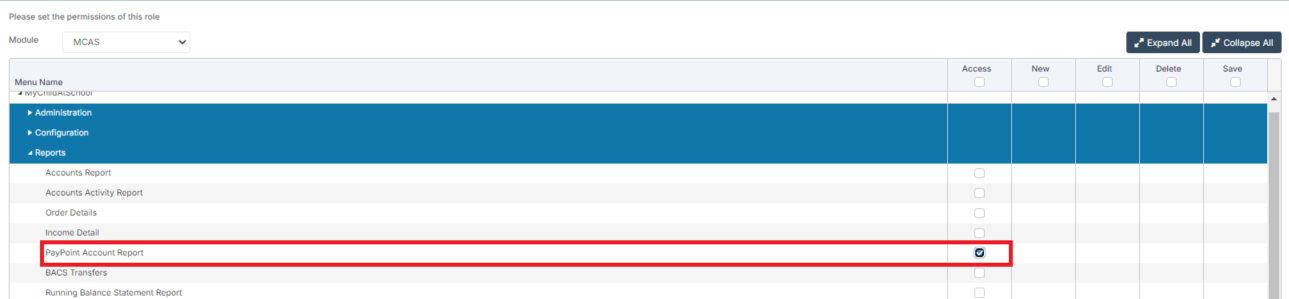
Access: The minimum permissions required to access PayPoint Account Report can be found in the MCAS module from within Config > Setup > Roles & Permissions.
See Also: How to View PayPoint Accounts in MyChildAtSchool and Online Payments FAQ’s
Generating a PayPoint Barcode
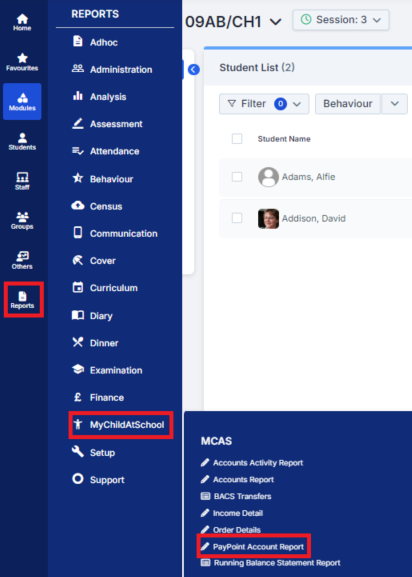
To generate a PayPoint Barcode go to Reports > MyChildAtSchool > PayPoint Account Report.
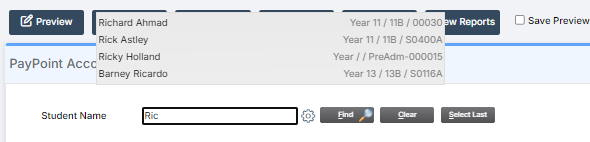
In the Student Name box start typing the name of the Student who you would like to generate the PayPoint barcode for and then select them from the list that appears.
Note: The list may appear above the Student Name field.
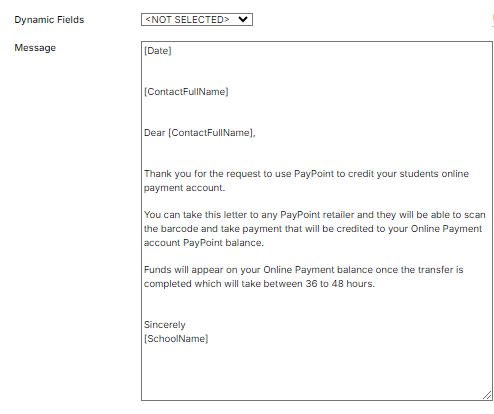
In the Message field, enter any information you would like to give to the Parents alongside the PayPoint Barcode. You can use the Dynamic Fields option to customise the Message further.
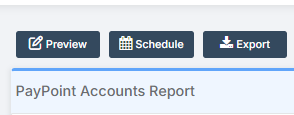
Click Preview.
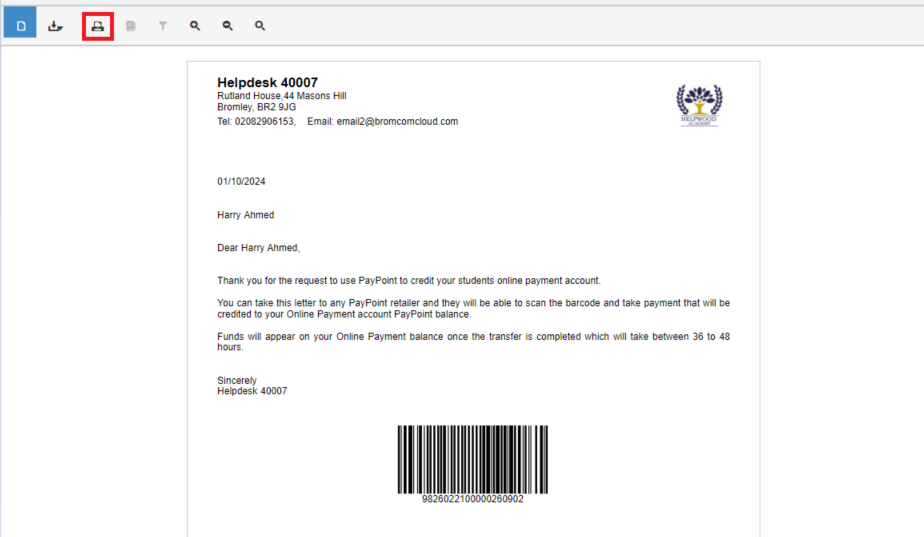
This will generate a letter with the PayPoint Barcode at the bottom. Click Print. Once the letter is printed, the Parent can then take the letter to any PayPoint store to add to their MCAS PayPoint Balance.
Accessing the Barcode on the App
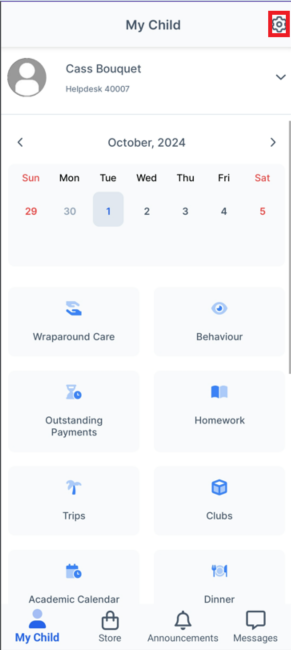
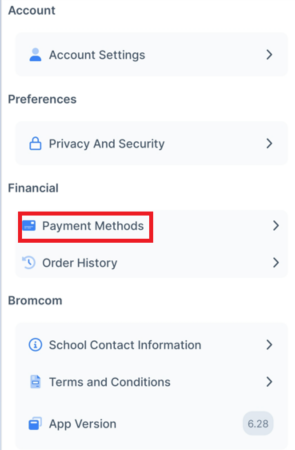
From the main menu, click the Settings icon in the top right corner.
Select Payment Methods
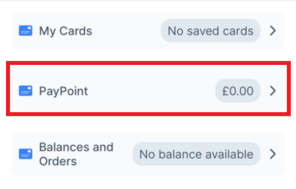
Select PayPoint.
Click the Barcode icon in the top right
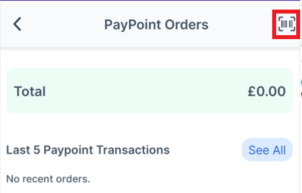
This will load the barcode to allow the Parents to take their phone and use the Barcode to top up their MCAS PayPoint Balance at any PayPoint store.
Making Purchases in MCAS Desktop Version
Once the Parent has topped up the balance of their PayPoint Account it will be listed as a Payment Method at the point that you Checkout.
From the Student Profile, select the Green Man icon next to the Contact.

This will log you in to MCAS as the Parent. From here, add any required items to the basket and once you’re happy, select the basket icon in the top right. and click Checkout.
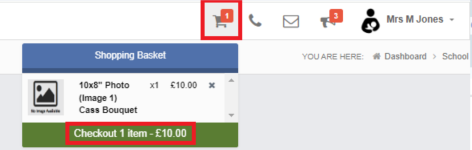
This will take you to view your basket, check that all the items are correct and then click Checkout again.
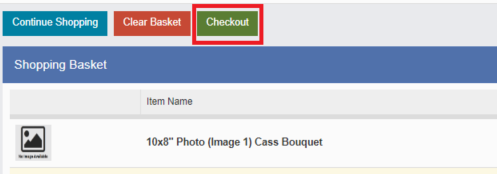
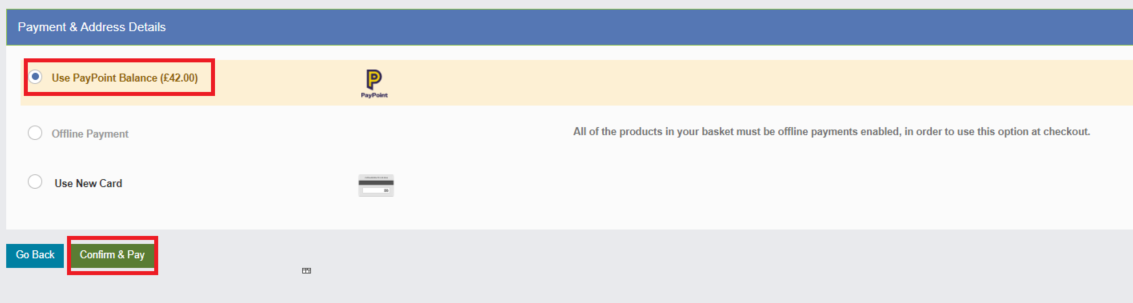
In the Payment & Address Details section, select Use PayPoint Balance then click Confirm & Pay.
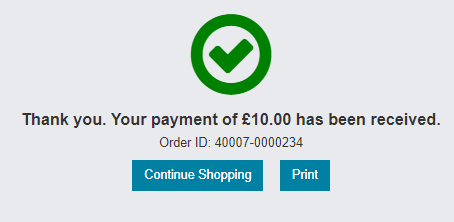
You’ll then receive confirmation that payment has been successful.
Making Payments in the MCAS App
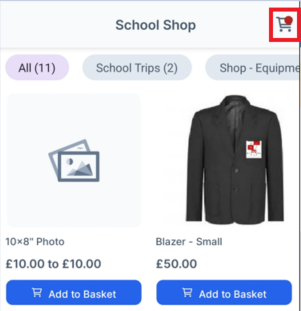
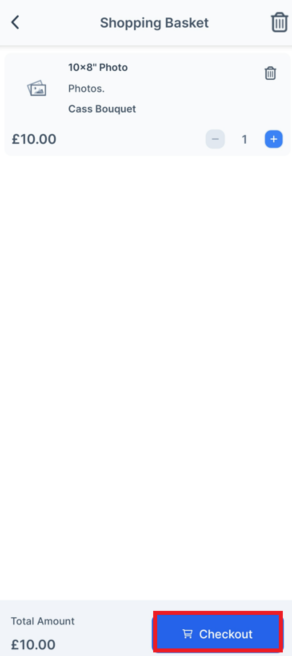
When making payments in the MCAS App, once the Parent has added all required items to their basket, click the basket icon in the top right corner
Check that the items in the basket are correct and then press Checkout.
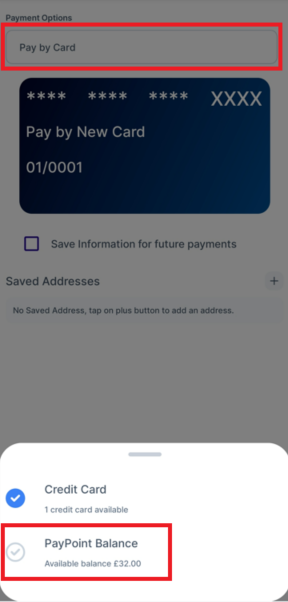
On the next screen, open the Payment Options menu, and select PayPoint Balance.
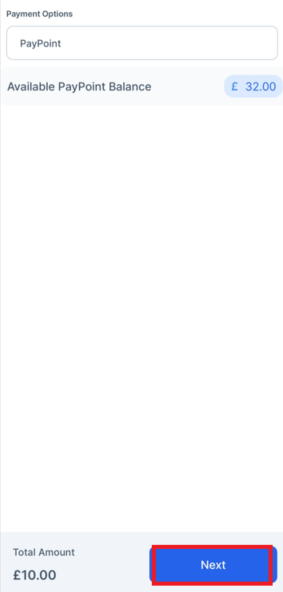
Then click Next.
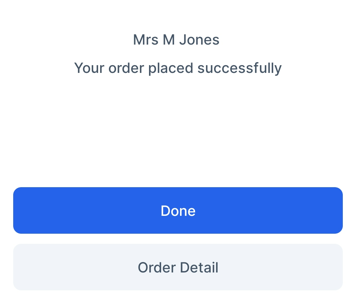
You’ll then receive confirmation that your order has been placed successfully, click Done.