
Use this guide to access School On a Page, the examples in this guide are for a Primary School.
March 2026 : We are pleased to announce that School On A Page is now available to All-Through Schools (provided the Primary Tracker has been configured). For more information on the new features in this update see here.
Important: the attainment and progress tabs in School On A Page are dependant on the set up of Assessment Sheets and the input of Assessment Data, for further guidance on the setup of Primary Assessment see here.
In this guide we’ll look at the following on School On A Page.
- Students
- Attendance and Absences
- EYFS Attainment
- Phonics and KS Overall Attainment
- Vulnerable Groups Attainment
- Overall Progress
- Vulnerable Groups Overall
- Export
Access: The minimum permissions required to access School On A Page can be found in the Analysis module from within Config > Setup > Roles and Permissions > Analysis > School On a Page.
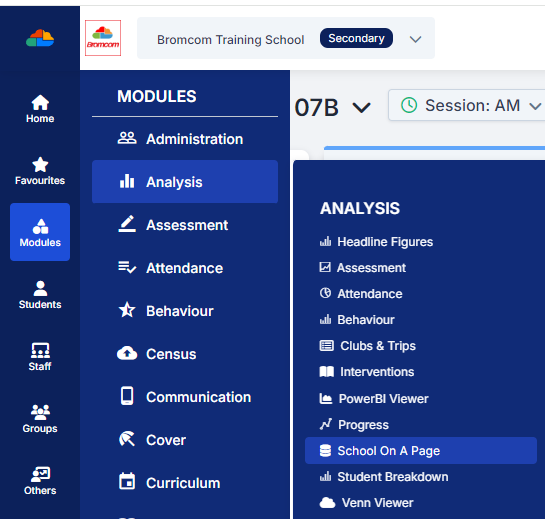
Go to Modules > Analysis > Analysis > School On A Page.
Students
Students gives an Overview for the Trust and Schools for the Students, use the Year/Term dropdowns to define the Term. The Term in the Student tab comes from the Term names within the Academic Year structure in Config>Curriculum>Academic Years.
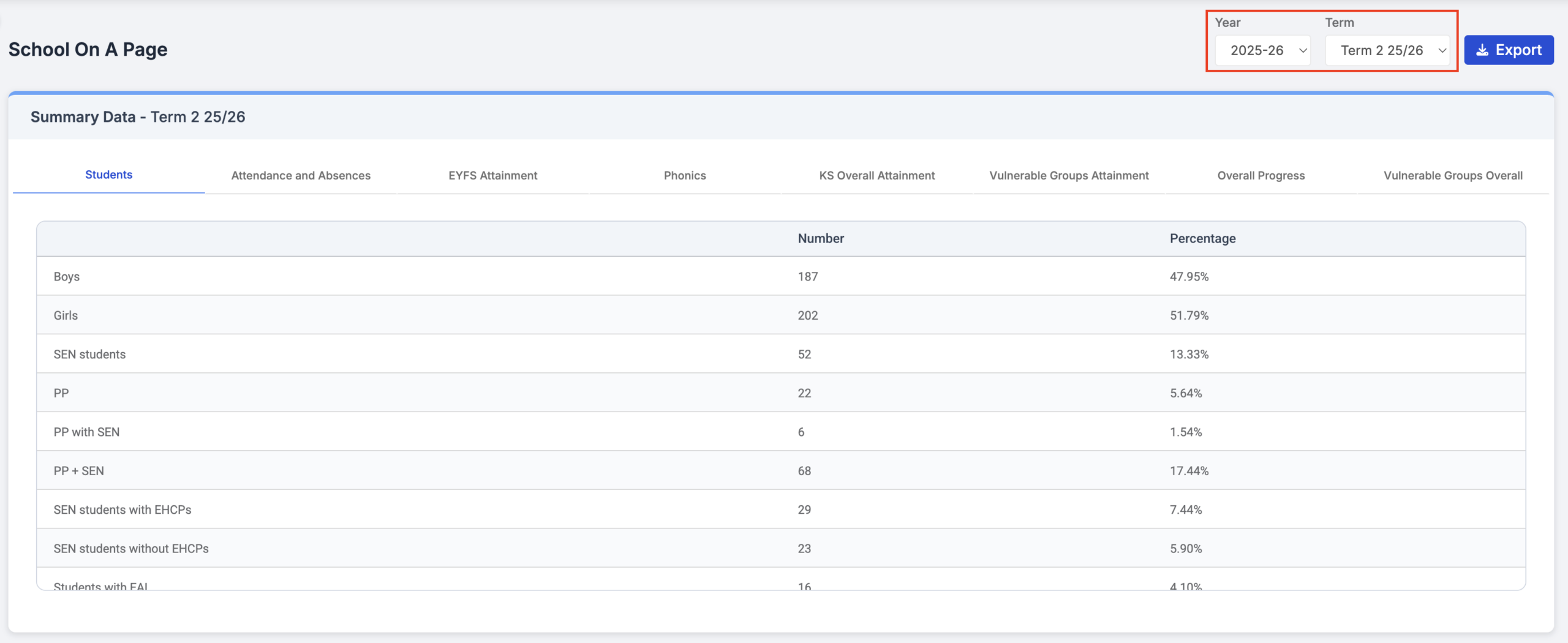
The student list includes the following:
- Boys
- Girls
- SEN students
- PP
- PP with SEN
- PP + SEN
- SEN students with EHCPs
- SEN students without EHCPs
- Students with EAL
- Eligible for FSM
- LAC
- Service Children
- Disadvantaged students
Note: Each row has a tooltip providing a description of the group.
Attendance and Absences
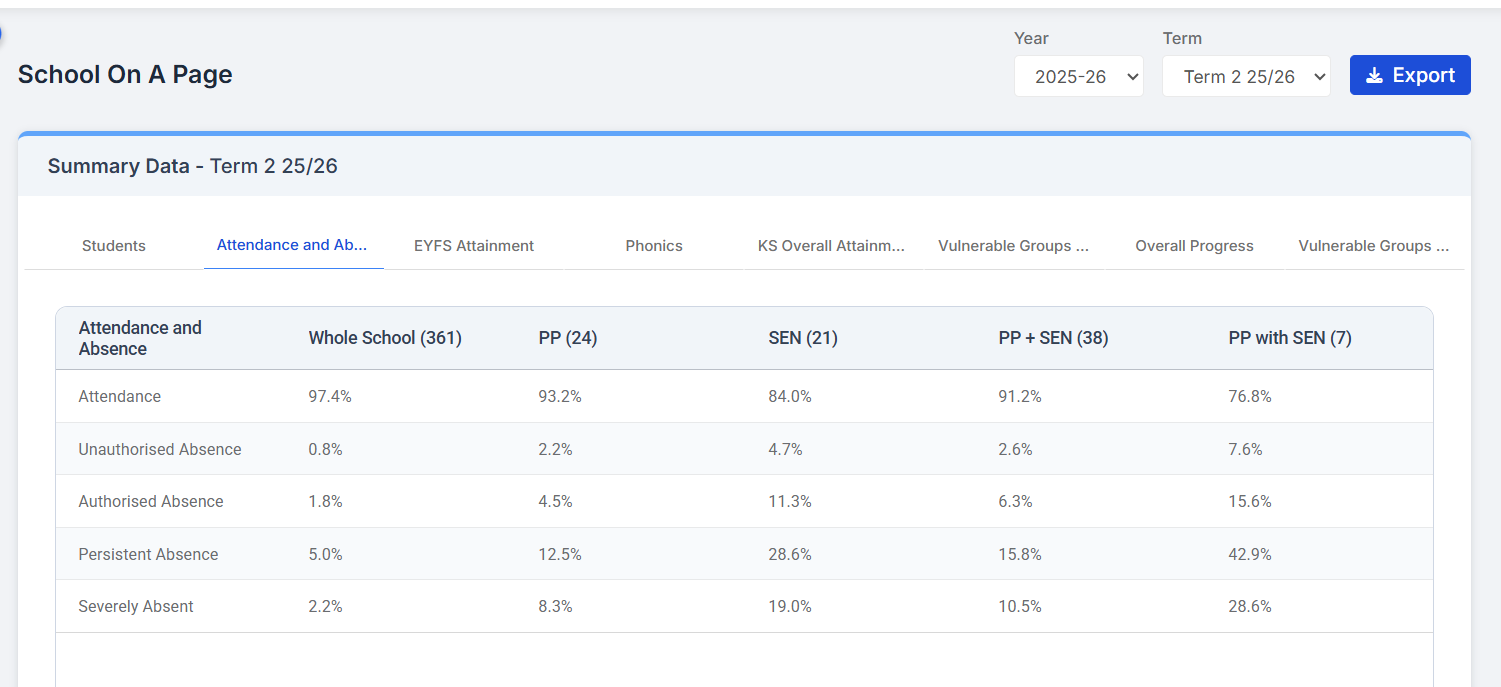
Clicking on the Attendance and Absences tab will open the Summary Data for that option and the selected Term.The Term in the Student tab comes from the Term names within the Academic Year structure in Config>Curriculum>Academic Years.
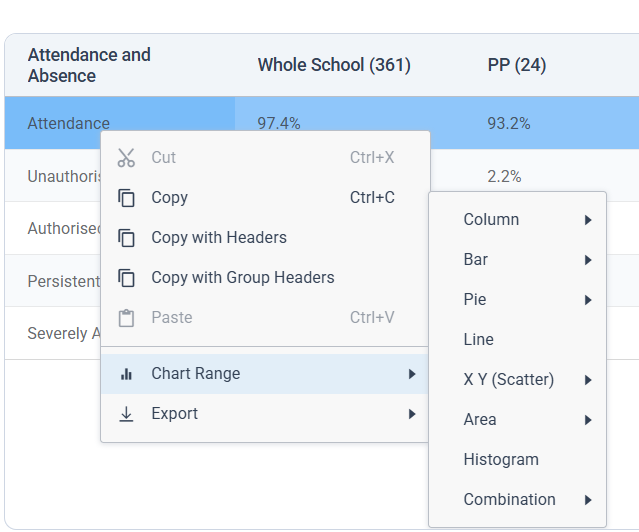
Select the Rows or Columns and using the Right Click
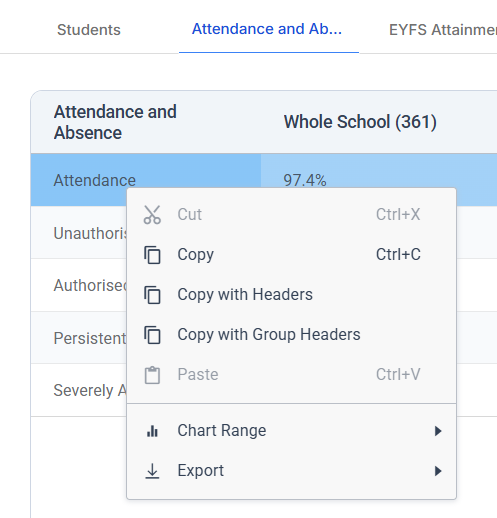
Click Chart Range to see Chart Options
EYFS Attainment
Clicking on the tab will open the Summary Data for that option and the selected Term and Year. Term is managed in Config > Assessment > Early Years Assessment Sheets> Terms.
All EYFS Subjects will be measured on the following assessments:
- At Expected
- Below Expected
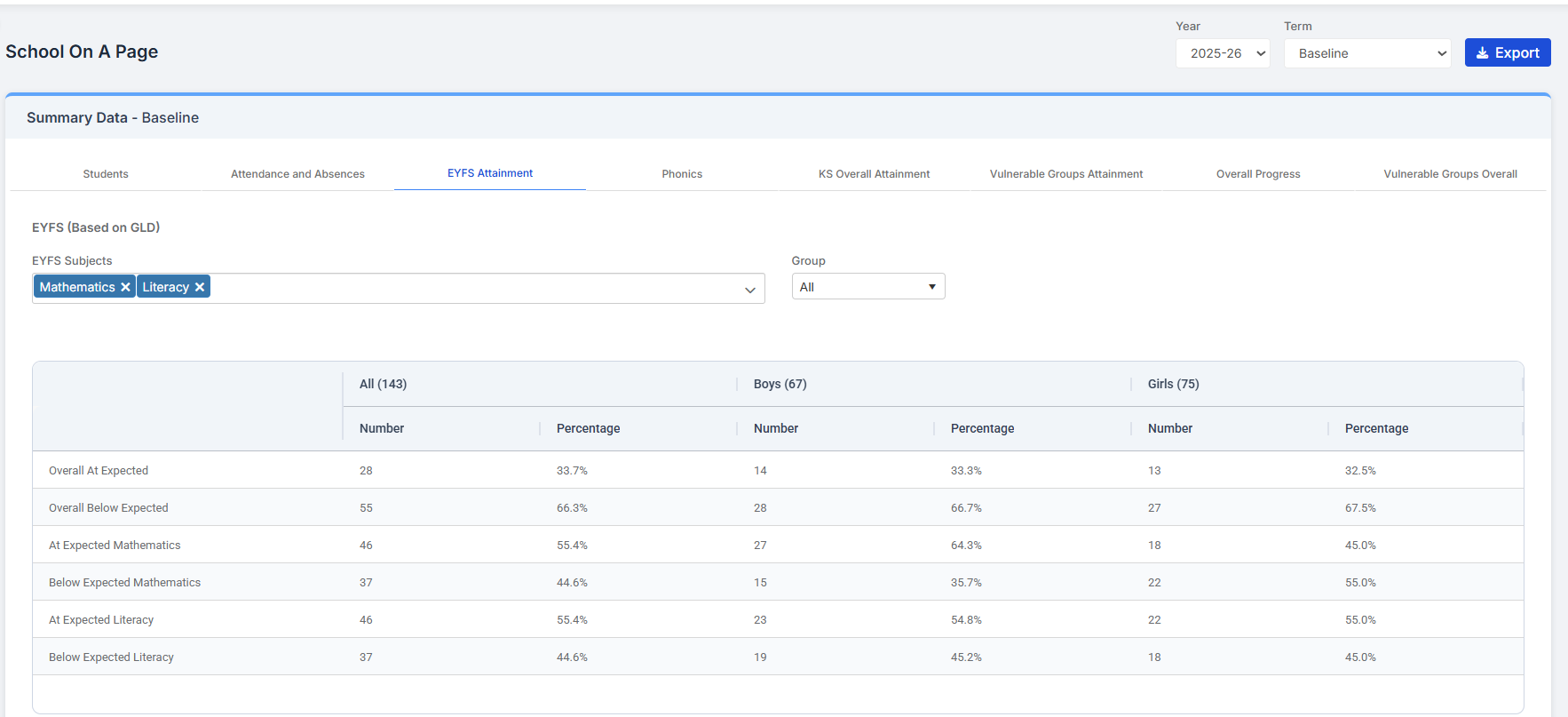
Selecting the Rows and Columns and using Right Click option will allow you to view the Data in Chart View.
Phonics and KS Overall Attainment
Note: Term is managed in Config > Assessment > Summative Assessment Sheets > Edit AREs.
- Key Stage Overall Attainment defaults to display Reading, Writing, Mathematics, and RWM Combined for KS1, Lower KS2, and Upper KS2.
- Phonics defaults to display FSM Sub Groups, and WA Phonics Grades for Year 1 and Year 2.
Selecting the Rows and Columns and using Right Click option will allow you to view the Data in Chart View.
KS Overall Attainment – March 2026 update
KS Overall Attainment Tab (Primary & All-Through Schools Only)
The Key Stage Subjects will be measured on the following assessments:
- At & Above Expected
- Above Expected
- At Expected
- Below Expected
- At & Above Target
The KS1 “At GLD”, Lower KS2 “Exs + Validated”, and Upper KS2 “Exs + Validated” columns have been replaced with Baseline Results. A tooltip has also been added which reads: “Data derived from Primary Tracker Baseline Marksheet.”
- If a student does not have a baseline value, their record will be excluded from calculations that rely on baseline data.
- The baseline comparator supports junior schools where pupils join in Year 3 and do not have KS1 data. If a school has no pupils in Years 1–2, the KS1 table will display zeros with a tooltip explaining “No KS1 cohorts present.”
Vulnerable Groups Attainment
This panel defaults to display Reading, Writing, and Mathematics for ARE (Age Related Expectations) and GDS ( Greater Depth of Study)
Note: Term is managed in Config > Assessment > Summative Assessment Sheets > Edit AREs.
In the EYFS Attainment page use the Year Group dropdown to filter by Year Group.
Selecting the rows and columns and using Right Click option will allow you to view the Data in a Chart.
Overall Progress
Use Overall Progress to see the number and percentage of students who are meeting or exceeding expectations in their key stage subjects
This is configured from the Edit AREs step in the Summative Assessment Sheets ARE setup wizard, go to Config > Assessment > Summative Assessment Sheets > Edit ARE > Summative Assessment Sheets – Age Related Expectations (ARE) Setup
For Primary schools, you will see the Expected Point Value Increase option in the Summative Assessment Sheets ARE setup wizard . This allows the user to enter a value for the number of steps required for a student to reach their expected progress, in the range 0-99 to a maximum of two decimal points.
Students that achieve the points entered in Expected Point Value Increase are recorded as making Expected Progress on the School on A Page > Overall Progress tab.
Students that achieve more than the points entered in Expected Point Value Increase are recorded as Exceeding Progress.
Go to Modules > Analysis > Analysis > School On a Page > Overall Progress
The Overall Progress tab displays progress information for KS1 (Year 1 & 2), Lower KS2 (Year 3 & 4), and Upper KS2 (Year 5 & 6), for each subject (Reading, Writing, and Maths by default), as shown below.
The Key Stage Subjects dropdown list contains only the key stage subjects from the school curriculum (by default Reading, Writing, and Maths). If a user selects different subjects from the dropdown list, only results for the selected subjects are displayed.
Select a From start date, and then select a To finish date from the dropdown lists to set the start and end of the assessment period. The options available in the list reflect those set up in the wizard (for example, if Baseline and Autumn Mid-Term have been set up in the wizard, only those options will appear in the dropdown list).
Vulnerable Groups Overall
Use Vulnerable Groups Overall to see the number and percentage of vulnerable student groups who are meeting or exceeding expectations in their key stage subjects This is configured from the Edit AREs step in the Summative Assessment Sheets ARE setup wizard.
Config > Assessment > Summative Assessment Sheets > Edit ARE > Summative Assessment Sheets – Age Related Expectations (ARE) Setup
For vulnerable groups in Primary schools, a new Expected Point Value Increase option has been added to the Summative Assessment Sheets ARE setup wizard. This allows the user to enter a value for the number of steps required for a vulnerable student group to reach their expected progress, in the range 0-99 to a maximum of two decimal points.
Students that achieve the points entered in Expected Point Value Overall Expected Progress tab are recorded as Vulnerable Groups Achieving Expected Progress.
Students that achieve more than the points entered in Expected Point Value Increase are recorded as Vulnerable Groups Achieving/Exceeding Progress.
The Vulnerable Groups Overall tab displays progress information for vulnerable groups from Reception to Year 6 for each subject (Reading, Writing, and Maths by default), as shown below.
The Key Stage Subjects dropdown list contains only the key stage subjects from the school curriculum (by default Reading, Writing, and Maths). If a user selects different subjects from the dropdown list, only results for the selected subjects are displayed.
Select a From start date, and then select a To finish date from the dropdown lists to set the start and end of the assessment period. The options available in the list reflect those set up in the wizard (for example, if Baseline and Autumn Mid-Term have been set up in the wizard, only those options will appear in the dropdown list).
Export
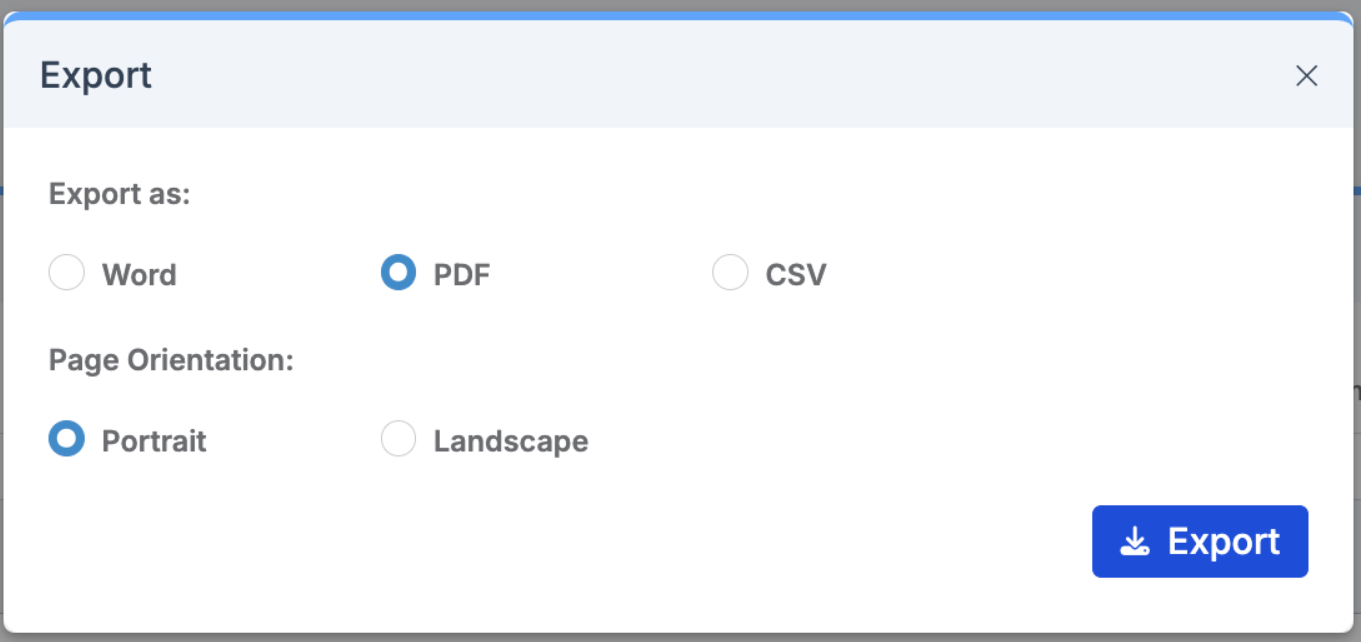
School on a Page tabs can be exported to CSV, Word and PDF by clicking on the Export button.
Clicking the Export button will open the Export popup, where users can select: whether to export to Word, PDF or CSV and the Page Orientation. All tabs will be included in the Export.
.