In this guide we’ll look at the setup and access of the Capped 9 Report and how to access the Capped 9 Dashboard to analyse Capped 9 statistics interactively.
IMPORTANT : Please check the QWAD data prior to using the Capped 9 Report and Dashboard, for further guidance on this process see the section on QWAD data in the most recent Wales Post 16 Census Guide here
Access: The minimum permissions required to access the Capped 9 Dashboard are found in the Profile Module from within Config > Setup > Roles and Permissions.
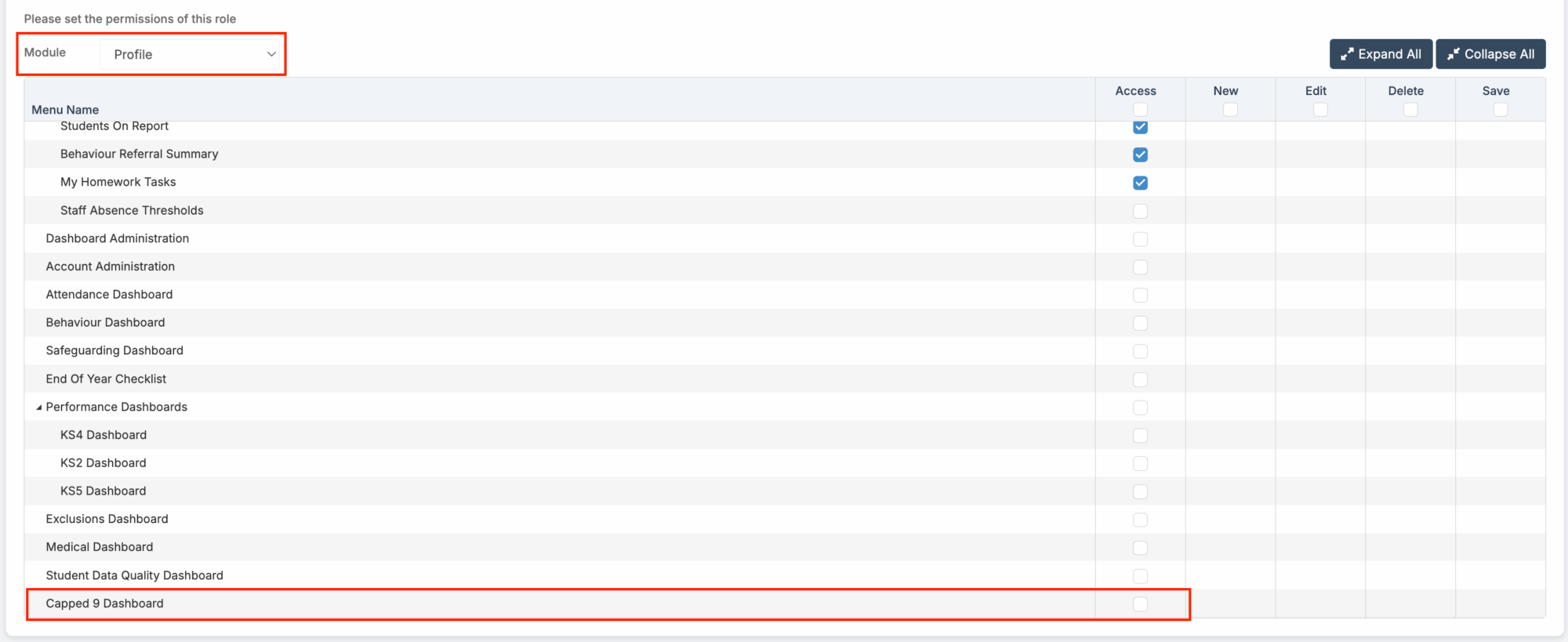
Access: The minimum permissions required to access the Capped 9 Report are found in the Analysis Module from within Config > Setup > Roles and Permissions.
Setup of Capped 9 Report
To view the Capped 9 Report, please ensure the following are in place:
- Cohorts are set up in Modules > Analysis > Routines > Key Stage Cohort Definitions.
- Headline Figure Dataset set up in Modules > Analysis > Routines > Headline Figure Datasets.
Access the Capped 9 Report
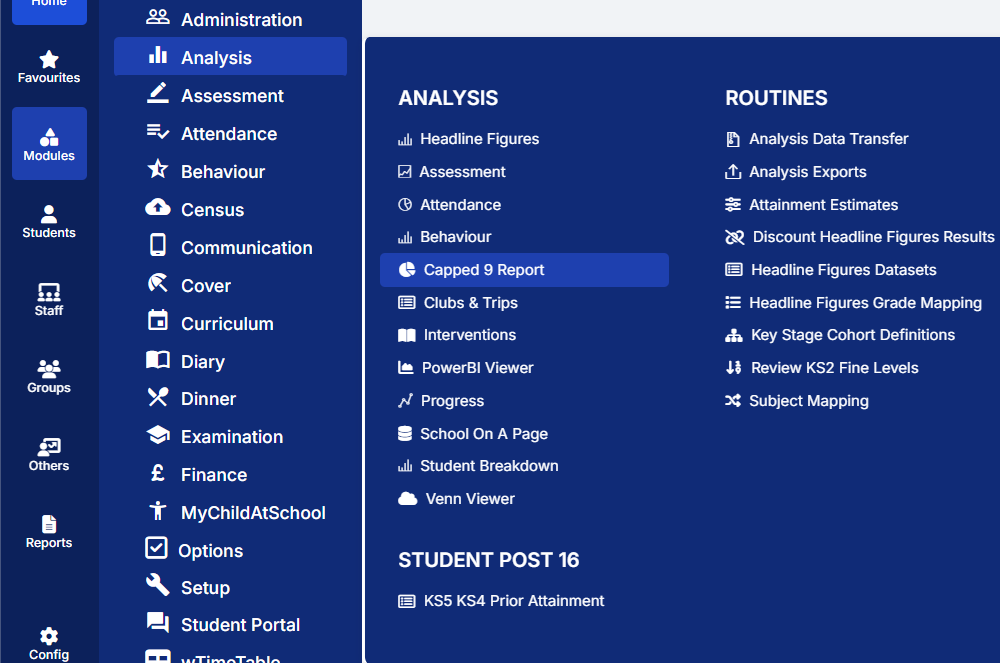
Navigate to Modules > Analysis > Capped 9 Report
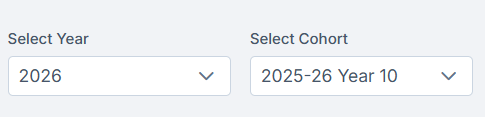
Select the Year and Cohort from the drop downs
This report shows the following:
- Clear breakdown of Capped 9 scores, segmented by All students, Male, and Female.
- Key performance metrics, including:
- Number of Students in Cohort
- Achieving 5+ A-A*
- Achieving Level 1 WB Foundation
- Achieving Level 2 WB National
- Achieving Level 3 WB Advanced
- Measures for Literacy, Numeracy, Science, and Welsh Bacc
- Other Six
- Capped 9 Score
- The report can be exported in Excel or PDF format using the top right Export button.
Access the Capped 9 Dashboard
This can be accessed in either of the following two ways;
From the Home page select the Overview dropdown and select Capped 9 Dashboard
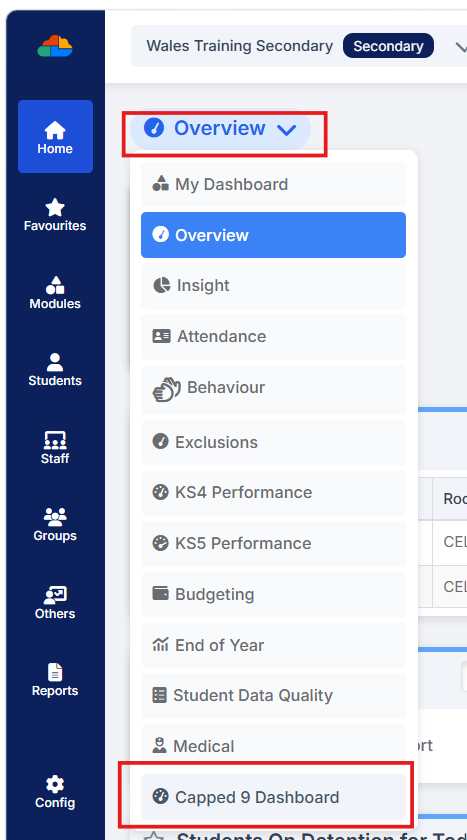
Or If you are a Teacher with timetabled sessions from My Dashboard select Capped 9 Dashboard
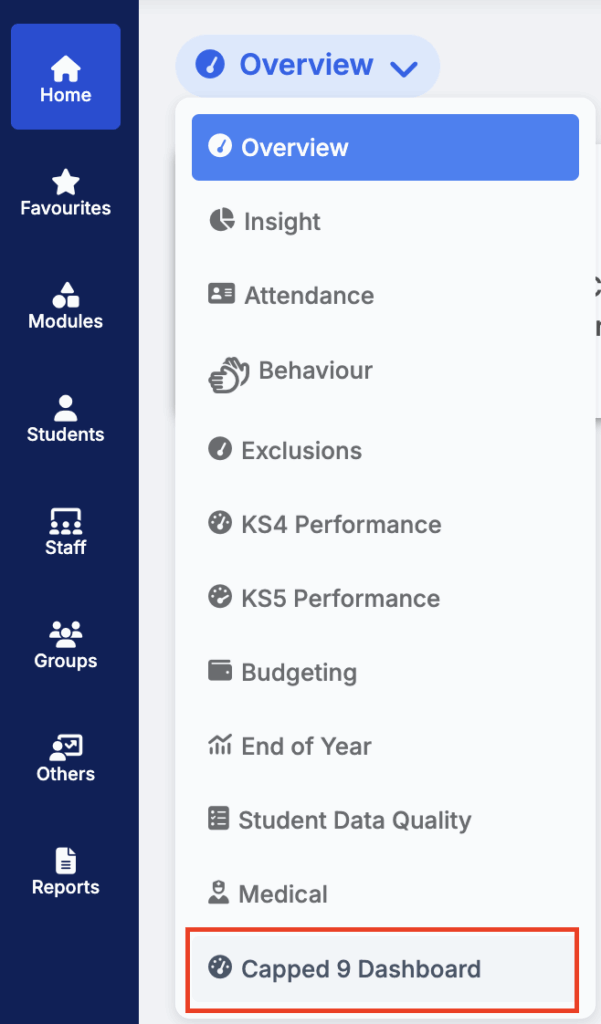
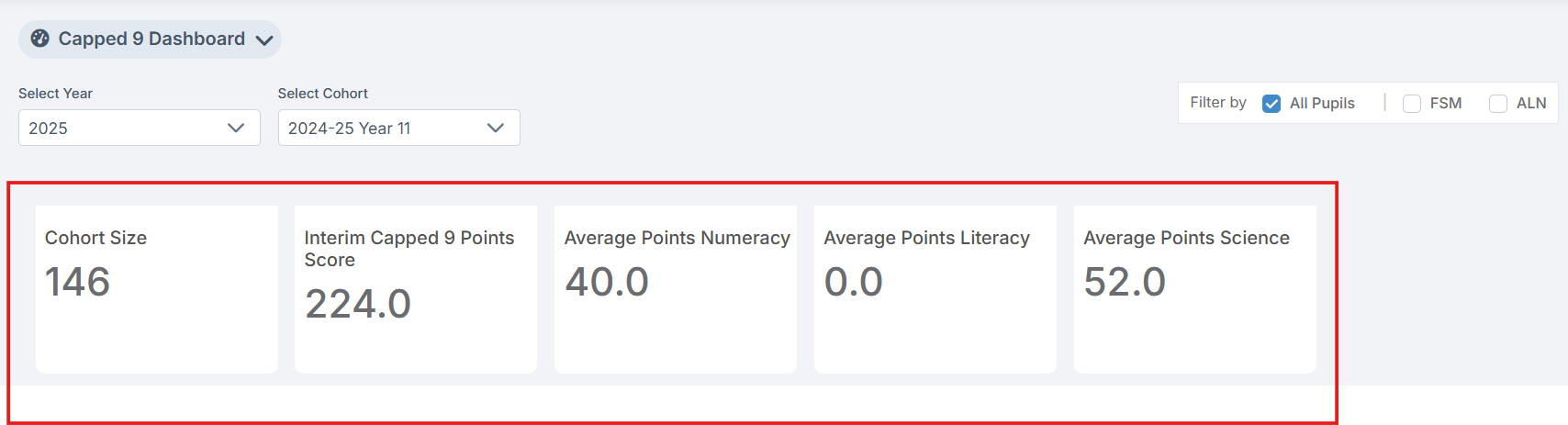
When the Dashboard opens users will need to select a Year and Cohort to display the dashboard.

By default, the page will then update to show all pupils, but as per the example screenshot below users can filter to display only FSM and/or ALN pupils.

The following headline figures are displayed at the top of the page for the selected cohort:
- Cohort Size
- Interim Capped 9 Points Score – average Capped 9 score for the cohort
- Average Points Numeracy – average Numeracy score for the cohort
- Average Points Literacy – average Literacy score for the cohort
- Average Points Science – average Science score for the cohort
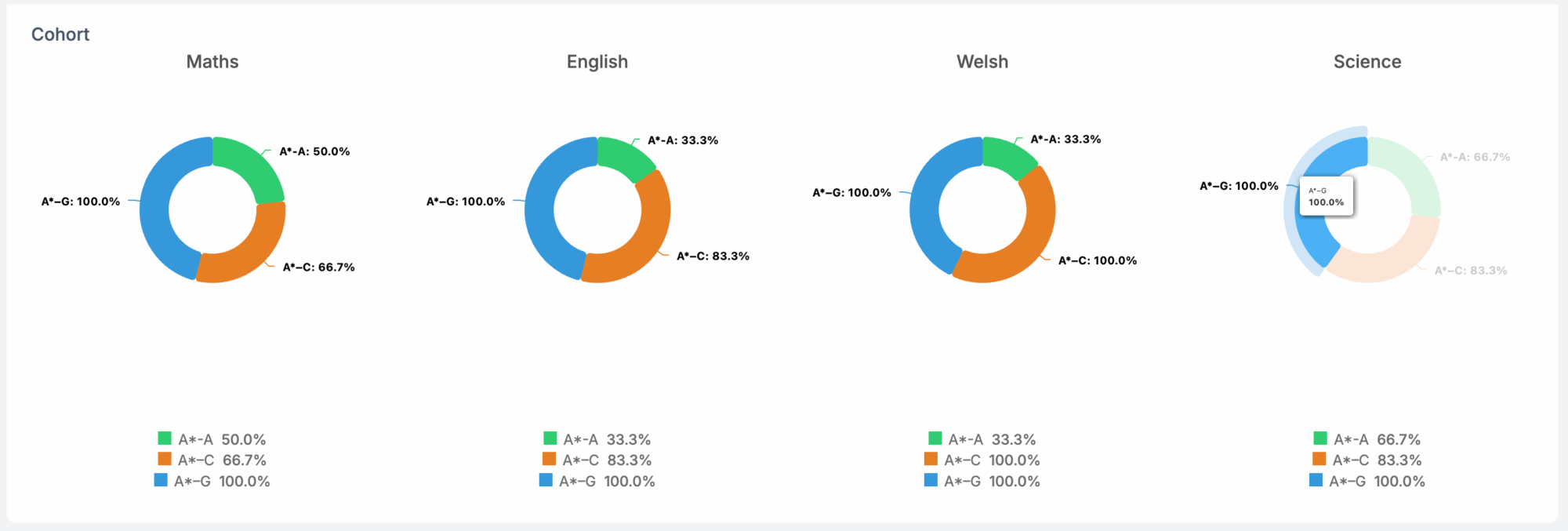
The dashboard displays four tiles: Capped 9, Subject Breakdown, Cohort and Quick Measures.
1.Capped 9
Capped 9 displays a bar chart of each student’s Capped 9 score, with tooltips showing the student’s name and score. Click the arrows in the top-right corner to expand the tile.
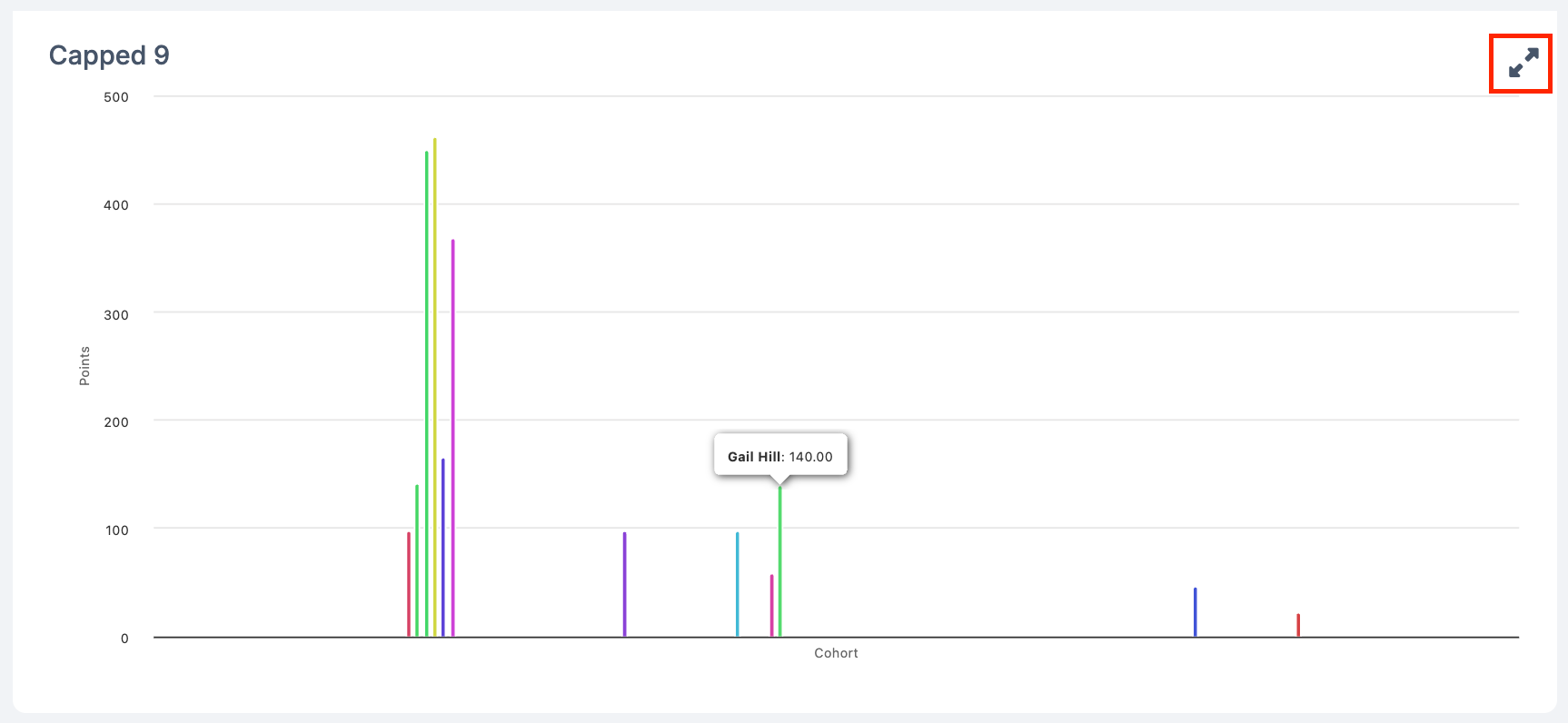
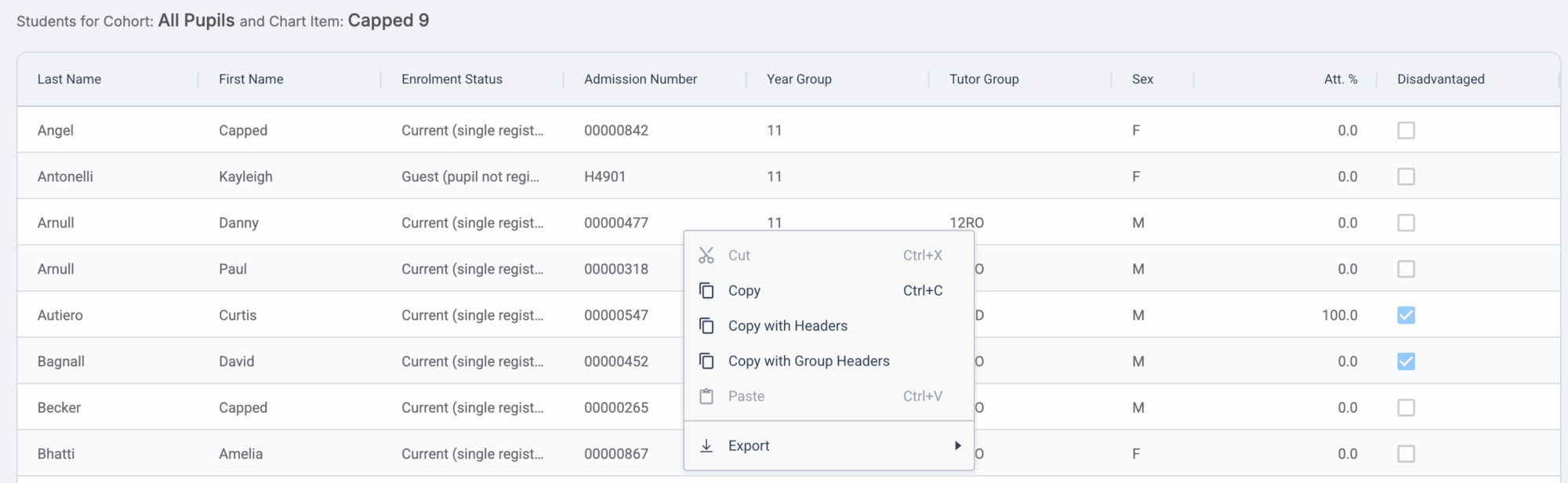
Open the expanded view to see details of students in the selected cohort. Right-click to Copy and Export.
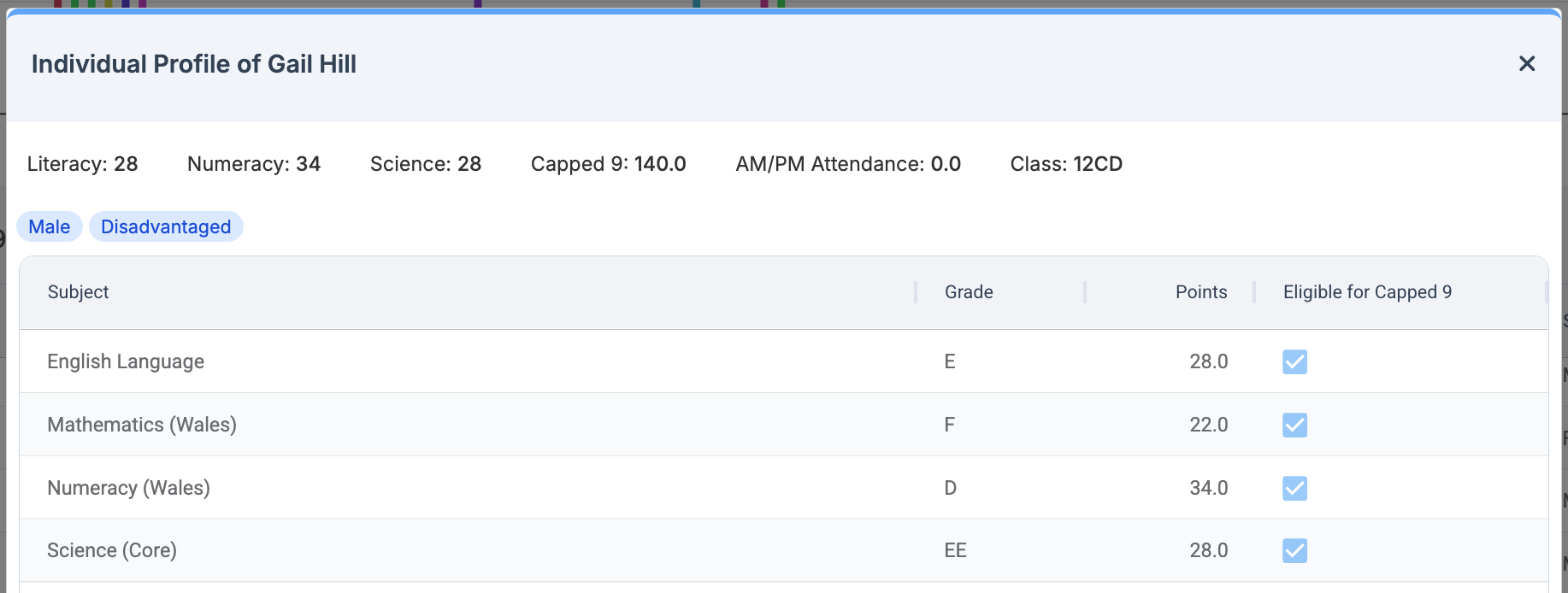
Double-click a student to open their Individual Profile, which may display badges for Disadvantaged, ALN status, and Welsh Bacc. Right-click to Copy and Export
2.Subject Breakdown
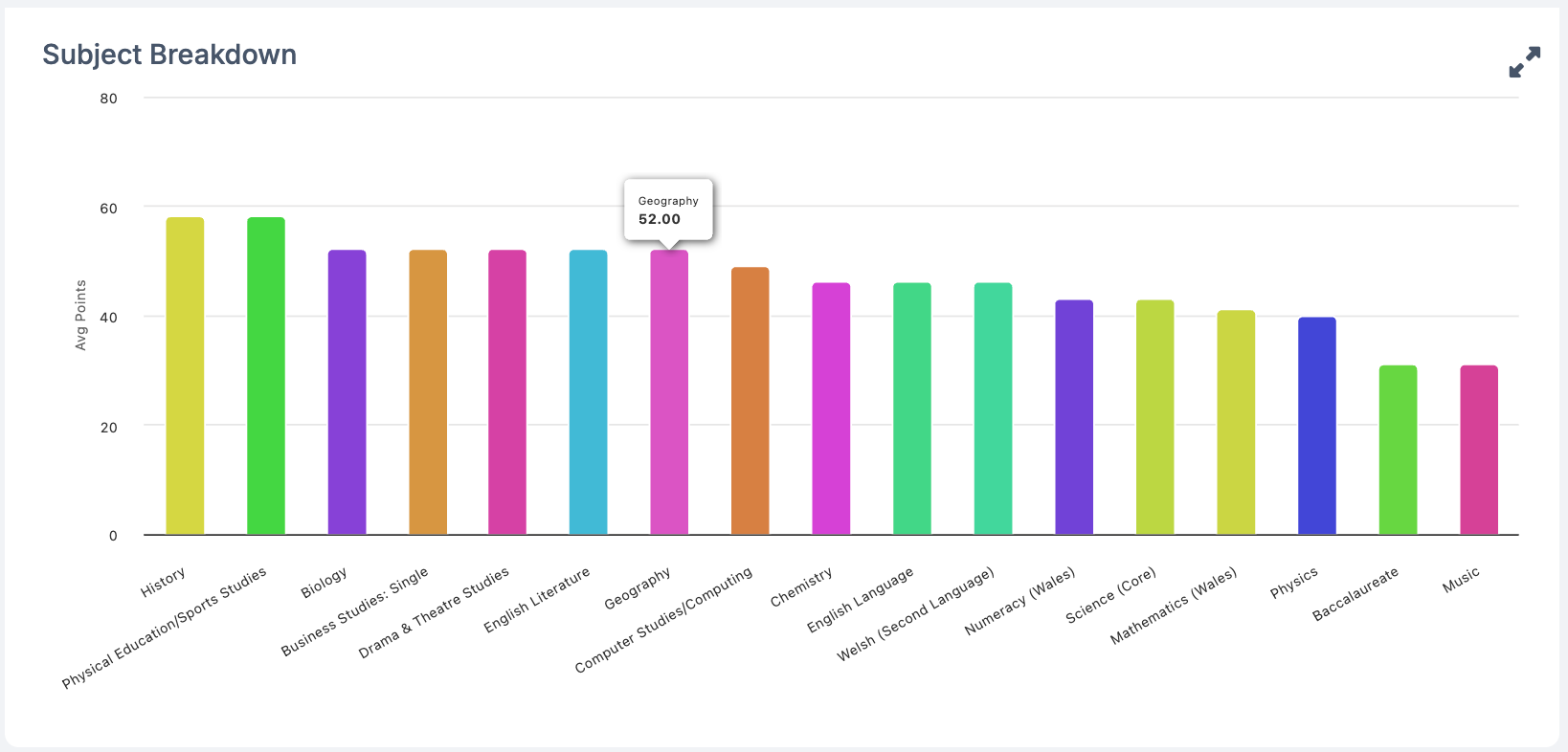
Subject Breakdown displays a bar chart of the average Capped 9 score for each subject, with tooltips showing the subject name and score. Click the arrows in the top-right corner to expand the tile.
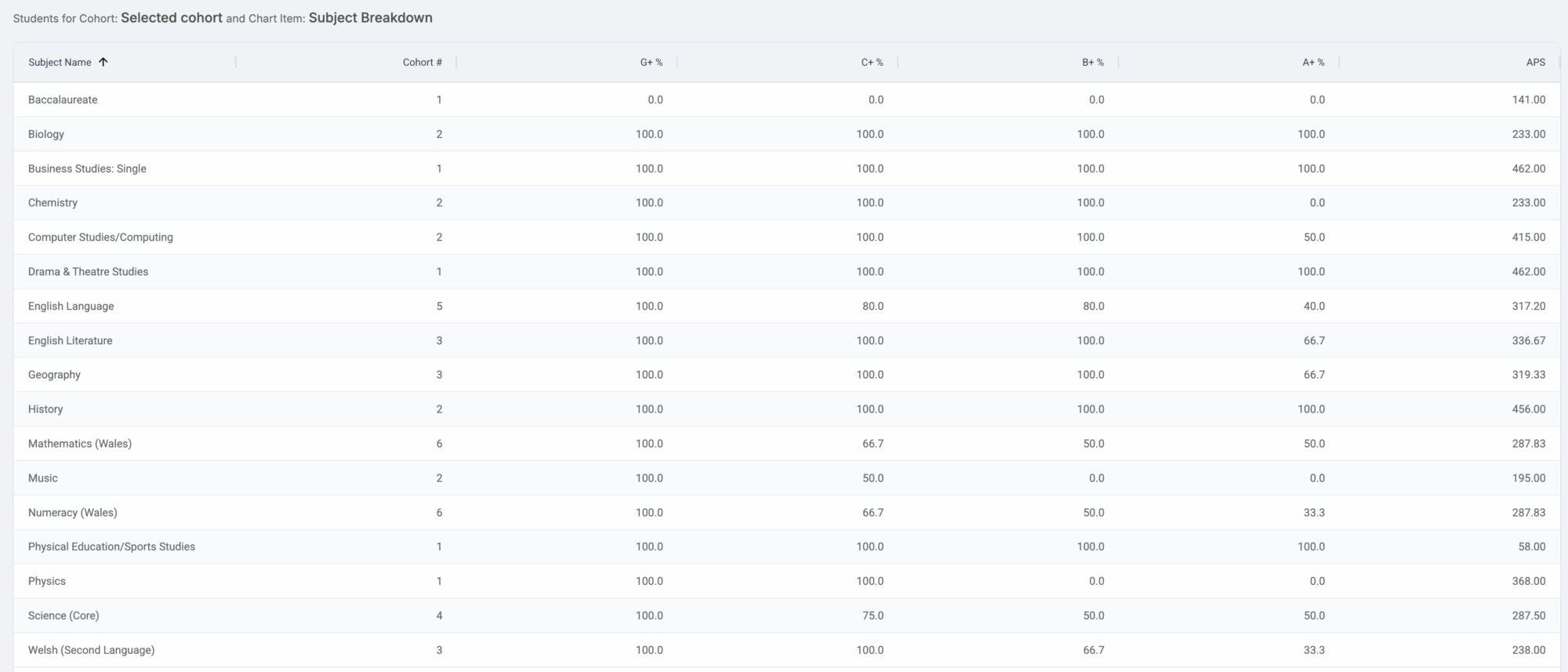
Open the expanded view to see details of subjects for the cohort, including:
- Cohort # – number of students in cohort who took that subject
- G+% – percentage of students in cohort who achieved a grade G or above for subject
- C+% – percentage of students in cohort who achieved a grade C or above for subject
- B+% – percentage of students in cohort who achieved a grade B or above for subject
- A+% – percentage of students in cohort who achieved a grade A or above for subject
- APS – average Capped 9 score for subject (for those students in cohort)
Note: Right-click to Copy and Export.
3.Cohort
Cohort displays pie charts showing grade distribution for Maths, English, Welsh, and Science.
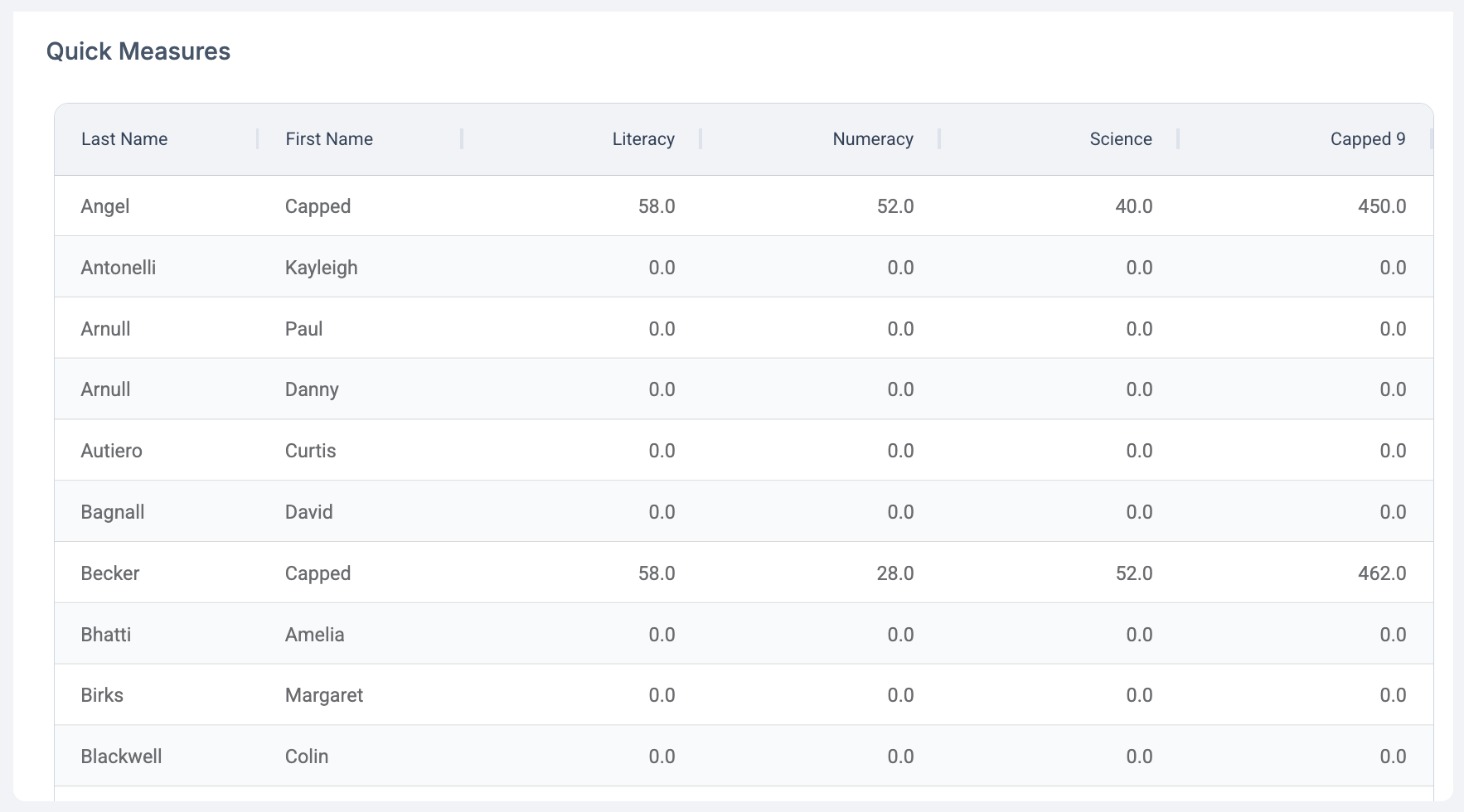
4.Quick Measures
Quick Measures displays a table listing the Capped 9 scores for each student. Double-click a student to open their Individual Profile. Right-click to Copy and Export.