
This guide will show you how to view the following functions in the Communications module, you may use these functions in the example you have sent SMS messages to contacts and had no response or as part of your housekeeping routines for your MIS.
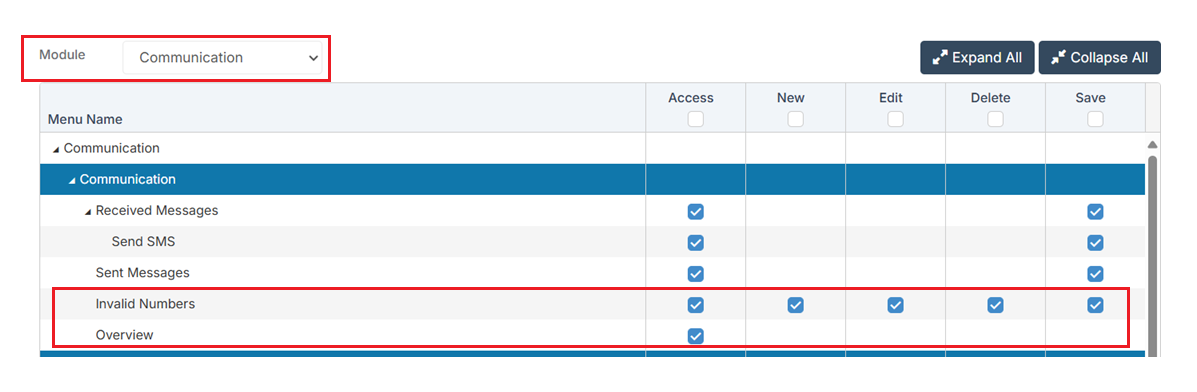
Access: The minimum permissions required to access Overview or Invalid Numbers can be found in the Communication module from within Config > Setup > Roles & Permissions.
See also:
- How to Send an SMS Message or Email
- How to Configure SMTP to Send Emails from Bromcom
- How to Troubleshoot Emails, SMTP Status and Delivery Settings
Failed Messages
To begin with go to Modules>Communications>Overview

Click Failed from within the SMS Today box to view the details in the Information section below.
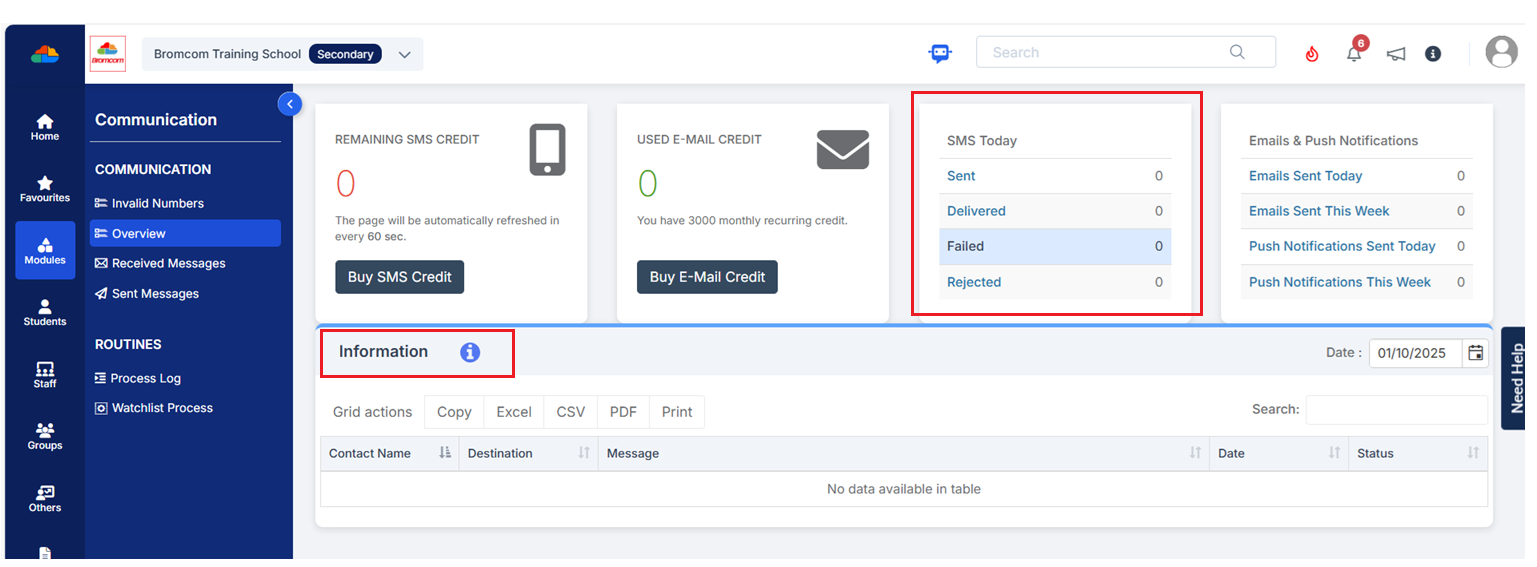
You can then use the Grid Actions to Copy, Export or Print the detail in the Information panel.

Invalid Numbers
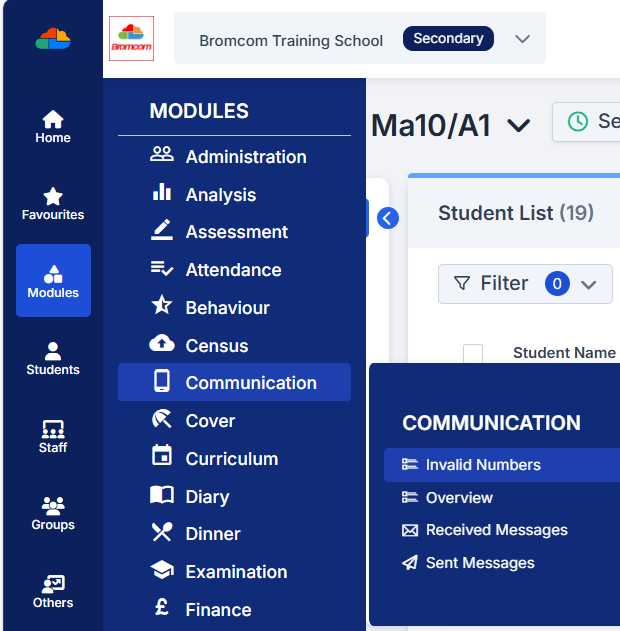
Go to Modules>Communication>Invalid Numbers
Then in the Invalid contact numbers panel you can type in the Number of Failures and choose from the Failed within drop down.
The Student Name, Contact Name and Telephone Number table will update accordingly.
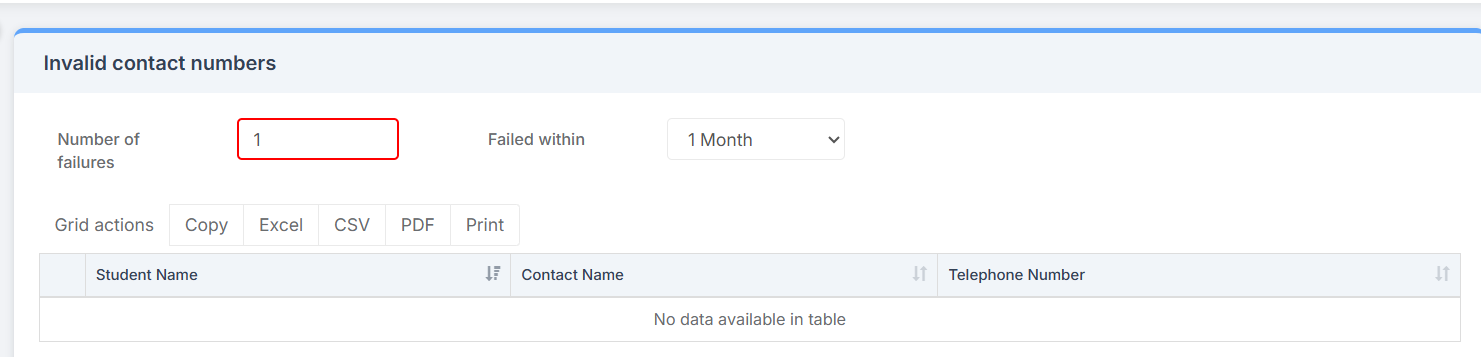
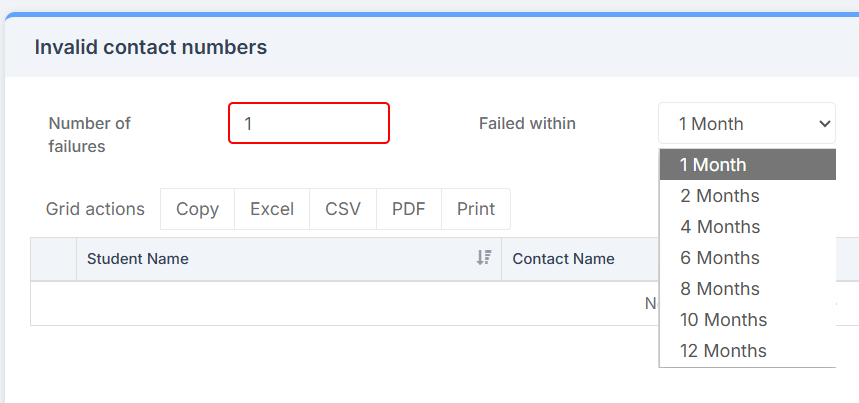
Once you have identified the Invalid contact numbers you can use the Grid actions to Copy, Export or Print the list which you can then use to contact parents.
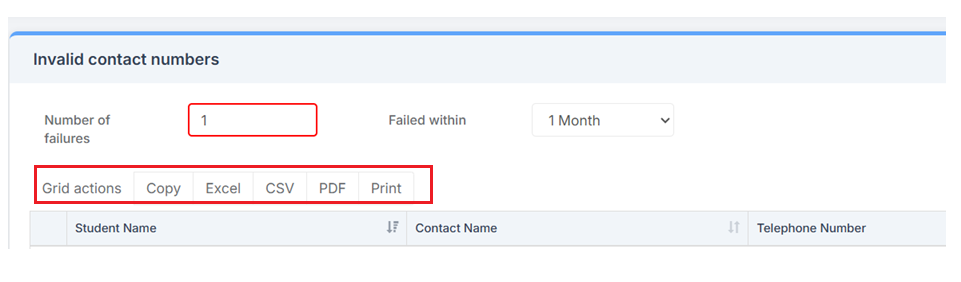
For example you could send an email or produce a quick letter to give to Students asking parents to contact school and update their contact details.