Bromcom – Documentation Centre
  • Community
  • Training
  • Onboarding Guidance
    • Onboarding Welcome Pack
    • Other Resources
  • Support Centre
  • Roadmap
  • Customer Services
    • Customer Care Guidance
    • Bromcom Support Desk Guide
  • Product Portfolio
    • Bromcom AI
    • Bromcom Budgets
    • Bromcom Live Benchmarking
    • Bromcom Options
    • Bromcom Parent Payment Systems
    • Google Integration
    • HR
    • KS2 Performance Dashboard
    • KS4 Performance Dashboard
    • MAT Finance
    • MyChildAtSchool
    • Office365 Integration
    • Popular Features
    • Primary Tracker
    • Safeguarding
    • SIMS Connector for Vision
    • Student Portal
    • Bromcom (web) TimeTable
    • Virtual School
    • Vision Analytics Pack for Power BI
    • Vision
  1. Home
  2. MyChildAtSchool
  3. Modules>MyChildAtSchool
  4. Managing Bank Accounts in MCAS
  1. Home
  2. MyChildAtSchool
  3. Config>MyChildAtSchool
  4. Managing Bank Accounts in MCAS
  1. Home
  2. MyChildAtSchool
  3. Modules>MyChildAtSchool
  4. Online Payments
  5. Managing Bank Accounts in MCAS
  1. Home
  2. MyChildAtSchool
  3. Managing Bank Accounts in MCAS

Managing Bank Accounts in MCAS

Once a new bank account has been added to your MIS and authorised it can be used with any new items (clubs, trips and products) that have been created.

See How to Add an Additional Bank Account to the MIS

This guide covers the following processes in relation to Bank Accounts;

  • Dinner Money
  • Creating New Items
  • Move Items to a New Bank Account
  • Old Accounts
  • Further Guidance

Access: The minimum permissions required to access the Online Payments page are found in the MyChildAtSchool module of Config>Setup>Roles & Permissions.

Permissions
Dinner Money

A new bank account can be selected for Dinner Money Payment by adjusting the bank account ticked under Config > MyChildAtSchool > Online Payments
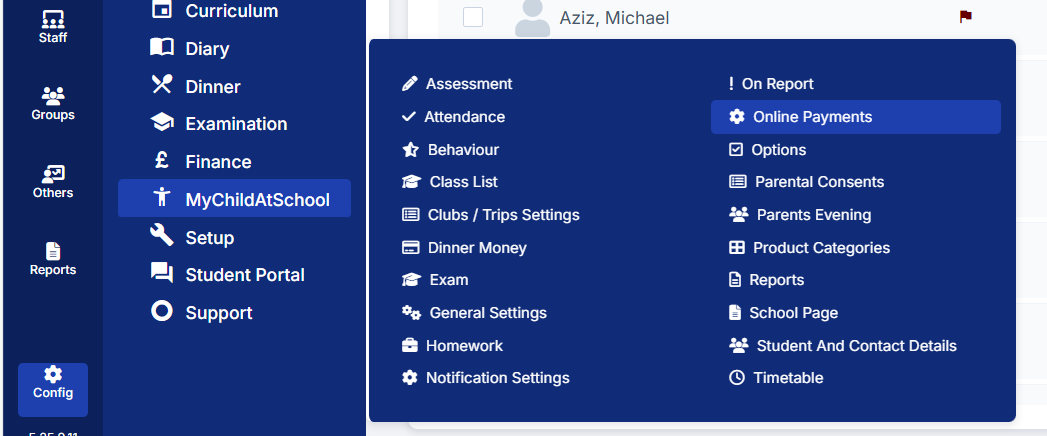
Pathway

Then scroll down to the Bank Accounts panel to see where the account selected for Dinner Money Payment can be adjusted if requested.
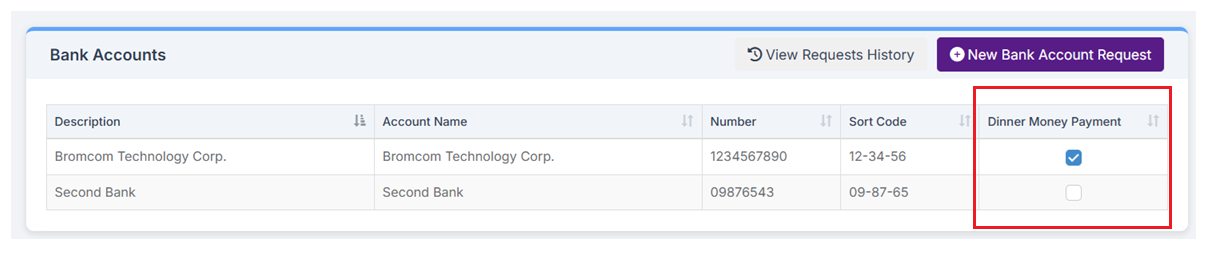
Dinner Money Tick

When Bank Rec runs, all Dinner Payments for the previous week will go to the Account that is ticked for Dinner Money Payment. If they’re swapping accounts as of a point, they’d need to swap this on a Wednesday night / Thursday early AM to ensure the payments go to the expected accounts. 

Creating New Items

Where possible we recommend a new item ( i.e. club, trip or product) is created and linked to the new bank account and the old item made inactive, as you will not be able to edit the linked bank account on an existing item. See How to Create a Club or Trip or How to Create a Product

Move Items to a New Bank Account

If however you want to move any existing items (products, clubs, or trips) to a new bank account, this will need to be requested via our Helpdesk see Bromcom Support Desk Guide

Important: Please note linked bank accounts are not set within a date range and once changed this will show as the only bank account that has ever been linked. As such any changes to bank accounts on existing items will cause all previous payment records to show as always being against the new bank account.

To request a change of Bank Account for an existing item ( products, clubs or trips) please raise a web case with the Helpdesk. This will need to contain the following information. 

  • Confirmation that you would like bank accounts changed on existing items for future payments, and you understand that this will affect how this appears historically but will not affect past payments.
  • The Account Name items are to be moved to – Please use the name format on Config > MyChildAtSchool > Online Payments, and wait until this appears under the Bank Accounts section before raising a case. 
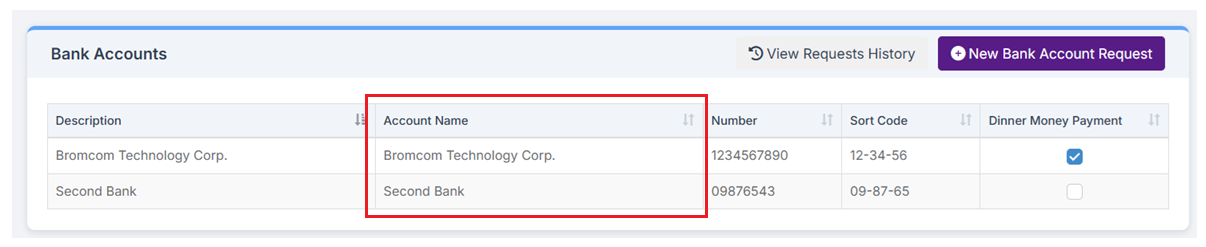
  • The Item type e.g. Club, or Product (group by type where multiple)
  • The Item Name, as it appears in Bromcom
  • If a Club include the Start Date
  • Top tip – including a group ID will make this process quicker if possible (the Group ID is visible in the web address bar). Go to Groups>select the Group>View
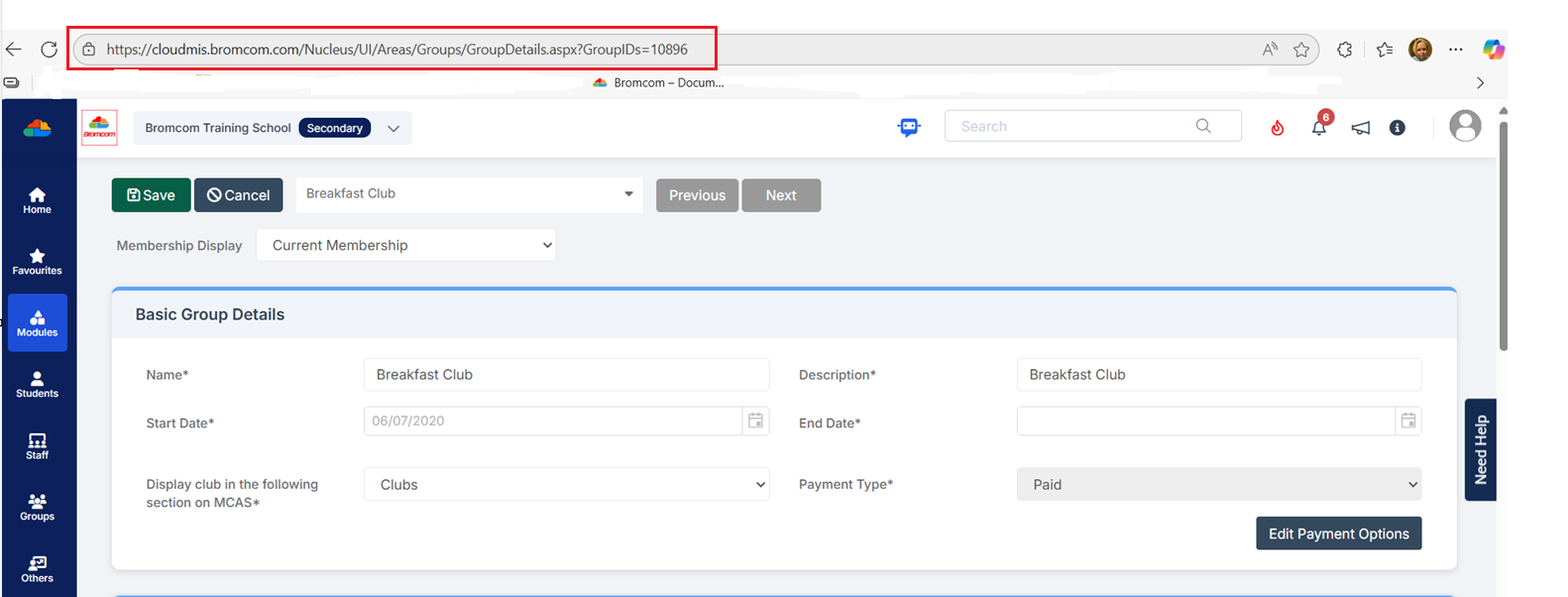
Example Group ID Web Address Example

For larger lists, a list can be exported form the Groups page using the green excel spreadsheet button in the top right. This list can then be adjusted in Excel, to only include those you wish to change, before being added as an attachment to the support case via the support website. 
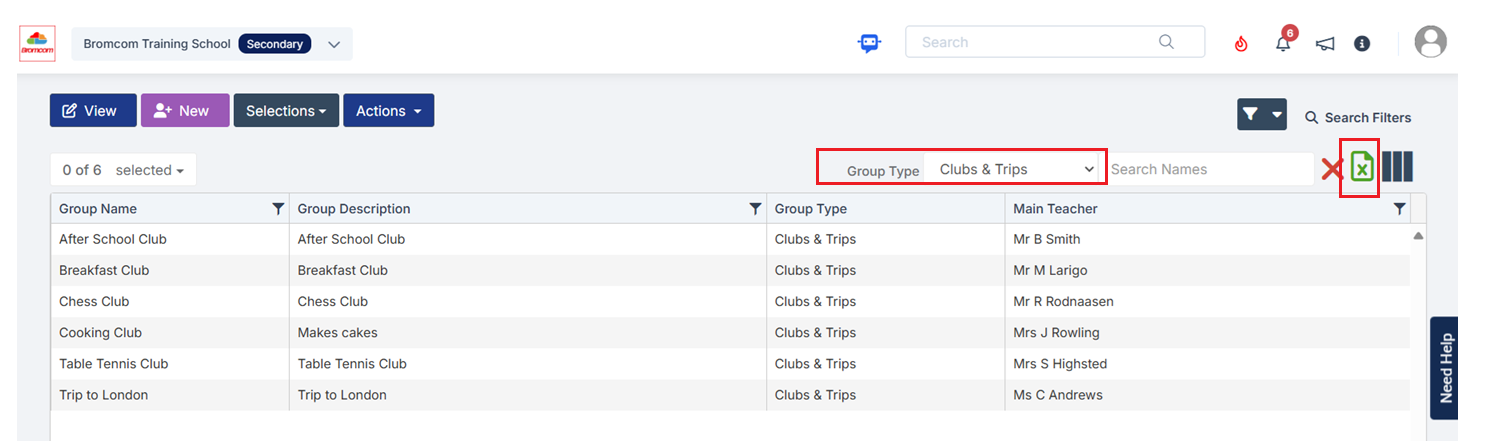
Groups>Clubs and Trips>Excel

For further guidance on raising cases see Bromcom Support Desk Guide.

Old Accounts

Old Accounts cannot currently be removed without losing all the linked information to this account.

Where this account is no longer in use, we suggest the name is changed to something that is clear that it is not to be used. Eg “St Mary’s School account” is changed to “Closed account St Mary’s School account” or “Do Not Use St Mary’s School Account”. 

This can also be requested via a web case, please raise as a different case to any about item changes. 

For further guidance on raising cases see Bromcom Support Desk Guide.

Further Guidance

How to Configure Online Payments

Online Payment FAQs

Product Categories

Updated on May 1, 2026
Tagged: Bank AccountsChange Bank AccountDinner Money PaymentDinnersPaid Clubs and TripsSchool Bank Account

Was this article helpful?

Yes No

Related Articles

  • Wraparound Care Module Guidance
  • Clubs & Trips Module Guidance
  • Online Purchases Module Guidance
  • MyChildAtSchool (MCAS) Module Guidance
  • Dinner Module Guidance
  • Setting Up a Future School Trip in The Next Academic Year
Noticed a missing guide?
Fill the form below and we will get this created.
Suggest Help Article

Related Articles

  • Wraparound Care Module Guidance
  • Clubs & Trips Module Guidance
  • Online Purchases Module Guidance
  • MyChildAtSchool (MCAS) Module Guidance
  • Dinner Module Guidance
  • Setting Up a Future School Trip in The Next Academic Year
  • How To Troubleshoot MCAS Login & Setup Issues
  • How To Add An Additional Bank Account to the MIS
  • How to Record Parents with Court Orders
  • How to Manage Historic Trip Balances
  • How to view MCAS Received Messages
  • How to manage Absence Notifications from MCAS
  • How to create a Zero Value for a Product
  • How to manage payment cards in the MCAS App
  • How To Use The Running Balance Statement Report
  • Tips on Managing Paid Clubs and Trips
  • How to Create Clubs for Specific Students.
  • How to Mark a MyChildAtSchool Order as Paid by Cash
  • Changes to our Online Payment Provider
  • How to configure Self Sign Up for parent MCAS accounts

All Modules

  • Students (52)
  • Staff (36)
  • Groups (47)
  • Others (12)
  • Administration (72)
  • Analysis (23)
  • Assessment (45)
  • Attendance (0)
  • Behaviour (28)
  • Census (185)
  • Communication (14)
  • Cover (12)
  • Curriculum (52)
  • Diary (10)
  • Dinner (13)
  • Examinations (41)
  • Finance (188)
  • MyChildAtSchool (80)
  • Reporting (47)
  • Setup (46)
  • Student Portal (29)
  • Options (1)
  • Timetable (39)
  • Vision & Power BI (48)
  • Virtual School (5)
  • For Teachers (136)
  • For Parents (45)
  • For Students (2)

Noticed a missing guide?

Fill the form below and we will get this created.
Suggest Help Article
© Copyright Bromcom.
  • Community
  • Training
  • Onboarding Guidance
  • Support Centre
  • Roadmap
  • Customer Services
  • Product Portfolio