
The Summer 2026 Census is now available to run.
This guide is designed to assist in understanding and resolving the various validation errors and queries that may occur during the generation of the School Census, conducted across Schools, Special Schools, and Pupil Referral Units in England during the 2025-26 Academic Year.
It should be used in conjunction with the guidance provided to schools by the Department for Education and covers:
- Documentation and Guidance
- Viewing School Census Errors and Queries
- Working within the Error Details Screen
Note: the screenshots included in this guide are for illustration purposes only and may differ from the view in a live school MIS.
IMPORTANT: It is the School’s responsibility to review the DfE Guidance to ensure all required information is submitted as part of the School Census Return.
Documentation and Guidance
- DfE documentation and guidance on School Census can be accessed here.
- Additional Bromcom documentation and guidance on the School Census can be accessed here.
- For detailed information on all Errors and Queries see the PDF document below:
Viewing School Census Errors and Queries
Please note: When the census file is submitted to COLLECT, additional errors may be returned, as COLLECT runs its own validation checks independently of those in the MIS.
Once a School Census Return has been generated, errors must be addressed before authorising and submitting the return.
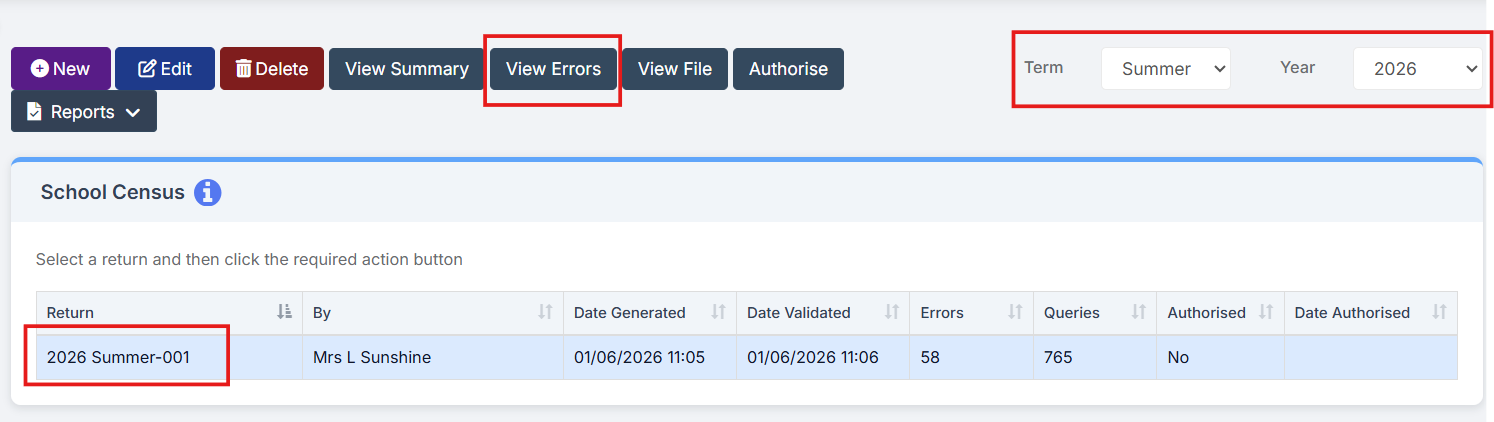
The Term and Year fields should default to the relevant Census period.

The screen will display any previously generated returns. Each return will clearly show the following information:
- Return [Name]
- [Return Created] By
- Date Generated
- Date validated
- [No. of] Errors
- [No of] Queries
- Authorised (Yes/No)
- Date Authorised

Working within the Error Details screen
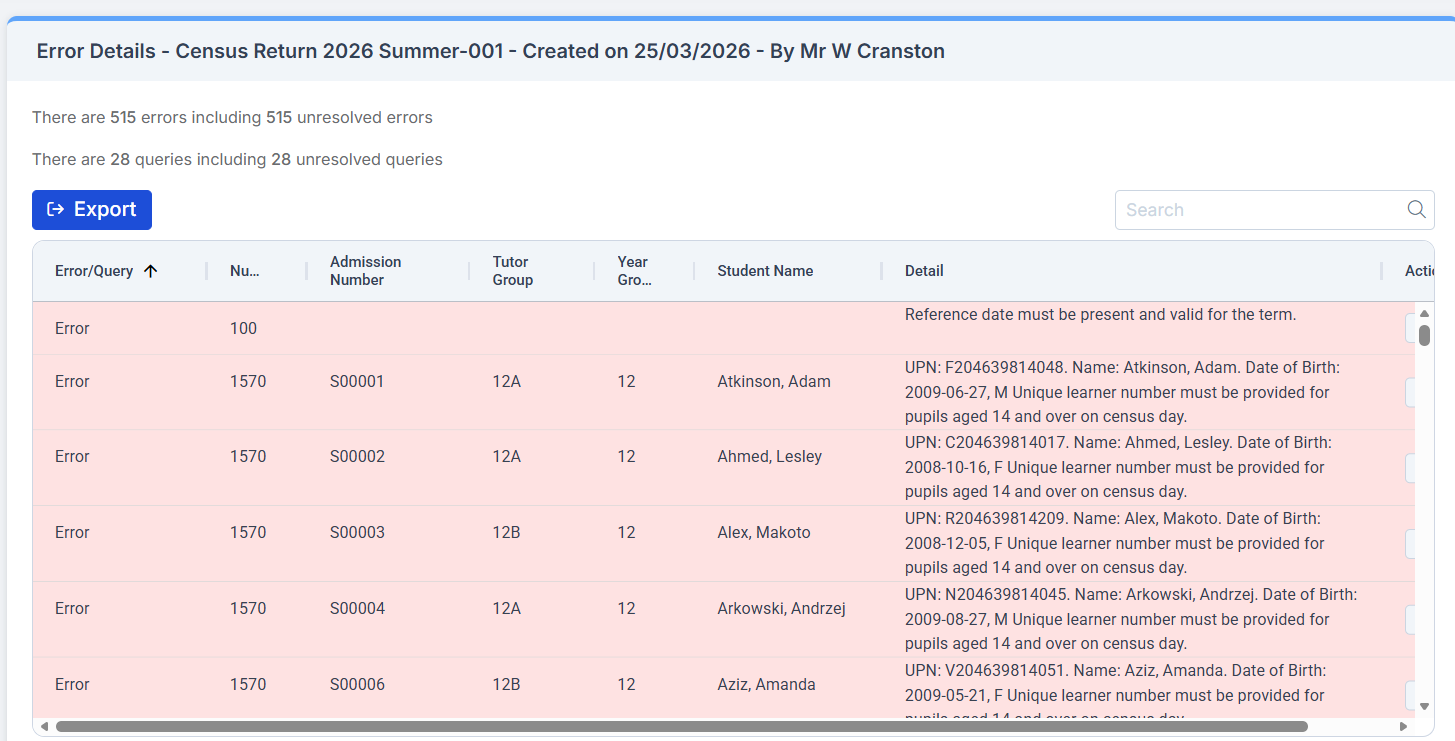
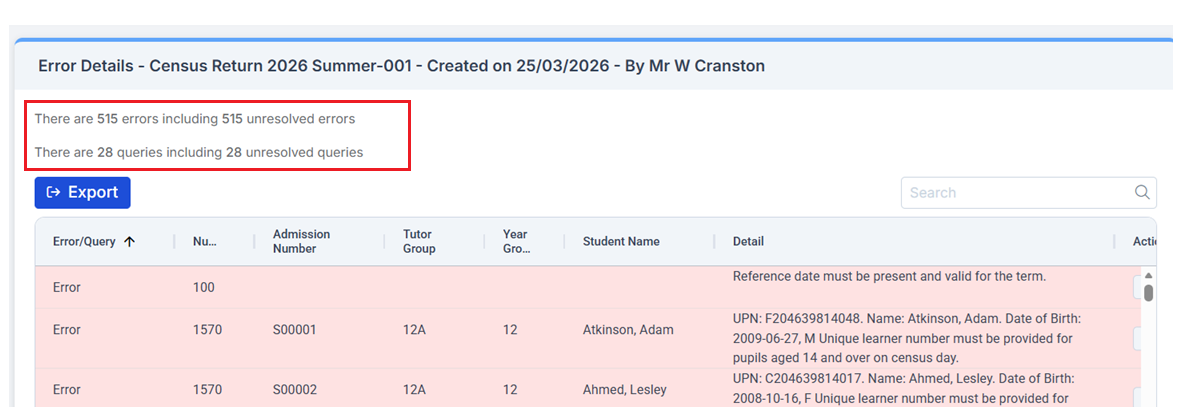
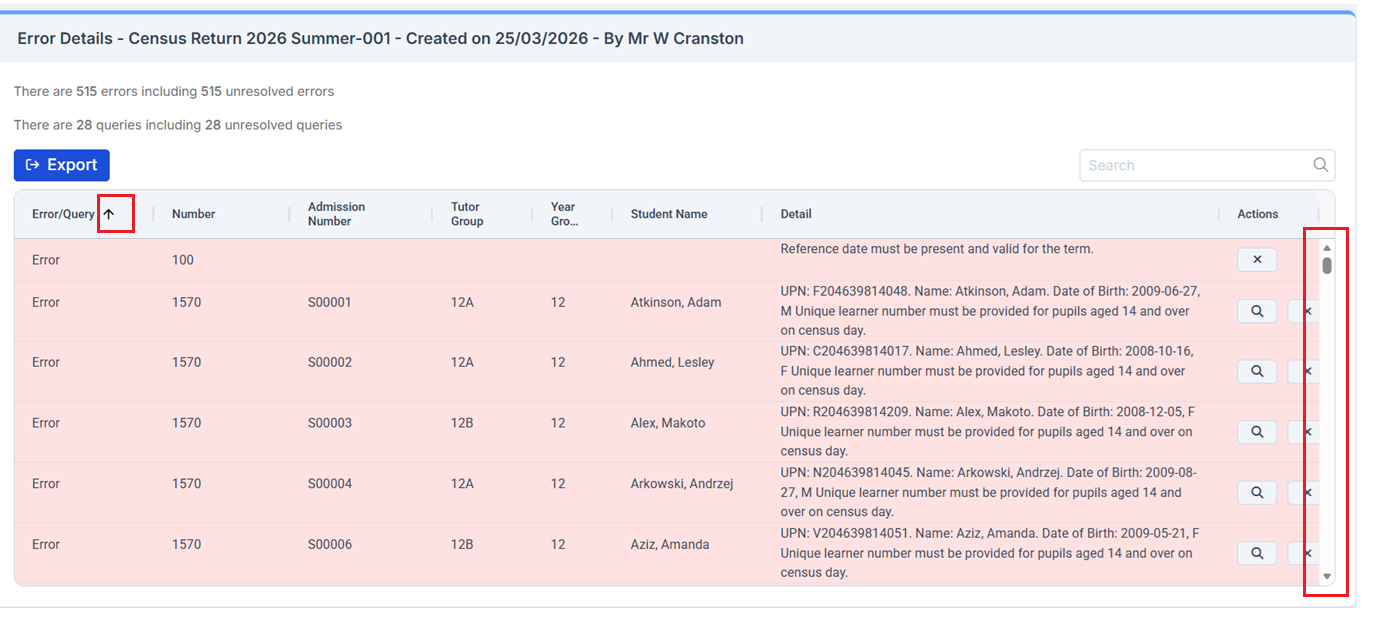
The Error Details screen consists of two main sections: the Census Return Summary and the Errors and Queries Data Grid.
The Census Return Summary area displays summary information for the selected return, most notably providing clear identification and updates of the number of currently unresolved errors and queries.
The Errors and Queries Data Grid lists each error and query individually, row by row.
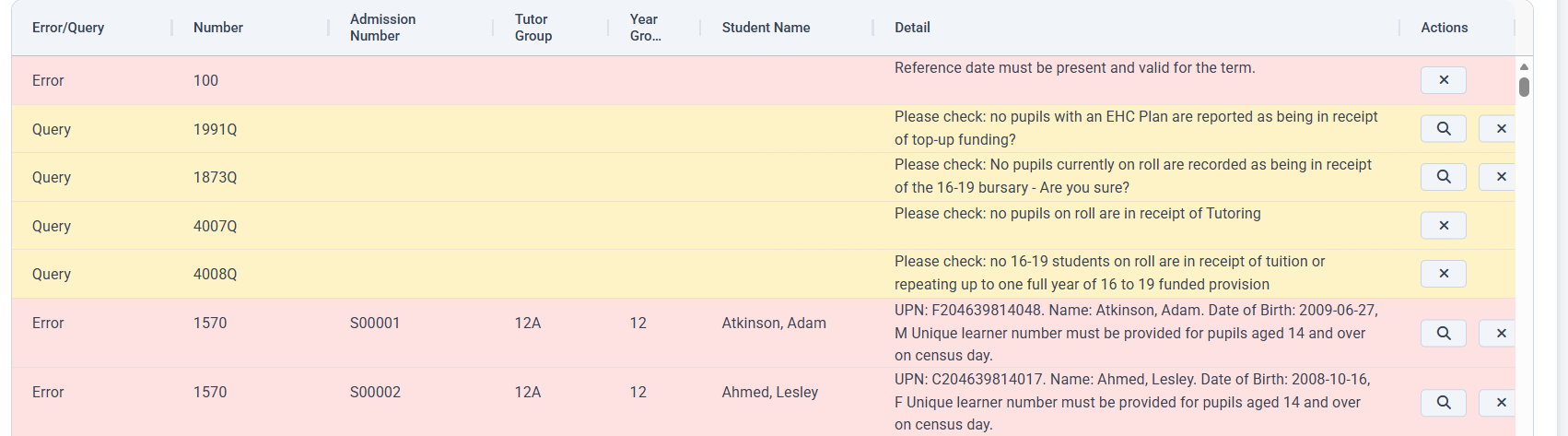
Use the scrollbar on the right to navigate through the errors. Each column can be sorted using the sort arrows located to the right of the column headers.
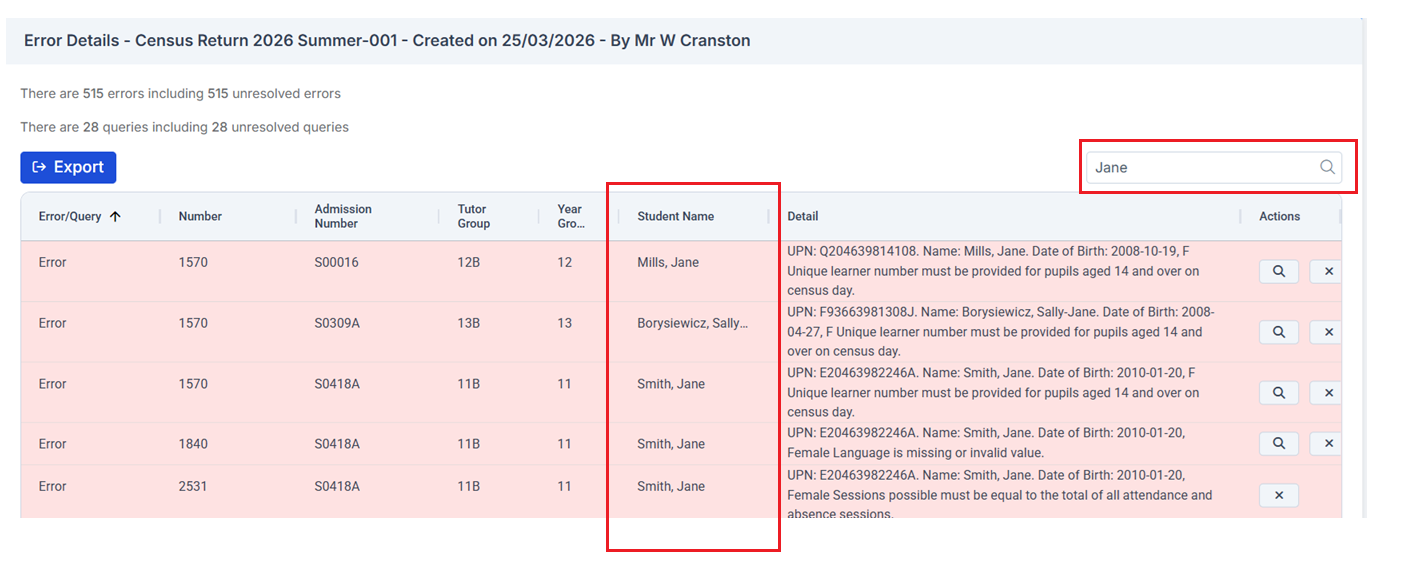
Use the search box at the top right to find items in the Data Grid. The grid updates automatically while typing, showing only matching results.
Note: Searches can be performed by Student, Tutor Group, or Error/Query Number.
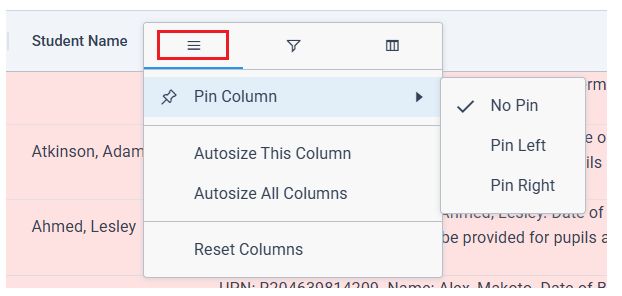
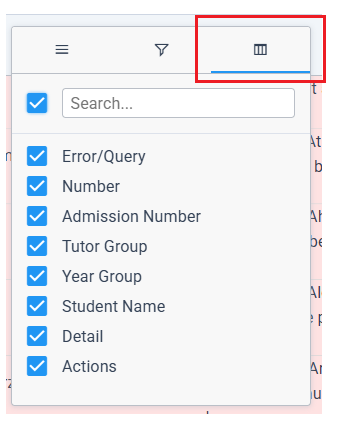
In addition, hovering over the column headers displays a menu that can be used to:
- Format the table, including pinning and resizing columns.
- Apply a custom filter
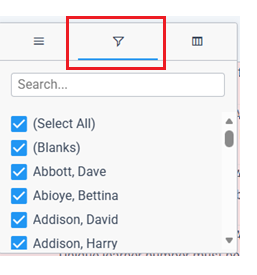
- Filter by pre-determined values
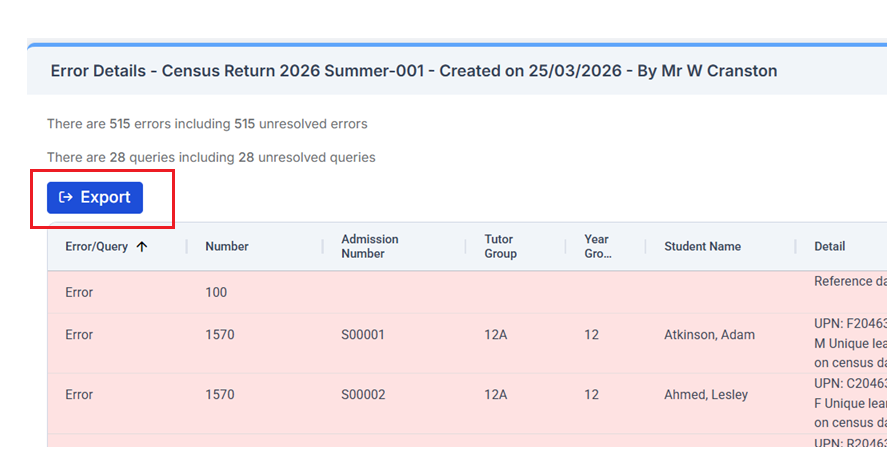
Click Export in the top-left corner to Export the grid in Excel format.
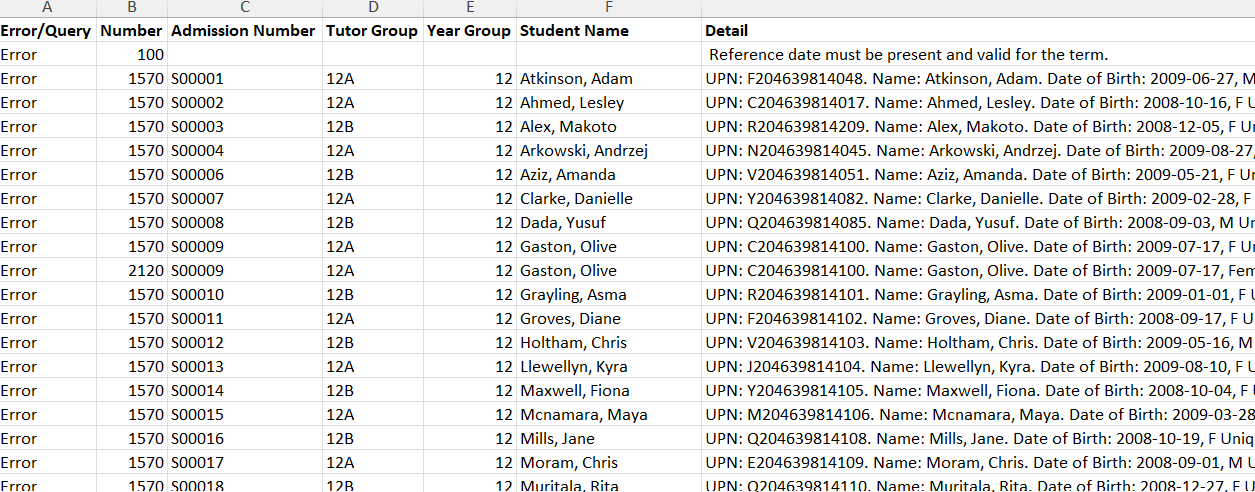
The exported file will be saved locally and is named Routines – School.
Note: the exported file will reflect any filters applied to the grid.
When dealing with the Errors/Queries shown, there are various functions in the Data Grid for easy navigation;
Visual Indicators
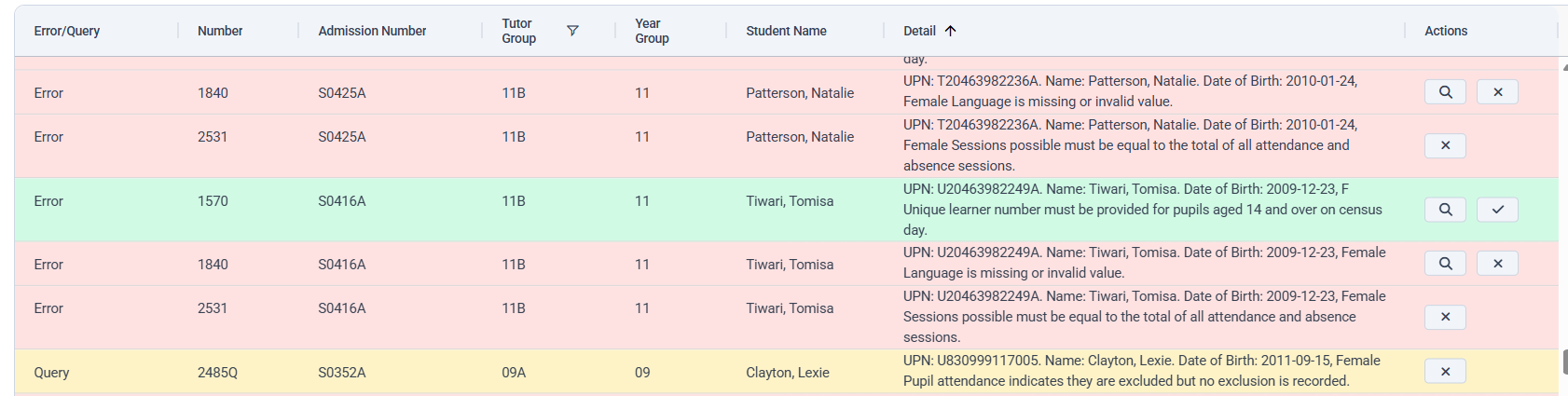
Use colours in the Data Grid for easy distinction:
- Errors are highlighted in red.
- Queries are highlighted in yellow.
- Errors and queries marked as resolved are highlighted in green.
Actions
This column has two uses:
- Clicking the magnifying glass icon next to an Error or Query will open a new tab, taking you directly to the relevant MIS page where you can address the issue
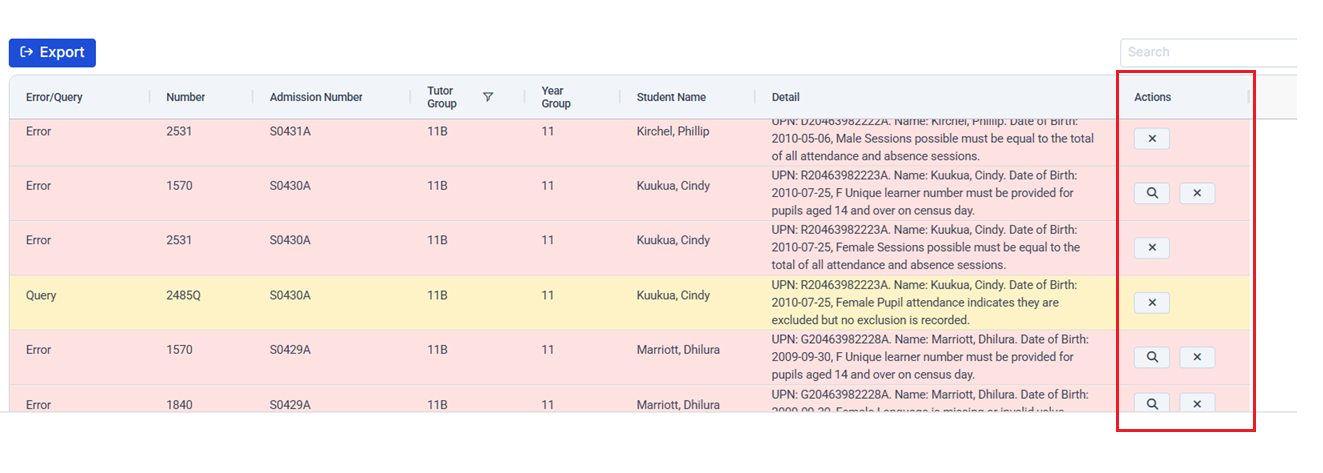
In any new window opened via the link, correct the error or query, then save any changes made and close the window.
- Mark Errors/Queries as Resolved or Unresolved (initially all will be Unresolved):
IMPORTANT: To remove resolved errors or queries from the list (and the Census File), a new Census file must be generated and validated.
It is recommended to mark each Error or Query as Resolved once it has been addressed. This helps when tracking which items still require attention.
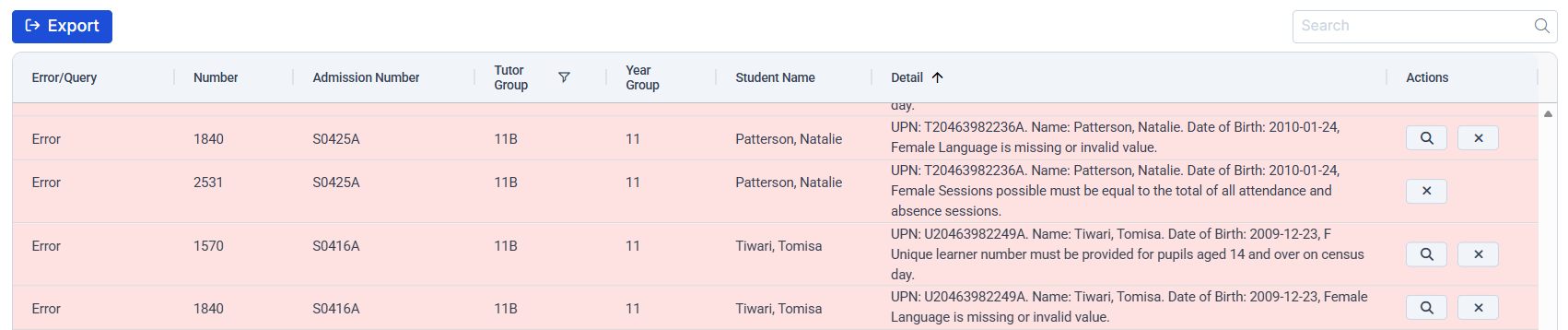
To change the Status of an Error/Query, click on the

(unresolved icon)
The Error/Query will change to the

(resolved) icon and the row will be highlighted in green.

If required, a resolved error or query can be changed back to unresolved. Simply click the tick icon again – this will toggle the status back and remove the green row highlight.
Once all errors have been resolved and any outstanding queries have been reviewed, re-run the Census to ensure the file is up to date.
The file can now be Authorised in preparation for submission. This will convert the Census file into the correct format (XML) to upload to the COLLECT website.
It is possible to have multiple authorised files, each date stamped to help identify the correct version for submission.
To export, click the View File button – this will download a copy of the Census file to the computer’s Downloads folder.
For detailed information on all Errors and Queries see here.
Individual Errors/Queries can also be searched in the Help Centre for more specific guidance.

Additionally, refer to the DFE School Census Technical Information for comprehensive validation rules and census requirement by clicking here.