
In this guide we will look at some tips for managing paid Clubs and Trips. This guidance is not relevant to Running Balance Clubs.
IMPORTANT: If you have clubs or trips with duplicate instalment plans please contact the Bromcom Support Desk, it is not advisable to attempt to rectify this issue yourself
Access: The minimum permissions required to create a Club or Trip are found in the Framework Module of Config>Setup>Roles and Permissions.

See also;
How to Manage Refunds and Duplicate or Outstanding Orders
Paid Clubs or Trips
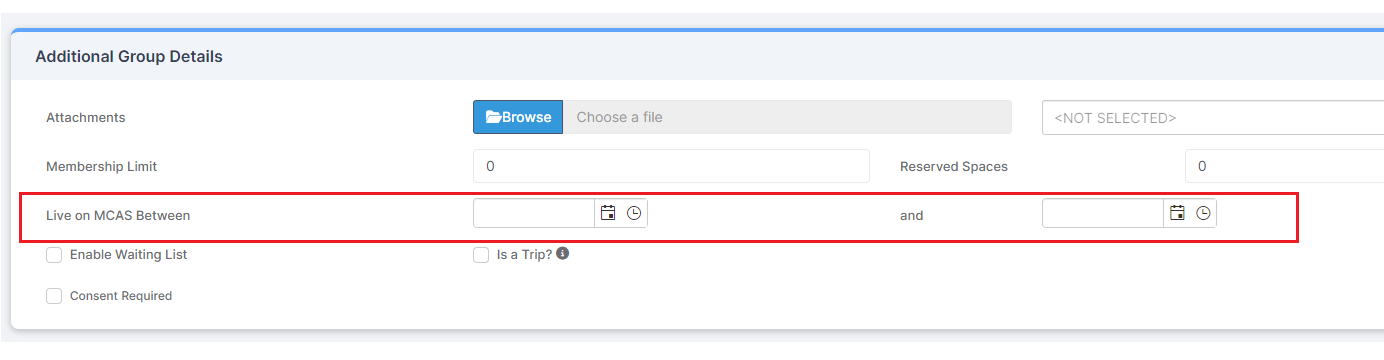
In Groups>Clubs and Trips>Select Club or Trip>View
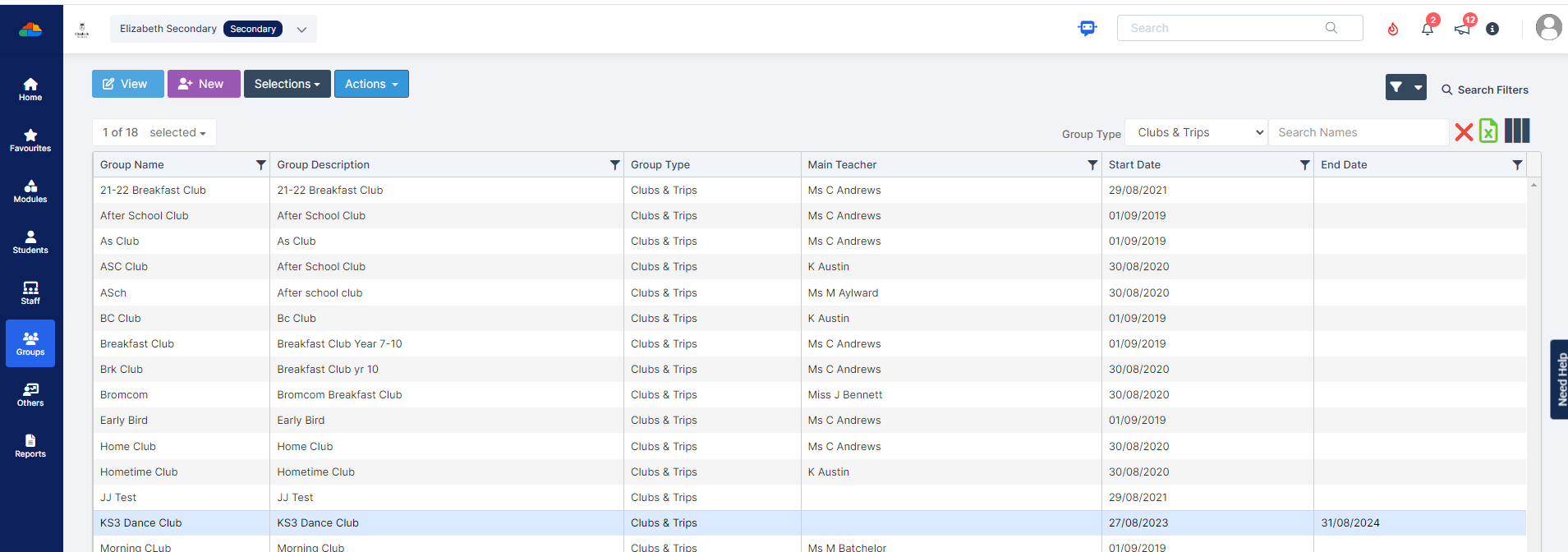
Please do not set Live on MCAS between dates until you have double checked the Payment Options are correct. Once orders are placed by parents, you may create problems by making changes to the Payment Options. You can however amend schedule dates and places/reserved places without issues.
Please do not change payment details or payment type from Edit Payment Options after the first payment has been received. Once orders are taken changes to the payments will only be for new orders. Looking over payments may prove difficult if there are differences in payments types.
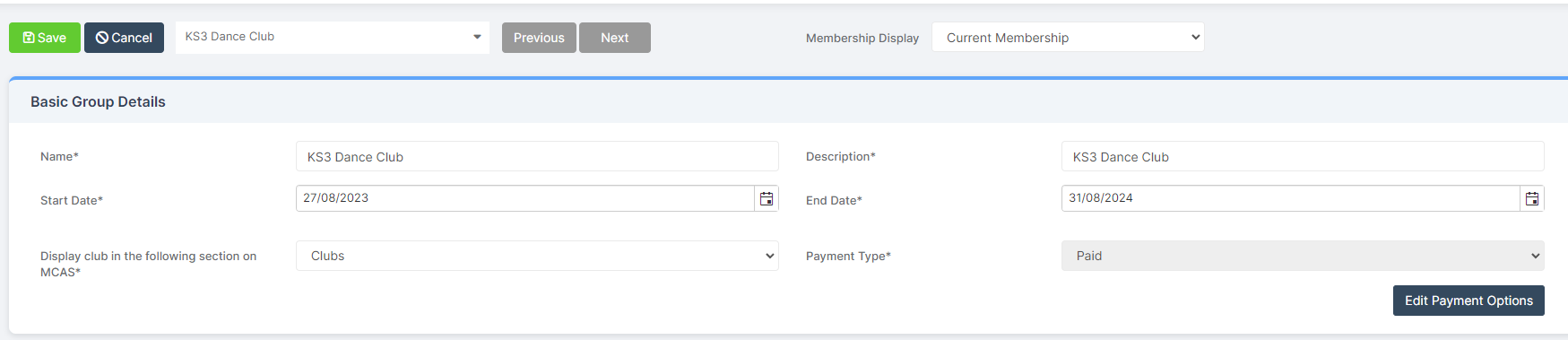
Please do not add students via Student Memberships There is too much scope for getting the orders wrong which may results in incorrect charge amounts.

Adding a Student
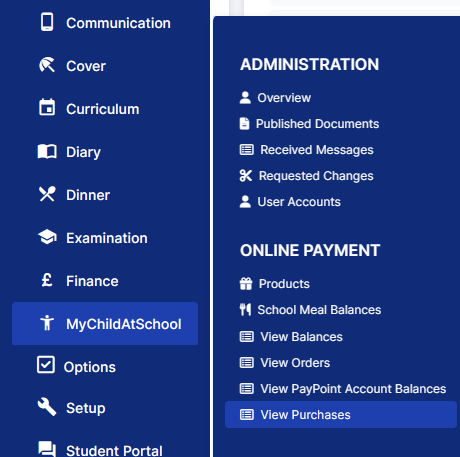
Go to Modules>MCAS>View Purchases
First select the Club or Trip and then click View to check if the Student has already been added.
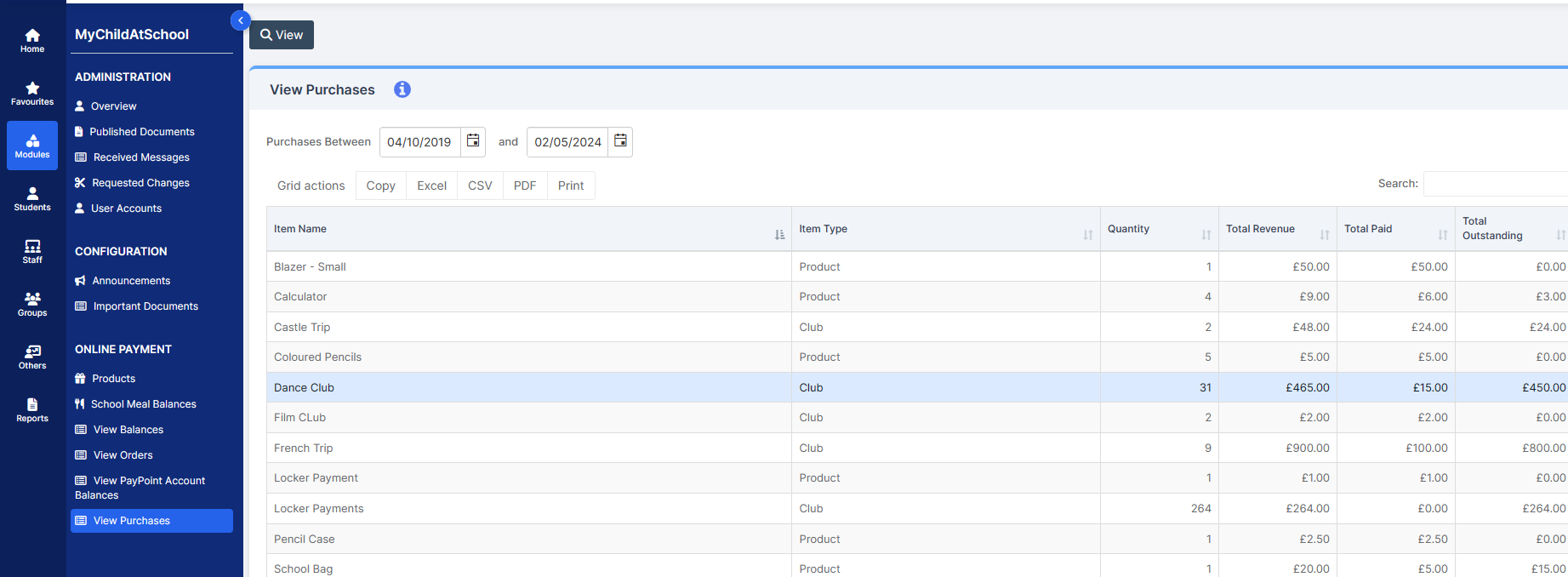
Then simply click on a Student name in the View Assigned People list.
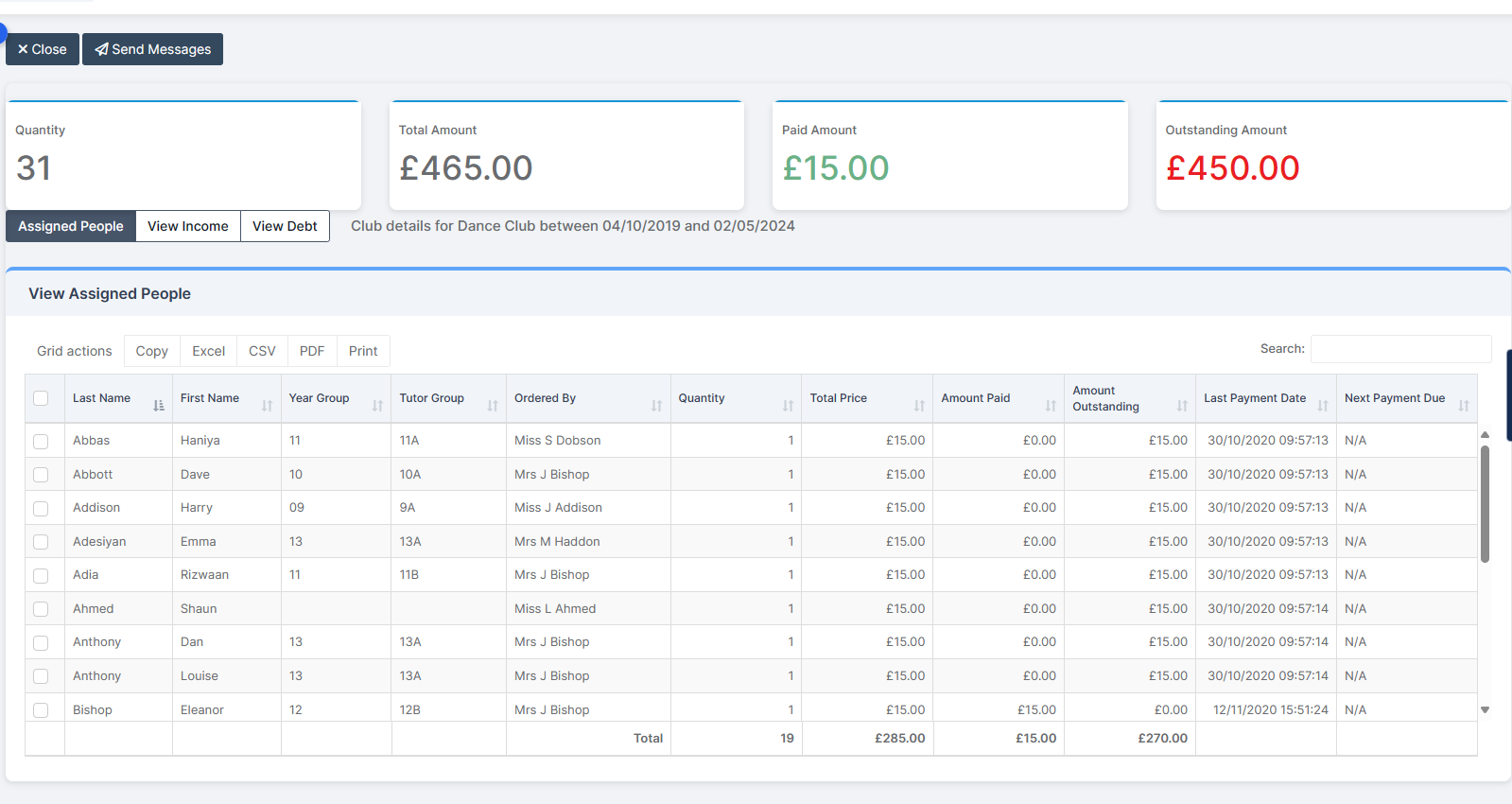
Check for any existing orders and if there is no outstanding order for the required payment, you can Create an Order by following the guidance in How to Create Orders
If there is an outstanding (unpaid) order, then make a note of the order number then open the order in Modules>MCAS>View Orders and follow the guidance in Paying an Outstanding Order
Removing a Student
Do not remove the Student from Student Memberships within Groups>View>Student Memberships until you have dealt with any Orders first.
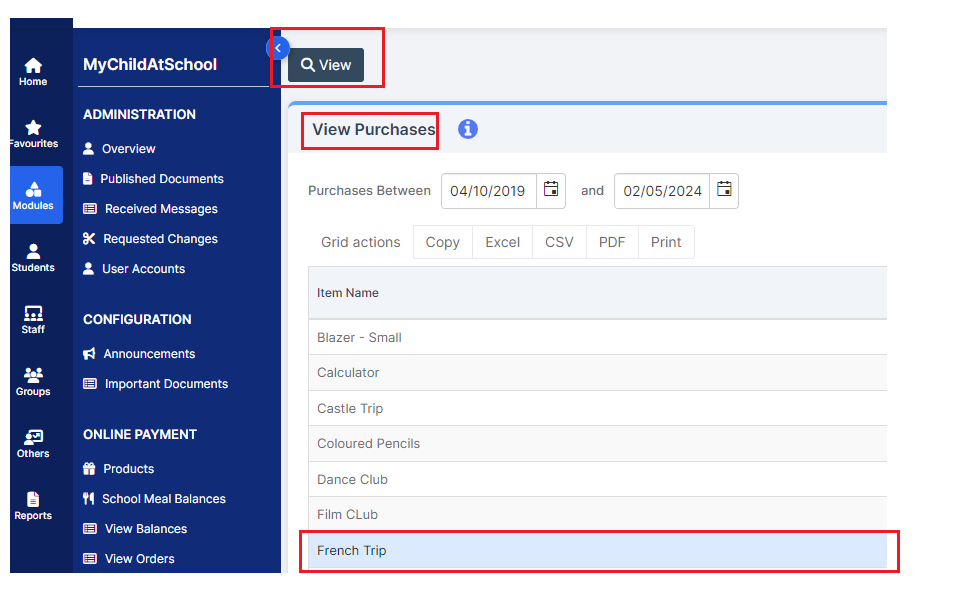
Go to Modules > MCAS > View Purchases. Select the required Club or Trip>View
Then click on the required Student. Make a note of all Order Numbers.
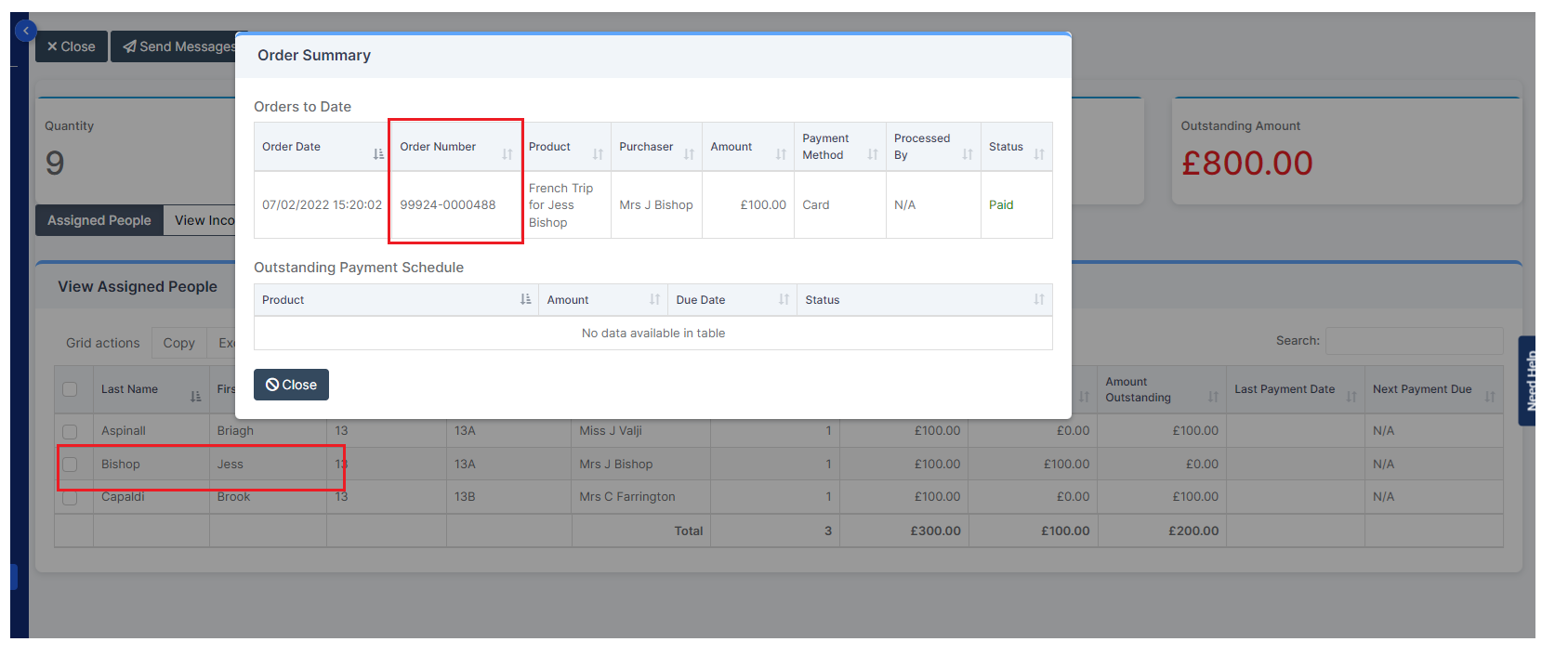
Then go to Modules > MCAS > View Orders and follow the guidance in How to manage refunds and orders