
This page contains guidance on completing the End of Year processes in Bromcom for Virtual Schools – Partner School.
For further information, for the Virtual End of Year – Virtual Schools process, see here.
If you have any issues or queries, please do not hesitate to contact the usual Support Channels.
THE SCREENSHOTS USED IN THE GUIDE ARE FOR ILLUSTRATION PURPOSES ONLY AND MAY DIFFER IN A LIVE SCHOOL’S MIS.
- Expand each item for guidance on completing the relevant tasks for that area of Bromcom.
- To print this as a checklist, click ‘Collapse All’ (button on the right), then right-click the page and select ‘Print’.
- To print this as a full guide, click ‘Expand All‘, then right-click the page and select ‘Print‘.
End of Year Tasks
Unlike the standard school End of Year process there are elements of this procedure that require the Partner school to have completed their End of Year procedure first. These elements will be noted within the text. The remainder of this procedure can be undertaken at any point in the current academic year, but it is best to wait until the information being entered is no longer subject to changes.
The screenshots and examples in this guide are for illustration purposes only and may differ from your school view.
For any issues or queries regarding the processes in this guide, please do not hesitate to contact the usual Support Channels.
There is no End of Year application to be run as such. The procedure consists of creating and configuring the various curriculum and calendar components that make up the forthcoming academic school year. Follow all the steps appropriate for your schools system, in sequence
For the End of Year
- It is recommended to first tidy up the current Academic Year. Check with colleagues at each Partner school to determine when they plan to run their own End of Year.
Access
- Make sure that person responsible for the process has the correct access rights to all the relevant menu items – an Administrator will have access by default.
Interval setting for the End-of-Year
Set ‘Current Interval’ (on the ‘My Account’ Page) to ‘Nucleus’, this setting gives access to all Academic Years including the new one once created. To change this setting, click on the picture in the top right of Bromcom and then click on My Account in the drop down menu.

Then in the General tab from the Current Interval dropdown select Nucleus

Click top left Save

IMPORTANT : Only complete this section if planning to use a Different Period Structure next year e.g., the school is changing the shape of the school day or moving to a 2-week timetable, etc. Otherwise, skip this step and continue to Creating a New Academic Year
- If changing the period structure on the Virtual school remember that a structure must be designed that will allow the mapping of each Partner schools data.
- Following this change, please remember to undergo the mapping process for each of the Partner schools.
- If using detentions management option and a new period structure is created it is then necessary to setup the detention scheduling for the new academic year. See the section in this guide on Reset Behaviour.
- Ensure that a logon is being used that has the Administrator Role.
Go to Config> Curriculum > Configurations.

Check the Defaults for Period Durations and if necessary, adjust them.
- Setting the correct defaults will make it much quicker to create the new period structure later.
- Set the default durations of the new period structure: AM, PM, and Class Periods.
Click Save
- Don’t worry – Any changes made on this screen will not affect the current year’s data.
- The ‘Class Duration’ refers to the length of the period and the ‘Max Class Duration’ refers to the maximum length a period can be.
- For example, each period of the day may have a duration of 40 minutes, but the last period on Friday may be 50 minutes. Therefore, the Class Duration would be 40 and the Max Class Duration 60 allowing for a period up to 60 minutes.

Next navigate to Config> Curriculum > Period Structures.

Click New.

Enter a Period Structure Name, which must be unique, for example “1 Week 6 Period”

- Set the start time for the Morning and Afternoon Begins ; this will be the time the first session of the morning and afternoon begins. This will usually be the AM and PM registration sessions, where AM and or PM registers are not used, it will be the first period of the morning and the first of the afternoon.
- Set the No of weeks that will exist in the timetable cycle for example; a 10-day timetable cycle that runs Monday-Friday is a 2-week cycle (Monday to Friday week 1, followed by Monday to Friday week 2).
- A 1 week cycle that runs Monday-Friday is 1 week and 5 days in the timetable cycle.
- After selecting the number of weeks put a tick in the boxes of the days that are part of the cycle.
- For a multi week cycle, be sure to check the boxes for the days of the week that are to be Academic Days in the extra weeks.
- Enter the number of days in the timetable cycle
- The Days in timetable cycle box should usually contain the value of the number of Academic days in the timetable cycle as defined above (e.g., 5 in the example above). It can sometimes be different so if in doubt of what to put in this field then please contact the usual Support Channels.
- The Available From date is the date from when it is first possible to use it within an Academic Calendar. If performing End of Year Process before the start of your new Academic Year then just leave it as today’s date (It will not affect the current Academic Calendar), otherwise ensure the Available From date is before the start date of your new Academic Calendar.
Click Next
The Create Timetable Day Structure screen is used to create the actual period structure of the day. AM position and duration, number of morning sessions, PM position location, Lunches, Breaks etc.

Click the Add button to increase the number of available periods
Use the Period Type drop down to select the type of period, AM,PM,TP.
Please Note; new periods will default to TP (Teaching Period). Edit the start and end times if required but please bear in mind that the times must not overlap.
- RECOMMENDED! Please define Breaks (BR), Lunch (LU), Pre-School (PS) and After School sessions (AS). These are needed to schedule detentions outside normal teaching periods (e.g., after school) or to timetable a teacher to do lunchtime duty.
- Please remember to adhere to the AM, PM Period durations as defined on Defaults for Period Durations. As well as the morning and afternoon begins session start times from Create Period Structure
- Even though the AM and PM sessions are not recorded at the Virtual school it is good practise to leave them in place. If in doubt, please contact the usual Support channels for advice before proceeding further.
- If selected the top right checkbox Copy Settings to all days of the Timetable Cycle the completed day is then copied to all the days in the Timetable Cycle.
- If one day of the cycle is different e.g., finish early on a Friday for Staff Meetings, then amend the appropriate days (Day 5 and 10 in this case as we have a 2 Week Timetable), making sure that the Copy Settings to All Days of the Timetable Cycle box is unticked and click on SAVE again.
- If the settings are incorrect, the system will display a warning in red. Make the appropriate amendments and click Save again.
When no warnings are displayed, click Save
For more information see How to Create a Period Structure
| If changes have been made to the period structure, then please check to ensure all the parameters under Attendance > Maintenance > Register Update Parameters are still valid. For instance, it would be difficult to update the PM register from Period 5 if the period structure has changed such that there is no longer a Period 5. See How to use Register Update Parameters |
The current academic year will expire on or around the end of August/beginning of September. To ensure that the system continues to run smoothly it is important that you define the New Academic Year.
This section can be executed independently of the Partner schools.
Access: The minimum permissions required to access the Academic Year page is found under Config > Setup > Roles and Permissions > Curriculum.

Navigate to Config > Curriculum > Academic Years.

Click New

The system will automatically generate a Start and End Date for this new Academic Year based on your previous Academic Year (if there was one).
- Note: The system requires the Start Date to be a Sunday and the End Date to be a Saturday, regardless of the Real Start and Finish days.
- Select the Number of Terms for the Academic Year.
- Amend the Term Names as required
- Complete the each of the Term Start Dates and End Dates as required by clicking on the Calendar icon.
- IMPORTANT: To ensure smooth system functionality, it’s best to set up the school terms so that each one starts immediately after the previous one ends. Any holiday days should be added to the Academic Days setup. This setup helps maintain access to certain system features while Students are not in school, allowing adjustments to be made when needed.
- Select the Period Structure from the dropdown and set the Timetable Day for the First Week Day of Term 1 to 1. This will usually be blank for Primary schools.
- If needed use the Colour Code to differentiate between different Period Structures.

When complete click Create
IMPORTANT: This step is required for all users that use Teaching Periods in their Period Structure. If this step is not completed, none of the expected automatic updates of AM/PM attendance from other periods will occur. Therefore, it is imperative that it is finished in its entirety.
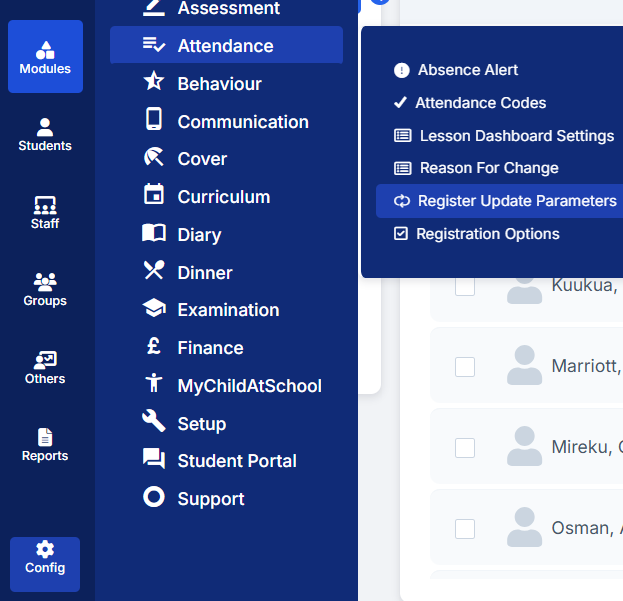
Go to Config > Attendance > Register Update Parameters.
This step involves selecting the range of dates for which the new settings will apply.
Select Multiple Dates and then set Academic Start and Academic End as the dates for the new Academic Year.
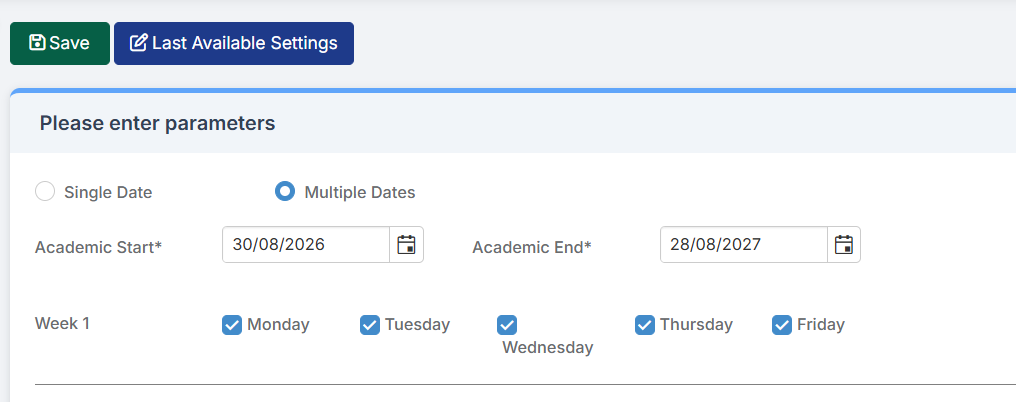
If the forthcoming academic year’s structure closely resembles the current (or previous) year’s structure, simply click on the Last Available Settings button at the top left of the screen and then click on Save
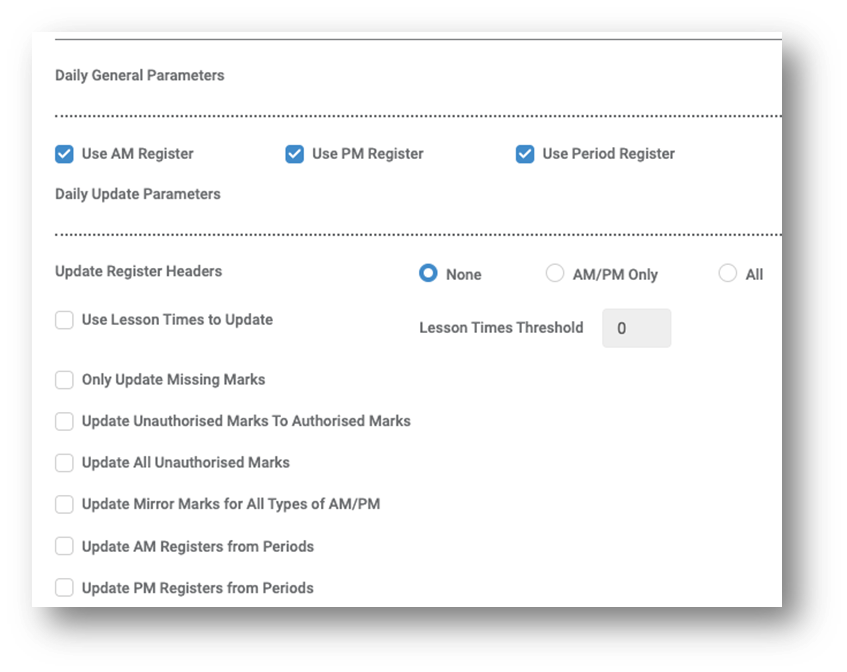
IMPORTANT : If changing the period/time structure for the new academic year, this screen requires careful configuration. It is recommended to contact the usual support channels for assistance with configuring these additional options.
Ignore the “Warning: Inconsistent data found in database” message. This will disappear once the parameters for the new academic year have been set up. If it does not, contact the usual support channels.
Once satisfied with any changes, click SAVE. Please contact the usual support channels if unsure at this point.)
This section looks at changes to curriculum information. For example; Year Groups, Subjects, Departments, Faculties, Houses, Learning Aims etc.
Most of this information will be created automatically when re-activating the link between virtual and partner schools. However, it is still worth double checking to ensure that any expiring subjects or groups are managed.
If there are changes to these settings then skip to the next section
Subjects, Departments and Faculties
These will normally continue through from year to year. If any are not in use for the next year, they can be given an End Date using Groups>select the relevant Group> View>Basic Group Details>End Date
Click Save if making any changes.

Memberships of staff and Subjects to Departments, and Departments to Faculties can also be amended to reflect the situation for next year otherwise they continue through unchanged so long as there are no end dates applied e.g., if a member of staff leaves and this sets an end date to all their memberships.
Add any NEW items as required with a start date of the beginning of the new academic year.
IMPORTANT: In all instances, please remember to double check any entered Start or End dates to ensure that they correctly match the appropriate dates from either the current year (in the case of items being ended) or the forthcoming Academic year (in the case of new items being added).
Student Learning Aims
Student Learning Aims are managed on the virtual school record. Those that are continuing from the current Academic Year to the New Academic Year can be left alone as they will continue with the Student into the New Academic Year.
If a course is ending, then the related Student Learning Aims also need to be ended. This can be done through Modules>Curriculum>Bulk Learning Aim Update

Choose to update the Learning Aims by Student, Class, or Learning Aim.
Once selections have been made, click Apply.

The next page will show all the Students selected with ALL their related Learning Aims

Then select the Learning Aims for the Students that need an End Date added by clicking on the lines that need updating and enter the relevant End Date and Status in the boxes above the Column Headers, then click Apply to apply the End Date and Status to the selected Learning Aims.

Click Save
Repeat this process for any Learning Aims that need to have a different Status or different End Date applied. For assistance with this process please contact the usual Support Channels
Click Save
For more information see How to use Bulk Learning Aim Updates
If using Behaviour, please continue to the next section. Otherwise, please proceed to Promoting Tutor groups.
IMPORTANT : Resetting and reconfiguration of Behaviour is only required if using Behaviour and the setup is changing in the forthcoming year (this includes removing or adding new Events or Actions), otherwise skip this step and go straight to Promoting Year Groups
If the Behaviour setup requires changing for the forthcoming academic year, or if student point totals need to be reset before the start of the new term, complete this optional section.
- If Behaviour is being used in the Virtual School, ensure the model matches the base school(s) model(s).
- Only the Behaviour Events defined on the Virtual School should be amended or adjusted. Each partner school will continue to manage its own individual site’s Behaviour structure.
- Any Behaviour Events or Actions on the current system that will not be used in the forthcoming academic year should be expired within the Behaviour module.
Behaviour Actions and Events can be ended through:
- Config > Behaviour > Actions
- Config > Behaviour > Events
Select the Events or Actions no longer required and click Expire.

After this, set up the new Behaviour Pathways following the standard instructions.
IMPORTANT: If using Actions then starting new points totals is extremely important; If not completed, then all of next year’s points will simply be added to the current year’s points’ totals
To start new student totals:
- Go to Modules > Behaviour > Reset Student Actions
- Select Start New Points Total
- In Day Start enter the date the new totals should begin from (most likely the first Sunday of the new academic year)

To apply new point totals to all students and actions:
- Choose All Students
- Click the blue Find icon next to Action Name and select all Actions
- Click Apply

To apply new point totals to selected students or actions:
- Click Students, then use the blue Find icon to open the Student Selector List
- Select the required students
- Use the blue Find icon on Action Name to open the Action List
- Select the required actions
- Click Apply

A Confirmation message will appear. Click Proceed to continue.

For more information see How to Reset Student Actions
Important : There is no need to promote ‘vertical’ tutor groups, they continue unchanged apart from students leaving and joining the school.
Go to Config > Curriculum > Tutor Group Promotion
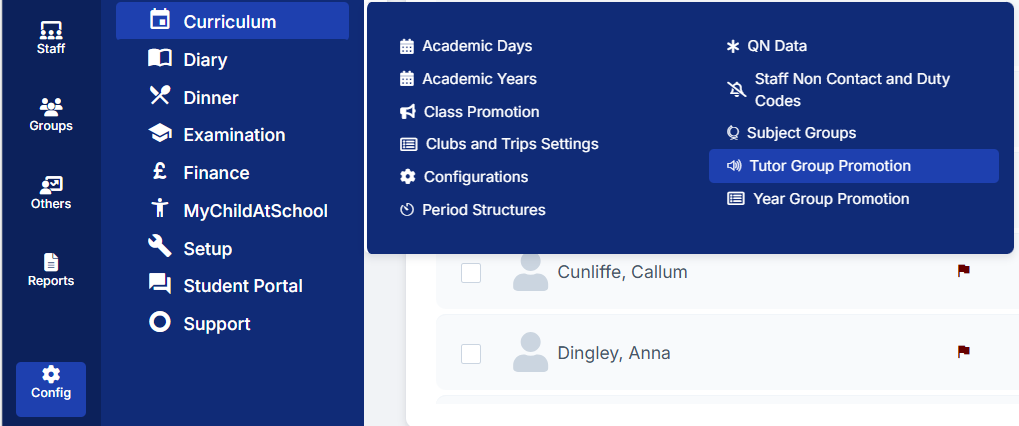
First, select the current Tutor Groups by clicking the blue spy glass to open the Group Selector list.
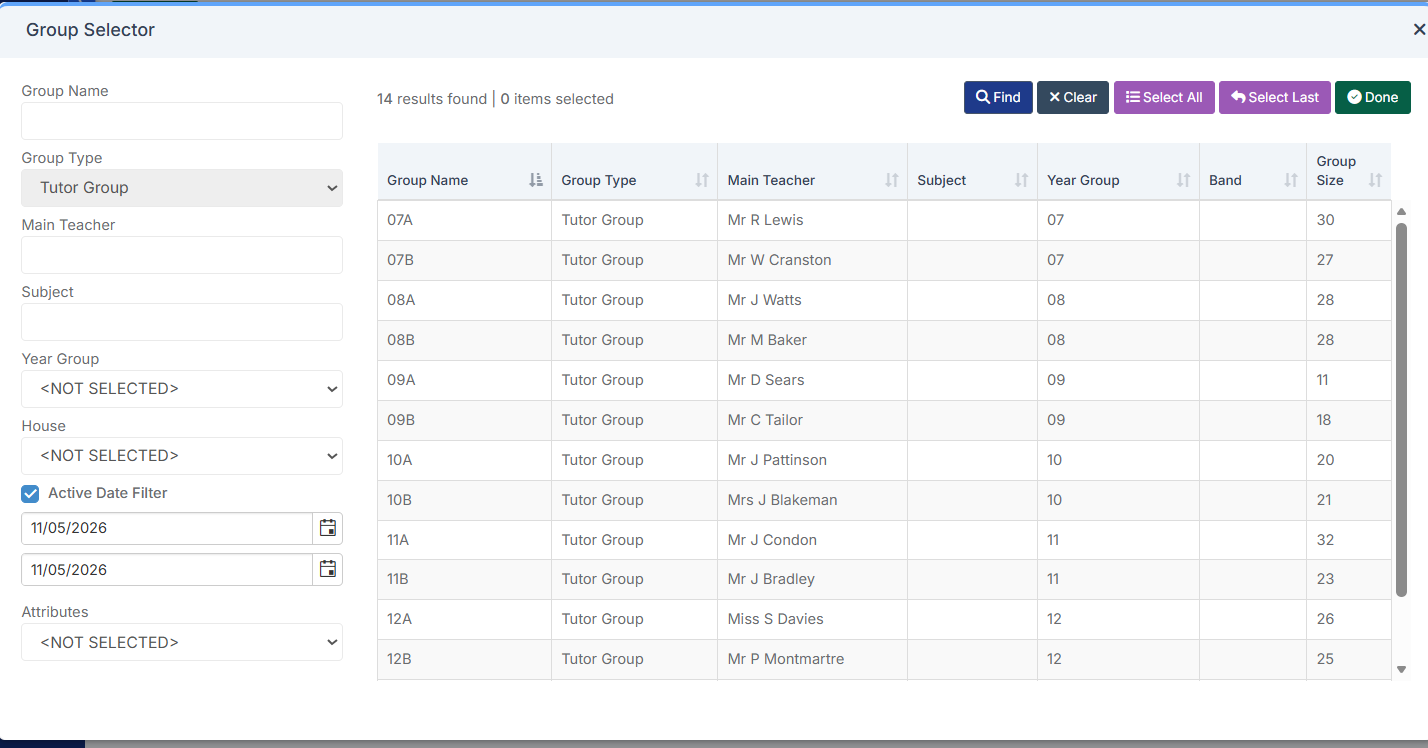
Click to choose the required Tutor Groups.
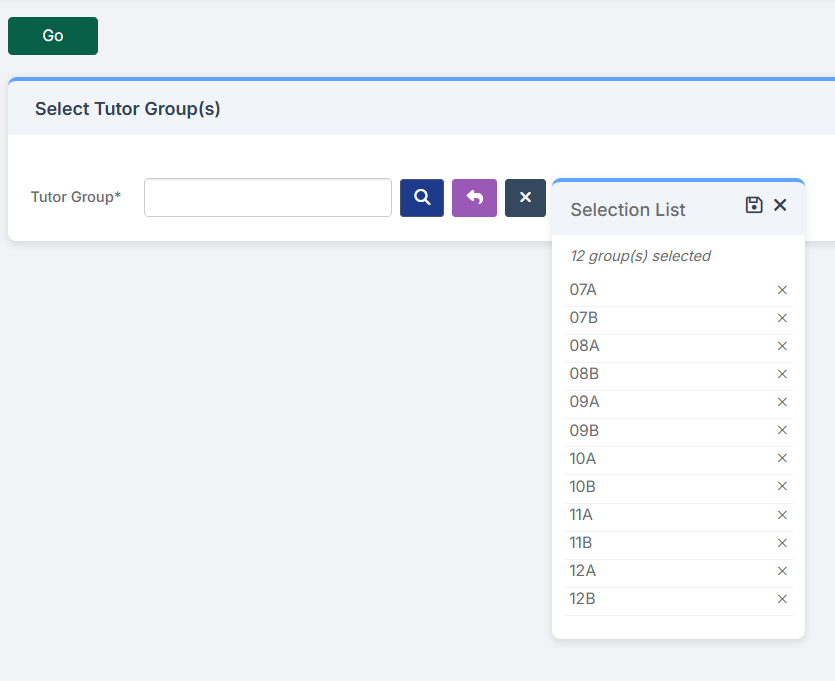
After selecting the Tutor Groups now visible in the Selection List, click Go.
Select the Tutor Groups to be promoted and click the Generate button for the system to suggest a name, this name will show in the Next Tutor Group column
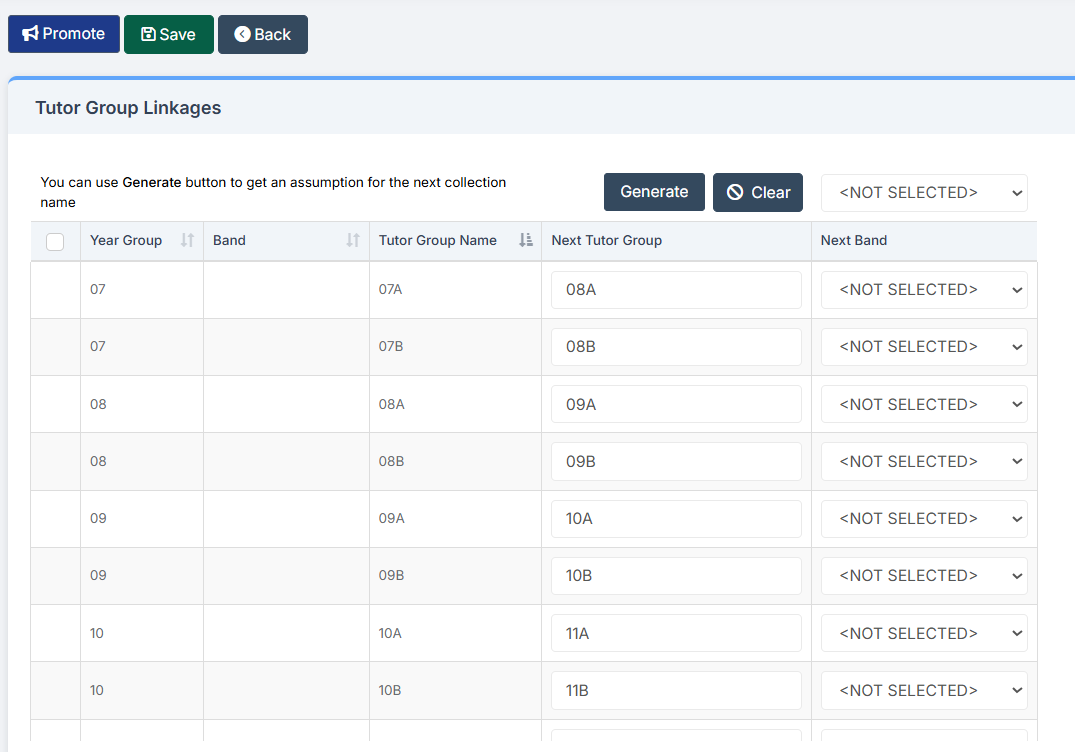
Remember: The linkages can be saved and the promotion completed later if any changes still need confirmation from senior colleagues.
Group names can also be edited after the groups have been created.
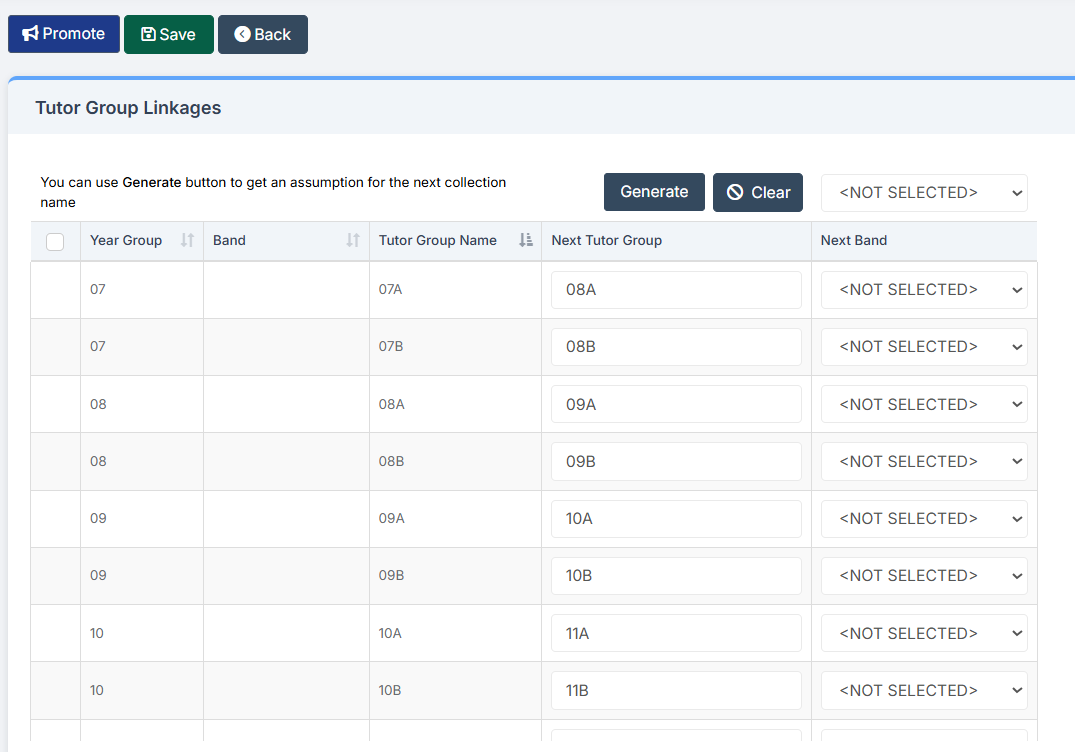
Alternatively, click the required Tutor Groups and click Promote.
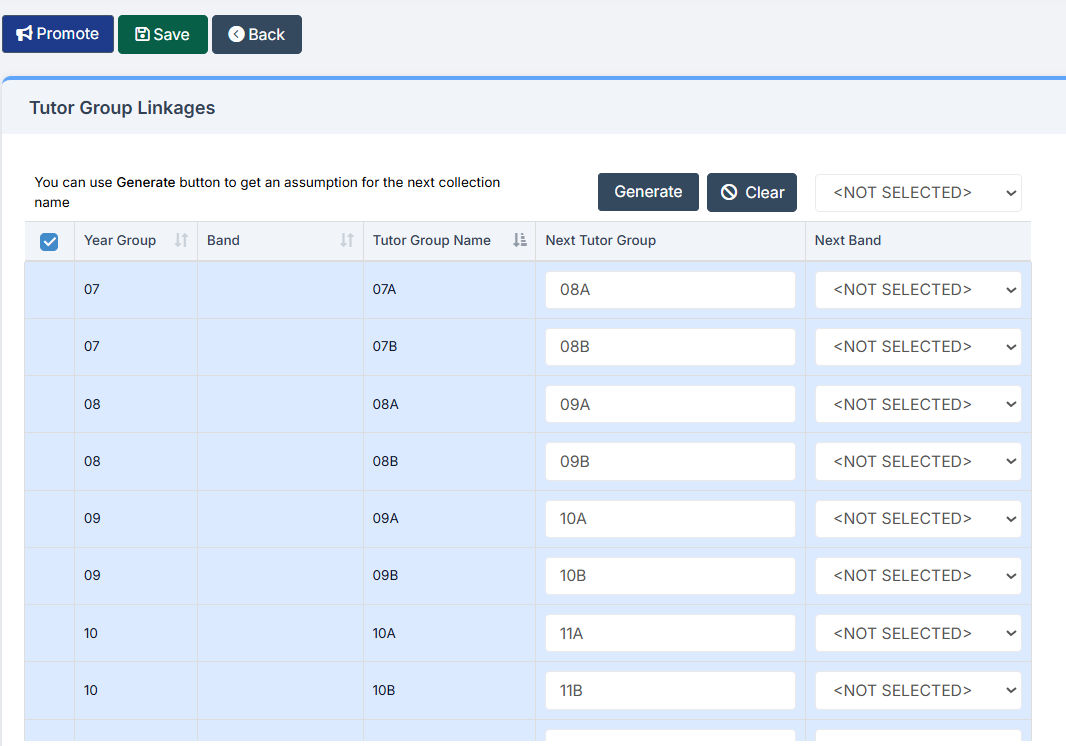
The Tutor Group promotion page appears as shown in the example.
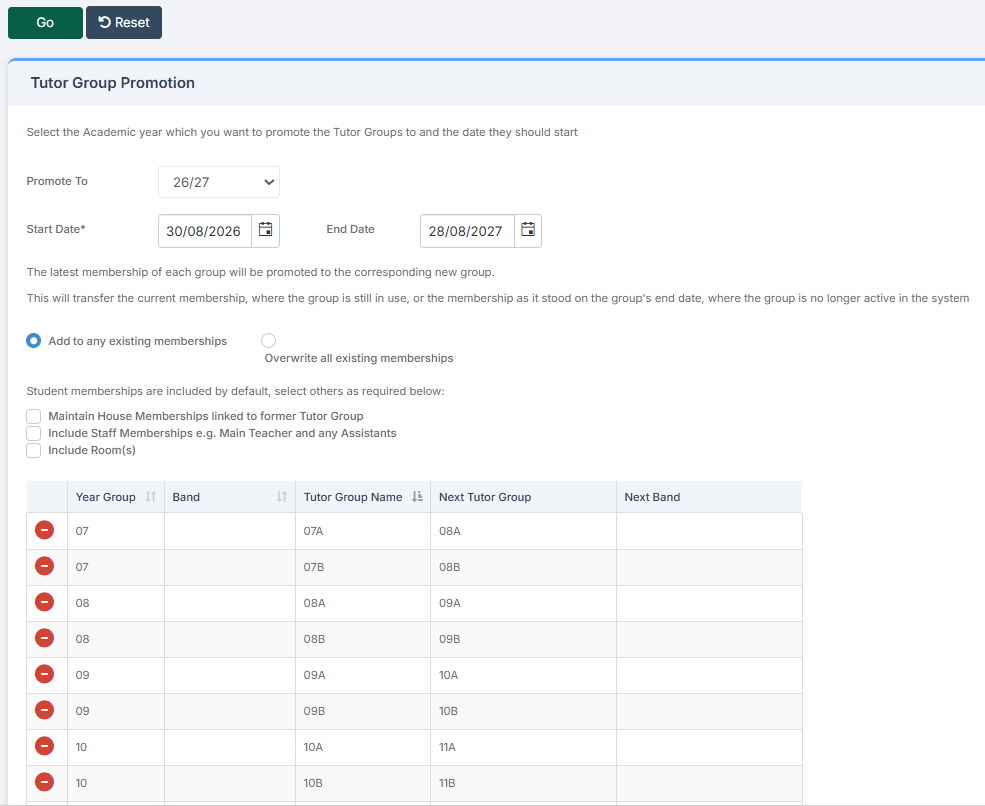
Any groups that should not be included can be removed from the list using the red delete button.
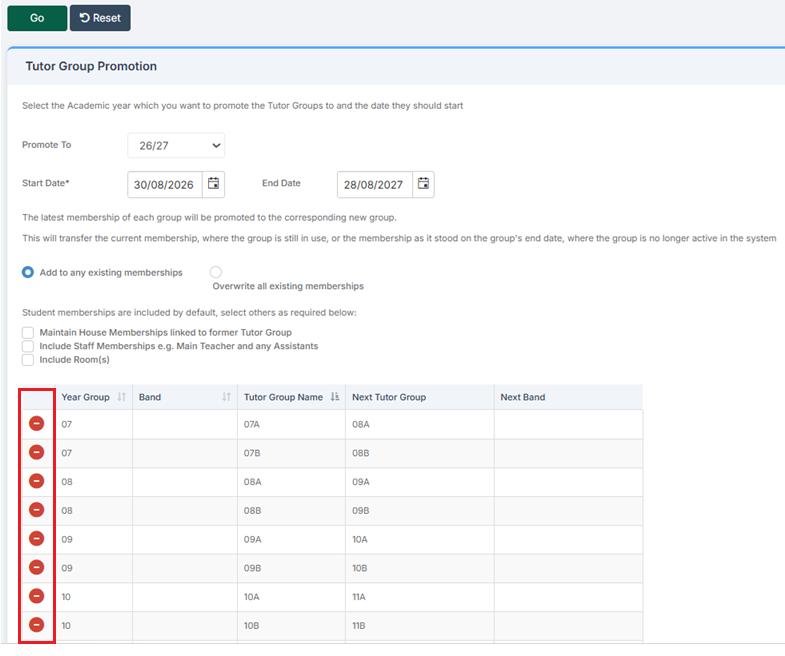
Check the Promote To drop down for the Academic Year the groups and enter the appropriate Start Date. Leave the End Date blank if no decision has been made yet — the promotion process next year will set one automatically.
As with Year Groups, memberships can be set to either add to any existing memberships (default setting for safety) or Overwrite all existing memberships. When promoting to pre-existing Tutor Groups, be aware that the overwrite option removes all current memberships.
Other memberships can also be transferred:
- Maintain House Memberships (selected by default)
- Include Staff Membership (not selected by default)
- Include Rooms (not selected by default)
Click Go to create the new groups based on their linked groups. Existing group memberships are ended at the close of the current Academic Year if they do not already have an end date.
If new groups have already been created (or imported from the timetable software),as long as the same group names are used, then still use this process to populate student memberships in bulk from old to new groups.
For more information see Tutor Group Promotion Methods
IMPORTANT: If the timetable has been imported then Classes, Staff and Rooms (and even student memberships) are created by that route and this option is redundant. It is mainly provided for those customers who do not import a timetable to the system but create it manually and/or have to setup student memberships ahead of their timetable import where their timetable does deal with students.
Go to Config > Curriculum>Class Promotion. This process works in much the same way as Tutor Group Promotion.
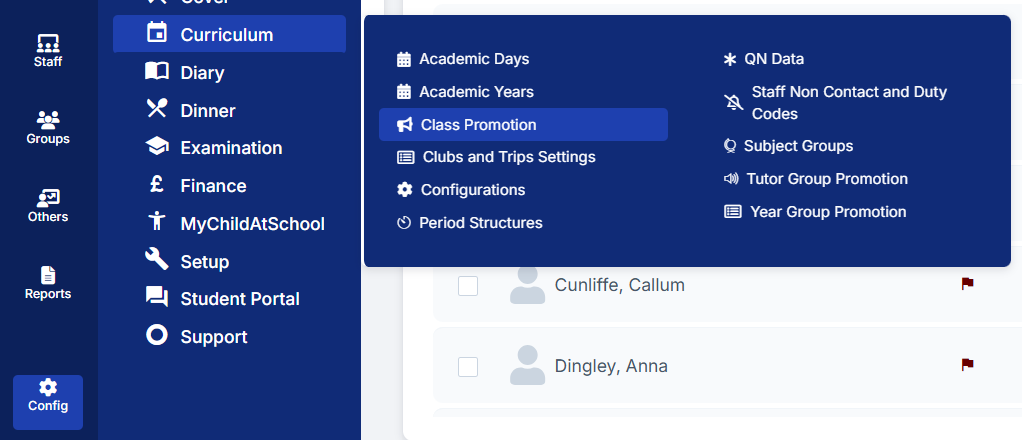
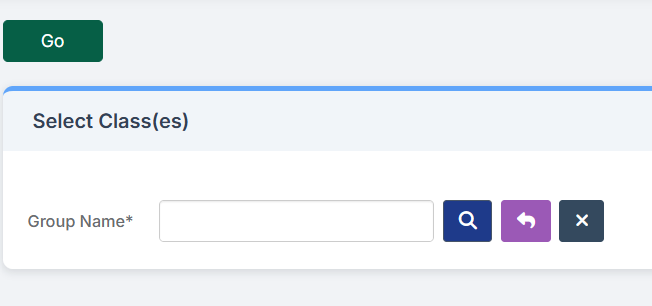
Click the blue find icon to open the Group Selector List for Teaching Classes
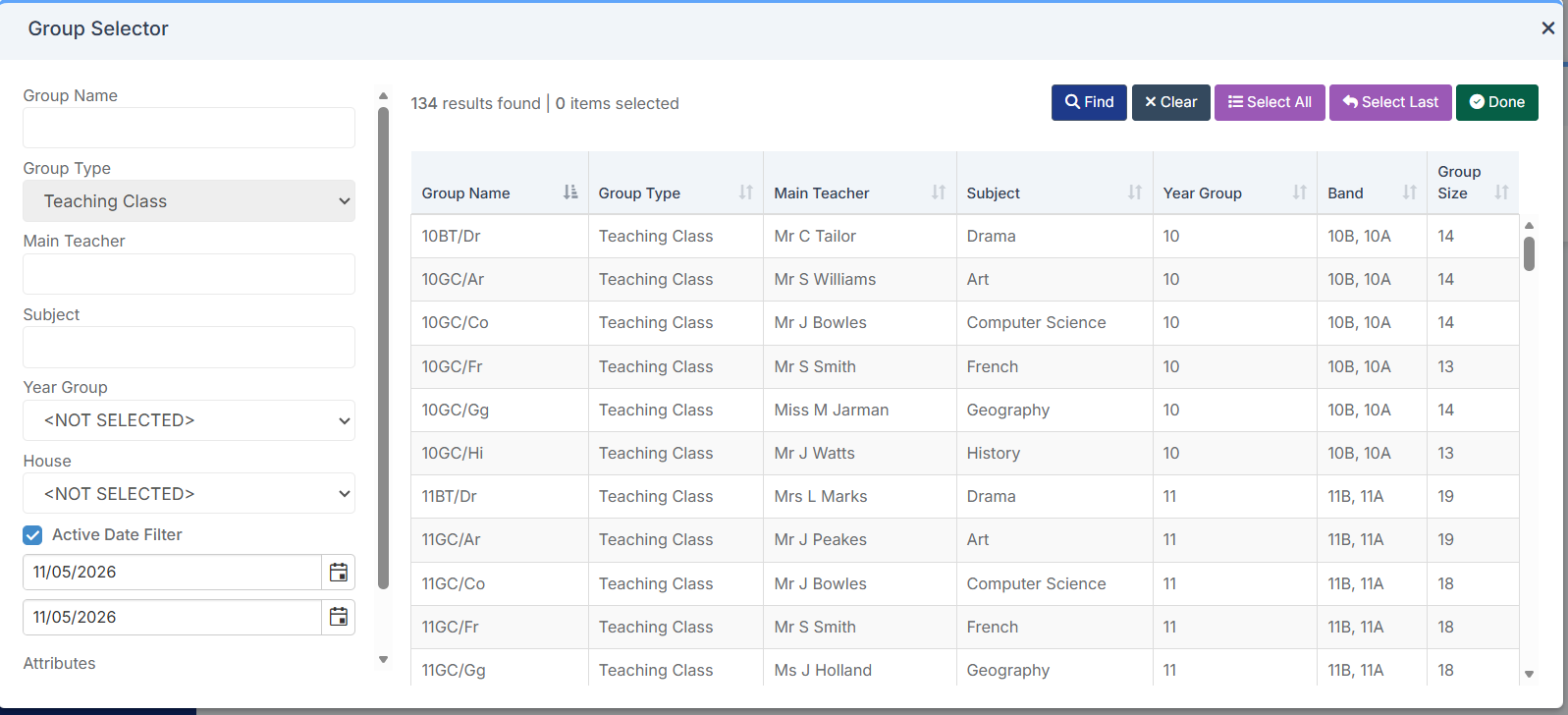
Click the required Teaching Classes then click the top-right Done
Exam groups can be promoted where students are completing the first year of a two-year course, along with teaching sets for subjects such as Maths and English.
Once the required Class(es) have been selected and the Selection List is correct click Go.
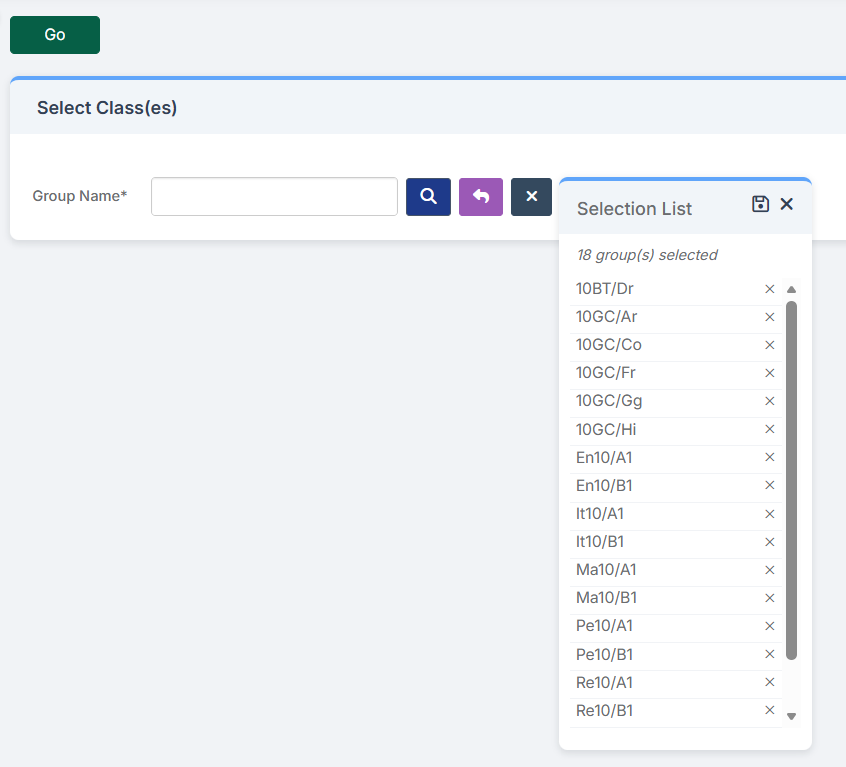
There is no option to include House Memberships at this stage, only Staff and Rooms.
Follow the same process as Tutor Group Promotion by selecting the Classes and then clicking Generate to suggest the Next Class name.
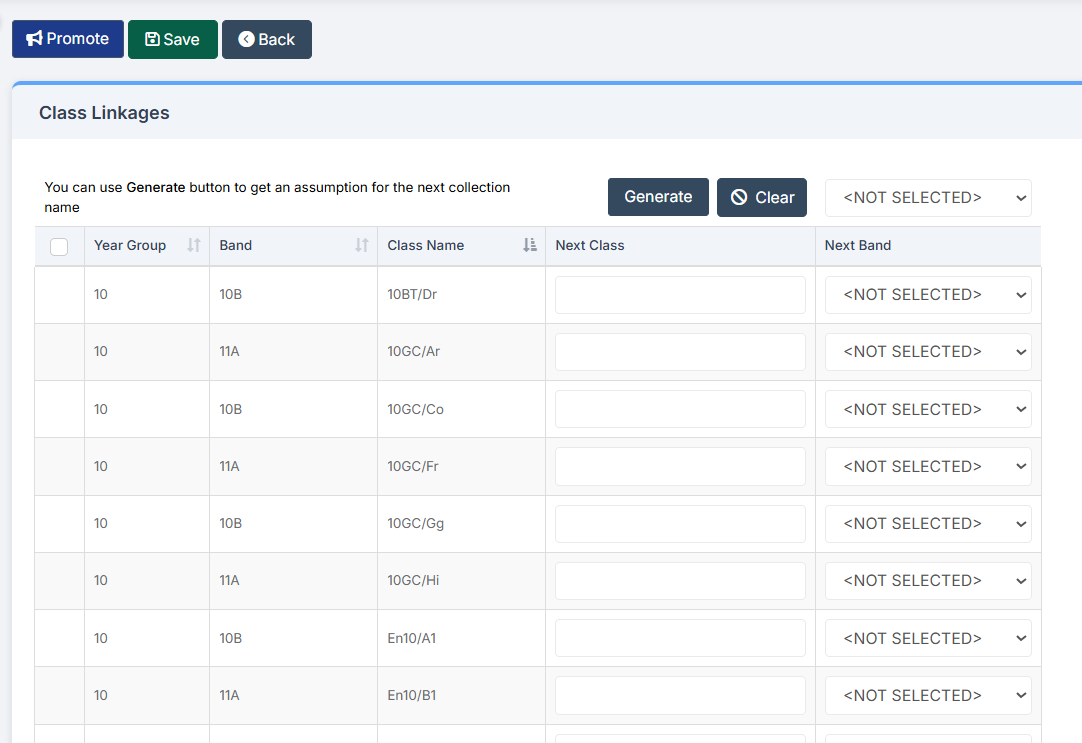
Remember:
- Linkages can be saved and promoted later if changes still need confirmation from senior colleagues.
- Group names can still be edited after creation.
- Alternatively, the next step can be completed immediately by selecting the required Classes and clicking the top left Promote.
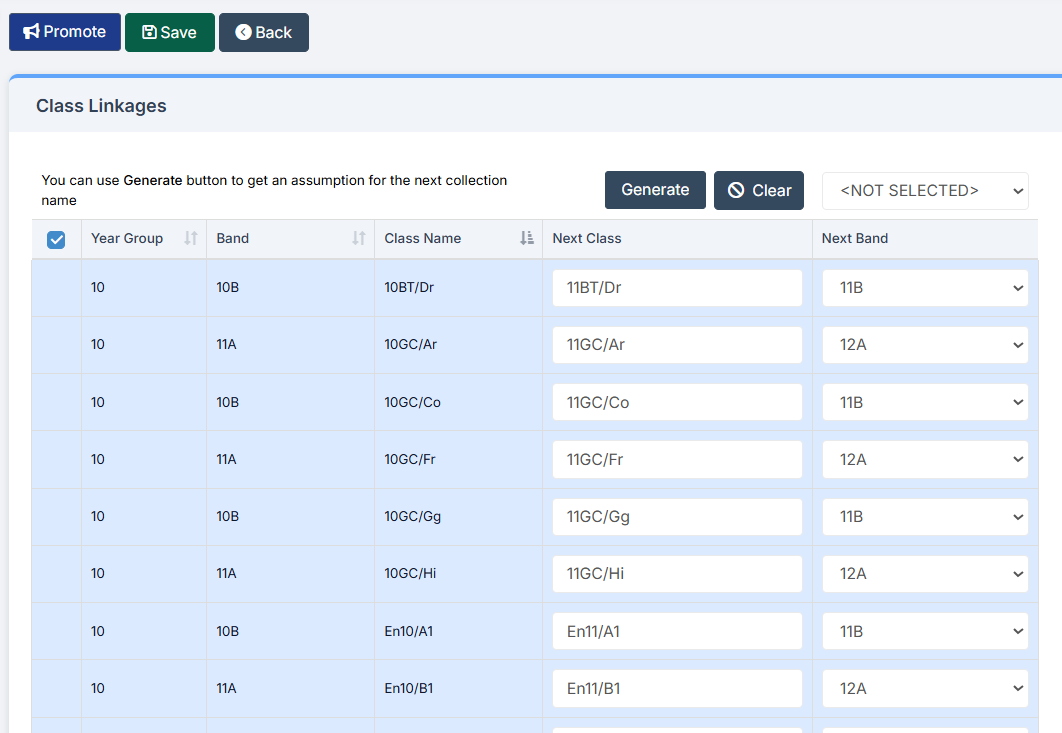
As another option, classes can be created through Groups > Teaching Classes> New, followed by the usual Bulk Group Assignment process to add students to all new classes in one go.
Please contact the usual support channels if any assistance is required with this process.
New students can be added by any or all the options below.
Manually Add a New Student
Navigate to Students this will open the Student List Page
Click the top left New

Fill in the Create New Student field as required and click on Save or Save & Add Siblings

After saving the Student Profile page will open, add any information and Save. For more information see How to Add a New Student
Adding Students via CTF or ATF Import
Information can be passed to the school from another school. Check there is a copy of the CTF or ATF on the PC, this can then be imported into Bromcom.
CTF
Navigate to Students, click the Action drop down and choose CTF Import

Click BROWSE to search the PC for the CTF file. Once found, select it, and click on OPEN.

Then Enter Admission Date for when the new students will be starting. Normally this would be the first day of the first term of the new Academic Year.
Once the required details have been completed, click on Next to import the students into the system. For more information see How to Add Pre Admissions Students using CTF or ATF
ATF
Navigate to Students, click the Action drop down and choose ATF Import

Click on the BROWSE to locate the ATF Import file. Once found, select it, and click on OPEN.

Then Enter Admission Date for when the new students will be starting.
Normally this would be the first day of the first term of the new Academic Year.
Once completed, click Next. For more information see How to Add Pre Admissions Students using CTF or ATF
PLEASE DO NOT PROCEED WITH THE NEXT STEPS UNTIL INFORMED TO DO SO BY YOUR VIRTUAL 6TH FORM ADMINISTRATOR
PLEASE DO NOT PROCEED TO THIS STEP UNTIL INFORMED TO DO SO BY YOUR VIRTUAL 6TH FORM ADMINISTRATOR
The Virtual School system needs to be updated with the list of new students for the Outplaced Students List.
Go to Config > Setup > Virtual School Configurations.
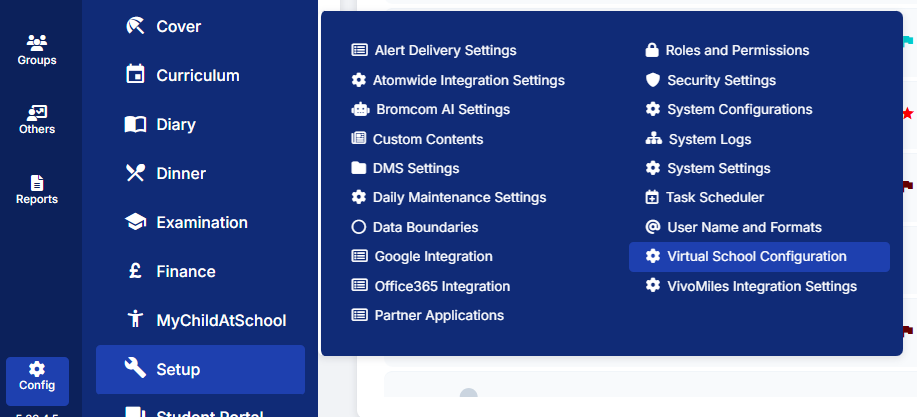
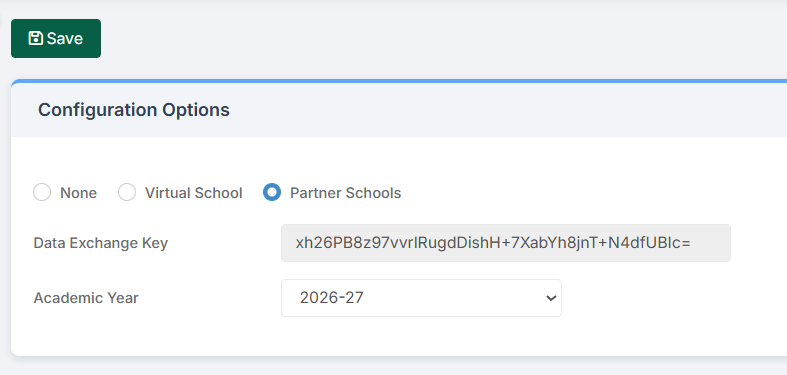
First, ensure the Academic Year drop down is set to the new Academic Year data set, then click Save.
Outplaced Students are students attending classes outside of their enrolled school.
To add students, click the Add button.

This opens the Student Selector list for multi-selecting students.
Select students by clicking names in the Student Selector list or by using the filters on the left-hand side to refine the list. If filters are selected, click Find to refresh the results. Select All can be used if required. Once selections are complete, click Done.
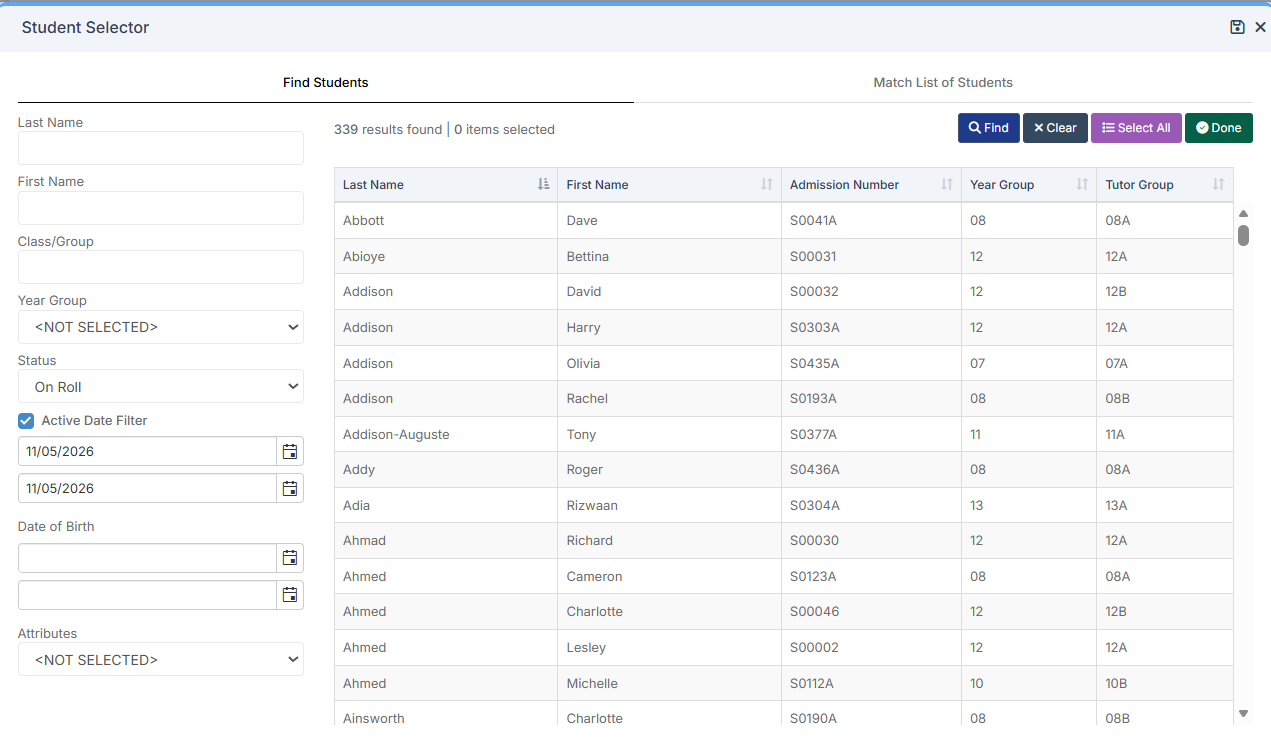
The selected students will now display in the Outplaced Students section.
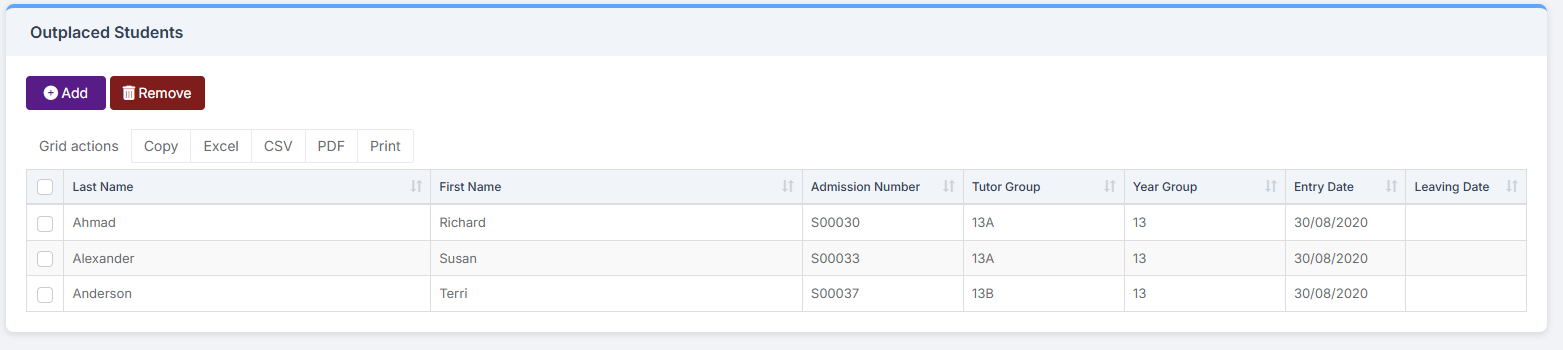
Once the configurations are complete, click the top left Save. A notification will confirm the changes.
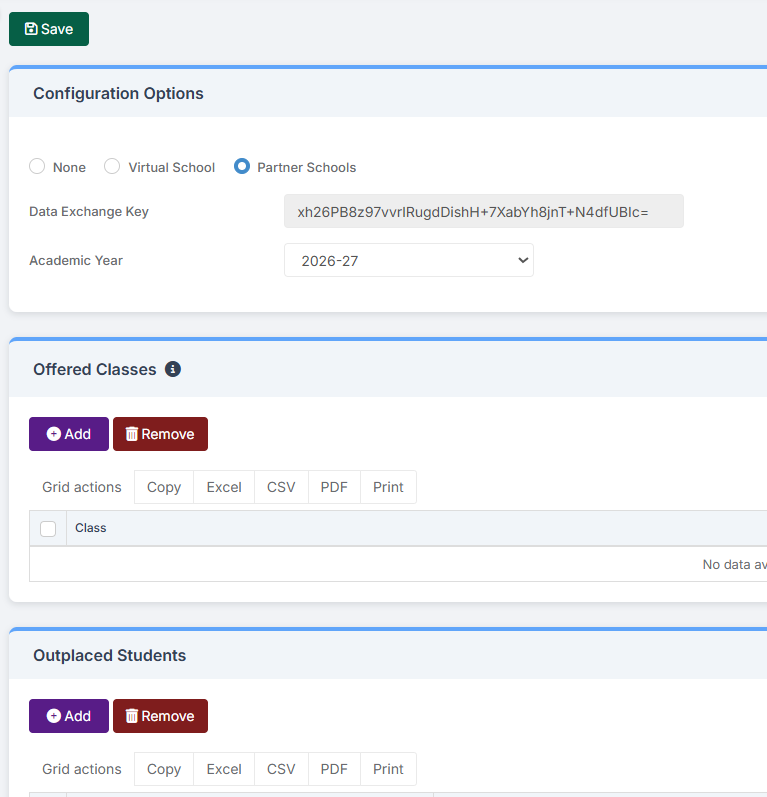
The Partner School controls all student changes within its own school. Any updates made there are automatically imported into the Virtual School.
Note when changes are made this should be communicated to all the other schools, by a method decided by the Virtual School Administrator, as staff may need to be informed of changes to class numbers etc.
The Virtual School system needs to be updated with the details of the new Teaching Classes in the Offered Classes list.
IMPORTANT: You must only add Teaching Classes to Offered Classes
Go to Config > Setup > Virtual School Configurations.
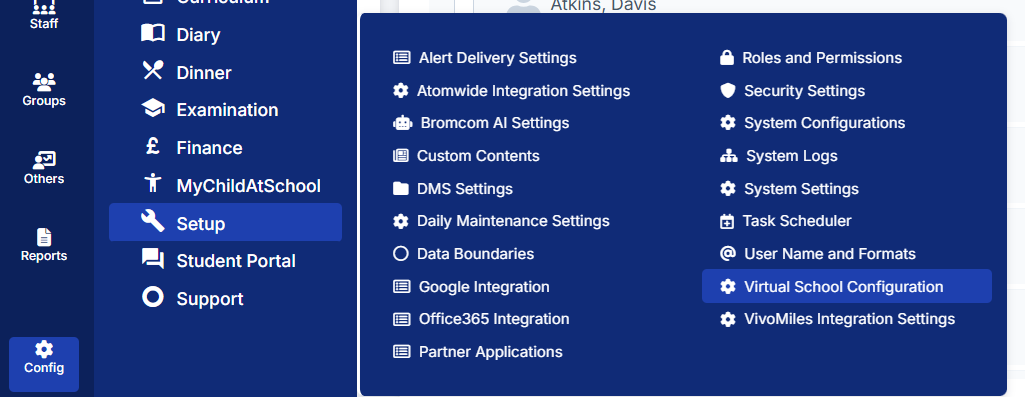
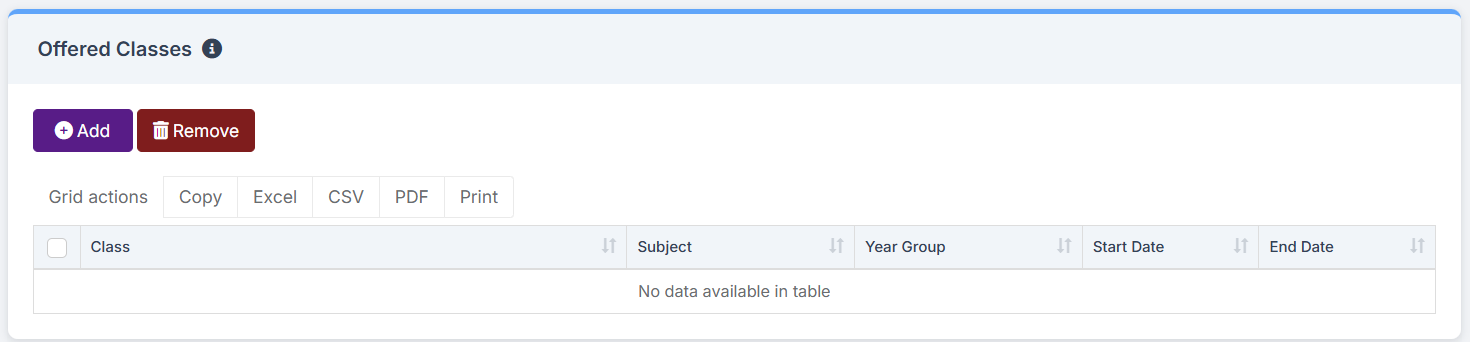
Classes that will take place outside of the school must be added under the Offered Classes section. Click Add to open the Group Selector.
Change the left hand Group Type drop-down menu to Teaching Class,
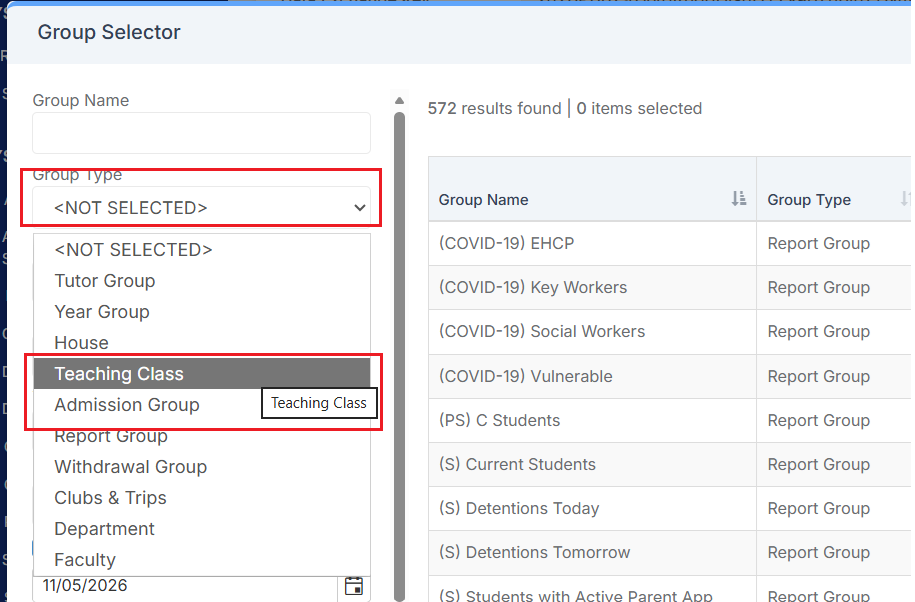
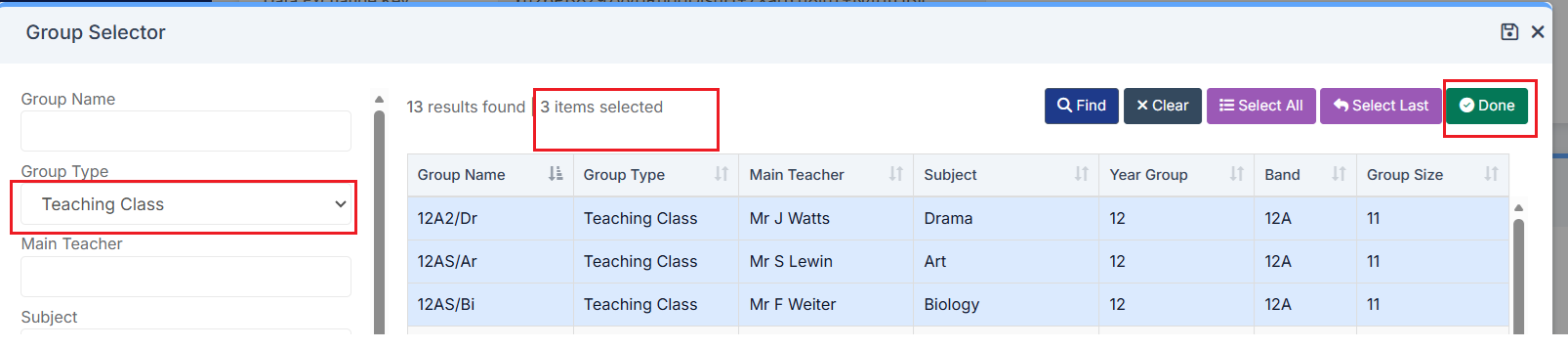
Click Find to refresh the list.

Once the required classes have been selected, click Done
The selected classes will then appear in the Offered Classes section.
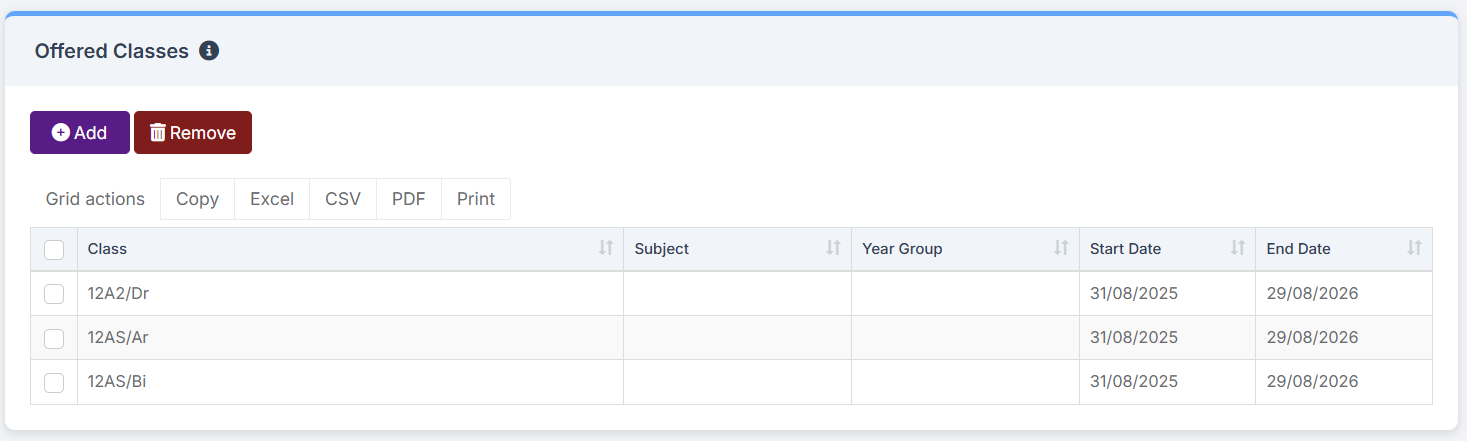
To remove classes from the list, select the required class(es) and click Remove.
The Partner School manages timetable changes within its own school. Any updates made there will automatically be imported into the Virtual School.
IMPORTANT : when changes are made this should be communicated to all the other schools, by a method decided by the Virtual School Administrator, as students may need to be informed of room or time changes etc.
Once the Data Transfer link is re-established, details for external students enrolled directly at the Virtual School will begin to flow into the partner school systems.
One (and only one) Partner School should take responsibility for each external student and place the student “on roll” within the system.
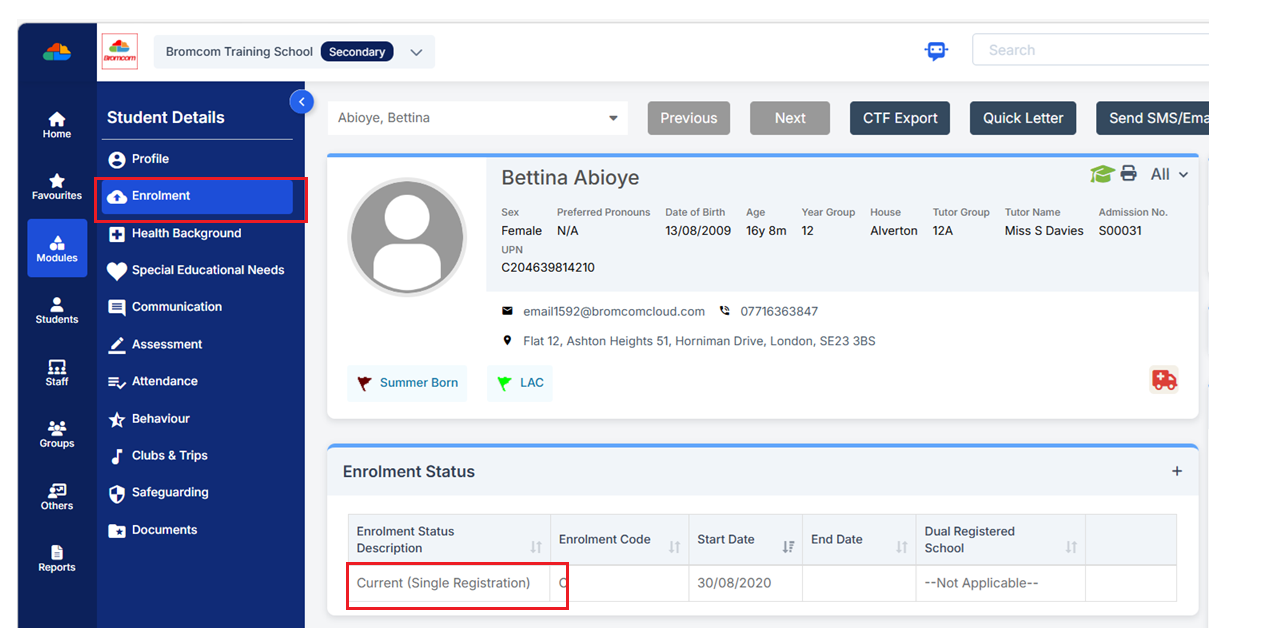
On the responsible Partner School, go to Students and select the required student(s). Click View and, on the Enrolment tab in the Student Profile, change the Enrolment Status to Current (Single Registration) and click Save.
The student(s) must then be added to the Outplaced Students List.
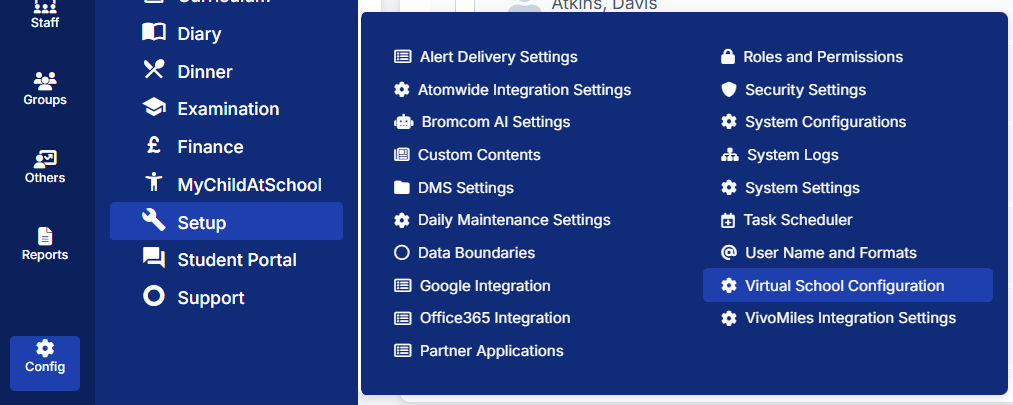
Go to Config > Set Up > Virtual School Configuration.
In the Outplaced Students panel, click the Add button to open the Student Selector list and multi-select the required students.
To add students, click the Add button.
This opens the Student Selector list for multi-selecting students.
Select students by clicking names in the Student Selector list or by using the filters on the left-hand side to refine the list. If filters are selected, click Find to refresh the results. Select All can be used if required. Once selections are complete, click Done.
The selected students will now display in the Outplaced Students section.
Once the configurations are complete, click the top left Save.
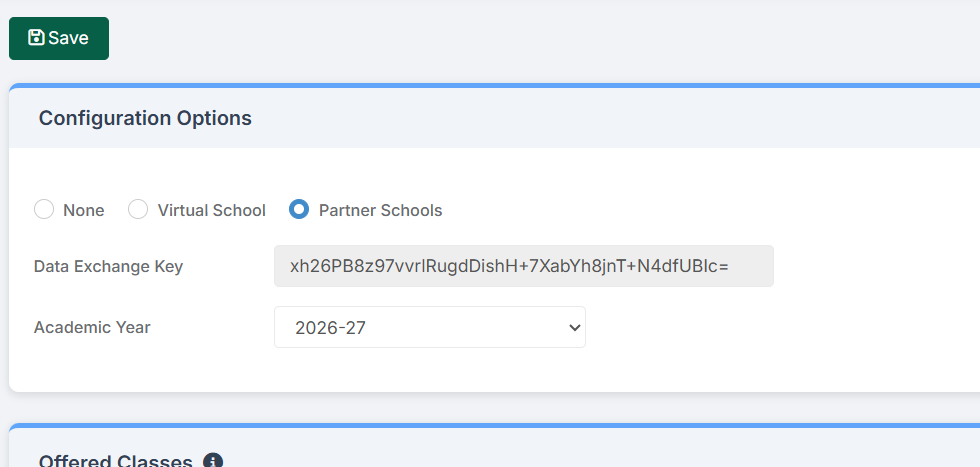
A notification will confirm the changes.
The next transfer will update the Virtual School with the student’s new base school information.
If you have any issues or queries, please do not hesitate to contact the usual Support channels for assistance.