
In this guide we will look at how you can enable External Links and how to add new External links to display in Bromcom to allow your users easy access to external resources through Bromcom.
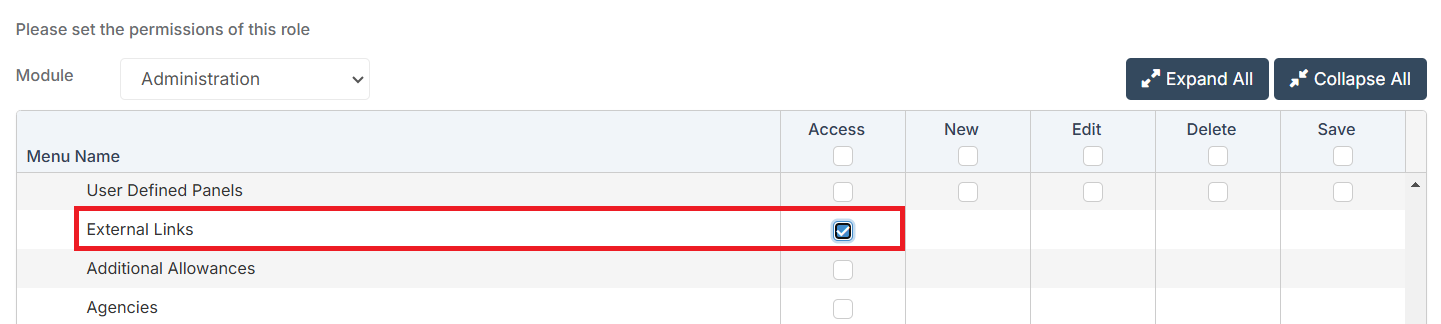
Access: The minimum Permissions required to access External Links can be found in the Administration module from within Config > Setup > Roles & Permissions.
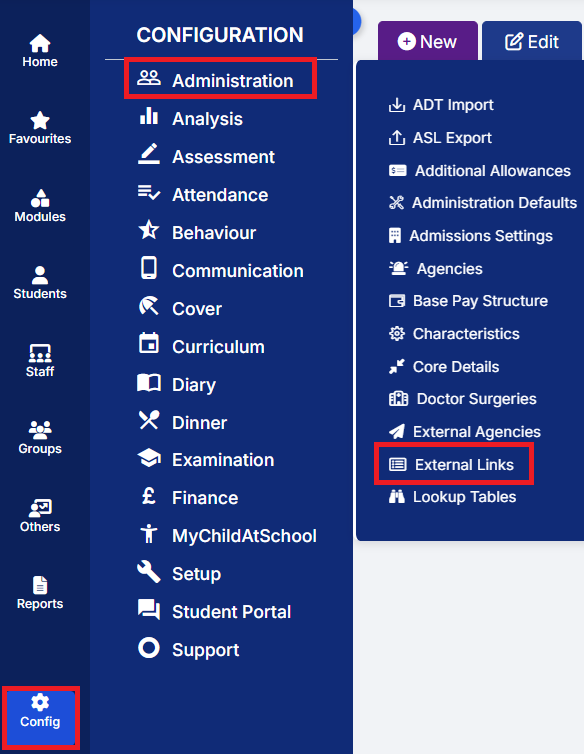
Go to Config > Administration > External Links.
First, in the External Links Module Settings panel, ensure that Enable External Links is ticked and click Save.

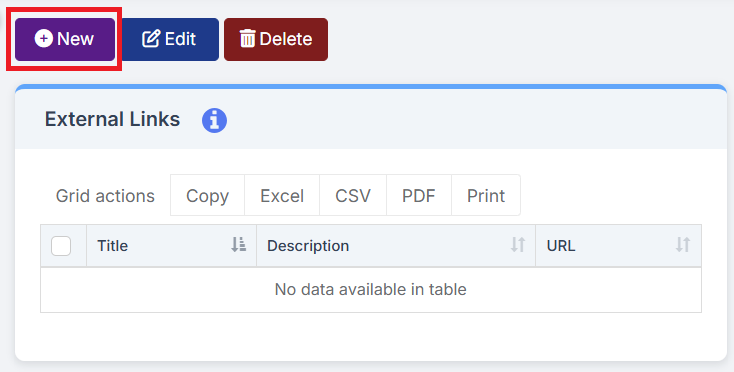
To add a new External Link, click New in the top left hand corner.
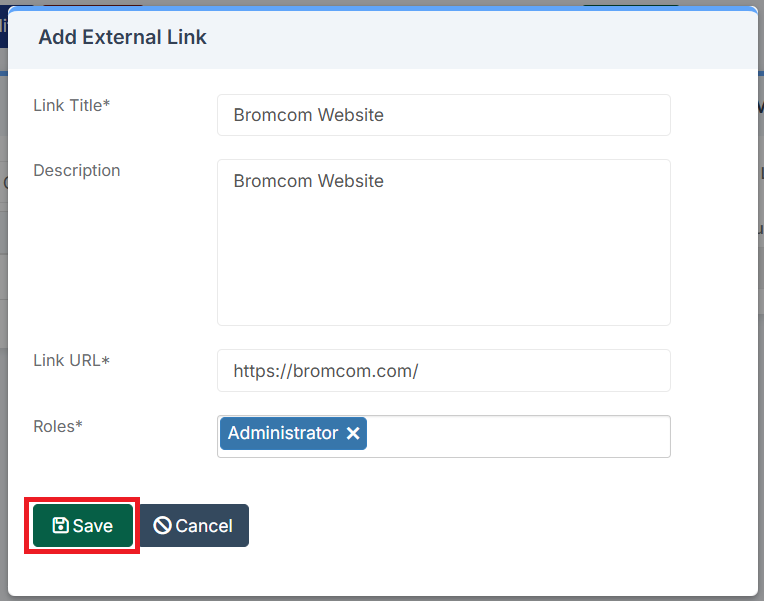
In the pop-up that appears, enter the Link Title, Link URL and select the Roles that you would like for the External Link to be visible to. You also have the option to add a Description but this is not mandatory. When you’re happy click Save.
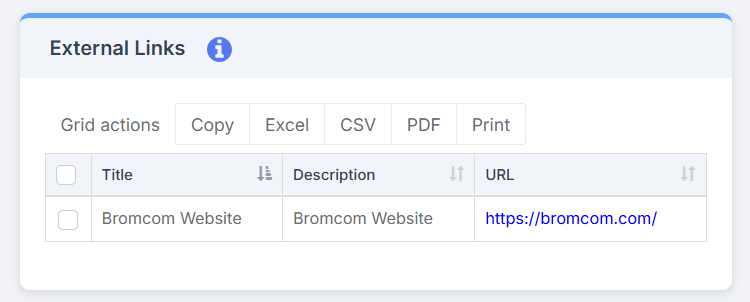
The Link will appear in the External Links panel.
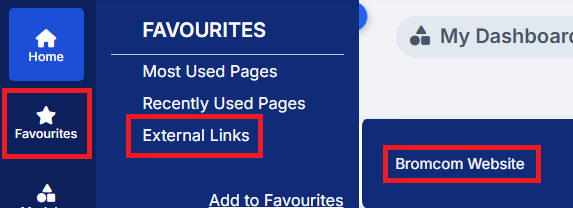
The Link will then appear under Favourites > External Links for any Staff Members with one of the associated Roles.
Note: Users may need to Log Out and Log In again before they see the changes.