
When the OCR Cambridge Technical results file are available to download in August and will be named to reflect the year of the results file, including 9 to reflect September and further numbers reflecting the beginning of the year.. These results files will need to be amended in order to import them into the summer Exam Season. This guide covers ensuring the season is configured correctly to receive the results file and downloading the file in order to make the necessary changes. Please see the OCR guidance for further information on what changes should be made.
This guide shows the following process, depending on how the exam results will be received:
IMPORTANT: make sure you take a copy of the original results file before making changes
Access: the minimum permissions required to follow this guide can be found in the Examination module within Config>Set Up> Roles and Permissions.
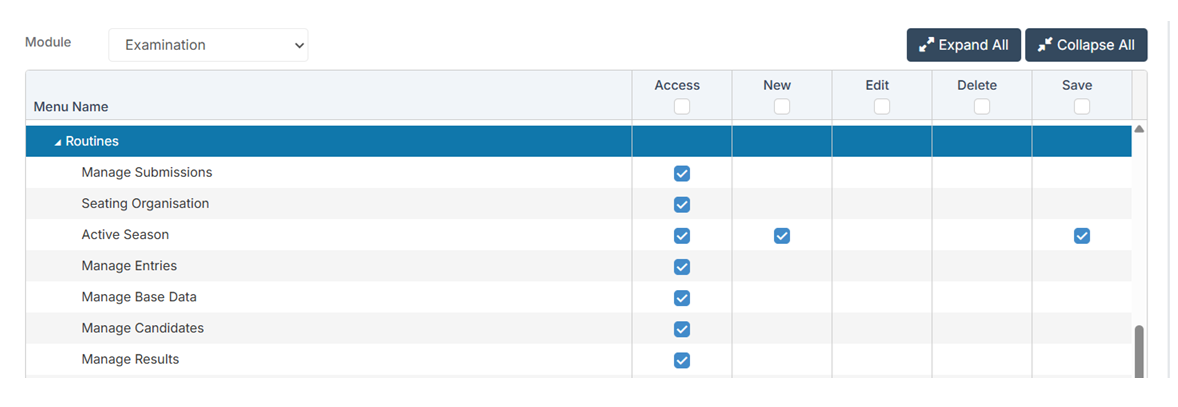
See also OCR Importing Results into Summer Season and Manage Results
OCR VQ Basedata
In order to import the amended results files into the correct Season, first check that the OCR VQ exam board is attached to the summer 2025 exam Season.
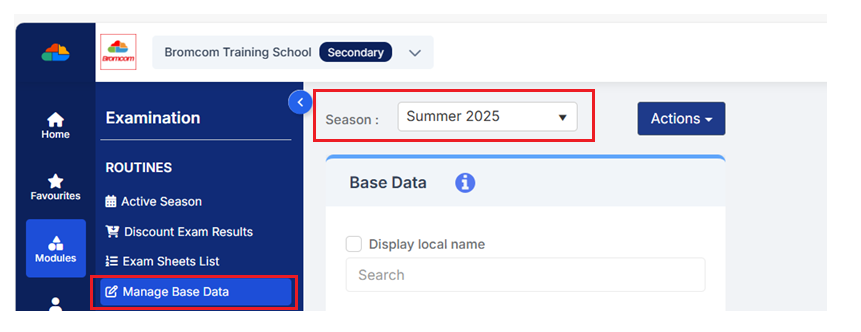
Go to Modules>Examination>Manage Basedata and ensure the summer Season is selected from the Season dropdown
In the example below the Season is named Summer 2025.
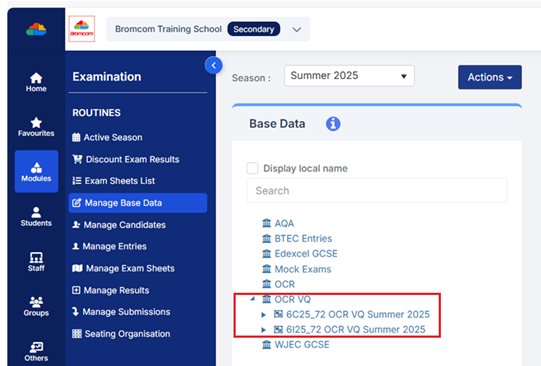
Then in the Basedata section, expand the OCR VQ exam board and note the attached series’. In the example below these are the 6C25_72 and 6I25_72 Series’. This Basedata has been downloaded from here.
Results from A2C Exchange
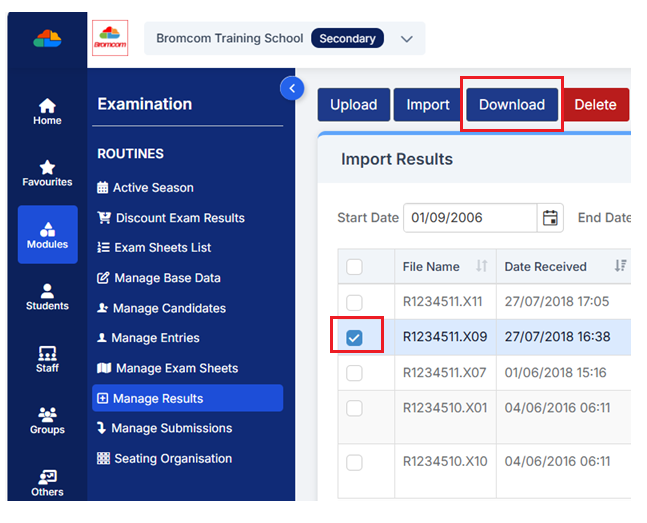
If the results file was received via the integrated A2C exchange, you will first need to Download the file from the Manage Results page in order to edit it.
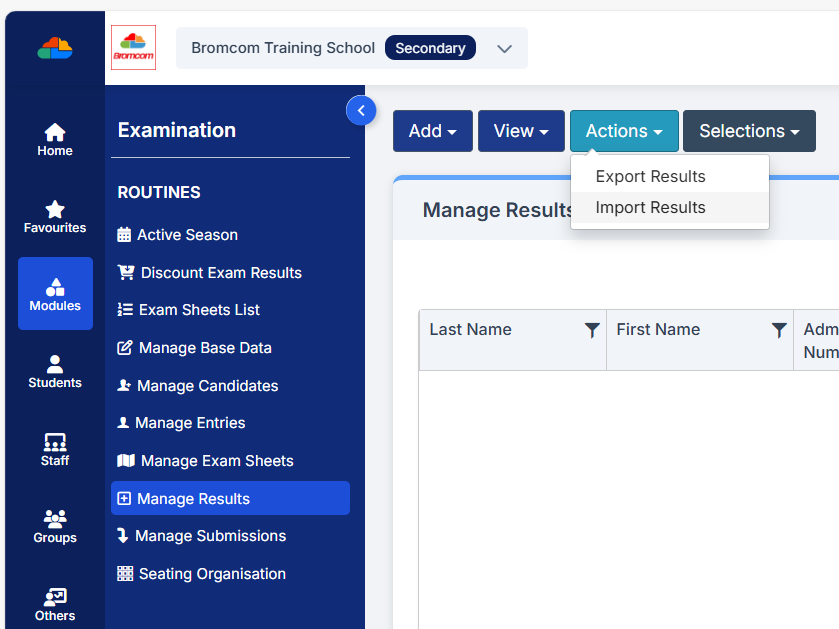
To do this go to Modules > Examinations > Manage Results, then from Actions > Import Results.
Select the File Name to be downloaded using the tick box on the left hand side and then select Download.
Once the Results File is downloaded and saved locally to your PC, follow the exam board instructions in the section Edit your results file. Please note this link is for instruction in SIMS but the instructions apply to all MIS Suppliers.
This editing can be done using a basic text reader such as Notepad. Please retain a copy of the original file.
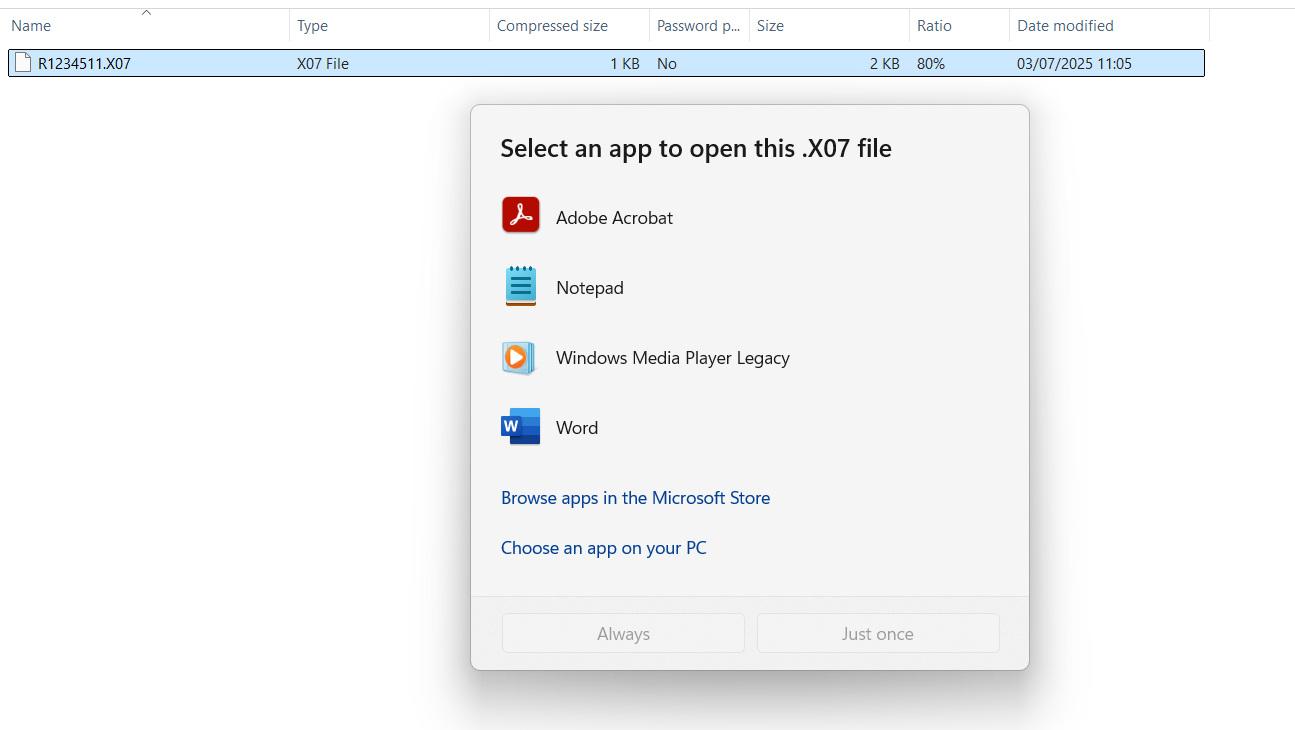
Once the Results File is amended as per the guidance from OCR, manually upload the amended Results File into the Examinations module and then import it, for more information on how to do this please see the below guide:
How to Import Exam Board Results files.
Manual Upload of Results
When the results files are not received using the A2C Integrated Exchange, download your Results File and open into for example Notepad in order to edit it.
Then follow the exam board instructions for renaming the Results File see the section Edit your results file.
Please retain a copy of the original file.
Once the Results File is amended as per the guidance from OCR, manually upload the amended Results File into the Examinations module and then import it, for more information on how to do this please see the below guide:
How to Import Exam Board Results files.