Use this guide to set default parameters for Built In Reports:
Access: there are no specific permissions to access Favourites.
For the minimum permissions required for Set Default Parameter, go to Config > Setup > Roles and Permissions, select the required Role, click Edit, then select Setup from the Module drop-down.


For more information see How to Edit a Role and its Permissions.
Default Report Parameters
This function can be used in the example a school wants all users to use the same report parameters for a selected built in report.
Note: all users with Administrator permissions will have access to Set Default Reports Parameters by default.
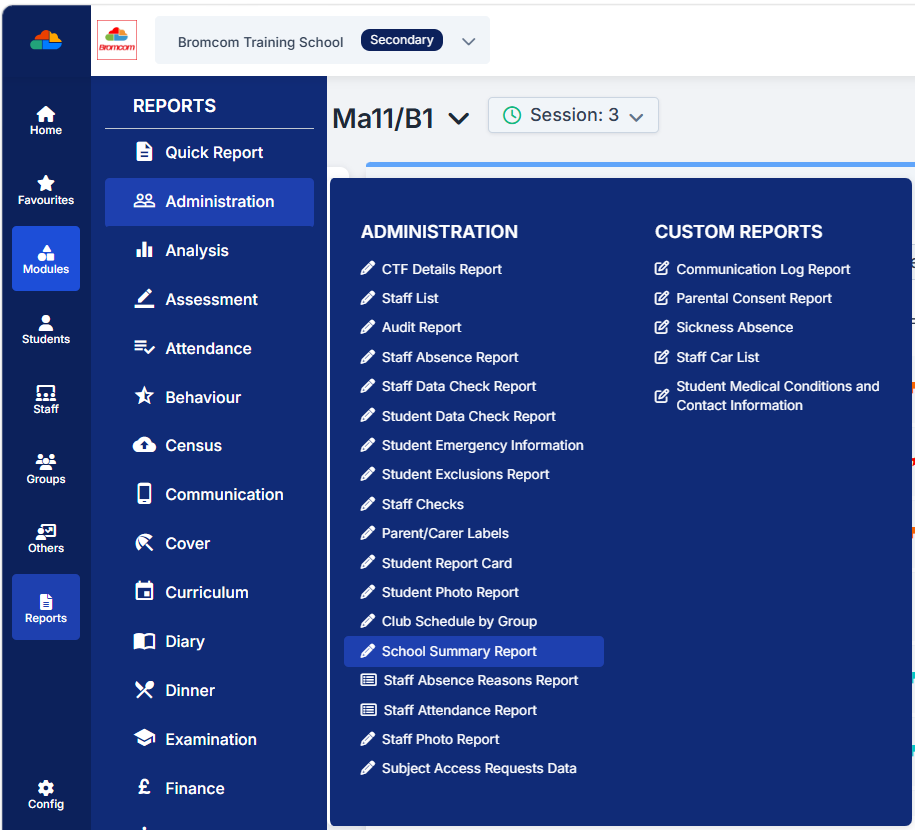
Navigate to the report, in the example below the School Summary Report is selected from Reports>Administration.
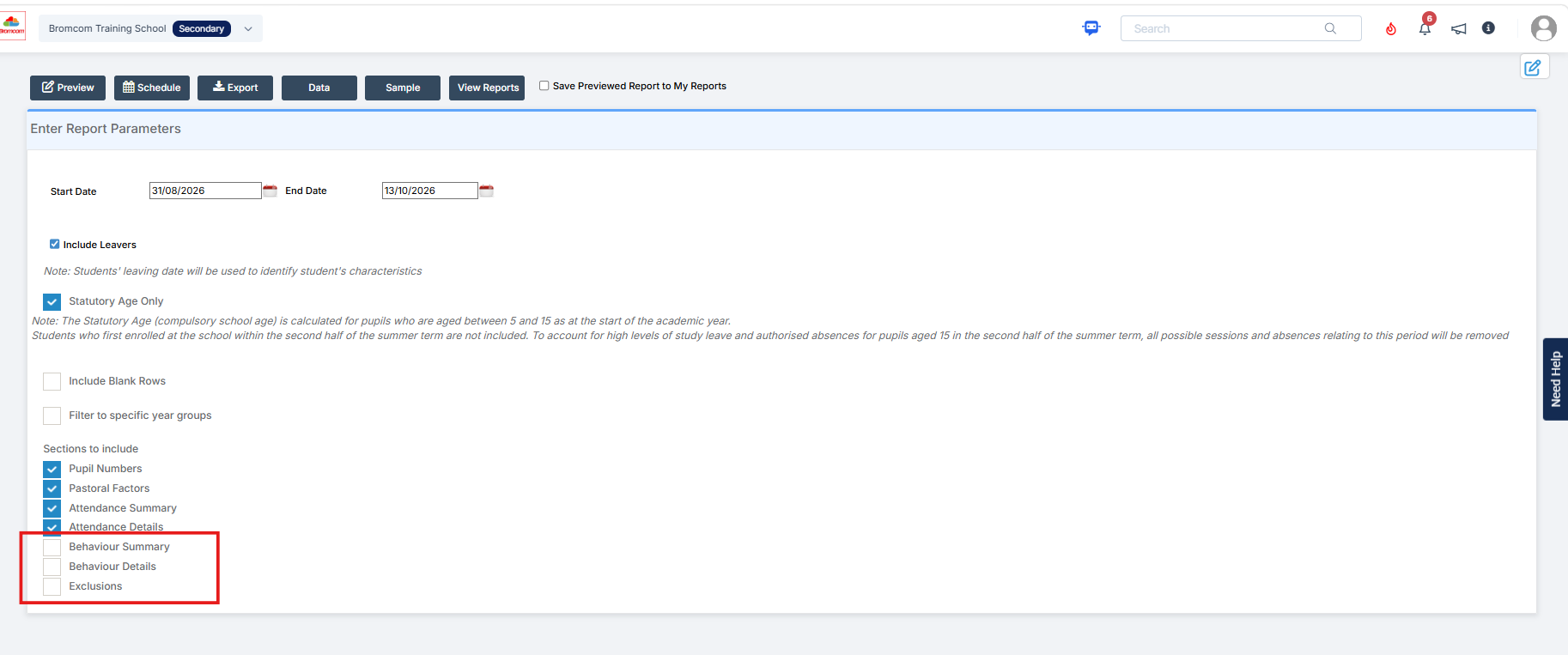
When the report opens the user defines the report parameters, in the example below the user has unticked 3 items in Sections to Include.
Any fields within the report can be set as defaults.
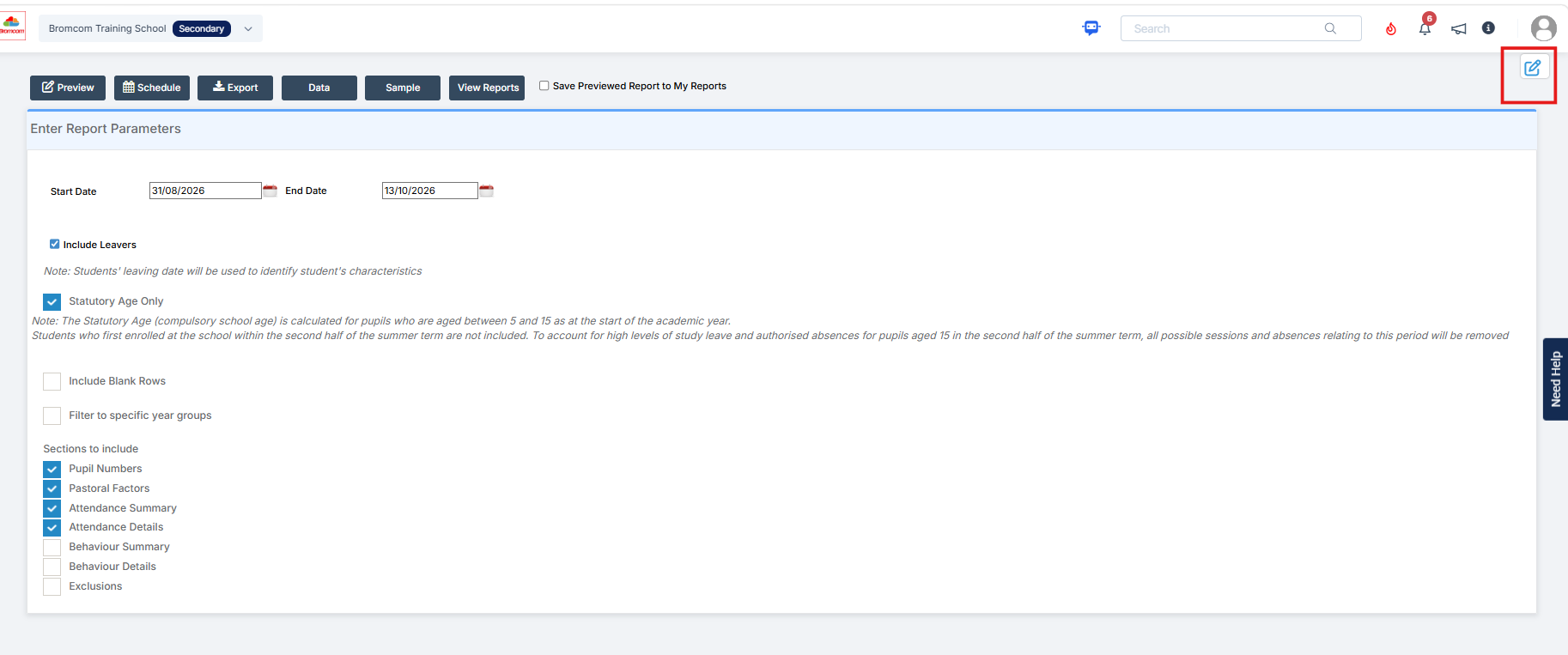
To save the Default Report Parameters click the pencil in a square icon in the top right of the panel.
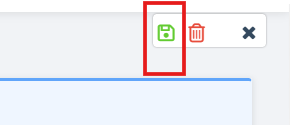
Then click the top-right floppy disk icon to Save the parameters. Alternatively click the red bin icon to delete the parameters.
Now when any user opens this report it will open with the report parameters set. Only users with the Set Default Parameter permissions or assigned the Administrator role will be able to remove or update the parameters.
Individual Default Report Parameters
Note: Favourites can only be seen by the user and they cannot be shared between users.
To create individual default report parameters the user navigates to the required built in report, sets the parameters within the report then selects Favourites from the left hand menu and clicks Add to Favourites.

A pop-up shows the Name of the Report being added to Favourites, this can be amended this if required.
When adding a Built In Report as a Favourite the user has the following options;
- To Save the Report to your Favourites, without saving any of the Parameters then use the radio button to select Save.
- To Save With Current Parameters which means that each time the Report is loaded from Favourites it will be set up as it is at the time it was added to Favourites.
- When selecting Save With Current Parameters, another option will appear, Save With Active On Date, if selected then when the Report is loaded from Favourites it will have the same Active On Date set at the time it was added as a Favourite.
Once complete click Save.

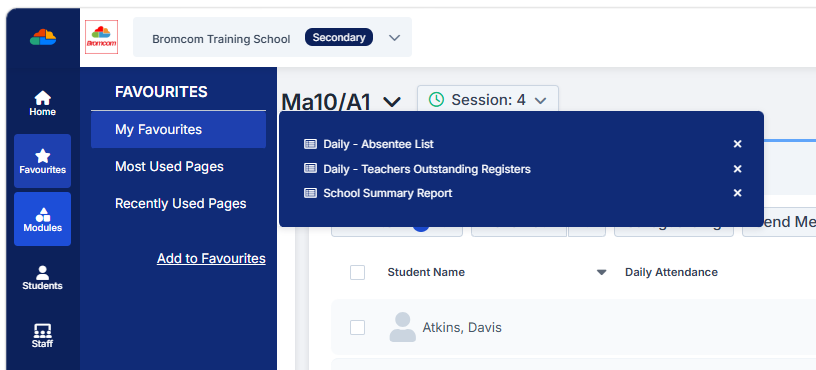
The next time the user opens their Favourites menu they will see a new option – My Favourites.
Hover over My Favourites to see the Report. Click on the Report in the menu to navigate to it quickly.