In this guide we’ll look at how to perform the following tasks in a Running Balance Club
- Cancelling a Running Balance Club Session
- Refunding a Running Balance Club Session
- Terminate a Running Balance Club
Please Note: Just refunding the payment will not result in the session being cancelled, it will only remove the amount refunded from the parents Running Balance Club balance.
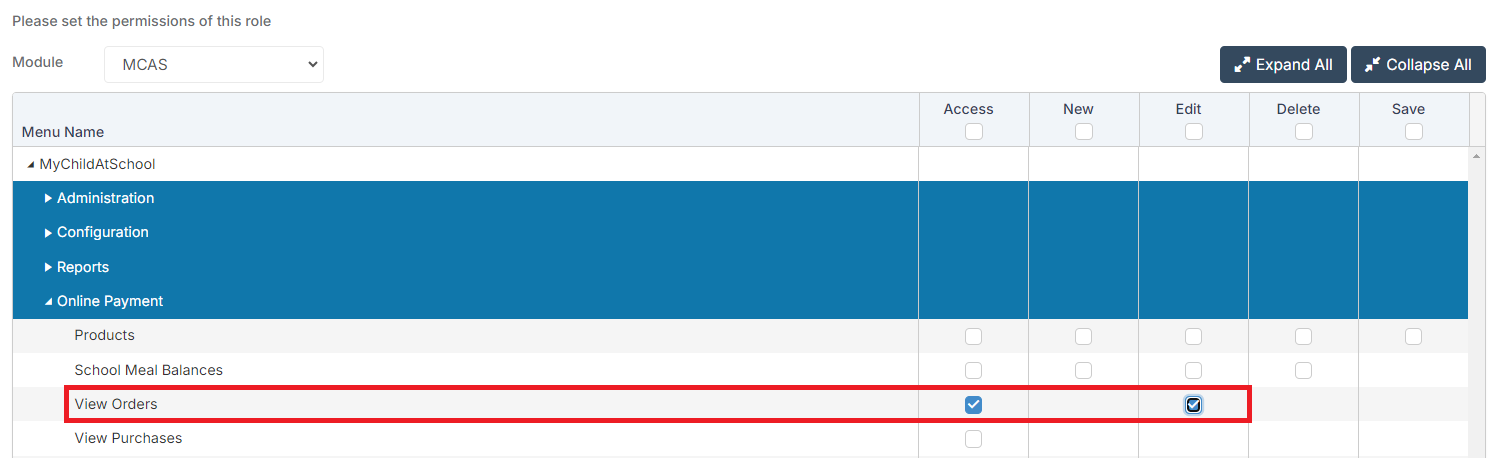
Access: The minimum permissions required to access View Orders can be found in the MCAS module from within Config > Setup > Roles & Permissions.
See Also: How to View Balances for Wraparound Care/Running Balance Clubs and Dinner Money and How to Create and Book a Running Balance Club.
Cancelling a Running Balance Club Session
Select Groups from the left hand menu.

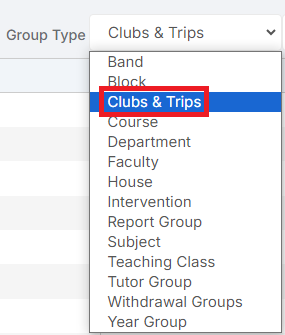
From the Group Type menu select Clubs & Trips.
Find the Running Balance Club you would like to make changes to in the list and double click on it to view it. Scroll down to the Student Memberships panel.
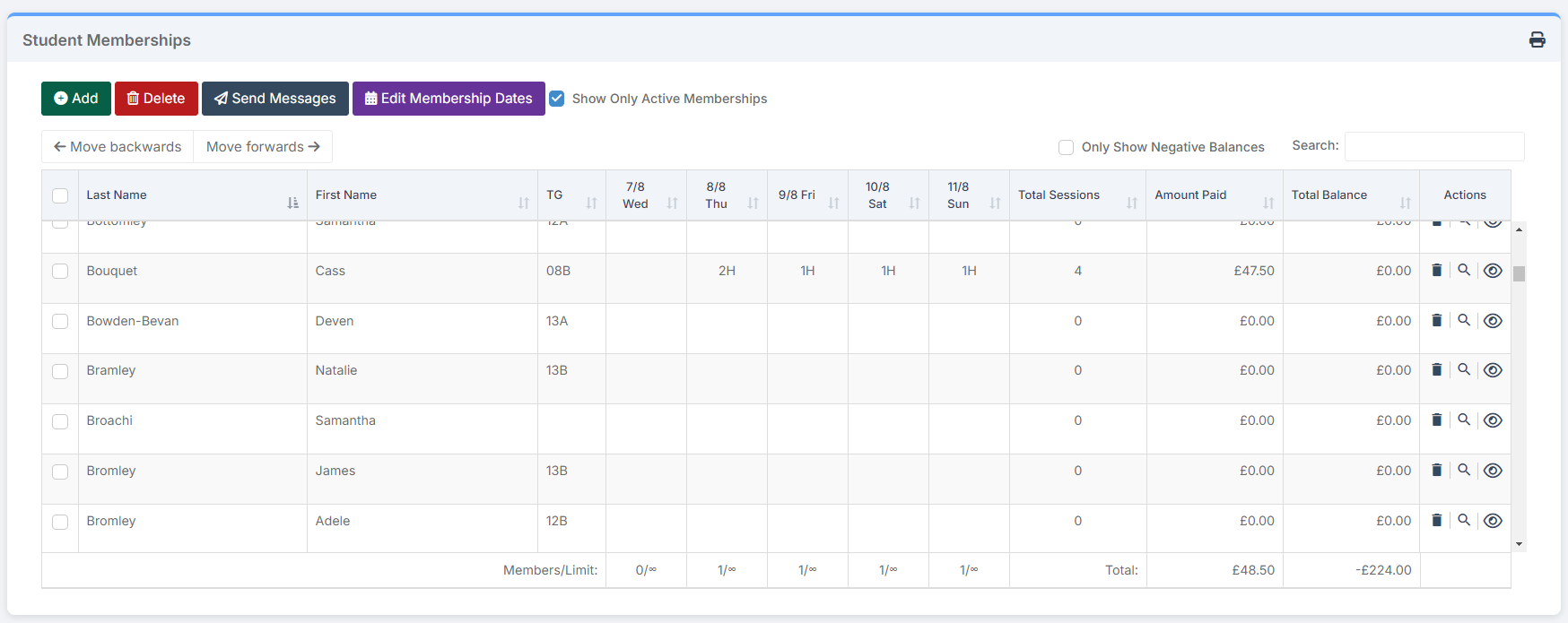
Find the Student you would like to make changes to in the list. Then find the session you would like to cancel. If the session is not in the current week, you can navigate to different weeks using the Move Backwards and Move forwards buttons in the top left hand corner.

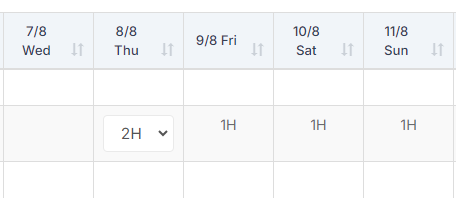
Find the session you would like to cancel and click on it, it will turn into a drop down menu.
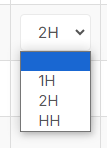
From the drop down menu select the blank option.
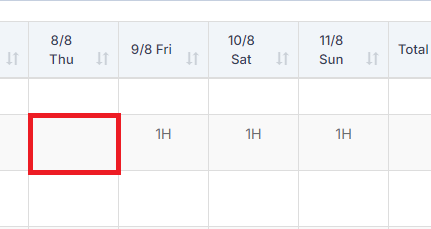
The table will then refresh and the session will display as not booked.
Refunding a Running Balance Club Session
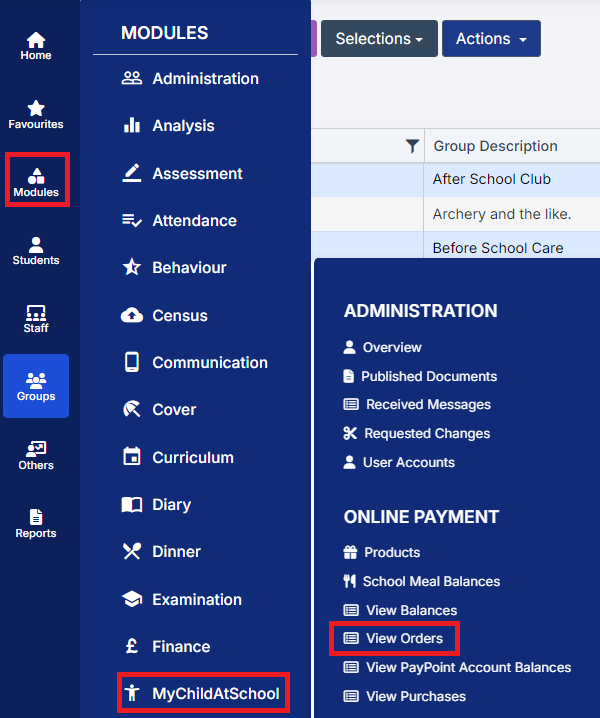
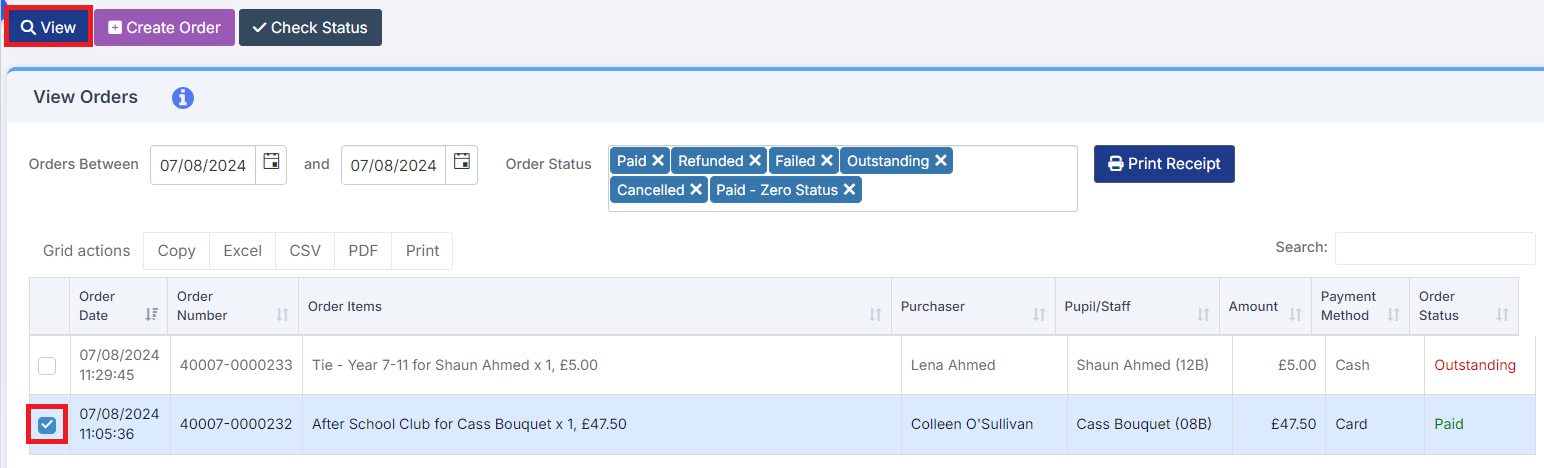
To refund a Running Balance club session, go to Modules > MyChildAtSchool > View Orders.
Select the Order for the Running Balance Club Deposit using the tick box to left, then click View.
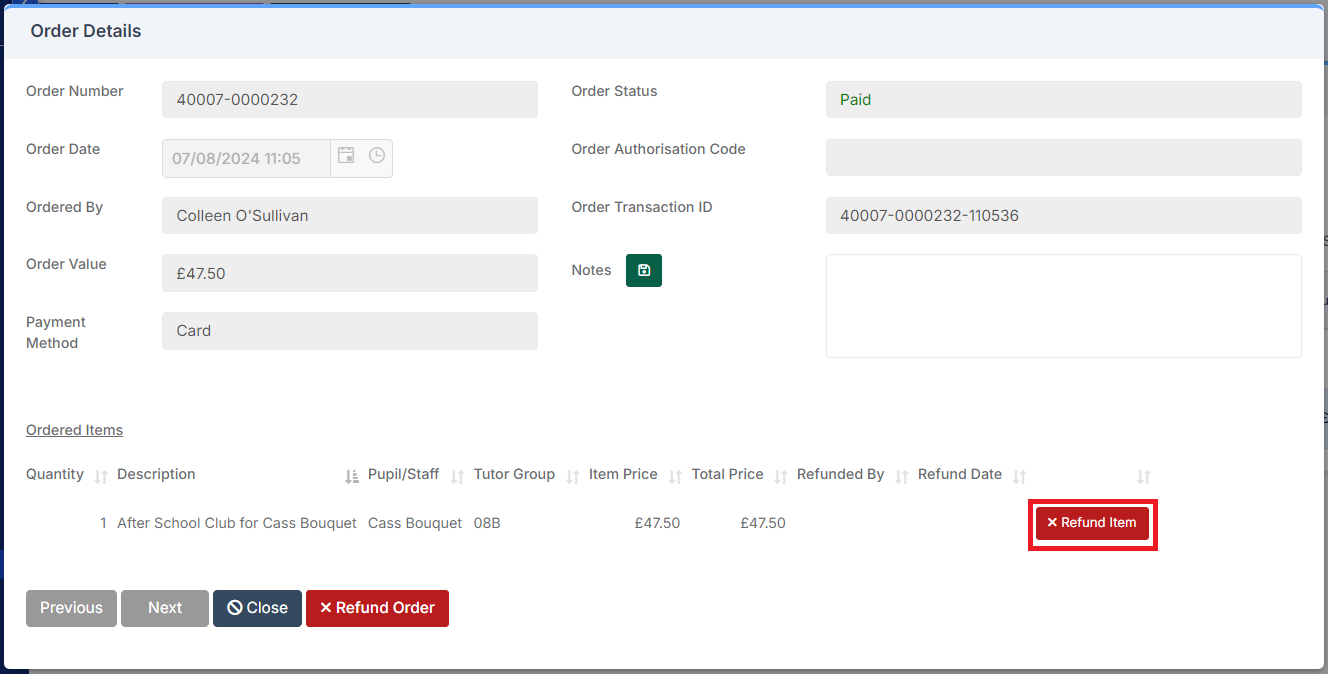
On the Order Details screen, click Refund Item.
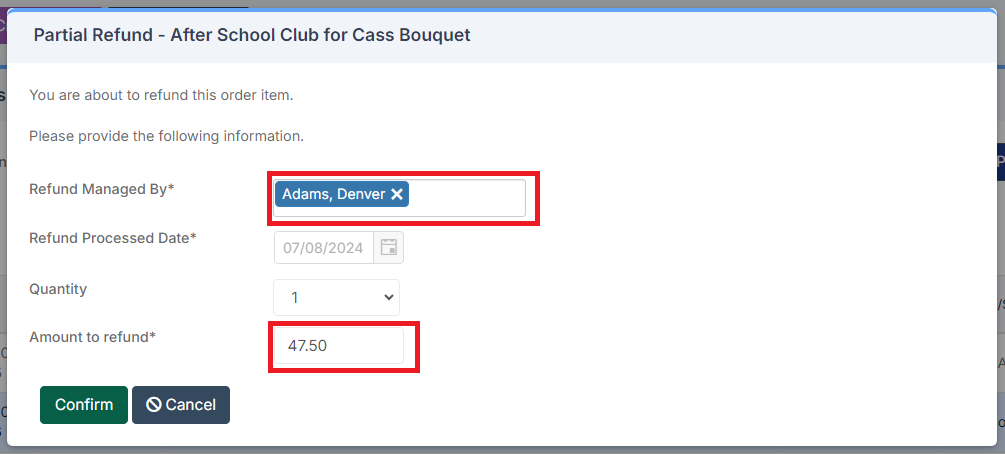
In the box that appears, select who is processing the refund in the Refund Managed By box. If the parent deposited more than the cost of the cancelled session and you would like to refund only the cost of the cancelled session, you can change the Amount to Refund to the correct amount.
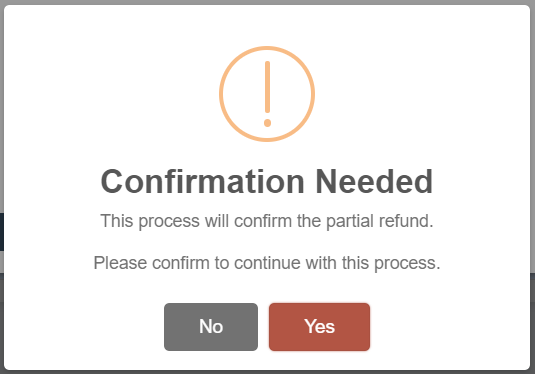
Once you’re happy click Confirm. You’ll then receive the following message, click Yes.
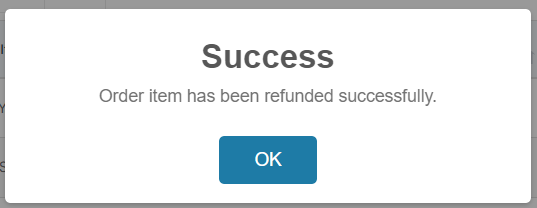
Once the Refund has been processed you’ll receive the following message, click OK.
Terminate a Running Balance Club
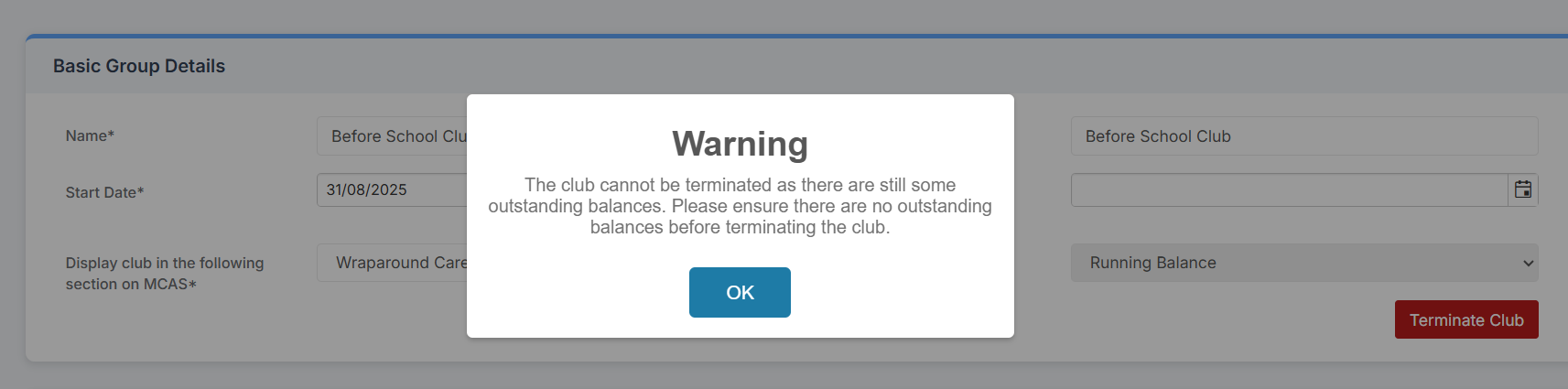
IMPORTANT: in order to Terminate the club all the balances for the club MUST BE AT ZERO.
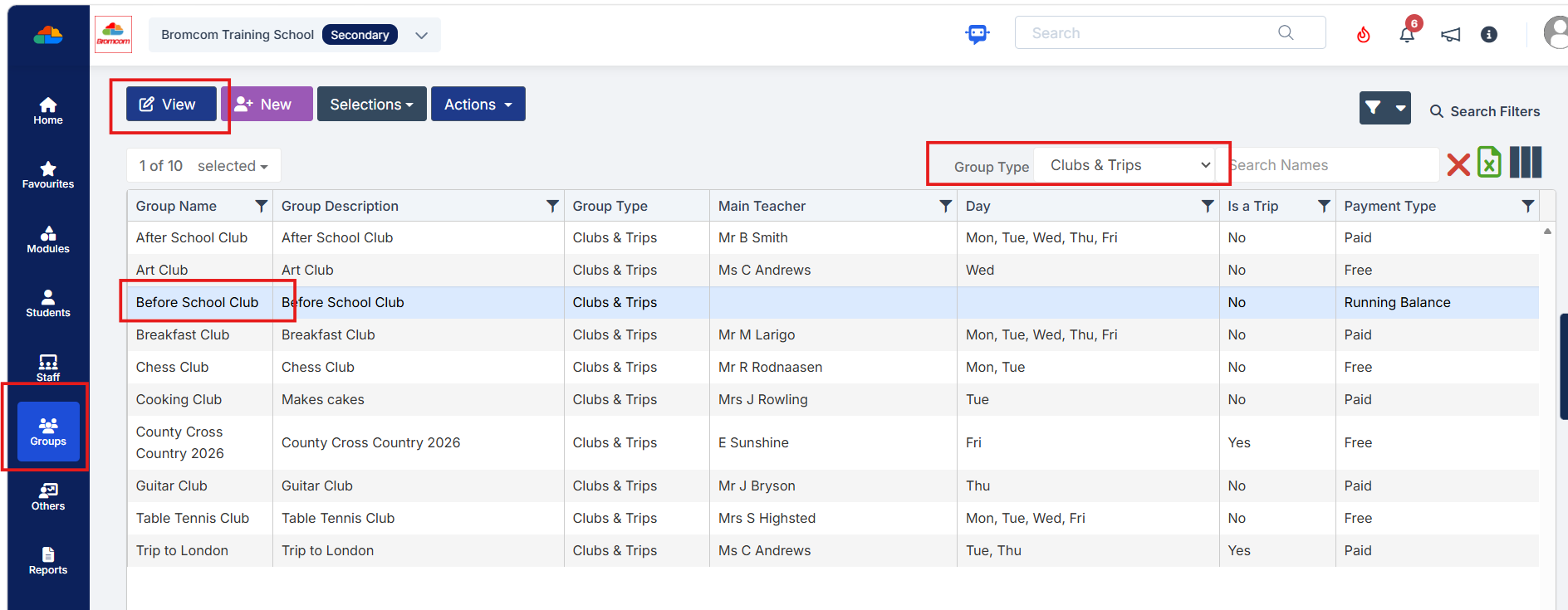
Navigate to Groups, select Clubs and Trips from the Group Type drop down and click to select the required Running Balance club and click View
Then in the Basic Group Details panel click Terminate
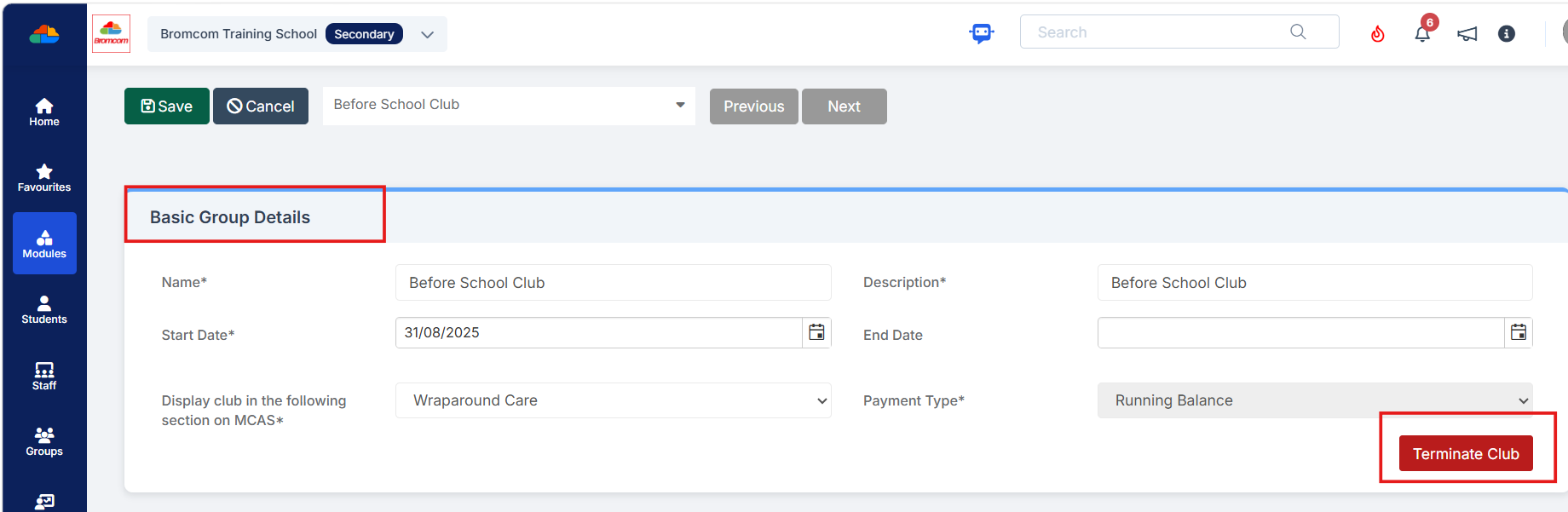
If there are any outstanding balances the following pop up will appear.