
Note: All pages below are subject to having the relevant Roles and Permissions.
Administrators can use this guide as part of the End of Year process to check all students in Years 7 to 11 have a full timetable.
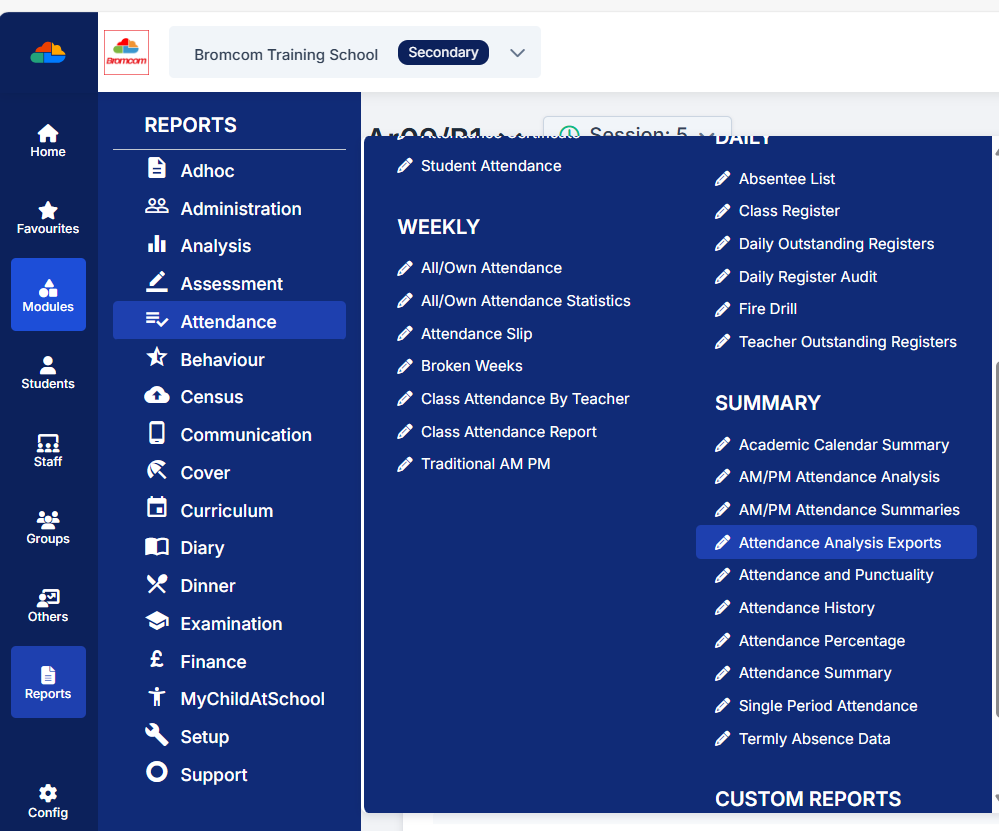
Tip: The quickest and easiest way to check students have a full timetable is to run the Empty Timetable Entries Report from Reports>Attendance>Attendance Analysis Exports
The process can be checked by running either or both of the following reports.
- Empty Timetable Entries Report
- Ad-hoc Class Matrix Report
Individual Student Timetable can be ran via How to Run the Timetable Report for Students
See also End of Year Secondary.
Empty Timetable Entries
From the Home Screen choose Reports>Attendance>Attendance Analysis Exports.
From the Analysis Exports page choose Empty Timetable Entries from the Export drop down.
Choose the file type in the as drop down either CSV or HTML.
Choose the required Dates from Day Start and Day End.
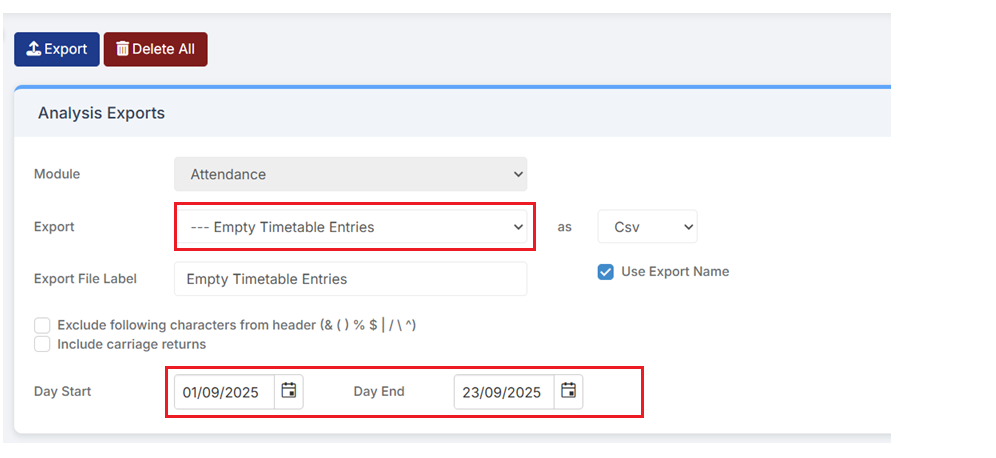
Click the blue Export on the top left to export the report.
The exported report will now be visible in Export File History.

Click on the Red Title of the Report to view the Empty Timetable Entries Report in csv format.
Example of csv Empty Timetable Entries;
This report shows the following 6 columns;
Date of Empty Timetable, Period, Year, Forename, Surname and Admission No.
Note the report is ordered by Date.
In the example below we can see 4 x Year 8 Students have an empty period for Period 1 on the 7th September
| Date | Period | Year | Forename | Surname | Admission No |
| 07/09/2020 | 1 | 8 | Harry | Addison | S0303A |
| 07/09/2020 | 1 | 8 | Dina | Alwadi | S0305A |
| 07/09/2020 | 1 | 8 | Lillie-Mae | Bakalova | S0307A |
| 07/09/2020 | 1 | 8 | Sally-Jane | Borysiewicz | S0309A |
Example Ad-hoc Class Matrix Report
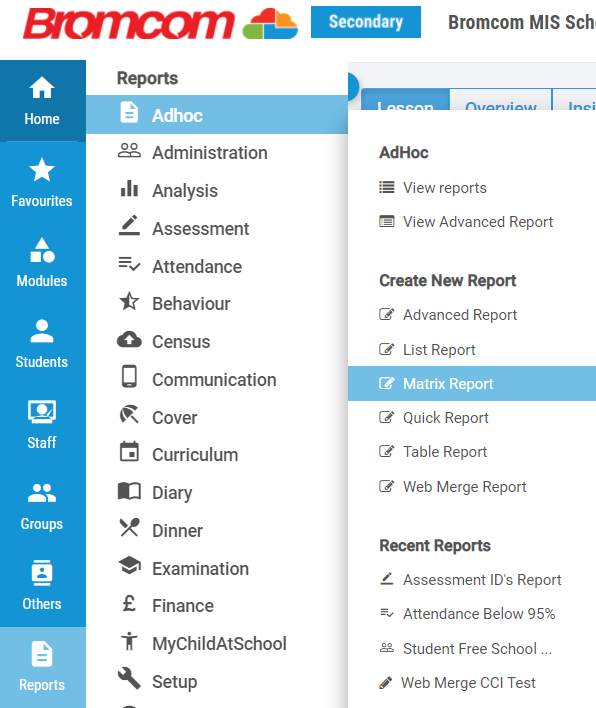
From the Home Screen choose Reports>Adhoc>Matrix Report.
See also How to Create a Matrix Report.
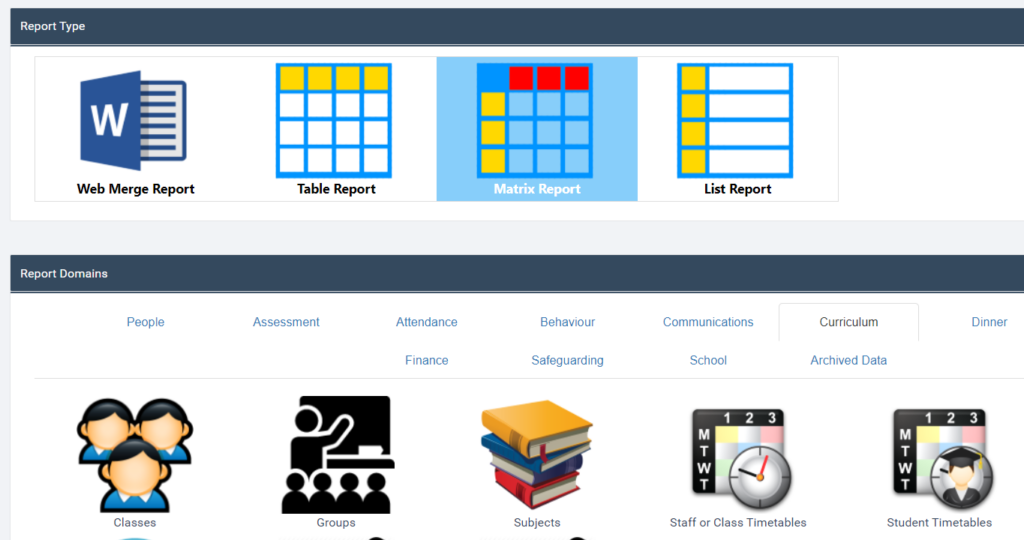
From the Report Builder Choose Curriculum and Student Timetables.
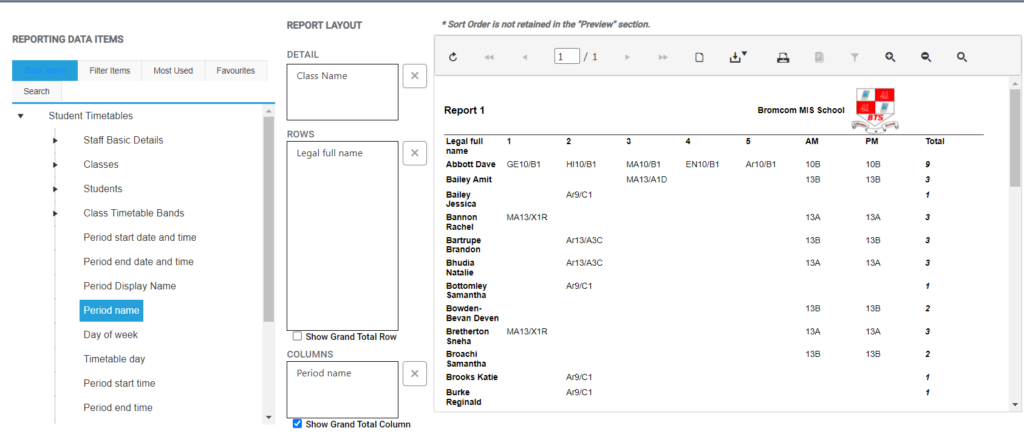
See below an example of a Ad-Hoc Class Matrix Report with the Student Legal Full Name in Rows, Period Name in Columns and the Class Name as Detail as chosen from Reporting Data Items.
To add items select the required item from the Reporting Data Items list and drag into either Detail, Rows or Columns.
Select Show Grand Total Columns to add a Total Column which shows how many periods each student has populated with a class or tutor group.
Once the report is in the required format select Save.
Give the report a Title and Description , choose the Report Folder from the drop down.
In this example the Report has been saved in Module Reports > Curriculum.
Complete Access Permissions, Page Size and Page Orientation as required and select to Hide Header and Footer if required.
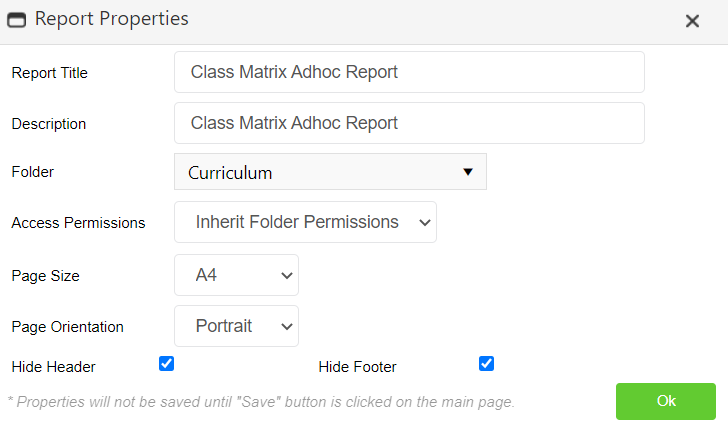
Click Ok to Save the Report.

Click Run to Run the Report.