
Use this guide to generate AM/PM timetables for Tutor Groups. This process can be completed as part of the End of Year Process.
Tip: If a Tutor Group is taught by different Teachers on different days, please see How to Edit a Tutor Group Timetable
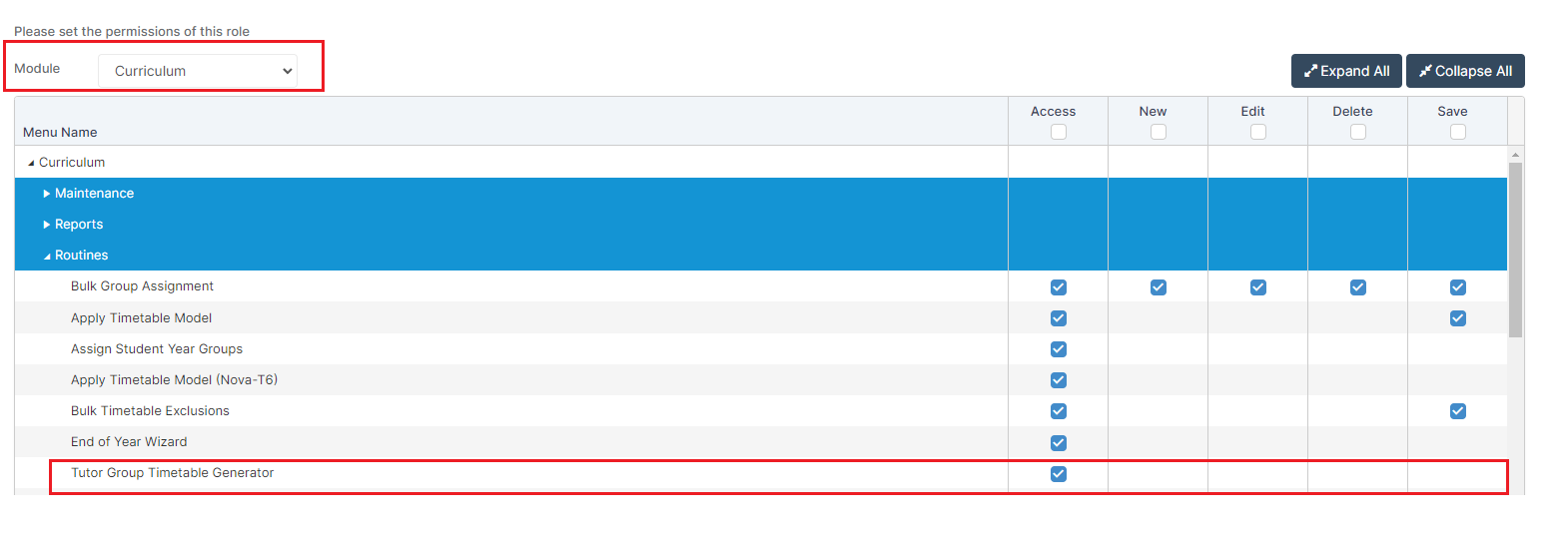
Access: The minimum permissions required to access the Tutor Group Timetable Generator are found in the Curriculum Module from Config>Set Up>Roles and Permissions
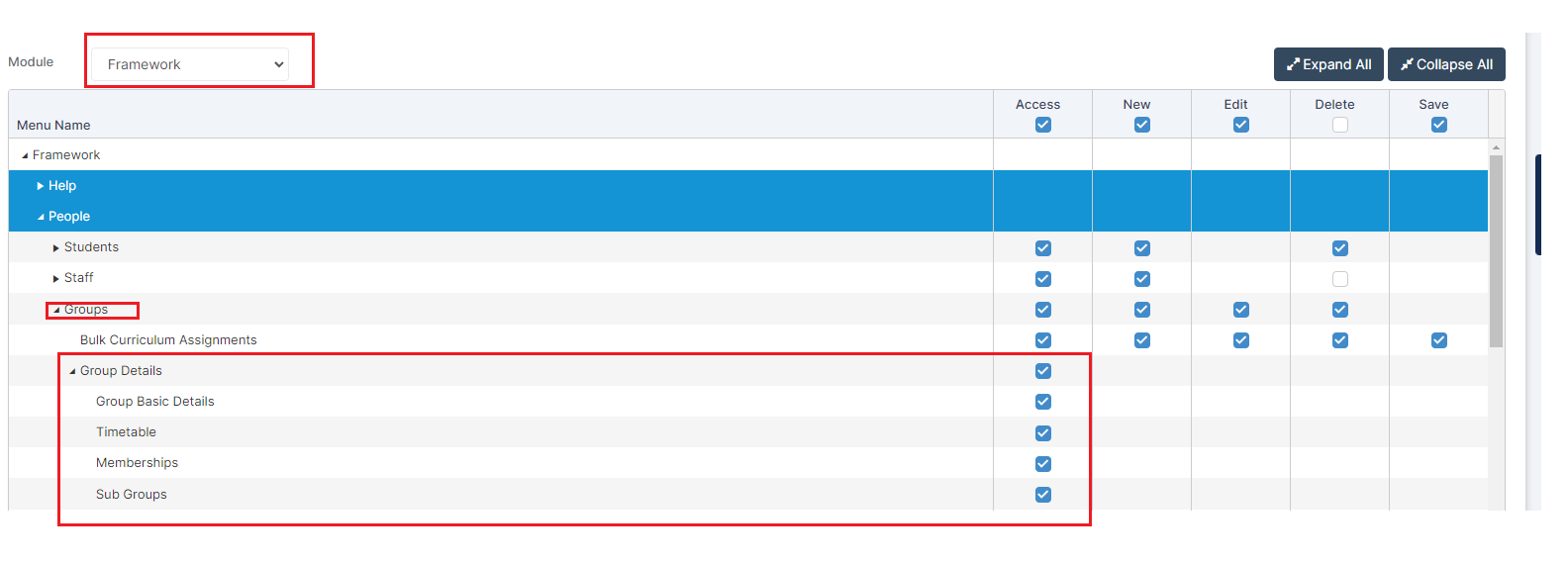
The minimum permissions for the Groups page are found in the Framework Module under Groups
IMPORTANT PRE REQUISITES;
- This process relies on there being an Associated Member of Staff attached to the Tutor Group.
- Ideally, a Location should also be attached to the Tutor Group – without this it will make it harder to manually adjust the Timetable (if needed) at a later point.
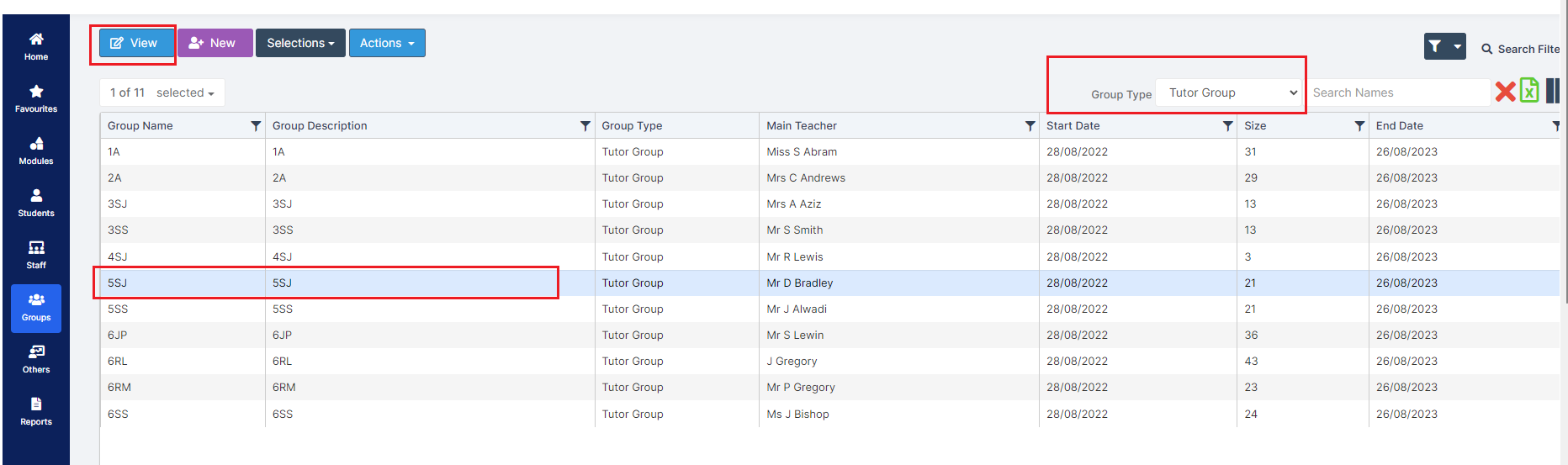
Associated Staff and Locations can be assigned from Groups>Tutor Group. Select the required Tutor Groups ( it is possible to select more than one) and click View.
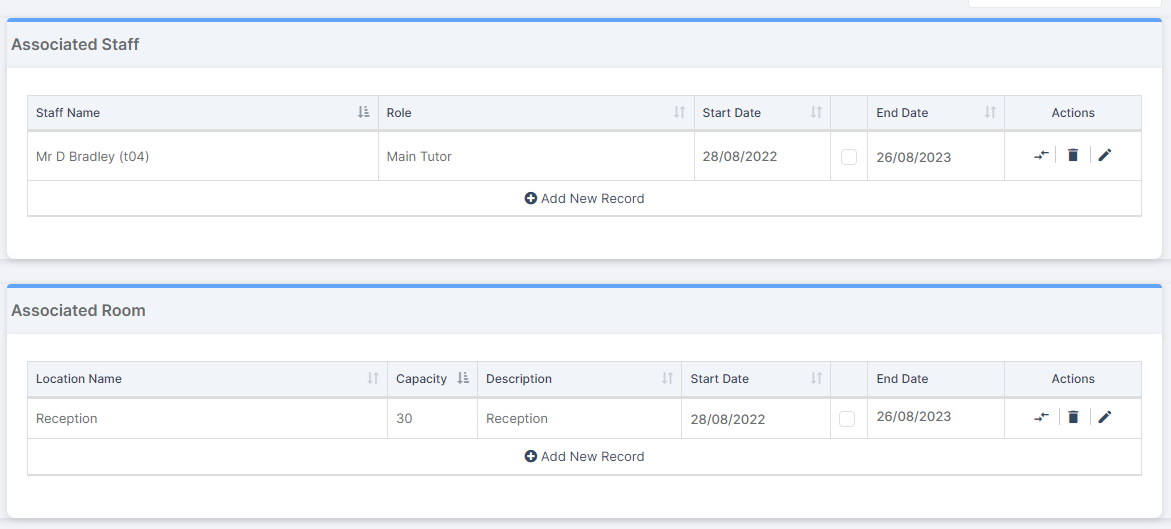
Ensure the correct Staff are in the Associated Staff panel. Where multiple members of Staff teaching a group ensure both are added in here.
If known add in the Associated Room(s) as well, again if the Tutor Group is in more than one room for example Room 10 Monday, Tuesday and Wednesday and Room 11 Thursday and Friday then both Rooms should be added to the Associated Room panel.
See also How to Create a New Tutor Group and How to Edit a Tutor Group Timetable.
From the left menu choose Modules > Curriculum > Tutor Group Timetable Generator.

Select the Start Date and End Date the Timetable will run for and the Tutor Groups that you want to Create the Timetable for.
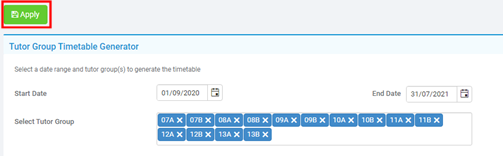
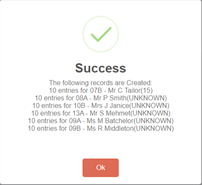
Then click Apply and a notification will tell you if this has been successful.
Note:
- As in the image above, if there is no Room attached to the Group before using Tutor Group Timetable Generateor, the Location will show as UNKNOWN.
- It will create an AM and PM Timetable for all the Associated Staff and Room combinations so it may be necessary to manually adjust this if it is a Split Group i.e. if one teacher teaches the group 3 days a week and another teaches 2 days a week. If this is the case please raise a case through the usual Support Channels.