
In this guide, we show How to Manage Additional Allowances within the Staff Profile.
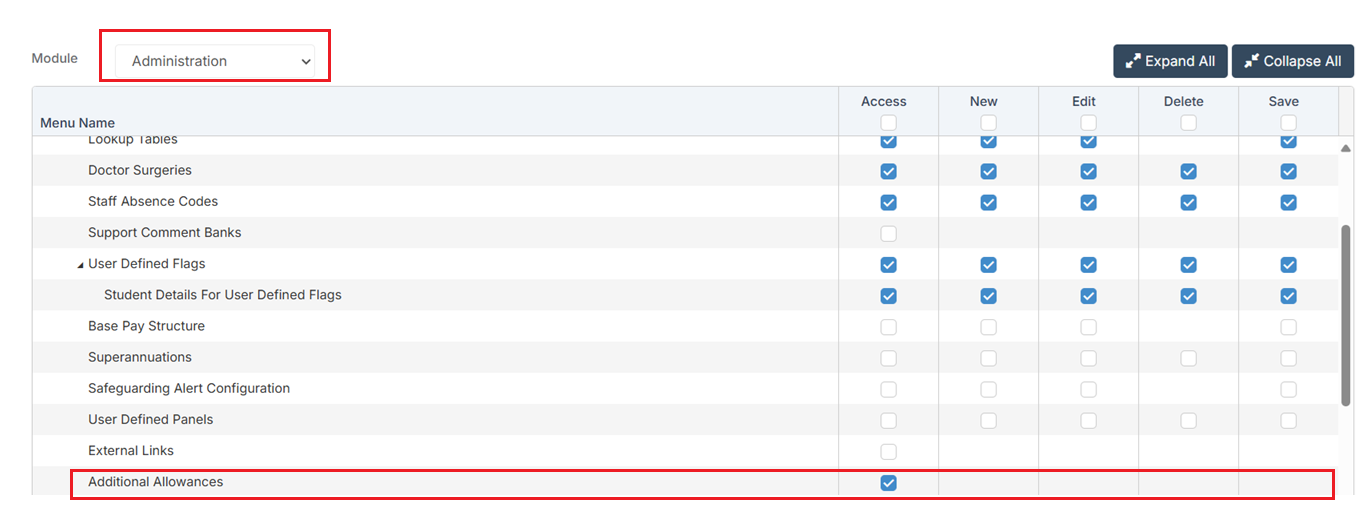
Access: The minimum permissions required to access Additional Allowances is found in the Administration Module section Config > Setup > Roles & Permissions.
Related Guides:
For 2025 Updates to Additional Allowances see here.
This guide is split into two sections:
Additional Allowances
To begin, go to Config > Administration > Additional Allowances
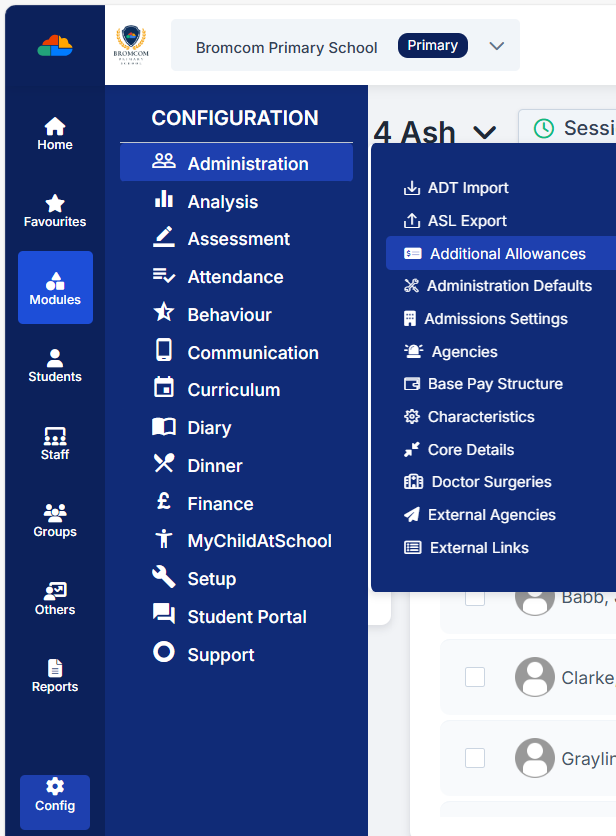
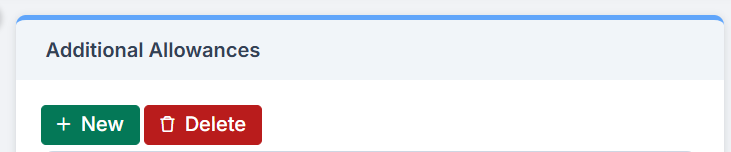
To create a new Additional Allowance click New.
Complete the fields as required. Any fields marked with an asterisk* must be completed to save the record.
- Lookup Name* maximum of 10 characters allowed
- Lookup Description* maximum of 80 characters allowed
- Choose the Associate Lookup Value* from the dropdown choices
- Payroll Allowance comes from a user created Lookup Table in Config > Administration > Lookup Tables
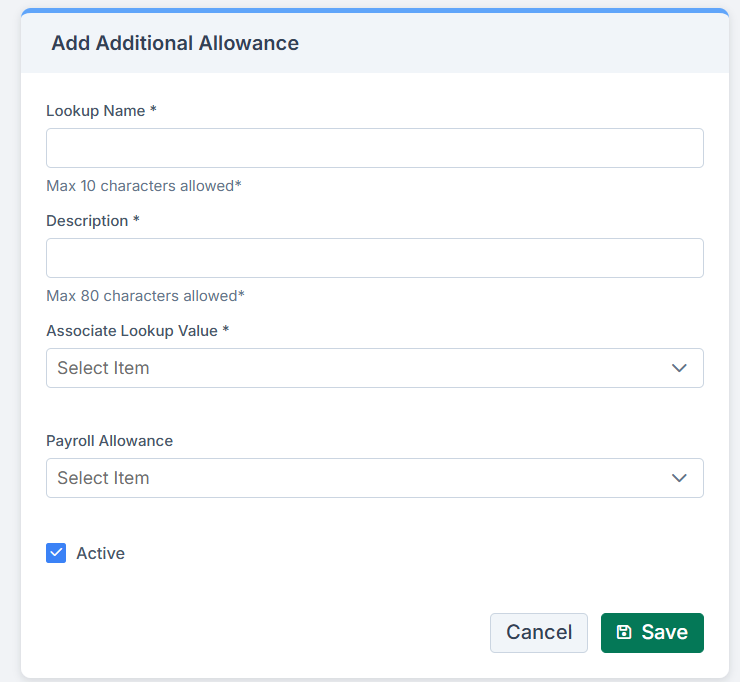
Click Save when the required information has been entered.
To Edit an Additional Allowance, select the required Additional Allowances from the list to see the Edit Additional Allowance panel. Click Save if any changes are made.
The system considers Additional Allowances versions to ensure the correct and most up-to-date allowance amount is applied automatically when looking at Salary Projections, Salary Calculations and Individual Salary Payments.
The Payroll Allowance drop down list in the Edit Additional Allowance panel is maintained in Config > Administration > Lookup Tables, and allows users to create pre-set Payroll Allowances.
Versions allows a user to add set amounts for an Additional Allowance and maintain different versions for different time frames. Clicking Add displays the Add Version pop up.
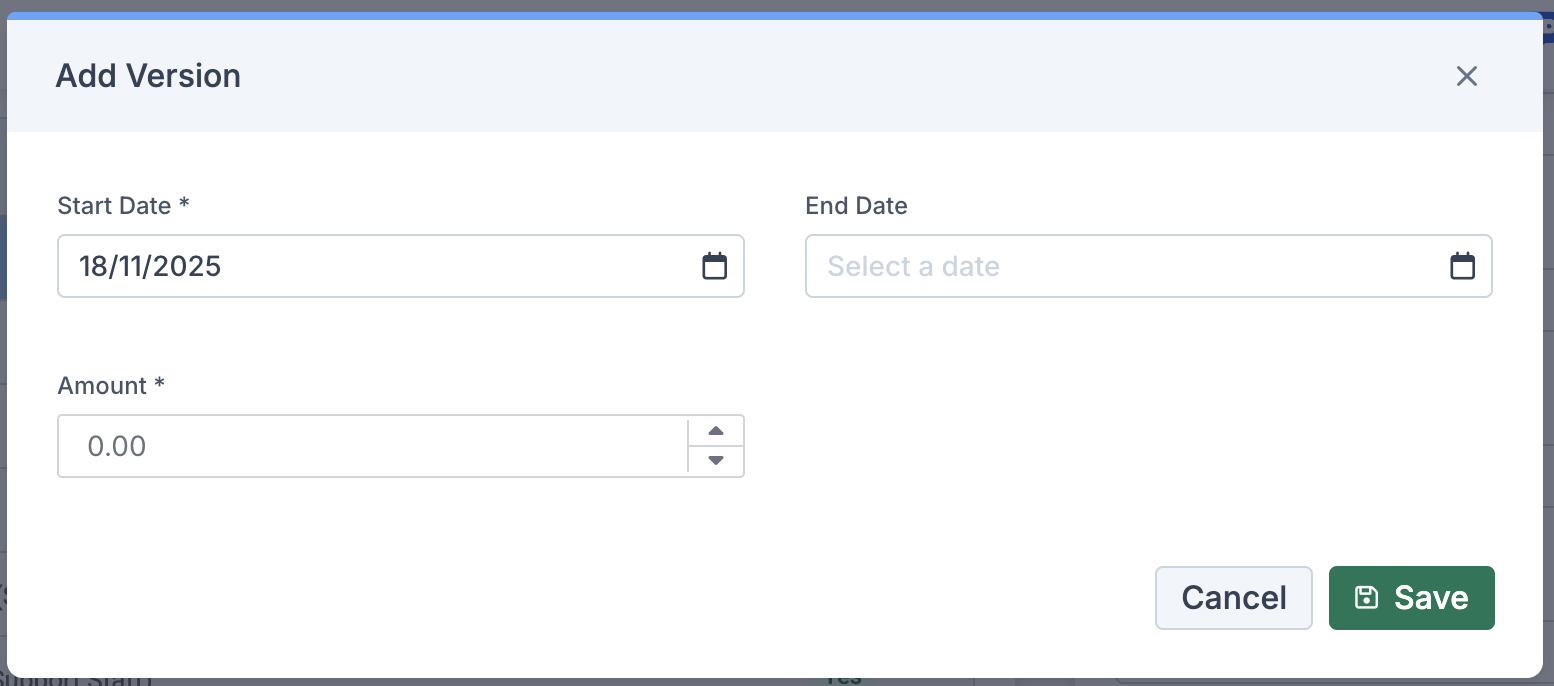
Only one valid rate can exist at any given time. This prevents overlapping or missing date ranges between versions.
When a new version of an Additional Allowance is created, the system will automatically close the current version by setting its end date to the day before the new version’s start date.
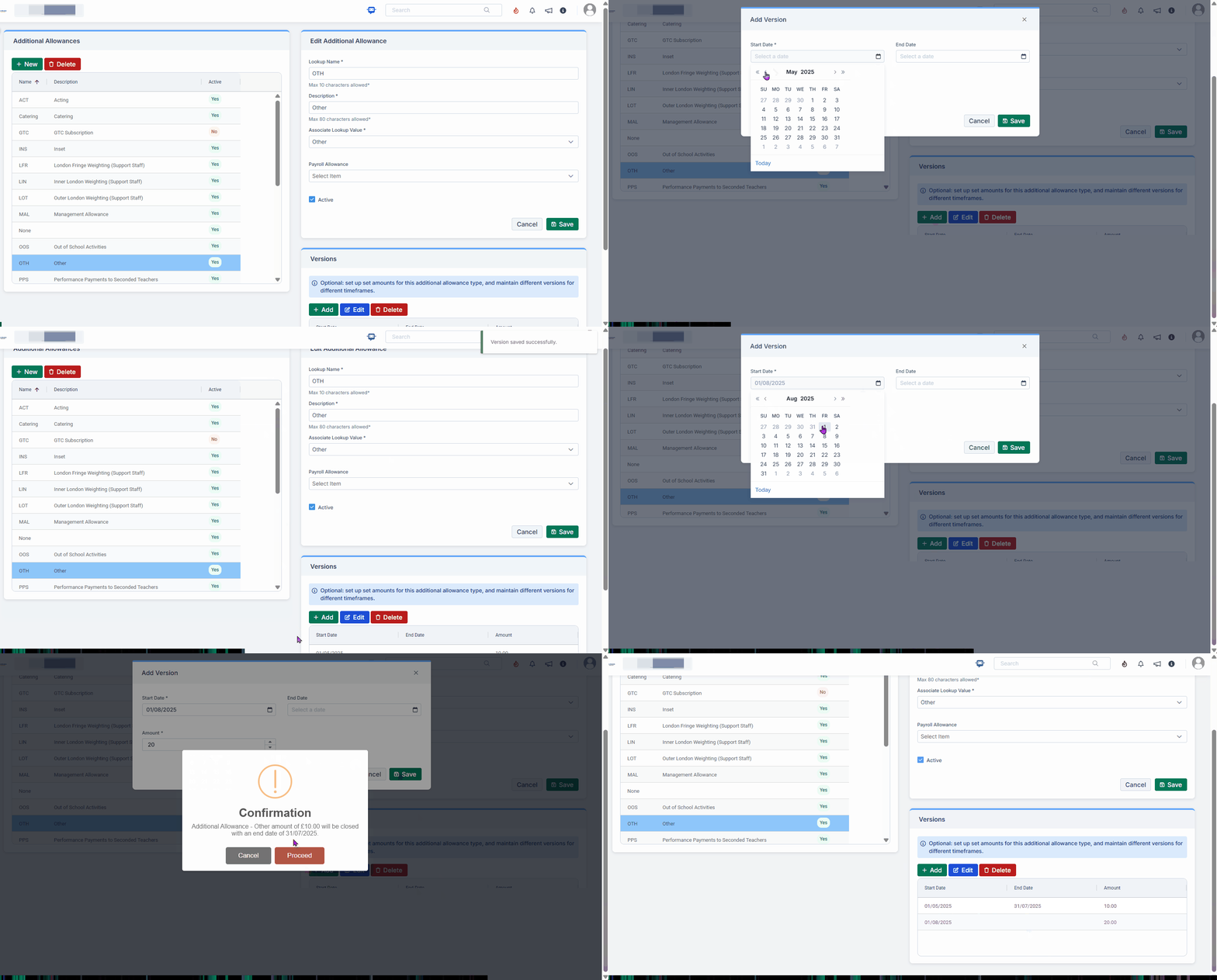
Note: To maintain data accuracy, creating or editing versions that overlap in date ranges is prevented. Once dates are correctly aligned, the new allowance version can be successfully saved.
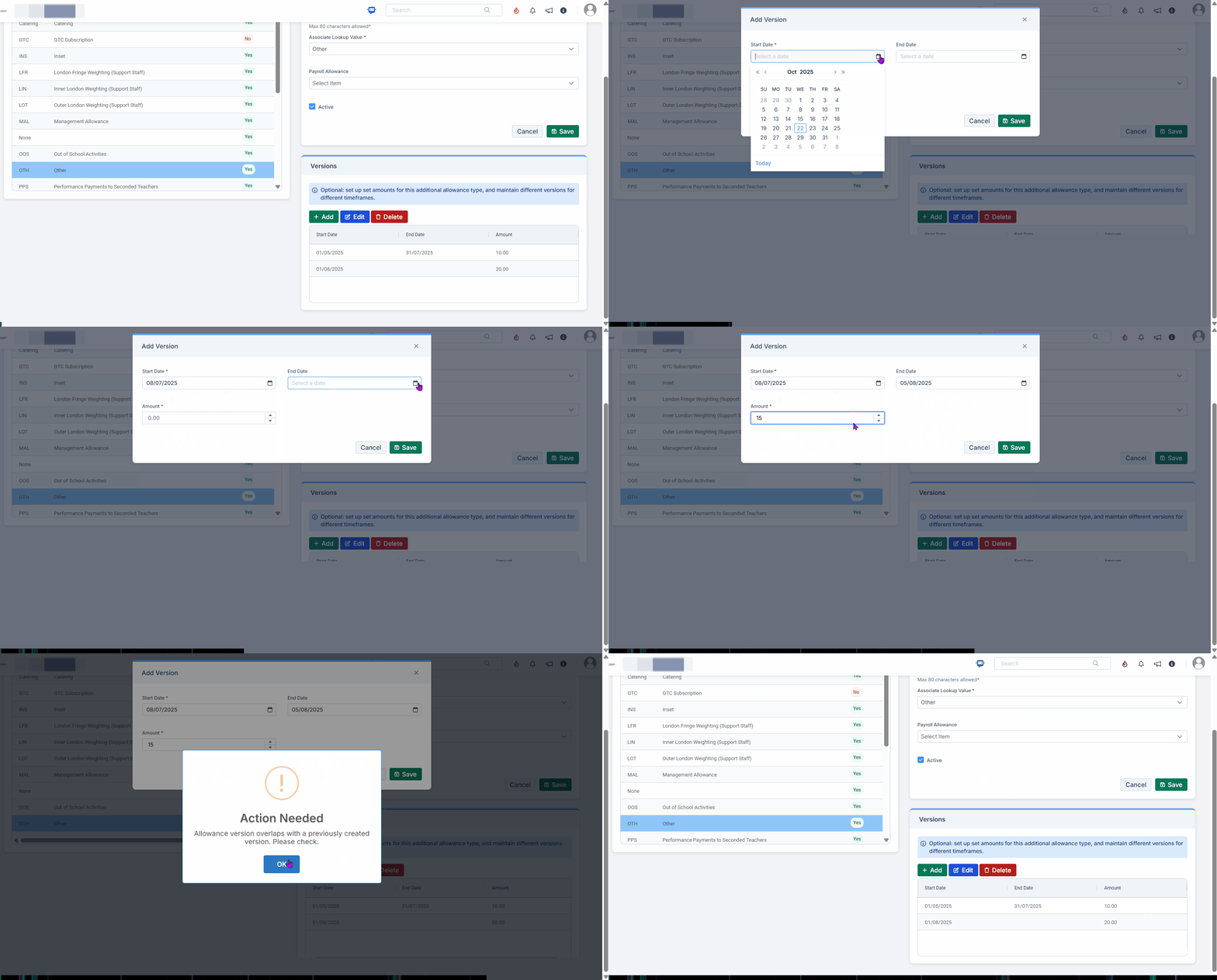
Additional Allowance Version Management Rules:
- Editable versions: The allowance amount and end date can be edited, but the start date is locked once set
- Deletable versions: When a version is deleted, the previous version’s end date automatically extends to cover the deleted period
- Automatic version closure: Adding a new version automatically ends the previous one the day before the new version’s start date
- Unique start dates: No two versions can share the same start date
- Linked end dates: Amending a version’s end date adjusts the start date of the next version, if one exists
- Overlap prevention: Extending a version triggers a validation check to prevent date overlaps
Click Save if any changes are made.
Staff Profile
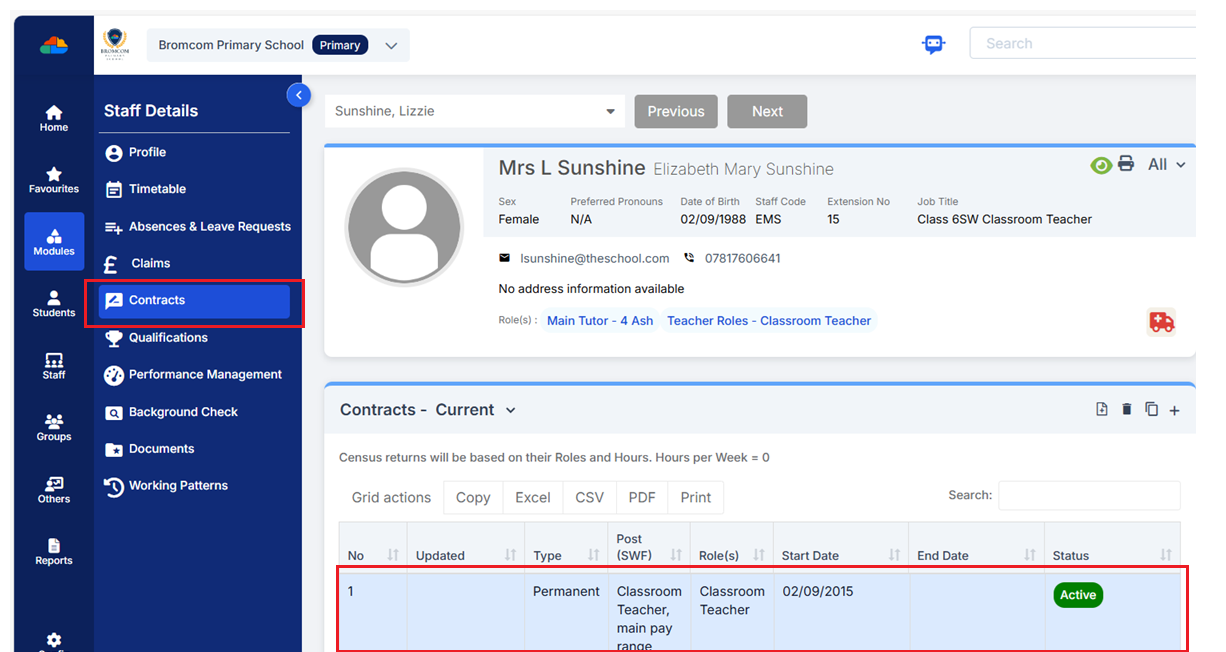
To see the Additional Allowance in the Staff Profile, go to Staff > Contracts and then click on the required contract.
Click on the Pay tab. In the example below, the member of Staff has Pay set as Teacher – Main.
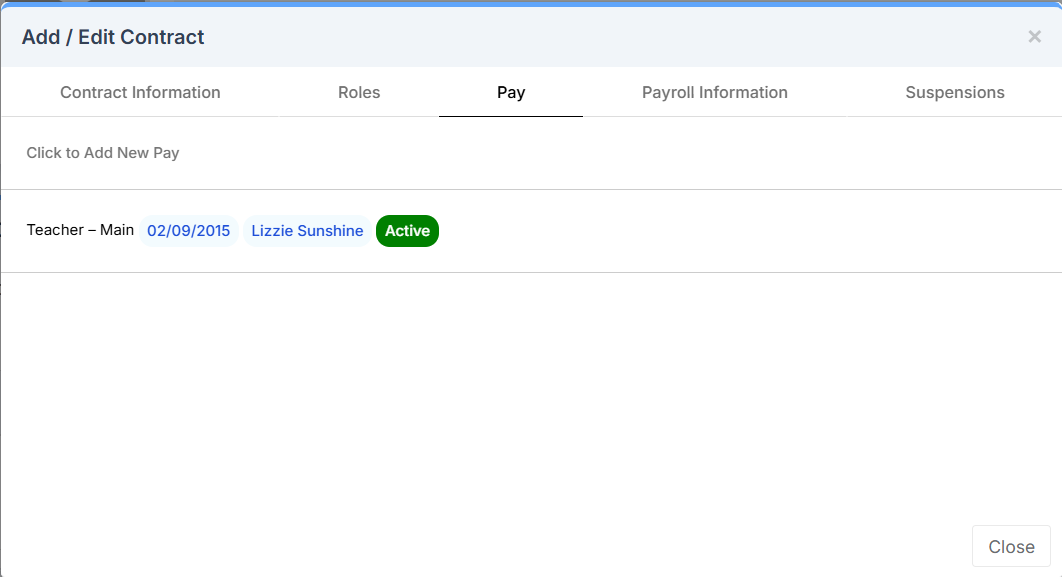
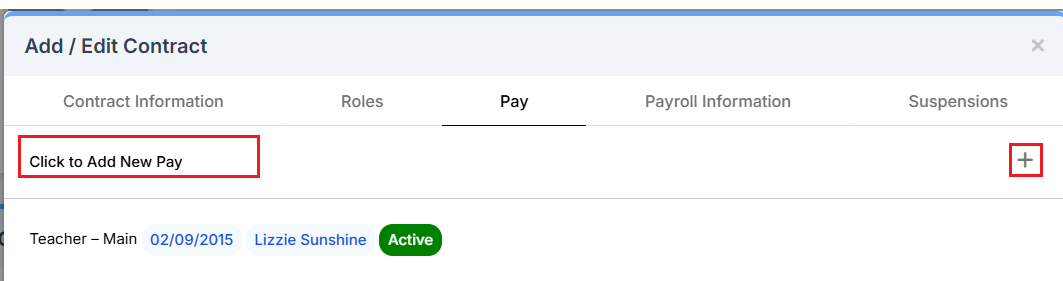
Then click Click to Add New Pay.
The Additional Allowance as a Pay Item Type* can now be selected. The Payment Type dropdown list displays the list of Additional Payment Types.
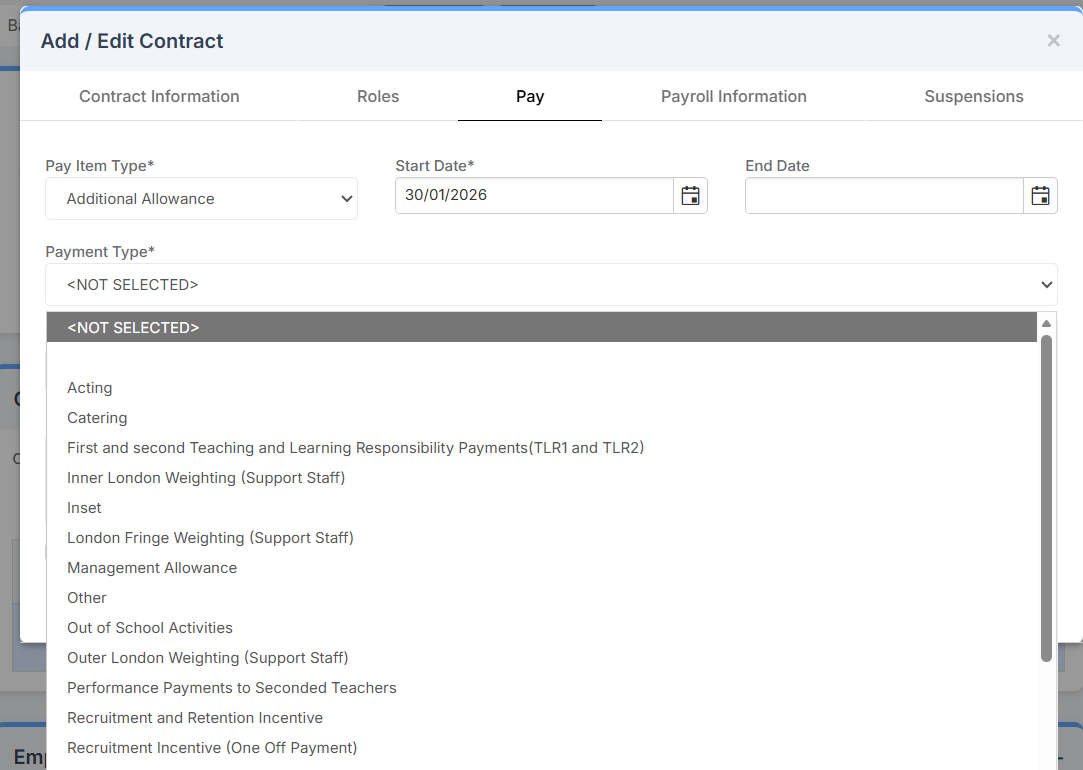
Note: If a Payment Type is selected that is active within the Start Date and End Date of the Additional Allowance, the Annual Amount field is populated with the amount from that selected Version.

Click the Additional Allowance Version History icon to open a pop up showing a table of all available versions for that specified Payment Type.
Pop up.
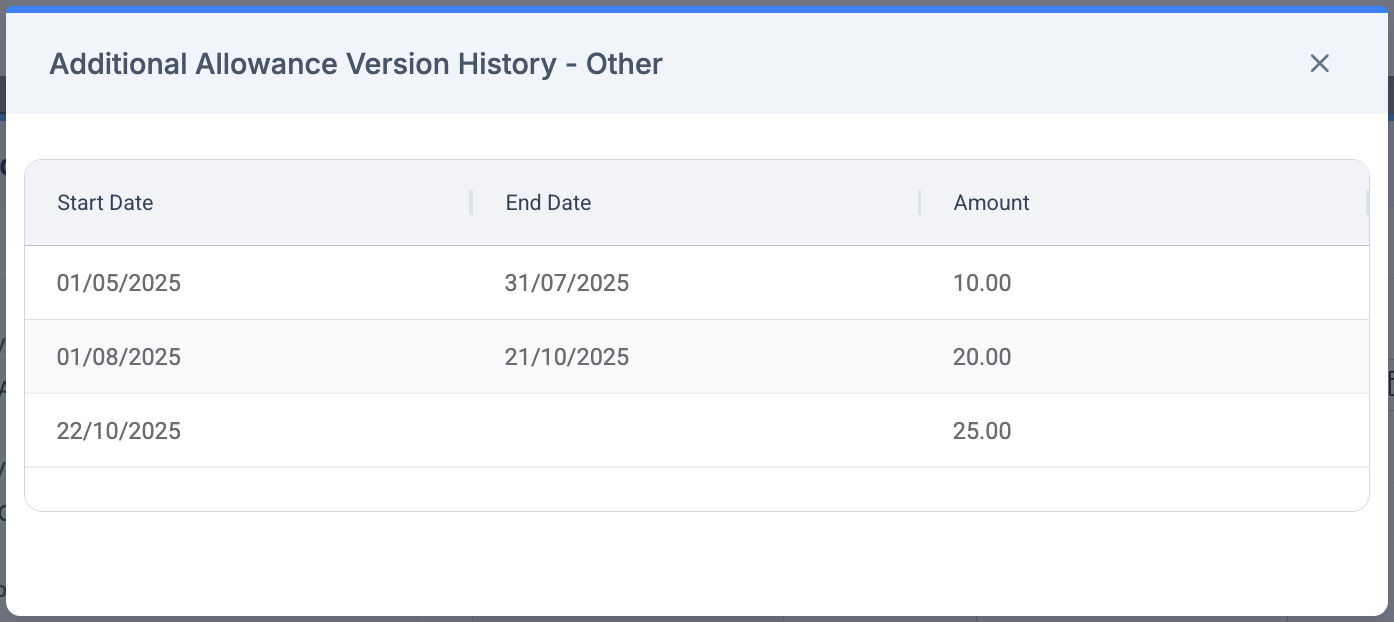
Note: If no versions exist for the Payment Type selected, the pop up will display the message: No additional allowance history found.