This page contains the following guidance for completing the School Annual Workforce Census (SWAC) Autumn 2026. It will be updated as and when further information is received from the Welsh Government.
The 2026 SWAC is not yet available to run. Some of the screenshots in this guide are from the 2025 return and will be updated once the 2026 file is available.
- Important Dates
- Pre Data Collection Checks
- Generating the SWAC Return
- Reviewing the SWAC Return
- Census Reports
For further information, documentation, and links to live training for the SWAC Return, see here.
IMPORTANT: It is the school’s responsibility to review the Welsh government guidance to ensure all required information is submitted as part of the SWAC Return. Please see here for the Welsh Government guidance.
Important Dates
- Census Date – Tuesday 3rd November 2026
- Deadline Date – Wednesday 16th December 2026
Returns must be submitted to the Local Authority via DEWi. Each Local Authority sets its own deadline for submission of school returns. Please check with the relevant Local Authority for their submission deadline.
THE SCREENSHOTS USED IN THE GUIDE ARE FOR ILLUSTRATION PURPOSES ONLY AND MAY DIFFER IN A LIVE SCHOOL’S MIS.
- Expand each item for guidance on preparing the SWAC Return in Bromcom.
- To print this as a checklist, click ‘Collapse All’ (button on the right), then right-click the page and select ‘Print.’
- To print this as a full guide, click ‘Expand All’, then right-click the page and select ‘Print’.
Pre Data Collection Checks
The SWAC Return collects the following School Details:
- Local Authority Number
- School Number
- School Name
- School Phase
- School Language Category
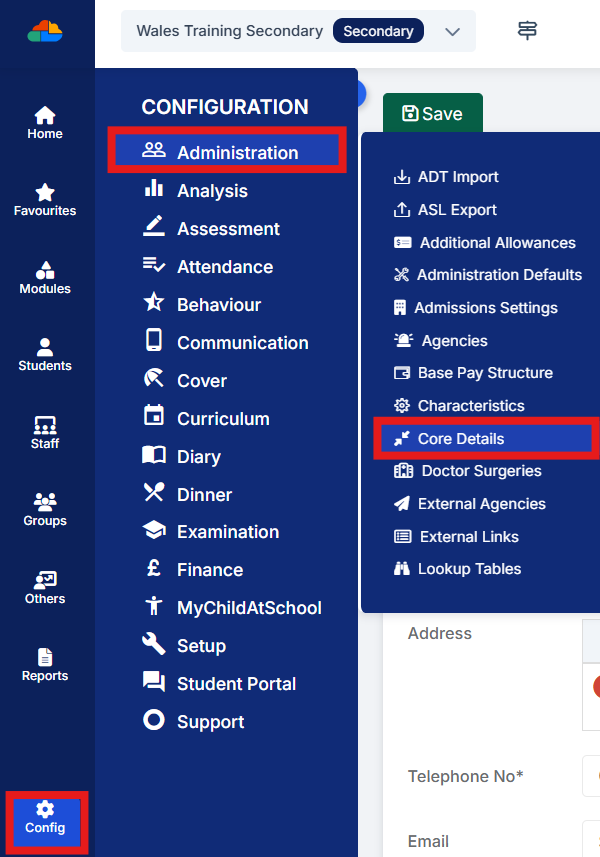
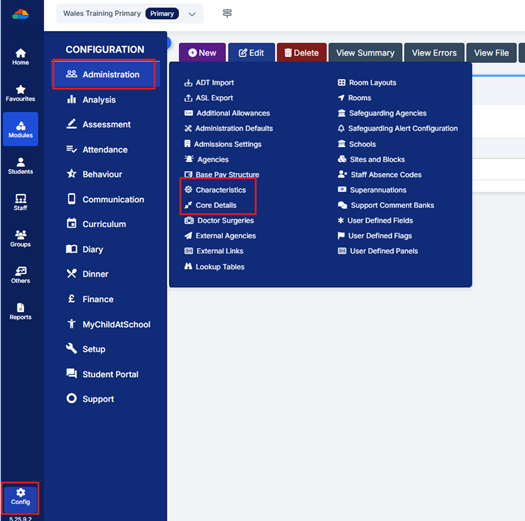
To check the Local Authority Number, School Number and School Name navigate to Config > Administration > Core Details.
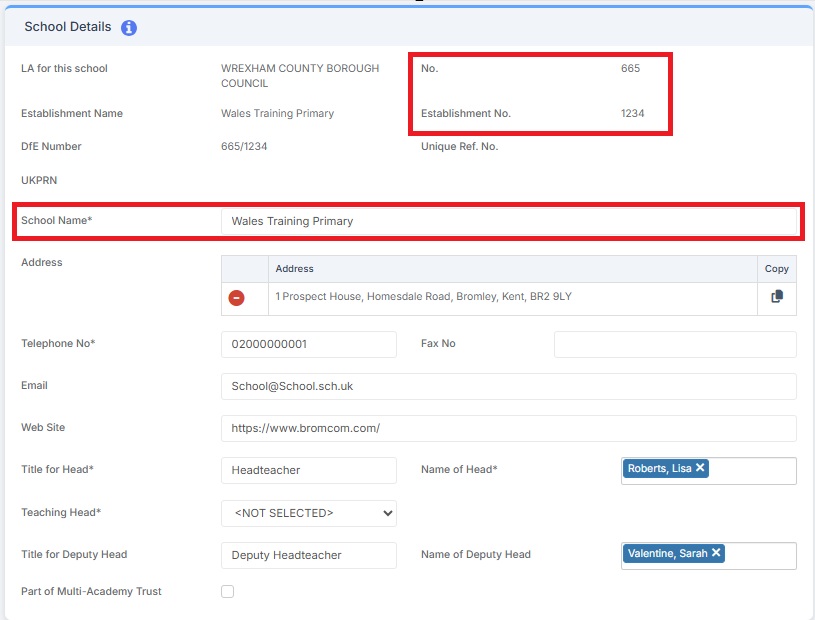
In the School Details panel:
- Local Authority Number is displayed as No.
- School Number is displayed as Establishment No.
- School Name is displayed as School Name
Please note, the example below is for illustration purposes only and the information may differ from the School Details panel within a live school MIS.
The School Name field can be edited directly. If the School Number or Establishment Number are incorrect, these must be updated via Config > Administration > Schools.
Click Save to update any changes made.
To check the School Phase and School Language Category navigate to Config > Administration > Characteristics
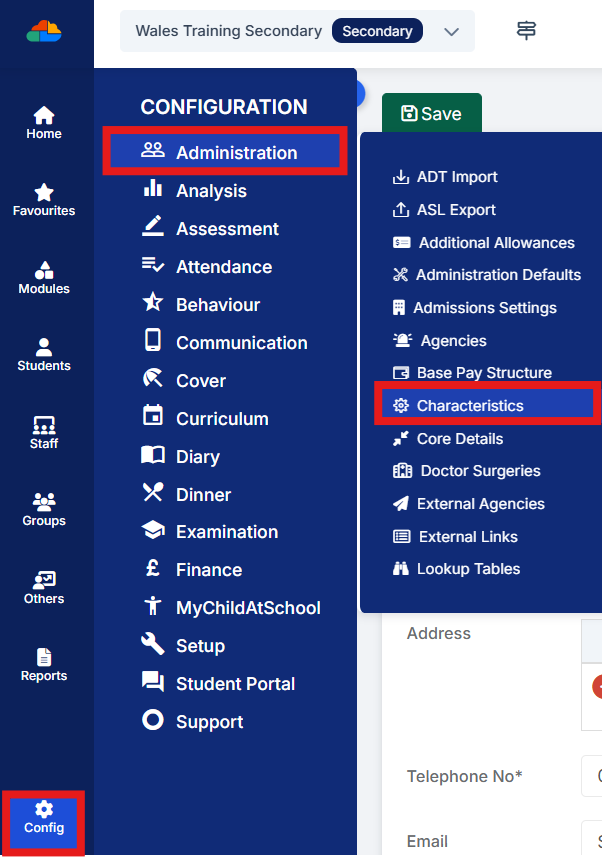
In the School Characteristics panel, verify that the School Phase and School Language Categories fields are correct.
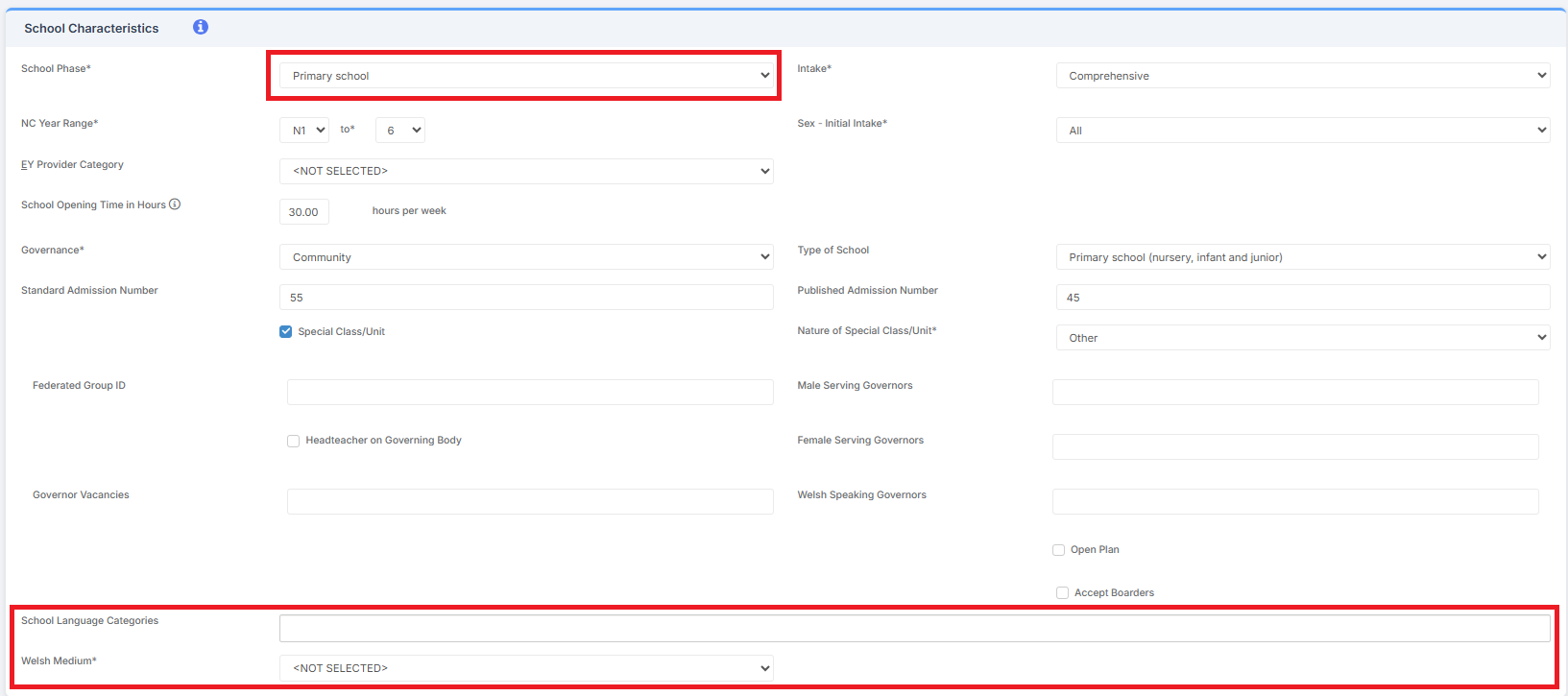
Click Save to update any changes made.
The SWAC Return collects a range of information for both current staff and leavers. Below are details of the key Workforce Identifiers collected and where each item can be found within the Staff Profile.
To edit the following information, navigate to the Staff Profile, hover over the Staff Name, and select the pencil icon.
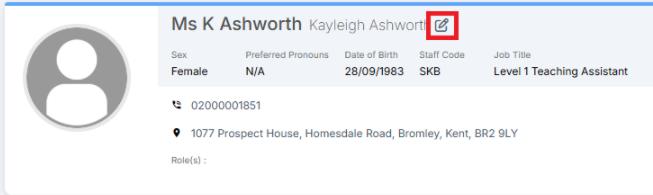
Name Details
Legal First Name, Legal Last Name, and Middle Name(s) can be reviewed and updated in the Name Details tab.
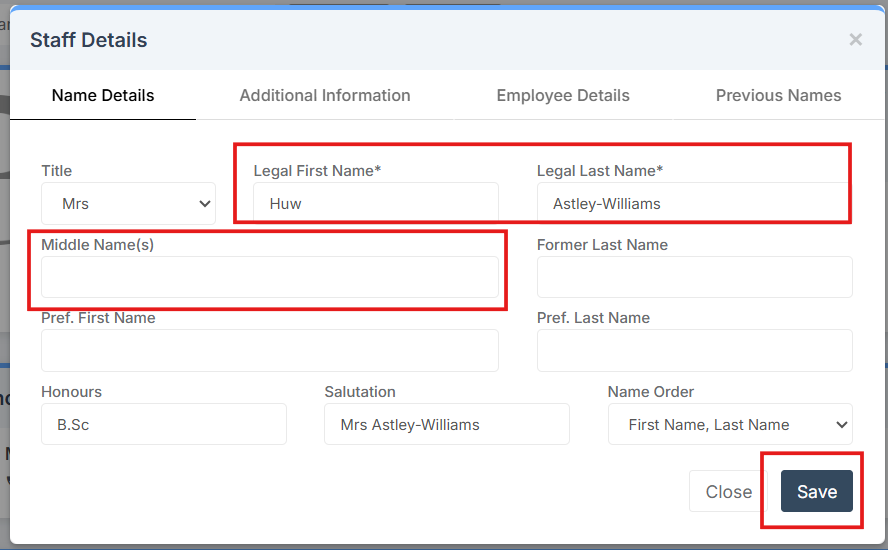
Click Save to update any changes made.
Additional Information
Date of Birth, Sex, and National Insurance Number can be reviewed and updated in the Additional Information tab.
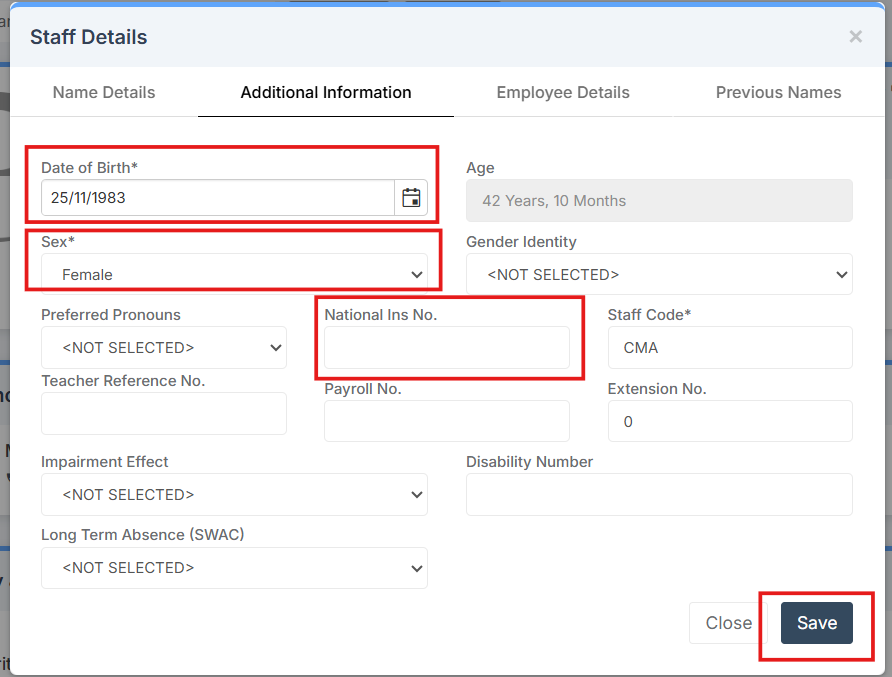
Click Save to update any changes made.
Employee Details
This section allows a member of staff to be marked as Supply Staff and to indicate whether they should be included in the Census.
For Leaver staff, Leaving Date, Leaving Reason and Leaver Destination must be present and can be reviewed or updated as needed.
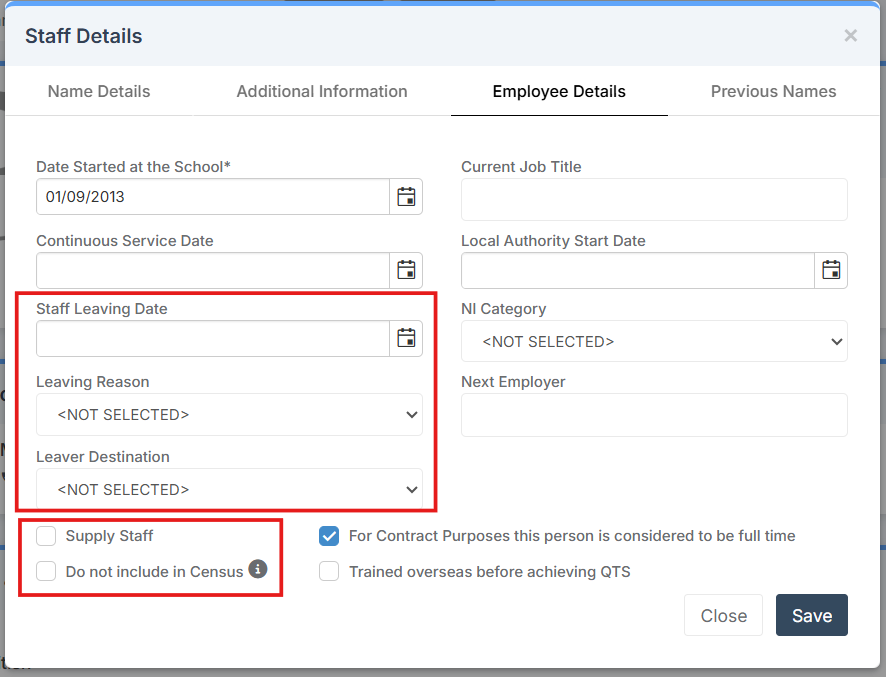
Click Save to update any changes made.
Teacher Reference Number
To review and update Teacher Reference Number, navigate to Staff Profile > Background Checks > Qualification Checks
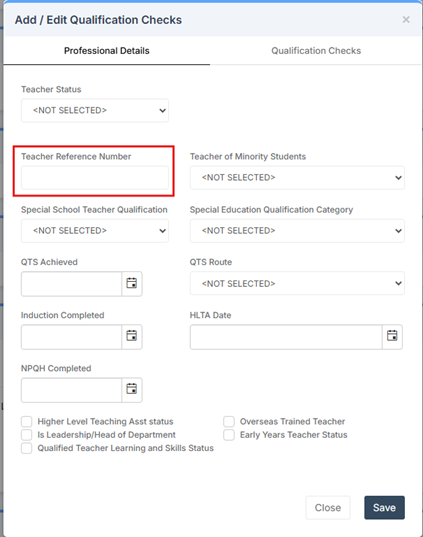
Click Save to update any changes made.
The SWAC Return collects a range of information for both current staff and leavers. Below are details of the key Workforce Characteristics collected and where each item can be found within the Staff Profile.
Ethnicity & Welsh Language
Navigate to Staff Profile > Ethnicity & Religion to review and, if necessary, update Ethnicity and National Identity.
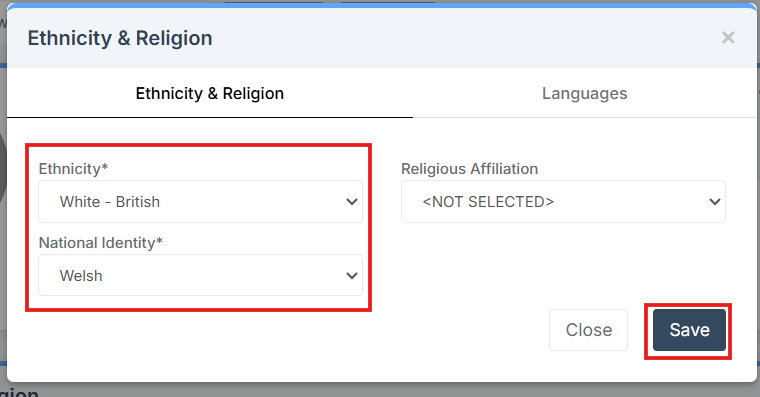
To review and update Welsh Language Ability, Ability to Teach in Welsh and Teaching or Working in Welsh, navigate to the Welsh Language tab.
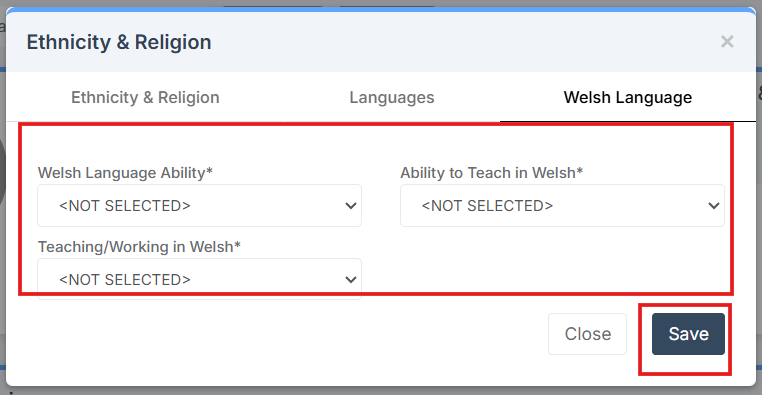
Click Save to update any changes made.
Disability Status
Navigate to Staff Profile > Medical Conditions, Dietary Needs & Impairments.
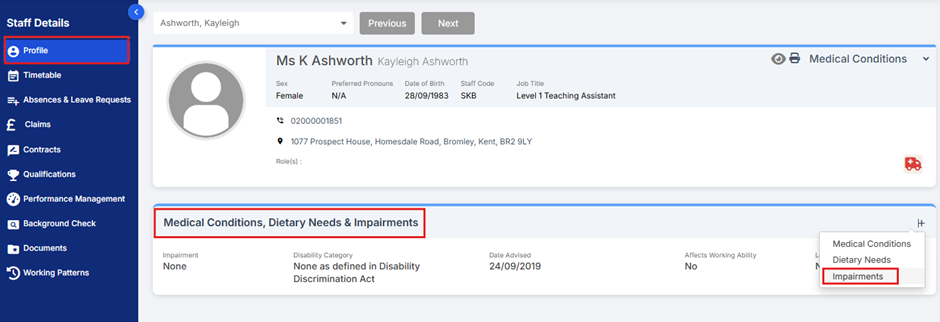
Review the Declared Disability status and category, along with the Impairment and Date Advised fields.
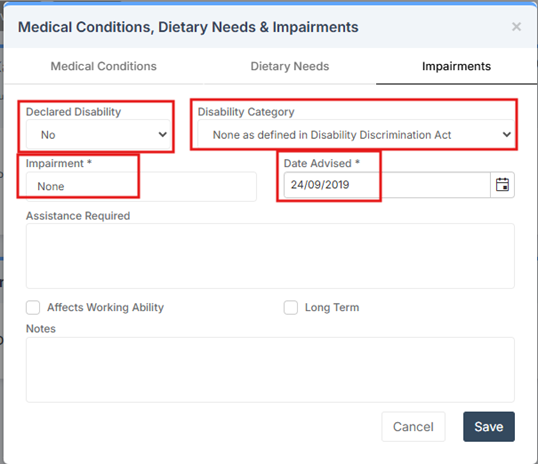
Click Save to update any changes made.
Qualification Checks
To record the following details for a member of staff, navigate to Staff Profile > Background Checks > Qualification Checks.
- QTS Status (including date and route)
- NPQH Status (including date)
- HLTA Status
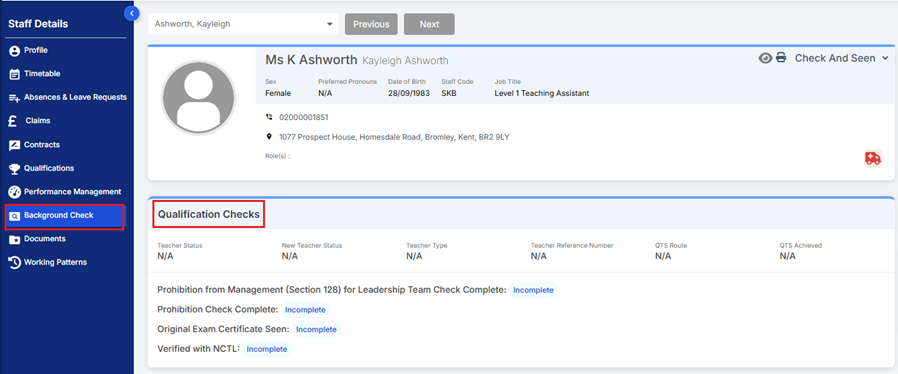
Double-click to open the panel.
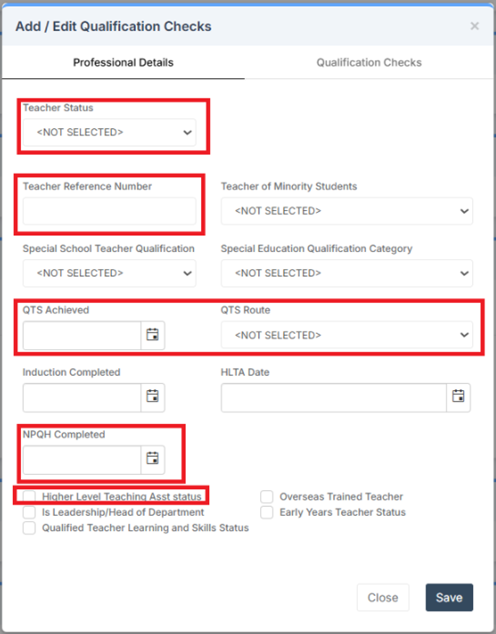
Click Save to update any changes made.
The SWAC Return collects information on the Role(s) performed by each member of staff, including both current staff and leavers.
To review or update this information, navigate to Staff Profile > Contracts > SWAC Information.
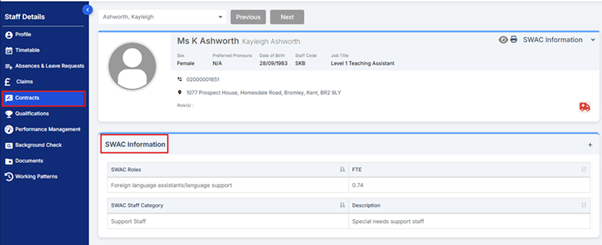
To add a new role, select the + icon in the top-right corner and choose Add a role.
To edit an existing role, double-click the record.
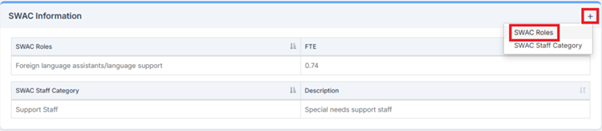
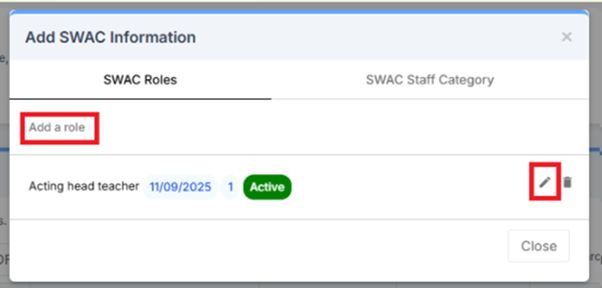
Ensure the correct Role, FTE and Start Date have been entered.
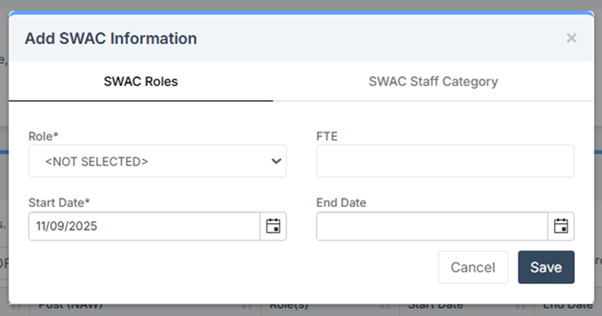
Click Save to update any changes made.
The SWAC Return collects information on teacher vacancies to identify potential areas of staff shortage in the teaching profession.
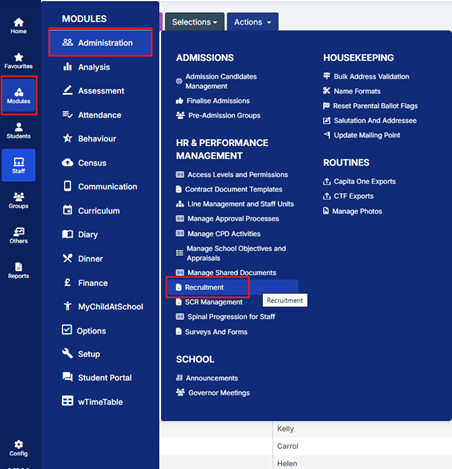
To record this information, navigate to Modules > Administration > Recruitment.
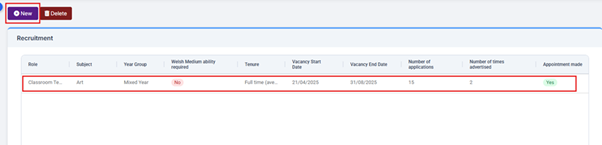
To add a new vacancy, select the New button in the top-left corner.
To edit an existing vacancy, double-click the record.
To delete a vacancy, select it by clicking once, then select Delete.
Ensure all fields marked with * are correct, and use the Welsh Medium Ability Required and Appointment Made tick boxes where applicable.
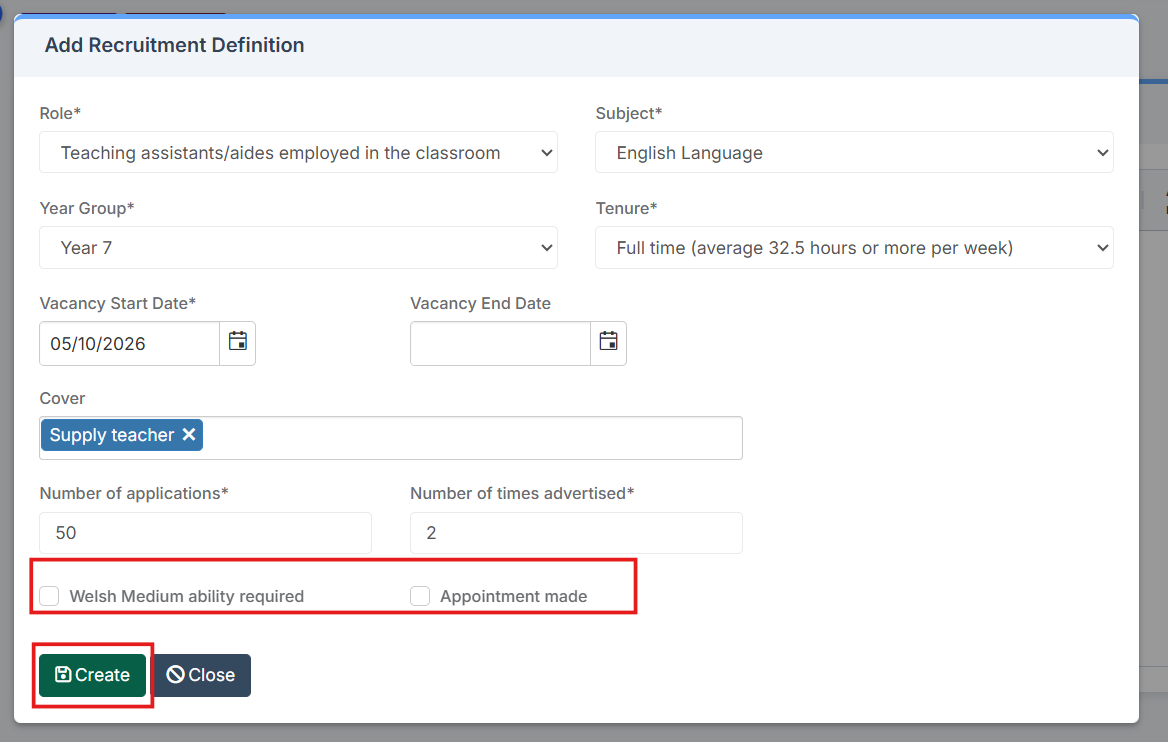
Click Save to update any changes made.
The Staff List page provides a useful overview for identifying and updating any gaps in staff data.
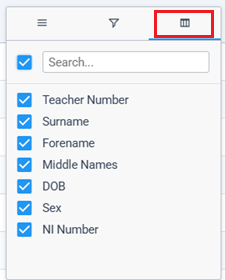
Reports on staff data – such as Ethnicity, SWAC Role or Teacher Reference Number – can be generated quickly by using the Add/Remove Additional Columns function.
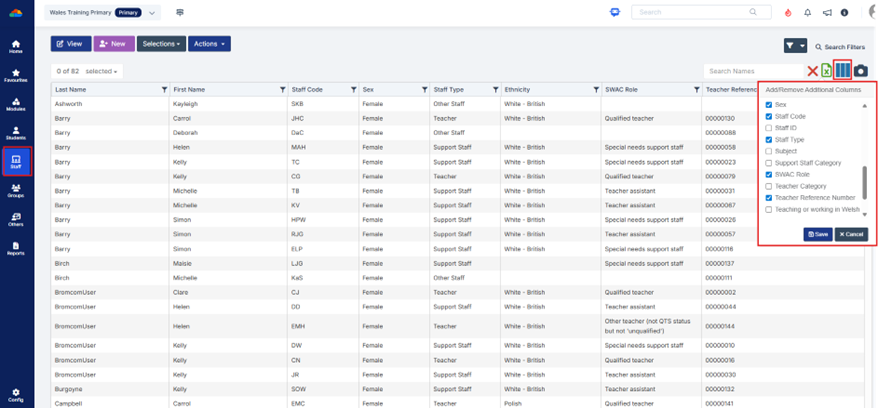
In the example below, columns for SWAC Role and Teacher Reference Number have been added, followed by a column filter on SWAC Role set to Qualified Teacher. The Teacher Reference Number column can then be sorted or filtered to highlight which teachers are missing a Teacher Reference Number in the MIS.
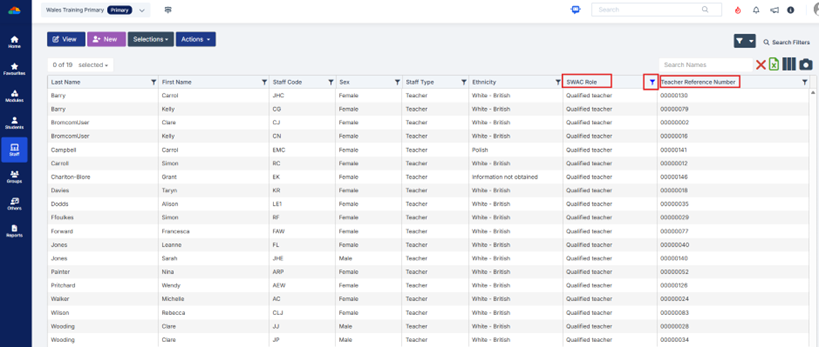
To export the filtered data, click the green X icon at the top right to download it as a CSV file.
In addition, the Quick Edit and Manual Data Export/Import functions on the Staff List page Actions can be used to update staff data in bulk.
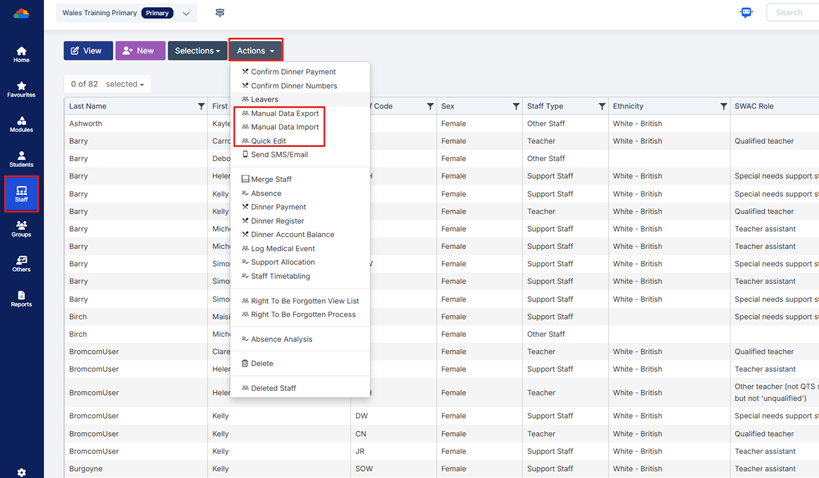
For more information, see How to use Quick Edit and How to use Manual Data Import and Export.
Generating the SWAC Return
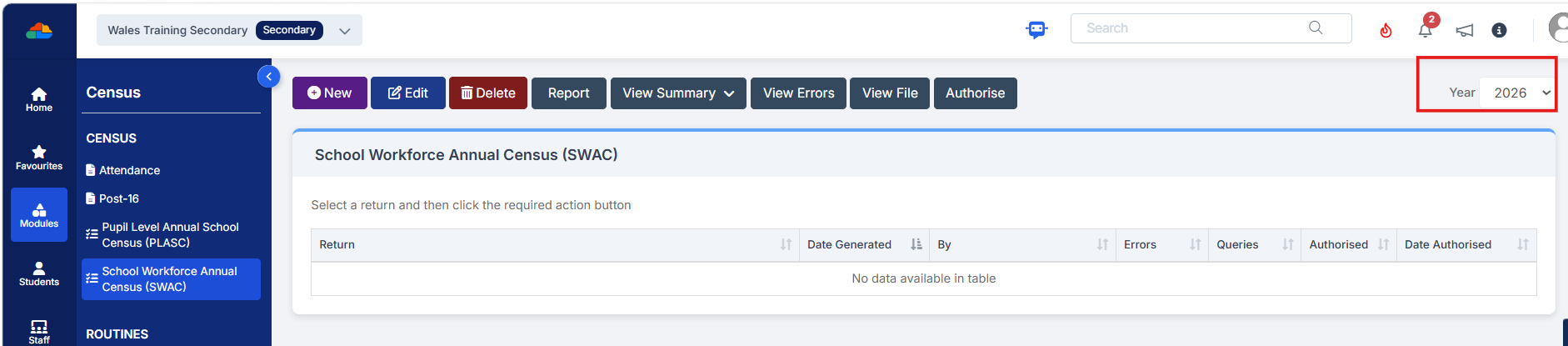
To run the SWAC Return, navigate to Modules > Census > School Workforce Annual Census (SWAC).
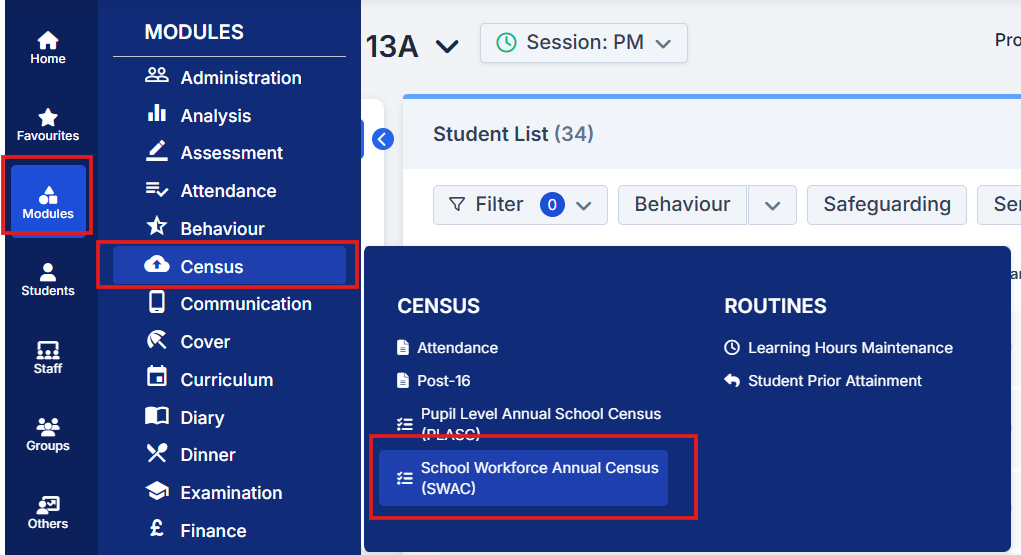
In the top-right corner of the screen, select the appropriate Year. This field should be correct by default.
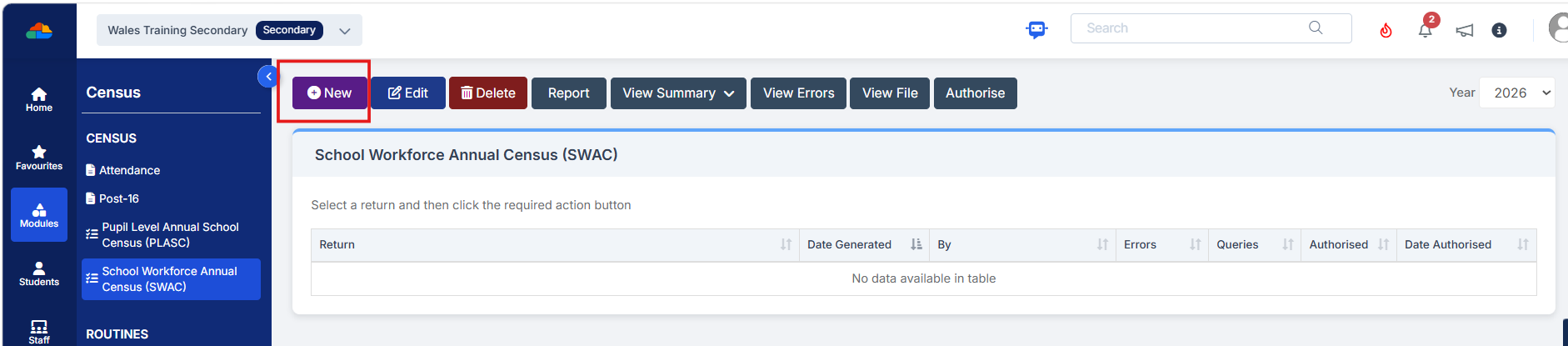
Click the New button in the top-left corner to create a new SWAC Return.
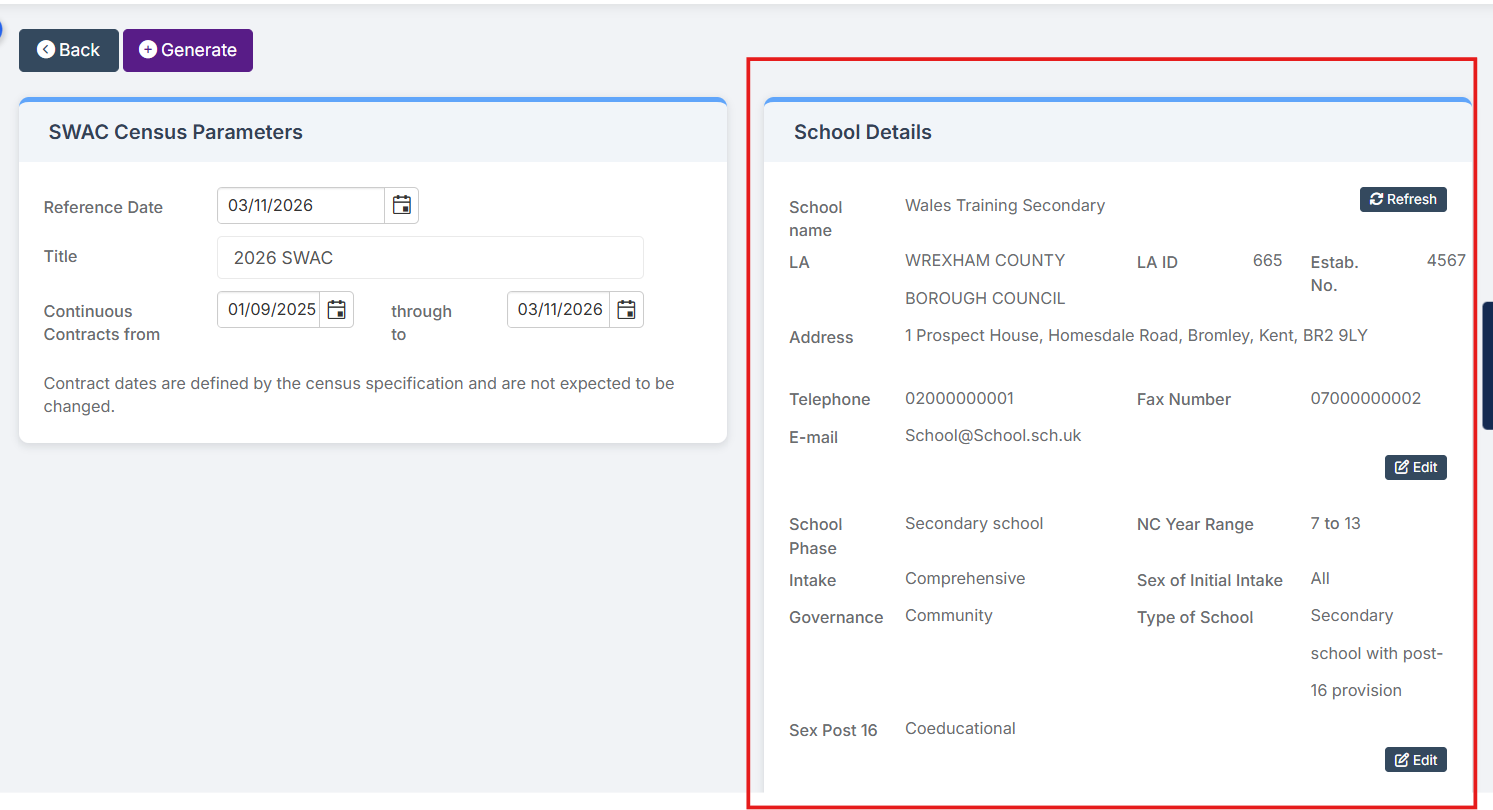
The information in the SWAC Census Parameters panel is pre-populated, but please check the information displayed within the School Details panel is accurate.
If any changes to the School Details panel are needed, click either of the Edit buttons.
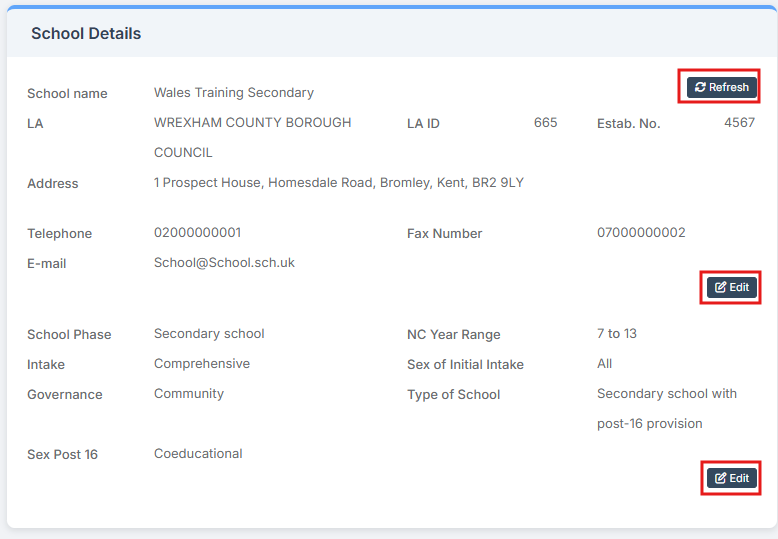
This will redirect to Config > Administration and either Core Details or Characteristics.
After making any changes, click Save and close the window.
Upon returning to the Census page, click the Refresh button at the top right of the School Details panel to view the updated information and ensure the changes are included in the Census file.
For more information, see How to Update School Details.
Once the details have been confirmed as correct, the Census Return can be generated by selecting the Generate button at the top left.

This process may take a few moments – please wait while it completes.
The following three sections should now be completed:
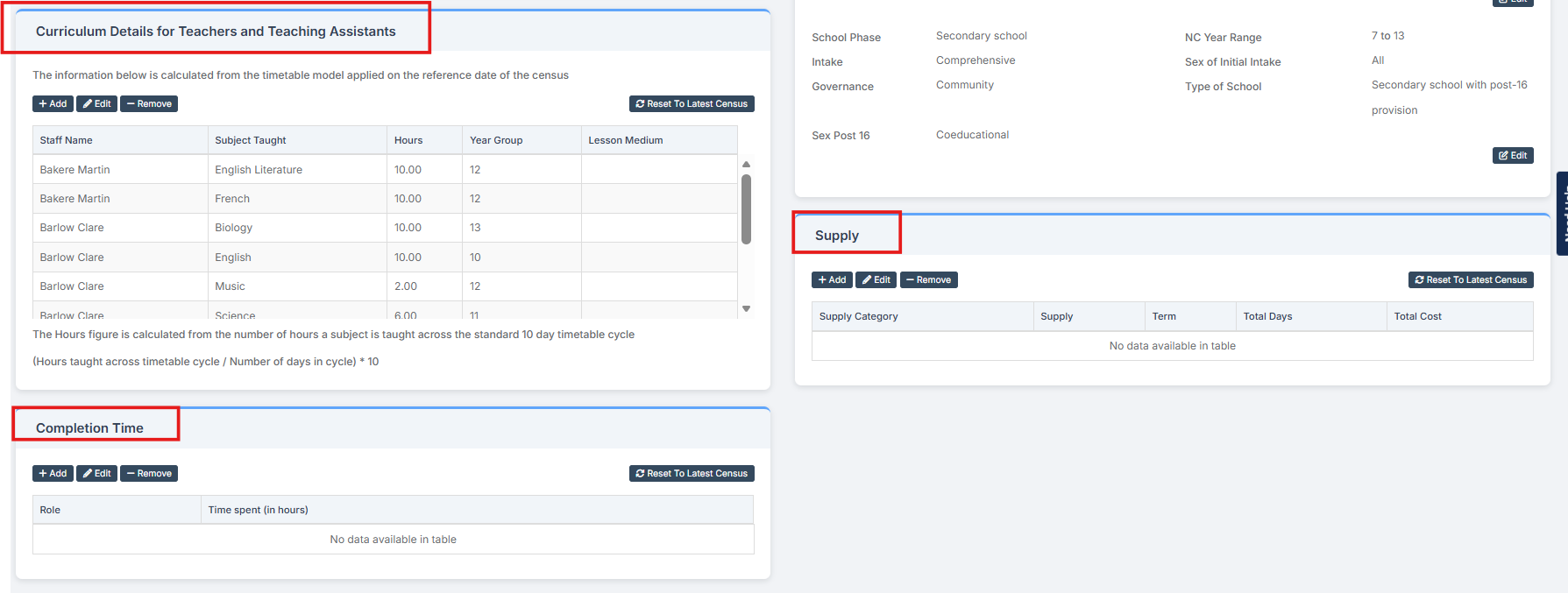
Note:
- The Reset to Latest Census button automatically populates each panel with data from the most recent census file. The button is hidden if no applicable census data file is available.
- Information can be checked via Staff List Page > Select Staff > Actions > Staff Timetabling > Manage Non-Timetabled Time. For more information, see How to Manage Staff Timetabling
1. Curriculum Details for Teachers and Teaching Assistants
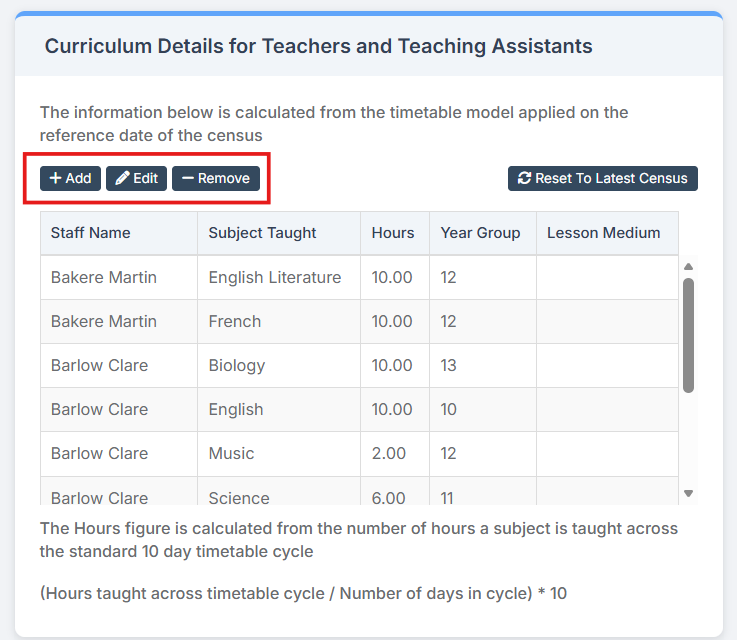
This panel displays information populated directly from the timetable, which is automatically included in the XML after clicking Generate.
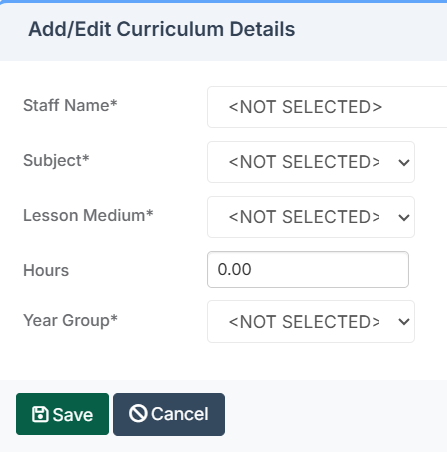
Use the Add, Edit, and Remove functions as required.
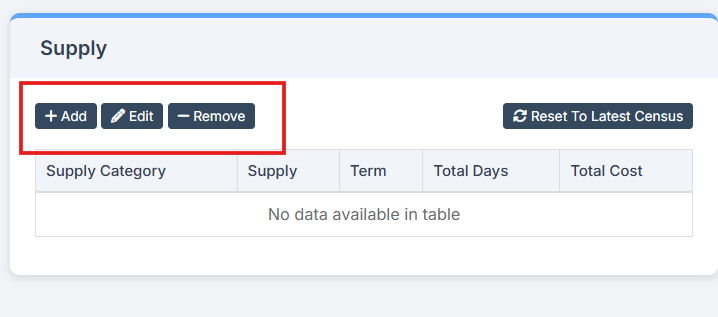
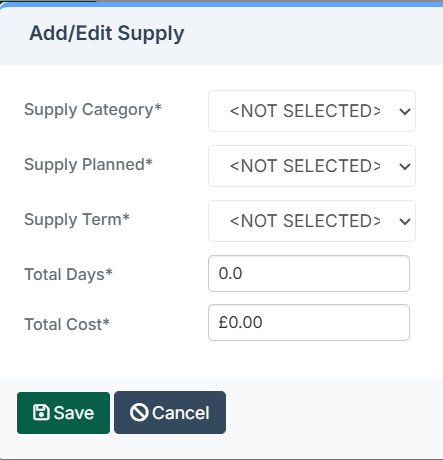
2. Supply
Enter Supply Staff records using the Add, Edit and Remove functions.
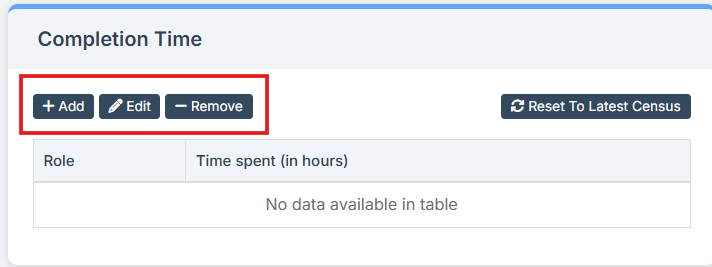
3. Completion Time
Use the Add, Edit and Remove functions to manage the roles and time spent by staff completing the SWAC Return.
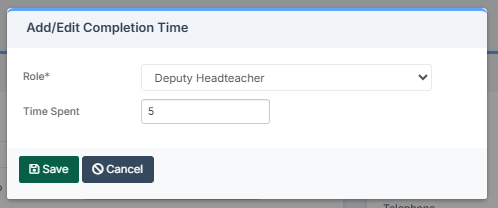
Select the Role of the person completing the Census from the dropdown, enter the Time Spent in hours and select Save.
Note: All staff contributing to the Census must record their time spent. Add a separate entry for each Role. Where multiple staff have the same role, their hours should be combined into a single entry.
The next step is to validate the Census by selecting Save & Validate.
This will generate the Census file and initiate the validation process to identify any errors or queries within the return.
The validation process may take a few moments – please wait while the process completes.
Reviewing the SWAC Return
After validation, the system will return to the Census page. The generated file will be visible, along with the following options:
Report – Displays the data stored within the Census file, allowing any incorrect data to be identified and reviewed.
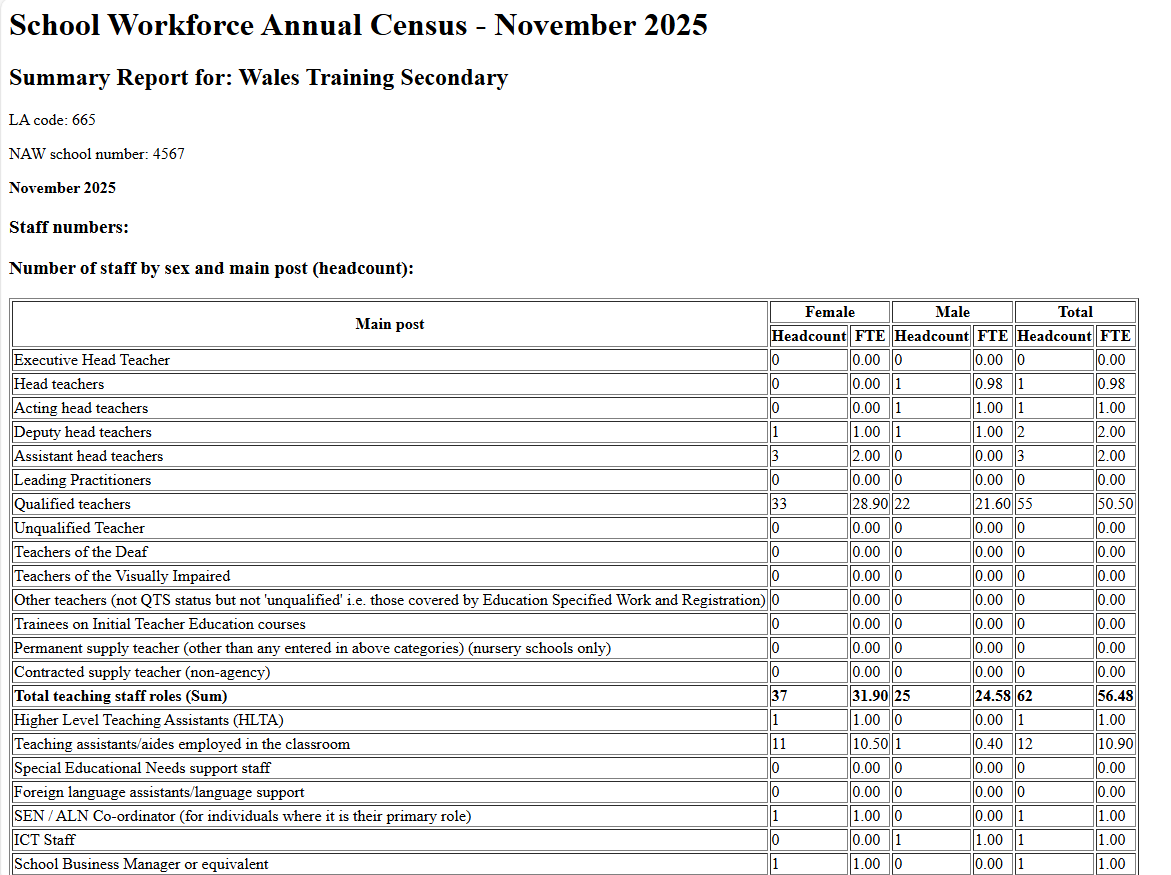
View Summary – Displays the summary page for the return. This can be printed and used as a starting point for reviewing data.
View Errors – Lists errors and queries identified during the validation process. A full list of potential errors and queries can be found in the SWAC Error Resolution Guide
View File – Allows the generated Census XML file to be viewed and saved. This step is only necessary when submitting the return to the local authority via DEWi.

To view the summary file, select the appropriate return – if multiple returns have been generated – and click View Summary.
Note: The summary can be reviewed in English or Cymraeg.
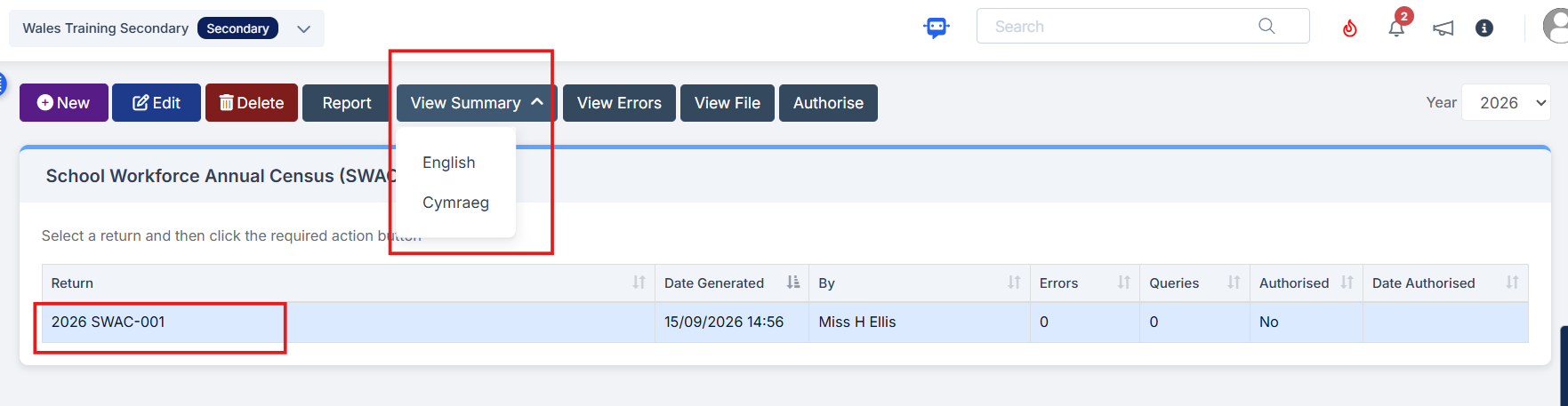
The Summary file will be downloaded to the local computer, allowing it to be viewed or printed as needed.
Once the SWAC Return has been generated, any errors and queries must be addressed before the return can be authorised and submitted.
Select the relevant return, then select View Errors.
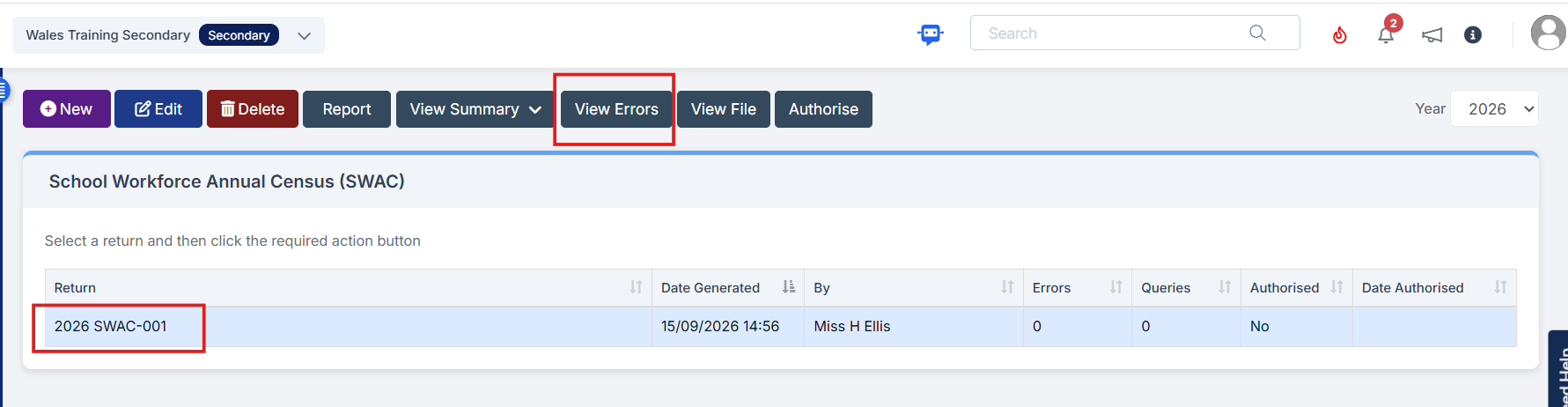
Each Error and Query will now be displayed, ready to be dealt with.
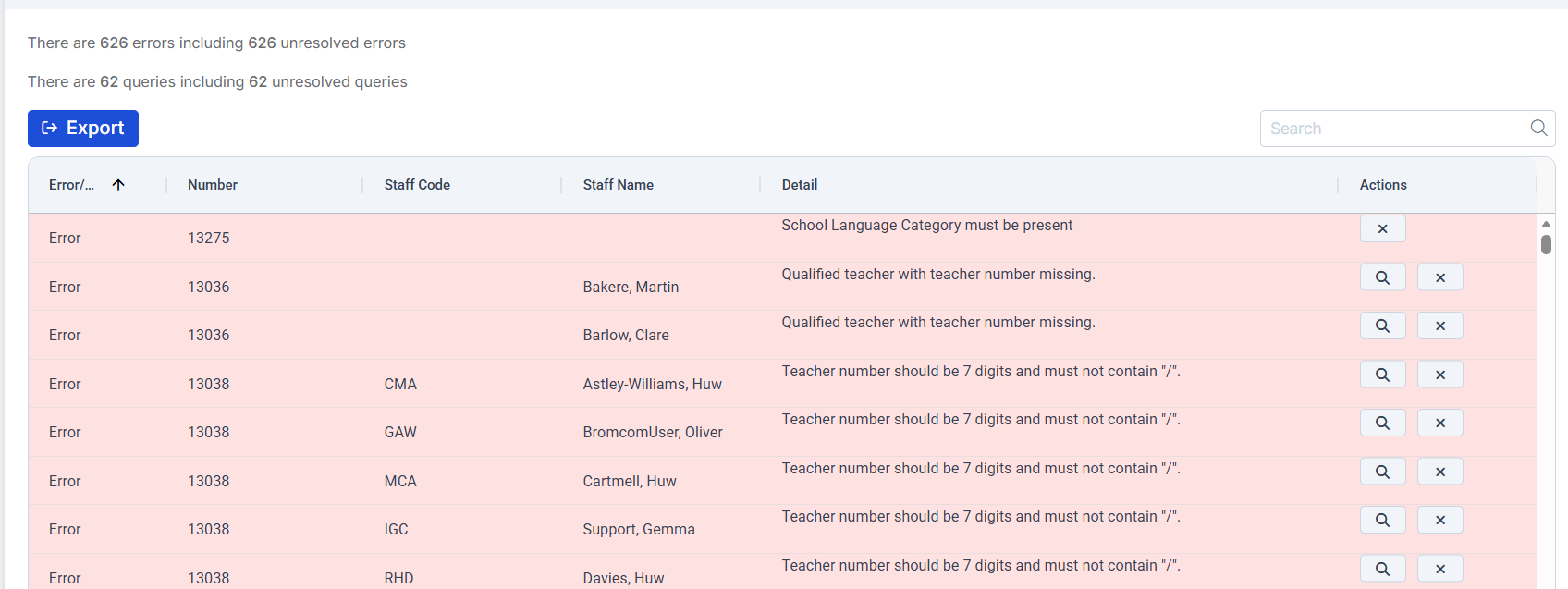
For full guidance on using the error summary screen, along with a comprehensive list of errors and queries, see here
Common individual errors and queries can also be searched in the Help Centre for more detailed resolution guidance. Enter the error or query number into the search bar, then select the relevant guide from the results.
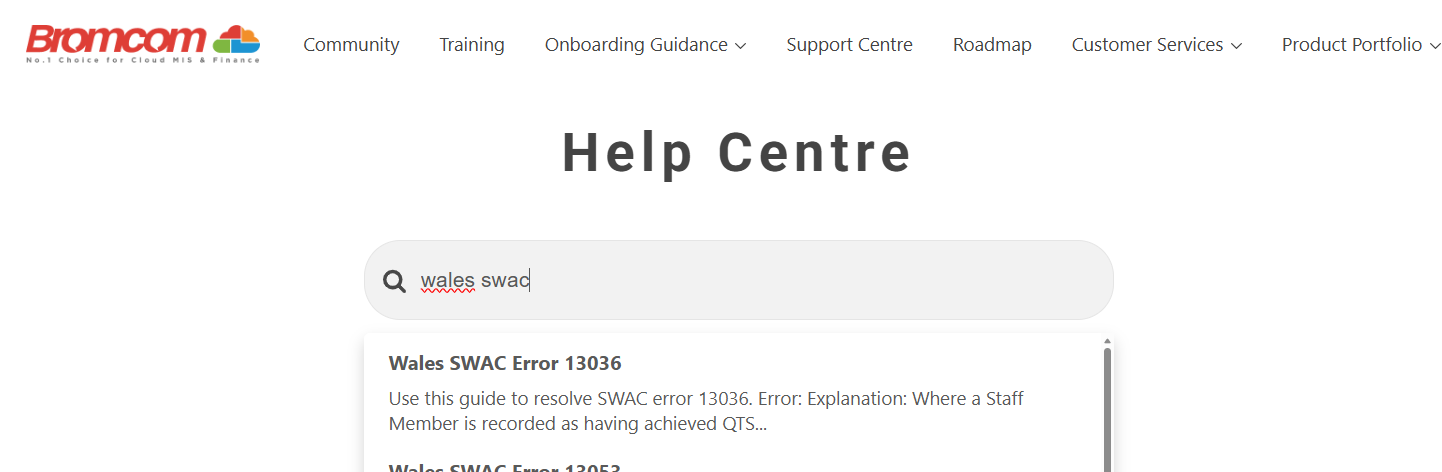
In addition, further guidance provided by the Welsh Government on the School Workforce Annual Census (SWAC) can be accessed here.
Once all errors have been resolved and any outstanding queries reviewed and accepted, it is important to re-run the Census to ensure all updates are included.
After re-running the Census, select the appropriate return (if multiple returns exist) and click the Authorise button.

This process converts the Census Return file into the required XML format for uploading to the DEWi website. Multiple authorised files can be retained, each date-stamped to assist in identifying the correct version for submission.
The Census Return file is now ready for submission and can be exported by clicking the View File button, which will save a copy to the downloads folder on the local machine.

Census Reports
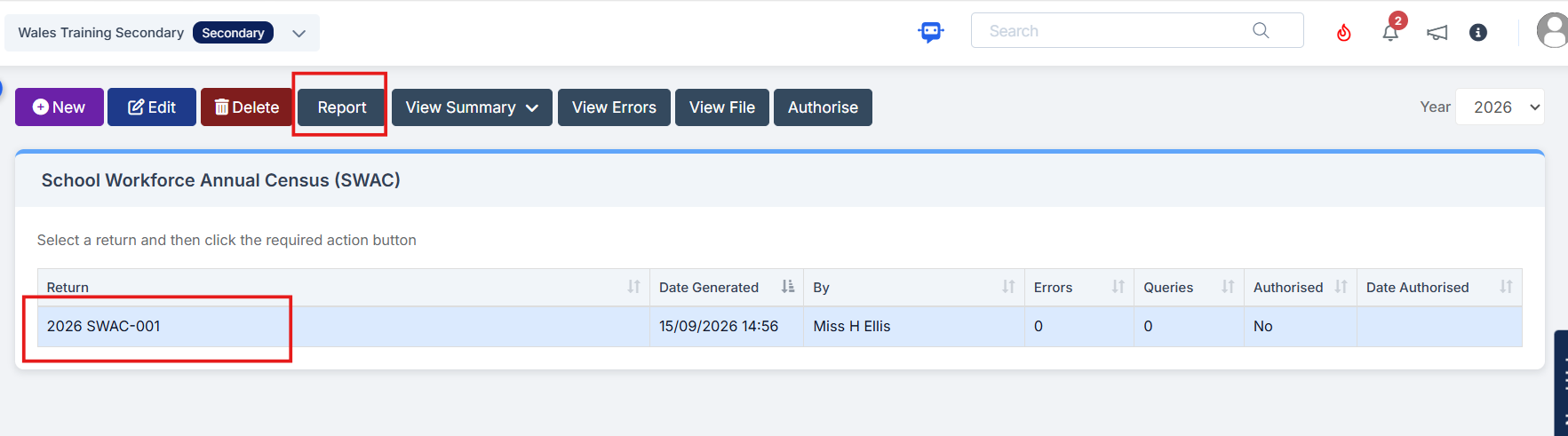
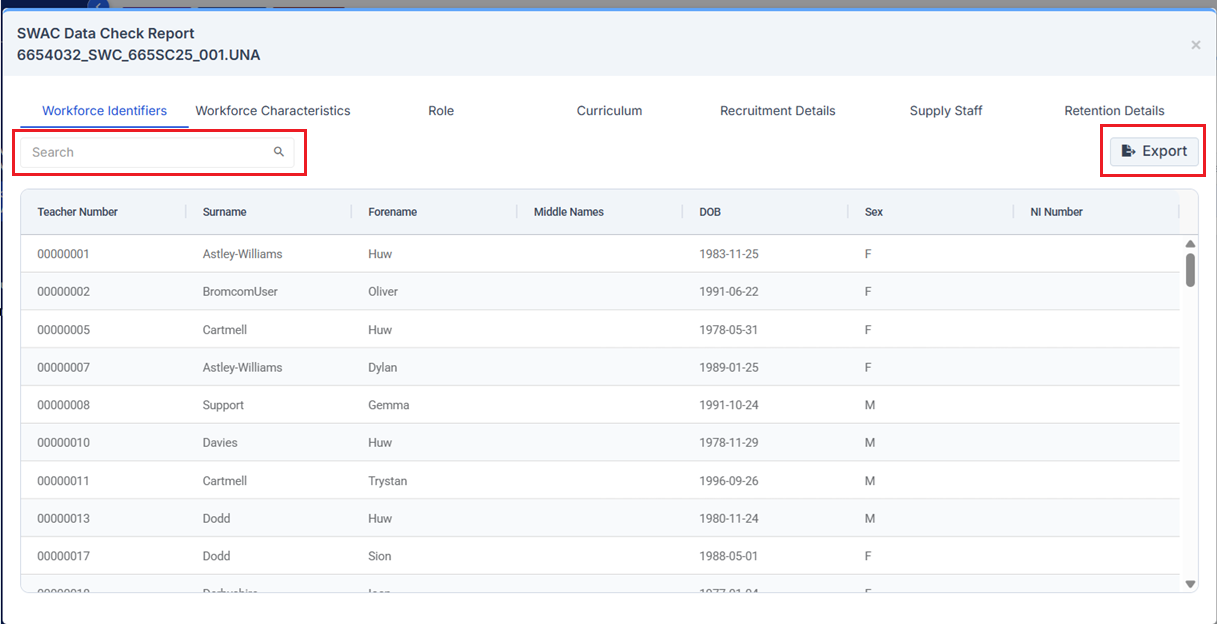
The Data Check report allows the data included in the SWAC Return to be reviewed, helping to identify any missing or incorrect information before the return is authorised and exported.
Navigate to Modules > Census > School Annual Workforce Census (SWAC), select the relevant return and select Report.
Note: The Data Check report is only available once a SWAC Return has been generated.
Review the information within the report to identify any discrepancies and determine whether corrections are required in Bromcom before regenerating the return.
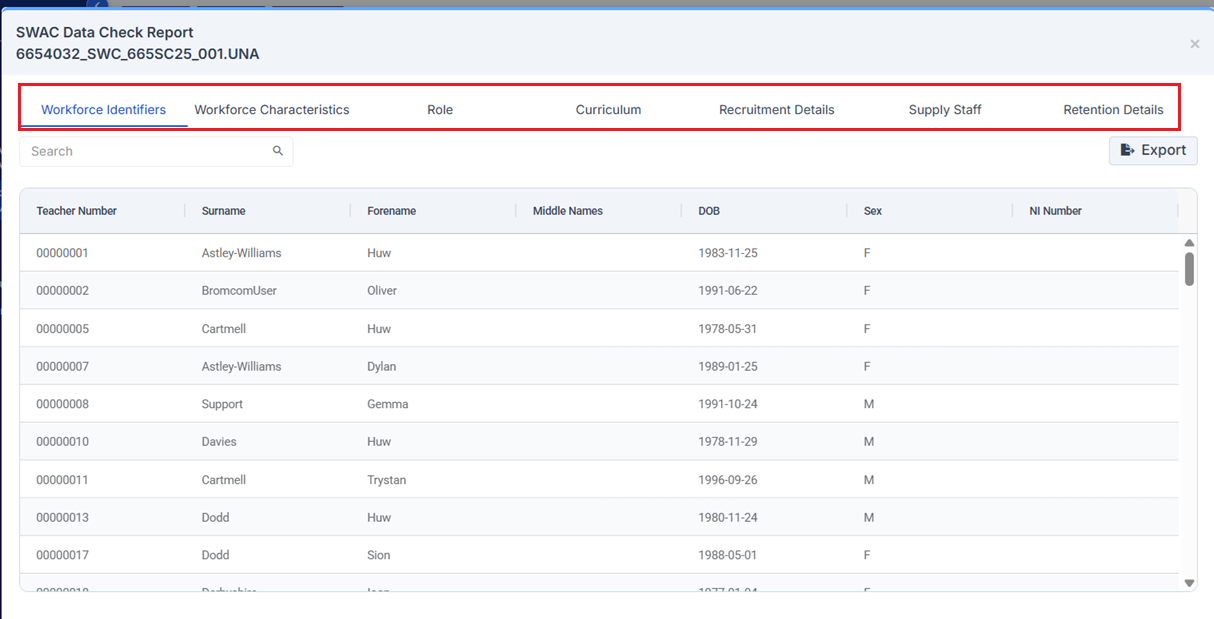
Users can:
- Use Search to filter the data displayed within each tab.
- Select Export to download the data from each tab individually as an Excel file.
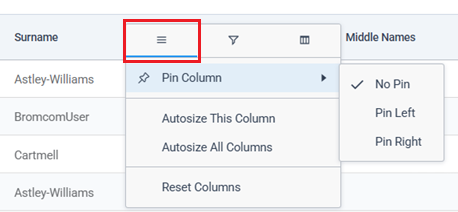
In addition, hover over a column header to access options for formatting the table, including pinning and resizing columns.
Applying a custom filter.
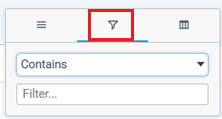
Filtering by pre-determined values.