
In this guide, we show How to Return Items / Cancel a Delivery Note within the Finance Module.
This Guide forms part of the ACCOUNTS PAYABLE USER GUIDE. Click to see Related Guides.
Access: The minimum permissions required to cancel a Delivery Note are found in the Finance Module section Config > Setup > Roles & Permissions.
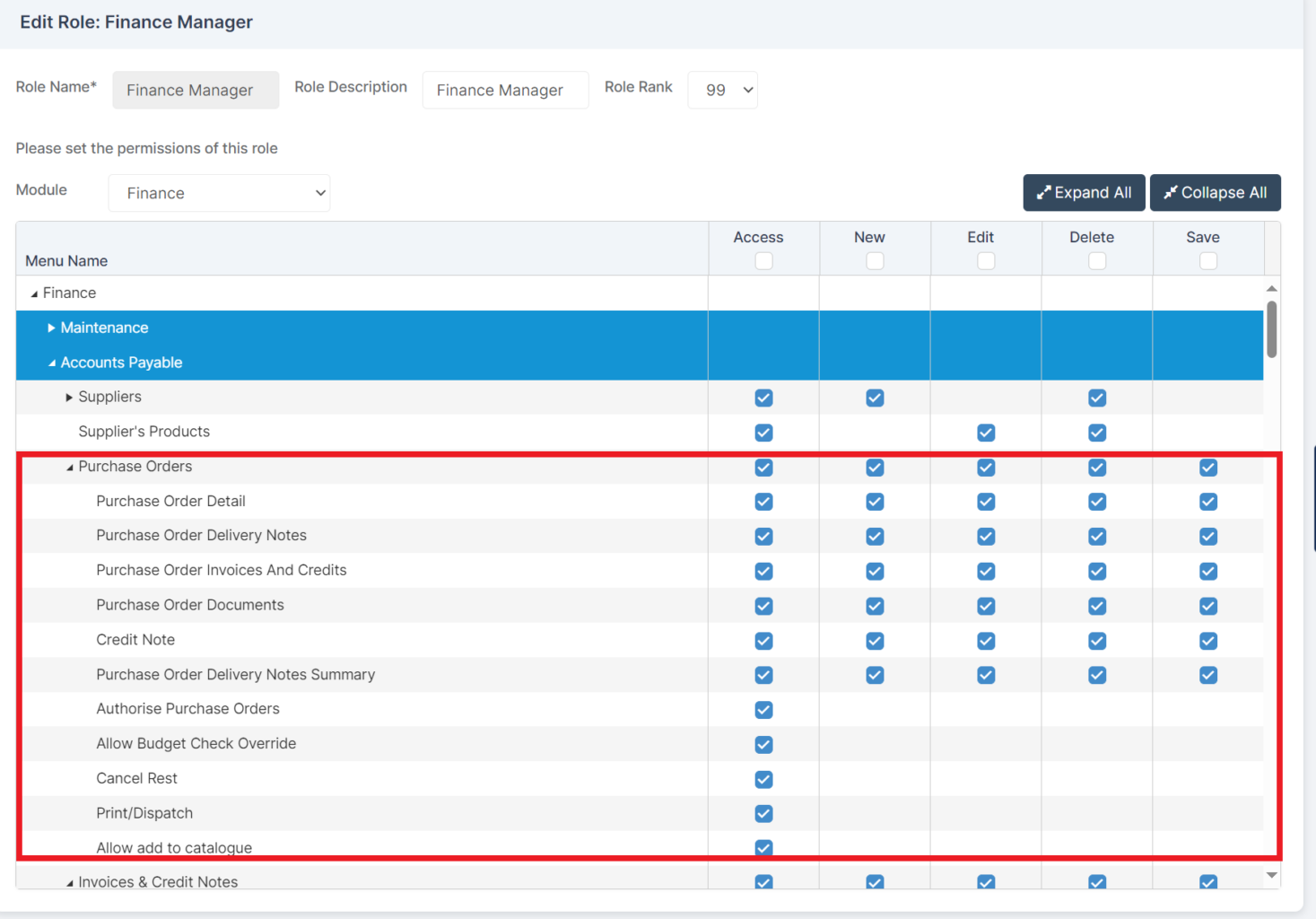
Related guides:
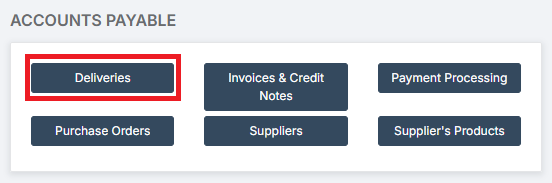
To begin, go to Modules > Finance > Finance Home Page > Accounts Payable > Deliveries.
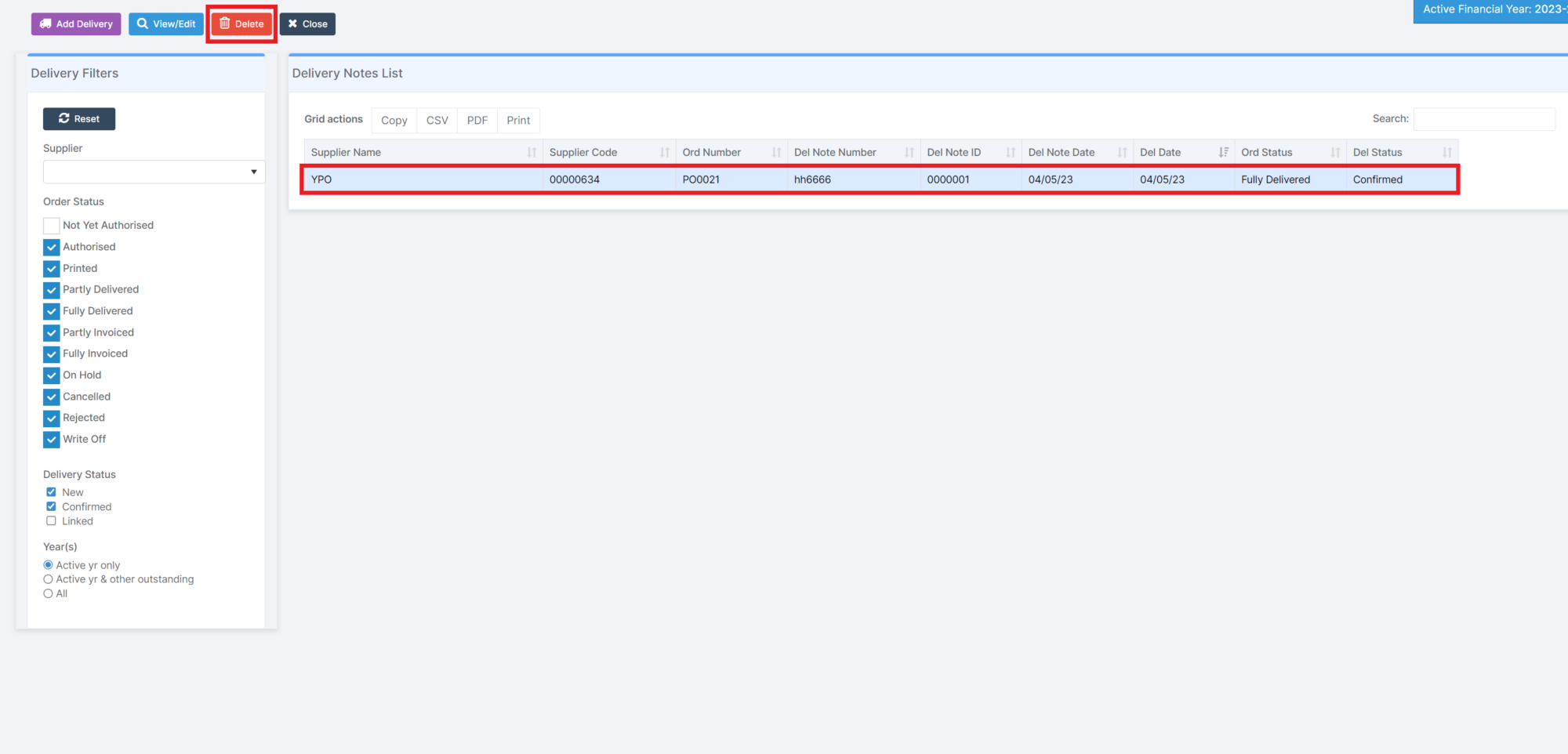
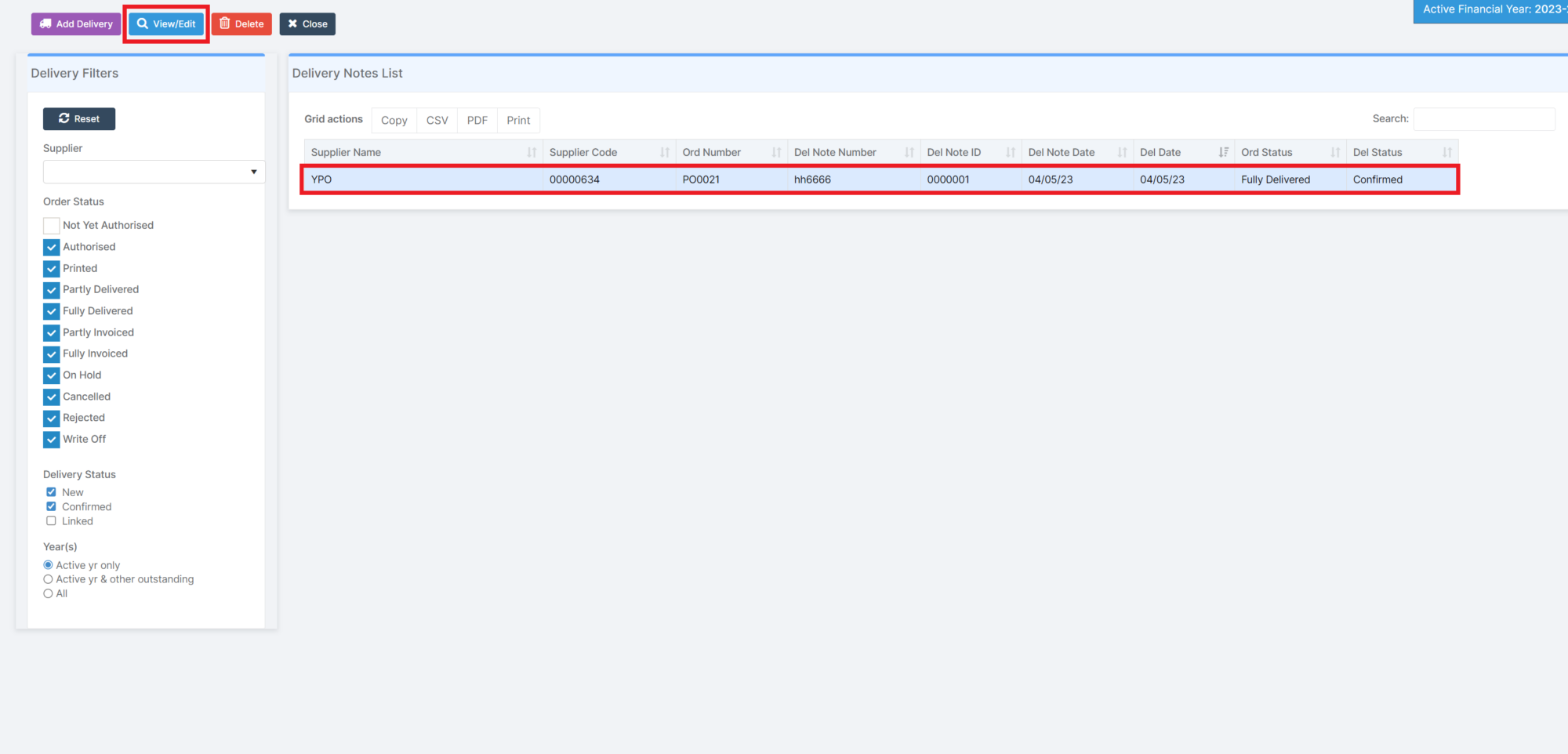
Select the Delivery Note to be deleted and click Delete.
Enter the Audit Explanation and click Continue.
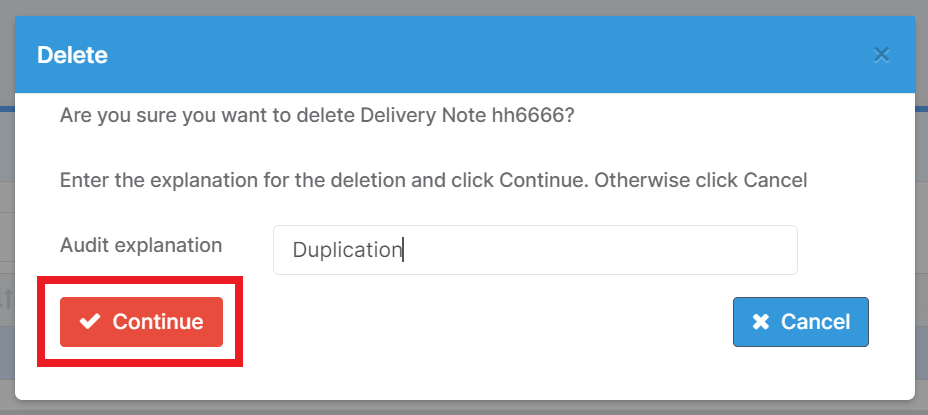
This action returns the Purchase Order to the Printed status.
To Return single or multiple items from a Delivery Note, Select the Delivery Note and click View/Edit.
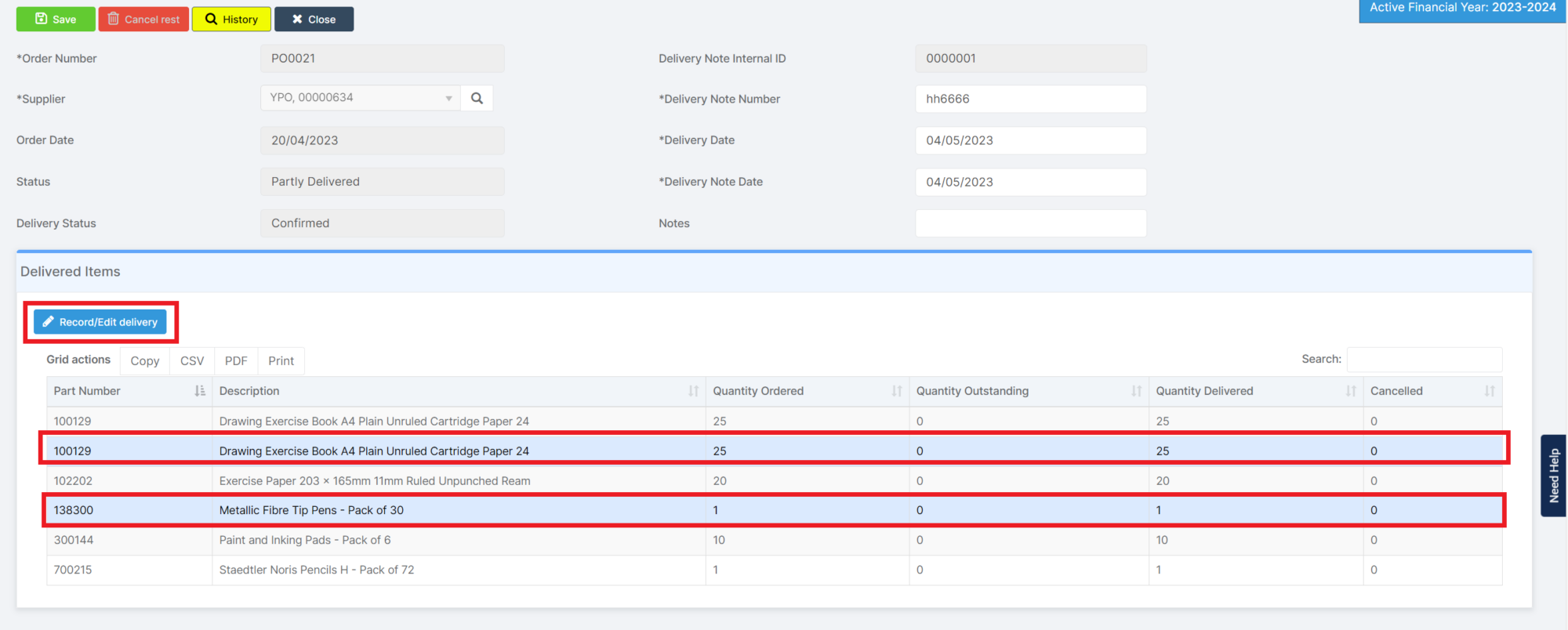
Select the item(s) to be edited and click Record/Edit Delivery.
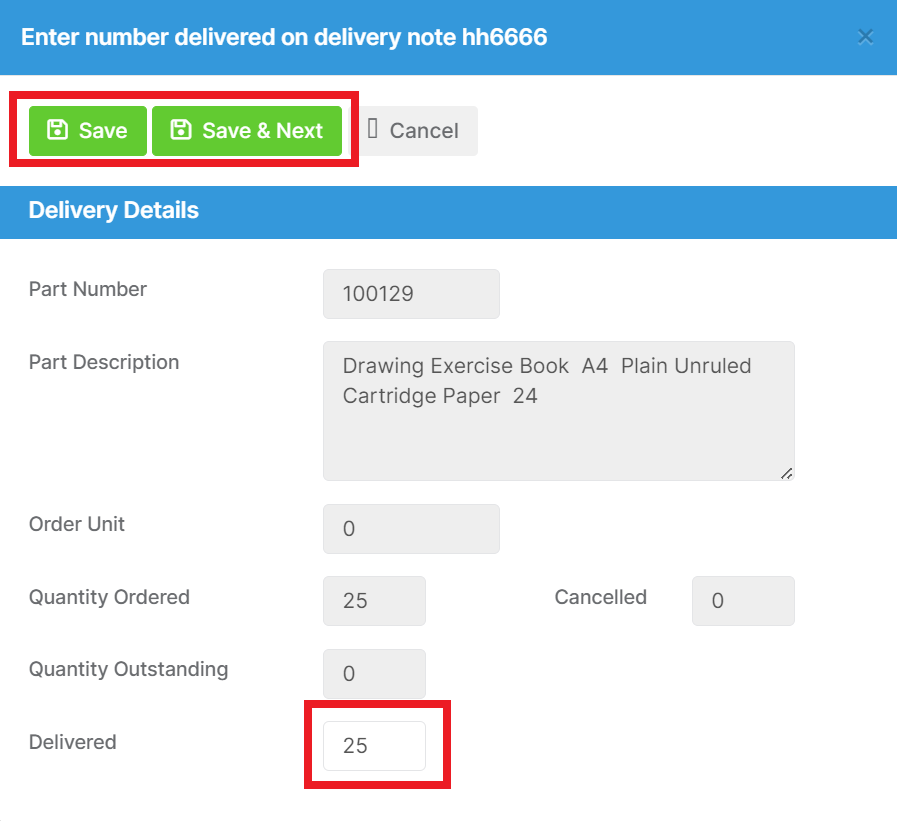
Edit the Delivered value to reflect the Return and click Save to complete the Return, or Save & Next to record further items.
Click Save on the header to complete.
