In this guide, we show How to Pass an Invoice or Credit Note for Central Payment Using Central Authorisation within the Finance Module.
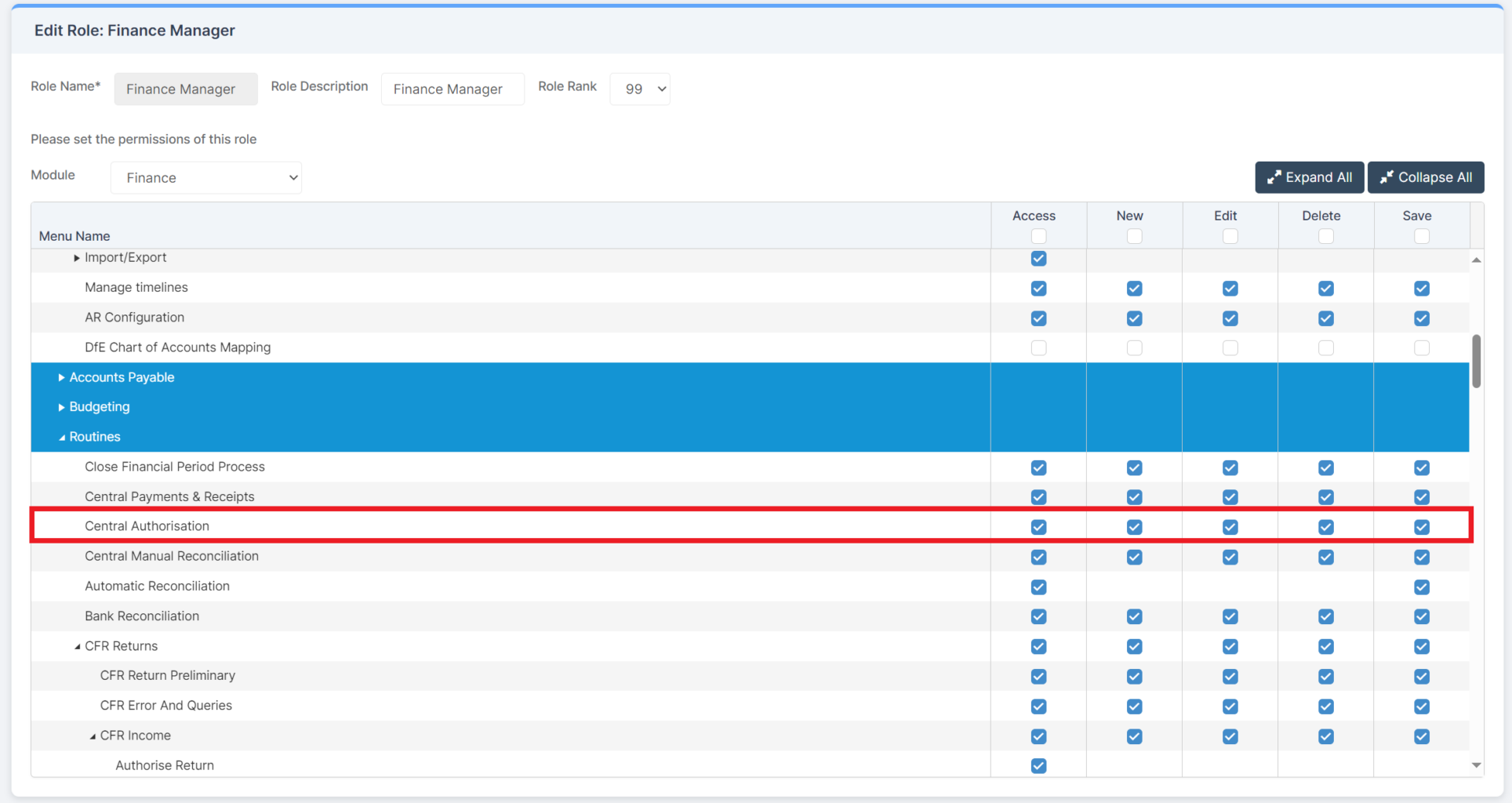
Access: The minimum permissions required to pass an Invoice or Credit Note for Central Payment are found in the Finance Module section of Config > Setup > Roles & Permissions.
This Guide forms part of the CENTRAL PAYMENTS AND RECEIPTS USER GUIDE. Click to see Related Guides.
Related Guides:
- Finance Routines Guide
- Central Payments and Receipts User Guide
- How to add a Non Order Invoice
- How to Raise an Invoice
- How to Complete Central Manual Reconciliation
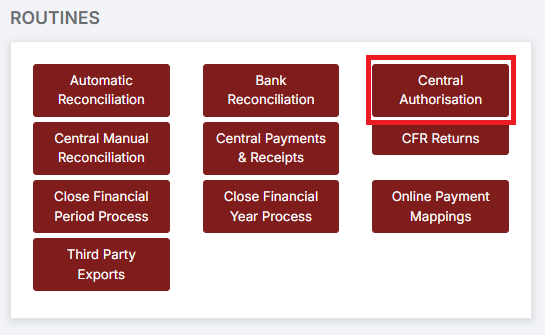
To begin, go to Modules > Finance > Finance Home Page > Routines > Central Authorisation.
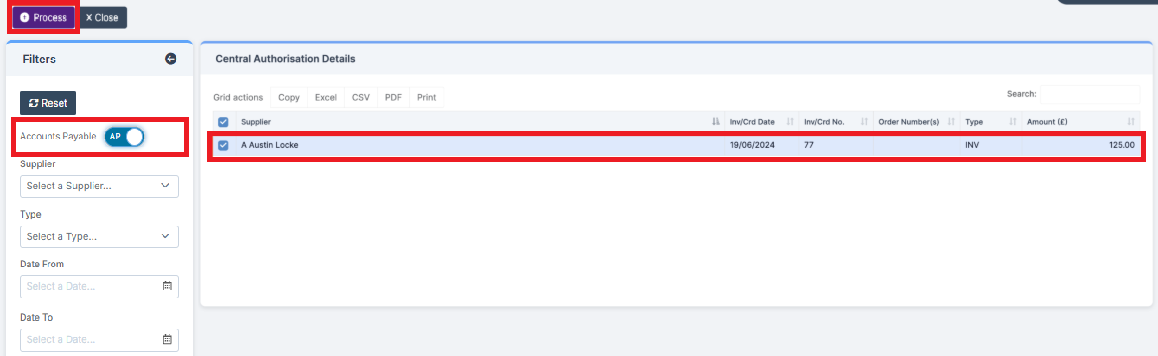
Making sure the Toggle on the left is set to Accounts Payable (AP), select the Invoices and/or Credit Notes for processing or click Select All and click Process.
Make the appropriate selections.
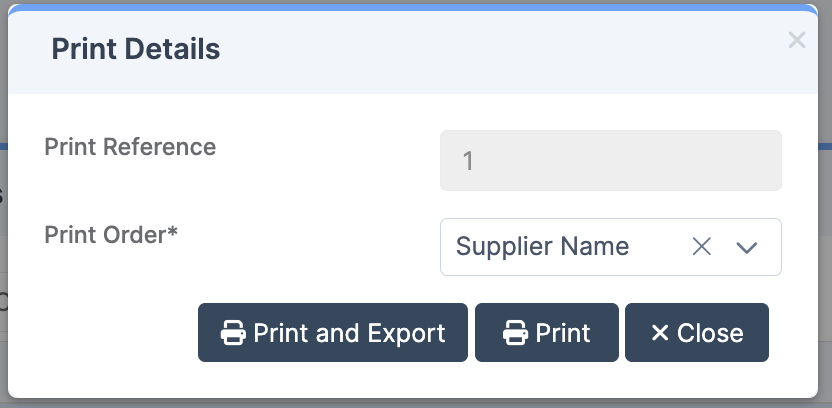
Click Yes to proceed.
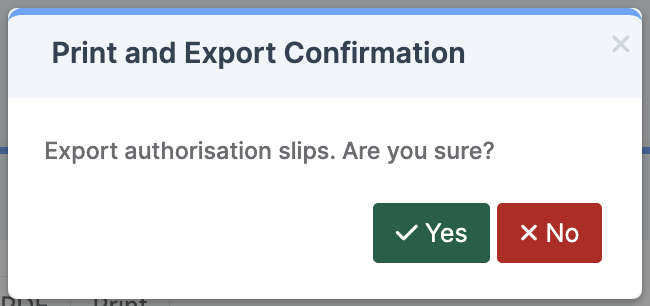
Check the downloaded documentation and select the Confirmation.
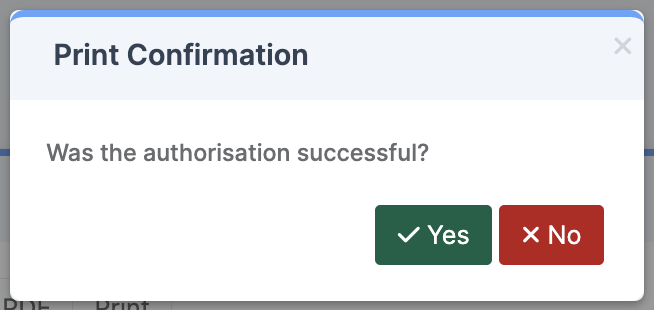
Two files are produced, a PDF for the Head Teacher to sign, and a .txt File detailing the payments. Both files need to be sent to the Local Authority for processing.
Example PDF Print:
Example export .txt File:

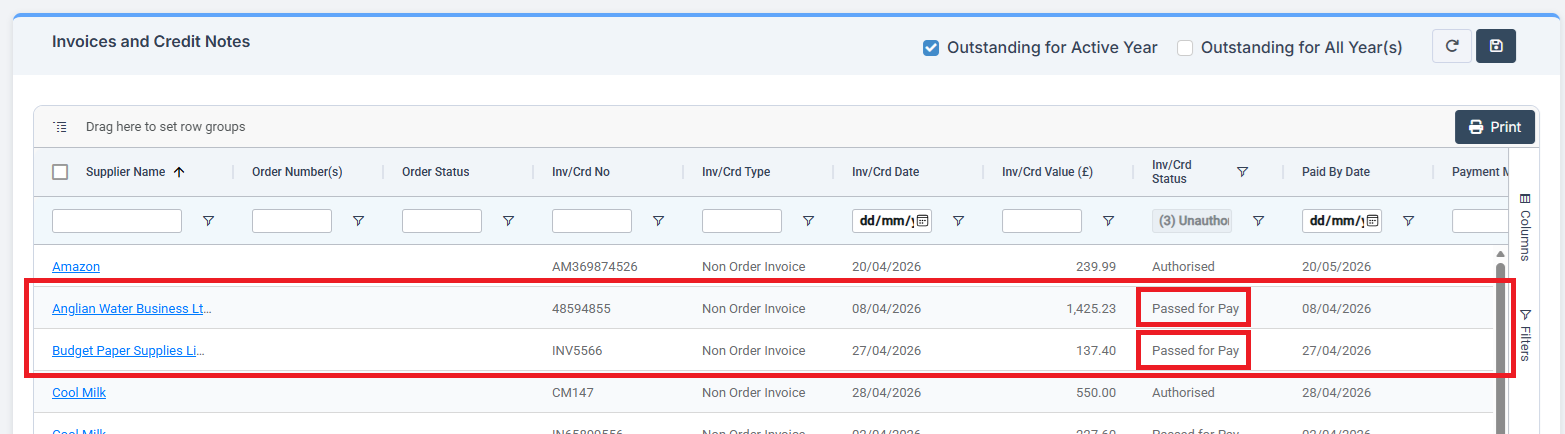
In Invoices & Credit Notes, the Invoices and Credit Notes that have been processed for Central Payment are marked Passed for Pay.