
In this guide, we show How to Post a Credit Card Expense / Payment in the MAT Finance Module.
- Use Credit Card Expense throughout the month for individual spending
- Use Credit Card Payment for payment of the Credit Card Statement. These should reconcile at Month End
Access: The minimum permissions required to Credit Card Expense / Payment are found in the Finance Module section of Config > Setup > Roles & Permissions.

Related guides:
To begin, from the left Menu, go to Finance > New Entry > Credit/Debit Card.

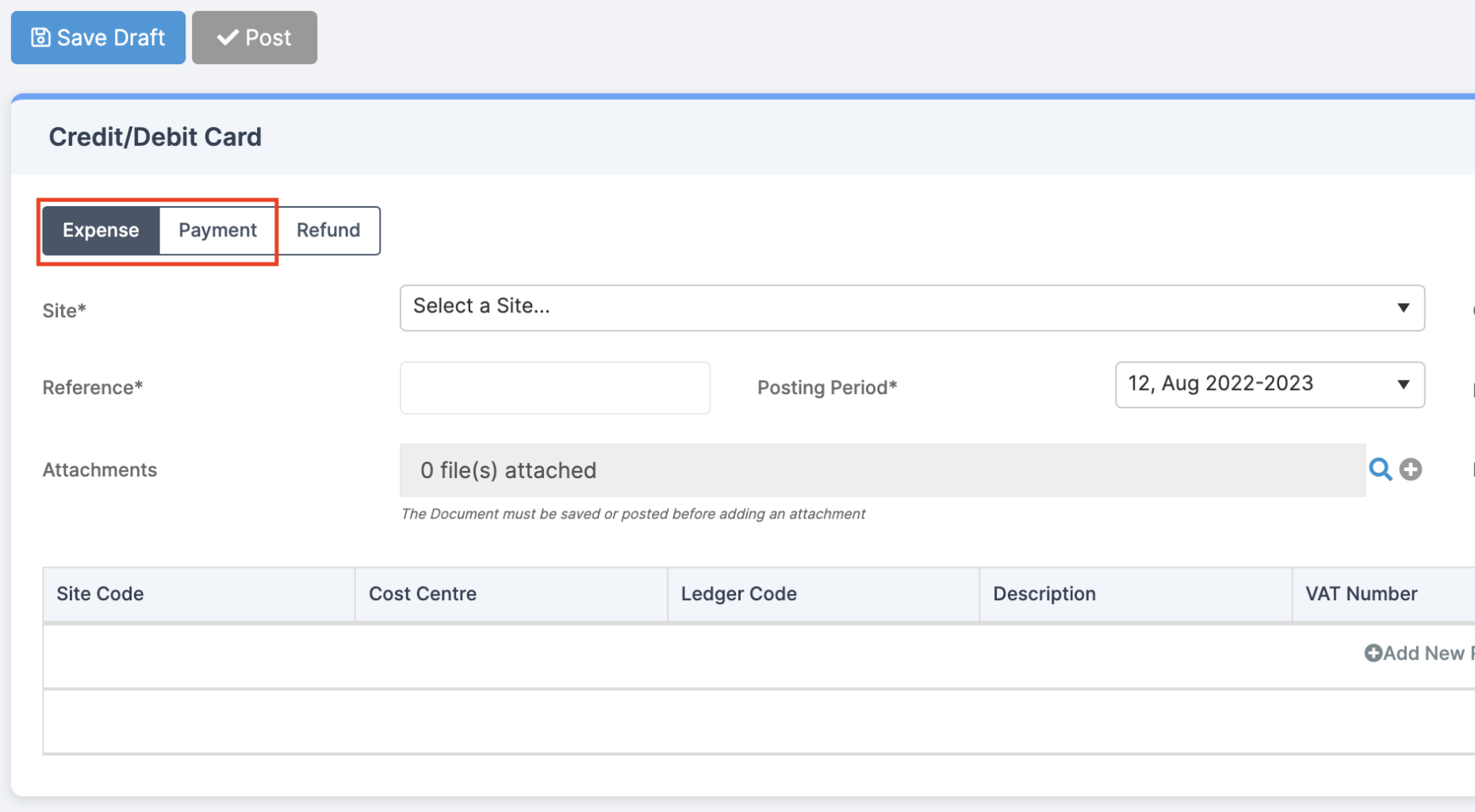
Once the page loads, choose whether to add an Expense or Payment.
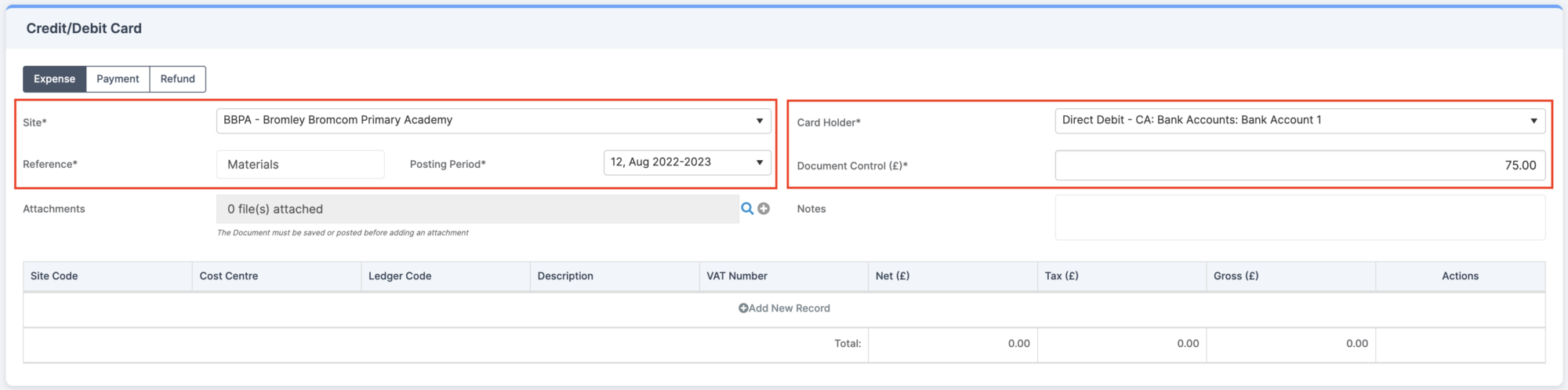
Next, complete the fields for Site, Card Holder, Reference and Document Control (£).
Click Add New Record.

Complete all of the fields as required and then click the Tick under the Actions column.

Click Add New Records again if required.
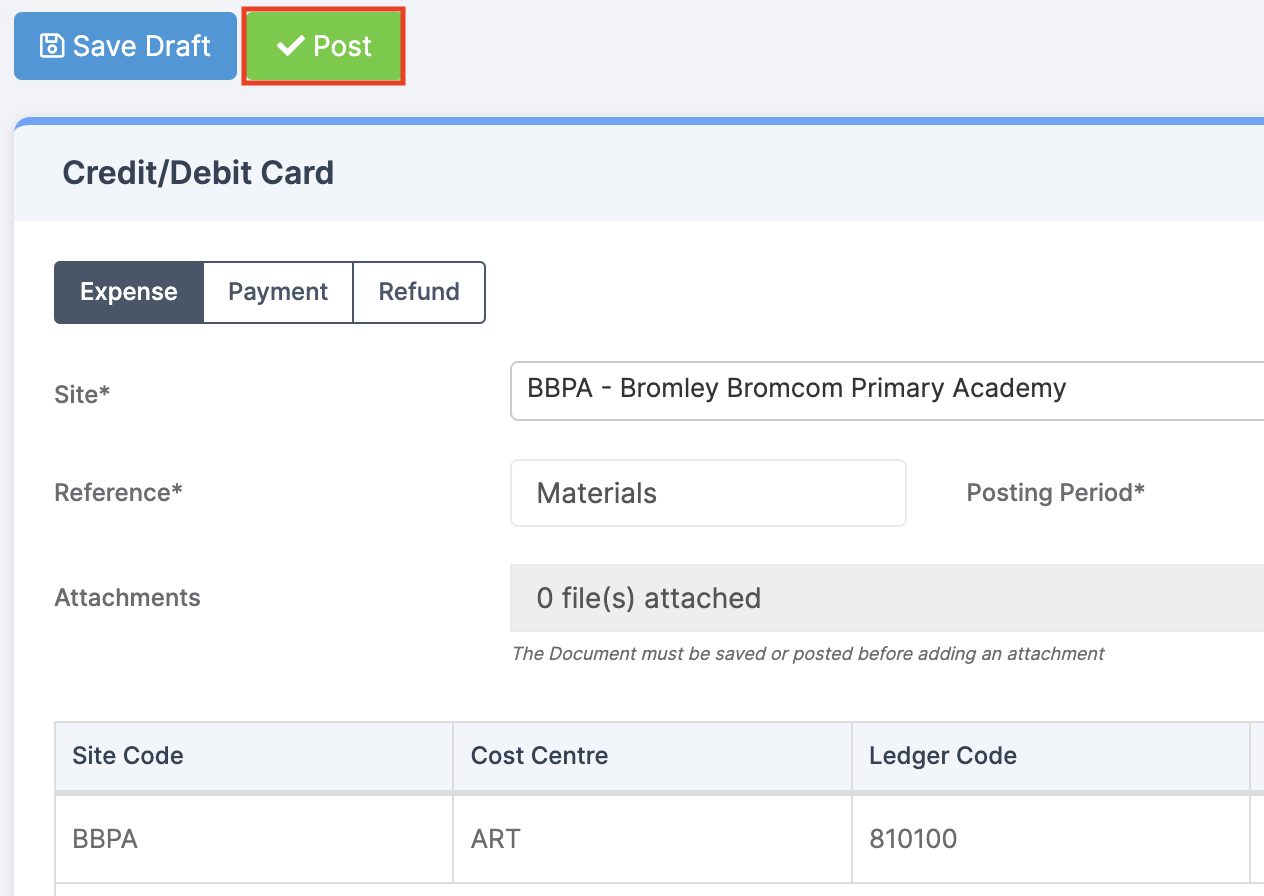
Once all is complete, press Post.
To Continue press Continue.

A notification is displayed showing that the Credit Card Expense / Payment has been created successfully.
