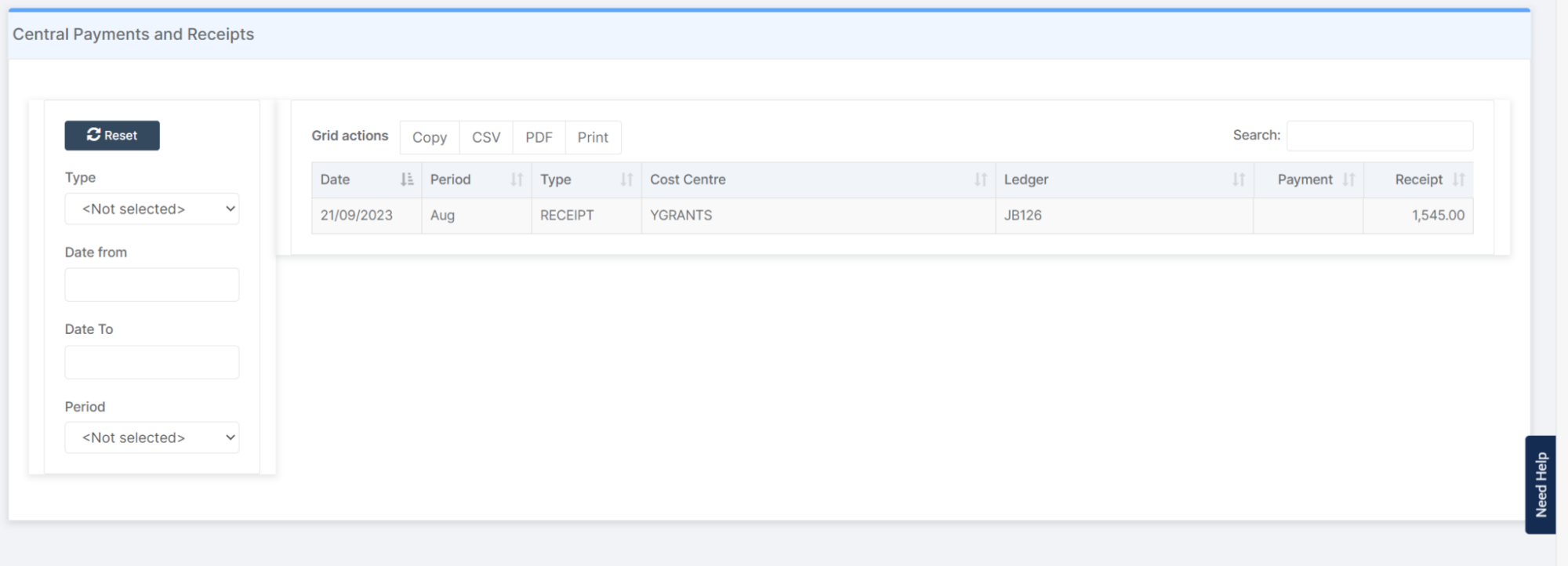
In this guide, we show How to Reverse Central Payments or Receipts.
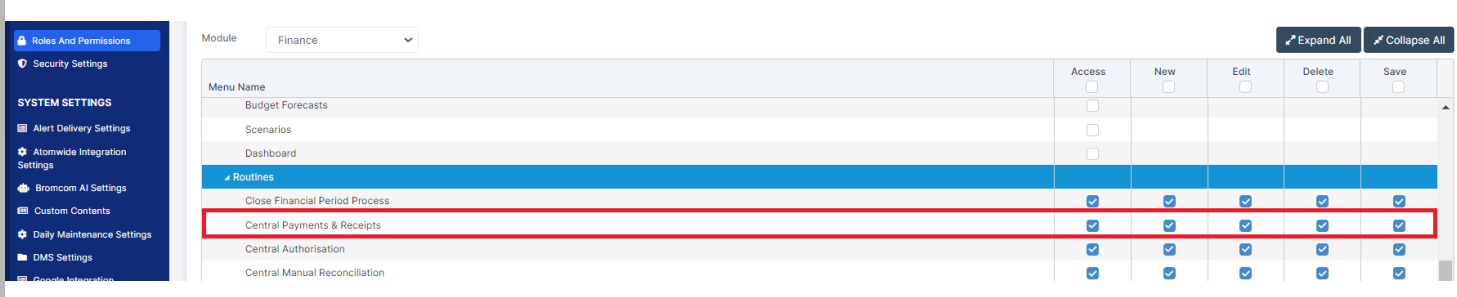
Access: The minimum permissions required to complete Central Payments and Receipts are found in the Finance Module section Config > Setup > Roles & Permissions.
This Guide forms part of the CENTRAL PAYMENTS AND RECEIPTS USER GUIDE. Click on the link to see Related Guides.
Related guides:
- Finance Routines Guide
- Central Payments and Receipts User Guide
- How to Record Central Payments and Receipts
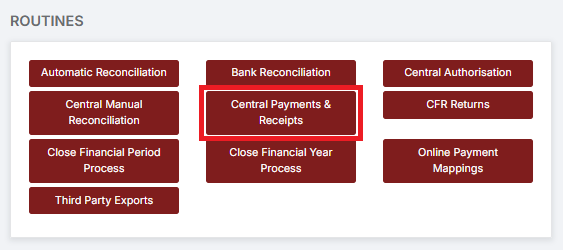
To begin, go to Modules > Finance > Finance Home Page > Routines > Central Payments & Receipts.
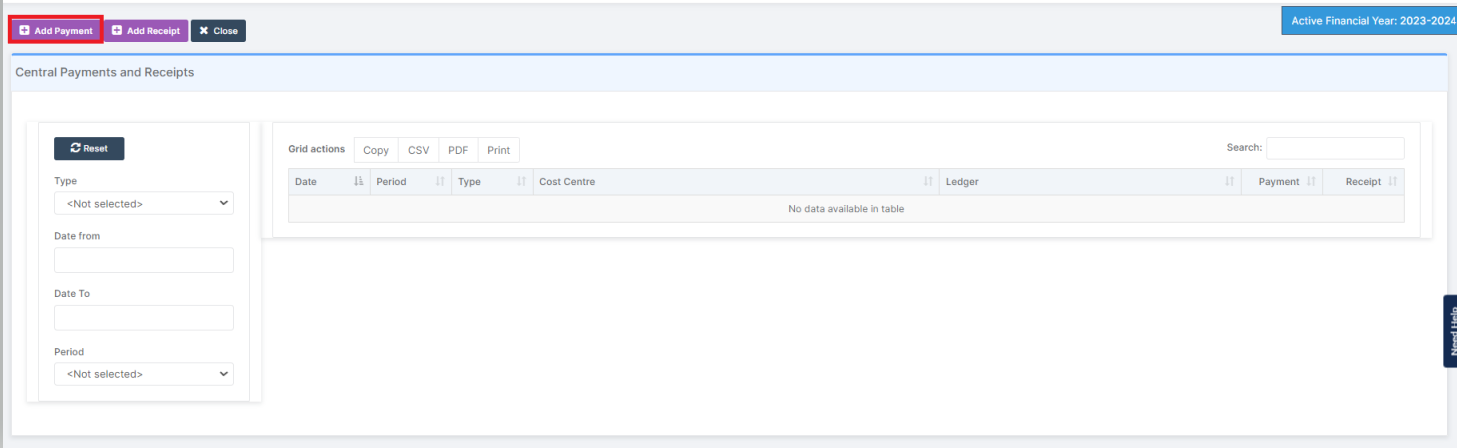
Click Add Payment to record a reversal of a Central Payment.
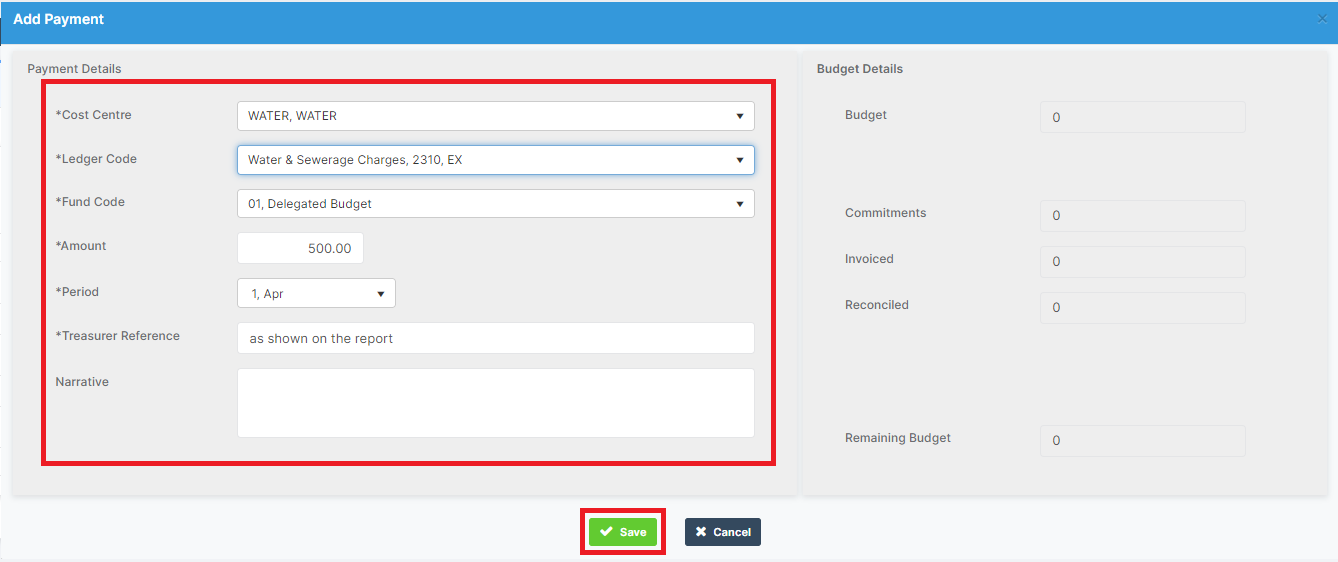
Complete the details of the Payment, noting that a reversal would use a negative expenditure amount, for example -500.00 to reverse a central payment of 500.00, and click Save. Asterisked fields are mandatory.
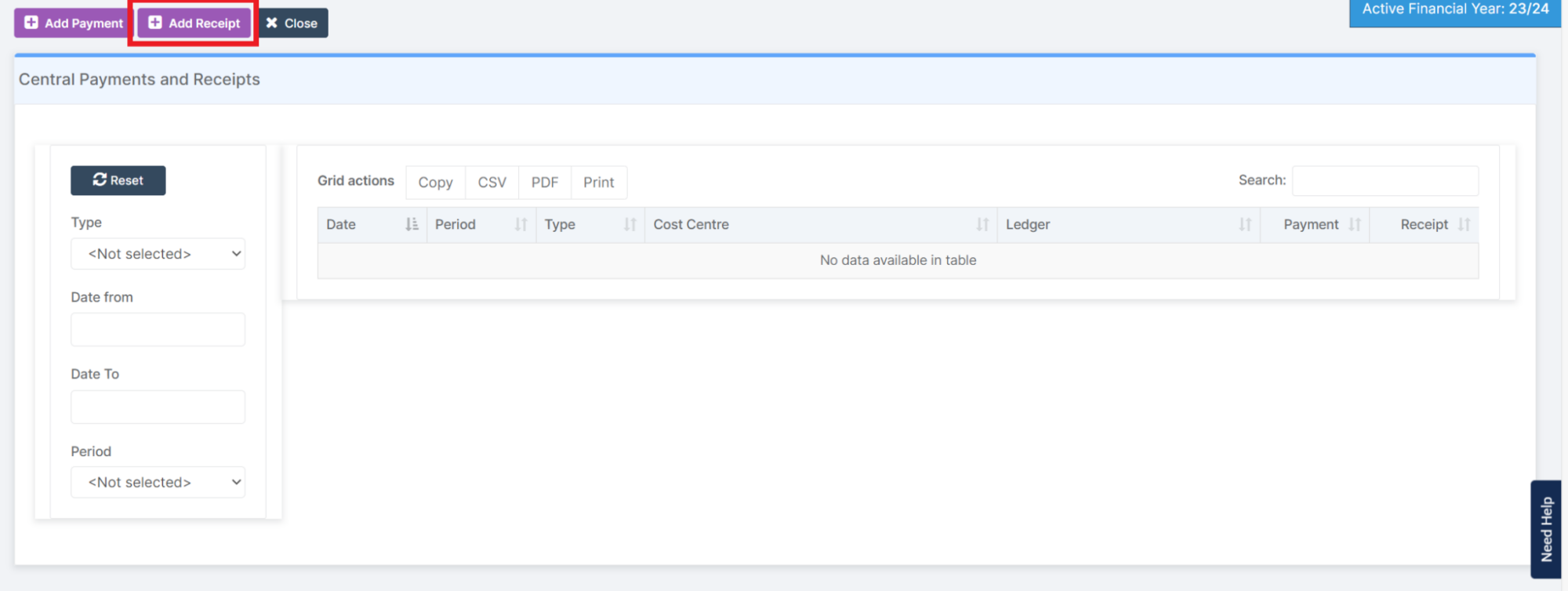
Click Add Receipt to record a reversal of a Central Receipt.
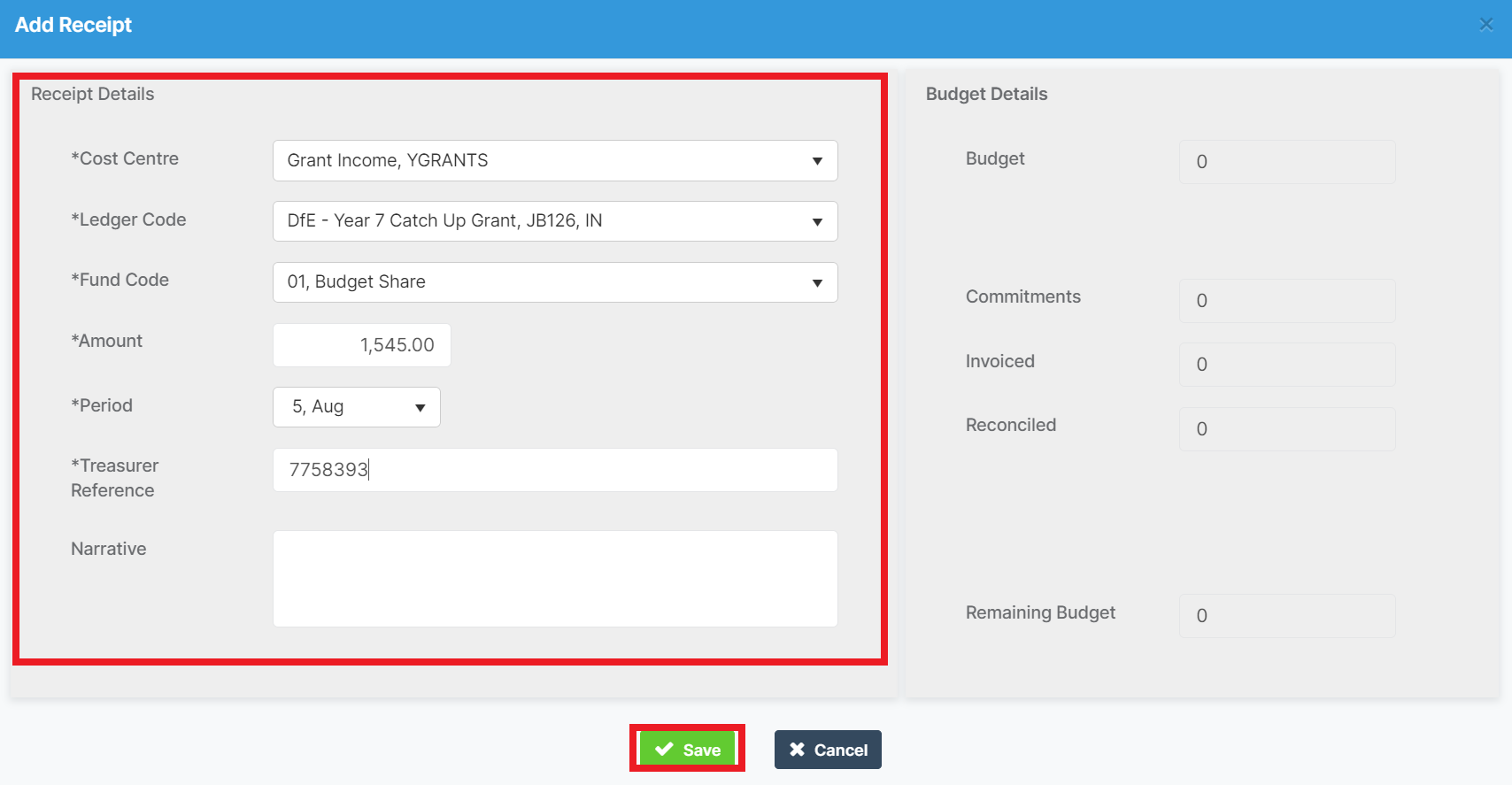
Complete the details of the Receipt, noting that a reversal would use a negative income amount, for example -500.00 to reverse a central receipt of 500.00, and click Save. Asterisked fields are mandatory.
An overview of previously recorded Central Payments and Receipts is given on the Central Payments and Receipts page.