
In this guide, we show how to use the Supplier Change Report in the MAT Finance Module.
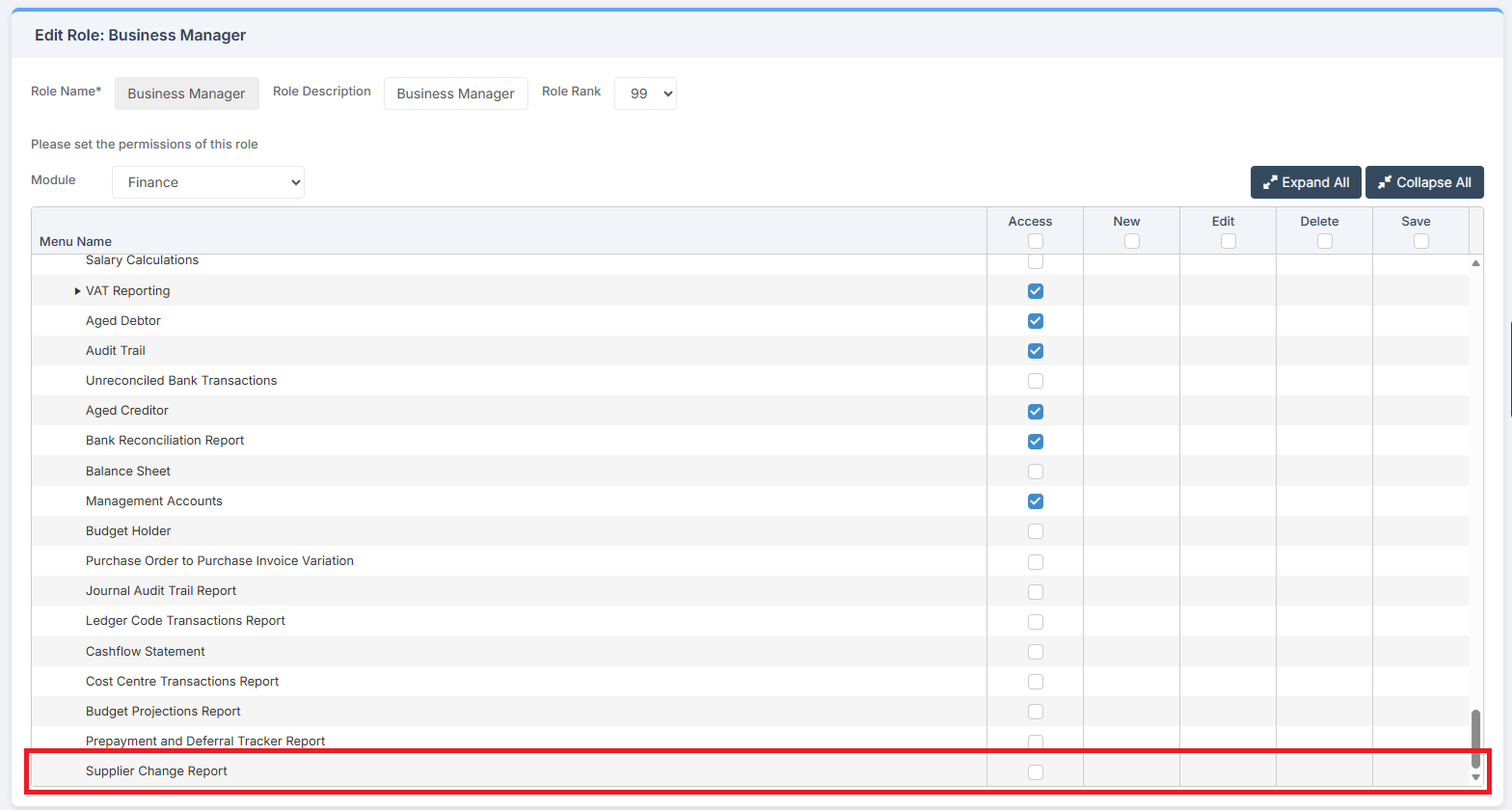
Access: The minimum permissions required to use the Supplier Change Report are found in the MAT Finance Module section of Config > Setup > Roles and Permissions.
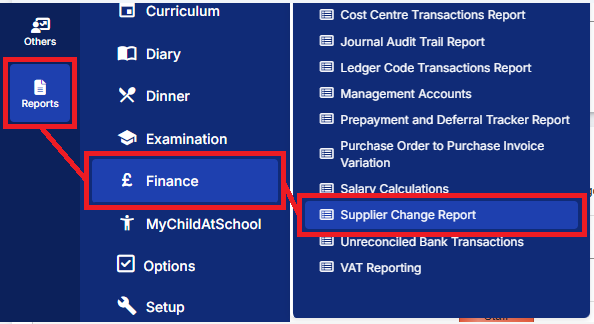
To begin, from the left Menu, go to Reports > Finance > Supplier Change Report.
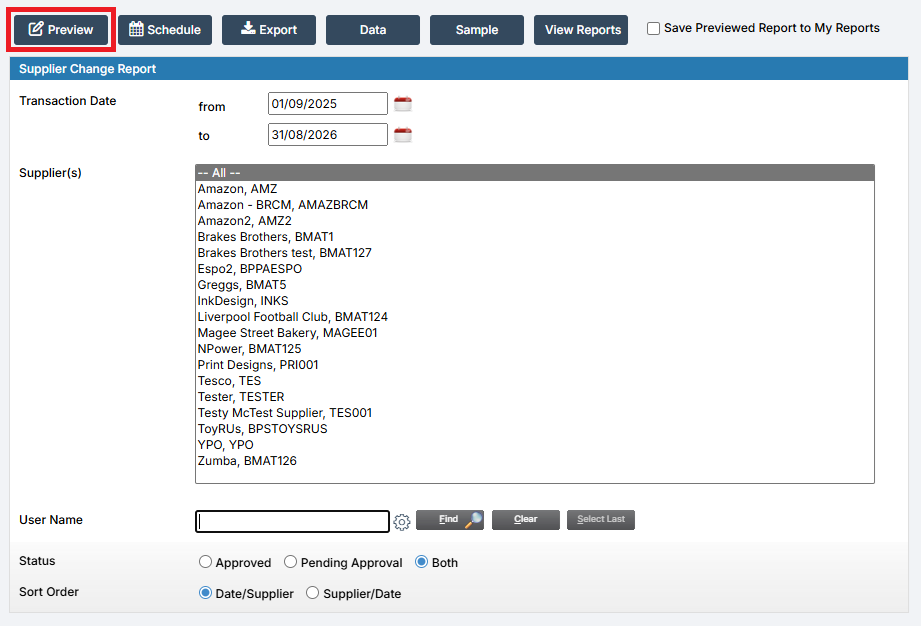
The Report presents a number of parameters from which to select. The Report can be filtered by Transaction Date, Supplier(s), User Name and Status. The Report can also be Previewed, Scheduled and Exported.
Click Preview to Preview the Report.
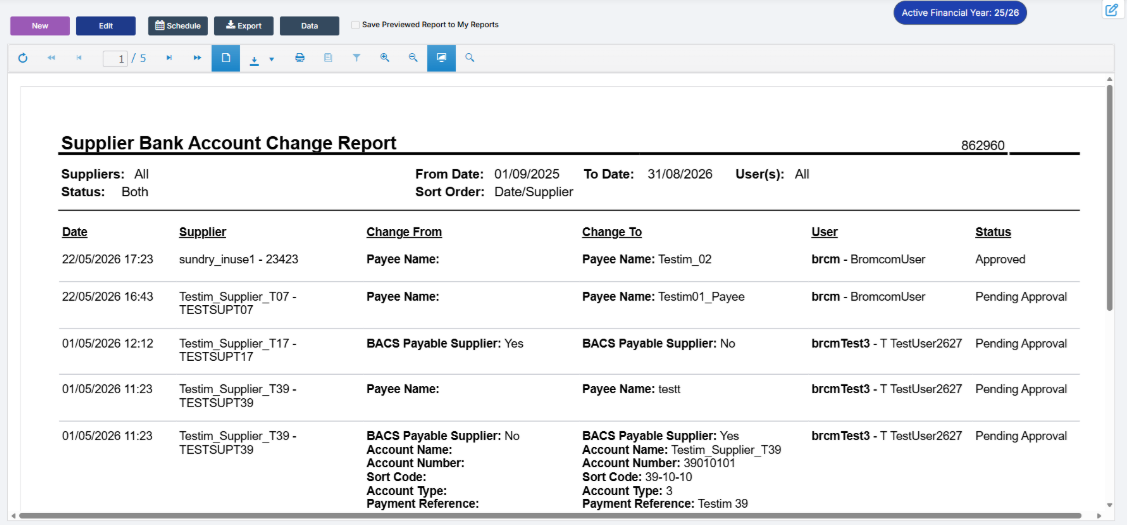
The Supplier Change Report allows Users to review changes made to Supplier Bank Account details, the date and time of the change, the User who made it, and the previous and new values. Changes to Bank Account numbers, sort codes, account names and account references are also recorded.
On the Batch Payment page, a Supplier Change Report button provides quick access to the Report during payment processing. When opened from a BACS Run, the selected Suppliers are automatically populated in the report criteria.
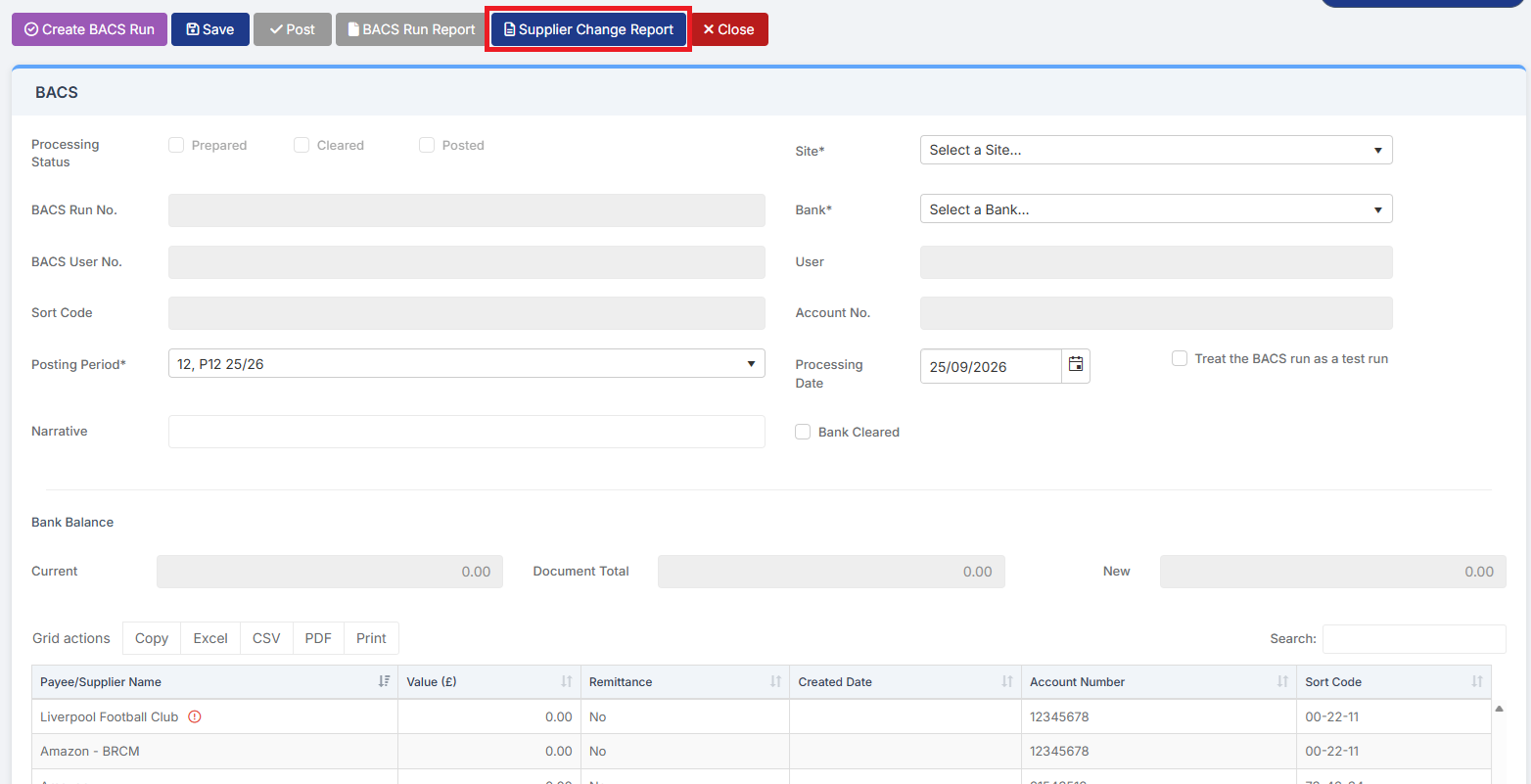
Suppliers whose Bank Account details have changed since the last paid BACS Run are highlighted with a Warning Indicator. This does not prevent proceeding with a Payment. Selecting the Indicator displays a recommendation to review the Supplier Change Report before proceeding with the Payment.
