In this guide, we show How to Configure and Check Superannuations in the Finance Module.
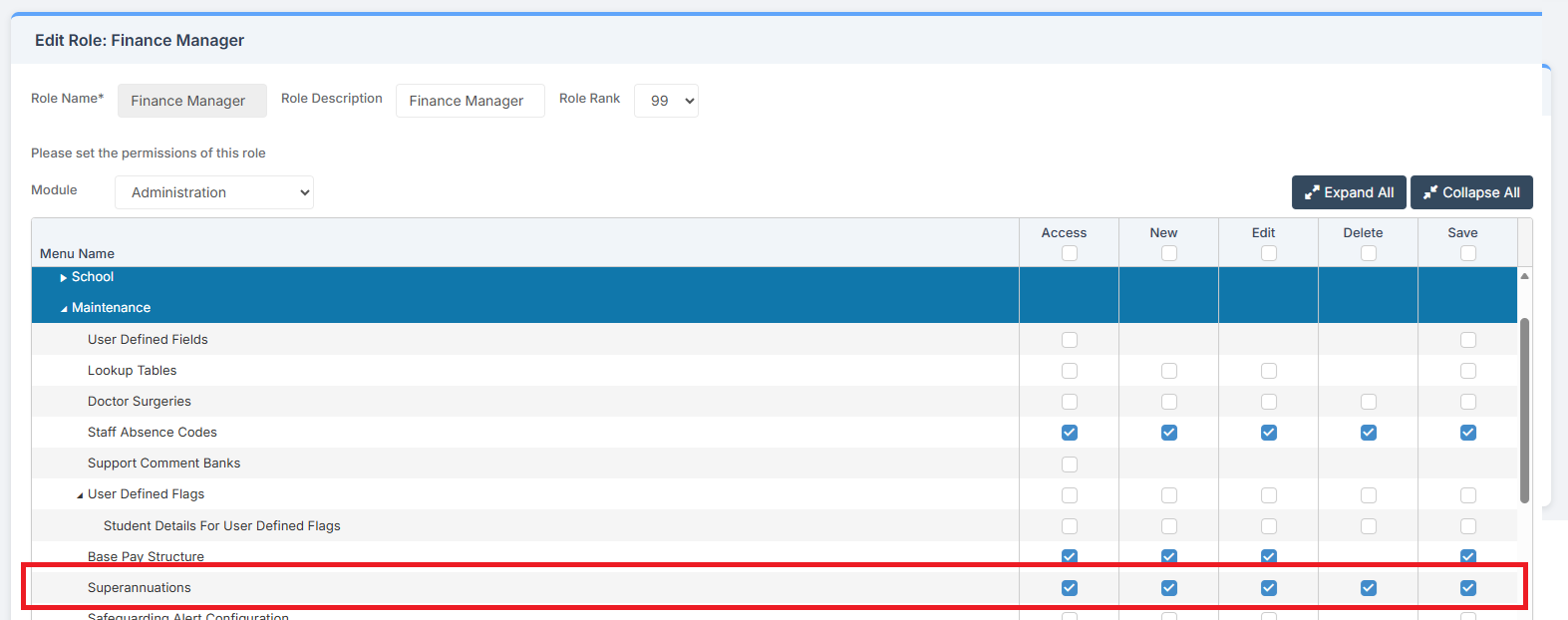
Access: The minimum permissions required to Configure and Check Superannuations are found in the Finance Module section Config > Setup > Roles & Permissions.
Related Guides:
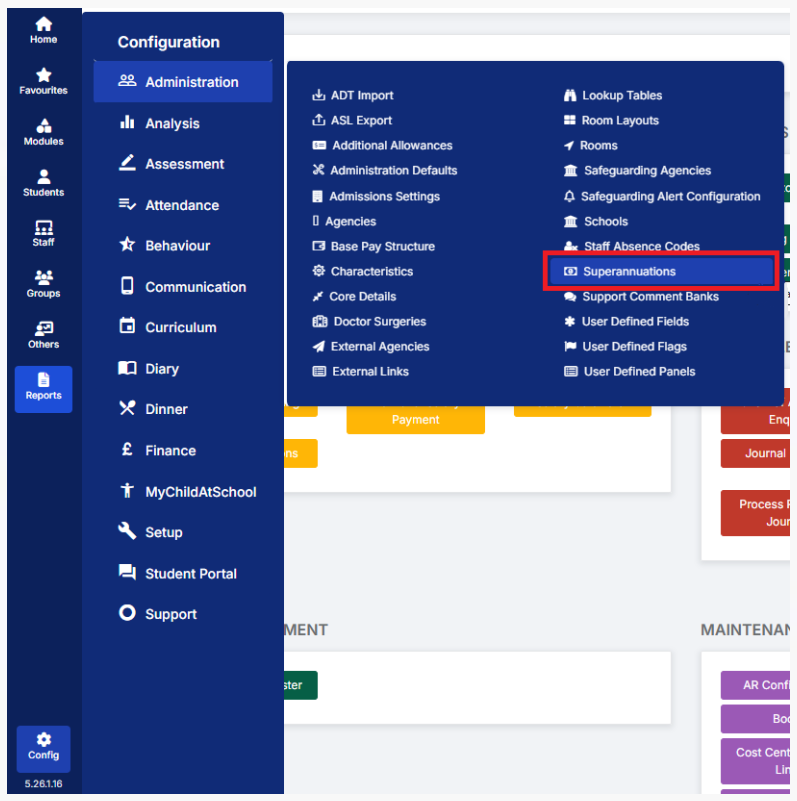
To begin, go to Config > Administration > Superannuations.
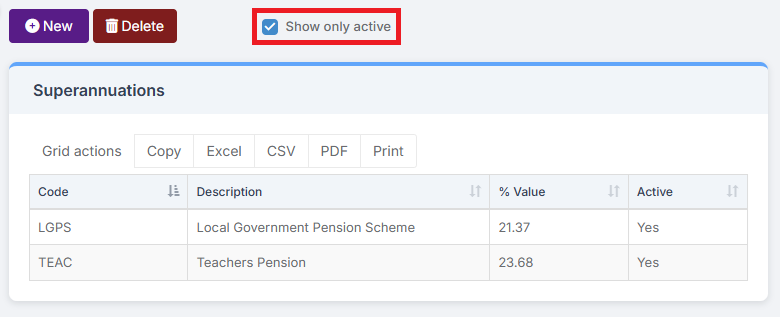
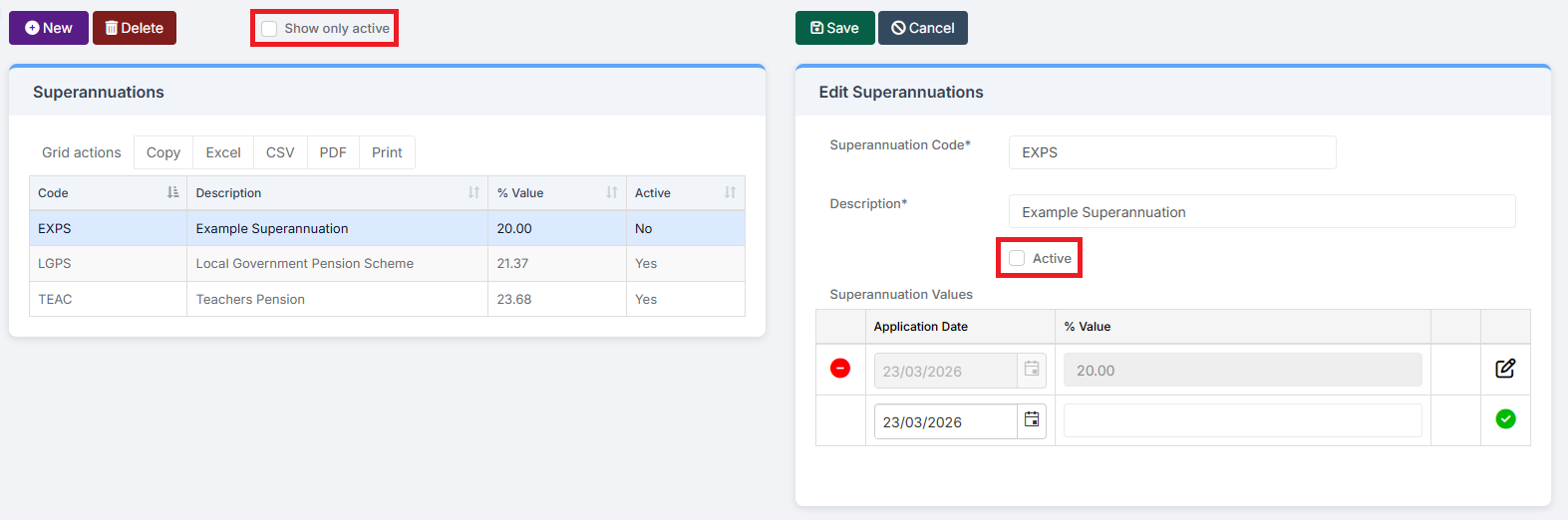
Selecting Show only active ensures only Active Superannuations are displayed.
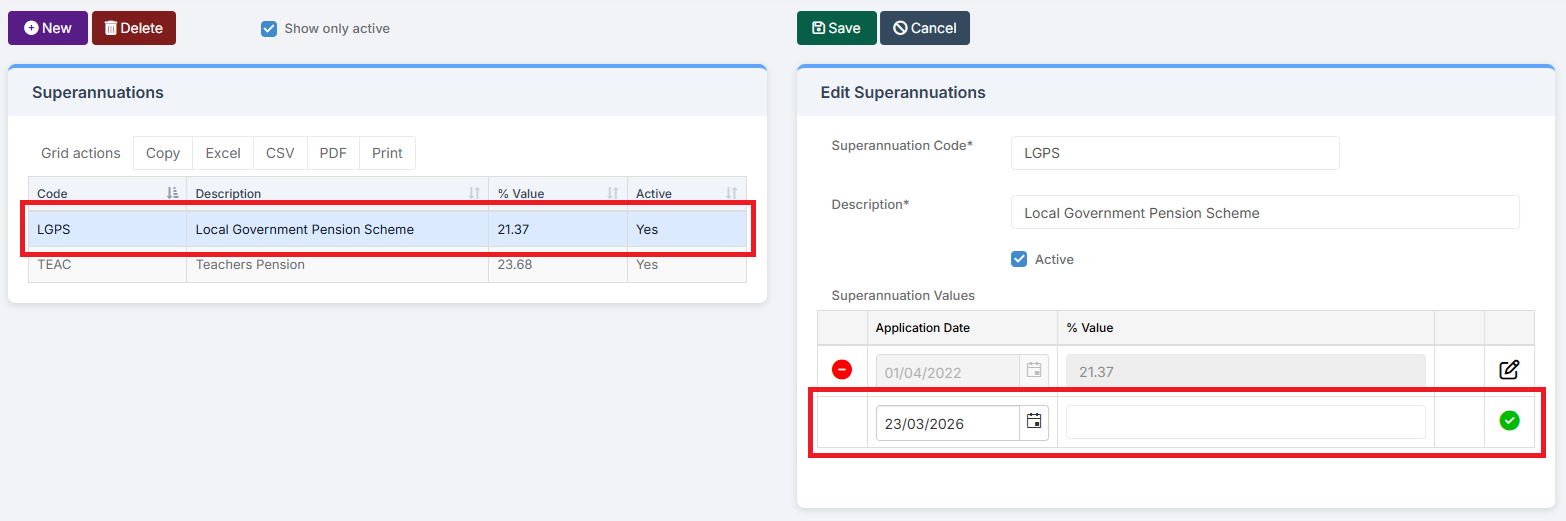
To Adjust a Superannuation amount, select the Superannuation, and then in the Edit Superannuations section on the right, select the Application Date and add the new amount under % Value. Click the Green Tick to set the new amount.
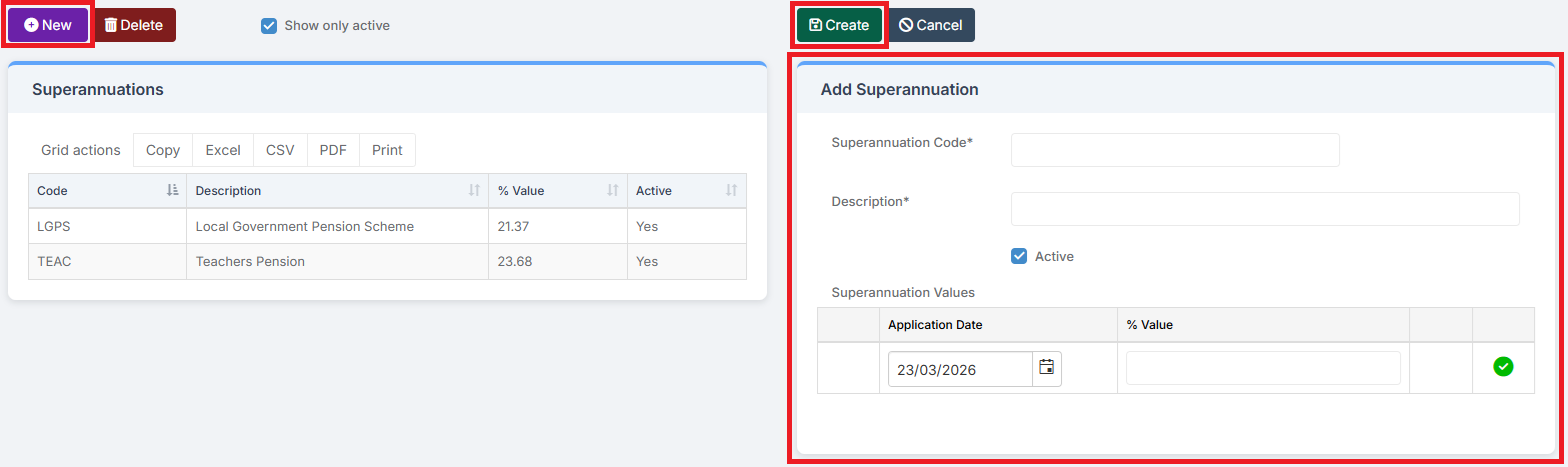
To Create a New Superannuation, click on New, then add the required information in the Add Superannuation box. Then click Create.
To make a Superannuation Inactive, untick the Active tick box in Edit Superannuations section on the right. If made Inactive, the Superannuation will only show in the Superannuations section on the left if the if Show only active is unticked.
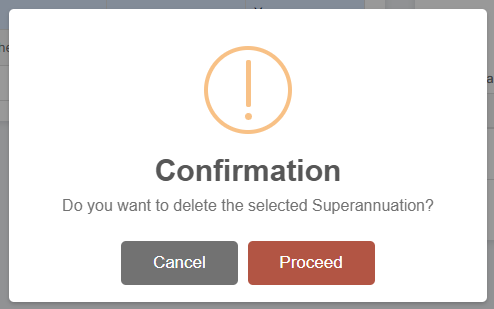
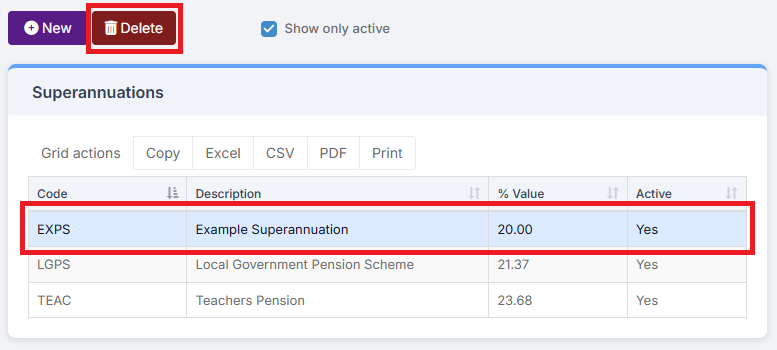
To Delete a Superannuation, select the Superannuation and then click Delete.
Either Proceed or Cancel.