
In this guide, we show How to Manage Ledger Codes in MAT Finance.
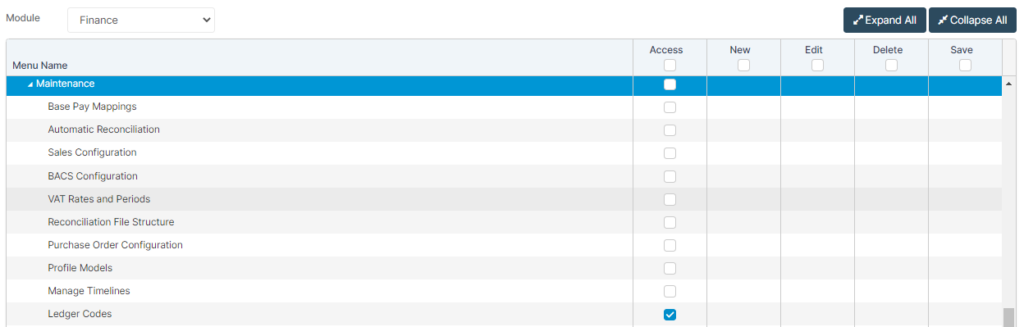
Access: The minimum permissions required to Manage Ledger Codes is found in the Finance Module section of Config > Setup > Roles & Permissions.
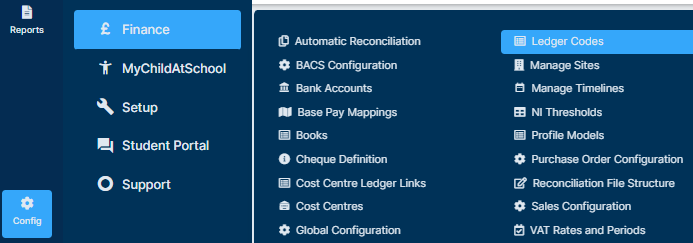
To begin, from the left Menu, go to Config > Finance > Ledger Codes.
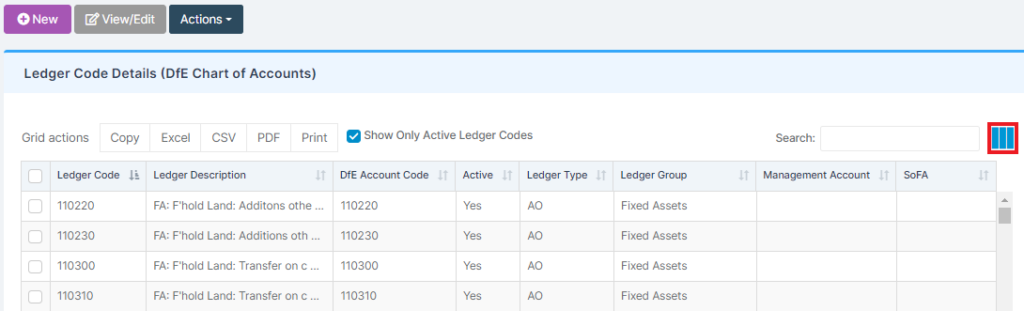
This shows the Ledger Codes already in the system which were provided as part of the setup.
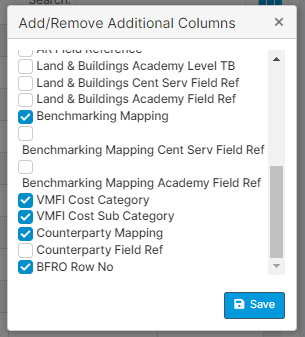
There is the option here to pick which information to view by selecting the Add/Remove Columns button.
This helps for reporting purposes, for instance BFR and Benchmarking.
When selections have been completed, press Save.
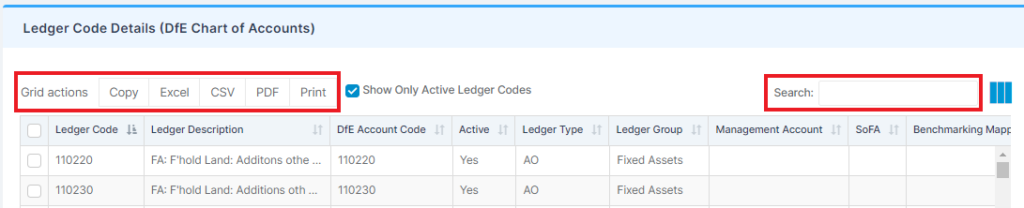
The Ledger Codes Grid can be exported at any time from the Grid Actions.
The Search feature can be used to look for a Ledger Number, Type or Description.
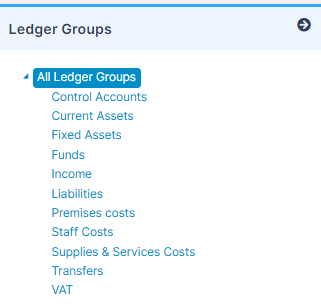
Ledger Groups can also be used as filters. These are on the right-hand side of the page.
By default, All Ledger Groups are selected, meaning Ledger Codes from all Ledger Groups show.
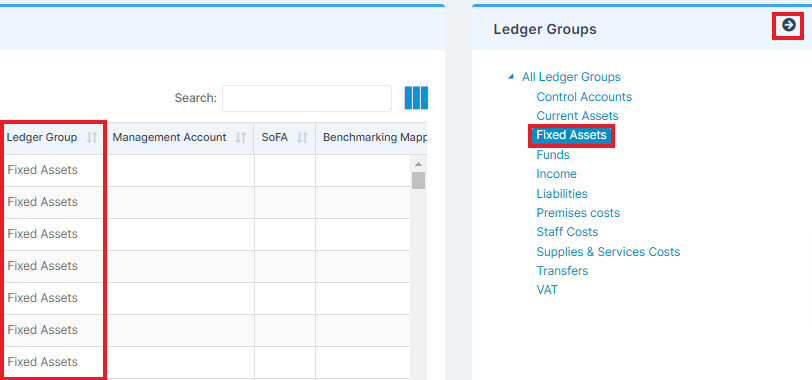
Selecting a specific Ledger Group from the list displays Ledgers Codes that belong to that group only.
This box can also be hidden to allow for a wider view of the table by pressing the right arrow.
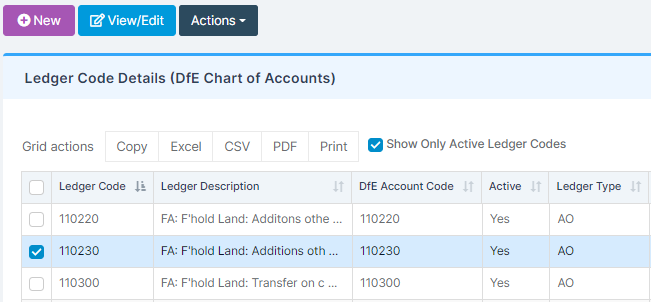
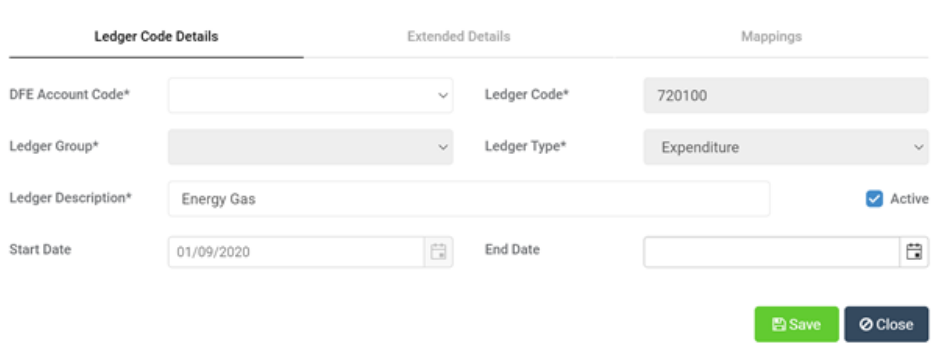
To Edit an existing Ledger, tick it within the list and then press View/Edit.
From here it is possible to edit the Ledger Details, Extended Details and Mappings by working through the tabs at the top and selecting Save.
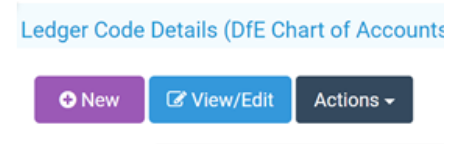
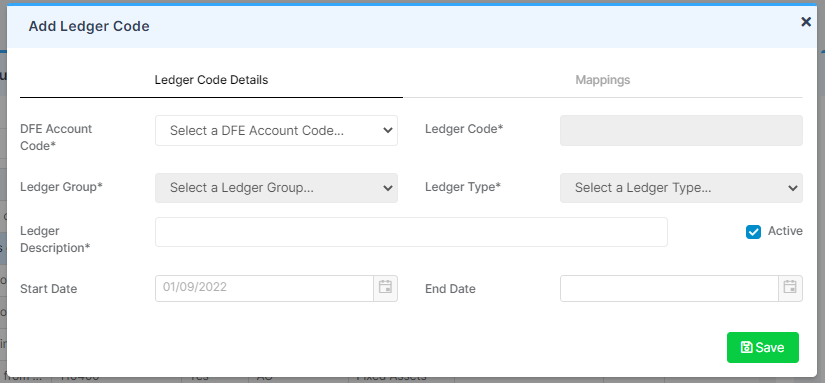
To create an additional Ledger Code, press New.
Complete the details as above and Save.
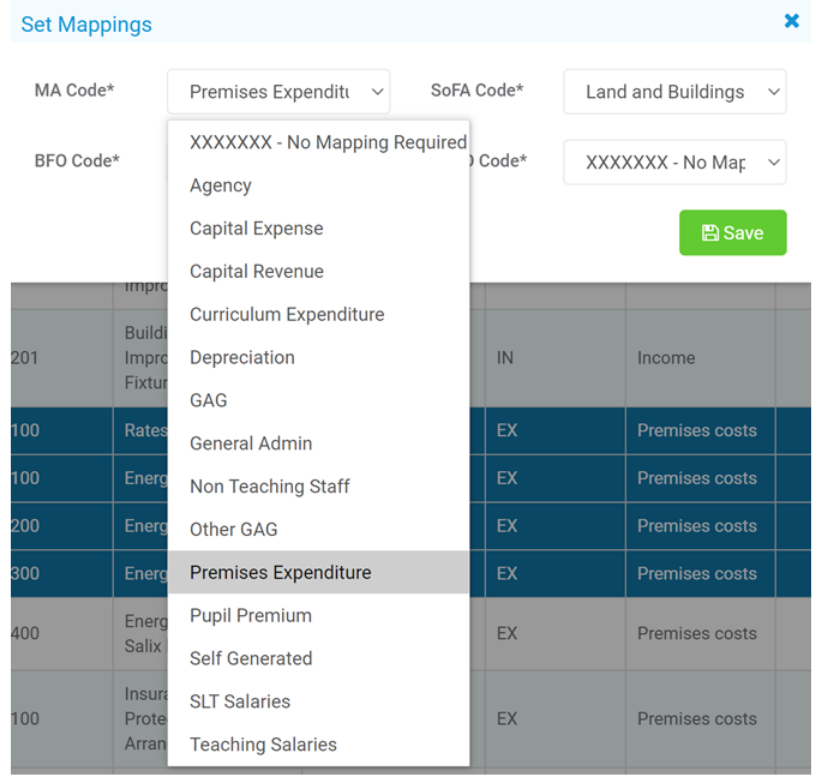
To update multiple Mappings, select the relevant Ledger Codes from the list, then select Actions > Set Mappings.
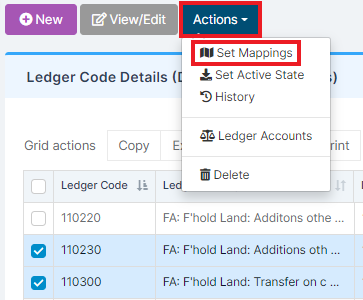
Select the Mappings from the dropdown list and select Save.
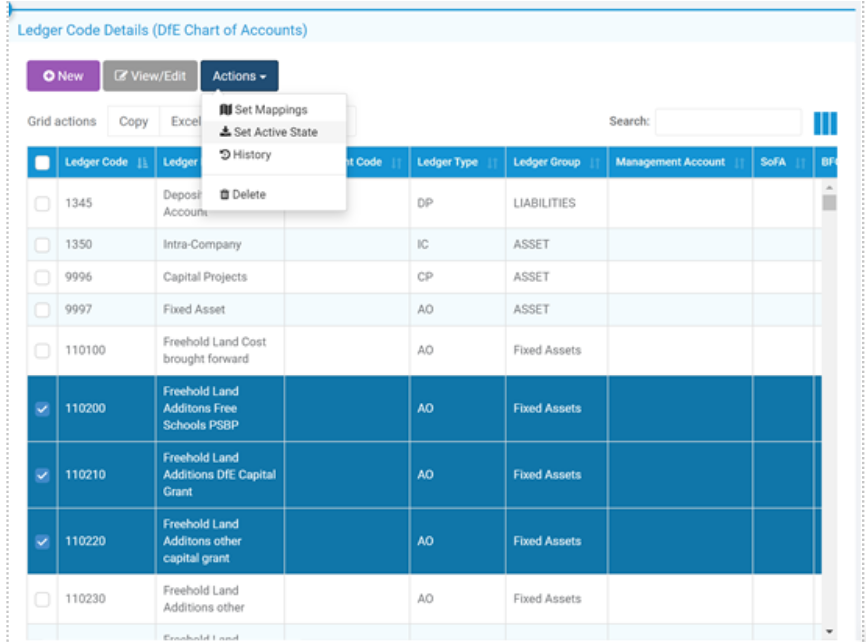
To set Ledger Codes as Active/Inactive, select the Ledger Code(s) to change, go to Actions, and then select Set Active State.
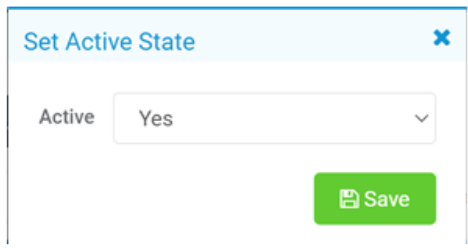
Update their status and select Save.
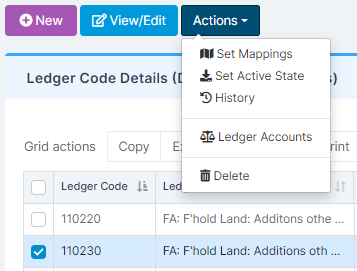
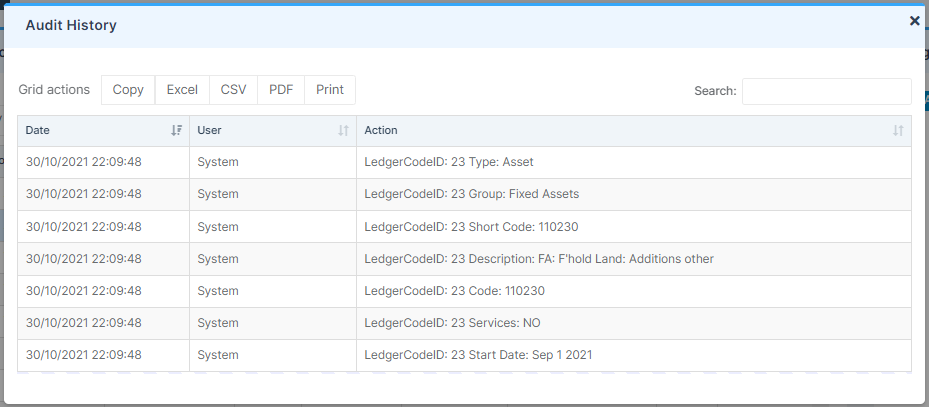
To view the History of a single Ledger Code, select it then click Actions > History.
This gives a breakdown of the changes made to the Ledger Code. It is exportable as before.
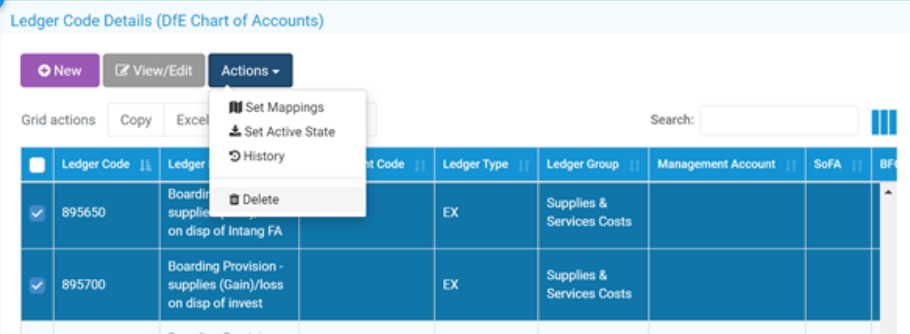
To Delete an unused Ledger Code(s), select the relevant Ledger Codes then select Actions and Delete.
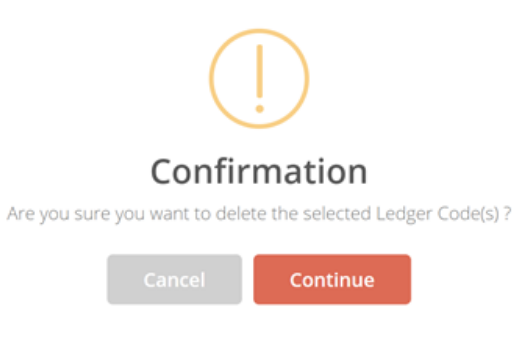
To confirm Deletion of the Ledger Codes, select Continue.
Note: It is not possible to delete a Ledger Code if it has been Mapped or Linked to a Cost Centre .