In this guide, we show How to Post Income Receipts in the MAT Finance Module.
This can be used for when Cash and/or Cheques are received in school, prior to them being banked, and for income that goes straight into the Bank Account via BACS.
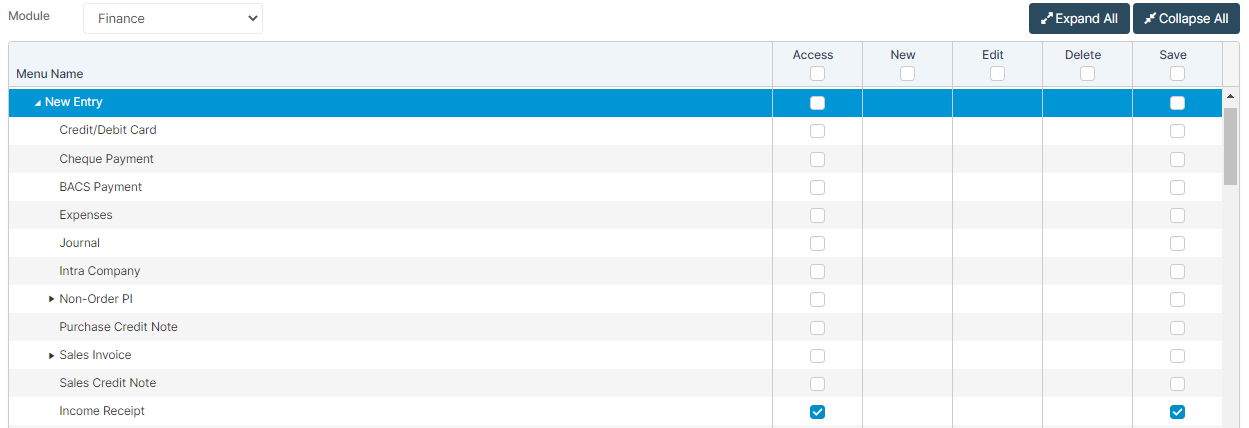
Access: The minimum permissions required to Post Income Receipts are found in the Finance Module section of Config > Setup > Roles & Permissions.
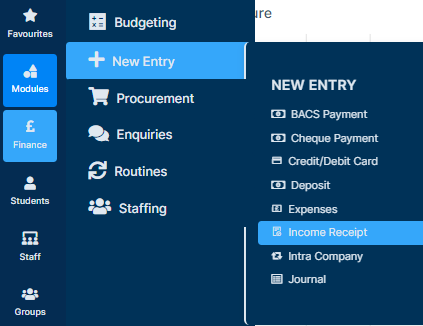
To begin, from the left Menu, go to Finance > New Entry > Income Receipt.
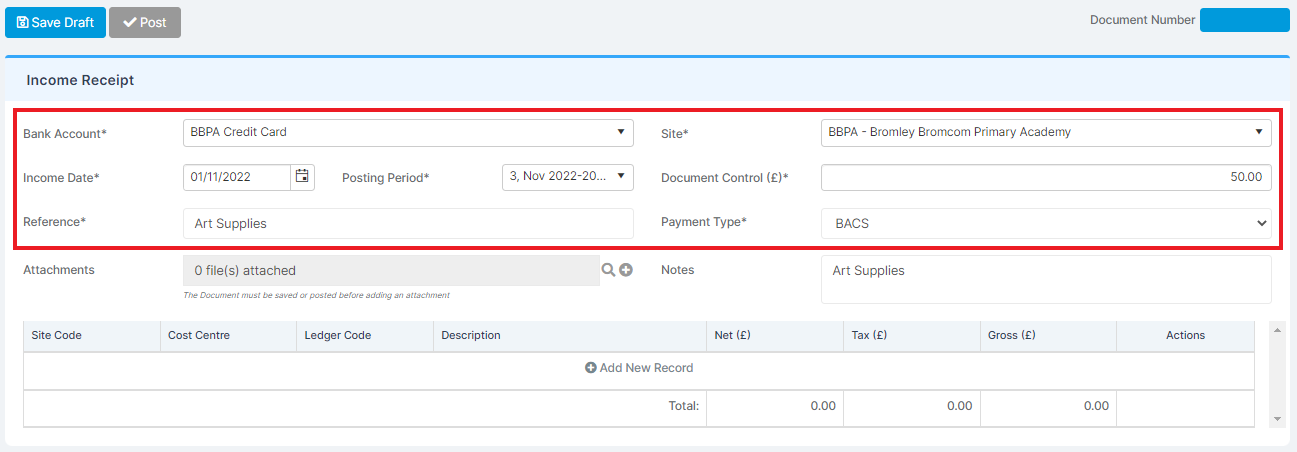
Complete all of the required fields: Bank Account (BACS and Bank Transfer Payment Types only), Site, Income Date, Document Control, Reference and Payment Type.
If unsure which Payment Type to select, BACS is for items paid by Bank Transfers. Cash/Cheque is for items paid by Cash and/or Cheque.
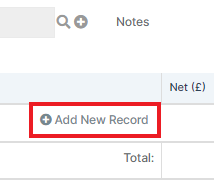
Once all the fields are complete, press Add New Record.
Complete all the required fields within the record: Cost Centre, Ledger Code, Description and Net amount.
Use the Tick in the Actions column (located on the right of the line) to add the record.

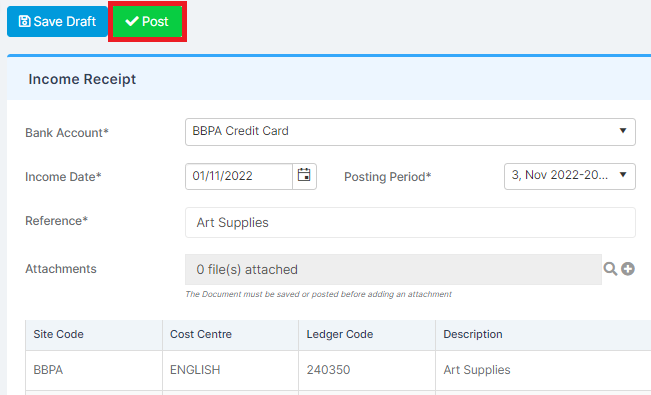
Once completed, press Post.
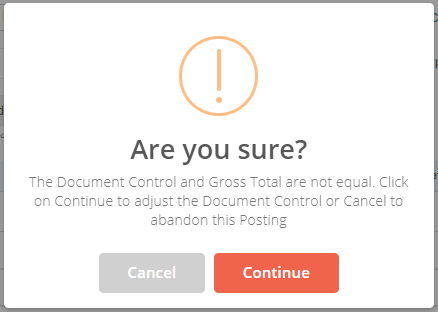
If sure, press Continue.
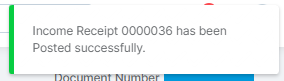
A notification is displayed in the top right of the page stating that the Income Receipt has been Posted Successfully.